You exported a beautiful PDF, emailed it to forty people, and half of them never opened it. The file was too heavy, the pages loaded slowly on a phone, and nobody wanted to pinch and scroll through a rigid document. Turning that same PDF into a flip book fixes all of it: the pages turn like paper, the file opens in any browser, and you get a link you can paste anywhere. With Flipbooks AI, the whole process takes a few minutes and the output never carries a watermark.
This article walks through exactly how a PDF into flip book conversion works, what the page-flip effect actually does for readers, how to embed the result on a website, and how to share it with a link or a password. You will also find comparison tables, real examples, and a short list of mistakes that waste people's time.
Why Turn a PDF Into a Flip Book?
A PDF is a great format for printing and archiving. It is a poor format for reading on a screen. It downloads before it displays, it ignores the device it opens on, and it gives you no idea whether anyone read past page one.
A flip book keeps your layout, fonts and images exactly as designed, then wraps them in a viewer that behaves like a printed publication. Readers click or swipe to turn pages, zoom into details, and never install anything.
PDF vs Flip Book at a Glance
| Feature | Plain PDF | Online Flip Book |
|---|
| Opens in browser without download | Sometimes, and slowly | Yes |
| Page-turn animation | No | Yes |
| Works on phones and tablets | Needs pinching and scrolling | Responsive viewer |
| Embeds on a website | Awkward link or plugin | Simple embed code |
| Password protection | Limited, file level | Per flipbook |
| Reader analytics | None | Available on the Professional plan |
| Video and audio inside pages | Rarely works | Supported |
| Branding control | Fixed to the file | Colors, logo, background |
💡 Pro tip: Keep your original PDF. The flip book is a presentation layer, so you can always update the source file and republish without redesigning anything.
Who Gets the Most Value
Almost anyone who publishes pages benefits, but a few groups see the difference right away:
- Restaurants and cafes that change menus every season.
- Retailers and wholesalers sending product catalogs to buyers.
- Real estate agents sharing property brochures with clients.
- Photographers and designers presenting portfolios.
- Schools and training teams distributing manuals and newsletters.
- Marketing teams publishing magazines, lookbooks and annual reports.
How to Create a Flip Book with Flipbooks AI
This is the fastest path from a finished PDF to a live, shareable flip book. The PDF to Flipbook Converter handles the heavy lifting, and you only make the design choices that matter.
Step 1: Upload and Convert
- Go to Flipbooks AI and create an account. It takes under a minute.
- Click the button to create a new flipbook.
- Drag your PDF into the upload area, or pick the file from your computer.
- Wait while the pages are processed. Each page becomes a sharp, zoomable image inside the viewer.
- Check the preview. Flip through every page to confirm nothing is cropped or out of order.
Most files finish converting in seconds. A 100-page catalog with heavy photography takes a little longer, which is normal.
⚠️ Warning: Export your PDF at a sensible size before uploading. A file packed with uncompressed 600 DPI photos will convert, but your readers will wait longer for each page to load.
Step 2: Customize the Look
Once the pages are in, you choose how the flip book presents itself:
- Branding: add your logo and match the viewer to your brand colors.
- Background: pick a solid color, a soft gradient, or an image that suits the content.
- Page effects: adjust the page-turn animation and sound if you want a more tactile feel.
- Multimedia: drop in videos, audio clips and clickable links on top of specific pages.
- Toolbar: decide whether readers can zoom, print, download or go full screen.
Keep the design restrained. The content is the star, and the viewer should stay out of its way.
Step 3: Publish and Share
- Press publish to generate your unique flipbook link.
- Copy the link, or grab the embed code for your website.
- Add a password if the content is private.
- Send the link by email, post it on social media, or add it to a QR code on printed material.
✅ Best practice: Open your published link on a phone before sending it. A thirty-second check catches 90 percent of layout surprises.
You can compare all plan limits on the pricing page before you publish a large library.
How the Page-Flip Effect Works
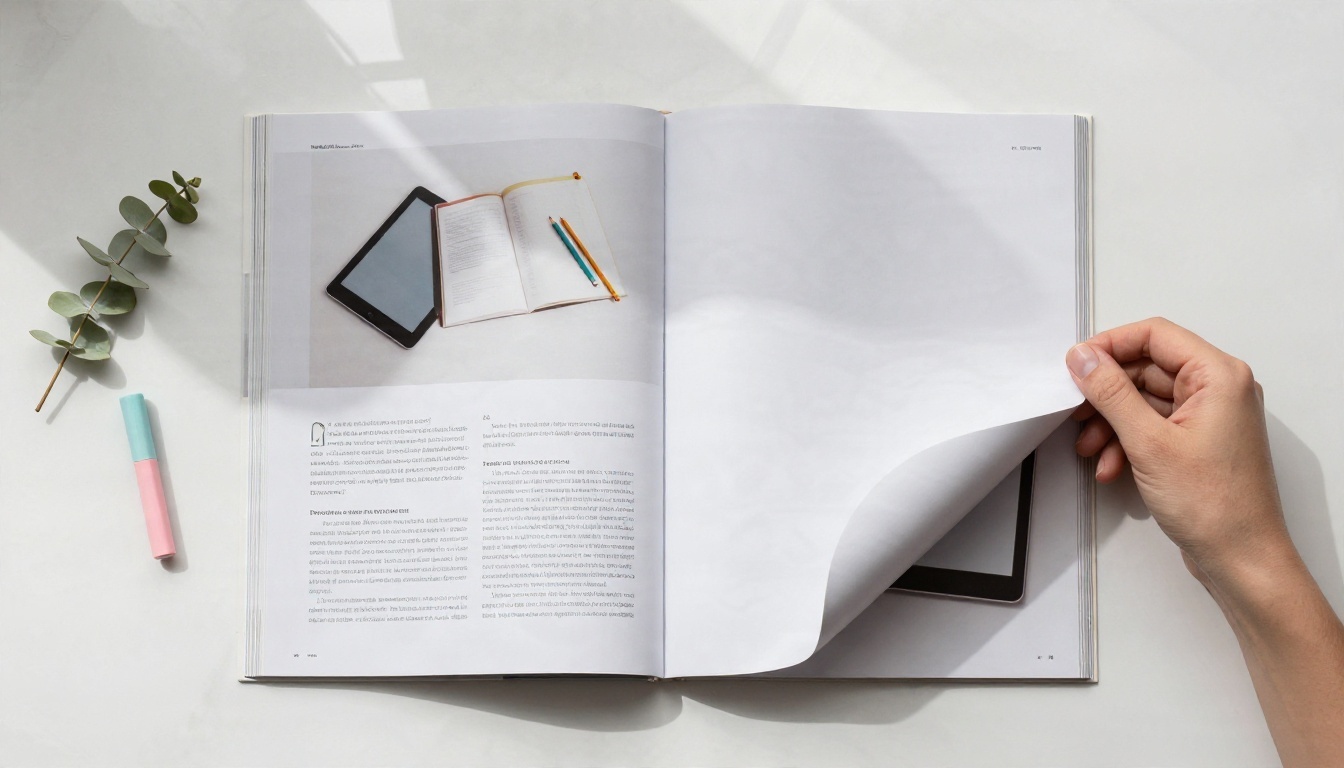
The page-flip effect is the visual signature of a flip book. When a reader clicks the edge of a page or swipes across it, the page curls and turns with a soft shadow, just like a printed magazine on a table. It is not a gimmick. It gives readers a familiar rhythm, and that familiarity keeps them reading.
Realistic Page Turns
The viewer displays your pages as a double-page spread on wide screens, so a magazine layout reads the way the designer intended. Page curl, depth shadow and an optional paper sound make the turn feel physical.
Why does it matter in practice?
- Readers move forward page by page instead of skipping to the end.
- Spreads with a photo across both pages stay intact.
- Printed-style layouts such as lookbooks and brochures keep their character.
Mobile and Touch Behavior
On a phone, the viewer switches to a single-page layout that fills the screen. Readers swipe to turn, double tap to zoom, and rotate the device for a wider view. You do not build a separate mobile version. The same flip book adapts on its own, which is what mobile-responsive design means in real use.
| Device | Layout | Typical Reader Action |
|---|
| Desktop | Double-page spread | Click page edges, use arrow buttons |
| Tablet | Spread or single page | Swipe and pinch to zoom |
| Phone | Single page | Swipe, double tap, rotate |
Embed and Share Your Flip Book
Publishing is only half the job. A flip book earns its value when people actually find it, and that means putting it where your audience already is.
Copy the Embed Code
Embedding places the flip book directly inside a page of your site, so visitors read it without leaving. The process is short:
- Open your published flipbook and click the embed option.
- Copy the generated code snippet.
- Paste it into an HTML block on your website, whether that is WordPress, Shopify, Wix, Squarespace or a custom build.
- Save the page and reload it to confirm the viewer appears.
The Embed Flipbook on Website tool lists the details for each platform if you want a closer look.
Keep It Responsive
A fixed-width embed looks fine on your laptop and broken on a phone. Avoid that with a few habits:
- Set the embed width to 100 percent of its container.
- Give the height a reasonable minimum, around 600 pixels for most layouts.
- Place the flip book inside a full-width section rather than a narrow sidebar.
- Test on at least one phone and one tablet.
Direct Links and Passwords
Not every flip book belongs on a public page. A direct link is the simplest option, and a password turns it into a private document.
| Sharing Method | Best For | Privacy Level |
|---|
| Direct link | Email, chat, social posts | Anyone with the link |
| Embed on website | Public catalogs, menus, portfolios | Public |
| Password protected link | Contracts, internal reports, client proposals | Restricted |
| QR code on print | Posters, packaging, event signs | Same as the link behind it |

💡 Pro tip: Put a QR code that points to your flip book on table cards, flyers and shop windows. When you update the flipbook, the QR code keeps working.
Free Converter or Paid Plan?
You can start with the free converter and see your own PDF in flip book form before spending anything. Try it free and decide later whether you need more.
What Each Feature Needs
Plans change over time, so treat the pricing page as the final word on limits. The general pattern looks like this:
| Feature | What It Does | Plan Note |
|---|
| No watermark | Your pages stay clean | Always, on every plan |
| Unlimited flipbooks | Publish as many as you need | Standard plan and above |
| Custom branding | Logo, colors, backgrounds | See pricing page |
| Password protection | Restrict who can read | See pricing page |
| Video and audio | Play media on a page | See pricing page |
| Offline downloads | Let readers save a copy | See pricing page |
| Analytics and lead generation | Track readers, capture emails | Professional plan |
Analytics and Lead Capture
The Professional plan adds the tools that turn a flip book into a business asset. You see how many people opened it, which pages held attention, and where they dropped off. You can also place a lead form before the content, so a sales brochure collects an email address in exchange for access.
A quick example: a furniture wholesaler sends a catalog to 200 retailers. With analytics, they notice that buyers spend the most time on pages 14 to 18, the outdoor range. The next catalog opens with that range. That kind of decision is impossible with a plain PDF attachment.
Real Examples That Work
Abstract advice only goes so far. Here is how real teams use the PDF to flip book workflow every week.
A Restaurant Menu That Updates Fast
A neighborhood cafe redesigns its menu each season in a design tool and exports a PDF. Instead of reprinting and replacing table cards, the owner uploads the new file and shares one link and one QR code. Customers see the latest dishes instantly. The Restaurant Menu Creator is built for exactly this, and the Menu Flipbook Designer offers more layout freedom.
A Property Brochure for Buyers
A real estate agent has a 24-page brochure with floor plans, photos and neighborhood details. As a flip book, buyers can zoom into the floor plan on their phone while standing outside the house. The Real Estate Brochure Creator keeps the layout polished, and a password link works for off-market listings.
A Training Manual for New Hires
A logistics company converts its onboarding manual into a flip book, adds short videos on the safety pages, and embeds it in the staff portal. New hires open it on any device, and managers can update a single file without chasing outdated copies. See the Training Manual Flipbook tool for this format.
Which Tool Fits Your PDF?
You can browse every option in the tools directory.
Common Mistakes to Avoid
Most disappointing flip books fail for the same few reasons. Check this list before you publish.
- Uploading a low-resolution PDF. Blurry source pages stay blurry. Export at a clean 150 to 200 DPI for screen reading.
- Ignoring page order and orientation. A single rotated page looks sloppy inside a spread. Check the preview.
- Using tiny body text. Print layouts with 7 point type become unreadable on a phone. Increase the type size in the source file when possible.
- Forgetting the title page. The first page is the shop window. Make it clean and inviting.
- Skipping the phone test. Always open the final link on a real phone.
- Leaving private files public. If the content is internal, add a password before you share the link.
- Burying the link. Place the embed or the share link where readers will see it, such as the homepage, email signature or a QR code.
✅ Best practice: Name the flip book clearly, for example "Autumn Menu 2026" instead of "final_v3". It helps both readers and your own library.
A Short Pre-Publish Checklist
- Pages are in the right order.
- Images look sharp when zoomed.
- Links inside the pages open correctly.
- Branding matches your site.
- Password is set when needed.
- The embed looks right on a phone.
Ready to Turn Your PDF Into a Flip Book?
You already have the hardest part: the content. The rest is a few clicks. Get started for free on Flipbooks AI, upload your PDF, and watch it become a readable, shareable flip book with a real page-flip effect, an embed code and a link that works on every device.
Want to see which plan suits your project? Compare pricing plans or jump straight to the account page to pick one. If you are still deciding on a format, browse all tools and templates and choose the one closest to your document.
Your next PDF does not have to sit unread in an inbox. Publish it as a flip book and give readers something they actually want to open.



