You built a clean slide deck, and now comes the awkward part: how do you attach a PDF so people can actually open it? A PDF link in PowerPoint looks like a one-minute job, yet it fails more often than almost any other slide feature. The link points to a folder on your laptop, a colleague clicks it, and nothing happens. This article shows how to link to a file, how to build clickable slides, and how to share the finished presentation online so every link keeps working. Along the way you will see where Flipbooks AI fits in when you want a shareable, trackable version of your deck without sending heavy email attachments.
What a PDF Link Actually Does
Before you click anything, it helps to know what PowerPoint stores when you add a link. A link is only a pointer. It does not copy the PDF into your presentation. It remembers a location, either a path on a disk or a web address, and asks the operating system to open whatever is there.
That single fact explains most of the frustration people run into. If the pointer leads to C:\Users\You\Documents\price-list.pdf, it works on your machine and nowhere else.
Link, Embed, or Attach
PowerPoint gives you three ways to bring a PDF into a deck. Each one behaves differently once the file leaves your computer.
| Method | How it works | File size impact | Works on other devices? | Best for |
|---|
| Hyperlink to a file | Stores a path to the PDF | None | Only if the path is reachable | Local presentations on one laptop |
| Hyperlink to a web URL | Stores an online address | None | Yes, with internet | Shared decks, remote viewers |
| Embedded object | Packs the PDF inside the .pptx | Grows by the PDF size | Yes, on desktop PowerPoint | Offline use, single-file delivery |
Pick the Right Method
Ask yourself two questions. Who will open the deck, and will they have internet access?
- Presenting from your own laptop: a file hyperlink is fine.
- Sending the .pptx to clients: use a web URL or an embedded object.
- Publishing the deck online: convert it to a PDF, then to a flipbook, and put the web link on your slides.
💡 Pro tip: When in doubt, use a web link. A URL survives email forwarding, cloud sync, and device changes far better than a folder path.
How to Link a PDF in PowerPoint
The steps below apply to current desktop versions of PowerPoint on Windows and Mac. Menu names can shift slightly between releases, but the logic stays the same.
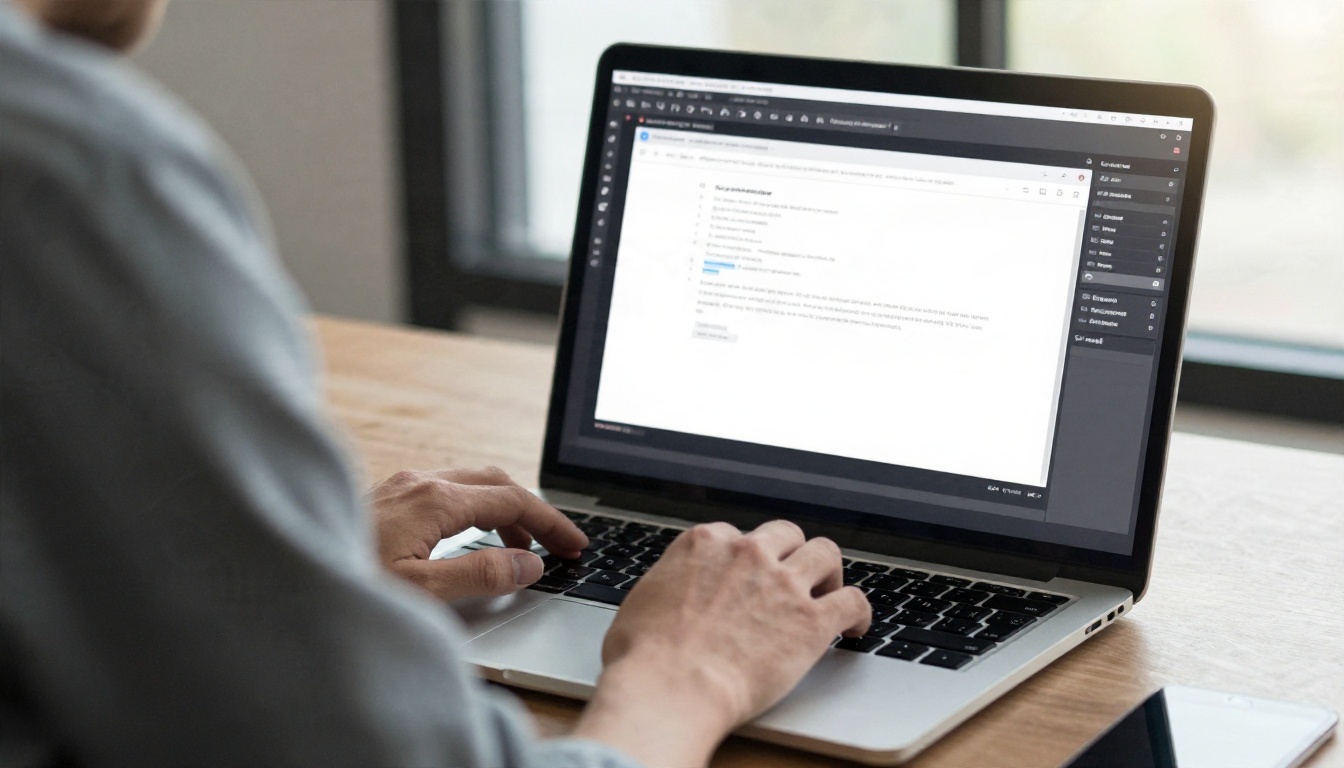
Link Text or a Shape
This is the fastest route and the one most people need.
- Open the slide where the PDF should be reachable.
- Select a piece of text, a shape, or a picture. A rounded rectangle labeled "Open price list" works well because it looks like a button.
- Press Ctrl+K on Windows or Cmd+K on Mac. You can also go to Insert > Link.
- In the dialog, choose Existing File or Web Page.
- Browse to the PDF, or paste a web address if the file is hosted online.
- Click OK.
The text now shows an underline and picks up the theme's hyperlink color. A shape keeps its look, which is usually cleaner.
⚠️ Warning: Links only open in Slide Show mode, or with a Ctrl+click in the editing view. A single click in the normal editor just selects the object.
Use an Action Button
Action settings give you more control over what happens when the audience clicks, and they work on any object.
- Select the shape or picture.
- Go to Insert > Action.
- Under Mouse Click, pick Hyperlink to and choose Other File from the dropdown.
- Select the PDF and confirm.
Use the Mouse Over tab only if you want hover behavior. For a PDF, a click is the safer choice, because accidental triggers during a talk are embarrassing.
Embed the PDF as an Object
If the PDF must travel inside the presentation file, embed it.
- Go to Insert > Object.
- Choose Create from file and browse to your PDF.
- Tick Display as icon so the slide shows a small PDF icon instead of a distorted first page.
- Click OK, then resize the icon.
Double-clicking the icon opens the PDF in the viewer installed on that computer. Two limits apply. The .pptx grows by the size of the PDF, and PowerPoint for the web does not play embedded objects. Treat embedding as a niche tool, not the default.
Make Slides Clickable
A PDF link is only one use of the same feature. Once you know how to attach actions to shapes, you can turn a linear deck into something closer to an app.
Build a Clickable Table of Contents
Long decks feel shorter when the audience can jump around. Here is a simple setup:
- Create an agenda slide with a button for each section.
- Select a button, press Ctrl+K, and choose Place in This Document.
- Pick the target slide and click OK.
- Repeat for every section.
- On each section's last slide, add a Back to agenda button that links to slide 2.
This pattern suits sales decks, onboarding material, and training modules. A presenter can answer a question about pricing by jumping straight to that section instead of paging through twenty slides.
Test Everything in Slide Show
Run through the deck from the first slide with F5. Click every button. Then close PowerPoint, reopen the file, and test again. Many broken links only show up after a restart, because PowerPoint resolves paths freshly on each launch.
A short checklist helps:
- Every button opens the right target.
- Every Back button returns to the right slide.
- External links open the right page or PDF.
- Hyperlinked text is readable against its background.
- Nothing important sits under the slide's footer or logo, where clicks might be blocked.
Why Local PDF Links Break
Here is the scenario that sends most people searching for answers. You link to a PDF, save the deck, email it, and the recipient reports a "cannot open the specified file" message.
Relative and Absolute Paths
PowerPoint can store a link as an absolute path or a relative one, and it does not always tell you which.
| Path type | Example | What happens when you move files |
|---|
| Absolute | C:\Clients\Acme\brochure.pdf | Breaks on any other computer |
| Relative | brochure.pdf (same folder as the deck) | Works if both files stay together |
| Network path | \\server\share\brochure.pdf | Works only on that network |
| Web URL | https://example.com/brochure.pdf | Works anywhere with internet |
If you must use a file link, place the PDF in the same folder as the .pptx before you insert the link. Then send both files in a single zipped folder. It is clumsy, but it works.
Use Cloud Links Instead
A much better answer is to upload the PDF somewhere with a stable address and link to that.
- Cloud storage: OneDrive, Google Drive, or Dropbox share links work, though recipients may hit a permissions screen if you forget to set access.
- Your own website: a direct PDF URL is predictable, but visitors get a plain download with no branding.
- A flipbook link: the PDF becomes a page-turning web experience at its own address, with options for passwords and analytics. More on this below.
✅ Best practice: After adding any web link, open it in a private browser window. If it loads there, it will load for your audience.
Export PowerPoint to PDF With Live Links
Many presenters skip the .pptx entirely and send a PDF of the deck. The good news is that hyperlinks survive the export when you do it correctly.
Save as PDF Step by Step
- Go to File > Save As (or File > Export).
- Choose PDF as the file type.
- Click Options and make sure Document structure tags for accessibility is ticked. This setting also helps links stay active in many viewers.
- Choose Standard quality if the PDF will be shared online, or Minimum size for email.
- Save the file.
Text links, shape links, and slide-to-slide links normally remain clickable in the PDF. Action settings are less predictable, so rely on standard hyperlinks when the deck will become a PDF.
Check Links After Export
Open the PDF in a browser, then in a desktop reader. Hover over each button. If the pointer turns into a hand, the link survived. If not, go back to PowerPoint and replace that action with a standard link using Ctrl+K.
Links to local files will still point at your disk, so this is the moment to swap them for web addresses.
| Element | Usually survives PDF export? | Notes |
|---|
| Hyperlinked text | Yes | Most reliable option |
| Hyperlinked shapes | Yes | Test in more than one viewer |
| Internal slide links | Yes | Become page jumps |
| Action settings | Sometimes | Replace with standard links |
| Embedded objects | No | Shown as a static icon |
How to Share Online With Flipbooks AI
A PDF with working links is already a good starting point. The weak spot is delivery. Email attachments get blocked, shared drives ask people to sign in, and you never find out whether anybody opened the file. Turning the PDF into an online flipbook solves those problems, and the PowerPoint link you place on a slide can point straight to it.
The PDF to Flipbook Converter handles the conversion, and the Presentation Flipbook Designer is built for slide decks specifically.

Upload Your PDF
- Export your deck as a PDF using the steps above.
- Go to Flipbooks AI and sign in, or create an account.
- Upload the PDF. Conversion takes moments for most files.
- Preview the flipbook. Each slide becomes a page, and any text links from your deck remain clickable.
Customize the Look
Once the flipbook exists, adjust it so it matches your brand:
- Custom branding: add your logo and choose a background that suits your slides.
- Colors: match the toolbar and accents to your template.
- Page effects: keep the page-turn animation or simplify it for a more formal feel.
- Multimedia: embed videos and audio where a slide would otherwise need a separate file.
The result is mobile-responsive, so the same link works on a phone, a tablet, and a laptop. No watermarks are added, which matters when the deck goes to clients.
Share and Protect
You have several ways to hand the flipbook to your audience:
- Direct link: paste it into an email, a chat, or a button inside PowerPoint.
- Embed code: place the flipbook on a page using the Embed Flipbook on Website option.
- Password protection: limit access to people you have given the password, which suits pricing sheets and internal material.
- Offline download: let readers save a copy when they will be without a connection.
💡 Pro tip: Paste the flipbook URL into a button on your final slide, labeled "View the full deck online." Anyone who receives the .pptx gets a link that never breaks.
Track Who Reads It
On the Professional plan, analytics and lead generation show how people interact with your flipbook. That includes which pages hold attention and who left contact details. Check the pricing plans to see which tier fits, since unlimited flipbooks start with the Standard plan.
| Sharing method | Setup effort | Link stays valid | Branding | Tracking |
|---|
| Email attachment | Low | No, it is a copy | None | None |
| Cloud storage link | Low | Yes, until permissions change | Limited | Basic |
| Direct PDF on a website | Medium | Yes | None | Depends on your site tools |
| Flipbook link | Low | Yes | Full custom branding | Analytics on Professional |
Real-World Examples
Theory helps, but seeing the setup in practice makes it easier to copy.

- Sales teams: a rep builds a pitch deck with a clickable agenda and a "See pricing" button that opens a flipbook price list. The Sales Presentation tool suits this pattern, and the Digital Price List Generator keeps the numbers current.
- Real estate agents: a listing presentation links each property slide to a full brochure. Agents can build those with the Real Estate Brochure Creator.
- Trainers: a course deck points to a handbook for each module. The Training Manual Flipbook keeps all of that in one place.
- Finance and operations: a quarterly review links to the full report, which can be published with the Report Flipbook Creator.
- Restaurants and hospitality: a catering proposal deck links to the menu through the Restaurant Menu Creator.
In each case, the slide deck stays small and the supporting document lives online, where it can be updated without resending anything.
Mistakes That Break Links
Most failures come from the same handful of habits. Avoid these and you will save yourself a few awkward emails.
- Linking to a Downloads folder. Files in temporary locations get renamed, moved, or deleted.
- Renaming the PDF after linking. PowerPoint will not follow the new name.
- Forgetting permissions on cloud links. The link works for you, since you own the file, and fails for everyone else.
- Testing only in the editor. Use Slide Show mode every time.
- Using tiny click targets. A thin line of underlined text is hard to tap on a phone. Use a large button instead.
- Sending the .pptx when a link would do. Large files bounce, and old versions keep circulating.
⚠️ Warning: If you update the PDF but keep the same filename in the same folder, local links still work. If you replace a hosted PDF with a new URL, every old deck now points at a dead page. Keep addresses stable.
Send Your Slides the Smart Way
A PDF link in PowerPoint is simple once you know what it stores. Use a hyperlink for local presentations, a web address for anything that leaves your computer, and a PDF export when you want a single portable file. Build buttons and a clickable agenda so the deck feels interactive, then test every click in Slide Show mode.
For sharing, move the heavy material online. Create your free account on Flipbooks AI, upload your exported PDF, and paste the flipbook link onto your final slide. You can browse all flipbook tools to find the format that fits your next deck, or compare pricing plans when you need analytics, lead capture, and unlimited flipbooks.



