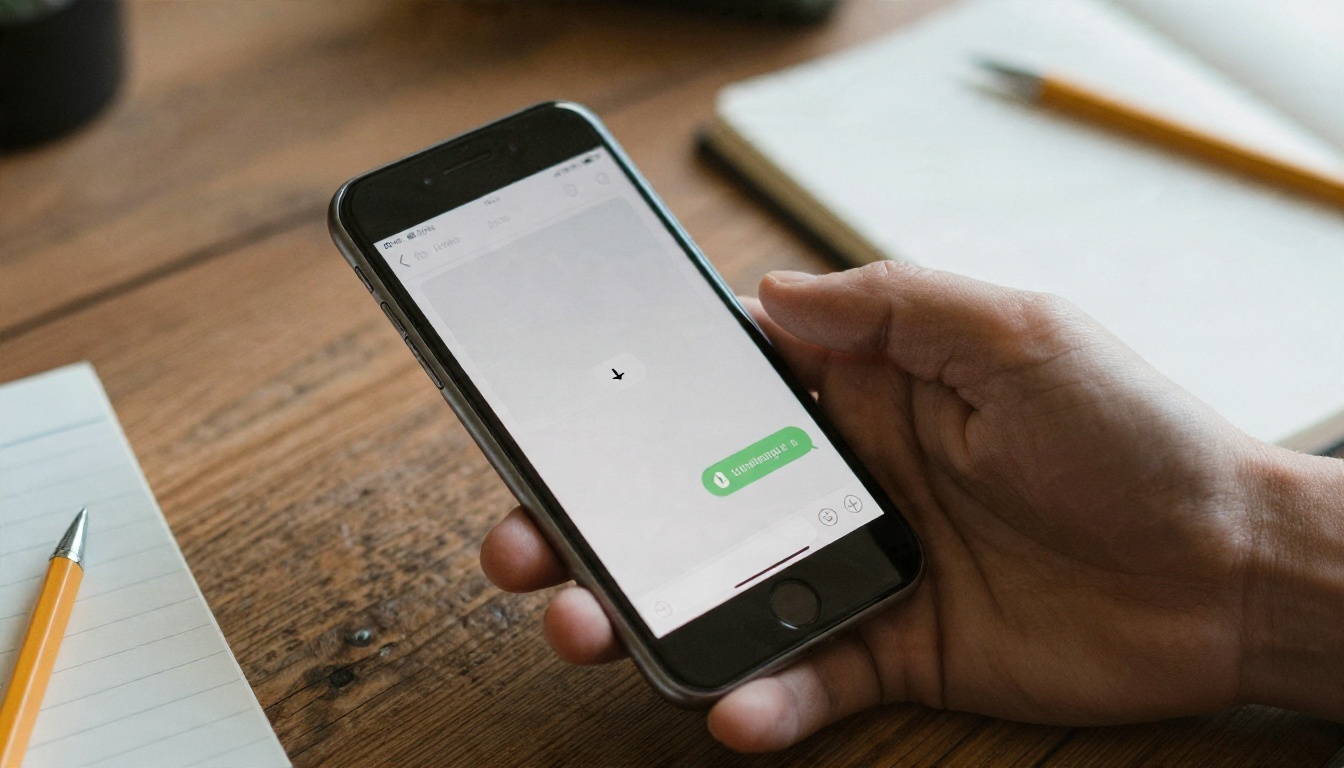
You tap the grey document bubble, the little download arrow spins for a second, and then nothing. Or worse, you get a message saying the file is no longer available. A PDF on WhatsApp not downloading is one of the most common small annoyances in daily messaging, and it usually has a boring, fixable cause. This article walks through the real reasons, the quickest fixes, the actual size limits, and a cleaner way to share documents: sending a link to a flipbook built with Flipbooks AI instead of a heavy attachment.
If you only have a minute, here is the short version: check your connection, free up storage, fix your phone's date and time, update the app, and ask the sender to resend. If the same file keeps failing for other people too, the file itself is the problem, and a link is the better route.
Why WhatsApp Won't Download Your PDF
Before touching any setting, it helps to read what the chat is actually telling you. The wording of the error points to very different causes, and fixing the wrong one wastes time.
The "Download failed" message
This one almost always lives on your side. The file exists on WhatsApp's servers, but your phone could not pull it down. The usual suspects are a weak or unstable connection, a phone that is nearly full, a wrong system clock, or an outdated version of the app.
The "No longer available" message
This one lives on the sender's side or in the past. WhatsApp only keeps a file on its servers for a limited time while it waits to be delivered. If your phone was off, you changed devices, or you restored a backup weeks later, the original upload may be gone. No setting on your phone will bring it back. The sender has to resend it.
The file opens but looks broken
Sometimes the PDF downloads fine but shows a blank page, a "can't open file" warning, or garbled text. That points to a corrupted upload, a half-finished file, or a phone with no PDF reader installed.
| What you see | Most likely cause | Where to fix it |
|---|
| Spinning arrow, then "Download failed" | Poor connection or full storage | Your phone |
| "This document is no longer available" | File expired on the server | Sender resends |
| Download finishes, file will not open | Corrupted file or missing reader app | Sender or your phone |
| Arrow never moves at all | Auto-download off, data saver on, or VPN | Your phone settings |
| Works on Wi-Fi, fails on mobile data | Auto-download rules or carrier limits | Your phone settings |
💡 Pro tip: Ask a friend to open the same chat on their phone. If the PDF opens for them, the problem is yours. If it fails for them too, the file is the culprit.
Quick Fixes That Work in Minutes
Work through these in order. Most people are back in business by the third one.

1. Check your connection
Switch between Wi-Fi and mobile data and try again. Toggle airplane mode on for ten seconds, then off. If you are on a public network at a cafe, hotel or airport, it may throttle or block file transfers. Turn off any VPN too, since many of them slow down WhatsApp media servers.
2. Free up phone storage
A PDF cannot download into a full phone. Open your system storage screen and check the free space. If you have less than a few hundred megabytes, WhatsApp may fail without any clear warning.
In WhatsApp you can open Settings, then Storage and data, then Manage storage to see which chats take the most room. Old videos from group chats are usually the biggest culprits.

3. Fix the date and time
This surprises people. If your phone's clock is off, even by a few minutes on some devices, WhatsApp's secure connection can be refused. Set date and time to automatic in your system settings, then reopen the app.
4. Update WhatsApp and your phone
Old app versions sometimes lose compatibility with newer file formats and server changes. Update WhatsApp from the Play Store or App Store. If your phone's operating system is several versions behind, install pending system updates as well.
5. Check auto-download and permissions
Open Settings, then Storage and data, and look at the media auto-download options for mobile data, Wi-Fi and roaming. Make sure Documents is ticked where you want it. On Android, also check that WhatsApp has permission to access files and media. If you turned on a data saver mode, switch it off for WhatsApp.
6. Clear the cache, then restart
On Android, you can clear WhatsApp's cache from the app info screen without losing chats. On iPhone, a clean restart of the phone does a similar job. Reopen the chat and tap the document again.
⚠️ Warning: On Android, choose Clear cache, not Clear data. Clear data wipes the local app state and can leave you without chats if you have no backup.
7. Install a PDF reader
If the file downloads but will not open, you may have no app set to read PDFs. Any decent reader or your browser will do. Pick one, then open the file from the downloads folder.
Nine fixes at a glance
| Fix | Time needed | Success rate in practice |
|---|
| Switch Wi-Fi and mobile data | 30 seconds | High for "Download failed" |
| Turn off VPN and data saver | 1 minute | Medium |
| Free up storage | 5 minutes | High on older phones |
| Set automatic date and time | 1 minute | Medium |
| Update WhatsApp | 3 minutes | Medium |
| Check auto-download for Documents | 2 minutes | High when the arrow never moves |
| Grant file permissions (Android) | 1 minute | Medium |
| Clear cache or restart | 2 minutes | Medium |
| Ask the sender to resend | 1 minute | Highest for "No longer available" |
WhatsApp File Size Limits in 2026
Now the question behind many searches: is the PDF simply too big? The answer depends on how the file is sent.
Document limit versus media limit
When you attach a file as a document, WhatsApp allows up to about 2 GB. When you send photos and videos as regular media, WhatsApp compresses them and the limits are far lower, with videos commonly capped at around 16 MB in standard sends.
| What you send | Approximate limit | Notes |
|---|
| Document (PDF, Word, Excel) | Up to 2 GB | Sent as a file, no compression |
| Photo as regular media | Compressed automatically | Quality drops |
| Video as regular media | Around 16 MB | Compressed heavily |
| Voice message | Long, but varies by device | Not relevant to PDFs |
| Link to a hosted file | No attachment size at all | Only the text of the link is sent |
Why big PDFs still fail
Even though 2 GB sounds generous, real life is less kind. A 150 MB catalog on a slow mobile connection can time out halfway. The receiver may also have a small amount of storage left, or a carrier that throttles large downloads. In a group chat of fifty people, that one heavy file gets downloaded fifty times, and a few of those downloads will fail.
💡 Rule of thumb: If a PDF is over 20 MB, expect trouble for some recipients. Over 100 MB, expect trouble for many.
Shrinking the file first
If you must send an attachment, you can reduce the weight:
- Compress the images inside the PDF before exporting
- Export at a lower resolution, such as 150 dpi instead of 300 dpi
- Remove unused fonts, hidden layers and embedded videos
- Split a long document into two or three shorter ones
Compression helps, but every pass costs image quality, and designers rarely enjoy seeing their brochure turn blurry on a phone.
When the Sender Has to Resend
Some problems cannot be solved from the receiving end, and it saves everyone time to say so clearly.
Expired files
If you see "no longer available", message the sender and ask for a fresh copy. If you changed phones recently, say so, because the sender may need to forward the file again rather than just replying to the old message.
Corrupted uploads
If the sender's connection dropped during the upload, the file may reach you incomplete. Ask them to send it from the original file, not forward a copy that already failed once. Renaming the file with a short name and no special characters also avoids odd errors on some phones.
A quick message template
Copy this and send it when you are stuck:
"Hi, the PDF is not downloading on my phone. Could you send it again, or share it as a link? That works better with my connection."
Why a Link Beats an Attachment
Every fix above treats the symptom. The cause is the model itself: a PDF attachment is a heavy file that has to travel through a chat app, land in storage, and open in whatever reader the recipient happens to have. A link removes all three steps.
Real-world cases
A boutique owner sends her spring catalog to forty customers on WhatsApp. As a 60 MB PDF, a third of them struggle to open it. As a link to a page-turning flipbook, everyone opens it in one tap, and she can update the catalog without resending anything.

A team lead shares a weekly report in a group chat. With attachments, people end up with five versions of the same file. With one link, everyone sees the latest one.
A restaurant posts its menu in a customer broadcast list. A menu built with the Restaurant Menu Creator loads fast and never expires from the server, so a guest scanning a table QR code a month later still sees it.
Attachment versus link
| Feature | PDF attachment | Flipbook link |
|---|
| Needs storage on the phone | Yes | No |
| Can expire on the server | Yes | No |
| Works if the reader app is missing | No | Yes, opens in the browser |
| Easy to update after sending | No, must resend | Yes, same link |
| Page-turn reading experience | No | Yes |
| Shows how many people opened it | No | Yes, with analytics |
| Password protection | Not natively | Yes |
| Mobile friendly layout | Fixed page size | Responsive |
How to Share a PDF as a Link with Flipbooks AI
If you already have the PDF, you can turn it into a shareable link in a few minutes. The PDF to Flipbook Converter does the heavy lifting.
Step 1: Create your account
Go to Flipbooks AI and create an account. You can start without paying and see how your document looks before you commit to anything.
Step 2: Upload your PDF
- Click the upload button on your dashboard.
- Drag your PDF into the window or pick it from your computer.
- Wait a few seconds while the pages are converted. A 40 page brochure usually takes well under a minute.
- Check the preview. Pages should turn smoothly, and text should stay sharp.
Step 3: Add your branding
Make the flipbook look like yours, not like a generic file viewer:
- Upload your logo and pick brand colors
- Choose a background that fits your content
- Adjust the page turn effect and sound
- Add clickable links, videos and audio where they help
- Rely on the fact that there are no watermarks, ever
For specific content types, you can start from tools such as the Product Catalog Generator, the Online Brochure Designer or the Report Flipbook Creator.
Step 4: Copy the link and send it
- Press the Share button on your flipbook.
- Copy the direct link.
- Open your WhatsApp chat, paste the link and send.
WhatsApp shows a small preview, and your contact opens the flipbook with a single tap. Nothing downloads, nothing fills their storage, and nothing expires.
✅ Best practice: Put one line of context before the link, such as "Spring catalog, tap to flip through." People open links they understand faster.
Step 5: Extra controls for private or business use
| Need | Option | Plan |
|---|
| Keep the document private | Password protection | Available on paid plans |
| Put it on your own site | Embed code | Available on paid plans |
| Create many flipbooks | Unlimited flipbooks | Standard plan and above |
| See who opened it and when | Analytics | Professional plan |
| Collect contact details | Lead generation forms | Professional plan |
| Let people keep a copy | Offline downloads | Available on paid plans |
You can compare every option on the pricing page, and browse the full set of flipbook tools if you want a template for a specific use.
What About Group Chats and Teams

Groups make the attachment problem worse. Every member downloads a separate copy, so a large PDF multiplies the chance that someone sees "Download failed". People also forget which version is current.
A link fixes both. Everyone opens the same page. If you spot a typo, you correct the flipbook and the link keeps working, with no "please ignore the previous file" message.
Here are some situations where a link is clearly the better choice:
When an attachment is still fine
Not every file needs a link. If you are sending a one page receipt, a signed form or a short contract to a single person, a normal PDF attachment is quick and fine. Use the link route when the file is big, goes to many people, changes over time, or needs to look good.
Your Next Step

Here is the short checklist to keep nearby the next time a PDF refuses to download:
- Switch between Wi-Fi and mobile data, and turn off VPN.
- Free up some storage and set the date and time to automatic.
- Update WhatsApp and check auto-download for Documents.
- If the message says "no longer available", ask for a resend.
- If the file is large or goes to many people, send a link instead.
The first four steps fix today's problem. The fifth one stops it from coming back. Ready to send documents that always open? Get started for free on Flipbooks AI, try the PDF to Flipbook Converter on a file that has been giving you trouble, and compare pricing plans when you need analytics, passwords or unlimited flipbooks.



