You click upload, wait a few seconds, and get the message nobody wants to see: file is too large. Maybe it is a job application due in twenty minutes, a signed contract, or a portfolio for a client. The deadline does not move, but the PDF refuses to budge. The good news is that a PDF size too big to upload is one of the easiest problems to fix, and you do not need to pay for anything. This article walks through free online compressors, built-in tools on Windows and Mac, and a smarter option: skipping the attachment and sharing a link through Flipbooks AI.
Why Your PDF Gets Rejected
Upload forms are not being difficult on purpose. Servers set a maximum file size to protect storage, bandwidth, and speed. The trouble is that those limits are often far lower than the size of a modern PDF.
Common Upload Limits
Limits change by service and can be updated at any time, so treat the numbers below as typical ranges rather than promises. Always check the message on the form itself.
| Where You Upload | Typical Size Limit | What Usually Breaks |
|---|
| Gmail attachments | About 25 MB | Scanned reports, photo-heavy brochures |
| Outlook and corporate email | 10 to 20 MB | Presentations exported to PDF |
| Job application portals | 2 to 10 MB | Portfolios, CVs with embedded images |
| Government and bank forms | 1 to 5 MB | Multi-page scans of ID or statements |
| Learning platforms | 5 to 50 MB | Textbook chapters, lab reports |
| Messaging apps | Varies widely | Large catalogs and manuals |
💡 Pro tip: If a form says "maximum 5 MB," aim for 3 to 4 MB. Some systems count the file slightly differently, and a tiny margin saves you a second failed attempt.
What Makes a PDF Heavy
A PDF is a container. It can hold text, fonts, vector shapes, photographs, and even hidden data. Text is tiny. Everything else is where the megabytes come from.
The usual suspects are:
- High-resolution images saved at 300 DPI or more when the screen only needs 100 to 150.
- Scanned pages stored as full-color photographs instead of black and white text.
- Embedded fonts, especially when a design uses many families and weights.
- Layers, comments, and form fields that stay inside the file after editing.
- Duplicate resources, such as the same logo embedded on every page.
- Metadata and old versions left behind by repeated edits.
A twelve-page text document might weigh 200 KB. Add twelve full-page photographs and it can jump past 40 MB without anyone noticing.

Check the File Before You Compress
Compression always costs some quality. Spend two minutes finding out what is making the file large, and you can often shrink it with far less damage.
Find the Real Culprit
Open the PDF and scroll through it. Pages with photos, full-bleed backgrounds, or scanned signatures are almost always the heavy ones. If you have the original document (a Word file, a design file, a slide deck), the source is usually easier to fix than the exported PDF.
Remove Pages You Do Not Need
Many people upload a 60-page document when the recipient only needs pages 3 to 8. Extracting a page range is lossless, instant, and often brings the file under the limit by itself. Most free online PDF tools include a "split" or "extract pages" option.
Pick the Right Quality Target
Not every PDF needs the same treatment. Match the compression level to the purpose:
| Purpose | Recommended Quality | Expected Size Reduction |
|---|
| On-screen reading only | Medium (about 150 DPI) | 50 to 80 percent |
| Email attachment | Medium to low | 60 to 85 percent |
| Form upload with strict limit | Low (about 96 to 110 DPI) | 70 to 90 percent |
| Professional printing | High, or do not compress | 0 to 30 percent |
| Archiving legal documents | Lossless methods only | 0 to 20 percent |
⚠️ Warning: Never compress the only copy of an important file. Save the shrunk version under a new name, such as contract-small.pdf, and keep the original untouched.
Free Online Ways to Shrink a PDF
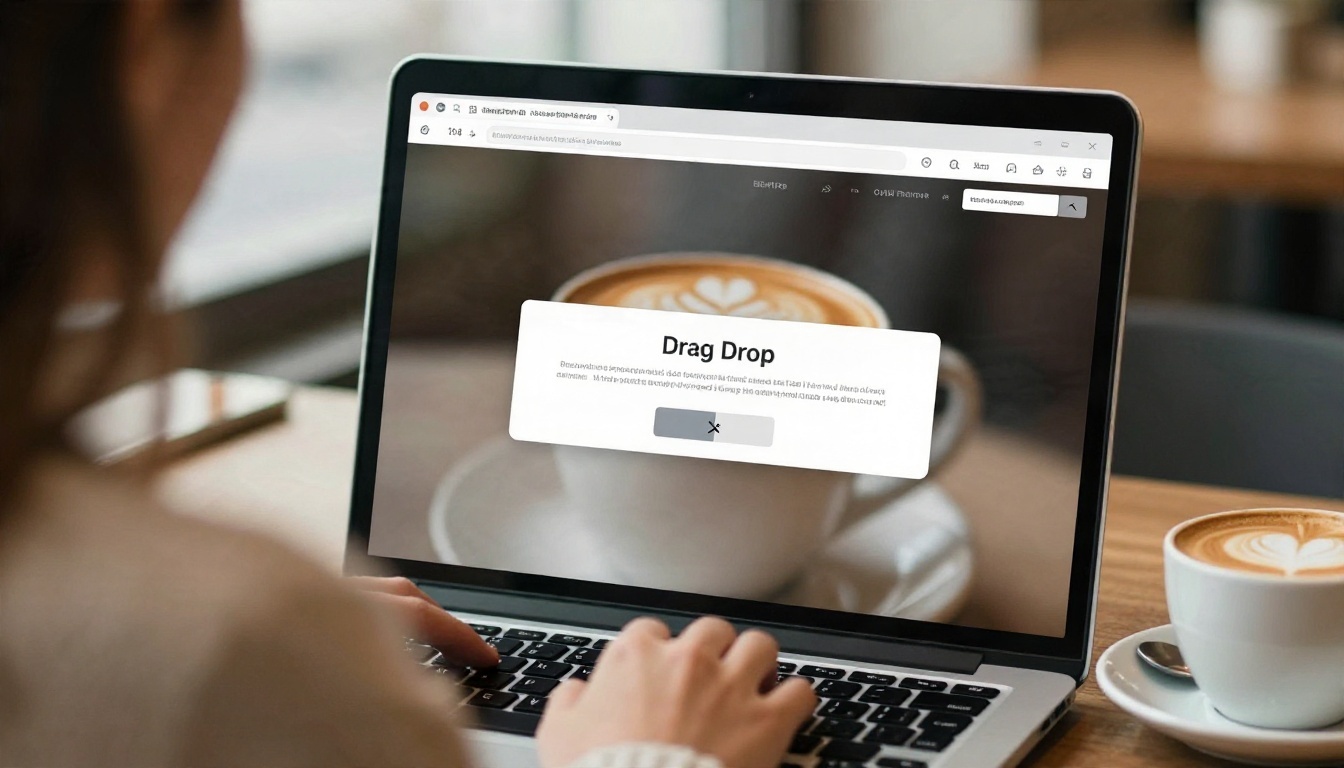
Browser-based compressors are the fastest route when you are on a deadline. You drag the file in, pick a level, and download the result. No installation, no account in most cases.
How Browser Compressors Work
Almost all of them do the same three things behind the scenes:
- Downsample images to a lower resolution.
- Re-encode images with stronger JPEG compression.
- Strip unused data such as metadata, thumbnails, and duplicate objects.
The differences between tools come down to presets, daily limits, and how they treat your privacy. Popular free options such as Smallpdf, iLovePDF, and Adobe's online compressor all follow this pattern, though each has its own caps on file size and number of daily uses. Check the current limits on their sites before you rely on them.
Step-by-Step: Compress Online in Under a Minute
- Open the compressor of your choice in your browser.
- Drag your PDF into the upload area, or click to select it.
- Choose a compression level. Start with "medium" or "recommended."
- Wait for processing, then download the result.
- Open the new file and scroll through every page to check the text and images.
- Look at the file size in your file manager. If it is still above the limit, run it again with "strong" compression.
💡 Pro tip: Compressing an already compressed file repeatedly produces blurry, blocky images. Go back to the original and choose a stronger setting instead.
Privacy Risks to Watch
Uploading a file to a random website means a copy of it sits on someone else's server, at least for a while. For a holiday brochure, that hardly matters. For a tax return, a medical report, or a signed NDA, it does.
- Read how long the service keeps files. Many state that they delete them after an hour or so.
- Avoid tools that demand an email address before showing the result.
- For sensitive documents, use an offline method from the next section.
Free Offline Methods That Work
Offline methods keep the file on your computer. They also have no daily limit.
Mac: Use Preview
On macOS, open the PDF in Preview, choose File, then Export, and select the Reduce File Size option under Quartz Filter. It is quick, though it can be aggressive and may make images look soft. Check the result before sending.
Windows: Print or Export Smaller
Windows has no one-click PDF compressor, but you have a few options:
- Word or PowerPoint: when you choose Save As and PDF, select Minimum size (publishing online) instead of Standard.
- Google Docs or Slides: download as PDF. Google generally applies moderate compression, which suits most uploads.
- Microsoft Edge: open the PDF, then print to PDF with a lower-quality setting where available.
Ghostscript for Power Users
Ghostscript is a free command-line tool. One line does the work:
gs -sDEVICE=pdfwrite -dCompatibilityLevel=1.4 -dPDFSETTINGS=/ebook -dNOPAUSE -dQUIET -dBATCH -sOutputFile=output.pdf input.pdf
Swap /ebook for /screen when you need the smallest result, or /printer when you need better quality.
Which Method Should You Choose?
| Method | Cost | Speed | Privacy | Best For |
|---|
| Online compressor | Free (daily caps) | Very fast | Medium | Everyday files |
| Mac Preview | Free | Fast | High | Quick fixes on Mac |
| Word "Minimum size" | Free with Office | Fast | High | Documents you can still edit |
| Google Docs export | Free | Fast | Medium | Simple text documents |
| Ghostscript | Free | Fast after setup | High | Batches and automation |
| Share a link instead | Free plan available | Instant | Depends on settings | Large catalogs, portfolios, manuals |
Skip the Attachment Entirely
Sometimes compressing is the wrong answer. A product catalog full of photography, a lookbook, or a design portfolio loses its whole point when you crush the images. The file is big because the content needs to look good.

Share a Link, Not a File
Instead of attaching a 60 MB PDF, turn it into an online publication and send a short link. The reader opens it in a browser, flips through the pages, and never downloads anything heavy. Nothing hits an email size cap, because you are only sending a URL.
This is exactly what the PDF to Flipbook Converter does. Your original file stays intact, with full image quality, and the reader gets a smooth page-turning experience on desktop or phone.
When a Link Beats Compression
- You need the images to stay sharp, such as for fashion, furniture, or real estate.
- You send the same document to many people and want one link instead of many attachments.
- You want to update the file later without resending anything.
- You need to see who opened it and how far they read.
How to Create a Flipbook from a Large PDF
Here is the full process on Flipbooks AI, from the first click to a shareable link. It takes only a few minutes.
Step 1: Create Your Account
Go to Flipbooks AI and create an account. You can start on the free plan and look at the pricing page later when you want more flipbooks or extra features.
Step 2: Upload the PDF
- From your dashboard, click the button to create a new flipbook.
- Drag your heavy PDF into the upload area. There is no need to compress it first.
- Wait while the platform converts each page into a flipbook page.
- Preview the result. Pages should turn smoothly and text should remain crisp.
✅ Best practice: Upload the highest-quality version you have. The flipbook loads pages progressively, so readers do not pay for your large file in waiting time.
Step 3: Customize the Look
Make the flipbook feel like your brand, not a generic viewer:
- Add your logo and brand colors.
- Choose a background and page-turn effect.
- Embed videos and audio directly on the pages.
- Add clickable links to your website, shop, or booking form.
- Rely on mobile-responsive design, so the layout adapts to phones and tablets.

Step 4: Share It Your Way
You have several sharing options, and none adds a watermark:
| Sharing Option | Use It When |
|---|
| Direct link | Sending by email, chat, or social media |
| Embed code | Showing the flipbook inside your own site. See the Embed Flipbook on Website tool |
| Password protection | The content is private, such as contracts or internal reports |
| Offline download | A reader needs a copy without an internet connection |
Step 5: Track Who Reads It
On the Professional plan you get analytics and lead generation: see how many people opened the flipbook, which pages held their attention, and capture contact details before they read. Check the pricing plans to see which tier fits, with unlimited flipbooks available from the Standard plan and above.
Real Cases Where Size Matters
Different jobs call for different answers. Here is how some common situations play out.
The Student Submitting an Assignment
A student scans lab notes with a phone, and the combined PDF is 38 MB. The university portal accepts 10 MB. A medium-level online compressor brings it to 6 MB, and the handwriting is still readable. Compression is the right answer here, because the file is a scan and not a showpiece.

The Real Estate Agent With a Photo Brochure
An agent has a 45 MB brochure with twenty interior photos. Shrinking it to 5 MB makes the rooms look flat and grainy, which hurts the sale. Converting it with the Real Estate Brochure Creator lets buyers open it on any phone, with every photo intact.

Other Scenarios at a Glance
| Situation | Best Approach | Why |
|---|
| Job application with 2 MB limit | Compress, remove extra pages | Strict limit, plain content |
| Restaurant menu sent to customers | Restaurant Menu Creator link | Always up to date, easy to share |
| Product catalog for buyers | Product Catalog Generator | Photos must stay sharp |
| Photographer's portfolio | Photography Portfolio | Compression ruins the work |
| Annual report for investors | Annual Report Creator | Tracks who reads it |
| Government form with a scan | Compress offline | Sensitive and size-limited |
Mistakes That Waste Your Time
A few errors show up again and again when people fight with oversized PDFs.
Compressing Too Many Times
Every pass degrades images further. Always start again from the original file.
Ignoring Hidden Weight
Sometimes the file stays big even after compression because it contains embedded attachments, form data, or layers. Use "flatten" or "print to PDF" to remove them.
Sending Sensitive Files to Unknown Sites
A free tool is not always a safe tool. Choose offline compression for anything confidential, or protect a shared flipbook with a password.
Forgetting to Check the Output
Open the shrunk file and scroll through all of it. Look for missing fonts, blurry signatures, and broken page order before you send it.
⚠️ Warning: Compressed scans of IDs or signatures can become unreadable. If an official body needs to read the details, zoom in to 200 percent and verify.
Send Your PDF Without the Hassle
When the file is a scan or a simple text document, compress it with a free online or offline tool and move on. When the file is a visual piece that has to look good, do not squeeze it. Share it as a link instead.
Ready to try it? Get started for free on Flipbooks AI and turn your heavy PDF into a flipbook in minutes. Browse all flipbook tools and templates to find the best fit for your catalog, menu, report, or portfolio, or compare pricing plans when you need analytics, lead capture, and unlimited flipbooks.



