You send a PDF, and the reader opens it, scrolls past page one, and closes the tab before page three. It happens all the time. The content may be great, but the format feels like a file, not a publication. A page-flip effect changes that first impression. With Flipbooks AI, you can make a PDF turn pages like a book, complete with a curling corner, a soft shadow, and a swipe that feels natural on a phone.
This article explains what the effect is, how it works under the hood, which free online tools can produce it, and what to check for mobile support. You will also get a step-by-step tutorial, comparison tables, and real examples from restaurants, agents, schools, and designers.
💡 Quick answer: To make a PDF turn pages like a book, upload it to an online flipbook maker, choose a page-curl style, then share the link or embed it on your site. The whole process usually takes a few minutes.
Why Readers Love the Page Flip
The Feel of Paper
People have turned pages for centuries. The motion tells the brain three things at once: there is a next page, you are making progress, and the content has a clear beginning and end. A vertical scroll gives none of those signals. It is an endless strip, and endless strips are tiring.
A page-flip PDF (often called a flipbook, digital flipbook, or interactive PDF) restores that rhythm. Pages sit side by side as a spread on desktop and one at a time on mobile. The reader taps or drags a corner, and the page lifts with a shadow behind it. It is a small detail, but it makes a catalog, magazine, or report feel finished and deliberate.
When Flat PDFs Lose People
A plain PDF still has uses. It is great for contracts, invoices, and anything people will print. But for content that should be browsed, such as lookbooks, menus, brochures, and annual reports, a flat file creates friction:
- It downloads before it opens, which is slow on mobile data.
- Pinch-zooming a full-page layout on a phone is awkward.
- You get no data about who opened it or which page they stopped on.
- Links and video inside the file often break or open in odd viewers.
A flipbook solves all four. It opens in the browser, adapts to the screen, and can report what readers actually do.
How the Page-Flip Effect Works
From PDF Pages to Web Pages
A flipbook maker does not just wrap your PDF in a viewer. It reads the file, renders each page as a lightweight image (and often keeps the text layer for search), then loads those pages into an HTML5 viewer. Because it runs in the browser, nothing needs to be installed.
Here is the usual pipeline:
- Upload: the PDF goes to the converter.
- Rendering: every page becomes an optimized web image.
- Layout: pages are paired as spreads, with the first page standing alone as a front cover and the last as a back page.
- Animation: the viewer calculates a curl for each flip, with a shadow that follows the moving corner.
- Delivery: the result is hosted at a link, or embedded inside your own site.
Animation, Sound, and Speed
Good flipbooks add a subtle paper sound and an easing curve so the page accelerates and slows like real paper. Both can be switched off. Speed matters more than polish, though. Pages that load progressively, meaning the next few pages are prepared while you read the current one, make a 100 page catalog feel as quick as a 10 page flyer.
What Slows a Flipbook Down
Three things cause most complaints:
- Huge source files. A 200 MB PDF full of uncompressed photos will drag any viewer.
- Embedded fonts and effects that fail to render and fall back to a default.
- Too many embedded videos loading at once.
⚠️ Compress photos before exporting your PDF. Aim for 150 DPI images for screens. Most readers will never see the difference, but they will feel the faster load.
PDF vs Flipbook at a Glance
| Aspect | Standard PDF | Flipbook |
|---|
| Opens in | PDF viewer or download | Browser tab, no download |
| Page movement | Scroll or jump | Realistic page turn |
| Mobile experience | Pinch and pan | Swipe and tap, responsive |
| Analytics | None | Views, time per page, clicks (plan dependent) |
| Embedding | Link or iframe with limits | Clean embed code |
| Interactive media | Limited | Video, audio, and links |
| Best for | Printing and legal documents | Browsing and presenting |
What "Free" Usually Means
There are many free PDF to flipbook converters, and they are not all equal. Free usually falls into one of four buckets:
- Free with watermark: you get the effect, but the viewer shows a logo that you cannot remove.
- Free with limits: a small number of flipbooks or pages, or a link that expires.
- Free trial: full features for a short period, then a paywall.
- Free for testing: a good way to check output quality before you pay.
None of these is bad, as long as you know which one you are using. The problem starts when you share a link with clients and discover afterward that it carries someone else's branding, or that it vanishes in two weeks.
Watermarks, Limits, and Branding
Before choosing a tool, check what appears on the finished flipbook. Here is how the main options compare:
| What to check | Typical free tool | Flipbooks AI |
|---|
| Watermark on output | Often yes | No watermarks, ever |
| Number of flipbooks | Capped | Unlimited on Standard plan and above |
| Password protection | Rare on free tiers | Available for private content |
| Custom branding | Paid add-on | Included |
| Embed on your website | Sometimes blocked | Supported with embed code |
| Offline download | Rare | Supported |
| Video and audio inside pages | Limited | Supported |
You can start with the PDF to Flipbook Converter and check the current limits on the pricing page before you commit to anything.
A Fast Test for Any Tool
Whichever service you try, run the same five checks with a sample PDF of 10 to 20 pages:
- Does the flip animation look smooth on your phone, not only on desktop?
- Is text sharp when you zoom in?
- Do links inside the PDF still work?
- Is there any logo you did not add?
- Can you remove or protect the file later?
If a tool fails two of these, move on.
Mobile Support That Actually Works
More than half of web traffic now comes from phones, and a flipbook that only shines on a laptop wastes most of its audience. Mobile support is not an extra, it is the main test.
Touch Gestures
On a phone, the reader expects the same gestures they use everywhere else:
- Swipe left or right to turn a page.
- Tap the edge for next or previous.
- Double-tap or pinch to zoom into small text.
- Tap the page number to jump to a section.
A well-built viewer handles all four without making the reader think about them.
Responsive Layouts
Responsive design means the flipbook rearranges itself depending on the screen. On a wide monitor, you see a two-page spread. On a tablet in landscape, it also shows a spread. On a phone in portrait mode, it switches to single pages that fill the width, so text remains readable without zooming.
✅ Best practice: Design your original PDF with a minimum body text size of 10 pt. Anything smaller turns into a squint test on a phone, even with good zoom.
Mobile Behavior Checklist
| Device | Expected view | Gesture | What to test |
|---|
| Desktop | Two-page spread | Click corner or drag | Zoom, full screen |
| Tablet landscape | Two-page spread | Swipe | Link taps, video play |
| Tablet portrait | Single page | Swipe | Text legibility |
| Phone portrait | Single page | Swipe and pinch | Load speed on cellular |
| Phone landscape | Spread or single page | Swipe | Menu and toolbar fit |
Turn a PDF Into a Flipbook

Here is the full process with Flipbooks AI. It takes less time than most people expect.
Step 1: Create Your Account and Upload
- Open Flipbooks AI and create an account.
- Click to start a new flipbook.
- Drag your PDF into the upload area, or pick it from your computer.
- Wait a few moments while the pages are converted. A 20 page brochure is usually ready quickly.
You will see a preview of your document with the page-flip effect already active.
Step 2: Customize the Look
This is where a generic flipbook becomes yours. In the editor, you can adjust:
- Branding: add your logo and set the viewer's background to match your site.
- Colors: change toolbar and background colors so the reader never feels they left your brand.
- Page effects: pick the curl style, flip speed, and whether the paper sound plays.
- Multimedia: attach video and audio to a page, for example a product demo or a welcome message.
- Links: make sure buttons, URLs, and email addresses are clickable.
💡 Keep the first two pages simple. The reader sees them before anything else, so a clear title and a short table of contents work better than a dense layout.
Step 3: Share and Protect
Once the flipbook looks right, you have three main ways to publish it:
| Sharing option | Best for | Notes |
|---|
| Direct link | Email, chat, social posts | Fastest, no setup |
| Embed code | Your website or blog | See Embed Flipbook on Website |
| Password protected link | Client proposals, internal files | Keeps private content private |
| Offline download | Trade shows, poor connectivity | Readers open it without internet |
If you work with sensitive files, such as investor reports or price lists for approved partners, turn on password protection before you send the link.
Step 4: Use the Pro Features
On the Professional plan, you get tools that turn a flipbook into a measurable asset:
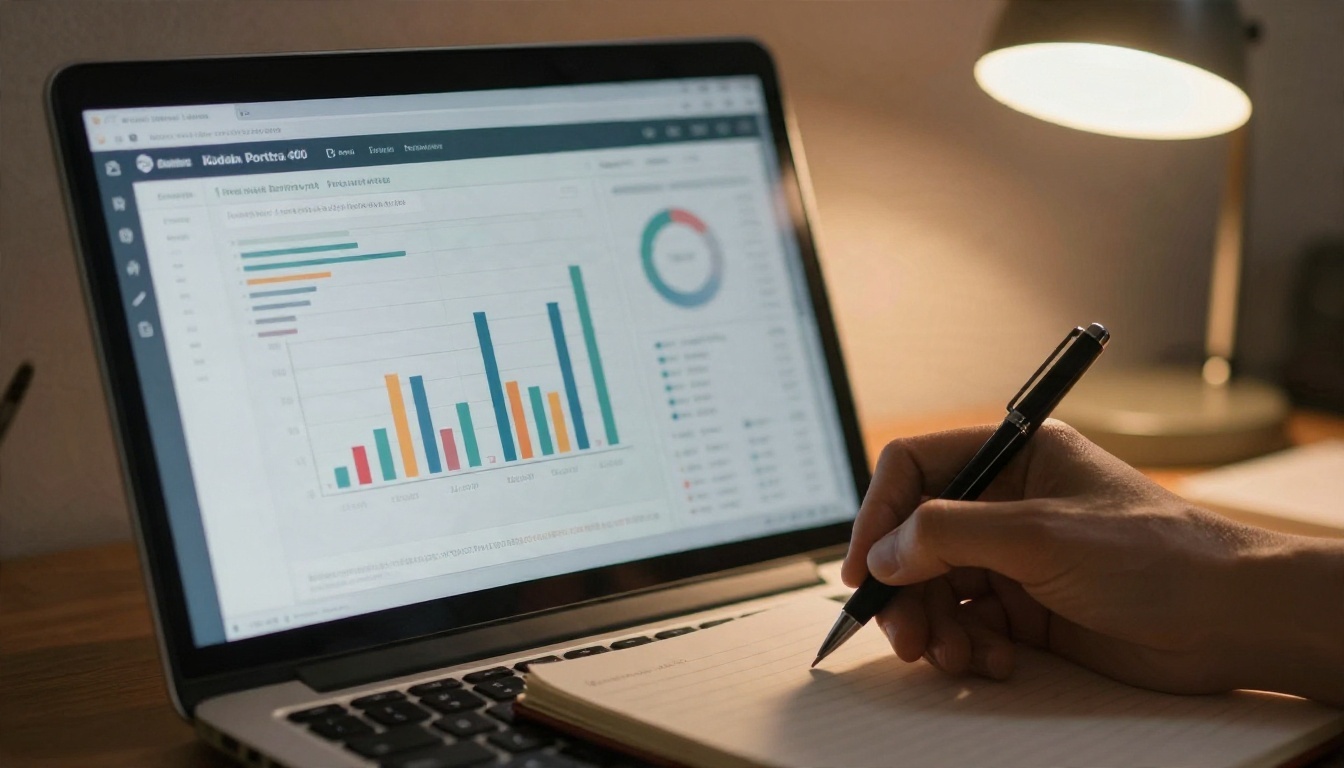
- Analytics: see how many people opened it, how long they stayed, and which pages kept their attention.
- Lead generation: ask for an email address before the reader gets past a certain page.
- Detailed reports to compare how different versions perform.
Compare the plans on the pricing page to see which one matches your volume. If you plan to publish many documents, the Standard plan and above includes unlimited flipbooks.
Real-World Uses
Page-flip PDFs work wherever people browse. Browse all the flipbook tools to find a starting point for your own use case.
Restaurants and Cafes
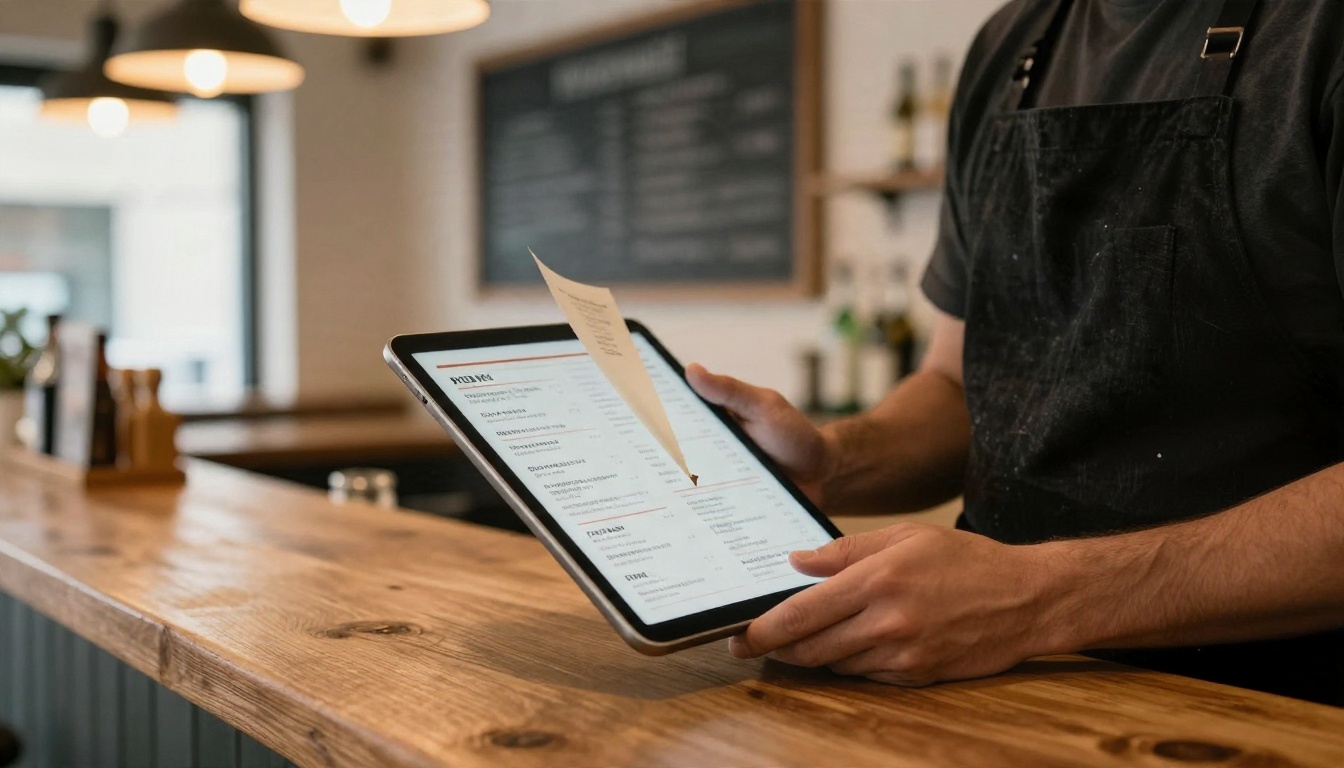
A restaurant can turn a menu PDF into a flipbook, then place a QR code on each table. Guests scroll no tiny text, and the owner updates prices by replacing one file instead of reprinting. The Restaurant Menu Creator is built for exactly this. Spas can do the same with the Spa & Wellness Menu.
Real Estate and Hotels
Agents benefit by sending a property brochure as a link instead of a heavy attachment. The buyer flips through photos on a phone in a taxi, and the agent can see who opened the file. Try the Real Estate Brochure Creator or the Hotel Brochure Designer.
Schools and Training

Teachers can publish course packs and newsletters that students open on any device, with no app and no login unless the teacher wants one. See the Course Material Publisher and the School Newsletter Creator.
Designers and Photographers
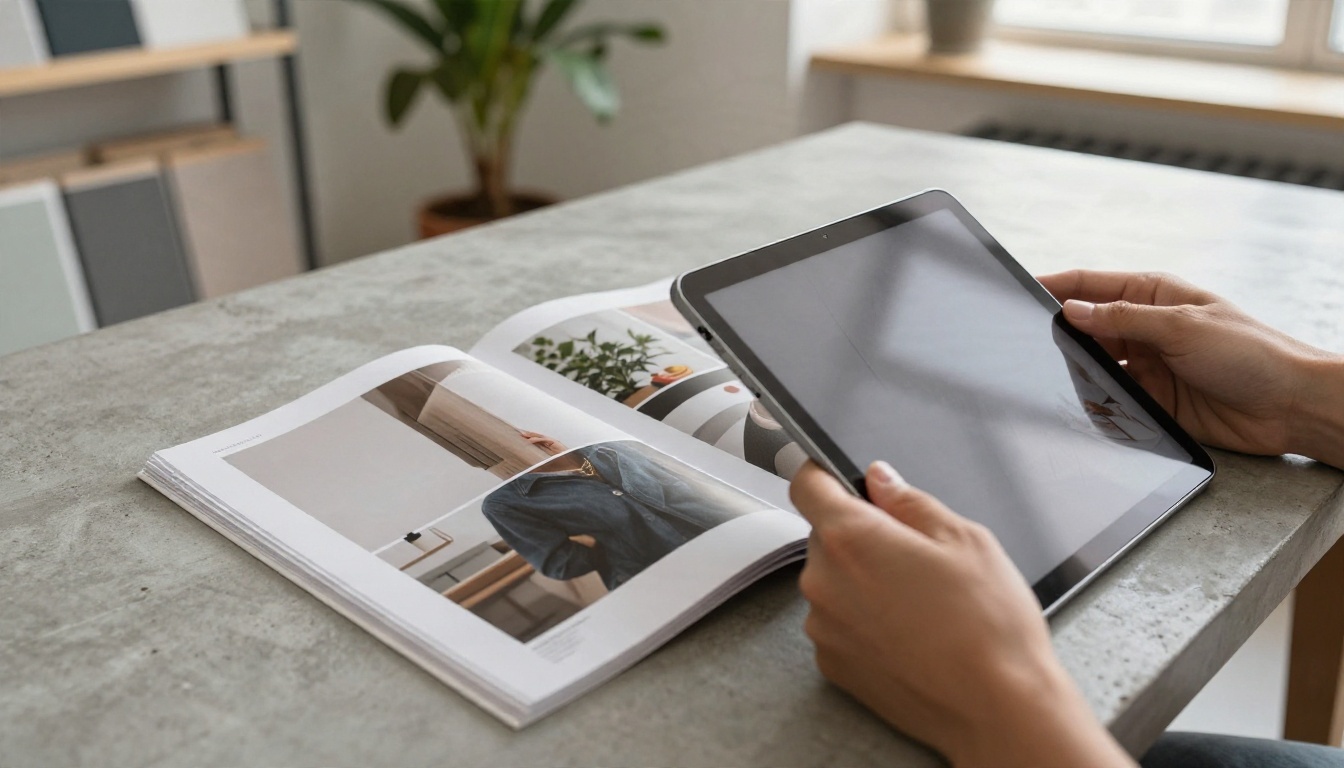
A portfolio is a story told in sequence, which is exactly what a page flip supports. Freelancers can share a link in a pitch email and keep full control over the order of pages. The Digital Portfolio Creator and the Interactive Lookbook Designer are a good fit.
Use Case Summary
Mistakes to Avoid
Most flipbook problems come from the source file, not the tool. Watch for these:
- Single page exports. If your PDF has pages that are spreads already, the viewer may show a double spread inside a double spread. Export single pages.
- Tiny text. What reads fine on a printed page can be unreadable on a phone. Increase body text or add a zoom hint.
- No table of contents. Long documents need clickable links to sections.
- Heavy images. Compress them before export.
- Forgetting the mobile test. Open the final link on your own phone before you send it to anyone.
- Using a tool that adds a watermark to a client-facing document.
⚠️ Always test the link in a private browser window. If it asks you to log in, so will your readers.
Ready to Try It?
A page-flip PDF takes a document people skim and turns it into something they actually open, swipe through, and finish. You now know how the effect works, what to check in free tools, and how mobile support should behave.
Here is your next step:
Upload one PDF today, open the link on your phone, and swipe. You will see the difference in the first second.



