You exported a PDF, dropped it on a web page, and now anyone can save it with one click. That is the whole problem. A standard browser PDF viewer ships with a download button, a print button and a visible file address, so your price list, course workbook or client proposal can end up in a stranger's Downloads folder within seconds. A view-only flipbook built on Flipbooks AI changes the delivery method: your PDF is converted into pages that readers flip through in the browser, and the download button simply is not there. This article shows how that works, what it protects, and, just as important, what no web tool on earth can stop.
Why Embedded PDFs Leak So Easily
Most people assume a PDF on a web page is "displayed." In reality it is delivered. The browser downloads the entire file to the visitor's device, then draws it on screen. Once the file sits on their machine, the viewer toolbar is only a polite suggestion.
The Hidden Download Button
Chrome, Edge, Firefox and Safari all bundle a PDF viewer with a toolbar. It includes a download icon, a print icon and often a "save a copy" option in the menu. Hiding that toolbar with a bit of CSS or a URL parameter does not remove the file. It only makes the button harder to find, and any visitor who opens the right-click menu or the page source gets past it.
The Raw File URL Problem
Every embedded PDF has an address ending in .pdf. Paste it in a new tab and the file opens in full. Search engines can also index that address, which means a document you meant for customers may show up in public results.
⚠️ Warning: A "hidden" PDF link is not private. If the URL is reachable without a login or password, assume it can be found, shared and crawled.
| Delivery method | Download button | Raw file URL exposed | Indexed by search engines |
|---|
| Plain link to a .pdf | Yes | Yes | Often |
| Browser PDF embed (iframe or object tag) | Yes, in toolbar | Yes | Often |
| Embed with toolbar hidden | Hidden, still reachable | Yes | Often |
| View-only flipbook | No | No | Controlled by you |
How a View-Only Flipbook Works
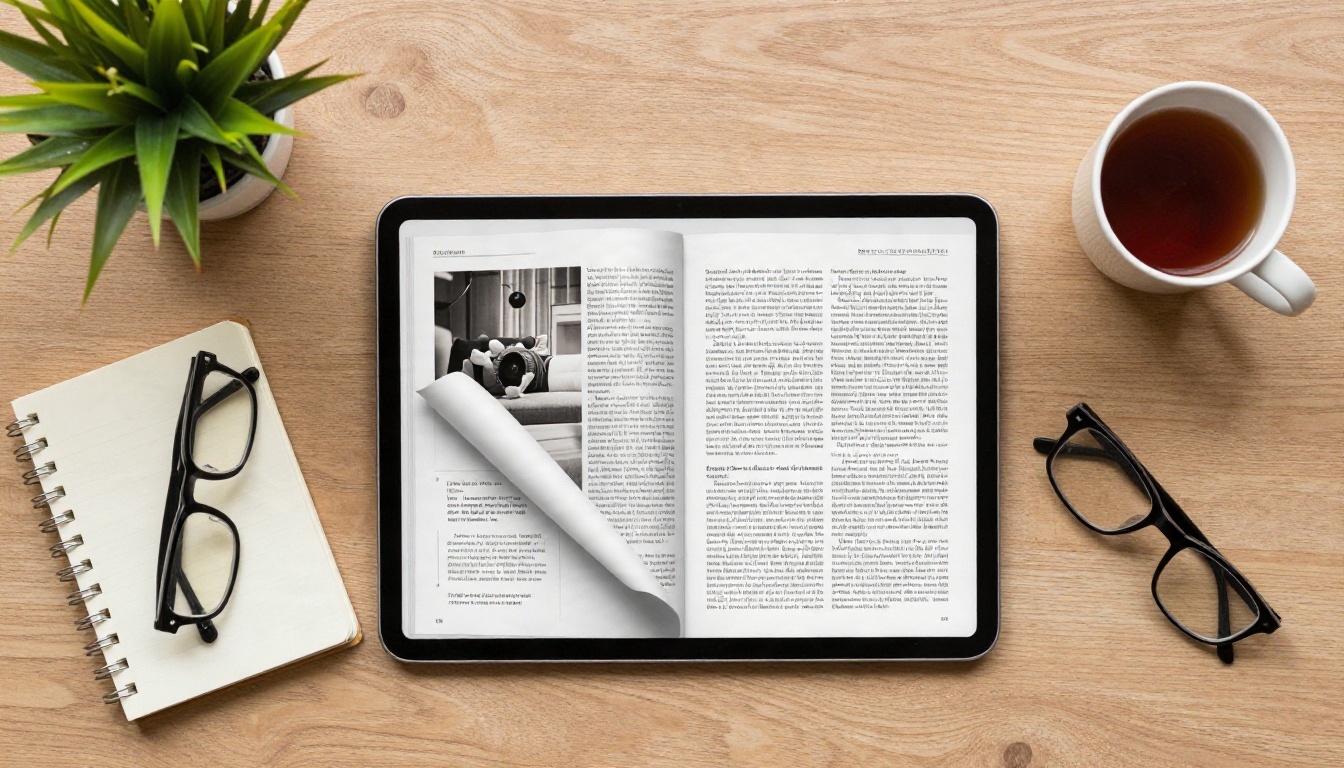
The idea is simple. Instead of handing the visitor one big file, a flipbook platform splits your document into individual page assets and loads them inside a reader. The reader has page-turning, zoom and navigation controls, but nothing that packages the pages back into the original PDF.
Pages Instead of Files
When you upload a PDF to the PDF to Flipbook Converter, each page is rendered for the web and displayed in a flipbook viewer. The visitor never receives your source PDF. They receive what they need to read page after page, which is a very different thing.
No Download Button by Design
There is no toolbar to hide because the standard PDF toolbar is never loaded. The viewer shows the page curl, a zoom control, a thumbnail strip and a fullscreen button. That is it. Your visitors get a clean reading experience, and you get a page that does not invite saving.
Here is how a flipbook compares with the other options most teams try first:
| Feature | Plain PDF link | Hidden toolbar embed | Password protected PDF file | View-only flipbook |
|---|
| One-click download | Yes | Workaround exists | Yes, after unlock | No |
| Page-turn reading experience | No | No | No | Yes |
| Works well on phones | Poor | Poor | Poor | Yes, responsive |
| Branding and colors | None | None | None | Custom |
| Reader analytics | None | None | None | Available on Professional |
| Setup effort | Seconds | Developer time | Minutes | Minutes |
What a Flipbook Cannot Stop
Let's be direct, because this is where most articles on the topic get vague. Anything a person can see on a screen, a determined person can capture. A flipbook removes the easy paths: the download button, the print dialog and the raw file address. It does not make content invisible to the human eye.
Screenshots and Screen Recording
A visitor can take a screenshot of any page. Phones do it with two buttons. Some operating systems let apps block screenshots, but a browser tab cannot enforce that, and a second phone pointed at the screen defeats any software block anyway.
Copying Visible Text
Because a flipbook shows pages as rendered visuals, selecting and copying text is far less convenient than in a PDF. Still, someone can retype a paragraph or run a screenshot through text recognition software. Treat the flipbook as a deterrent, not a vault.
Sharing the Link Itself
If your flipbook link is public, anyone who has the link can read it. That is often exactly what you want for marketing material. For anything sensitive, add a password and share it only with the people who need it.
| Threat | Does a view-only flipbook stop it? | What helps further |
|---|
| Casual "save as" download | Yes | Nothing extra needed |
| Right-click save of the PDF file | Yes, no PDF file is served | Nothing extra needed |
| Guessing the .pdf file address | Yes | Nothing extra needed |
| Forwarding the link to outsiders | Only with a password | Password plus private distribution |
| Screenshots | No | Visible watermarks, short-lived links |
| Photographing the screen | No | Legal agreements, NDAs |
| Search engine indexing | You control it | Keep sensitive flipbooks private |
💡 Pro tip: Match the protection to the risk. A restaurant menu does not need a password. A merger proposal does. Spending effort on the second and relaxing about the first keeps your workflow sane.
How to Create a View-Only Flipbook
If your content is a PDF today, you can have a protected flipbook live in a few minutes. Here is the full process on Flipbooks AI.
Upload and Convert Your PDF
- Go to Flipbooks AI and create an account or sign in.
- Click the option to create a new flipbook and choose your PDF. Large files with dozens of pages are fine.
- Wait for the conversion to finish. Each page becomes a flipbook page with a realistic page-turn effect.
- Preview the result. Check that images are sharp and that the page order matches your original.
✅ Best practice: Export your PDF at a sensible resolution before uploading. Crisp pages at 150 to 200 DPI look great on screens and load fast on mobile.
Brand the Reader
A professional reading experience builds trust, and trust is part of protection: readers who feel they are in a branded, official space are less likely to treat the content casually.
- Add your logo and pick background and toolbar colors that match your site.
- Choose a page effect, such as a soft curl or a flat slide.
- Add multimedia where it helps. You can embed videos and audio on your pages, which also makes content harder to reuse in a plain PDF form.
- Confirm that no watermark from the platform appears. Flipbooks AI never adds one.
Set Access and Share
- Turn on password protection if the content is private.
- Decide whether the flipbook is listed publicly or shared only by link.
- Copy the direct link for emails and messages.
- Or take the embed code and paste it into your page. The Embed Flipbook on Website tool walks through the placement options.
- Leave offline downloads switched off for confidential material. Offline access is a feature you can offer to chosen readers, but it is a deliberate exception to a view-only setup.

Layers That Make Leaks Harder
No single setting is bulletproof. Good protection is a stack of small hurdles that make copying more effort than it is worth.
Passwords and Private Links
A password turns a public page into a gated one. Share the password in a different message from the link, change it when a project ends, and use a unique one per client when the material is sensitive. For comparing plans that include these controls, see the pricing page.
Visible Marks on Sensitive Pages
If a document is highly confidential, bake a visible mark into the PDF itself before conversion. A client name, a date or "Confidential" in a light diagonal line makes screenshots traceable. This is separate from platform watermarks, which Flipbooks AI does not add, so the mark you choose is yours alone.
Analytics and Lead Capture
On the Professional plan, analytics and lead generation show who opened the flipbook, how far they read and where they dropped off. If you ask for an email address before the first page, you also know who has seen the material. Knowing who read your proposal is often more useful than blocking a copy nobody wanted anyway.
| Layer | What it adds | Best for | Effort |
|---|
| View-only reader | Removes download and raw file | Everything public | Low |
| Password | Restricts who can open | Client proposals, internal docs | Low |
| Lead capture form | Identifies readers | Sales decks, gated content | Medium |
| Visible name or date mark in the PDF | Makes leaks traceable | Contracts, reports | Medium |
| Private distribution plus NDA | Legal deterrent | High-risk documents | Medium to high |
Real-World Use Cases
Different teams guard different things. Here is how the setup looks in practice.
Sales and Client Documents
A consultant sends a pricing proposal to three prospects. Instead of attaching a PDF that could be forwarded to a competitor, they share a password-protected flipbook built with the Sales Presentation tool. Each prospect gets their own password, and analytics show which pages they spent time on.
Courses, Manuals and Price Lists
A trainer sells a workbook to paying students. With the Course Material Publisher, students read online without receiving a file they can pass around. A wholesaler does the same with a trade price list through the Digital Price List Generator, so only approved buyers see current rates. Internal teams can protect handbooks with the Training Manual Flipbook.
| Use case | Risk level | Recommended setup |
|---|
| Public restaurant menu | Low | View-only, public link |
| Product catalog for the website | Low to medium | View-only, embedded, no password |
| Trade price list | Medium | View-only plus password |
| Paid course workbook | Medium to high | Password per cohort, lead capture |
| Client proposal | High | Password per client, visible name mark |
| Pre-release financial report | High | Password, private link, NDA |
5 Mistakes That Expose Your PDF
Even with a view-only flipbook, a few habits undo the protection.
- Leaving the original PDF online. If the source file still sits on your server or in a shared drive folder with public access, the flipbook is irrelevant. Remove it or restrict it.
- Attaching the PDF to the same email. Sending the flipbook link and the PDF together defeats the purpose. Send the link only.
- Using one password forever. A password shared with twenty people over three years is not a password. Rotate it.
- Embedding on a page with a public "download" mirror. Check that your site does not also host a separate downloadable copy in a resources section.
- Promising absolute security. Tell clients the truth: the material is view-only, shared under agreement, and not meant for redistribution. Honest framing sets expectations and gives you something to point to if a leak happens.
💡 Quick audit: Open your page in a private browser window. If you can reach the PDF without a login, so can everyone else. Fix that first.
Protect Your PDF Today
Preventing a PDF download from a web page comes down to one decision: stop serving the file. A view-only flipbook shows pages, not documents, which removes the download button, the print shortcut and the raw file address in one move. Add a password for sensitive content, a visible mark for traceability, and analytics to see who is reading, and you have a setup that is realistic about risk and still pleasant for the reader.
Ready to try it? Create your account on Flipbooks AI, upload your PDF and publish a view-only flipbook in minutes. Compare pricing plans if you need unlimited flipbooks, analytics or lead generation, or browse all flipbook tools to find the template that fits your document. When you are ready to pick a plan, you can also sign in and go straight to pricing.



