Someone emails you a brochure, you double click it, and your computer shrugs. The file ends in .pub, you have no Microsoft Publisher, and the deadline is in an hour. This happens to office workers, school staff, small shop owners and freelancers every single week. The good news is that a PUB file is far easier to open and convert than it looks, and you rarely need to buy anything. In this article you will find free online viewers, step by step PDF export on Windows, workarounds for Mac, fixes for the most common errors, and a way to turn the finished PDF into an interactive page turning publication with Flipbooks AI.
What a PUB File Actually Is
A PUB file is the native document format of Microsoft Publisher, a desktop publishing program that shipped with many Office bundles. It stores page layouts, text boxes, linked images, fonts, shapes and print settings in a single container. People used it for flyers, newsletters, greeting cards, menus, certificates, calendars and tri-fold brochures.
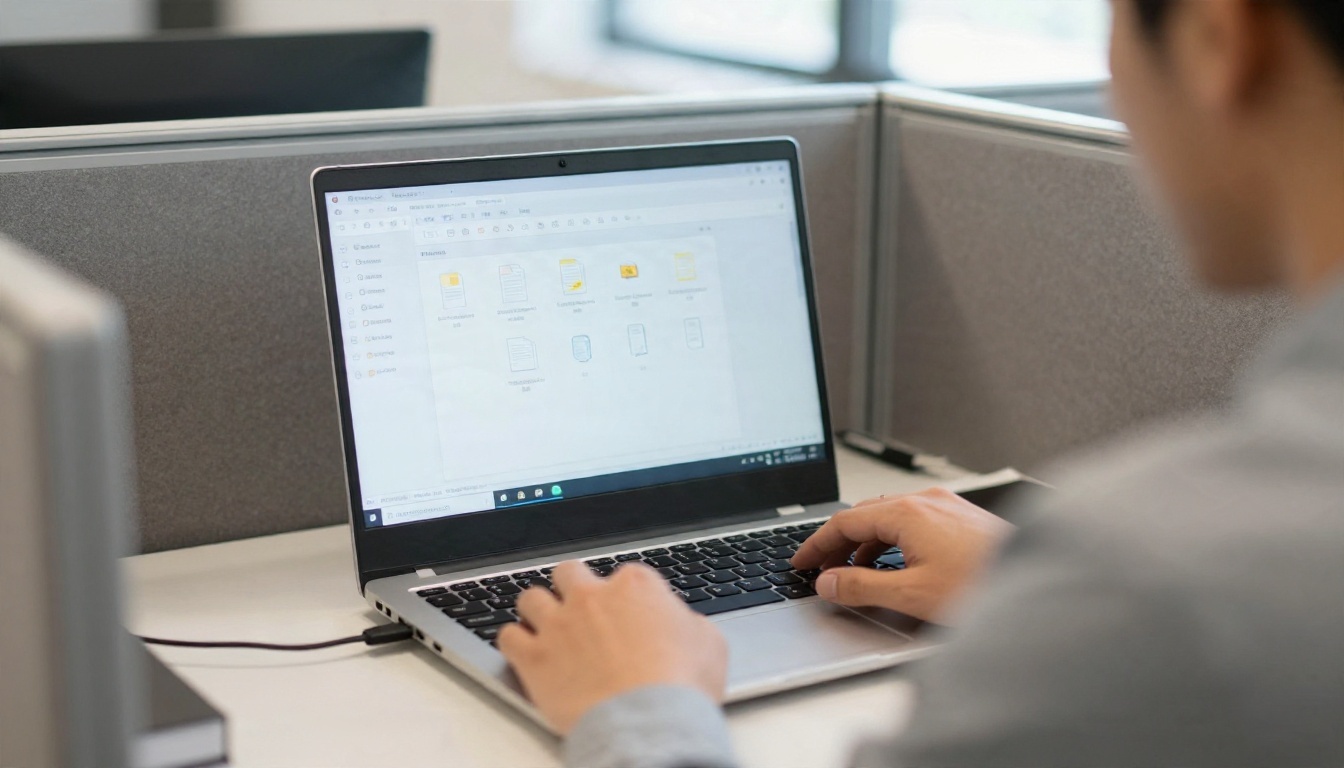
Why It Breaks on Other Devices
Publisher only ever ran on Windows. There was never a Mac version, and there is no official mobile app. Unlike a PDF, a PUB file depends on the software and fonts installed on the machine that opens it. Without them, text can reflow, images can shift, and layouts that looked perfect on the author's PC can fall apart on yours.
That is why the file is a poor choice for sharing. It is an editing format, not a reading format.
The Publisher Retirement Factor
Microsoft announced that Publisher would reach end of support in October 2026. Existing copies keep running for a while, but the program no longer gets updates, and new Microsoft 365 subscriptions do not include it. That means more PUB files are going to land on computers that cannot open them. Converting your archive now is a sensible habit, not a panic move.
💡 Pro tip: Before you do anything else, make a copy of the original PUB file. Every conversion method below is safe, but a backup costs you five seconds and saves you from regret.
Free Online PUB Viewers and Converters
If you only need to see the document or get a PDF out of it, a browser based converter is the fastest route. No installation, no license, and it works on Windows, Mac, Chromebook and even a phone.

How Online Converters Work
The process is nearly identical on every site:
- Open the converter in your browser.
- Drag your PUB file into the upload box.
- Choose PDF as the output format.
- Press convert and wait a few seconds.
- Download the PDF and check every page.
General purpose services such as CloudConvert and Zamzar, along with several developer focused tools, list PUB among their supported input formats. Formats and limits change often, so check the current list on the site before you upload.
Online Options Compared
| Option type | Cost | Install needed | File size limits | Best for |
|---|
| General file converter sites | Free tier, paid for volume | No | Usually modest on free plans | One off conversions |
| Developer API viewers | Free demo, paid API | No | Varies | Technical users and batches |
| LibreOffice (desktop) | Free | Yes | None | Offline and sensitive files |
| Microsoft Publisher | Paid (older license) | Yes | None | Highest fidelity and editing |
| Borrowed Windows PC | Free | No | None | Rare, urgent jobs |
Privacy Checks Before You Upload
Uploading a file means sending it to someone else's server. For a public flyer, that is fine. For a contract, a payroll notice or a customer list, it is not.
- Read the site's retention policy and confirm files are deleted after conversion.
- Look for HTTPS in the address bar.
- Avoid uploading anything with personal data, medical details or financial figures.
- Use an offline method such as LibreOffice for confidential documents.
⚠️ Warning: Never upload files containing passwords, tax documents or client records to a free converter you have not vetted.
PUB to PDF on Windows
If you have Publisher (or a colleague does), exporting is the cleanest method because the layout engine that built the file is the one rendering the PDF. Fonts, bleeds and image resolution stay faithful.

Export from Publisher Directly
- Open the PUB file in Publisher.
- Select File, then Export.
- Choose Create PDF/XPS Document, then click the button of the same name.
- In the dialog, press Options and pick a quality level: Standard for screen reading and sharing, Minimum size for email, or High quality printing for a print shop.
- Name the file and click Publish.
The result is a normal PDF that opens anywhere.
Print to PDF as a Backup
When the export menu misbehaves, use the printer route. Press Ctrl + P, choose Microsoft Print to PDF as the printer, and print. It produces a flat PDF without clickable links, but it is a reliable fallback and works with any program that can open the file.
Convert Many Files at Once
Publisher has no real batch mode. If you have a folder of fifty newsletters, the practical choices are:
- Open and export each file manually, which is slow but accurate.
- Use a converter API or a scripted LibreOffice command for bulk jobs.
- Ask the IT department, who may already have a tool for this.
| Method | Speed for 50 files | Layout accuracy | Cost |
|---|
| Manual export in Publisher | Slow | Excellent | License required |
| LibreOffice scripted run | Fast | Good, test samples first | Free |
| Online converter with API | Fast | Good | Usage based |
Opening PUB Files on Mac
Mac users have it harder, because there is no native app. Still, three workable routes exist, and none requires buying a Windows laptop.
LibreOffice Import
LibreOffice Draw can import PUB files through its built in Microsoft Publisher filter. Install the free suite, open Draw, choose File, then Open, and select your PUB file. Once it loads, use File, then Export as, then Export as PDF.
Be aware that this is an import filter, not a perfect clone of Publisher. Simple flyers usually load well. Complex layouts with special effects, exotic fonts or wrapped text may shift slightly, so compare against any printed copy you have.
The Online Route on Mac
Safari, Chrome and Firefox on Mac all handle online converters the same way as on Windows. Upload, convert to PDF, then open the result in Preview. Preview lets you reorder pages, delete pages and sign the document, which covers most light editing needs.
Borrow a Windows Machine
If a layout must be pixel perfect, ask a coworker, use a library computer, or run Windows in a virtual machine. Export once with Publisher and you never need that machine again.
✅ Best practice: Ask the sender to export a PDF in the first place. A two minute request often beats any workaround.
Fixing Common PUB Problems
Even with the right tool, files sometimes misbehave. Here are the issues that show up most often and how to deal with them.

Missing Fonts and Shifted Text
If the PDF shows odd spacing or a plain fallback font, the original fonts were not available. Ask the author for the font files, install them, and run the conversion again. When that is impossible, pick a visually similar substitute and recheck line breaks page by page.
Corrupt or Password Protected Files
A file that refuses to open may have been damaged during download or email transfer. Try downloading it again, or ask for a fresh copy. If it is password protected, only the owner can supply the password. Do not rely on cracking tools, which are unreliable and often unsafe.
Heavy Images and Huge PDFs
Newsletters packed with photos can export into 80 MB PDFs. Reduce size by choosing Minimum size in the Publisher export options, or compress the PDF afterward. A reader on a phone should not wait a minute for page one.
| Problem | Likely cause | Quick fix |
|---|
| Text looks different | Missing fonts | Install original fonts, convert again |
| Images appear blurry | Low export quality setting | Use Standard or High quality printing |
| File will not open | Corrupt download or wrong extension | Request a fresh copy |
| PDF is enormous | High resolution photos | Use Minimum size or compress afterward |
| Links do not work | Printed to PDF instead of exported | Use the Export option |
Turn the PDF Into a Flipbook
A converted PDF is readable, but it is also flat. Readers scroll through a static document with no page turn feel, no tracking and no easy way to embed it in a website. If your PUB file was a brochure, newsletter, menu or catalog, you can give it a much better life as an interactive publication.
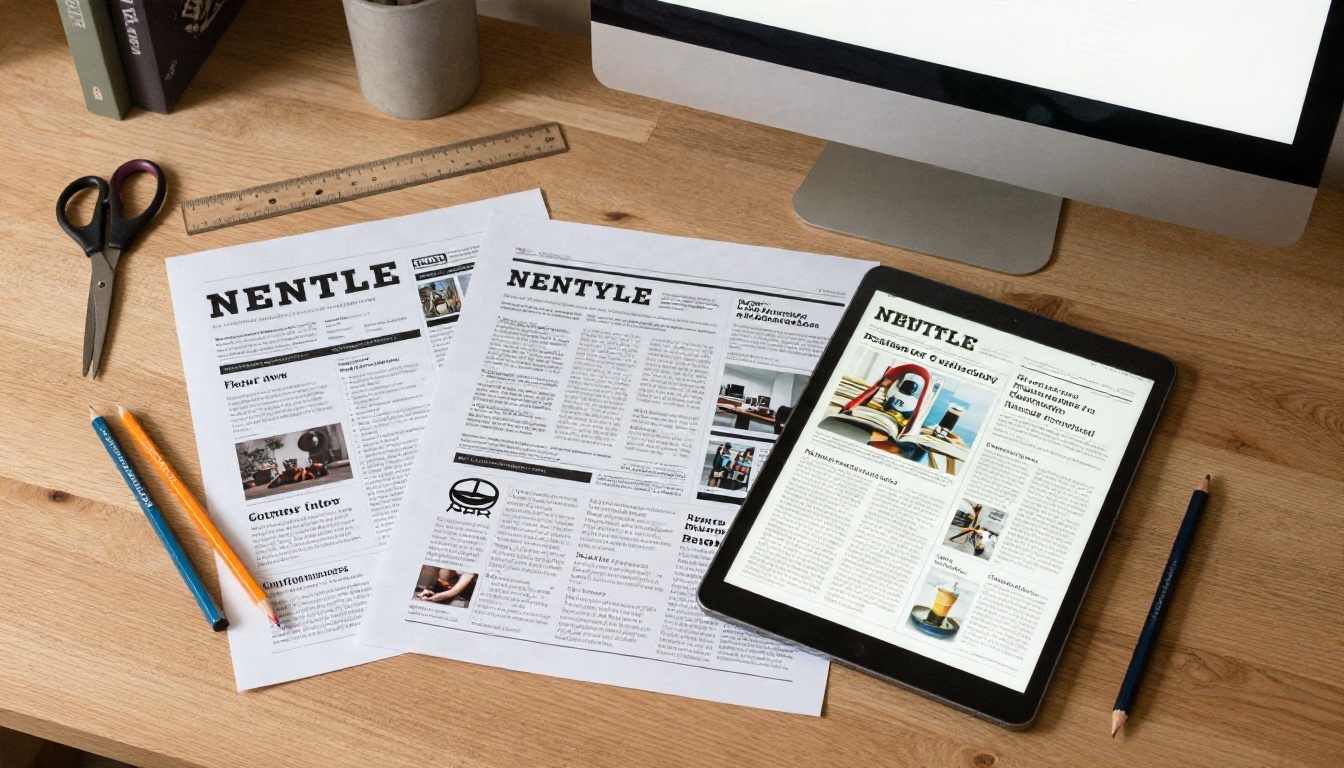
How to Create a Flipbook with Flipbooks AI
Once you have your PDF, the process takes a few minutes:
- Create an account. Go to Flipbooks AI and sign up.
- Upload your PDF. Use the PDF to Flipbook Converter and drop in the file you exported from your PUB document. Conversion happens automatically and pages keep their original layout.
- Preview the result. Flip through each page. Screenshot style check: you should see a realistic book with smooth page turns, zoom controls and a navigation bar at the bottom.
- Customize the look. Add your logo, choose background colors, adjust page effects and pick the toolbar options you want visitors to see.
- Add multimedia. Embed videos, audio and links so your static brochure becomes interactive.
- Publish and share. Copy the direct link, or use the embed flipbook on website option to place it on any page.
💡 Pro tip: Export your PDF at the Standard quality level before uploading. It keeps images sharp while keeping load times fast for mobile readers.
Branding and Customization
Your flipbook should look like your business, not like a generic template. You can match brand colors, upload a custom logo, choose how pages animate, and decide whether people can download or print. There are no watermarks, ever, so the finished publication looks professional on a client website or in a sales email.
Sharing and Protection Options
| Sharing option | Best use |
|---|
| Direct link | Email, chat apps, social posts |
| Embed code | Website pages, blog posts, landing pages |
| Password protection | Internal reports, client proposals, private catalogs |
| Offline download | Trade shows and locations with weak internet |
Every flipbook is mobile responsive, so it reads comfortably on a phone without pinching and zooming.

Analytics and Lead Capture
If you publish marketing material, you probably want to know who reads it. The Professional plan on Flipbooks AI adds analytics and lead generation, so you can see how many people opened your flipbook and collect contact details before they view it. The Standard plan and above include unlimited flipbooks, which suits anyone migrating a whole archive of old PUB documents.
Real World Examples
Abstract advice is nice, but real scenarios show which route fits.
A Bakery Menu Rescue
A bakery owner inherited a seasonal menu saved as a PUB file by a former employee. She has a Mac and no Publisher. She uploaded the file to an online converter, downloaded the PDF, and checked prices on every page. Then she used the Restaurant Menu Creator to turn it into a shareable menu with a QR code on the counter.
A School Newsletter Archive
A school secretary had ten years of monthly newsletters in PUB format. Rather than convert them one at a time for every parent request, she exported them to PDF on a Windows PC and published them as flipbooks with the School Newsletter Creator. Parents now browse past issues from a single web page.

A Sales Team Brochure
A regional sales manager received a product brochure as a PUB file from a partner. The team used a free converter, then built a flipbook with the Brochure Flipbook Maker and added password protection before sharing it with clients. For other formats and use cases, browse all flipbook tools.
Which Method Fits You?
| Your situation | Best route |
|---|
| Windows PC with Publisher installed | Export to PDF directly |
| Windows PC, no Publisher | Online converter or LibreOffice |
| Mac, simple flyer | Online converter or LibreOffice Draw |
| Mac, complex layout | Ask for a PDF or use a Windows machine |
| Confidential content | Offline LibreOffice, no uploads |
| Many files to share online | Convert to PDF, then publish as flipbooks |
Pick Your Next Step
You now have every route mapped out. A PUB file only looks stubborn because the software that made it is fading out. Use an online converter for speed, Publisher for accuracy, LibreOffice for privacy, and a Windows PC when the layout is delicate.
Once you have a clean PDF, do not leave it as a flat attachment. Get started for free on Flipbooks AI and publish it as a polished flipbook readers can open on any device. Compare pricing plans to decide between Standard and Professional, or open the PDF to Flipbook Converter and try your first file today. Ready to go further? Head to the account page and choose the plan that fits your archive.



