If you run Linux, you already know the drill: someone sends you a .pub file, your machine shrugs, and you lose an afternoon trying to make it open. Microsoft Publisher never shipped for Linux, and the workarounds are fragile at best. The good news is that you no longer need it. A handful of free tools run entirely in your browser, produce print-ready PDFs, and work the same on Ubuntu, Fedora, Arch or a Chromebook with Linux enabled. This article compares the best publisher alternative for Linux options, shows which one fits which job, and finishes with a way to turn your finished layout into a page-turning flipbook using Flipbooks AI.

Why Publisher Fails on Linux
Publisher was always a Windows desktop program. It was built around Windows fonts, Windows printing and a proprietary file format that almost nothing else reads well. That makes it a poor fit for anyone who wants a lightweight, portable workflow.
The Wine Problem
Yes, some people run Publisher through Wine or a virtual machine. It can work, but expect trouble:
- Installers break after Wine or Office updates.
- Fonts shift, so a layout that looked fine on the original machine reflows on yours.
- Printing and PDF export can produce odd spacing or missing glyphs.
- A virtual machine eats RAM and needs a Windows license you may not own.
⚠️ If a client needs an editable .pub file back, no Linux tool will round-trip it perfectly. Agree on PDF as the delivery format before the project starts.
Microsoft Is Retiring It
Microsoft announced that support for Publisher would end in October 2026, which means there is no longer a reason to build a new workflow around it. Anyone starting fresh today is better off with a tool that lives in the browser and exports open formats. Moving now also protects you from the next Office update that breaks your Wine prefix.
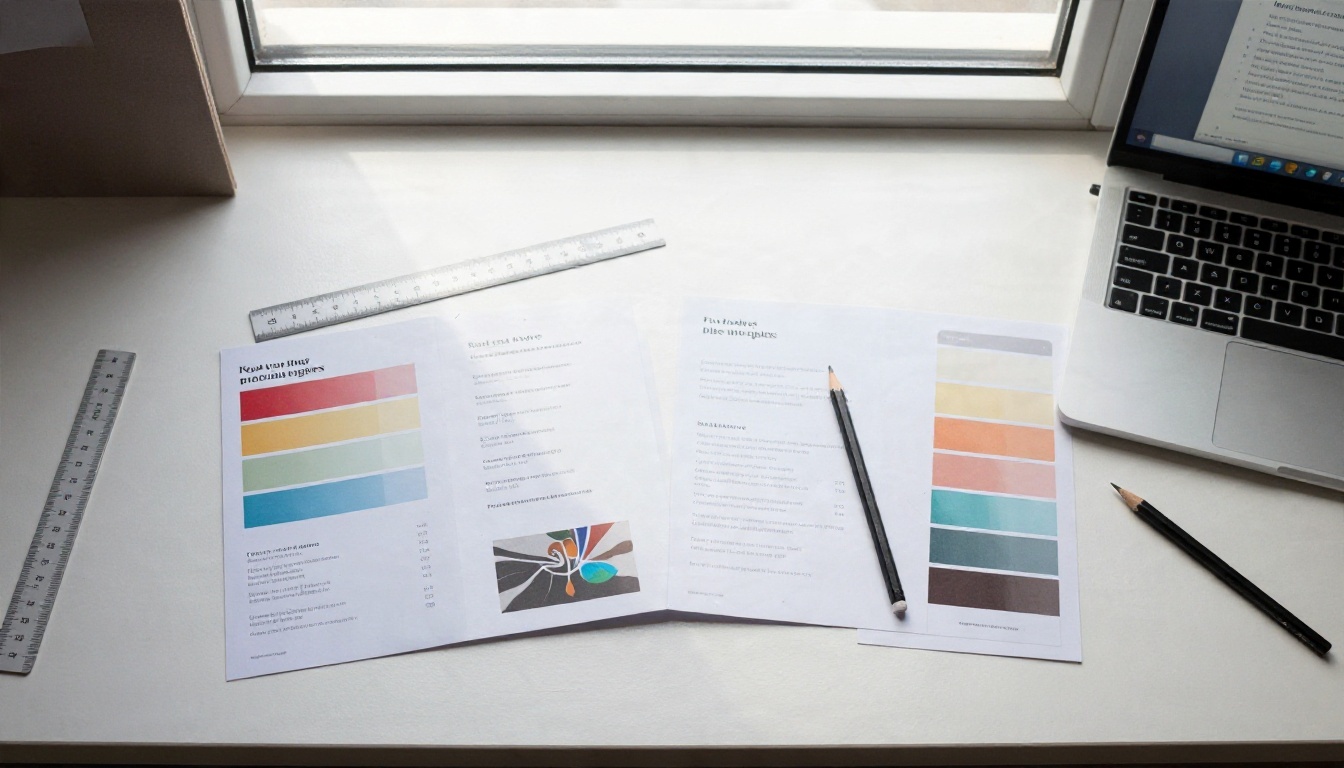
Here is the shortlist. Every tool below runs in Firefox, Chromium or Brave on Linux. Free plans change often, so check each provider's current limits before you commit a big project.
| Tool | Best for | Templates | PDF export | Learning effort |
|---|
| Canva | Flyers, posters, social graphics | Very large library | Yes | Low |
| Adobe Express | Quick brochures, branded one-pagers | Large library | Yes | Low |
| Google Docs and Slides | Text-heavy newsletters, simple brochures | Basic | Yes | Very low |
| Penpot | Custom layouts, open-source teams | Community files | Yes (SVG, PDF) | Medium |
| Photopea | Photo-heavy covers and image edits | Few | Yes | Medium |
| Flipbooks AI | Turning a PDF into a flipbook | PDF based | Embed or link | Low |
Canva
Canva is the closest thing to Publisher's "pick a template and start typing" experience. You get drag-and-drop frames, a big stock library, and one-click PDF export. It works well on Linux because it needs nothing beyond a modern browser. The trade-off is that some premium elements are paywalled, so stick to the free assets when you export for print.

Adobe Express
Adobe Express sits between Canva and a full design suite. It handles brochure and flyer templates, background removal and brand colors, and exports to PDF or PNG. If you already have an Adobe account, the sign-up friction is zero. Print-minded users should check the page size settings before they start, since changing dimensions late can shift every element.
Google Docs and Slides
Do not sneer at these. For a text-heavy newsletter or a simple tri-fold, Google Docs with a three-column layout or Google Slides with a custom page size does the job. Slides is particularly handy because you can set an exact page size such as A4 or US Letter and place images with precision. Export to PDF from the File menu and you are done.
💡 Pro tip: In Google Slides, choose File, then Page setup, then Custom. Set 11 x 8.5 inches for a landscape tri-fold, and add guides at one-third intervals so your panels line up.
Penpot
Penpot is an open-source design tool that runs in the browser and speaks SVG natively. It suits people who like the Linux philosophy of open formats and self-hosting. It has more of a learning curve than Canva, but it gives you real control over grids, components and typography. Choose it when you need pixel-accurate layouts and want to avoid vendor lock-in.

Publisher users tend to do the same few tasks over and over. This table maps each task to the browser tool that handles it best.
| Publisher task | Best online replacement | Why it works |
|---|
| Tri-fold brochure | Canva or Google Slides | Templates plus custom page sizes |
| Event flyer | Canva or Adobe Express | Fast, image-rich, easy export |
| Monthly newsletter | Google Docs | Text flows across columns easily |
| Price list or menu | Canva, then flipbook | Looks polished and updates quickly |
| Product catalog | PDF, then Digital Catalog Maker | Page-turning view, shareable link |
| Business cards and labels | Penpot or Canva | Exact sizing and clean vector output |
| Interactive brochure | PDF, then Brochure Flipbook Maker | Adds links, video and a sharable URL |
Notice the pattern. Layout tools create the design, but they all end in a static PDF. That PDF is fine for printing and email attachments, yet it feels flat on a phone. That gap is where a flipbook earns its place.
✅ Best practice: Design at the final print size from the first minute. Resizing a finished brochure is where most layouts break, whether you use Canva, Slides or Penpot.
How to Build a Brochure Flipbook
Once your layout is done, the second half of the job begins: getting it in front of readers. A printed brochure only reaches people you hand it to. A web flipbook reaches anyone with a link. Here is the full workflow on Linux, start to finish, with nothing to install.
Export Your PDF
- Finish your design in Canva, Adobe Express, Slides or Penpot.
- Export as PDF. Choose the highest quality setting your tool offers.
- Keep pages in the order readers should see them. For a tri-fold, export the outside and inside spreads as separate pages.
- Check that fonts look right by opening the PDF in your Linux document viewer.
Upload and Convert
- Go to Flipbooks AI and create an account. The platform runs in the browser, so Firefox, Chromium and Brave all work.
- Upload your PDF. The PDF to Flipbook Converter turns each page into a flippable spread with a realistic page-turn effect.
- Wait a few moments while the pages are processed. You will see a live preview.
- For brochure projects, the Online Brochure Designer page offers a helpful starting point if you want a template-driven workflow.
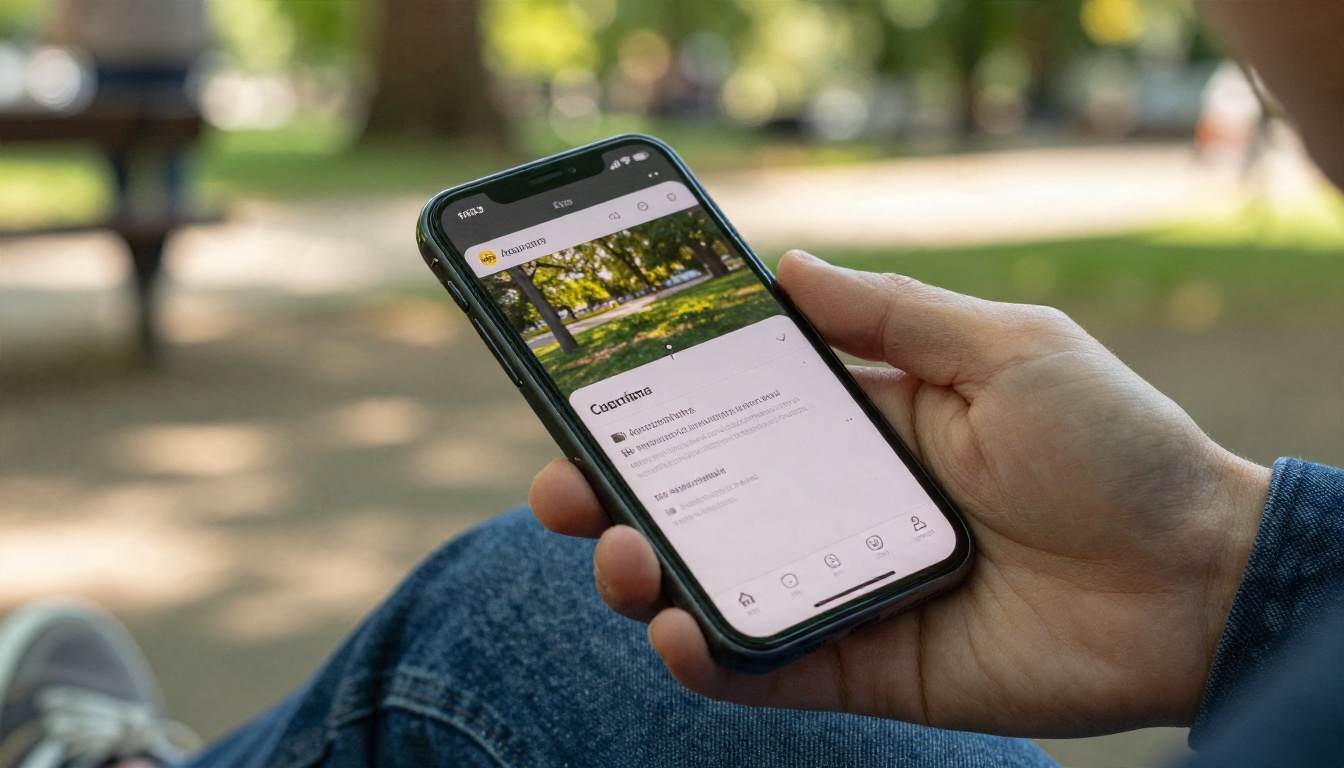
Brand and Share
Customization is where a flipbook stops looking like a plain PDF viewer:
- Branding: Add your logo, pick background colors and set a custom accent to match your brochure.
- Page effects: Adjust the page-turn style and sound so it feels right for your audience.
- Multimedia: Embed videos and audio inside pages, such as a welcome clip on the first spread.
- Mobile layout: The viewer is mobile-responsive, so readers on phones get a clean single-page view.
Then choose how to share it:
- Direct link for email, chat apps and social posts.
- Embed code to place the flipbook on your site. The Embed Flipbook on Website tool shows exactly how.
- Password protection when the brochure is for clients or members only.
- Offline download when you need a copy for a trade show or poor connectivity.
There are no watermarks, ever, so the result looks like your brand and nobody else's. If you want to track who opens it, the Professional plan adds analytics and lead generation. See the pricing plans for the full breakdown.
| Feature | Standard plan | Professional plan |
|---|
| Unlimited flipbooks | ✅ | ✅ |
| No watermarks | ✅ | ✅ |
| Password protection | ✅ | ✅ |
| Embed videos and audio | ✅ | ✅ |
| Offline downloads | ✅ | ✅ |
| Analytics | | ✅ |
| Lead generation | | ✅ |
💡 Start with the free option on the pricing page to test the flow with one brochure before you decide on a plan.
Real Scenarios That Work
Theory is nice. Here is how people actually use this stack.
A Cafe Owner
A cafe owner on Linux designs a seasonal menu in Canva, exports a PDF, and uploads it to the Restaurant Menu Creator. She prints a QR code and sticks it on every table. When prices change, she re-exports and replaces the file. The link stays the same, so the QR codes never go out of date. No reprinting, no Windows laptop needed.

A School Office
A school administrator uses Google Docs to write a monthly newsletter, exports to PDF, and publishes it with the Newsletter Flipbook Publisher. Parents open the link on their phones. Because the flipbook is embedded on the school website, there is nothing to download and no attachment size limit to fight.
Other quick wins:
- A freelance photographer exports a portfolio from Penpot and shares it as a flipbook.
- A real estate agent designs a property brochure in Adobe Express, then protects it with a password for serious buyers.
- A nonprofit builds a yearly report in Slides and publishes it online for donors.
| Scenario | Design tool | Output | Sharing method |
|---|
| Cafe menu | Canva | Flipbook | QR code and link |
| School newsletter | Google Docs | Flipbook | Website embed |
| Portfolio | Penpot | Flipbook | Direct link |
| Property brochure | Adobe Express | Flipbook | Password-protected link |

Mistakes to Avoid
Switching from Publisher to the browser is mostly painless, but a few traps catch people.
Font Surprises
Online editors use their own font libraries. If you import a document that relied on a Windows-only font, it will be swapped. To stay safe:
- Pick fonts that exist in your chosen tool from the start.
- Export to PDF early and check how text wraps.
- Stick to two typefaces at most. Fewer fonts means fewer surprises.
Low-Resolution Exports
A web preview looks sharp on screen and then prints blurry. Always export at the highest quality, and use images that are at least 150 to 300 pixels per inch at their final size. A macro look at a printed proof tells you more than any on-screen zoom.
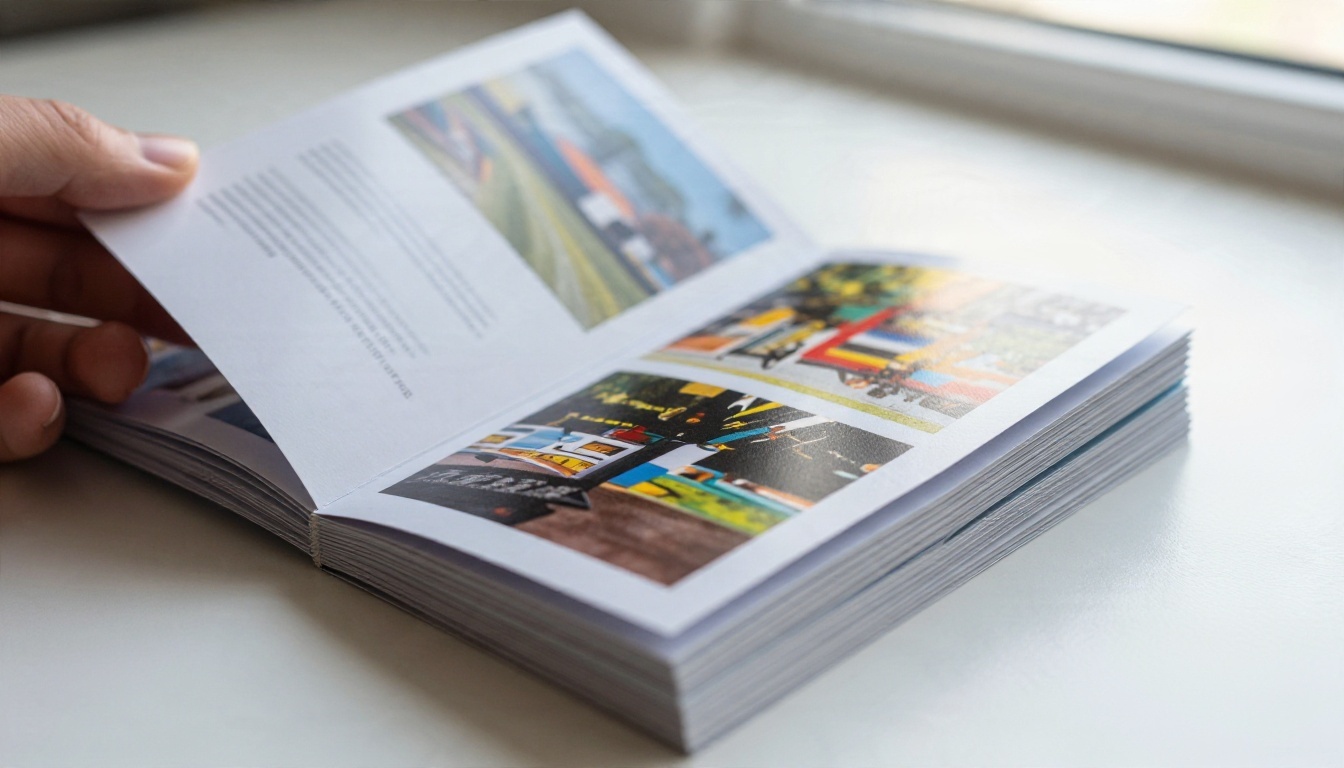
⚠️ Never send a PDF to print without a proof. Print one copy at home, fold it, and check that panels line up before you order a full run.
Pick Your Setup Today
You do not need Publisher, Wine or a Windows virtual machine. A solid Linux workflow looks like this: design in Canva, Adobe Express, Google Slides or Penpot, export a clean PDF, and publish it as a flipbook that works on every device. That gives you a printable file, a shareable link and an embeddable viewer from one source document.
Ready to publish your first brochure? Get started for free on Flipbooks AI, browse all flipbook tools to find the template that suits your project, and compare pricing plans when you want analytics, lead generation and unlimited flipbooks.



