Your manuscript is finished, and now a different job begins: making it look like a real book. Margins drift, fonts swap themselves out, the printer rejects your PDF, and the ebook shows up on a phone with strange line breaks. The good news is that you do not need an expensive designer. With the right self publishing formatting software, a solid template and a few export settings, you can produce a clean paperback interior and a polished digital edition. You can even turn the final PDF into a page-turning online edition with Flipbooks AI, which we cover near the end.
This article compares free and paid tools, lists the page sizes most authors use, explains margins and bleed in plain language, and gives you an export checklist you can follow line by line.
Formatting software takes raw text and turns it into pages. That sounds simple until you list the jobs involved: setting the trim size, applying margins, controlling fonts, placing chapter openers, building a table of contents, inserting page numbers, and exporting a file that a printer or ebook store accepts.
Reflowable vs Fixed Layout
An ebook (EPUB or Kindle format) is usually reflowable. The reader chooses the font size, and the text wraps to fit the screen. A print PDF is fixed layout. Every line sits exactly where you put it, and the printer reproduces it on paper.
These two outputs need different thinking:
- Reflowable files care about clean styles, headings and a working navigation menu.
- Fixed layout files care about trim size, bleed, gutter margins and embedded fonts.
- Most authors need both, so look for software that exports both from one source file.
Print PDF vs Ebook File
| Feature | Print PDF | Reflowable Ebook |
|---|
| Page size | Fixed trim size | Adapts to the device |
| Fonts | Must be embedded | Reader can override |
| Images | 300 dpi recommended | Compressed for screens |
| Page numbers | Required | Not used |
| Typical upload | KDP, IngramSpark | KDP, Draft2Digital, Kobo |
💡 Pro tip: Write and edit in one clean document first. Format only after the text is locked. Reflowing a 300 page file because of a late edit wastes hours.
You can ship a professional book without paying for software. The trade-off is usually time and a steeper setup, not quality.
Free Tools Worth Using
Here is how the popular free options compare:
| Tool | Best For | Exports | Learning Curve |
|---|
| Reedsy Book Editor | Fiction and memoir, quick results | EPUB, print PDF | Low |
| Kindle Create | Kindle ebooks and simple print files | Kindle, print PDF | Low |
| Google Docs | Drafting and basic ebooks | DOCX, EPUB, PDF | Low |
| LibreOffice Writer | Print PDF with custom page sizes | PDF, DOCX, EPUB | Medium |
| Scribus | Full layout control, image-heavy books | PDF/X for print | High |
| Sigil and Calibre | Editing and converting EPUB files | EPUB, MOBI, others | Medium |
A few honest notes from real projects:
- Reedsy Book Editor is the fastest way to a decent result. You paste your chapters, pick a style, and export. You get less control over fine details like custom chapter art.
- LibreOffice Writer is underrated. Set a custom page size, mirror the margins, apply paragraph styles, and export a PDF with embedded fonts.
- Scribus is a true desktop publishing program. It suits cookbooks, photo books and anything with complex layouts, but expect a weekend of practice.
- Calibre and Sigil shine when you already have an EPUB and need to repair or convert it.
⚠️ Warning: Word processors can silently substitute fonts when you open a file on another computer. Always export to PDF and check the result before uploading.
Paid Tools Worth the Money
If you publish often, paid software pays for itself in saved hours.
- Vellum is a Mac-only favorite for polished fiction. Beautiful defaults, very little tweaking.
- Atticus runs in the browser on Windows, Mac and Linux, with a one-time purchase model rather than a subscription.
- Adobe InDesign and Affinity Publisher give designers total control for complex, illustrated books.
A practical rule: if your book is mostly flowing text, a simple tool wins. If your book has sidebars, photos, charts or recipes, a layout program wins.
Templates That Save Hours
A good template fixes the boring decisions before you start: margins, fonts, heading sizes, spacing and page numbering. You focus on the words.
Where to Find Reliable Templates
- Print on demand platforms such as KDP and IngramSpark publish downloadable Word and PDF templates for each trim size, with margins already set.
- Reedsy and Atticus include built-in themes for fiction, nonfiction and poetry.
- Canva and Word offer book layouts, useful for workbooks, planners and short guides for your own readers.
- Open source options for LibreOffice and Scribus are shared in author communities, usually free to use.
✅ Best practice: Download the template for your exact trim size and page count. A 5.5 x 8.5 inch template will not fit a 6 x 9 inch book.
How to Build Your Own
If you prefer a custom look, build a reusable template once and keep it for every book:
- Set the page size and mirror the inside and outside margins.
- Create paragraph styles: body text, chapter title, subheading, block quote and caption.
- Choose one serif body font and one accent font for headings. More than two fonts looks messy.
- Set body text between 10.5 and 12 points with line spacing around 1.2 to 1.4.
- Turn on widow and orphan control so single lines do not dangle at the top or bottom of a page.
- Add page numbers to the footer, and hide them on the title page and chapter openers.
Save this as a template file. Next time you write, you start with all the styling in place.
Page Sizes, Margins and Bleed
This is where most rejected files fail. Printers are strict, and a one-millimeter error can trigger a warning.
Common Trim Sizes
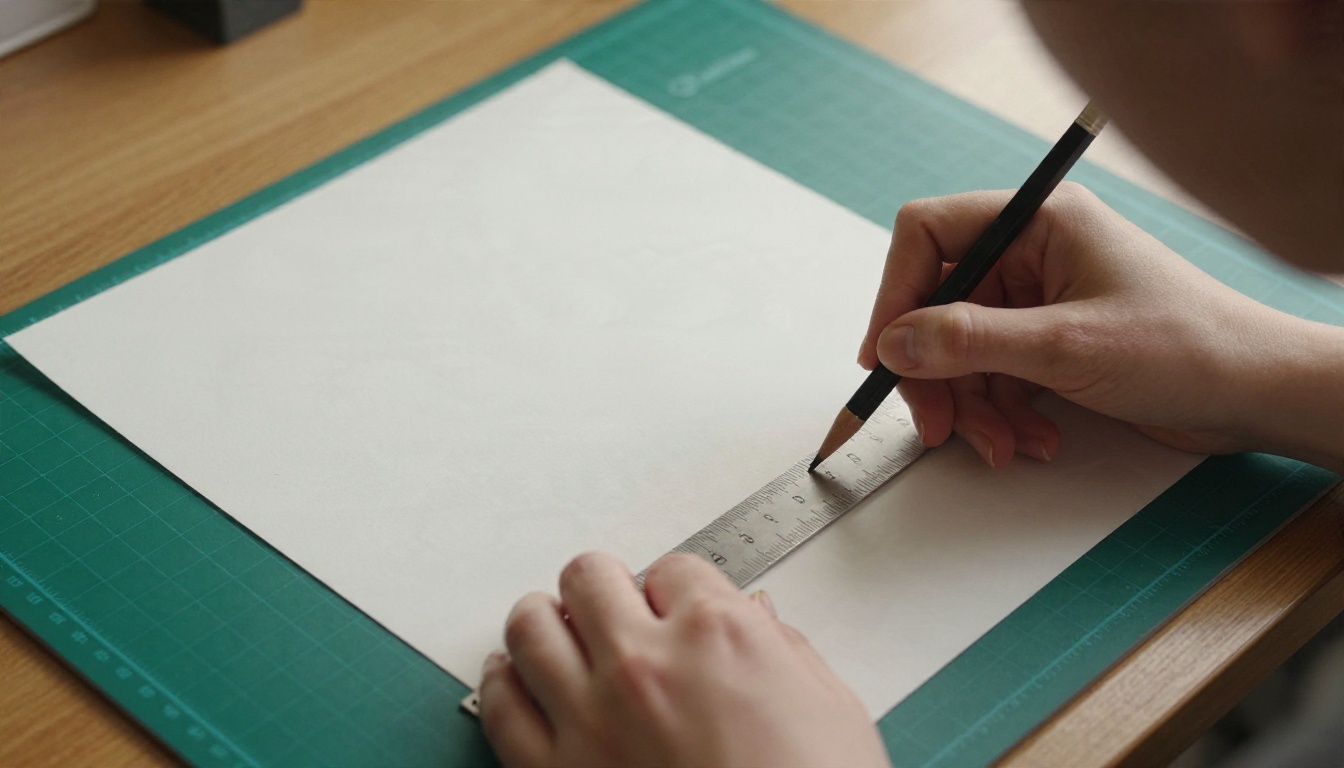
The trim size is the final dimension of the finished page after the printer cuts the book. Choose it by genre and by what readers expect on a shelf.
| Trim Size (inches) | Metric | Typical Use |
|---|
| 5 x 8 | 127 x 203 mm | Fiction, novellas |
| 5.25 x 8 | 133 x 203 mm | Fiction, narrative nonfiction |
| 5.5 x 8.5 | 140 x 216 mm | Memoir, general nonfiction |
| 6 x 9 | 152 x 229 mm | Nonfiction, business, textbooks |
| 7 x 10 | 178 x 254 mm | Manuals, technical books |
| 8 x 10 | 203 x 254 mm | Photo books, picture books |
| 8.5 x 11 | 216 x 279 mm | Workbooks, planners, cookbooks |
Pick the size before you write the first line of layout. Changing it later shifts every page break in the book.
Gutter Margins by Page Count
The gutter is the inside margin near the spine. Thicker books curve more, so they need more space on the inside edge. Amazon KDP publishes minimums like these, and you should confirm the current numbers on the platform before you export:
| Page Count | Minimum Inside Margin |
|---|
| 24 to 150 pages | 0.375 in (9.6 mm) |
| 151 to 300 pages | 0.5 in (12.7 mm) |
| 301 to 500 pages | 0.625 in (15.9 mm) |
| 501 to 700 pages | 0.75 in (19.1 mm) |
| 701 to 828 pages | 0.875 in (22.3 mm) |
Outside, top and bottom margins are commonly at least 0.25 inches, but many authors use 0.5 to 0.75 inches for comfortable reading.
What Bleed Means
Bleed is extra image area that extends past the trim line, so there is no white sliver if the blade shifts. If any image or color touches the edge of the page, add roughly 0.125 inches (3 mm) of bleed on the top, bottom and outside edges. If every page has plain white margins and no edge-touching art, you can skip it.
PDF Export Settings That Work
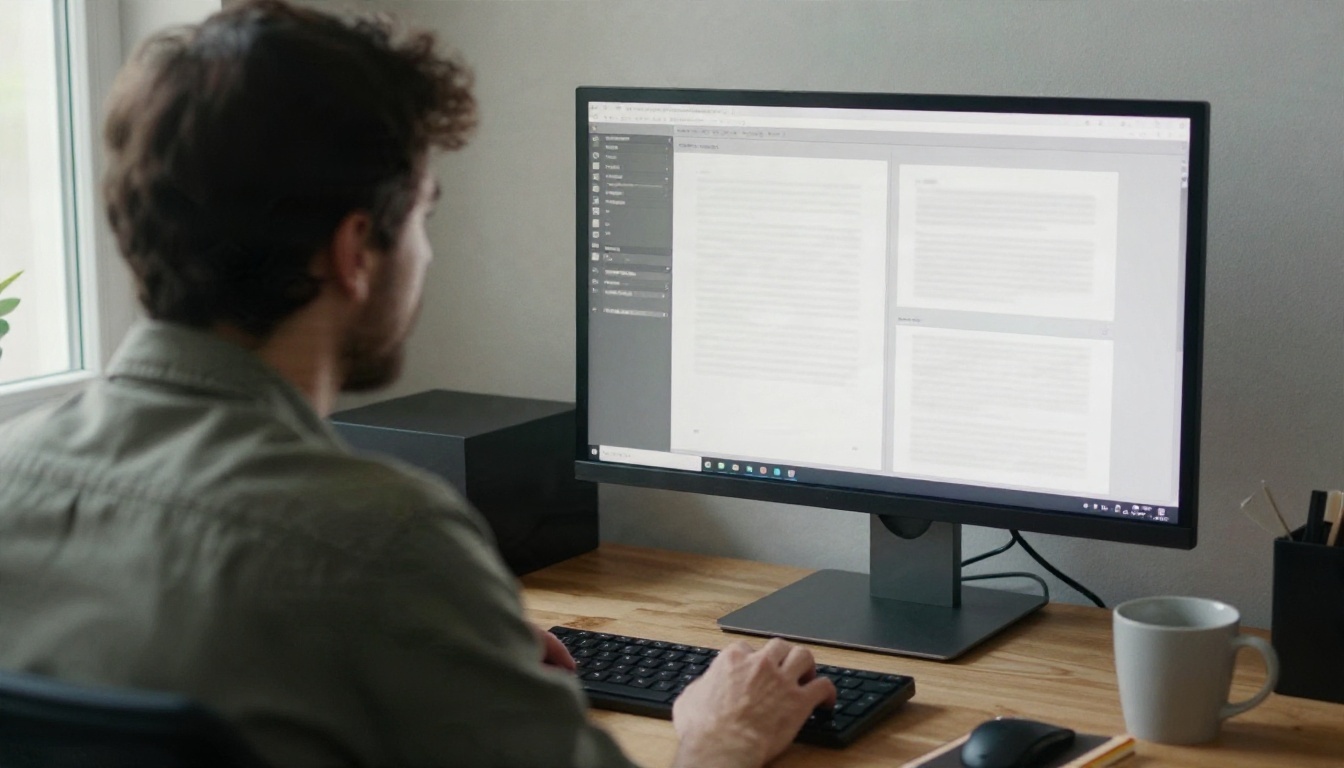
A good export is boring. The file opens the same way on every computer, and the printer's checker passes it without complaint.
Export Checklist
Run through this list every time:
- Embed all fonts. Missing fonts are the number one cause of rejected files.
- Export single pages, not two-page spreads, unless the platform asks for spreads.
- Use 300 dpi for photos and illustrations. Lower resolution prints soft and grainy.
- Flatten transparencies if your software offers the option, to avoid odd shadows.
- Match the page size to your chosen trim size, plus bleed when needed.
- Choose PDF/X (such as PDF/X-1a or PDF/X-3) when the printer recommends it.
- Keep file size reasonable. Compress images, but never below 300 dpi for print.
- Open the final PDF and scroll every page before uploading.
💡 Pro tip: Order a printed proof copy before you approve the book. Screens hide problems like tight gutters, text too close to the edge, and images that look darker on paper.
3 Common Mistakes
- Blank pages in odd places. Chapters that start on the right-hand page leave blank left pages. That is normal in print, but check that the page count and numbering still make sense.
- Page numbers on the title page. Front matter usually has none, or uses roman numerals. Start arabic numbering at chapter one.
- Text in the safe zone violations. Keep important words and logos at least 0.25 inches inside the trim line so nothing gets clipped.
How to Create an Ebook Flipbook with Flipbooks AI
Once your print PDF is ready, you can reuse it as a digital edition. A flipbook is an online page-turning version of your book that opens in any browser, with no download or app needed. It works well for free sample chapters, launch campaigns, reader magnets and press copies.

Authors can use the Interactive E-Book Publisher or the E-Book Flipbook Generator. Both start from a PDF.
Upload and Convert
- Go to Flipbooks AI and create an account.
- Open the PDF to Flipbook Converter.
- Upload your exported PDF. Use the single-page version without crop marks so the pages display cleanly.
- Wait a moment while the pages convert. The result is a flipbook with realistic page turning.
- Scroll through the preview and confirm that every page appears in the right order.
Customize the Look
- Branding: add your logo, choose background colors and match your series colors.
- Page effects: adjust the page-turn animation and sound to taste.
- Multimedia: embed audio clips, author videos or links to your newsletter on the pages that suit them.
- Mobile layout: the flipbook is mobile-responsive, so phone readers get a clean experience too.
Share Your Book
- Direct link: paste it into emails, social posts or your author bio.
- Embed code: place the book on your site with the Embed Flipbook on Website tool.
- Password protection: keep advance copies private for reviewers and street teams.
- Offline downloads: let readers save a copy when you want them to.
Pro Features for Serious Authors
On the Professional plan you can use analytics to see which pages readers reach and add lead generation forms to collect email addresses before a reader continues. That is a strong fit for a free first-three-chapters offer. Flipbooks AI adds no watermarks, and the Standard plan and above includes unlimited flipbooks. See the pricing plans for the details.
✅ Best practice: Put a sample chapter online as a flipbook and link to your store page on the last page. Readers who enjoy the sample are one click from buying.
Pick Your Workflow
Not every author needs the same toolchain. Match the setup to the book you are making.
| Your Situation | Suggested Workflow | Budget |
|---|
| First novel, minimal fuss | Reedsy Book Editor, then upload EPUB and PDF | Free |
| Nonfiction with a few charts | LibreOffice or Word with a template, then PDF | Free |
| Cookbook or photo book | Scribus or Affinity Publisher, PDF/X export | Free to low |
| Series with a consistent look | Atticus or Vellum with saved themes | One-time purchase |
| Brochure, catalog or lead magnet | Layout tool, then convert to a flipbook | Free to low |
Here are two real-world scenarios:
- A fantasy author writes in Google Docs, imports into Reedsy for the EPUB, and uses a KDP template in LibreOffice for the 5.5 x 8.5 print PDF. The same PDF becomes a flipbook sample for newsletter subscribers.
- A small business coach designs a 6 x 9 workbook in Word, exports a PDF with embedded fonts, and shares a password-protected flipbook with workshop attendees. A Training Manual Flipbook works well for this case.
Ready to Publish Your Book?
Formatting is a process, not a talent. Pick a tool that matches your book, choose your trim size first, build or download a template, and follow the export checklist every time. Then give readers a second way in with a digital edition.
Create your first flipbook on Flipbooks AI, browse every flipbook tool, or compare pricing plans to see which one fits your publishing schedule.



