You spent days polishing a PDF, and then someone opens it on their phone, pinches, zooms, scrolls sideways, and gives up on page three. That is the quiet tragedy of the plain PDF. The good news is that fixing it takes about five minutes. With a free online maker like Flipbooks AI, you can turn a PDF into a digital booklet that flips like paper, loads in any browser, and shares with a single link.
This article walks through the whole process: why booklets outperform raw PDFs, what a decent free maker must include, the exact steps to build one, the settings worth adjusting, and every sharing option you have. Tables, examples, and a few warnings are included so you can skip the trial and error.
Why Booklets Beat Plain PDFs
A PDF is a container built for printing. A digital booklet is built for screens. That difference sounds small until you watch real readers use both.
The Download Problem
Most people do not want to download a file from someone they just met. They tap a link, expect to see content, and leave if they see a download bar instead. Large PDFs make it worse, since a 40 MB brochure on mobile data is a very good reason to close the tab.
A booklet opens instantly in the browser. Pages load as the reader flips, so the first screen appears in seconds rather than after a long wait.
What Readers Actually Want
Readers want three things: speed, a familiar reading feel, and no extra software. A page-turning layout gives them the feel of a printed booklet, while responsive design resizes pages to fit a phone, tablet, or desktop.
💡 Pro tip: If your audience is mostly on phones, preview your booklet on a small screen before sharing. Text that looks fine on a laptop can feel tiny on a narrow display.
Here is how the two formats compare in everyday use:
| Feature | Standard PDF | Digital booklet |
|---|
| Opens in browser without download | Sometimes, often clunky | Yes, always |
| Page-turning effect | No | Yes |
| Mobile-friendly reading | Needs pinch and zoom | Resizes automatically |
| Embeds on a website | Awkward | Single embed code |
| Password protection | Limited, file-based | Built in at link level |
| Reader analytics | None | Available on higher plans |
| Video and audio inside pages | Rarely works | Supported |
What a Free Maker Should Offer
Not every free converter is worth your time. Some are fine for a quick test. Others bury your work under logos or lock the best settings behind a paywall you only notice after uploading.
The Checklist
Before you upload anything, make sure the tool covers the basics:
- No watermarks on your pages or the viewer
- Reasonable file size limits so a normal brochure or catalog uploads without trouble
- Mobile-responsive output that works without extra setup
- Shareable link you can send by email or message
- Embed option for websites and landing pages
- Custom branding such as logo and background color
- Clear upgrade path so you know what changes on paid plans
The Watermark Trap
Plenty of free makers add a large logo to every page or a banner above the booklet. That looks fine for a personal test, but it hurts credibility if the booklet is a client proposal or a price list. Flipbooks AI does not add watermarks, ever, which matters more than most people expect.
⚠️ Warning: Always open the finished booklet in a private browser window before sending it. That is the fastest way to catch stray branding, missing pages, or a broken link.
A quick look at what typically separates free tools from stronger options:
| Capability | Basic free converter | Flipbooks AI |
|---|
| Watermark-free pages | Often no | Yes |
| Custom branding | Paid only | Available |
| Password protection | Rare | Available |
| Embed on website | Limited | Yes |
| Video and audio | Rare | Yes |
| Offline downloads | No | Yes |
| Analytics and lead capture | No | Professional plan |
You can check exactly what each plan includes on the pricing page.
How to Create a Digital Booklet with Flipbooks AI
This is the hands-on part. The process is the same whether you are converting a menu, a lookbook, or a training manual. Open the PDF to Flipbook Converter or create an account and follow along.

Step 1: Upload Your PDF
- Go to Flipbooks AI and sign in or create a free account.
- Click the option to create a new flipbook.
- Drag your PDF into the upload area, or pick it from your computer.
- Wait for the conversion. Each page becomes a crisp, flippable page, and most files finish within moments.
✅ Best practice: Export your PDF at the final page size before uploading. Pages set to A4 or US Letter convert cleanly, while mixed page sizes can create awkward gaps in the spread.
Step 2: Customize the Look
Once the pages appear in the editor, you can change how the booklet looks without touching the original file:
- Add your logo and pick a background color that matches your brand.
- Choose a page effect such as a soft curl or a quick slide.
- Decide whether the booklet opens as a single page or a double-page spread.
- Add video, audio, or links to specific pages if your content calls for them.
Step 3: Publish and Share
- Click publish to generate a live link.
- Copy the link, or grab the embed code for your site.
- Set a password if the booklet is private.
- Send it, post it, or place it on your page.
That is the full workflow. For most people the entire thing, from upload to a shareable link, takes under ten minutes.
Settings Worth Adjusting
Defaults work, but a few tweaks make a booklet feel intentional rather than auto-generated.
Branding and Colors
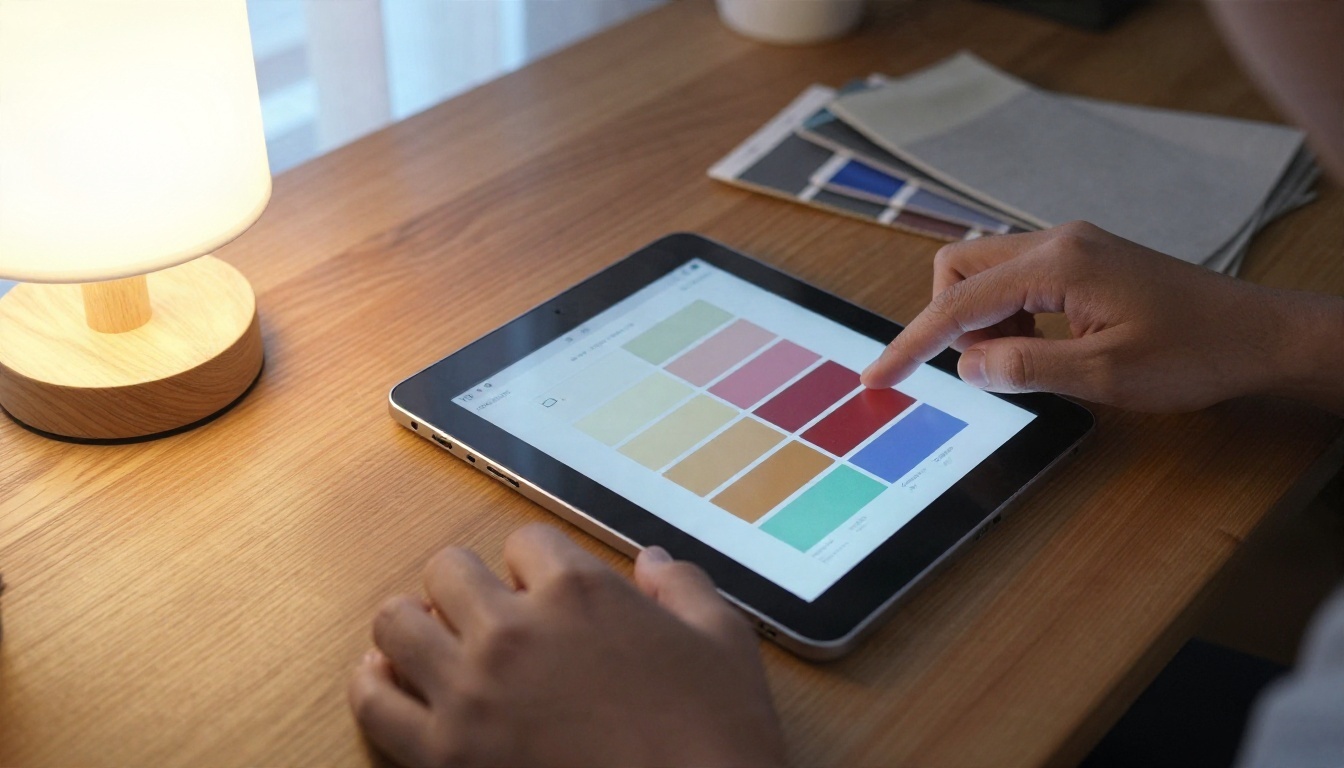
Your background color frames the booklet like a tablecloth frames a plate. A neutral tone such as soft grey or off-white keeps attention on the pages, while a deep brand color works better for portfolios and lookbooks. Add your logo so readers remember who made it, particularly when the link gets forwarded.
Page Effects and Sound
A gentle page-turn animation feels natural. Heavy effects can slow older phones and distract from the content. If you add page-turn sound, keep the volume modest, since many readers open links in public places.
Multimedia Inside Pages
Embedding videos and audio is where booklets pull ahead of PDFs. A restaurant can play a short clip of the kitchen next to the specials page. A course creator can place a recorded lesson beside the worksheet it belongs to.
Here is a quick reference for the settings people change most often:
| Setting | What it does | Best for |
|---|
| Logo and brand color | Adds identity to the viewer | Business booklets |
| Page effect | Controls the flip animation | Brochures, lookbooks |
| Single or double page view | Changes the reading layout | Magazines, catalogs |
| Embedded video and audio | Adds media to specific pages | Training, menus, portfolios |
| Clickable links | Sends readers to your site | Catalogs, price lists |
| Password protection | Restricts access | Internal documents |
| Offline download | Lets readers save a copy | Field teams, events |
Three Mistakes That Hurt Booklets
- Tiny text. If you export at a small page size with 8 pt body text, mobile readers will struggle. Aim for body text that stays legible when a page is shrunk to phone width.
- Heavy images. Compress photographs before exporting the PDF. A lighter file converts faster and loads faster for your reader.
- No call to action. A booklet without a next step wastes attention. End with a link, a contact line, or a button-style prompt.
Sharing Options Compared
Making the booklet is half the job. Getting it in front of the right people, in the right way, is the other half. You have four main routes.

Direct Link
The simplest option. Copy the link and paste it into an email, a chat, a social post, or a QR code on printed material. It works on every device with a browser, and you can update the booklet later without sending a new link.
Embed Code
Paste a short snippet into your website and the booklet appears right on the page. This suits product pages, blog posts, and landing pages. The Embed Flipbook on Website tool explains how it works for common site builders.
Password Protection
Not every booklet should be public. Pricing sheets for wholesale partners, internal training manuals, and investor updates all benefit from a password gate. Share the link openly and give the password only to the people who should see the content.
💡 Pro tip: Send the link and the password in separate messages. It adds a small layer of caution without making anything harder for the reader.
Offline Downloads
Some readers work where connectivity is poor: trade shows, warehouses, remote sites. Offline downloads let them keep a copy on their device and open it without a connection.
Which route fits which situation?
| Sharing method | Setup effort | Privacy level | Best use |
|---|
| Direct link | Very low | Public | Email, social media, QR codes |
| Embed code | Low | Public | Websites and landing pages |
| Password protected link | Low | Restricted | Client proposals, internal documents |
| Offline download | Low | Depends on settings | Events, field work, travel |
Real-World Use Cases
The same conversion process serves very different goals. Here are a few examples that show how flexible it is.
Restaurants and Cafes
A restaurant can convert a seasonal PDF menu into a booklet, add a short video to the dessert page, and link a QR code on each table. The Restaurant Menu Creator and the Menu Flipbook Designer are built for exactly this.
Real Estate and Hotels
Agents benefit when buyers can flip through a property booklet on the sofa instead of waiting for an email attachment to download. Try the Real Estate Brochure tool or the Hotel Brochure designer for layouts that suit those industries.
Teachers and Trainers
A course packet, a school newsletter, or a safety manual becomes easier to read and easier to update. The Training Manual Flipbook and Course Material Publisher tools are good starting points.
Creatives and Sellers
Photographers, designers, and shops can turn a portfolio or price list into something polished. Try the Digital Portfolio Creator or the Digital Price List Generator.
| Use case | Typical PDF | Booklet bonus |
|---|
| Menu | One-page or multi-page file | QR code access, video on specials |
| Property brochure | Image-heavy PDF | Fast loading, embedded tour link |
| Training manual | Long text file | Password gate, offline copy |
| Portfolio | Large image file | Smooth flipping, branded viewer |
| Price list | Spreadsheet export | Clickable links, easy updates |
You can browse every option in the full tools directory.
Tracking Results and Leads
Sending a booklet is one thing. Knowing whether anyone read it is another. This is where paid features start to pay for themselves.

Reader Analytics
On the Professional plan, analytics show how many people opened your booklet and how they interacted with it. If most readers stop at page four, you know where to tighten the content. If one page gets repeated visits, you know what to feature more prominently. See the pricing plans for the full list of included features.
Lead Generation
Lead capture lets you ask readers for an email address before they continue. A consultant can offer the first few pages freely, then request contact details for the rest. A catalog publisher can see who is interested in the product range and follow up with a relevant offer.
✅ Best practice: Place the lead form after your strongest page, not before the first one. Readers who have already seen value are far more willing to share their details.
Which Plan Fits?
| Need | Plan to consider |
|---|
| Try the converter on one file | Free account |
| Create many booklets without limits | Standard plan and above |
| Track readers and capture leads | Professional plan |
Ready to Build Yours?
A PDF that sits in a download folder does very little for you. A digital booklet that opens instantly, flips naturally, and shares with one link does a lot more, and it takes minutes to set up.
Here is the short path:
- Open the PDF to Flipbook Converter.
- Create your free account and upload your file.
- Adjust branding, effects, and media.
- Publish, then share by link, embed code, or password.
Want analytics, lead capture, or unlimited booklets? Compare pricing plans and pick the one that fits your workflow. For more ideas, browse the full range of flipbook tools and start with the one closest to your project.



