You export the proposal, attach it to an email, hit send, and from that moment the file belongs to everyone who touches it. It can be forwarded, saved, printed, pasted into another document or uploaded somewhere you will never see. If the PDF holds pricing, a draft contract, unreleased designs or paid course material, that is a real problem. A view only PDF solves it by keeping the document on a server and letting people read it in a browser, with no download button, no print option and no easy copy. Tools like Flipbooks AI turn an ordinary PDF into a protected online reader in a couple of minutes. This article shows how it works, what it can and cannot stop, and the exact steps to set it up.
Why "View Only" Is Tricky

What the Phrase Actually Means
A PDF is a file. Once a file lands on someone's device, they hold a full copy, and no setting inside it can follow them around forever. "View only" therefore works best when the document is never handed over as a file at all. Instead, the reader loads the pages inside a web viewer, and you control what that viewer offers: a download button, a print button, text selection, a right-click menu.
Think of it like a museum. A photograph of a painting can travel anywhere, but the painting stays on the wall and visitors look at it under your rules.
Why Email Attachments Fail
Attachments are convenient and almost impossible to control. Here is what happens after you click send:
- The recipient can save the PDF to any folder, cloud drive or phone.
- Forwarding takes one click, so a file meant for one person reaches ten.
- You cannot revoke access. If you spot a typo or a price error, the old version stays alive in inboxes forever.
- You get no data on whether the file was opened, skimmed or ignored.
⚠️ A password on the PDF does not fix this. Once the recipient opens the file and has the password, they can still save an unprotected copy in most readers.
What You Can and Cannot Block
Before picking a method, be honest about what is technically possible. Some things can be blocked reliably in a web viewer. Others can only be discouraged.
| Action | Can a web viewer block it? | Reality check |
|---|
| Downloading the file | Yes | No download button, no direct file link exposed |
| Printing from the viewer | Yes | Print option removed from the interface |
| Selecting and copying text | Largely | Pages can be served as images instead of live text |
| Forwarding the link | Partly | Password or email gate limits who can open it |
| Screenshots | No | Any device can photograph or capture a screen |
| Reading without permission | Yes | Password protection stops casual visitors |
Downloading
When pages are rendered in a viewer, the original PDF never needs to be exposed. The reader sees page images streamed to their browser. There is no "Save as PDF" button because there is no single file for them to grab.
Printing
Print buttons live in the viewer interface, so removing them is straightforward. A determined person can still use the browser's own print command, which is why password protection and limited audiences matter as much as the interface settings.
Copying Text
Live text in a PDF can be highlighted and pasted anywhere. Flipbook readers usually display each page as a rendered image, which makes casual copy and paste useless. That stops the lazy copier. It does not stop someone willing to retype a paragraph.
Screenshots
Nobody can truly block a screenshot or a phone photo of a screen. Anyone who tells you otherwise is selling something. What you can do is make the effort high enough and the payoff low enough that most readers never bother: show only the pages that matter, keep the audience small, and share sensitive details verbally when they are truly critical.
💡 Match the protection level to the real risk. A pricing sheet needs a password and no download. A trade secret needs a signed NDA and a meeting, not just a viewer.
Passwords vs Online Viewers
People often mix up two different ideas. A PDF password locks the file itself. A view only link controls how a hosted document is displayed. They solve different problems, and the comparison below shows where each one fits.
| Method | Blocks download | Blocks print | Blocks copy | Tracks readers | Revocable |
|---|
| Plain email attachment | No | No | No | No | No |
| PDF with open password | No | No | No | No | No |
| PDF with permission flags | Weak | Weak | Weak | No | No |
| Cloud drive "view only" link | Partly | Partly | No | Basic | Yes |
| Flipbook with password and no download | Yes | Yes | Largely | Yes (Professional) | Yes |
Built-in PDF Permissions
Acrobat and similar editors let you set permission flags such as "disallow printing" or "disallow copying". They look reassuring, but many free tools simply ignore those flags. Treat them as a polite request, not a lock.
Cloud Drive Viewer Mode

Cloud drives can restrict downloading, printing and copying for viewers. It works for internal teams, but the experience is plain: a gray file viewer, your drive branding, a login wall for many recipients and little insight into who read what. For client-facing material, that feels clumsy.
How to Share View Only with Flipbooks AI
A flipbook viewer hosts your document online as turnable pages, so the PDF stays with you. It also looks far better than a file preview, which matters when the reader is a client or a buyer. Here is the full process, start to finish.
Step 1: Upload and Convert

- Open the PDF to Flipbook Converter or create an account on Flipbooks AI.
- Click the upload area and select your PDF, or drag it in from your desktop.
- Wait a few seconds while the pages are converted into a page-turning reader.
- Preview the result and check that every page looks sharp, especially tables and small print.
✅ Clean up the source file first. Remove draft comments, hidden layers and metadata such as author names before you upload.
Step 2: Customize the Look
A protected document should still feel like yours. Inside the editor you can adjust:
- Branding: add your logo and choose a background that matches your site.
- Colors: set toolbar and background colors to fit your palette.
- Page effects: pick the page-turn animation and sound that suit the tone.
- Multimedia: embed videos or audio to give pages a richer feel.
There are no watermarks from the platform on your reader, so the document looks like part of your own brand.
Step 3: Lock Down Sharing

This is where the "view only" part happens. In the share settings:
- Leave the download option off. Offline downloads are something you choose to enable, so keep them disabled for sensitive files.
- Turn on password protection so only people with the password can open the flipbook.
- Choose how to distribute it: a direct link for email and chat, or an embed code for your website. The Embed Flipbook on Website tool shows how to place it on a page.
- Open the link in a private browser window to test exactly what a stranger would see.
💡 Send the link and the password through different channels. Email the link, then text the password. If one message is intercepted, the other half is still safe.
Step 4: Use Professional Features
On the Professional plan you get extras that matter for controlled sharing:
- Analytics: see how many people opened the document, which pages they read and how long they stayed.
- Lead generation: ask for a name and email before the reader can open the document.
- Offline downloads: offer a download deliberately, only to audiences you trust.
Compare options on the pricing page to see which plan fits. Standard plans and above include unlimited flipbooks, so you can protect every document without counting.
Real Situations Where It Works

Different jobs need different levels of control. The table below matches common scenarios to the settings that fit best.
| Scenario | Who reads it | Recommended setup |
|---|
| Client proposal | One buyer | Password, no download, link sent separately |
| Sales deck | Many prospects | Lead capture form, no download |
| Real estate listing pack | Selected buyers | Password, embed on private page |
| Paid training material | Customers | Password per course, no download |
| Press kit before launch | Journalists | Password, shared under embargo |
| Internal handbook | Employees | Password, download allowed if needed |
Sales Decks and Proposals
A freelancer sending a quote does not want it forwarded to a competitor who then undercuts the price. With a protected link, the client reads the proposal, and the freelancer sees whether the pricing page was opened. Try the Sales Presentation tool for exactly this use.
Property and Product Packs

An agent can share a detailed listing pack with floor plans and seller notes using the Real Estate Brochure tool. Only invited buyers get the password, and the agent never worries about floor plans ending up on a rival's website.
Courses and Training Material
Teachers and trainers who sell workbooks lose money every time a PDF circulates free. Hosting the material as a flipbook with the Training Manual Flipbook tool keeps lessons inside a controlled reader, so only paying students can open them.
Track Who Actually Reads It
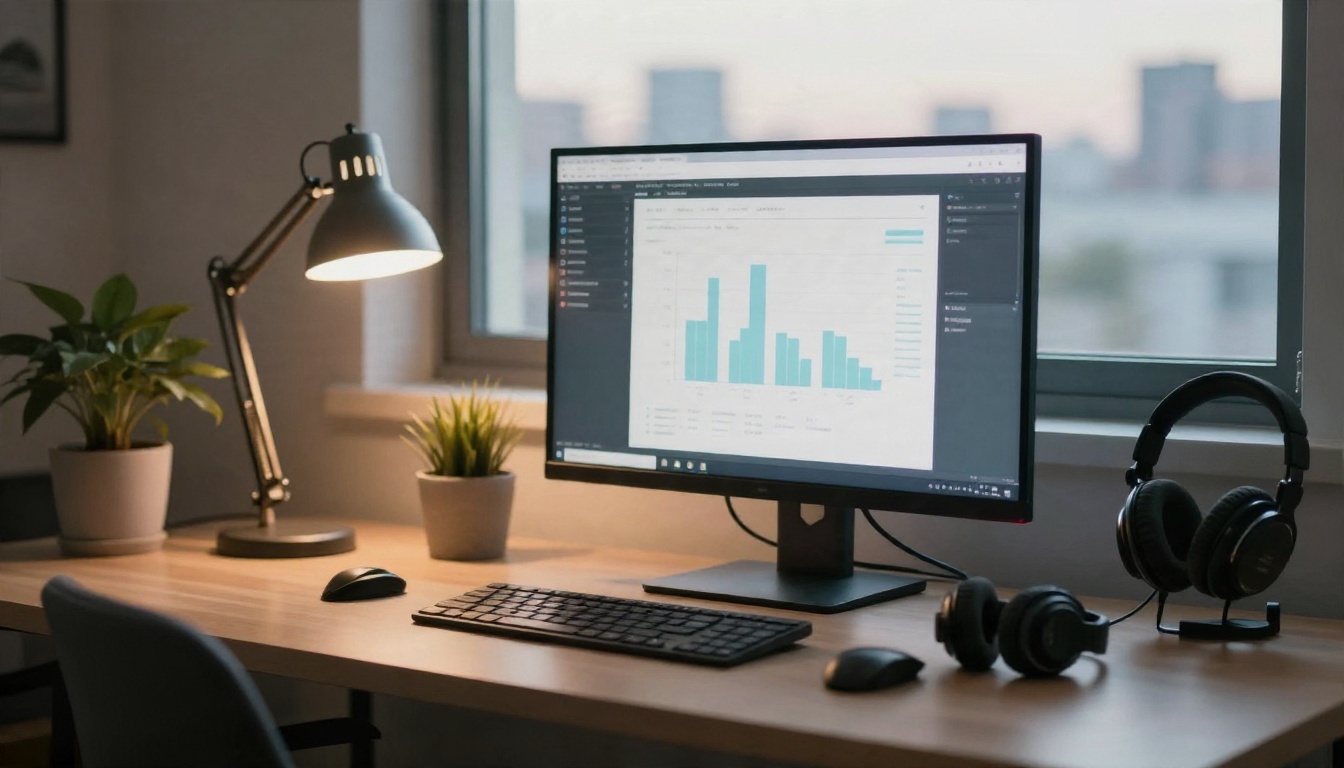
Protection is only half of the story. Hosting the document also gives you visibility that an attachment can never offer. With the Professional plan, you can check:
| Metric | Why it helps |
|---|
| Total opens | Shows if the right people even saw the file |
| Pages viewed | Reveals which sections get attention and which get skipped |
| Time on page | Tells you where a buyer lingered, often on pricing |
| Lead details | Gives you a name and email for every reader |
Follow Up at the Right Moment
If a prospect opens your proposal three times in a day and spends most of that time on the price page, that is the moment to call. Without data you would wait for a reply that might never come.
Retire Old Versions Safely
Made a mistake? Update the flipbook or remove access entirely. The old link stops working, which is impossible with an emailed PDF.
Mistakes That Leak Files
Even a good setup fails when small habits undo it. Watch for these three.
1. Sharing the Original PDF Alongside the Link
Some people protect the flipbook and then attach the source PDF to the same email "just in case". That defeats the entire point. Keep the original on your own drive.
2. Reusing One Password Everywhere
If every client gets the same password and one of them shares it, all your documents are exposed. Use a different password per audience and change it after a project ends.
3. Putting Everything in One Document
A 60-page master file that holds public pricing, private costs and internal notes is a leak waiting to happen. Split documents by audience so each reader sees only what they need.
⚠️ Remember the screenshot limit. If a page holds something that would cause real damage in a stranger's hands, do not publish it at all, even behind a password.
A Quick Checklist Before You Send
- Strip metadata and comments from the source PDF.
- Upload and confirm every page renders cleanly.
- Disable downloads and enable the password.
- Test the link in a private window.
- Send the link and password in two separate messages.
- Check analytics after a day or two.
Ready to Lock It Down?
A view only PDF is not magic, but it is a huge step up from attaching files and hoping for the best. You keep control of the document, readers get a polished experience, and you get proof of who opened it. That combination is what protects deals, courses and launches in practice.
Ready to try it? Create your free account on Flipbooks AI and convert your first PDF today. Browse the full list of flipbook tools to find one that matches your document type, or compare pricing plans to pick the level of protection and analytics you need. If you already know you want the Professional features, go straight to the plan upgrade page.



