If you have a folder full of brochures, menus and newsletters saved as .pub files, the end of Publisher support is not an abstract IT headline. It is a deadline for your archive. Microsoft has set the end of support for Publisher for October 2026, which means the date has now passed or is passing as you read this. The good news: nothing in your files disappears overnight, and you have several solid routes forward, including free ones. Once your layouts are safely exported, a tool like Flipbooks AI can turn them into interactive, shareable page-turning publications without a single watermark.
This article walks through the support timeline, a safe PDF export routine, the best replacement apps, and a practical migration plan you can finish in an afternoon.
The Support End Date Explained
What Microsoft Announced
Microsoft has stated that Publisher reaches end of support in October 2026. Its recommended path has been to move layout work to Word, PowerPoint or Microsoft Designer, and to save finished files as PDF. Publisher is a standalone desktop app that never received the cloud and collaboration updates other Office apps got, so retiring it was a matter of time.
⚠️ Check your edition. Exact dates depend on whether you run a Microsoft 365 subscription or a perpetual version such as Publisher 2016, 2019 or 2021. Confirm the date for your edition on Microsoft's official lifecycle page before you plan around it.
What Actually Stops Working
End of support is not the same as "the app deletes itself." In practice, here is what changes:
- No more security patches. Any newly found vulnerability stays open on that copy of the software.
- No bug fixes or compatibility updates. Future Windows updates may break features you rely on.
- No official help. Microsoft support will not troubleshoot Publisher problems.
- Reduced availability. Publisher is not offered for new installs on many current Microsoft 365 plans, so a new laptop may not have it at all.
- Risk when opening untrusted files. An unpatched app that opens files from outside senders is a weak spot.
An installed copy may keep launching for a while. That is exactly why people postpone the move, and exactly why it bites them later when a laptop dies and the installer is gone.
Who Is Affected Most
| User type | Risk level | Why it matters |
|---|
| Small business owners | High | Menus, price lists and flyers exist only as .pub files |
| Schools and nonprofits | High | Yearly newsletters and event programs reuse old templates |
| Freelancers and print shops | Medium | Clients still send .pub files for edits |
| Home users | Low | Occasional cards or calendars, easy to rebuild |
Export Publisher Files to PDF Now

PDF is the closest thing to a permanent format your layouts will ever have. It keeps fonts, images and page positions fixed, and every replacement tool, plus every flipbook converter, understands it. Make this the first thing you do, before you choose any new software.
Step-by-Step PDF Export
- Open the .pub file in Publisher.
- Choose File, then Export, then Create PDF/XPS Document.
- Click Create PDF/XPS and pick a destination folder.
- Open Options and select the quality level (see the table below).
- Tick Include document properties if you want titles and authors preserved.
- Click Publish, then open the PDF and scroll through every page to check it.
💡 Pro tip: Export one PDF per file, and keep the original .pub in a folder named "source". If a replacement tool ever reads .pub files better than today's options, you will be glad you kept them.
Choosing the Right PDF Quality
| Setting | Best for | File size | Notes |
|---|
| Minimum size | Email and quick web sharing | Smallest | Images are compressed, fine for screens |
| Standard | Online reading and office printing | Medium | Best default for most people |
| High quality printing | Desktop printers, in-house copies | Large | Sharp images, good color |
| Commercial press | Professional print shops | Largest | Keeps print-ready data, ask your printer first |
If the PDF will become a flipbook, Standard is the sweet spot. Pages stay sharp on a phone and the upload stays fast.
Fixing Common Export Problems
- Fonts look different. Embed fonts when the option appears, or convert text to curves in a design tool for logos.
- Images appear blurry. Re-export with Standard or higher instead of Minimum size.
- Links stopped working. Hyperlinks usually survive PDF export, but test them. Rebuild any that failed.
- Pages are cut off. Check the page size in Page Design before export, then export again.
- Transparency looks wrong. Flatten the effect in Publisher or replace it with a pre-rendered image.
Replacement Options Compared
Microsoft Alternatives Inside Your Subscription
If you already pay for Microsoft 365, the cheapest move is to rebuild inside apps you own.
- Word handles newsletters, brochures and multi-column documents better than most people expect. Its text flow and style tools are stronger than Publisher's, but precise image placement takes patience.
- PowerPoint is surprisingly good for flyers, posters and single-page layouts because every object sits exactly where you drop it. Set a custom slide size to match A4 or Letter and you have a free-form canvas.
- Microsoft Designer offers template-driven graphics for social posts and flyers with quick layout suggestions.
💡 For multi-page brochures, PowerPoint plus PDF export often looks closer to a Publisher layout than Word does, because nothing reflows unexpectedly.
Dedicated Layout Apps
If you publish regularly, a real layout application is worth the ramp-up time:
- Adobe InDesign is the professional standard with the deepest print controls. It runs on a subscription.
- Affinity Publisher is a one-time-purchase style layout tool that has recently shifted toward a free model. Check Affinity's current terms for what is included.
- Canva gives you huge template libraries and browser-based editing, with a free plan and paid upgrades for brand kits and larger exports.
| Tool | Cost model | Strength | Weak spot | Best for |
|---|
| Word | Included in Microsoft 365 | Text-heavy documents | Fiddly image placement | Newsletters, reports |
| PowerPoint | Included in Microsoft 365 | Free-form placement | Weak for long text | Flyers, posters |
| Canva | Free plan plus paid | Templates, speed | Fine typography control | Social and marketing |
| Affinity Publisher | Free or low cost | Pro-level layout | Smaller template library | Brochures, books |
| InDesign | Subscription | Print workflows | Price and ramp-up time | Agencies, print shops |
Scribus and LibreOffice
Scribus is a free, open-source desktop publishing app built for page layout. It supports CMYK color, bleeds and PDF output suitable for print shops. The interface feels dated and takes patience, but it is genuinely capable once configured.
LibreOffice deserves a special mention for one reason: its Draw component can open many .pub files directly through its import filters. Results vary with complex files, so treat the result as a starting point and compare it against your PDF export page by page. For simple one-page flyers it can save serious rebuild time.
Free Plans in Canva and Google Workspace
Canva's free plan and Google Docs and Slides are enough for a lot of everyday jobs. Slides in particular works like PowerPoint for flyers, while Docs handles newsletters with images. Real-time sharing is a major advantage over Publisher, which was always a one-person-at-a-time app.
| Free option | Opens .pub? | PDF export | Print-ready (CMYK) | Learning time |
|---|
| Scribus | No | Yes | Yes | Long |
| LibreOffice Draw | Often, with limits | Yes | Partial | Short |
| Canva free plan | No | Yes | Limited | Very short |
| Google Slides or Docs | No | Yes | No | Very short |
✅ Best practice: Rebuild only the files you will edit again. Everything that is simply "finished" should stay as a PDF and be published as is.
Turn PDFs Into Flipbooks
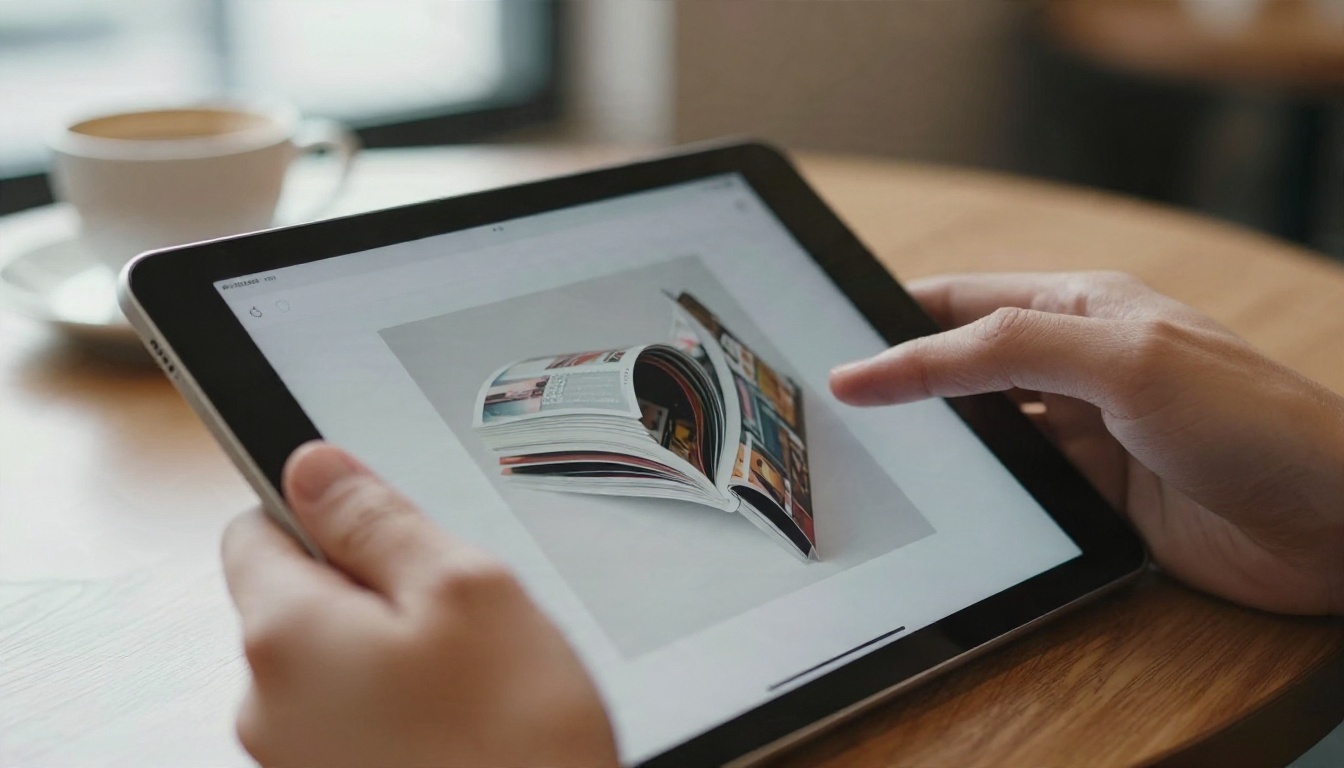
Here is where most guides stop, and where the useful part starts. A PDF protects your layout, but it is a flat file: people download it, forget it, and you never learn whether it was read. A flipbook keeps the layout identical and adds the page-turning experience, a shareable link and an embed code. Nobody has to install anything.
Because your Publisher archive is full of brochures, newsletters and menus, this is a natural next step. The PDF to Flipbook Converter takes the PDFs you just exported and publishes them as responsive flipbooks.
Upload and Convert
- Go to Flipbooks AI and create an account.
- Click to create a new flipbook and upload your exported PDF.
- Wait a few moments while the pages convert. Each page becomes a crisp, zoomable spread.
- Preview the result on desktop and phone. The design is mobile-responsive by default.
💡 Upload the Standard quality export. It keeps text sharp without slowing the page flip on mobile connections.
Customize Branding and Effects
Your old Publisher files carried your colors and logo. Keep that identity in the viewer:
- Custom branding: add your logo and choose a background color that matches your brand.
- Page effects: pick the page-turn style, sound and shadow depth.
- Multimedia: embed videos and audio so a printed-style menu can include a short clip or a voice greeting.
- Table of contents and links: make sure internal and outbound links respond.
Want a more targeted starting point? Try the Online Brochure Designer, the Newsletter Flipbook Publisher or the Restaurant Menu Creator, depending on what your .pub files contained. You can browse every option in the tools directory.
Share, Embed and Protect
| Sharing method | Best use | Notes |
|---|
| Direct link | Email, messaging apps, QR codes | Fastest option |
| Embed code | Website pages and blog posts | See Embed Flipbook on Website |
| Password protection | Internal manuals, client proposals | Keeps private content private |
| Offline download | Readers with weak connections | Available as an option |
Professional plan users can also turn on analytics and lead generation, so you see which pages get read and can collect an email before a reader opens a catalog. Compare the pricing plans to see which tier fits. The standard plans give you unlimited flipbooks, and none of them add a watermark.
Real-World Migration Scenarios
The Craft Shop Owner
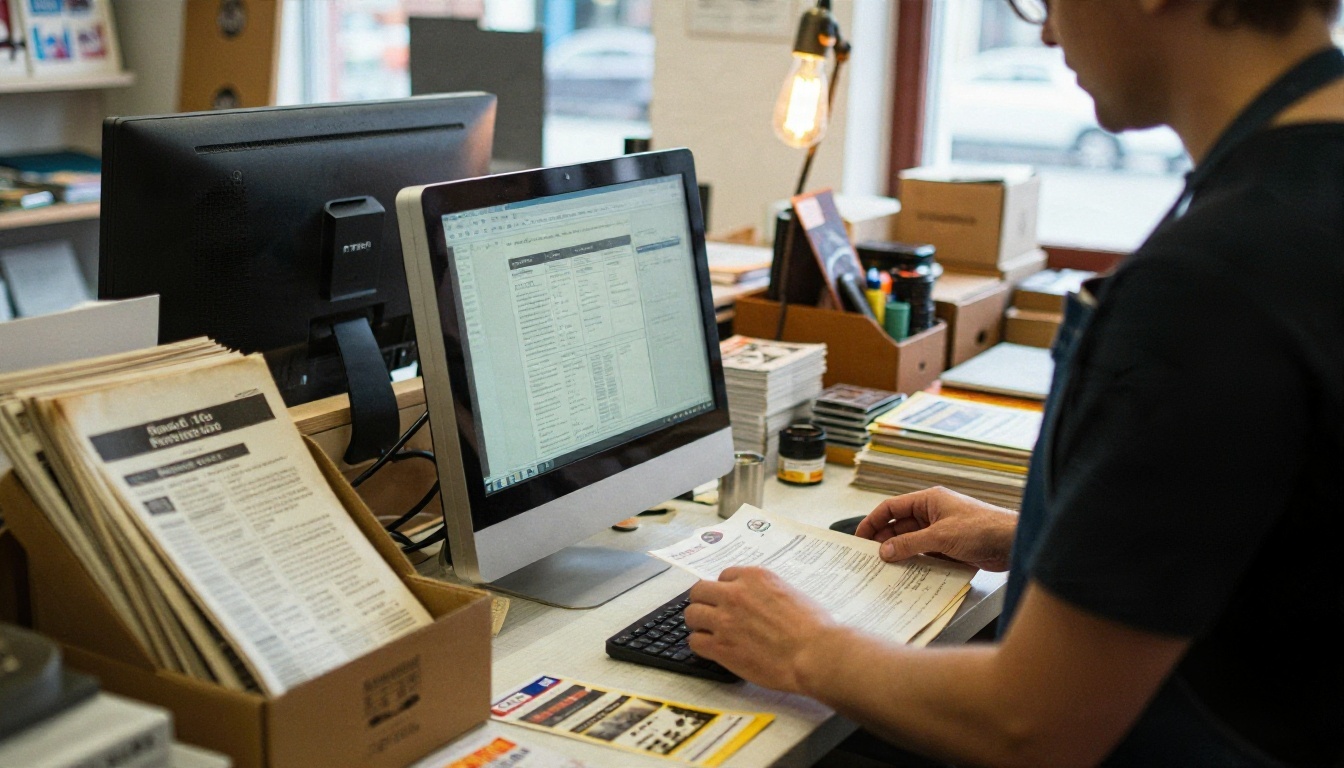
A shop owner has six years of seasonal price lists in .pub files. They export every file to PDF in one sitting, rebuild only the current season in Canva, and publish the old lists as archived flipbooks with the Digital Price List Generator. Customers get a link, the owner never opens Publisher again.
The School Newsletter Team
A school office builds a monthly newsletter from the same Publisher template. They move the template into Google Docs so several teachers can contribute at once, export a PDF each month, and publish it with the School Newsletter Creator. Parents read it on a phone instead of a crumpled printout in a backpack.

The Real Estate Agent
An agent keeps listing brochures as .pub files. Each one becomes a PDF, then a flipbook through the Real Estate Brochure Creator. The agent sends a single link, tracks who opened it, and still brings a printed copy to showings.
A Practical Migration Checklist
Work through these in order. Most people finish the first three in one afternoon.
- Inventory your files. Search your drives for *.pub and list what you actually still use.
- Sort into three piles: finished and archive-only, needs light edits, needs regular editing.
- Export everything to PDF using Standard quality, with Commercial press only for jobs going to a printer.
- Back up the originals in a "source" folder, on two storage locations.
- Pick one editing tool for the "regular editing" pile and rebuild one template first.
- Publish PDFs as flipbooks for anything you share with other people.
- Delete nothing for 12 months. Storage is cheap, regret is not.
| Pile | Action | Suggested tool |
|---|
| Finished and archive-only | Export to PDF, publish as flipbook | PDF export plus a flipbook maker |
| Light edits | Try opening in LibreOffice Draw | LibreOffice, then PDF |
| Regular editing | Rebuild as a template | Word, Canva, Affinity or InDesign |
⚠️ Do not rely on one copy. A single .pub file on one laptop is the exact situation this deadline punishes. Keep a PDF and a source file in separate places.
Pick Your Path Today
Publisher's retirement is a manageable chore, not a crisis. Export the PDFs now, choose one editor that fits how you work, and stop treating .pub files as your only record.
Ready to give your exported PDFs a second life? Get started for free on Flipbooks AI, browse the full list of tools and templates, or compare pricing plans to see which one suits your archive. If you already know you need analytics and lead capture, go straight to the plans after signing in.



