You open a link, a recipe site, or a random PDF on your phone, and a bright box slides across the screen: "Your PDF version has expired. Update now." Your thumb hovers over the button. Is this real? Is your phone in danger? Short answer: in most cases it's a fake alert, and you can get rid of it in about five minutes. Below you'll find how to tell a genuine expiry notice from a trick, how to remove the warning from Android step by step, and how to share documents through a safer route such as Flipbooks AI, where nobody has to install anything to read a PDF.
What the Warning Really Means
Let's start with the plain facts. Android does not use web pages to tell you a PDF version has expired. PDFs don't have "versions" that age out the way an app subscription does. When a message like this appears inside a browser tab, it was written by whoever owns that page or the ad network feeding it.
Where It Shows Up
The alert tends to appear in a handful of places:
- A pop-up inside Chrome, Samsung Internet, or another mobile browser after you tap a download link
- A push notification that arrives even when the browser is closed
- A full-screen page that blocks the back button
- An ad overlay on a streaming, file-sharing, or coupon site
- A banner inside a free "PDF reader" app that you installed from outside the Play Store
Why "Expired" Is a Red Flag
The word works because it creates pressure. Nobody wants a broken document, so people tap first and think later. The same trick shows up with fake "Flash Player is outdated" prompts, "Your battery is damaged" banners, and "Your phone has 5 viruses" pop-ups. Real software rarely shouts at you from inside a web page.
⚠️ Warning: A genuine PDF viewer will never ask you to download an unknown file from a random site just to keep reading a document.
Is It a Scam?
Most of the time, yes, or at least it's aggressive adware. That said, a few legitimate situations can produce the word "expired" around PDFs, so it's worth separating them.
Real Expiry vs Fake Alert
| Signal | Real expiry notice | Fake or scam alert |
|---|
| Where it appears | Inside a known app (Adobe Acrobat, Google Drive, your bank's app) | In a browser tab, a notification, or on a page you just landed on |
| What it asks | Sign in, renew a plan, or ask the sender for a new copy | Install an app, "update" a file, allow notifications, enter a card number |
| Design | Matches the app you opened | Flashing red or yellow, countdown timers, fake scan bars |
| Wording | Calm, specific, names the document | Vague: "Your PDF version", "Your system", "Your device" |
| Close button | Works normally | Hidden, tiny, or the back button is disabled |
| Source of download | Google Play or the official vendor site | Unknown website or a direct APK file |
Legitimate cases do exist. Some PDFs are issued with an access deadline set by the sender, and some PDF apps lock features when a free trial ends. Those messages show up inside the viewer, they name the document, and the fix is simple: ask the sender for a fresh link or renew the plan in the official app.
What the Scammers Want
Behind the warning there's usually one of four goals:
- Notification permission. Once you tap "Allow", the site can send spam alerts for weeks.
- An app install. The "updated PDF reader" is often adware or something worse.
- Personal data. A fake login or payment form harvests emails, passwords, and card details.
- Ad revenue. Some pages simply push you through redirects that pay per click.
💡 Quick self test: Close the tab, open your phone's official PDF app or Google Drive, and open the same file. If it opens fine, the warning was never about your PDF.
How to Remove It on Android
Work through the steps below in order. Most people are done by step 2.
| Method | Where to find it | Time needed | Fixes |
|---|
| Close the tab | Browser tab switcher | 10 seconds | One-time pop-ups |
| Block site notifications | Chrome > Settings > Site settings > Notifications | 1 minute | Repeating alerts |
| Clear browsing data | Chrome > Settings > Privacy and security | 2 minutes | Redirect loops and cached overlays |
| Uninstall suspicious apps | Settings > Apps | 3 minutes | Alerts that appear with the browser closed |
| Play Protect scan | Play Store > Profile > Play Protect | 2 minutes | Known malicious apps |
| Safe mode | Hold power button, long-press Power off | 5 minutes | Stubborn third-party apps |
Close the Page Safely
If the back button doesn't work, don't fight it.
- Open the recent apps view (swipe up and hold, or tap the square button).
- Swipe the browser away completely.
- Reopen the browser and, if it restores the same tab, close that tab from the tab switcher.
- Do not tap anything inside the warning, not even "Cancel" or "Later". On fake pages, those buttons can trigger the same action as "Update".
Block the Notifications
If the warning keeps arriving as a notification, the site already has permission.
- Long-press the notification and tap the gear or "Settings" icon.
- Switch the site's notifications off or choose "Block".
- For a wider cleanup, open Chrome > three dots > Settings > Site settings > Notifications and review the list.
- Remove every site you don't recognize. In the same menu, turn on "Use quieter messaging" or block notification requests entirely.
Clear Browser Data
Some pages leave scripts and cached redirects behind.
- Open Chrome > Settings > Privacy and security > Delete browsing data.
- Choose "All time" for the time range.
- Tick Cookies and site data and Cached images and files.
- Tap Delete data, then restart the browser.
💡 Pro tip: While you're in Chrome's privacy settings, switch Safe Browsing to Enhanced protection. It checks risky pages and downloads before they reach you.
Check Apps and Run a Scan
If alerts appear even with the browser closed, an app is probably the source.
- Open Settings > Apps and sort by recently installed.
- Look for apps you don't remember: "PDF Updater", "File Manager Pro", "Cleaner", "Document Fixer".
- Tap the suspicious app, then Force stop and Uninstall.
- If the Uninstall button is greyed out, go to Settings > Security > Device admin apps (the path varies by brand) and remove admin rights first.
- Open the Play Store > profile icon > Play Protect > Scan.
- Check Settings > Apps > Special app access > Install unknown apps and turn off access for browsers and file managers.
If Nothing Works
Reboot into safe mode, which disables third-party apps. Press and hold the power button, then long-press Power off and confirm. If the alerts stop in safe mode, an installed app is the culprit. Remove the newest ones one by one. As a last resort, a factory reset wipes everything, so back up photos and contacts first.
What If You Already Tapped?
Taking a breath helps here. Tapping a fake alert is common, and it isn't automatically a disaster. What matters is what happened next.
You Installed Something
- Uninstall the app straight away using the steps above.
- Run Play Protect and, if you have one, a reputable mobile security app.
- Check Accessibility settings (Settings > Accessibility > Installed apps) and switch off anything unfamiliar. Malicious apps abuse this permission.
- Watch for unexpected charges, SMS messages you didn't send, or a fast-draining battery over the next few days.
You Typed Personal Details
| What you entered | What to do right now |
|---|
| Email and password | Change the password on every account that shares it. Turn on two-step verification. |
| Card number | Call your bank, freeze the card, and request a replacement. |
| Phone number only | Expect more spam. Block unknown senders and don't reply to texts. |
| Government ID or address | Contact the relevant authority and consider a credit freeze. |
✅ Best practice: Write down the time you tapped and the site name, if you remember it. It helps if you need to report the incident to your bank or your country's cybercrime reporting service.
How to Share PDFs Without Warnings
A big reason people end up on sketchy "PDF update" pages is that the document arrives in an awkward way: a random download link, a file that won't open on mobile, or an attachment that needs a special reader. If you send PDFs to clients, students, or customers, you can spare them that experience.

| Way to share | Needs an app? | Works on any phone? | Risk of fake "update" prompts |
|---|
| Raw PDF attachment | Often yes | Mostly | Medium, readers differ |
| Public file-sharing link | No | Yes | High, ad-filled hosts |
| Cloud drive link | Sometimes | Yes | Low |
| Flipbook link | No | Yes | None, it opens in the browser |
Turning the PDF into a flipbook means readers just tap a link and flip through pages in their browser. No reader app, no version, nothing to expire. Here's how to do it with Flipbooks AI.
Upload and Convert
- Go to Flipbooks AI and create an account.
- Open the PDF to Flipbook Converter.
- Drag your PDF into the upload area. Pages are converted automatically into a mobile-responsive flipbook with realistic page turns.
- Preview the result on your phone and desktop before publishing.
Customize the Look
- Add custom branding: logo, colors, and a background that matches your site
- Pick page effects and flipping speed
- Embed videos and audio where a page would benefit from them
- Rename the flipbook so the link looks trustworthy
💡 Browsing for a template? The tools directory has presets for catalogs, menus, reports, and more.
Share and Protect
- Copy the direct link and send it by email, chat, or social media.
- Or use the Embed Flipbook on Website tool to paste an embed code on your site.
- For private files such as contracts or internal manuals, add password protection.
- There are no watermarks, ever, so the document looks like yours.
Pro Features Worth Knowing
| Feature | What it does | Plan |
|---|
| Unlimited flipbooks | Publish as many documents as you need | Standard and above |
| Password protection | Keeps private content private | All paid plans |
| Offline downloads | Lets readers save a copy | Available on paid plans |
| Analytics | Shows views and reading behavior | Professional |
| Lead generation | Collects reader emails before they open the file | Professional |
See the current options on the pricing page before you pick a plan.
Real-World Examples
Seeing how other people handle it makes the idea concrete.
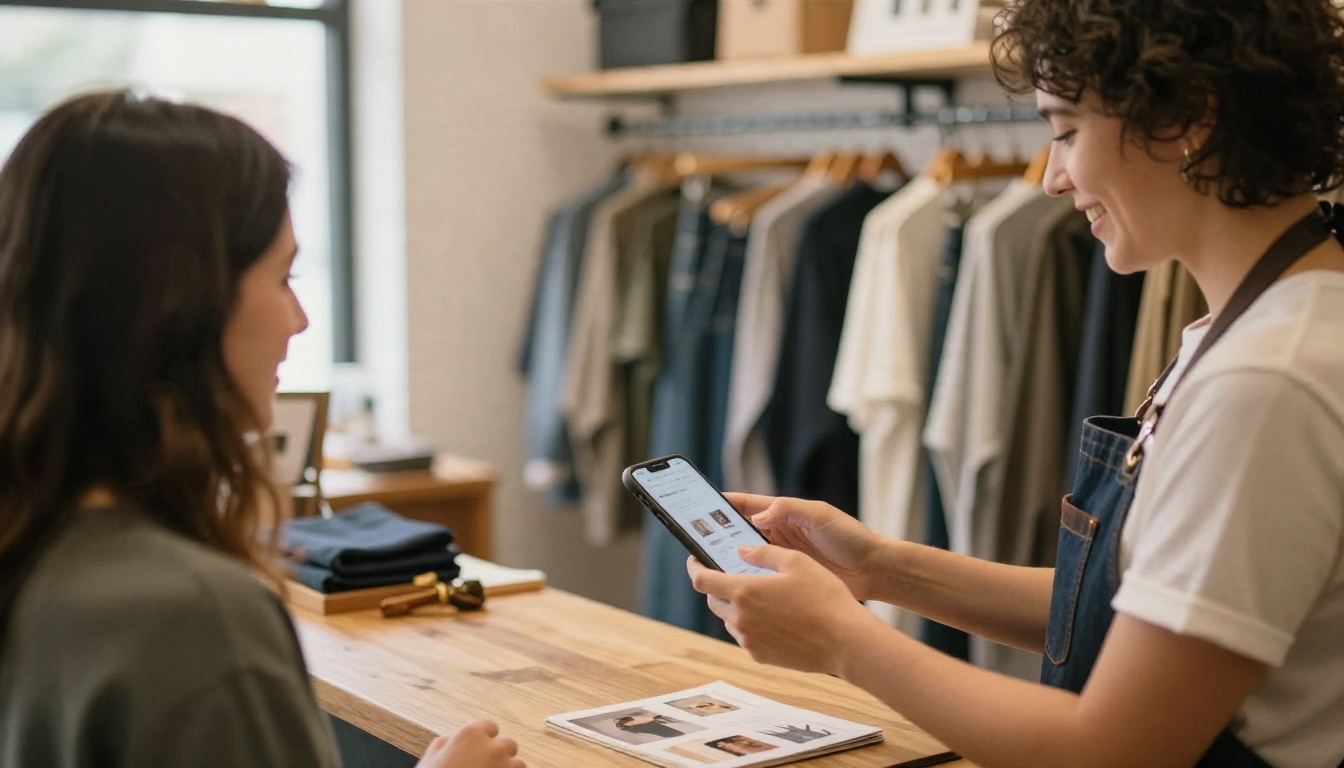
- A boutique owner sends her seasonal lookbook as a link. Customers open it on any Android phone in a second, with no installs. She builds hers with the Digital Catalog Maker.
- A café replaces its attached PDF menu, which kept triggering "can't open file" replies, with a link made in the Restaurant Menu Creator, and prints it as a QR code on the table.
- A freelance consultant shares proposals behind a password, so prospects never download files from unknown hosts.
- A teacher posts reading material as a flipbook, so students on older phones can read without hunting for a PDF app.
Safe Habits Checklist
A few small routines cut the odds of seeing another fake warning by a lot.
- Never tap "Update" inside a web page. Updates come from Google Play or Settings.
- Deny notification requests from sites you don't know.
- Install apps only from Google Play, and read recent reviews first.
- Keep Play Protect on and update Android regularly.
- Open PDFs in a known app such as Google Drive, Files, or Acrobat.
- Check the address bar. Misspelled domains and odd extensions are a giveaway.
- Don't enter cards or passwords on pages reached through a pop-up.
| Habit | Effort | Protection level |
|---|
| Block notification prompts | Low | High |
| Use Google Play only | Low | High |
| Turn on Enhanced Safe Browsing | Low | Medium to high |
| Share documents as flipbook links | Low | High for your readers |
| Review app permissions monthly | Medium | High |
Ready to Send Safer PDFs?
If the warning you saw was a fake, you're now equipped to shut it down: close the tab, block the notifications, clear your browser data, and check your apps. And if you're the one sending PDFs, you can spare your readers the whole mess.



