You built a polished presentation, exported it as a PDF, and dropped a video into it. Then your client opened it on a phone and saw a gray rectangle. That is the everyday problem with video in PDFs, and it is the reason more teams now turn their decks into flipbooks. With Flipbooks AI, the same PDF becomes a page-turning web document where video plays inline on any device, and you can share it with one link.
This article compares every realistic way to add video to a PDF presentation, from free hyperlinks to full flipbook embeds. You will see what breaks, what survives, and how to share the result without losing control of it.
💡 Quick answer: If your audience will open the file on phones, in a browser, or inside an email client, link or embed the video through a flipbook. Embedded media inside a raw PDF only plays reliably in a desktop PDF reader.
Why Video in a PDF Fails
What the PDF format allows
The PDF format can technically hold multimedia. Desktop Adobe Acrobat lets you attach a video file or a rich media object to a page, and the file will play when the reader clicks it. The catch is that the viewer has to support that feature. The format promises it, but the apps that open PDFs decide whether to keep the promise.
There is also a size problem. Embedding a video file directly means the PDF grows by the size of the video. A two minute clip can turn a 3 MB deck into a 150 MB attachment that no email server will accept.
Where playback breaks
Most people do not open PDFs in Acrobat. They open them in a Chrome tab, in a phone mail app, in a macOS preview pane, or inside a chat tool. Those viewers mostly show the poster image and ignore the video.
| Where the PDF is opened | Embedded video plays? | Hyperlinked video works? |
|---|
| Desktop Acrobat or Reader | Usually yes | Yes |
| Chrome or Edge built-in viewer | Usually no | Yes |
| macOS Preview | No | Yes |
| iPhone or Android mail app | No | Usually yes |
| Chat apps and email previews | No | Depends on the app |
| Flipbook in a web browser | Yes | Yes |
The pattern is clear. Links survive almost everywhere. Embedded files survive in one place. A flipbook runs in a normal web page, so video behaves the way it does on any website.
Four Ways to Add Video
Before picking a tool, pick a method. Each one trades effort against reliability.
| Method | Effort | Works on mobile | File size impact | Best for |
|---|
| Hyperlink to a hosted video | Low | Yes | None | Quick shares, free workflows |
| Embedded media in Acrobat | Medium | No | Very large | Offline desktop presentations |
| QR code on the page | Low | Yes | None | Printed decks and handouts |
| Flipbook with embedded video | Low | Yes | None on the PDF | Online sharing and sales decks |
Method 1: Plain hyperlinks
Upload the video to YouTube, Vimeo, or your own site, then add a clickable link or button image on the slide. In PowerPoint or Google Slides, select the thumbnail, insert a link, and export to PDF. The exported PDF keeps the link active.
The downside is context. The viewer leaves the document, watches in a new tab, and may never come back to page 7.
Method 2: Embedded media in Acrobat
In Acrobat Pro you can place a video object on a page. It plays inline, but only for readers using a compatible desktop app. Treat this as a method for a presentation you deliver yourself from your own laptop, not for a file you send around.
Method 3: QR codes on printed pages
If the PDF will also be printed, add a QR code that points to the video. It costs nothing, and the same QR code works on screen when someone scans it from a second device. A short caption such as "Watch the 40 second demo" tells people why they should scan it.
Method 4: Flipbook with embedded video
A flipbook converts each PDF page into a web page and lets you place video on top of it. The video streams from its host, so the file stays small, and it plays inline on phones, tablets and desktops. This is the method the rest of this article focuses on.
How to Add Video with Flipbooks AI
The process takes a few minutes for a normal deck. If you want a shortcut, the PDF to Flipbook Converter handles the upload and conversion step in one place, and the Presentation Flipbook Designer is built for slide decks specifically.
✅ Before you begin: Export your slides as a PDF with the video thumbnail placed where you want the player. That gives you a visual spot to attach the video in the next steps.
Step by step: upload and convert
- Open Flipbooks AI and create an account if you do not have one yet.
- Click the upload button and choose your PDF presentation.
- Wait for conversion. Each page becomes a flipbook page with a realistic page-turn effect.
- Open the editor and check that the page order and image quality look right.
Step by step: place the video
- Go to the page that should hold the video.
- Choose the video option in the editor toolbar.
- Paste the video link from YouTube or Vimeo, or upload a short clip.
- Drag the player over your thumbnail image and resize it to fit.
- Set the video to start on click, not on page load. Autoplay with sound is blocked by most browsers anyway.
- Preview on both desktop and phone before publishing.
You can also add audio, which suits narrated pitches and podcast style intros. Embedded video and audio are part of the platform, and no watermark is added to the result.
Step by step: brand the flipbook
Customization is where a plain deck starts to look like your company. Inside the editor you can:
- Set brand colors for the background and toolbar
- Upload a logo that appears on the viewer frame
- Choose page effects such as the speed and style of the page turn
- Add a custom background that matches your website
Keep it restrained. The video should be the loudest element on the page, not the frame around it.
💡 Pro tip: Use a thumbnail with a visible play triangle and a short caption. Viewers click a thumbnail that looks clickable far more often than one that looks like a static photo.
Share the Flipbook Everywhere

Once the video plays, sharing is the easy part. The same flipbook can live in several places at once.
| Sharing option | How it works | Best use |
|---|
| Direct link | One URL opens the flipbook in any browser | Email, chat, social posts |
| Embed code | Paste a snippet into your site | Landing pages, product pages |
| QR code | Point a code at the flipbook URL | Print, packaging, event signs |
| Password protection | Visitors enter a password to open it | Private proposals, internal decks |
| Offline download | Visitors save a copy for later | Travelers, field teams |
Direct links
A single URL is the simplest option. It opens on a phone with no app and no download, which matters when the person reading your pitch is between meetings. Paste it into an email, a message, or a calendar invite.
Embed codes
If you want the deck to sit inside your own website, use the embed option and paste the snippet into your page builder. The Embed Flipbook on Website page explains this in detail. The flipbook resizes with the page, so it stays readable on small screens.
⚠️ Watch the width: If your site theme restricts content to a narrow column, the flipbook can look cramped. Place it in a full-width section.
Password protection
Some presentations are not meant for the whole internet. A pricing proposal, an investor update, or a client report should be protected. Add a password, then send the link and the password in two separate messages. Anyone without the password sees a prompt, not your content.

Free Options Compared
You do not have to pay to get video in front of your audience. You do have to accept trade-offs. Here is how the common free routes stack up.
| Free route | What you get | Main limit |
|---|
| YouTube link inside a PDF | A clickable link in any exported PDF | Viewer leaves the document |
| Google Slides or PowerPoint export | Fast PDF with link buttons | No inline playback |
| Free PDF reader with media support | Playback on your own computer | Does not travel to other devices |
| QR code generator | Scan to watch | Needs a second device or printout |
| Free flipbook plan | Inline video in a web document | Plan limits apply, so check them first |
The cheapest reliable setup is a hosted video plus a link or QR code. It costs nothing and works everywhere. The moment you want inline playback on mobile, you need a web-based viewer, and that is where a flipbook earns its place.
Plan limits change over time, so check the current pricing plans before you commit. The Standard plan and above include unlimited flipbooks, which helps if you publish a new deck every month.
💡 Free workflow worth copying: Host the video on YouTube as unlisted, add a thumbnail link in your slides, export to PDF, then convert the PDF to a flipbook. You get inline playback and keep the hosting free.
Real-World Examples

A sales deck with a product demo
A sales rep sends the same deck to forty prospects. Page 3 has a 45 second demo video, page 6 has a customer testimonial clip, and page 9 has a pricing table. Using the Sales Presentation flipbook format, the rep sends one link, and prospects watch on their phones without downloading anything.
A training manual with short lessons
A training team has a 30 page onboarding manual. Instead of writing three paragraphs about how to operate a machine, they place a 20 second clip right on the page. New hires can replay it as often as they like. The Training Manual Flipbook tool is a natural starting point for this kind of document.
A property brochure with a walkthrough
A real estate agent adds a walkthrough video to the first page of a listing brochure. Buyers see the living room moving before they read a single line. The Real Estate Brochure creator works well for this, and the agent can embed the finished flipbook on the listing page.
A classroom lesson pack
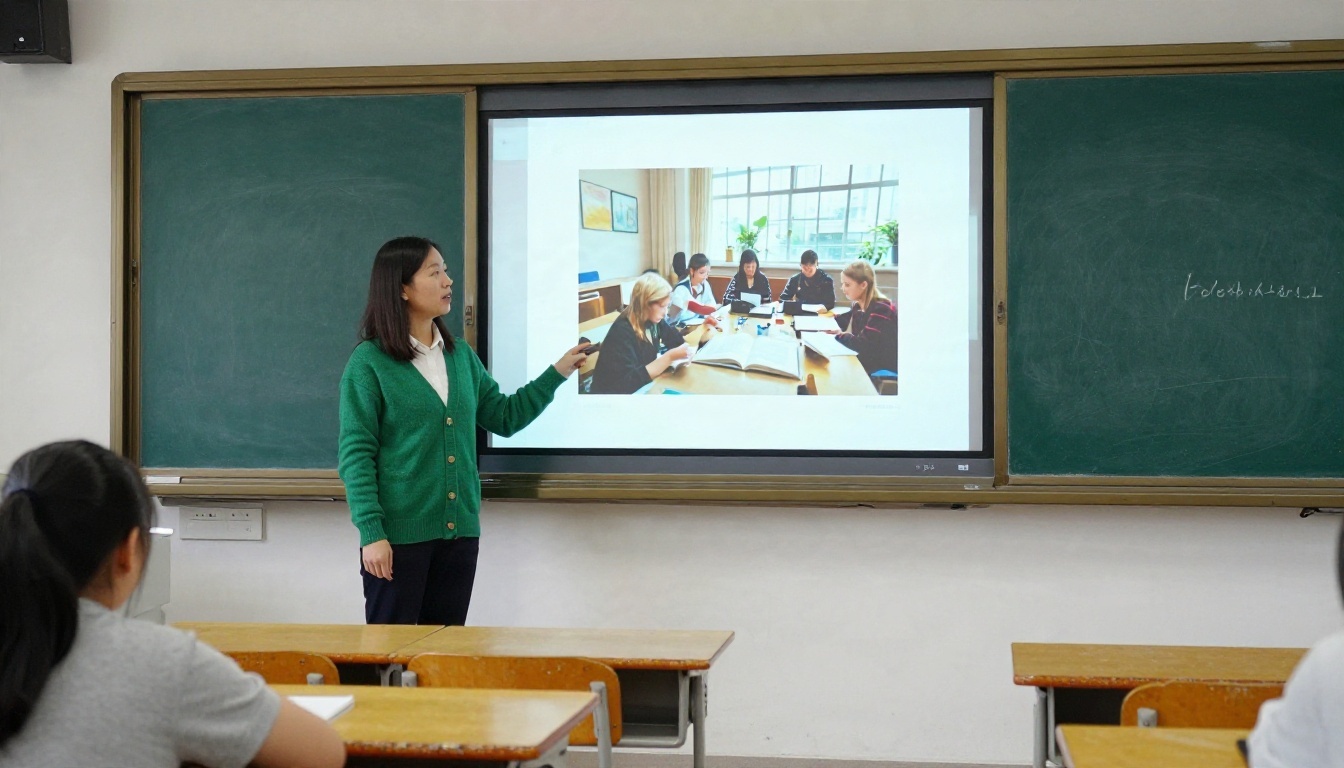
Teachers can combine worksheets and short explainer clips in one document and share it through a school portal. The Course Material Publisher fits this workflow, and students open the lesson on whatever device they own.
Mistakes That Break Playback

Most failures come from a short list of avoidable errors.
- Embedding a huge file in the PDF. If the attachment is over a few megabytes, email servers reject it and phones struggle to open it. Host the video and reference it.
- Using a private video link. A video set to private on YouTube or Vimeo will show an error for everyone except you. Use unlisted or public.
- Relying on autoplay with sound. Browsers block it. Make the viewer click.
- Forgetting the phone test. Open the finished flipbook on a real phone, on mobile data, before you send it to anyone.
- Skipping a text fallback. Add the video URL in a caption so a reader on a printout can still reach it.
- Sending an unprotected file. If the content is sensitive, set a password before you share the link.
⚠️ Format check: Use the MP4 format with H.264 video if you upload a clip yourself. It is the most widely supported combination across browsers and devices.
Track Who Watches
Sending a deck is only half the job. You also want to know what happened afterwards. On the Professional plan, the platform adds analytics and lead generation. You can see how many people opened the flipbook, which pages held their attention, and whether they reached the video page. You can also place a form in front of the content so that you capture an email address before someone reads your proposal.
Here is how that changes the way a deck gets used:
- Sales teams can see which prospect opened the pricing page and follow up the same day.
- Marketers can compare two versions of the same deck and keep the one that gets more views.
- Course creators can check whether students reached the final lesson video.
A plain PDF attachment gives you none of this. You send it and hope.
Start Your First Video Flipbook
You now have the full set of options. Use a hyperlink or QR code when you need a free, quick fix. Use Acrobat embeds only for a presentation you run from your own computer. Use a flipbook when the document has to travel, play on phones, stay branded, and report back who opened it.
Ready to try it? Get started for free on Flipbooks AI, upload your PDF, and drop in your first video in a few minutes. Browse all flipbook tools to find a format that fits your deck, or compare pricing plans to see what fits your volume. Your audience will thank you the first time the video plays on their phone without a single extra tap.



