You have a polished PDF, and you want readers to turn its pages the way they would in a printed magazine: a soft curl, a little paper sound, a sense of holding something real. So you open Adobe Acrobat and start hunting through menus for a flip page option. Short answer: it isn't there. Acrobat is built to view, edit, sign and secure documents, not to turn them into animated books. The good news is that a handful of free and online tools, including Flipbooks AI, will do the job in a few minutes without any design software.
This article explains exactly what Acrobat can and cannot do, which workarounds come closest, how the free alternatives compare, and how to publish a real flipbook from your existing PDF.
Can Acrobat Flip Pages?
Let's settle the question first. Adobe Acrobat does not include a page flip or flipbook feature. There is no button that exports your PDF as a book with curling pages, and no setting inside the reader that adds a page turn animation to a normal PDF.

That surprises many people because Acrobat is so capable in other areas. It just solves a different problem. A PDF is a fixed layout file made to look identical everywhere. A flipbook is a web experience that wraps those pages in an interactive viewer.
What Acrobat Actually Offers
Acrobat gives you several viewing tools that feel adjacent to a flipbook:
- Two Page View, which shows facing pages side by side like an open book.
- Full Screen Mode, which hides menus and toolbars for presentations.
- Page transitions in Full Screen preferences, such as fade or wipe, depending on your version.
- Links, buttons and embedded media (in Acrobat Pro) for light interactivity.
- Shared links, so people can open the PDF in a browser without installing anything.
All of these are useful. None of them produce the physical page curl that people mean when they search for an Acrobat flip page effect.
What It Cannot Do
Here is where Acrobat stops:
- It cannot render a 3D page turn animation.
- It cannot generate an embed code that shows your document as a book on your website.
- It cannot show reader analytics such as which pages people viewed most.
- It cannot capture leads before someone opens the publication.
- It cannot give you a branded viewer with your colors and logo around the pages.
💡 Pro tip: If your goal is a book style reading experience on the web, stop looking for a setting in Acrobat. Convert the PDF with a dedicated tool and keep Acrobat for editing the source file.
| Need | Adobe Acrobat | Flipbook maker |
|---|
| Edit PDF text and images | Yes | No |
| Sign and secure documents | Yes | Limited |
| Page curl animation | No | Yes |
| Embed on a website as a book | No | Yes |
| Reader analytics | No | Often |
| Mobile friendly viewer | Basic | Built in |
Acrobat Workarounds That Almost Work
If you only need a nicer way to present a PDF on your own screen, Acrobat has a few tricks worth knowing. They won't fool anyone into thinking they are looking at a real flipbook, but they help in a meeting room.

Two Page View for a Book Look
Open your PDF, go to View, then Page Display, and choose Two Page View. Turn on Enable Scrolling if you want a smooth vertical flow, or leave it off to step through spreads. Acrobat also has an option that keeps the first page alone on the right, which matches how a printed book opens.
The result looks like a book spread, but the pages jump instead of turning. It works well for reviewing a magazine layout. It is not something you can send to a customer as a finished experience.
Full Screen Mode Transitions
Press Ctrl+L (or Cmd+L on Mac) to enter Full Screen Mode. In the Full Screen section of Preferences, you can set the page to advance automatically after a number of seconds and pick a transition effect. This is the closest Acrobat gets to animation.
Think of it as a slideshow. The transitions are simple fades and wipes. There is no page edge, no curl and no shadow.
Why Workarounds Fall Short
Even with both tricks combined, you hit the same walls:
- The reader must download or open the PDF, which is slow on mobile.
- Nothing can be embedded on a web page as a book.
- You get no data on who opened it or how far they read.
- Transitions only work in Full Screen Mode, so they disappear when someone views it normally.
⚠️ Watch out: Older tutorials mention exporting from InDesign to a page curl format. That route relied on Flash, which is retired, so it no longer works in modern browsers.
Free Alternatives Worth Trying
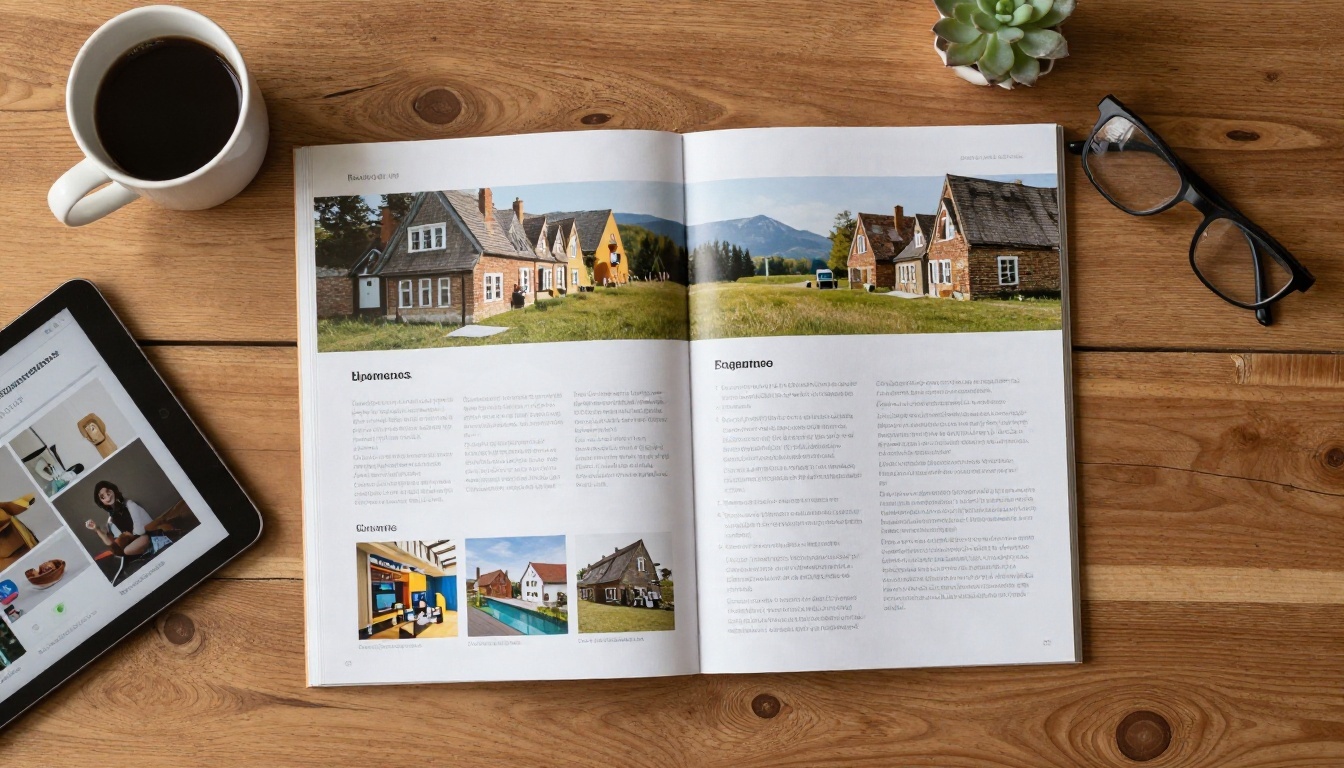
Once you accept that Acrobat is the editor and not the publisher, the field opens up. Flipbook makers take a finished PDF, convert each page into an image or web layer, and wrap it in a viewer with page turning, zoom and sharing built in.
Online Flipbook Makers
Browser based tools are the fastest route. You upload a file, wait a minute, and receive a link. Popular names include Flipbooks AI, Heyzine, FlippingBook, Issuu and Calameo. Each has a free entry point, but free tiers often come with caps or visible branding, so read the current plan limits before you commit to one.
Look for these features when you compare:
- No watermark on the free or entry plan
- Embed code for your own site
- Password protection for private files
- Mobile responsive viewer
- Video and audio support inside pages
- Analytics so you can see real reading behavior
Desktop and Open Source Options
A few downloadable programs and open source scripts can generate page flip viewers. They suit developers who like to self host. The tradeoff is time: you maintain the code, fix browser bugs and build any sharing or tracking yourself. For most businesses, an online maker saves hours.
| Option | Type | Best for | Watch for |
|---|
| Flipbooks AI | Online | Brands, catalogs, reports | Pro plan adds lead capture |
| Heyzine | Online | Quick personal flipbooks | Free plan limits vary |
| FlippingBook | Online and desktop | Teams with sales material | Plans scale by features |
| Issuu | Online marketplace | Magazine style publishing | Platform branding on free tier |
| Calameo | Online | Simple public sharing | Branding and caps on free tier |
| Open source scripts | Self hosted | Developers | Setup and upkeep time |
💡 Pricing and limits change often. Check each provider's current plan page before you pick one, especially if you need white label viewing.
How to Create a Flipbook with Flipbooks AI
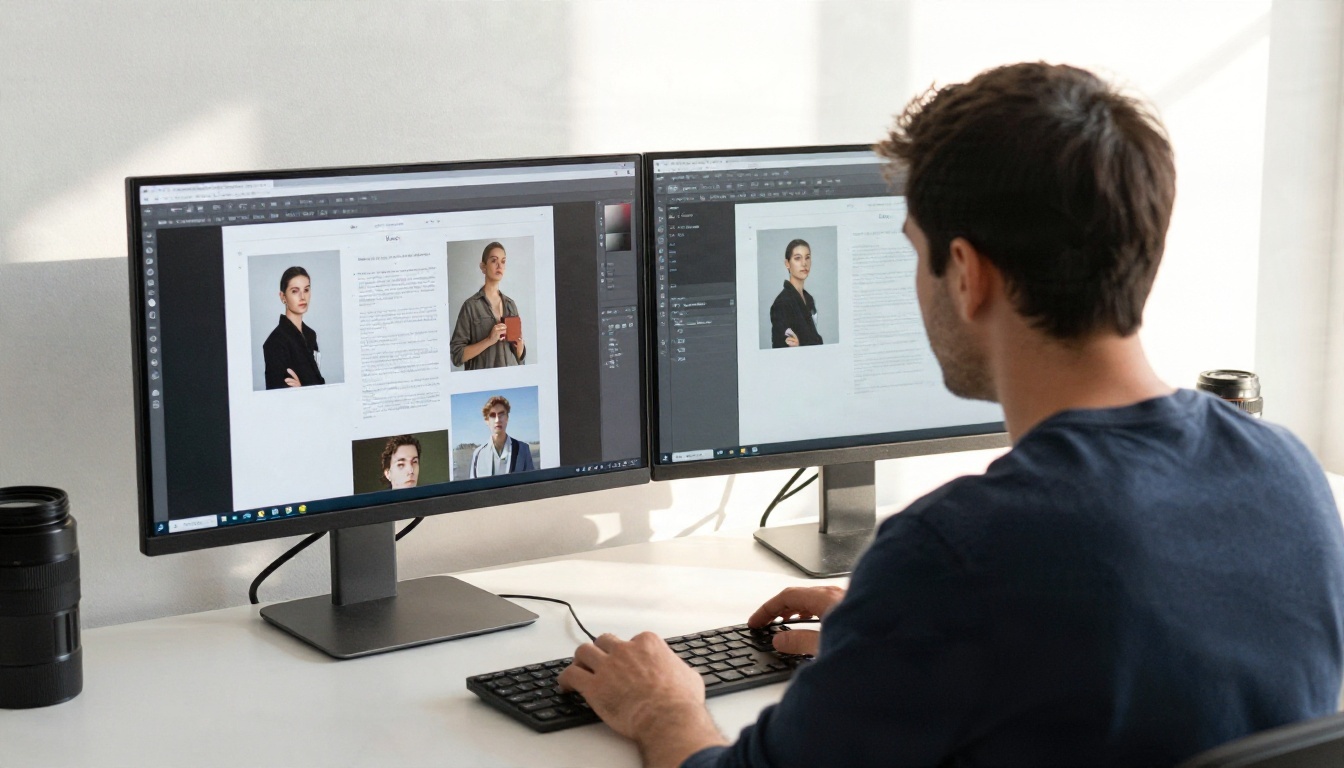
This is the quickest path from a PDF to a shareable book. The whole process takes only a few minutes, and the PDF to Flipbook Converter handles the heavy lifting.
Sign Up and Upload
- Go to Flipbooks AI and create an account.
- Click to start a new flipbook.
- Drag your PDF into the upload area. Files exported from Acrobat, Word, InDesign or Canva all work.
- Wait a few moments while each page is converted. Text stays sharp and links in your PDF are kept.
✅ Best practice: Export your PDF at a sensible size first. In Acrobat, use File, Save as Other, Reduced Size PDF so the flipbook loads quickly on phones.
Customize the Look
Once the pages are in, open the design settings and shape the viewer so it matches your brand:
- Branding: add your logo and choose a background color or image behind the book.
- Page effects: pick the turning style, speed and shadow so it feels like paper.
- Multimedia: drop in video, audio or links on any page.
- Layout: choose single page or two page spreads.
There are no watermarks, ever, so your brand is the only name on the page.
Share and Protect
Now decide who gets to read it:
- Copy the direct link and send it by email or chat.
- Grab the embed code to place the flipbook on your site. The Embed Flipbook on Website tool shows exactly how.
- Turn on password protection for private proposals, price lists or internal reports.
- Allow offline downloads if readers need a copy for a flight or a site visit.
Pro Features Worth Using
On the Professional plan, you gain analytics to see which pages hold attention and lead generation to collect an email before the flipbook opens. Standard plans and above include unlimited flipbooks. See the pricing plans to compare what each level includes.
| Feature | Why it matters |
|---|
| No watermarks | Your brand stays clean |
| Unlimited flipbooks | Publish every catalog and report |
| Password protection | Keep drafts and quotes private |
| Analytics | Spot your most read pages |
| Lead generation | Turn readers into contacts |
| Mobile responsive | Looks right on every screen |
Real World Uses for Flipbooks
A flipbook earns its place when the pages are the product. Here is where it pays off.

Restaurants and Retail
A bakery owner can turn a seasonal price list into a flipbook and show it on a tablet at the counter, then embed the same file on the shop's website. Customers flip through it on their phones in the queue. When the menu changes, the owner swaps the PDF and the link stays the same.

Useful tools here include the Restaurant Menu Creator, the Product Catalog generator and the Digital Price List Generator.
Real Estate and Reports
Agents can send a property brochure as a single link. The buyer opens it on a phone, flips through photos and floor plans, and the agent sees which pages got the most time. The Real Estate Brochure tool is built for this.

Finance and operations teams use the same approach for the Annual Report Creator, where a long PDF becomes something people actually want to scroll through.
Which Option Fits You?
Not everyone needs a flipbook. If your PDF is a contract, a tax form or a one page invoice, stay in Acrobat. A page turn effect adds nothing there.

Choose a flipbook when:
- The document is visual, like a catalog, lookbook, magazine or brochure.
- You want to embed it on a site or landing page.
- You need to know who is reading and how far they get.
- Readers will open it on phones more than desktops.
- You want a branded experience without hiring a developer.
Common Mistakes to Avoid
Most people who struggle with this topic make the same few errors:
- Searching Acrobat menus for a feature that does not exist.
- Uploading a huge file and then blaming the viewer for slow loading.
- Ignoring watermarks on free plans until the brand logo of the tool shows up on a client presentation.
- Forgetting mobile, even though most readers open links on a phone.
- Skipping password protection on pricing sheets meant for one customer.

✅ Rule of thumb: Edit in Acrobat, publish as a flipbook. Treat them as two steps in one workflow rather than competing tools.
Your Next Step
Adobe Acrobat is excellent at what it was made for, but a real flip page experience lives outside it. Keep your PDF workflow exactly as it is, then convert the final file into something readers enjoy opening.
Ready to turn your first PDF into a flipbook? Get started for free on Flipbooks AI, browse all flipbook tools to find the right fit for your document, or compare pricing plans to pick the level that suits your team.



