You bought an iPad, mounted it on a stand, and ten minutes later a customer swiped out of your menu and into the App Store. That is the problem a kiosk app solves. The right setup keeps one screen on one job, all day, with nobody poking around in Settings. This article compares the best kiosk app for iPad options, from free Guided Access to paid apps and device management tools, and shows how to put a polished Flipbooks AI flipbook on the screen so the kiosk is worth looking at.
Here is the short version. If you run one or two iPads, Guided Access plus a good web link is enough. If you run five or more, or the iPad sits in a public space unattended, a dedicated kiosk app or an MDM tool pays for itself fast.
What Makes a Good iPad Kiosk
A kiosk is more than a locked screen. It is a small system with three parts: the lock, the content, and the hardware. If one fails, the whole thing looks broken.
The lock
The lock stops visitors from leaving your app, opening notifications, or changing settings. On iPad this happens in one of three ways: Guided Access (built in, free), Single App Mode (needs a supervised device and management software), or a kiosk browser app that hides the browser controls.
The content
Most kiosks fail because the content is dull or hard to update. A static PDF forces visitors to pinch and zoom. A web page that needs a login breaks the moment a session expires. A hosted flipbook loads fast, turns pages naturally, and updates from your desk without touching the iPad.
The hardware
A screen that dies at 3 p.m. is worse than no screen. Plan for power, a locking enclosure, and a stand that survives a curious toddler.
💡 Pro tip: Decide your content first. The lock method you choose matters less than having a page that is easy to browse and easy to update remotely.
Guided Access: The Free Built In Option
Guided Access ships with every iPad. It locks the device to a single app and lets you block parts of the screen. It costs nothing, which is why most small businesses start here.
How to turn it on
- Open Settings, then Accessibility, then Guided Access.
- Switch Guided Access on.
- Tap Passcode Settings and set a passcode. Turn on Face ID or Touch ID if you want a faster exit for staff.
- Open the app or web page you want to lock, for example Safari with your flipbook link.
- Triple press the side button (or the Home button on older iPads).
- Tap Guided Access, then tap Options to choose what stays active.
- Draw a circle around any area you want to disable, such as the address bar.
- Tap Start.
To exit, triple press the button again and enter the passcode.
Settings worth changing
| Setting | Recommended value | Why |
|---|
| Side Button | Off | Stops visitors from locking or powering off the screen |
| Volume Buttons | Off (or On for video kiosks) | Prevents accidental muting |
| Motion | Off | Avoids rotation glitches on a fixed stand |
| Keyboards | Off unless needed | Blocks random typing |
| Touch | Off for the address bar area | Keeps visitors inside the page |
| Time Limit | Off | Otherwise the session ends mid shift |
| Display Auto-Lock | Never | Keeps the screen awake |
What Guided Access cannot do
Guided Access is simple, and that is both its strength and its limit.
- It ends after a restart. If the iPad reboots overnight, someone must lock it again by hand.
- It has no remote control. You cannot change settings from your desk.
- It will not relaunch your app after a crash.
- It offers no reporting, so you will not know if a device went offline.
⚠️ Warning: A power cut or software update can silently drop the lock. For a public iPad that nobody checks, add a daily visual check to someone's opening routine.
Once Guided Access stops being enough, you have two paths: a dedicated kiosk app or a full mobile device management (MDM) platform.
Kiosk apps for one screen
Apps such as Kiosk Pro wrap a browser in a locked shell. They hide the address bar, add an idle timer that resets to your home page, and let you set a passcode for staff. They are a good middle step: more control than Guided Access, no monthly fee in many cases, and no management server to set up.
MDM platforms for fleets
Tools like Jamf, Mosyle, Hexnode, Scalefusion, SureLock by 42Gears and Meraki Systems Manager push settings to every iPad from a dashboard. On supervised devices they enforce Single App Mode, relaunch the app after a restart, update content, and report battery and connectivity.
Side by side
| Option | Best for | Remote control | Survives restart | Setup effort |
|---|
| Guided Access | 1 to 3 iPads, low risk | No | No | 5 minutes |
| Kiosk browser app | Several iPads, web content | Limited | Often yes | 15 to 30 minutes |
| MDM with Single App Mode | Fleets, public spaces | Yes, full | Yes | 1 to 3 hours first time |
| Apple Configurator | One time bulk prep on a Mac | No | Yes on supervised devices | 30 to 60 minutes |
✅ Best practice: Start with Guided Access on one device. If you catch yourself driving to a shop just to restart a lock, that is your signal to move to MDM.
What It Really Costs
The software is only part of the bill. Here is a realistic view of the full cost for one kiosk.
Hardware
| Item | Typical range |
|---|
| Entry level iPad (new or refurbished) | $250 to $450 |
| Locking enclosure with stand | $80 to $300 |
| Floor stand or wall mount | $50 to $250 |
| Power and cable management | $15 to $40 |
Software
Prices change often, so treat these as ballpark figures and check each vendor before buying.
| Option | Typical cost model |
|---|
| Guided Access | Free |
| Apple Configurator | Free (needs a Mac) |
| Kiosk browser apps | One time or low yearly fee per device |
| MDM platforms | Often a few dollars per device per month, with some free tiers for small fleets |
| Content hosting | Free or paid depending on the platform, see Flipbooks AI pricing |
A single iPad kiosk with a decent enclosure usually lands between $400 and $900 up front, and under $10 a month to run. A ten device deployment is where MDM stops being optional.
Create a Kiosk Flipbook with Flipbooks AI
A locked iPad is only useful if the page it shows is good. A flipbook beats a raw PDF on a kiosk: pages turn with a swipe, it loads quickly on mobile, and you can swap the file without touching the device. Here is how to build one.
Step by step
- Sign up. Go to Flipbooks AI and create an account.
- Upload your PDF. Drop in your menu, catalog, brochure or program. The PDF to Flipbook Converter turns it into a page turning flipbook in moments.
- Customize. Add your logo, pick brand colors, choose a page flip effect, and embed videos or audio where they help. No watermarks appear on your flipbook.
- Protect it if needed. Turn on password protection for private content, such as a staff only price list.
- Share it. Copy the direct link, or use the embed tool if the kiosk loads a page on your own website.
- Load it on the iPad. Open the link in Safari, tap Share, then Add to Home Screen. Launch it from there, then start Guided Access or Single App Mode.
Extras that matter on a kiosk
- Analytics and lead generation on the Professional plan show which pages visitors read and let you capture emails. See plans and pricing.
- Offline downloads help when the venue Wi-Fi is unreliable.
- Mobile responsive design means the same flipbook also works on visitors' own phones.
- Updating the file takes effect on the iPad without reconfiguring anything, so a new price list goes live from your desk.
💡 Pro tip: Use the link, not the PDF file, in your kiosk. When the content lives online, the device stays locked and the content stays fresh.
Setup Checklist for Real Deployments
Most kiosk failures are boring: a dead battery, a dropped network, a cleaner who unplugged the cable. This checklist prevents the usual ones.
Before you mount it
- Update iPadOS and then turn off automatic updates during opening hours.
- Set Auto-Lock to Never and brightness to a fixed level.
- Turn off notifications and Do Not Disturb on, so no message pops up on a public screen.
- Disable Siri and the Control Center inside apps if your MDM allows it.
- Sign out of personal Apple IDs.
Network and power
- Use a dedicated Wi-Fi network for kiosks if you can.
- Run power through a cable channel to the wall. A constantly charging iPad needs good airflow, so avoid enclosed spaces that trap heat.
- Place the router within range. A weak signal looks like a frozen page to a visitor.
Daily care
| Task | How often |
|---|
| Wipe the screen | Daily |
| Check the lock is still active | Daily (Guided Access) or weekly (MDM) |
| Confirm the content loads | Weekly |
| Review analytics | Monthly |
| Replace worn cables | Every 6 to 12 months |

⚠️ Warning: Do not leave an iPad at full charge in direct sun on a window sill. Heat shortens battery life quickly and can trigger a temperature warning that locks the screen.
Real World Use Cases
Kiosks sound technical, but most are simple. Here are three that work well with a flipbook.
Restaurants and cafes
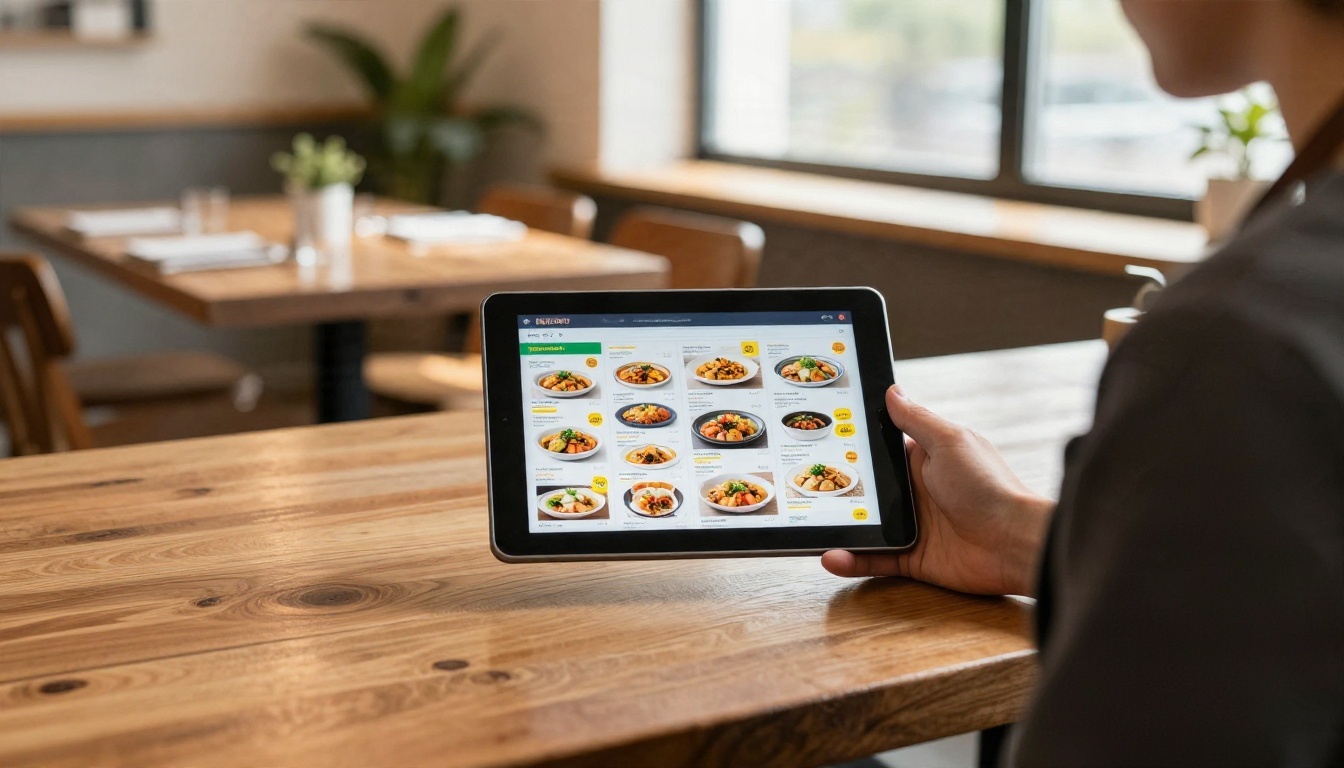
A cafe can show a seasonal menu on a counter iPad while customers wait. Build it with the Restaurant Menu Creator and update specials in seconds without reprinting anything. Guided Access is enough for a single counter.
Museums, hotels and galleries
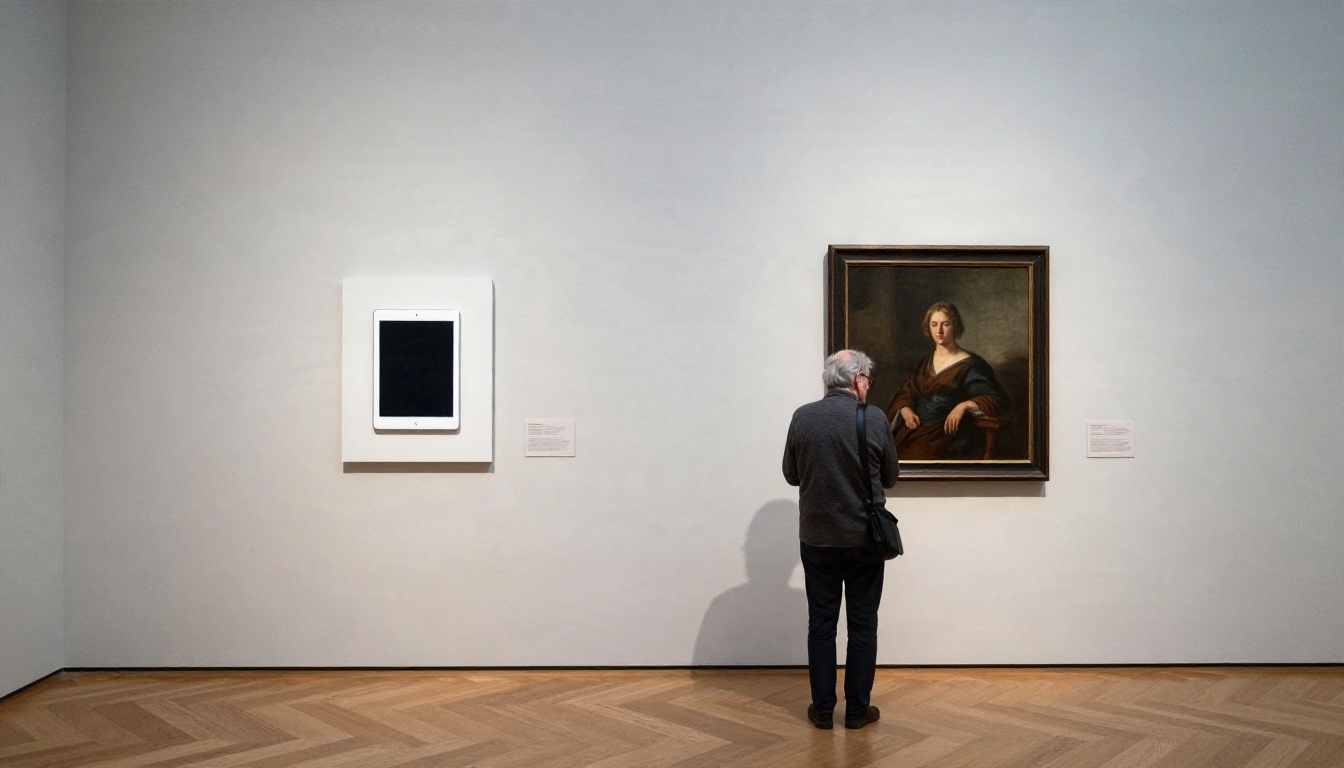
A hotel lobby can offer a visitor brochure, local map and room service menu on a floor stand. A museum can pair a wall mounted iPad with each exhibit. Both benefit from the Hotel Brochure Designer and from MDM, because staff cannot walk to every device each morning.
Trade shows and sales offices
A trade show booth iPad can carry your product line, and a real estate office can show listings to walk in visitors. The Digital Catalog Maker and Real Estate Brochure Creator fit these well. Lead capture on the Professional plan turns a casual browser into a contact.

Use case summary
| Scenario | Content | Lock method | Devices |
|---|
| Cafe counter | Menu flipbook | Guided Access | 1 |
| Hotel lobby | Brochure and services | MDM Single App Mode | 2 to 5 |
| Museum | Exhibit notes | MDM | 10 or more |
| Trade show booth | Product catalog | Guided Access or kiosk app | 1 to 3 |
| Real estate office | Listings | Kiosk app | 1 to 2 |
Which Option Should You Pick?
Use this quick decision path:
- One iPad, someone nearby, low risk? Use Guided Access.
- A few iPads, web content, no IT staff? Use a kiosk browser app.
- Many iPads, public spaces, remote staff? Use an MDM platform with Single App Mode.
Whatever you pick, the content decides whether people actually touch the screen. Ready to build yours? Get started for free on Flipbooks AI, browse all flipbook tools for your use case, or compare pricing plans to see what the Professional plan adds for analytics and lead capture.



