Your iPhone opens a PDF in two taps, but opening a file and actually reading it comfortably are two different things. Tiny text, lost bookmarks, a paywall that appears right when you need to sign something: most people hit at least one of these within a week. This article sorts the best PDF reader for iPhone free options by what they really do, what works with no signal, and where the free plans stop. And if the PDF is something you publish rather than just read, we will also look at how Flipbooks AI turns a PDF into a page-turning reader that opens on any phone with no app at all.
💡 Short answer: for plain reading, the built-in Files app and Apple Books are enough. For highlights, form filling and signatures, a free tier of Adobe Acrobat Reader, Foxit or PDF Expert is the next step up.
What Your iPhone Already Does
Before you install anything, check what iOS gives you for free. A lot of people download a third-party app to do something Apple already handles.
Files App and Quick Look
Tap any PDF in Mail, Messages or Safari and iOS opens it in Quick Look. You can pinch to zoom, swipe between pages, and use the Markup button to draw, highlight, add text, and drop in a signature. Save it to the Files app and it stays on your device.
What you get:
- Page thumbnails and quick search inside the document
- Markup tools with a pen, highlighter, and signature
- Form filling for simple fields
- Share sheet to send the file anywhere
What is missing: bookmarks across files, reading position sync between devices, and any real library organization beyond folders.
Apple Books for Long Reads
Open a PDF in Apple Books and it joins your library. That gives you a reading position that syncs through iCloud, a clean page view, and a decent search. It works well for manuals, textbooks, and long reports you want to pick up again tomorrow.
⚠️ Apple Books handles reading better than editing. If you need to fill complex forms or comment on a contract, you will want a dedicated app.
Built-In Tools at a Glance
| Feature | Files and Quick Look | Apple Books |
|---|
| Cost | Free, built in | Free, built in |
| Works offline | Yes, if the file is saved on the device | Yes, once added to the library |
| Highlight and draw | Yes, through Markup | Basic highlights and notes |
| Signature | Yes | No |
| Reading position sync | No | Yes, through iCloud |
| Best for | Quick checks and signing | Long documents |
Top Free PDF Readers Compared
When the built-in tools run out of road, three names come up again and again. Free tiers change often, so treat this as a snapshot and check each app's current listing in the App Store before you commit.
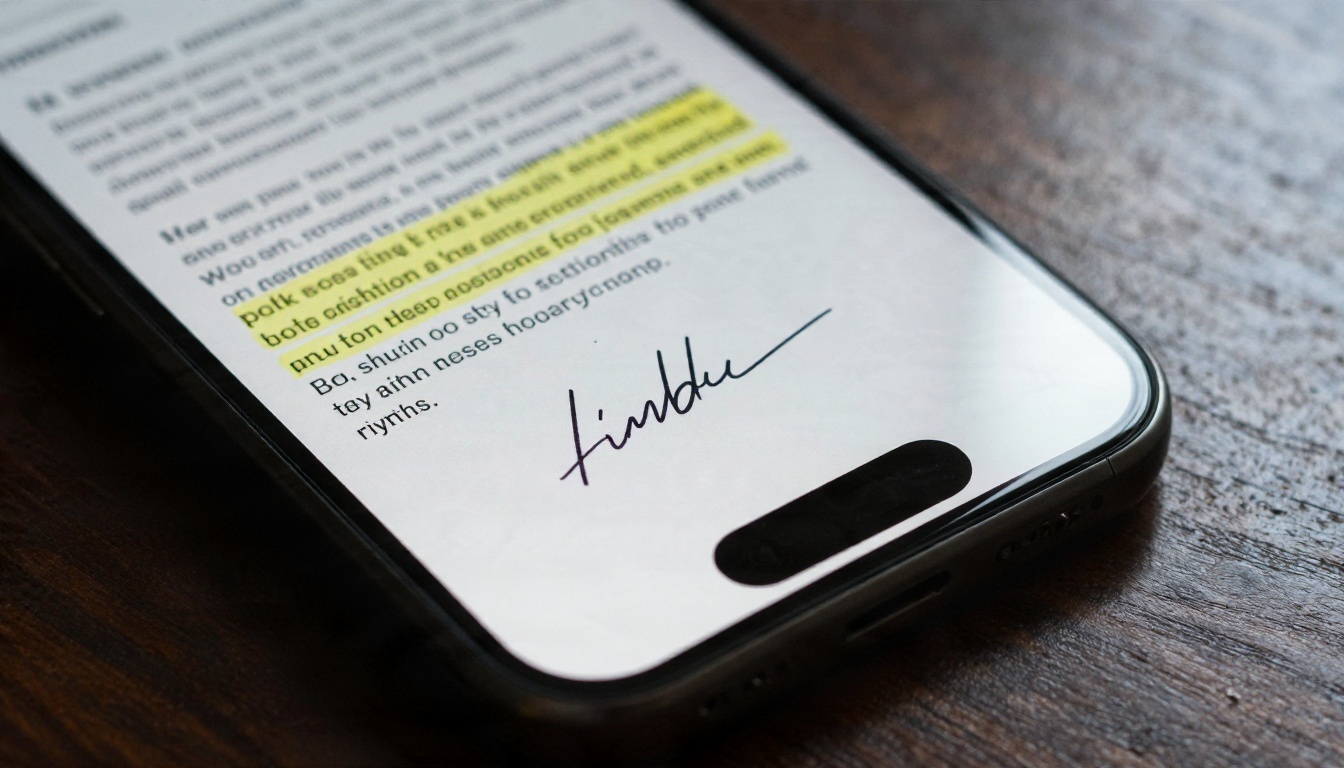
Adobe Acrobat Reader
The most familiar option. The free version lets you read, search, highlight, comment, and fill and sign forms. Editing text, exporting to Word, and organizing pages generally sit behind a paid subscription. It is reliable with unusual or heavily formatted files, which matters if you receive PDFs from many different sources.
Good for: workers who exchange forms and contracts daily.
Watch out for: upgrade prompts and an interface that is busier than it needs to be.
Foxit PDF Reader
Foxit is lighter and often feels quicker on older phones. The free tier covers reading, annotation, and form filling, and it handles large files with fewer stutters in many cases. Some advanced-style editing and conversion features need a paid plan.
Good for: people with older iPhones or large technical documents.
Watch out for: some features that look free but ask for an account.
PDF Expert by Readdle
PDF Expert has a polished design that feels native to iOS. Reading and basic annotation are available on the free tier, while editing text and images is part of the paid subscription. If you like a clean layout and fast scrolling, it is worth a try.
Good for: readers who care about a smooth interface and tidy library.
Watch out for: the line between free and paid is clear, so check which tools you need first.
Google Drive and Microsoft Edge
You may not need a new app at all. The Google Drive and OneDrive apps both preview PDFs, and Microsoft Edge on iPhone can open them from a link. They are fine for reading but light on annotation, and offline access needs a manual setting that we cover below.
Side-by-Side Comparison
| App | Reading | Highlight and comment | Fill and sign | Edit text | Offline |
|---|
| Files and Quick Look | Yes | Yes, via Markup | Yes | No | Yes, if saved |
| Apple Books | Yes | Basic | No | No | Yes |
| Adobe Acrobat Reader | Yes | Yes | Yes | Paid | Yes, if downloaded |
| Foxit PDF Reader | Yes | Yes | Yes | Paid | Yes, if downloaded |
| PDF Expert | Yes | Basic to full | Limited on free | Paid | Yes, if downloaded |
| Google Drive | Yes | Light | No | No | Needs manual toggle |
Offline Use: What Really Works
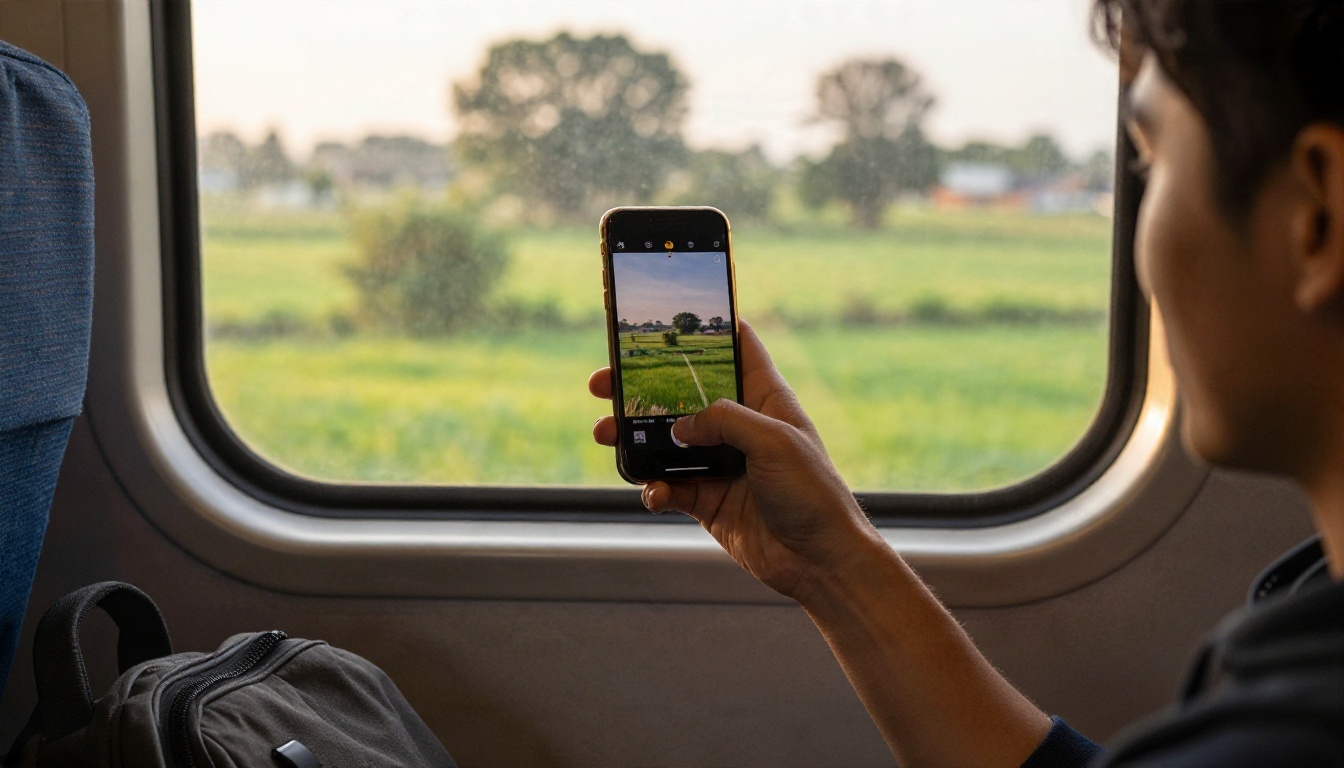
"Offline" sounds simple, but there is a catch. A PDF only works offline if the file itself lives on your phone. An app that opens a link or a cloud preview will fail the moment you board a plane.
Files Saved on the Device
Any PDF stored in On My iPhone inside the Files app opens without a connection in every reader above. The same is true for files you have imported into the app's own library. This is the safest approach for travel, commuting through tunnels, or study sessions in a basement library.
To make sure a file is truly local:
- Open the Files app and find the PDF.
- If you see a small cloud icon next to it, tap the file once so it downloads.
- Press and hold the file, then choose Move and pick On My iPhone.
- Turn on airplane mode and open it to test before you leave.
Cloud Apps and Offline Toggles
With cloud storage, you have to ask for offline access explicitly. In Google Drive, tap the three dots next to a file and switch on Available offline. In OneDrive, use Make available offline. Adobe and Foxit both have their own cloud storage, and files opened from there may need to be downloaded to the device first.
💡 Pro tip: do an airplane mode test the night before a trip. It takes thirty seconds and saves you from staring at a spinner at thirty thousand feet.
Offline Behavior Cheat Sheet
| Situation | Works offline? | What to do |
|---|
| PDF saved in Files, On My iPhone | Yes | Nothing, you are set |
| PDF in iCloud Drive with cloud icon | No | Tap to download first |
| PDF in Google Drive | Only if marked | Switch on Available offline |
| PDF opened from a web link | No | Save to Files before leaving |
| Annotations made offline | Usually saved locally | Sync later when online |
Free Limits You Will Hit
Nobody builds a free app without a reason. Knowing the common limits lets you decide in advance whether a free plan is enough.
Paywalls and Feature Walls
The usual pattern: reading, highlighting, and basic signing stay free, while the following tend to move behind a subscription:
- Editing existing text and images
- Exporting a PDF to Word, Excel, or PowerPoint
- Merging, splitting, and reordering pages
- Compressing large files
- Optical character recognition for scanned pages
- Password protection and redaction
If you need one of these only once, a one-time web tool may be cheaper than a yearly plan.
Ads, Storage, and Privacy
Some free apps show ads or heavy upgrade banners. Cloud storage is often capped on free accounts, so a big library may not sync. Read the privacy details in the App Store listing too, because an app that uploads your files to process them is a different risk from one that works locally on the phone.
⚠️ Never upload tax forms, IDs, or signed contracts to a random free converter website. Use a reader that works on the device, or one you trust.
Typical Free Limits
| Limit | How often it shows up | Workaround |
|---|
| Editing locked | Very common | Use Markup for notes, or edit on a computer |
| Export to Word locked | Very common | Copy text manually or use a desktop tool |
| Cloud storage cap | Common | Keep files local in Files |
| Page count cap on tools | Occasional | Split the PDF first |
| Ads and upgrade banners | Common | Choose a lighter app like Foxit |
How to Pick Your App
You do not need all of these apps. Pick based on what you actually do with PDFs in a normal week.
Real Scenarios
- A student with ten lecture PDFs: Apple Books for the reading position sync, plus Files Markup for highlights.
- A freelancer who signs a contract on the go: Quick Look Markup or Adobe Acrobat Reader for fill and sign.
- A commuter reading long reports: Foxit PDF Reader for speed and offline files saved locally.
- A homeowner filing insurance forms: Adobe Acrobat Reader, since it handles odd form fields well.
- A traveler with tickets and itineraries: Files app, saved On My iPhone, with an airplane mode test beforehand.
Decision Table
| If you need | Use this |
|---|
| Fast reading, no setup | Files and Quick Look |
| Long documents with synced position | Apple Books |
| Forms and signatures | Adobe Acrobat Reader |
| Speed on an older iPhone | Foxit PDF Reader |
| Clean design and library | PDF Expert |
| Cloud preview only | Google Drive or OneDrive |
✅ Best practice: keep one main reader and one backup. Two apps cover nearly every situation without clutter.
Share PDFs with Flipbooks AI
So far we have talked about reading PDFs. But what if you are the one sending them? A catalog, menu, brochure, or report sent as a plain PDF forces your reader to pinch, zoom, and scroll on a small screen. That is where a flipbook does better: it opens in the browser, pages turn naturally, and the layout fits the phone.

Why Readers Prefer Flipbooks
A viewer does not need to install an app, sign in, or worry about storage. They tap a link and read. The design is mobile-responsive, so it works on iPhone, Android, tablets, and desktops alike. That removes the biggest friction of PDF sharing.
How to Create a Flipbook Step by Step
Follow these steps with the PDF to Flipbook Converter:
- Create your account. Go to Flipbooks AI and sign up. You can start on the free plan and look at the pricing plans later.
- Upload your PDF. Drag the file into the upload area. The platform converts each page into a flipbook page, keeping text sharp and links clickable.
- Customize the look. Add your logo, pick brand colors, choose a background, and set the page-turn effect. You can also embed videos and audio on pages where they help.
- Set privacy. Use password protection for private files such as client proposals or internal reports.
- Publish and share. Copy the direct link, or use the embed flipbook on website option to place it on your site with a short embed code.
- Offer offline downloads. Let readers download the file so they can read it without a connection.
💡 Pro tip: test the final link on your own iPhone first. If it reads well on a six-inch screen, it will read well everywhere.
Features Worth Knowing
- No watermarks, ever, on your flipbooks
- Unlimited flipbooks on the Standard plan and above
- Custom branding with your own colors and logo
- Analytics and lead generation on the Professional plan, so you can see who opened your file and for how long
- Embedded video and audio for richer pages
Tools for Specific Use Cases
Depending on what you publish, a specialized tool can save setup time:
A restaurant can turn its menu PDF into a flipbook that guests open from a table QR code. A real estate agent can send a listing brochure that looks sharp on a buyer's phone. A trainer can publish a manual that new hires read on the go.
Quick Fixes for Common Problems
Even the best app hits snags. Here are the problems people report most, and what usually solves them.
PDF Will Not Open
Check the file size and format first. A file that did not finish downloading will fail to open. Delete it, download it again on a strong connection, and try a second app. If it is password protected, make sure you typed the password exactly, including capital letters.
Text Is Too Small
Double-tap to zoom to the column width. In Apple Books, switch to a single-page view. Some PDFs are scans of full-size paper pages, so they will always feel cramped on a phone. If you are the author, convert the document into a mobile-friendly flipbook so readers are not forced to pinch.
Large Files Crash the App
Close other apps, restart the reader, and free up storage. Foxit often handles heavy files with fewer stutters than others. If the file is yours, compress the images before exporting the PDF, or split it into smaller chapters.
Annotations Disappeared
Annotations made in one app may not show in another. Save a flattened copy with your highlights included before sharing, and keep the original so you can edit later.
Your Next Step
For most people, the best setup is simple: use Files and Apple Books for everyday reading, add Adobe Acrobat Reader or Foxit if you need forms and signatures, and always save important PDFs On My iPhone before you travel. Check the free limits before you rely on any app, because the feature you need is often the one behind the paywall.
If you are the one publishing PDFs, give your readers a better experience. Get started for free on Flipbooks AI, browse the tools and templates to find your format, or compare the pricing plans to pick the one that fits your workload.



