You do not need a laptop, a design degree or a paid subscription to make a booklet anymore. A phone, twenty quiet minutes and the right booklet making app are enough to produce a neat event program, a recipe collection, a class handout or a small product catalog. The real questions come after the first draft: which app is actually free, which page size should you pick, how do you print it so the pages land in the right order, and how do you send it to people who will never hold the paper version? This article answers all four, and shows where Flipbooks AI fits when you want a shareable link instead of a stack of paper.
What a Booklet App Actually Does
A booklet is a small multi-page document, usually folded and stapled along the spine. A good phone app has to handle three jobs: lay out pages, export them in a print-friendly format, and let you share the result without breaking the layout on someone else's screen.
Most people start by searching for a free booklet maker, but the tools they find fall into very different groups. Some are general design apps, some are word processors with templates, and some are publishing tools built to turn a PDF into a page-turning online booklet. Knowing which group you need saves an afternoon of frustration.
Print booklet or screen booklet?
Ask yourself one question before you open any app: where will people read this?
- On paper: page size, margins, bleed and page order matter most.
- On a phone or laptop: file weight, link sharing and mobile layout matter most.
- Both: design once at a print size, export a PDF, then convert that PDF into a flipbook for screens.
The third path is the one most small teams end up using, and it is the one this article follows.
Common real-world uses
| Use case | Typical length | Usual format |
|---|
| Wedding or event program | 4 to 12 pages | A5 or half letter |
| Recipe collection | 12 to 24 pages | A5 |
| Class or workshop handout | 8 to 16 pages | A4 or Letter folded |
| Small product catalog | 12 to 32 pages | A5 or A4 |
| Club or church newsletter | 8 to 12 pages | Letter folded |
| Travel itinerary | 8 to 16 pages | A6 or A5 |
Free Phone Options Compared
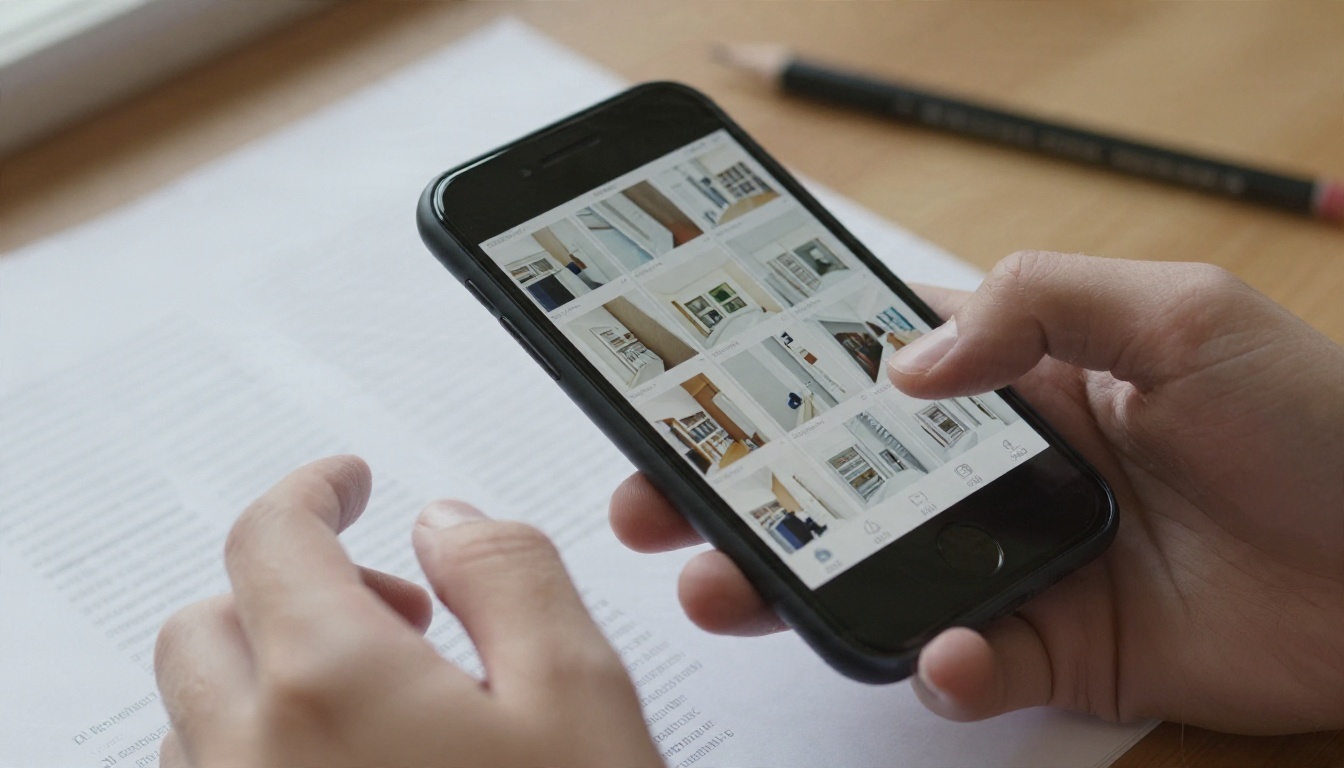
The word "free" hides a lot. Some apps give you full export without limits. Others let you design for free, then charge when you try to download a clean PDF. Always test the export step before you spend an hour on layout.
Four types of free app
| App type | Strength | Weak spot | Best for |
|---|
| Template design apps (Canva style) | Fast, attractive layouts | Some templates and exports are locked behind paid tiers | Event programs, catalogs |
| Mobile word processors (Word, Google Docs, Pages) | Reliable text, easy editing | Weak control over image placement | Handouts, manuals |
| Slide apps (Google Slides, Keynote, PowerPoint) | Page sizes are easy to set, images behave well | Not built for print margins | Visual booklets, lookbooks |
| PDF to flipbook tools | Turns a PDF into a shareable online booklet | Needs a finished PDF first | Sharing by link, embedding |
💡 Pro tip: If an app lets you export a PDF at 300 dpi without a watermark on the free plan, it passes the first test. Check that before you pick a template.
What to check before you commit
- Can you set a custom page size, or are you stuck with posters and social posts?
- Does the free export carry a watermark?
- Can you add a page without losing the layout of the others?
- Does the app save to your phone or only to its own cloud?
- Can you share a link, or only a file?
If the answer to the last question is "only a file", you will end up emailing a heavy PDF to everyone. That is where a flipbook link works better, and we will get to it shortly.
A phone is fine for layout, but not for everything
Be honest about what a small screen does well. It is excellent for text edits, swapping photos and reordering pages. It is poor for fine alignment. If your booklet has a dense table or tight columns, finish the last pass on a tablet or laptop, or zoom in to 200 percent on the phone before you export.
Page Sizes That Actually Work
Page size is where most first booklets go wrong. A designer picks A4 because it looks familiar, prints it, folds it, and ends up with a clumsy A5 booklet with crooked margins. Decide the finished size first, then work backward.
Standard sizes at a glance
| Finished size | Dimensions (mm) | Dimensions (inches) | Folded from sheet | Good for |
|---|
| A6 | 105 x 148 | 4.1 x 5.8 | A5 | Pocket itineraries, tickets |
| A5 | 148 x 210 | 5.8 x 8.3 | A4 | Programs, recipes, catalogs |
| A4 | 210 x 297 | 8.3 x 11.7 | A3 | Manuals, reports |
| Half Letter | 140 x 216 | 5.5 x 8.5 | US Letter | Handouts, newsletters |
| Letter | 216 x 279 | 8.5 x 11 | Tabloid | Reports, workbooks |
The pattern is simple: a booklet folded from a standard sheet ends up half the size of that sheet. So if you own a home printer that takes A4 or Letter, your realistic finished sizes are A5 or Half Letter.
Margins and bleed
- Keep important text at least 10 to 12 mm (about 0.4 inch) from the trim edge.
- Add the inner margin a little wider, around 15 mm, because the fold eats space.
- If images run to the edge, add 3 mm (0.125 inch) of bleed for a print shop. At home, expect a thin white edge and design with a border instead.
- Use 300 dpi images for print. For screen-only booklets, 150 dpi is plenty.
⚠️ Warning: A page count that is not a multiple of four leaves blank pages in a stapled booklet. Plan for 8, 12, 16, 20 or 24 pages, and use the last page for contact details or a note rather than leaving it empty.
Portrait, landscape or square?
| Orientation | Reads well on | Watch out for |
|---|
| Portrait | Paper and phones | Wide photos need cropping |
| Landscape | Laptops, slides | Awkward to hold on a phone |
| Square | Social sharing | Does not match standard paper, so more waste |
For anything you plan to both print and share on a phone, portrait is the safe choice.
Printing at Home or at a Shop
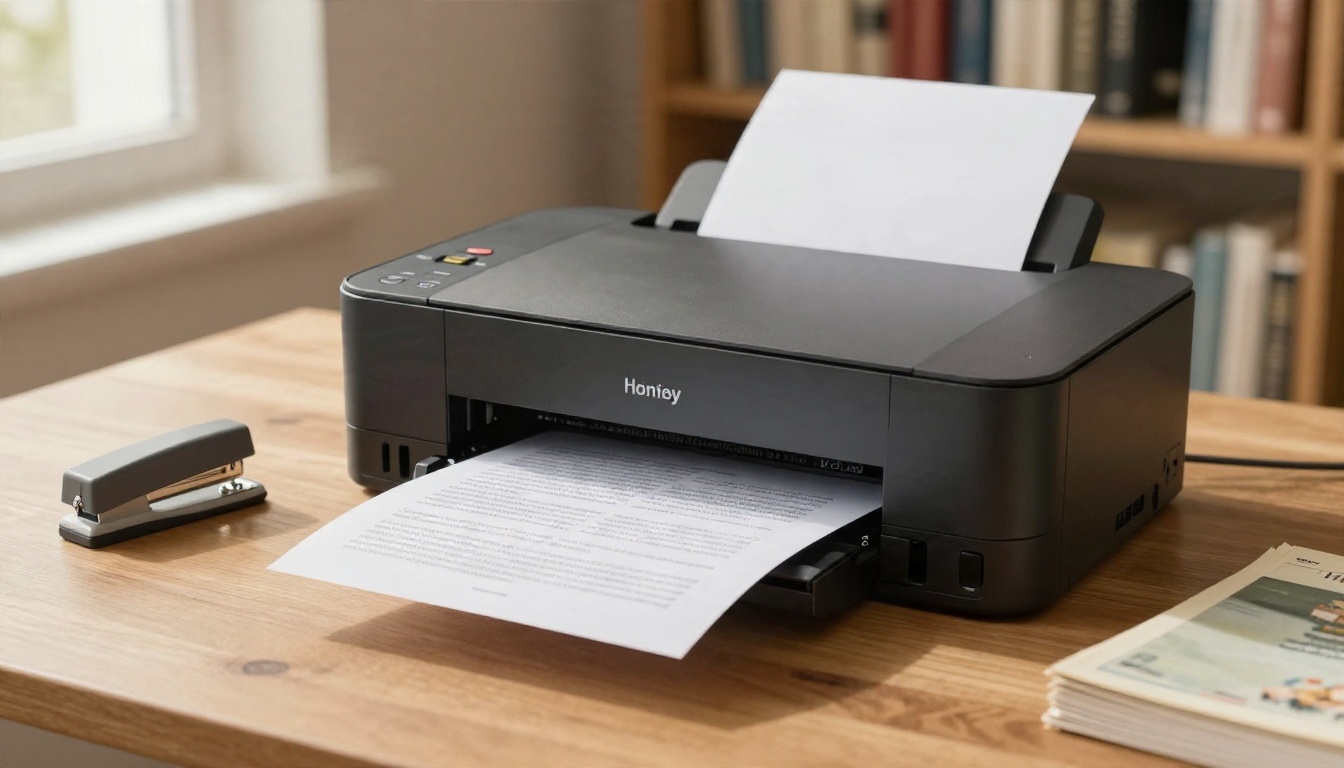
Once your PDF is ready, you have two sensible options. Neither is wrong. The right one depends on quantity and how polished you need the result to feel.
Home printing step by step
- Export your booklet as a PDF with pages in reading order.
- Open it in your PDF viewer or print dialog and choose Booklet or Book fold layout. Many systems offer this under page layout settings. If yours does not, an imposition tool can reorder pages for you.
- Select double-sided printing, flipping on the short edge for portrait booklets.
- Print a single test copy on plain paper first.
- Fold the stack in half, crease with a bone folder or the back of a spoon.
- Staple twice along the fold, about a third of the way in from each end. A long-arm stapler makes this easy, but you can open a regular stapler flat and press it onto a folded towel.
Home or shop: which one wins?
| Factor | Home printer | Local print shop |
|---|
| Cost for 5 copies | Low, mostly ink and paper | Moderate |
| Cost for 100 copies | High per copy | Much lower per copy |
| Paper quality | Standard office paper | Heavier stock, silk or uncoated options |
| Finishing | Hand stapled | Machine stapled, trimmed, creased |
| Speed | Immediate | Same day to several days |
| Best for | Drafts, small runs | Events, sales material |
✅ Best practice: Print one draft at home even if you plan to use a shop. Reading the paper copy catches spelling mistakes and awkward page breaks that you never notice on a phone.
Paper choices that save money
- Use 80 to 90 gsm paper for inside pages, which folds cleanly and stays affordable.
- Use 130 to 160 gsm for the outer sheet if your printer handles it, so the front page feels sturdier.
- Choose matte over glossy for text-heavy booklets. It is easier to read and hides fingerprints.
- Stick to black and white inside, color on the outer sheet to cut ink costs.
Share by Link Instead of Paper
Paper is great for a table at an event. It is terrible for the person who could not attend, the client three time zones away, or the customer who wants your catalog at 11 pm. A link solves all of that, and it never runs out of copies.

Why a PDF attachment is not enough
A PDF works, but it has real drawbacks on a phone:
- The file may be too big for an email attachment.
- Readers must download it before they see anything.
- Pages show up as a long scroll, which feels nothing like a booklet.
- You cannot see who opened it or how far they read.
A flipbook fixes this. The reader taps a link, the booklet opens in the browser, and pages turn like paper. It resizes to fit small screens, so there is no pinching and zooming.
PDF versus flipbook link
| Feature | PDF attachment | Flipbook link |
|---|
| Opens in browser | Sometimes | Always |
| Page-turn feel | No | Yes |
| Phone friendly | Partly | Yes, responsive |
| Embed on a website | Awkward | Simple with an embed code |
| Password protection | Needs extra software | Built in |
| Reader statistics | None | Available on the Professional plan |
| Update after sharing | Resend the file | Same link, new content |
How to Create a Booklet Link with Flipbooks AI
If you already have a PDF from any of the apps above, the fastest route from file to link is the PDF to Flipbook Converter. Here is the process, from phone or desktop.
Step 1: Open an account
Go to Flipbooks AI and create an account. You can check the pricing page to see what each plan includes before you upload anything.
Step 2: Upload your PDF
- Tap the upload button on your dashboard.
- Pick the PDF from your phone storage, Drive or Files app.
- Wait a few seconds while the pages are converted into a flipbook.
You should see a preview with page-turn animation. Flip through it once to confirm the order is right and the images look sharp.
Step 3: Customize the look
Spend five minutes here and the booklet will look like yours rather than a generic file:
- Branding: add your logo and pick a background color that matches your front page.
- Page effects: choose how pages turn and how the shadow falls along the spine.
- Multimedia: embed a short video or audio clip on the page where it belongs, such as a welcome message on an event program.
- Mobile layout: check the preview at phone size, since this is where most readers will open it.
Step 4: Pick sharing options
| Option | When to use it |
|---|
| Direct link | Messaging apps, email, social bios |
| Embed code | Your own website, using the Embed Flipbook on Website tool |
| Password protection | Private handouts, client documents, paid material |
| Offline download | Readers who need a copy without a connection |
Copy the link, paste it into a message, and test it by opening it on a second device. If it opens cleanly, you are done.
Step 5: Go further on the Professional plan
If you share booklets with customers or members, the Professional plan adds analytics and lead generation, so you can see which pages are read and collect contact details before a reader opens the booklet. Compare plans when you reach that point. Every plan keeps the output free of watermarks, and the Standard plan and above allow unlimited flipbooks.
💡 Pro tip: Keep the same link when you fix a typo. Replace the flipbook content instead of creating a new one, and everyone who saved the old link sees the update.
Ready-Made Starting Points
You do not have to build every booklet from scratch. Several purpose-built tools match common booklet types:
Three quick scenarios
- A bakery owner designs an A5 price booklet in a template app, prints twenty copies at a local shop for the counter, and shares the same file as a link on Instagram and WhatsApp.
- A teacher builds an eight-page workshop handout on a phone, prints one per student at home on Half Letter paper, and posts a password-protected link for absent students.
- A volunteer coordinator makes a 12-page event program, prints a small batch, and embeds the flipbook on the event page so late arrivals can read it on their phones.
Mistakes That Waste Time
Most booklet problems are small and avoidable. These are the ones that show up again and again.
Designing at the wrong size
Switching from A4 to A5 after the layout is done shrinks text below readable size. Set the finished size first, then add content.
Tiny fonts
On paper, anything under 9 pt is hard to read. On a phone screen, anything under 12 pt in a flipbook is a squint. Aim for 10 to 11 pt body text in print and test the link on a phone.
Skipping the test print
A screen hides misaligned margins, text that crosses the fold and images that look dull on paper. One draft costs a few cents and saves a whole batch.
Forgetting accessibility
- Use strong contrast between text and background.
- Avoid putting text over busy photos.
- Write descriptive file names, since they often become the link title.
Checklist before you share
- Page count is a multiple of four.
- Fonts are 10 pt or larger.
- Margins are at least 10 mm.
- Test print looks right when folded.
- The link opens on a phone and a laptop.
- Password is set if the content is private.
Pick Your Path and Start Today
Here is the short version. Choose a finished size first, and for most home printers that means A5 or Half Letter. Build the layout in a free design or word processing app on your phone, and test the PDF export before investing time. Print one draft, fix the problems, then print your final run at home or at a shop. Finally, turn the same PDF into a link so people can read it anywhere.
Ready to put your booklet online? Create your free account on Flipbooks AI and upload your first PDF in a couple of minutes. Browse all flipbook tools to find a format that matches your project, or compare plans when you need analytics, lead capture and unlimited flipbooks.



