You spent hours on a Canva deck. The layout is sharp, the colors match your brand, and then you attach it to an email as a flat PDF that opens in a viewer nobody enjoys. A Canva flipbook presentation fixes that. Your slides become pages that curl, turn, and respond to a swipe, all inside a browser tab, behind a single link anyone can open. This article shows how the page flip effect works, which examples are worth copying, and how to share the result by link. The fastest route is simple: design in Canva, export a PDF, and convert it on Flipbooks AI, which never adds watermarks to your pages.
What a Canva Flipbook Really Is
People use the word "flipbook" loosely, so let's pin it down before touching any tools.
Slides vs. Flipbook Pages
A standard Canva presentation is built for a stage. You click through slides one at a time, usually full screen, with a presenter talking over them. A flipbook is built for a reader. Pages sit side by side like an open magazine, and the reader turns them at their own pace. The content can be identical, but the experience is completely different.
💡 Pro tip: If your deck is mostly bullet points and needs a speaker to make sense, keep it as a slideshow. If it carries its own story through images, captions, and short paragraphs, it is a strong flipbook candidate.
Why the Page Flip Effect Works
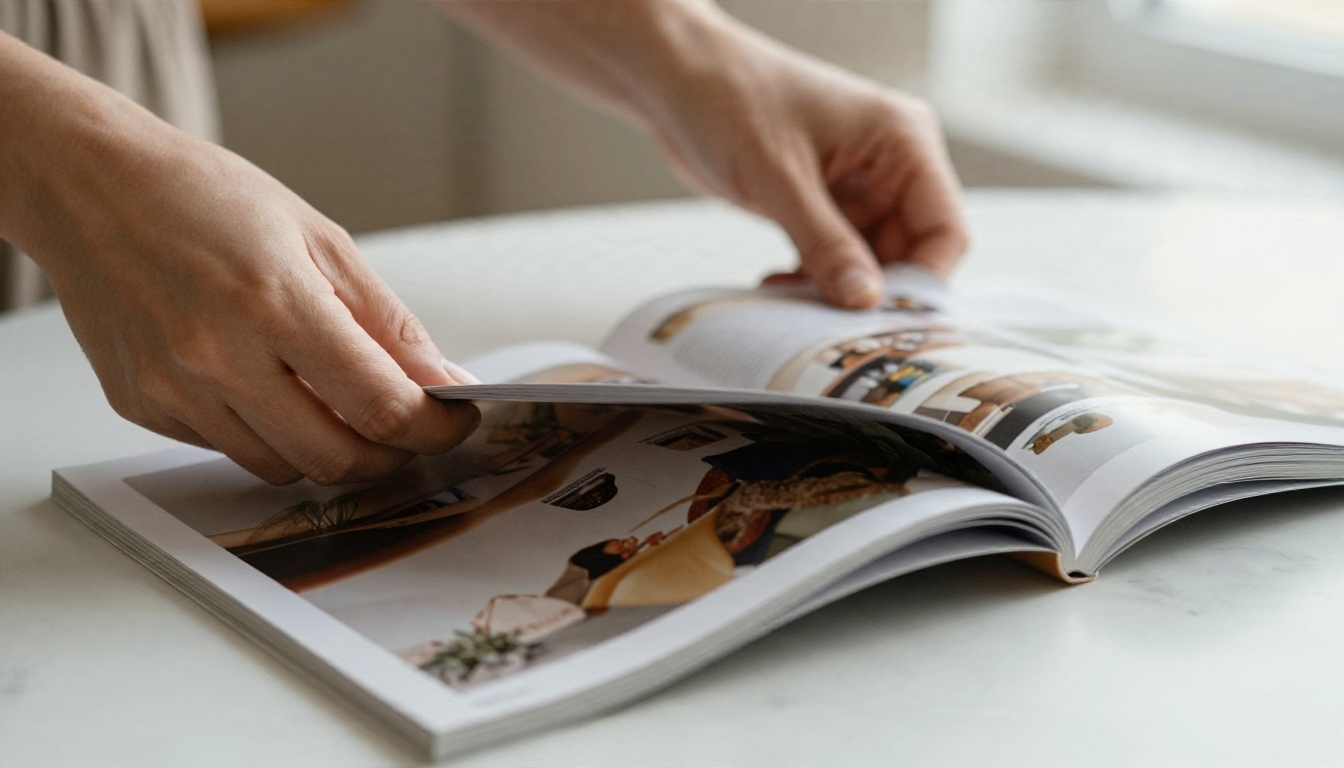
The page turn is a familiar physical gesture. When a page lifts, bends, and settles, the brain reads the file as a publication instead of a document. That small shift has practical effects:
- Readers spend more time on each spread because the motion invites the next page.
- The deck feels finished and premium, even when the design is simple.
- Mobile readers can swipe naturally instead of pinching and zooming a tiny PDF.
- The link looks professional when it lands in a proposal, a newsletter, or a chat message.
How the Page Flip Effect Works
Here is where many people get stuck. Canva is a design tool first, and its sharing features are built around slides, not paged publications.
What Canva Does on Its Own
Canva lets you present full screen, record a presentation, and create a view-only share link. Those options are useful, and they cost nothing extra on most accounts. The link opens your deck in Canva's own viewer, where visitors move through slides in a standard sequence. Canva also offers page transitions and element animations, which add movement between slides, but those are not the same as a paper page curling over a spine. Features change from time to time, so check the Share menu in your account for the current options.
Where the Gap Shows
Three limits come up again and again:
- No true page turn. Transitions slide or fade. They do not bend.
- Little control over the viewer. You cannot easily add password protection, lead capture, or detailed reading stats from the share link alone.
- Canva branding around the link. Visitors know where the deck came from, which is not always what a client-facing brand wants.
A converter fills each gap. You keep Canva for design and use a flipbook platform for delivery.
| Feature | Canva Share Link | Flipbook via Converter |
|---|
| Realistic page curl | No, uses transitions | Yes, physical page turn |
| Reader layout | Slide by slide | Spreads like a magazine |
| Password protection | Limited by sharing settings | Built in |
| Embed on your own site | Possible, with viewer limits | Clean embed code |
| Reading analytics | Basic | Detailed on higher plans |
| Offline download | Separate export needed | Optional for readers |
| Third-party branding | Canva viewer | Your own colors and logo |
How to Create a Canva Flipbook with Flipbooks AI
This is the full workflow, from blank canvas to a live link. It takes about ten minutes once your design is ready.

Step 1: Design the Deck in Canva
Pick a presentation template or start from scratch. For the best flipbook result, make a few choices early:
- Use a consistent page size across every slide. Landscape 16:9 works well for screens, while A4 or Letter portrait feels more like a printed brochure.
- Keep text large. Body copy under 14 pt becomes hard to read on a phone.
- Leave safe margins of at least 0.5 inch so nothing gets lost near the fold.
- Treat page one as a front page and the last page as a back page. Readers expect that rhythm.
Step 2: Export a PDF
In Canva, open Share, choose Download, and select PDF Standard for screen use. Choose PDF Print only if you plan to hand out physical copies too. Tick every page, and leave "flatten PDF" off if you want live links inside your slides to keep working.
⚠️ Warning: Embedded video clips in Canva do not travel inside a PDF. Plan to add video again after conversion, which is easy to do in the flipbook editor.
Step 3: Create an Account and Upload
Open Flipbooks AI and sign in, or create an account in under a minute. Then:
- Click the upload button and choose your exported PDF.
- Wait a few seconds while the platform splits it into pages.
- Open the preview and flip through to confirm the order.
The conversion engine behind this is the same one you can reach directly through the PDF to Flipbook Converter.
Step 4: Customize the Look
Next, make the flipbook feel like yours:
- Branding: add your logo and choose a background color that frames the pages well.
- Page effects: adjust the page flip speed and shadow so the turn feels natural, not rushed.
- Multimedia: drop in embedded videos, audio, and clickable links where Canva could not.
- Layout mode: pick single page or double spread, depending on how you designed the deck.
Step 5: Choose Your Sharing Options
Publish and decide who gets in. You can copy a direct link, grab an embed code, or lock the whole thing behind a password. Section five below goes through each one in detail.
Pro Features: Analytics and Leads
On the Professional plan you can see which pages readers spend time on, where they drop off, and who they are. Lead capture can gate the flipbook behind an email form, and offline downloads let readers save a copy for flights or poor connections. Compare options on the pricing page before you pick a tier.
Flipbook Presentation Examples That Work
Seeing a few concrete cases makes the idea click. These are the formats that gain the most from a page flip.
Sales Decks and Proposals
A freelance consultant sends a 12-page proposal as a flipbook link. The client opens it on a phone between meetings, turns through the scope, the timeline, and the pricing page, and replies the same day. With analytics, the consultant sees the pricing page was read three times and follows up with exactly that topic. The Sales Presentation tool is built for this scenario.
Portfolios and Lookbooks
Designers and photographers often build a portfolio in Canva because it is fast. A flipbook gives it the feel of a printed book. Try the Portfolio Flipbook Builder or the Interactive Lookbook Designer for fashion and product shoots.
Reports and Training Material
Teams that publish quarterly numbers or onboarding manuals benefit from a navigable, searchable format. A report with charts reads better when each page feels like a spread. See the Report Flipbook Creator and the Training Manual Flipbook tools.
Menus, Catalogs, and Event Programs
A restaurant can design a menu in Canva, export it, and publish a flipbook that diners open from a table QR code. A boutique can publish seasonal catalogs the same way, and an event team can share the day's schedule without printing a single sheet.
Share by Link, Embed, or Download
A flipbook is only useful if people can open it without friction. Here are the main ways to deliver it.

Share by Direct Link
Every published flipbook gets its own URL. Paste it into an email, a WhatsApp thread, a LinkedIn message, or a QR code. There is nothing to install, and it works on phones, tablets, and desktops. Because the link is short and clean, it also survives well in email signatures and social bios.
Embed on Your Website
If you want the flipbook to live on a landing page, a blog post, or a client portal, copy the embed code and paste it into your page builder. The Embed Flipbook on Website tool walks through the process for common platforms. The viewer resizes to fit its container, so it stays readable on small screens.
Lock It With a Password
Private proposals, investor decks, and internal handbooks should not be open to everyone. Add a password so only people with the code can read it. Pair this with a link that you send individually, and you control who sees what.
✅ Best practice: Use a unique password for each client, and change it when the project ends. It takes seconds and removes the risk of old links circulating.
| Sharing Method | Best For | Access Control | Effort |
|---|
| Direct link | Email, chat, social posts | Anyone with the URL | Under a minute |
| QR code | Print, menus, event signage | Anyone who scans | A few minutes |
| Embed code | Websites and portals | Follows the host page | 5 minutes |
| Password protected link | Proposals, private decks | Only people with the password | Under 2 minutes |
| Offline download | Travel, weak connections | Reader keeps a copy | One click for readers |
Design Tips for a Better Page Flip
A good conversion cannot rescue a weak layout. These habits make the difference between a flipbook that feels crafted and one that feels like a screenshot.
Plan Around the Spread
When pages appear in pairs, the left and right sides need to look good together. Avoid placing a critical headline across the center fold. If you use a full-bleed photo, make sure the focal point sits well away from the gutter.
Keep File Size Reasonable
Large, uncompressed images slow loading and spoil the smooth page turn. Aim for a PDF under 25 MB where possible. In Canva, compress images before export, and avoid stacking dozens of high-resolution photos on one slide.
Use Clickable Elements Wisely
Buttons, links, and a contents page help readers jump around. Add a short contents page near the front for any deck longer than ten pages. Link each item to the matching section.
Three Common Mistakes
- Tiny text. What looks fine on a 27-inch monitor fails on a phone.
- Mixed page sizes. The viewer will stretch or crop them, and the flip looks uneven.
- Forgetting the back page. End with a clear next step, such as a contact line, a booking link, or a price list.
Quick Troubleshooting
A few problems come up often enough to deserve a short list:
- Fonts look different after upload. Export with fonts embedded, which Canva does by default in standard PDF.
- Links stopped working. Re-export without flattening, or add the links again in the flipbook editor.
- The page turn feels slow. Compress images and reduce page count if the file is above 40 MB.
- Colors look dull. Export in RGB for screens, not CMYK for print.
Ready to Publish Yours?
You do not need to rebuild anything. Your Canva design stays exactly as it is, and the flipbook is a new way to deliver it. Here is the short path:
- Finish your deck in Canva and export a PDF.
- Create your account on Flipbooks AI and upload the file.
- Customize the branding, add your media, and set a password if needed.
- Share the link, embed it, or let readers download a copy.
If you plan to publish more than one flipbook, take a look at the pricing plans: Standard and above include unlimited flipbooks, and Professional adds analytics and lead generation. Browse all flipbook tools to find the template that fits your project, or get started for free and turn your next Canva presentation into something people actually want to read.



