You have a PDF, and you need people to open it from a poster, a menu card, a business card or a shop window. Typing a long URL on a phone is a chore, so most readers simply won't. A QR code fixes that in one scan. The catch is that a QR code can't hold your PDF. It holds a link, and the PDF has to live at the other end of that link. This article shows how to change a PDF to a QR code for free, which settings keep the code scannable, and how a flipbook from Flipbooks AI gives you a cleaner destination than a raw file download.
Why Turn a PDF Into a QR Code
People already carry the scanner. Every modern phone camera reads QR codes without an app, which makes a printed square the shortest path between paper and screen. If your document is a menu, a price list, a catalog or a manual, a code beside it saves the reader every step.
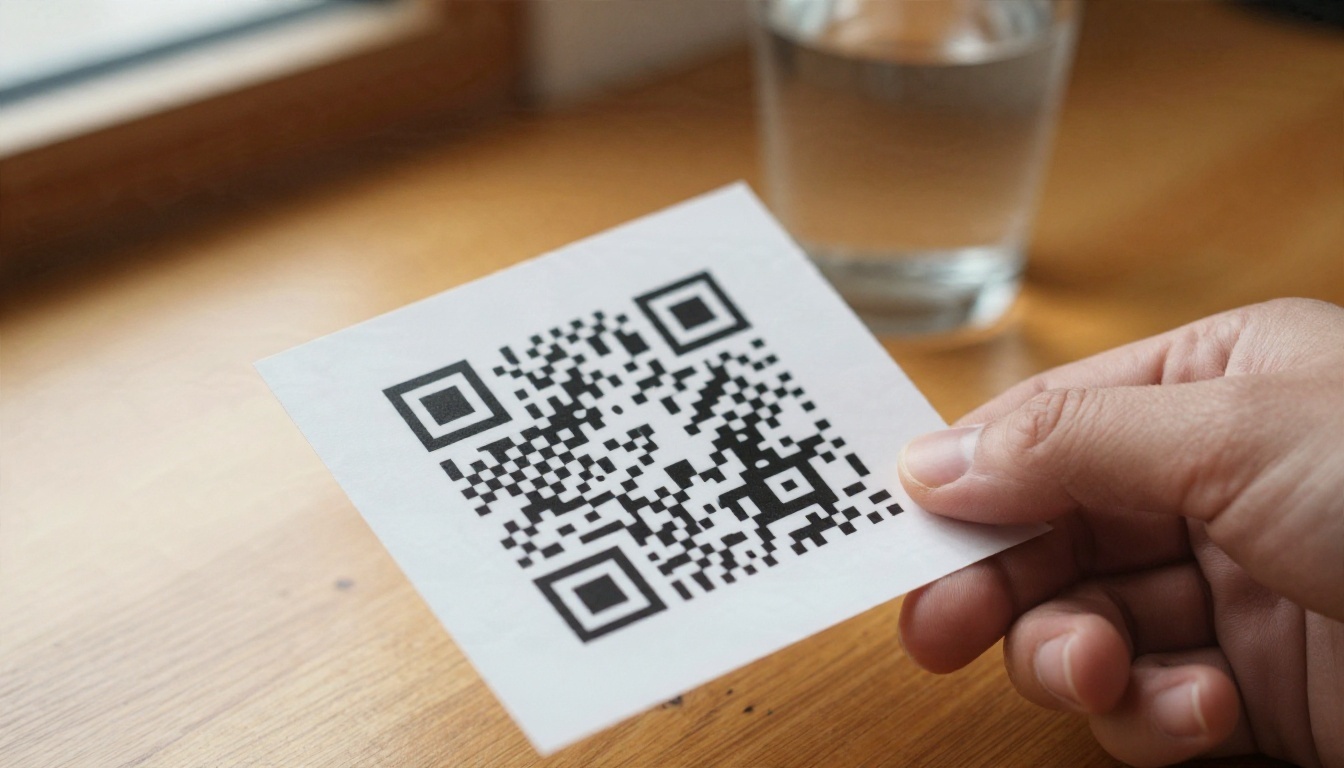
What a QR Code Actually Stores
A QR code is a small grid of black and white modules that encodes text. For a PDF, that text is a URL pointing to a hosted copy of the file. The largest QR code (version 40) holds roughly 2,953 bytes at the lowest error correction level. A typical PDF is hundreds of kilobytes or more, so embedding the file itself is physically impossible.
That has a practical consequence. The code is only as reliable as the link behind it. If the link breaks, the printed code breaks with it.
When It Beats a Plain Link
A short link works fine in an email. A QR code wins whenever the reader is looking at something physical:
- Printed menus and table cards where guests want the full PDF menu on their own phone
- Posters and window displays that people pass at walking speed
- Packaging and product tags that need a manual or spec sheet
- Business cards that point to a portfolio or a rate card
- Event badges and signage that lead to a schedule or a map
💡 Pro tip: Put a short line of text next to the code, such as "Scan for the full menu". Scans go up when people know what they will get.
Static or Dynamic: Pick First
Before you generate anything, decide which kind of code you need. This single choice affects whether you can ever fix a mistake after printing.
A static code stores the destination URL directly in the pattern. It is free, never expires and works offline in the sense that no middleman is involved. A dynamic code stores a short redirect URL instead, and the redirect can be edited later.
| Feature | Static QR Code | Dynamic QR Code |
|---|
| Destination editable after printing | No | Yes |
| Scan tracking | No | Usually yes |
| Pattern density | Higher (longer URL) | Lower (short URL) |
| Typical cost | Free | Free tier or subscription |
| Expiry risk | None | Depends on the provider |
| Best for | Permanent documents | Menus, campaigns, price lists |
⚠️ Warning: Some free dynamic generators switch the redirect off after a trial period. A printed run of 5,000 flyers with a dead code is an expensive mistake. Read the terms before you print.
A good middle path is a static code that points to a stable flipbook link. You print once, and you can still replace the PDF behind that link whenever the document changes.
How to Change PDF to QR Code Free
The process has three stages. You host the PDF, generate the code, and export it in a format that prints well.

Step 1: Get a Public Link
Your PDF needs a web address that anyone can open without logging in. You have a few options:
- Cloud storage (Google Drive, Dropbox, OneDrive) with link sharing switched on
- Your own website, uploading the file to a media folder
- A flipbook host that turns the PDF into a page-turning reader with its own URL
Cloud storage is quick but often opens a preview screen full of buttons and sign-in prompts. A direct file link downloads the PDF, which is slow on mobile data. A flipbook link opens straight into a readable, mobile-responsive document, which is what a person holding a phone actually wants.
Step 2: Generate the Code
Open any free QR generator and choose the URL or Link type. Paste your PDF link and generate the code. Some tools label this option "PDF to QR code", but under the hood they all do the same thing: encode a link.
Check three things before moving on:
- The preview matches the link you pasted
- No watermark or "free trial" frame is added around the code
- The tool lets you download vector formats, not only a small PNG
Step 3: Download the Right Format
The file format matters more than most people expect, because it decides whether the code stays sharp at print size.
| Format | Best Use | Scales Without Blur |
|---|
| SVG | Print, large banners, signage | Yes |
| EPS or PDF | Professional print shops | Yes |
| PNG (high resolution) | Websites, slides, social posts | No |
| JPG | Quick previews only | No |
Choose SVG whenever it is offered. If you only get a PNG, download it at 1000 pixels or larger and never stretch it afterward.
Settings That Decide Scan Success
A code that looks good on screen can still fail on a laminated table. Four settings do most of the work.
Error Correction Level
Error correction lets a scanner rebuild the data when part of the code is dirty, scratched or covered by a logo. Higher levels add redundancy, which makes the pattern denser.
| Level | Damage Recovered | Best For |
|---|
| L | About 7% | Clean screens, short links |
| M | About 15% | Most printed material |
| Q | About 25% | Outdoor signs, packaging |
| H | About 30% | Codes with a logo in the center |
For a normal flyer or menu, M is the right default. Pick Q or H only when the surface will get rough treatment, or when you place a logo in the middle.
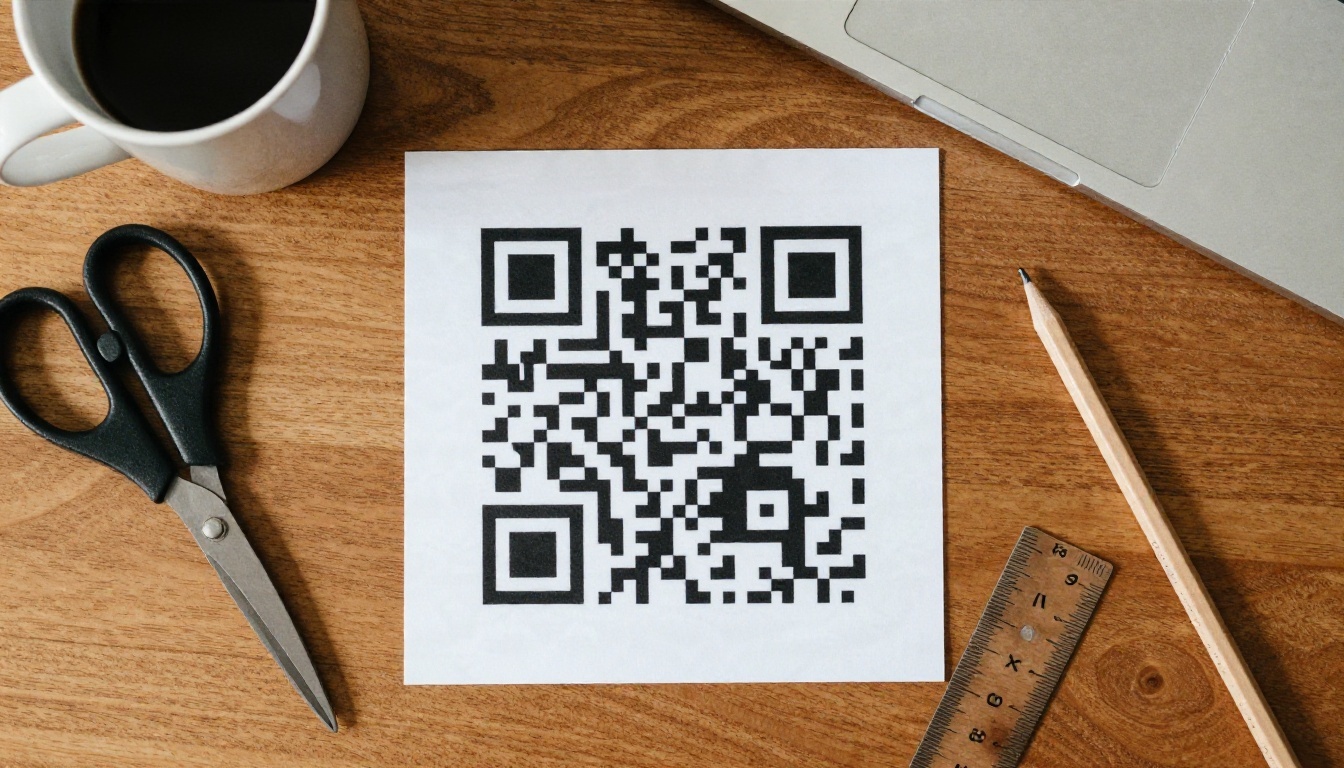
Size, Contrast and Quiet Zone
Follow these rules and most scan problems disappear:
- Minimum size: about 2 cm (0.8 in) square for close-range scanning, and larger for anything read from a distance
- Distance rule: the scanning distance should be roughly ten times the code width, so a 10 cm code works from about one meter
- Contrast: dark modules on a light background, ideally black on white
- Quiet zone: keep a blank margin of at least four modules on every side
- Never invert: white modules on a black background fail on many older scanners
Colors and Logos
Brand colors are fine if the contrast stays high. A navy code on cream paper scans well. A light yellow code on white does not.
✅ Best practice: Test every design on two or three different phones, in normal room light, before sending files to print. A test takes thirty seconds and saves an entire reprint.
If you add a logo, keep it under about 20% of the code area and raise the error correction to Q or H.
How to Create a PDF QR Code with Flipbooks AI
A raw PDF link works, but it opens a file viewer that was never designed for phones. Flipbooks AI turns the PDF into a responsive flipbook with a clean shareable link, then you generate the QR code from that link. Here is the full workflow.
- Create your account. Go to Flipbooks AI and sign up. You can start without a credit card, and you can compare plans anytime on the pricing page.
- Upload your PDF. Use the PDF to Flipbook Converter and drop your file in. Each page becomes a flippable page with realistic page effects, and nothing is stamped with a watermark.
- Customize the look. Add your logo, set brand colors and choose a background. You can also embed videos and audio on specific pages, which a plain PDF cannot do.
- Copy the share link. Every flipbook gets its own public link. This is the URL you will paste into your QR generator.
- Protect it if needed. Switch on password protection for private material such as internal manuals, client proposals or pricing that should not be public.
- Embed it on your website. If you prefer a web page, follow the embed flipbook on website tool to get an embed code, and point your QR code at that page instead.
- Generate and print the QR code. Paste the link into any free generator, choose error correction M, download an SVG and place it on your print file.
Pro Features Worth Using
On the Professional plan you can add analytics to see how many people open the document and which pages they read, plus lead generation forms that ask for an email before the flipbook opens. Offline downloads let readers save the document for later, which helps in places with weak signal such as trade halls and basements. Standard plans and above include unlimited flipbooks, so you can create a separate code for every product line or location.
Because the QR code points to the flipbook link, you can swap in an updated PDF later and every printed code keeps working.
Real Examples That Work
Theory is easy. Here is how different people use a PDF QR code every week.
Restaurants, Cafes and Shops
A café prints one table card with a code that opens the seasonal menu. When prices change, the owner updates the file and leaves the cards alone. The Restaurant Menu Creator is built for exactly this job.

A boutique does the same with a lookbook. A small card by the register opens the full collection, built with the Product Catalog Generator, so customers can browse items that are not on the shelf.
Property Listings and Events
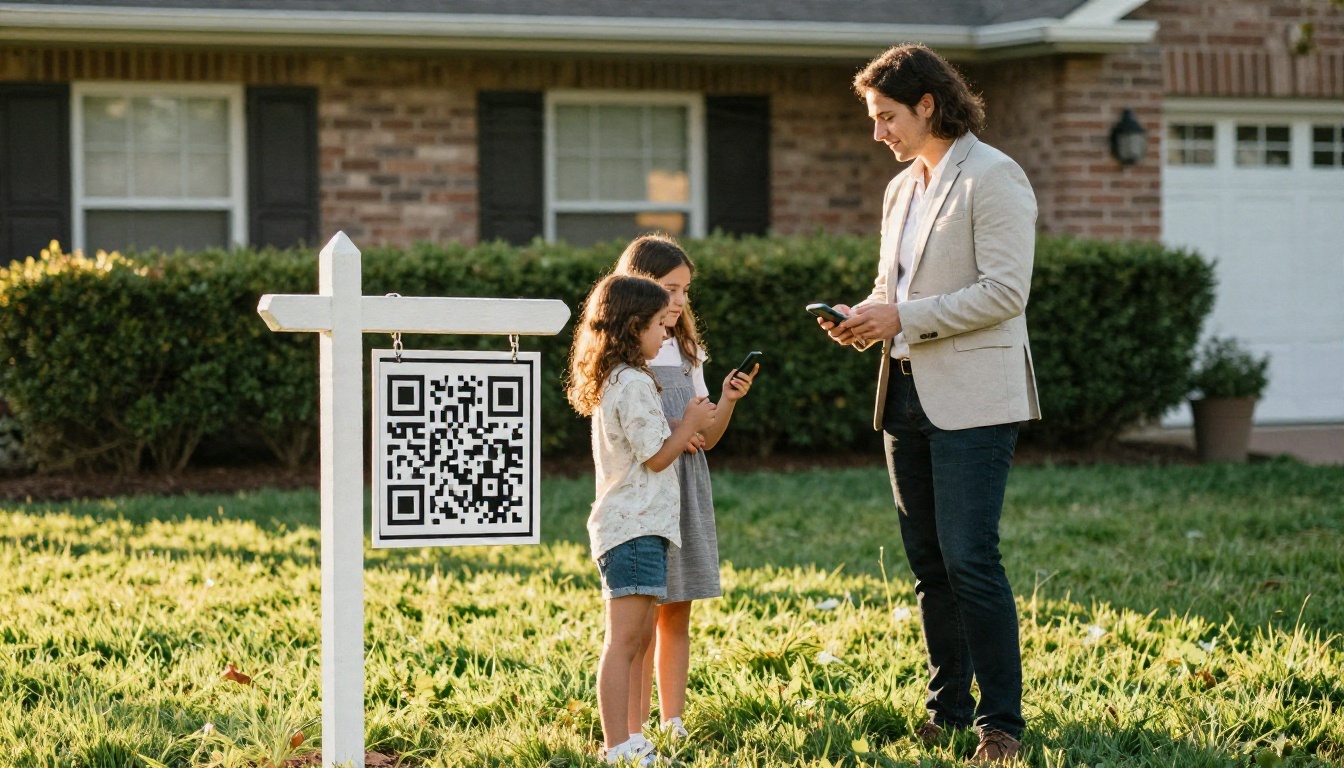
Real estate agents put a code on the for-sale sign. A buyer walking past scans it and reads the full brochure, floor plans included, without calling anyone. The Real Estate Brochure Creator gives the PDF a polished reader.
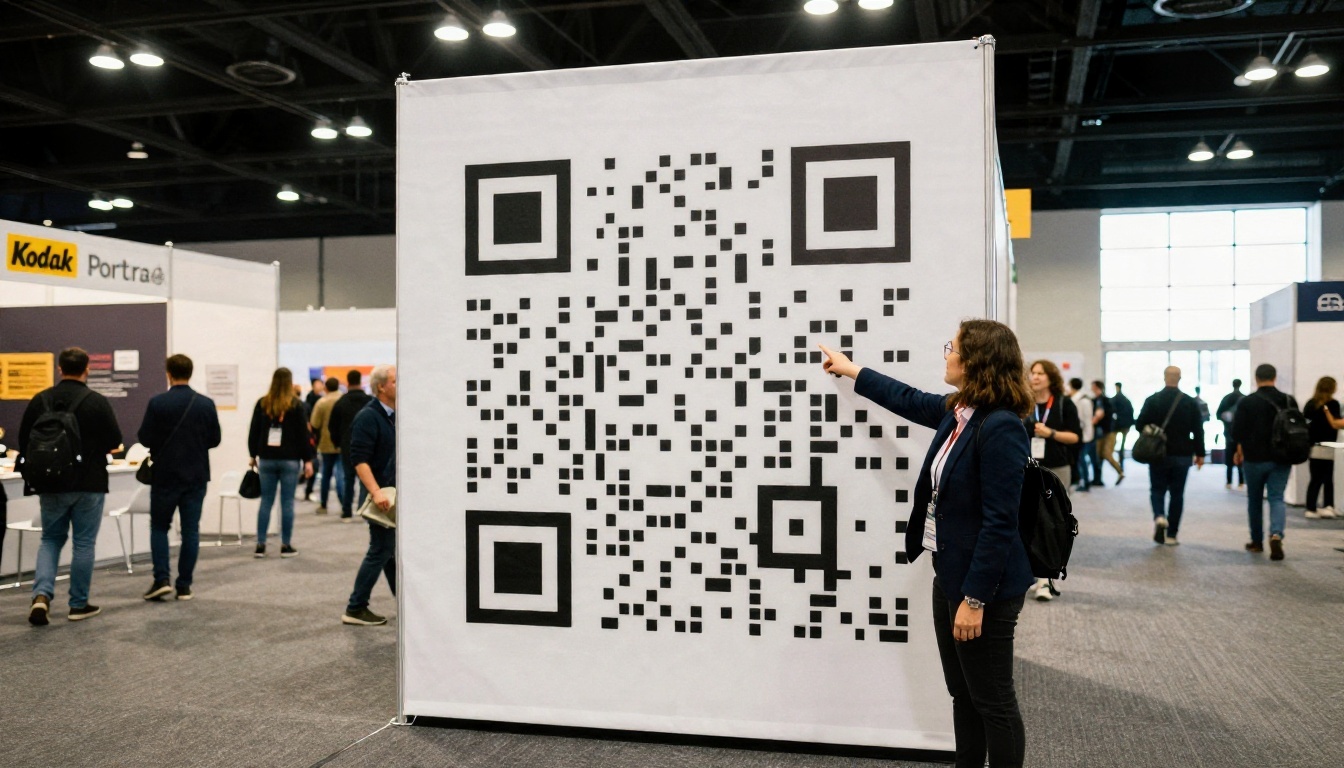
Exhibitors use a large code on a banner to share a product sheet. Set the code big, because people scan from the aisle and not from arm's length.
Schools and Training
A teacher prints one code on a handout and students open the reading pack on their own phones. No email chains, no lost attachments. The Course Material Publisher suits this well.

Use Cases at a Glance
| Scenario | Document | Suggested Size | Error Correction |
|---|
| Table card | Menu PDF | 3 to 4 cm | M |
| Window poster | Brochure or flyer | 10 to 15 cm | Q |
| For-sale sign | Property brochure | 12 to 20 cm | Q |
| Trade show banner | Product sheet | 20 cm or more | Q |
| Business card | Portfolio or rate card | 2 to 2.5 cm | M |
| Handout | Course pack | 3 to 5 cm | M |
For more formats, browse the full flipbook tools directory or try the Online Brochure Designer.
Mistakes That Break Scans
Most failed codes come from the same handful of errors. Check this list before you print:
- Linking to a private file. If the PDF needs a login, strangers see an error page.
- Using a shortened link from an unknown service. If that service closes, your code dies.
- Printing too small. A 1 cm code on a glossy flyer will frustrate people.
- Low contrast. Pale colors and busy photo backgrounds confuse scanners.
- Stretching the image. Keep the code perfectly square.
- Placing it on a curved or reflective surface. Glare can wipe out the pattern.
- Skipping the test. Scan the final print file, not only the screen version.
⚠️ Watch out: A code in a PDF that people read on the same phone cannot be scanned by that phone. Use a clickable link there, and keep the code for paper and large screens.
Ready to Make Yours?
The fastest route is short. Host your PDF as a flipbook, copy the link, generate a QR code with error correction M, export an SVG and test it on two phones. That is the whole job, and it takes about ten minutes.
Create your first flipbook on Flipbooks AI, browse the tools and templates to find the right format for your document, and see which plan suits you in the pricing options. Then print the code, put it where people will see it, and let the scan do the rest.



