Every Saturday night, somebody in your church is staring at a blank Word document, wondering why the hymn numbers keep jumping to page two. If that sounds familiar, a solid church bulletin template for Word fixes the problem once and for all. You build the structure one time, then simply swap the text each week. This article shows you the layouts that work, how to set up a one page design, how to export a crisp PDF, and how to turn that PDF into an interactive version with Flipbooks AI so members can read it on their phones.
What a Good Church Bulletin Needs
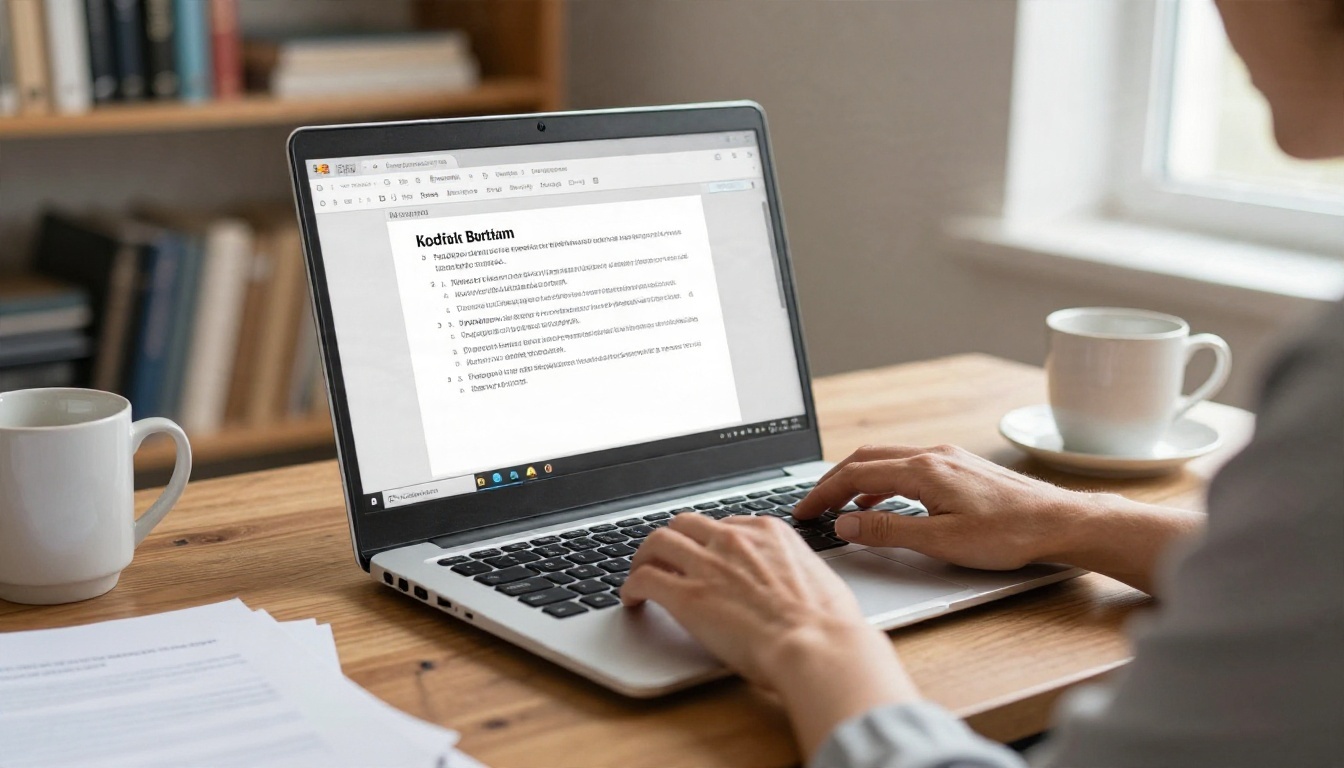
A bulletin has one job: help people take part in the service and know what is happening next. Fancy graphics matter far less than clear order and readable type. Most volunteers overthink the design and underthink the structure.
The Sections Every Bulletin Uses
Whatever your tradition, the same building blocks show up again and again. Plan your template around these:
- Welcome and church name, with address, service times and a website
- Order of service, listing songs, readings, prayers and the message title
- Announcements, the three or four items that truly matter this week
- Prayer requests and care notes, kept short and respectful
- Giving information, such as a QR code or a mailing address
- Weekly calendar, covering midweek groups, meetings and events
- Contact details for the office and pastoral care
💡 Pro tip: If an item does not fit in two lines, it belongs on the website or in a separate flyer. The bulletin should point people to details, not hold all of them.
Why One Page Works
A one page church bulletin forces good decisions. You cannot stuff in every announcement, so people actually read the ones you choose. It also prints on a single sheet, which means no collating, no folding and no stapling before the service. Small congregations in particular save serious time and paper.
Larger churches often prefer a folded half page format because it creates a natural cover panel and more room for the order of service. Both options are easy in Word, and the table below shows when each one fits.
| Layout | Pages | Best For | Printing Effort | Typical Congregation |
|---|
| Single sheet, one side | 1 | Simple services, weekly updates | Very low | Under 60 |
| Single sheet, both sides | 1 (2 sides) | Added calendar and prayer list | Low | 40 to 120 |
| Half page folded | 4 panels | Formal liturgy, seasonal editions | Medium | 80 to 300 |
| Tri fold | 6 panels | Visitor friendly, event weeks | Medium | Any size |
Free Layouts You Can Build in Word
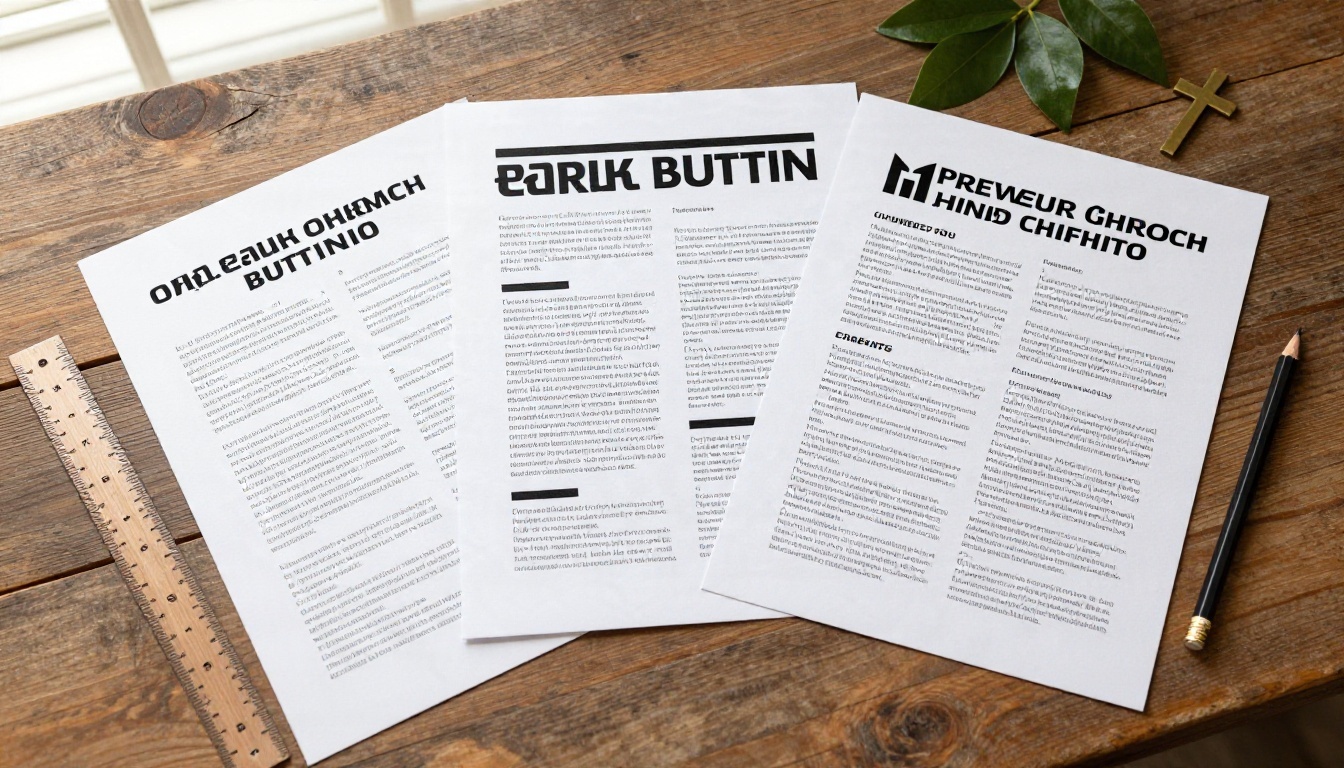
You do not need to buy anything. Word already includes everything required: columns, text boxes, tables and page borders. The trick is choosing a structure and sticking with it.
Layout One: The Two Column Sheet
This is the workhorse. Set the page to Letter size, use 0.6 inch margins, and split the body into two columns. The left column holds the order of service. The right column holds announcements and the calendar. A banner across the top carries the church name and the date.
Layout Two: The Header Plus Table
Some secretaries prefer tables because they keep everything aligned. Insert a table with two columns and hide the borders. The left cells hold times or labels such as "Call to worship," and the right cells hold the details. When you change a line, nothing else moves. This is the most stable option for a weekly editor who is not a designer.
Layout Three: The Folded Booklet
In Word, open Layout, Margins, Custom Margins and set Multiple pages to Book fold. Word then arranges four panels on a landscape sheet. Panel one is the front, panel two is the inside left with the order of service, panel three is the inside right, and panel four is the back with contact details. Always print one test copy and fold it before you run fifty.
⚠️ Warning: Do not use fonts smaller than 10 point for body text. Many of your older members read the bulletin during the first hymn, and tiny text quickly becomes a complaint.
Build Your Template Step by Step
Here is a simple process that takes about forty minutes the first time and about fifteen minutes every week after that.
Set Up the Page
- Open a blank document and go to Layout, Size and choose Letter (8.5 x 11 in) or A4.
- Set margins to 0.6 to 0.75 inch on all sides.
- Choose two fonts only. A serif such as Georgia or Garamond for headings, and a clean sans such as Calibri or Open Sans for body text.
- Define a palette of two colors. A deep navy and a warm gold read well in print and on screen.
- Turn on View, Gridlines so you can see where everything sits.
Use Columns and Text Boxes
Use the Columns command for the main flow of text. For anything that should stay put, such as a giving box, a QR code or a birthday list, use a text box with no outline and a light background fill. Text boxes can be moved without disturbing the rest of the page.
Then apply Styles rather than formatting by hand. Create a Heading 1 style for section titles, a Heading 2 style for subheads, and a Normal style for body text. When a new volunteer takes over, they only need to apply styles and the page stays consistent.
Save It as a Template
When the design is final, replace real text with placeholder lines such as "Sermon title here." Then choose File, Save As, and pick Word Template (.dotx). Each week you open the template, and Word creates a fresh copy without overwriting the original. This single habit prevents the classic disaster of editing last week's file and losing the master.
| Element | Recommended Setting | Why It Matters |
|---|
| Body font | 10.5 to 11 pt | Readable for all ages |
| Headings | 14 to 18 pt, bold | Easy scanning |
| Line spacing | 1.0 to 1.1 | Fits more on one page |
| Image resolution | 150 to 300 dpi | Sharp without huge files |
| Color mode | Two colors plus black | Cheaper to print |

PDF Export Without Layout Surprises
A Word file looks different on every computer. Fonts get swapped, margins shift, and a tidy page quietly becomes two. A PDF freezes the design, so what you approved is what everyone sees.
Export Settings That Work
- Choose File, Export, Create PDF/XPS Document.
- Select Standard (publishing online and printing) for the best quality.
- Click Options and make sure ISO 19005-1 compliant (PDF/A) is off unless you need archival copies.
- Tick Document structure tags for accessibility so screen readers can follow the order.
- Save the file with a predictable name such as
bulletin-2026-11-16.pdf.
If your congregation prints at home, offer a smaller file as well. Choose Minimum size (publishing online) for email and phone viewing.
Fixing Font and Margin Problems
Most export headaches come from a short list of causes. Use this table as a quick checklist.
| Problem | Likely Cause | Fix |
|---|
| Text spills onto page two | Long announcements | Trim to two lines each |
| Fonts look different in PDF | Font not embedded | Use standard fonts, or export with Standard option |
| Edges clipped when printed | Margins too tight | Keep at least 0.5 inch |
| Blurry logo | Low resolution image | Use a 300 dpi PNG |
| Huge file size | Photos not compressed | Right click picture, Compress Pictures |
✅ Best practice: Open the exported PDF on your phone before you share it. If the layout reads well on a small screen, it will be fine everywhere else.
Print Smart or Share Digitally
Printing is still the heart of bulletin culture, and many members love holding a sheet in their hands. But a growing share of visitors want to check the service on their phones, especially younger families and people who attend remotely.
Printing Costs and Choices
A basic office laser printer handles one page bulletins easily. For larger runs, a local print shop or a copier lease with unlimited black and white pages usually costs less per sheet. Think about these choices:
- Paper weight: 24 lb bond feels better than 20 lb and hides show through on double sided sheets.
- Color: Print the header in color on a quantity of 25 to 50 sheets, or use pre printed colored stock and run black text on top.
- Quantity: Track how many copies get left behind for three weeks, then adjust your print count. Most churches over print by 15 to 25 percent.
Turning the PDF Into a Flipbook
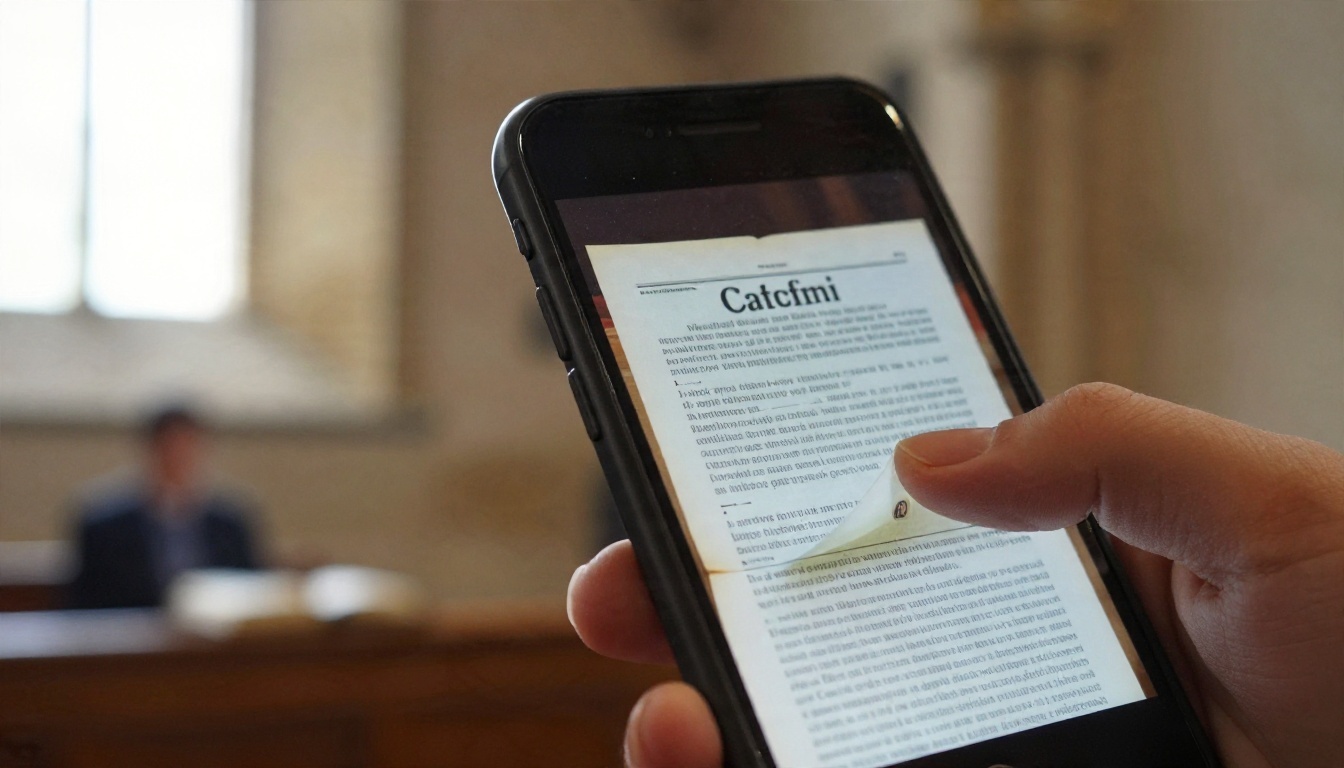
Here is where the template pays off twice. The same PDF you print can become an online page turning publication. Upload it to the PDF to Flipbook Converter and you get a link that works on any device, with no app and no download. Members can read the order of service, tap a link to the giving page, and share the bulletin with a friend who missed Sunday.
| Feature | Paper Bulletin | Plain PDF Email | Flipbook Bulletin |
|---|
| Works without a device | Yes | No | No |
| Clickable links | No | Sometimes | Yes |
| Page turning feel | Yes | No | Yes |
| Shareable by link | No | Needs attachment | Yes |
| Audio or video embeds | No | No | Yes |
| Reader statistics | No | No | Yes (Professional plan) |
| Ongoing print cost | Per sheet | None | None |
How to Create a Digital Bulletin with Flipbooks AI
If you already have your PDF, you are about five minutes away from a shareable bulletin. Here is the exact path.
Step by Step Tutorial
- Start your account. Go to Flipbooks AI and sign up. You can look at the pricing plans first if your treasurer wants to see the numbers.
- Upload the PDF. Drag your exported bulletin into the upload area. Conversion takes a few seconds, and your fonts, colors and layout stay exactly as you exported them.
- Customize the look. Add your church logo, choose a background color that matches your header, and set the page turning effect. Keep it subtle, since a soft page curl feels more natural than a dramatic flip.
- Add multimedia. Embed a short welcome video from your pastor or an audio clip of this week's opening song. Link the giving line directly to your donation page.
- Set privacy. For member only content such as a prayer list, turn on password protection. Public bulletins can stay open for visitors.
- Share it. Copy the direct link into your text message group, post it on social media, or use the embed code to place the bulletin on your church website home page.
- Review the results. On the Professional plan, analytics show how many people opened the bulletin and which pages they read. Lead generation forms can also collect names from first time visitors who want to hear from you.
You can also allow offline downloads, so a member with weak signal at the retreat center can still read the schedule. And there are no watermarks, so your bulletin looks like it belongs to your church, not to a software company.
💡 Pro tip: Use the same link every week by replacing the flipbook file rather than creating a new one. Your QR code on the lobby sign never changes, and people always land on the newest bulletin.
Related Tools Worth a Look
Other tools on the platform fit church life well. A weekly mailing works nicely with the Newsletter Flipbook Publisher. Special services such as Christmas Eve or a wedding can use the Event Program Maker. Year end reports to donors fit the Non-Profit Annual Report tool. You can see everything else in the tools directory.
A Weekly Routine That Saves Hours
A template only helps if the team uses it the same way every week. Without a routine, everybody sends announcements on Saturday at 9 pm and the secretary pays for it.
Set a Deadline and Stick to It
Pick one day, usually Wednesday at noon, as the announcement deadline. Share it in the staff group and on the volunteer sign up sheet. Anything that arrives late goes into the next week, unless it is an emergency.
| Day | Task | Owner |
|---|
| Monday | Pastor confirms sermon title and readings | Pastor |
| Wednesday | Announcement deadline | All ministries |
| Thursday | Fill in template, send proof | Secretary |
| Friday | Proof approved, PDF exported | Pastor and secretary |
| Saturday | Print copies, upload flipbook, send link | Volunteer |
| Sunday | Hand out sheets, display QR code | Greeters |
Real Examples From Small Churches
A rural congregation of 45 people uses a single sheet, two sided bulletin. Front side is the order of service. Back side holds a monthly calendar and a prayer list. The secretary prints on a home laser printer and sends the PDF to homebound members by email.
A suburban church of 250 uses a half page fold with a seasonal front panel. Their volunteer designs four front panels a year in Word, and reuses the inside layout all year. They publish a flipbook version, and the office reports far fewer phone calls asking about times and rooms.
A church plant meeting in a school keeps things simple: one sheet, one QR code, no paper at all on most Sundays. The link sits on a screen at the door, and visitors scan it on the way in.
Mistakes to Avoid
- Too many announcements. Past five items, people stop reading all of them.
- Names without permission. Ask before listing health or family details in prayer requests.
- Skipping the proof. A second pair of eyes catches the wrong date nearly every time.
- Using photos from a search engine. Stick with images you own or that are properly licensed.
- Changing the layout weekly. Familiarity helps people find what they need in seconds.
Ready to Publish Your Bulletin?
You now have a layout, a Word setup, a clean PDF process and a digital option that members will actually use. Start with the two column sheet, save it as a template, and give yourself one month to refine it. After that, your Saturday evenings belong to you again.
When the PDF is ready, create a free account on Flipbooks AI and turn it into a shareable flipbook in minutes. Compare plans and features to see whether analytics and lead capture suit your ministry, or browse all flipbook tools for programs, newsletters and reports. To go straight to checkout, use the account and pricing shortcut.



