Convert Scanned PDF to Accessible PDF: OCR, Tagging, Free Tools and Checks
A scanned PDF is just a picture to a screen reader. See how to run OCR, add tags, fix reading order, write alt text and verify the result with free tools like OCRmyPDF, PAC and NVDA, then publish the finished file as a flipbook readers can open anywhere.
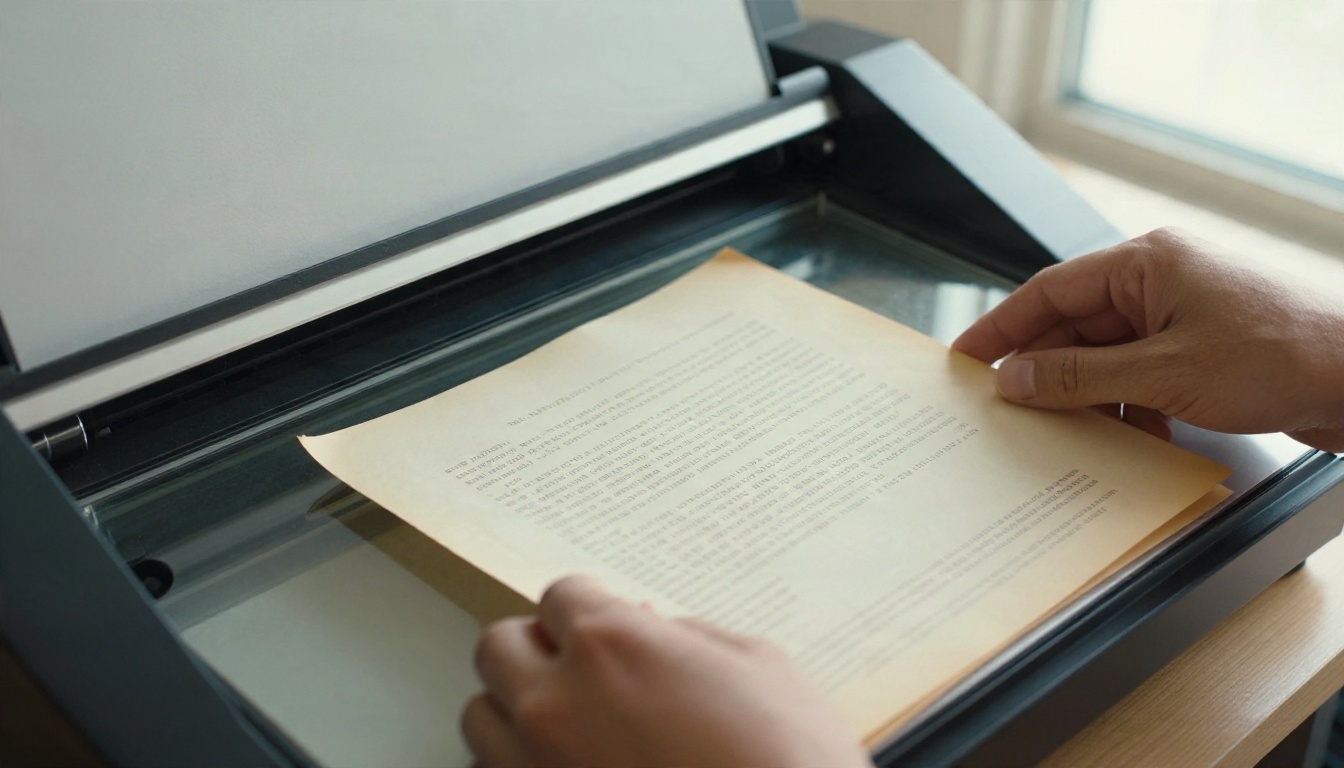
A scanned PDF looks like a document, but to a screen reader it is a photograph of one. Nothing gets read aloud, nothing can be searched, and a person using a braille display hits a blank wall. If you have ever pressed Ctrl+F on a scan and watched it find nothing, you have seen the problem first hand. This tutorial shows how to convert a scanned PDF to an accessible PDF in the right order: OCR first, tagging second, checks last. It also lists the free tools worth your time and shows how to publish the finished file with Flipbooks AI so readers get a clean, page-turning experience on any device.
💡 Quick answer: OCR makes the text real. Tagging makes the structure real. Checks prove both. Skipping any of the three leaves you with a file that only looks finished.
Why Scanned PDFs Fail Readers
Scanners capture light, not meaning. Every page becomes a flat raster image, and that image has no words, no headings and no order. Assistive technology has nothing to work with.
What a Screen Reader Actually Sees
Open a scanned PDF with NVDA or JAWS and you will usually hear "blank" or "image" for every page. A properly prepared file behaves very differently. The reader announces the document title, jumps from heading to heading, reads table cells with their column labels and describes meaningful pictures.
Feature
Raw scan
OCR only
OCR plus tags
Text can be selected
No
Yes
Yes
Searchable
No
Yes
Yes
Read aloud in order
No
Unreliable
Yes
Headings for quick jumping
No
No
Yes
Table headers announced
No
No
Yes
Alt text on images
No
No
Yes
Passes PDF/UA checks
No
No
Yes
The middle column is where most people stop, and it is the biggest trap. OCR is not accessibility. It adds a hidden text layer, but it does not tell assistive software what is a heading, a list or a footnote.
Who Needs This and Why
Accessibility is not a niche concern. Roughly one in six people worldwide lives with a significant disability, and many more rely on text resizing, dictation or read-aloud on a tired afternoon. Legal pressure has grown too:
United States: Section 508 for federal bodies, and the updated ADA Title II web rule for state and local governments, which points to WCAG 2.1 AA.
European Union: the European Accessibility Act, in force since June 2025 for many consumer products and services.
Universities and schools: most institutions now require accessible course packs, often tested against PDF/UA (ISO 14289).
Employers: internal policies, handbooks and HR forms must work for every employee.
A city clerk sitting on twenty years of scanned meeting minutes is a typical case. The archive is public, so it has to be readable. The good news is that you can fix it in batches rather than one page at a time.
OCR First: Make the Text Real
Optical character recognition reads the pixels and writes a hidden text layer behind the image. Do this step first, because tagging software needs real text to tag.
Fix the Scan Before You Run OCR
Bad input produces bad output. A few minutes of preparation saves hours of proofreading.
Scan at 300 DPI for normal print. Use 400 to 600 DPI for small type or faded copies.
Deskew and crop. A page tilted by three degrees can drop recognition accuracy noticeably.
Use grayscale or black and white for text pages. Reserve color for photos and charts.
Remove punch holes and shadows from the page edges.
Set the correct language. Recognition engines guess poorly on mixed or accented text without a hint.
⚠️ Phone photos work in a pinch, but glare and perspective distortion hurt accuracy. Use a scanning app that flattens the page, and shoot in even daylight.
Pick an OCR Engine
You have several routes. The right one depends on volume, budget and how much manual correction you can afford.
Tool
Cost
Best for
Output tags
Batch mode
Adobe Acrobat Pro (Recognize Text)
Paid
Mixed layouts, quick repairs
Yes, via auto-tag
Yes
OCRmyPDF (Tesseract)
Free, open source
Large archives, scripting
No
Yes
Microsoft OneNote or Word import
Included with Office
One-off pages
Partial
No
Google Drive OCR
Free
Quick text extraction
No
Limited
ABBYY FineReader
Paid
Complex tables, many languages
Yes
Yes
For most people, the practical combination is a free engine for recognition plus a checker for tags. We cover that combination in the free tools section below.
Tagging: Where Accessibility Happens
Tags are an invisible map inside the PDF. They label each block as a heading, paragraph, list, table or figure, and they set the order in which assistive software reads them. This is the part that separates a searchable file from an accessible one.
Auto-Tag, Then Repair
In Acrobat Pro, open Tools, Accessibility, Autotag Document. The software guesses the structure. Treat the result as a first draft, never a finished product. Then open the Tags panel and the Reading Order tool to correct the mistakes. Expect to fix:
Headings tagged as ordinary paragraphs
Page numbers and running headers read aloud on every page
Two-column layouts read straight across instead of down each column
Decorative lines and borders tagged as content
Open-source options exist, but tag editing is where paid software still leads. If your budget is tight, tag a clean Word or LibreOffice source file instead when you have one, then export to PDF with tags enabled.
Reading Order and Headings
Reading order should match how a sighted person reads the page. Use a logical heading outline: one Heading 1 for the title, Heading 2 for main sections, Heading 3 for subsections. Never skip levels just because a smaller font looks nicer.
✅ Best practice: For any file over about 20 pages, add bookmarks that mirror the heading outline. Sighted and non-sighted readers both use them to jump around.
Alt Text, Tables and Forms
Each of these three needs a human decision.
Images: write short, useful alt text. Describe the purpose, not the pixels. "Bar chart showing enrollment rising from 2019 to 2024" beats "chart". Mark decorative images as artifacts so they get skipped.
Tables: mark header cells as headers (TH) and set the scope for rows and columns. Avoid merged cells where possible.
Forms: give every field a clear label and a tooltip, and set a sensible tab order.
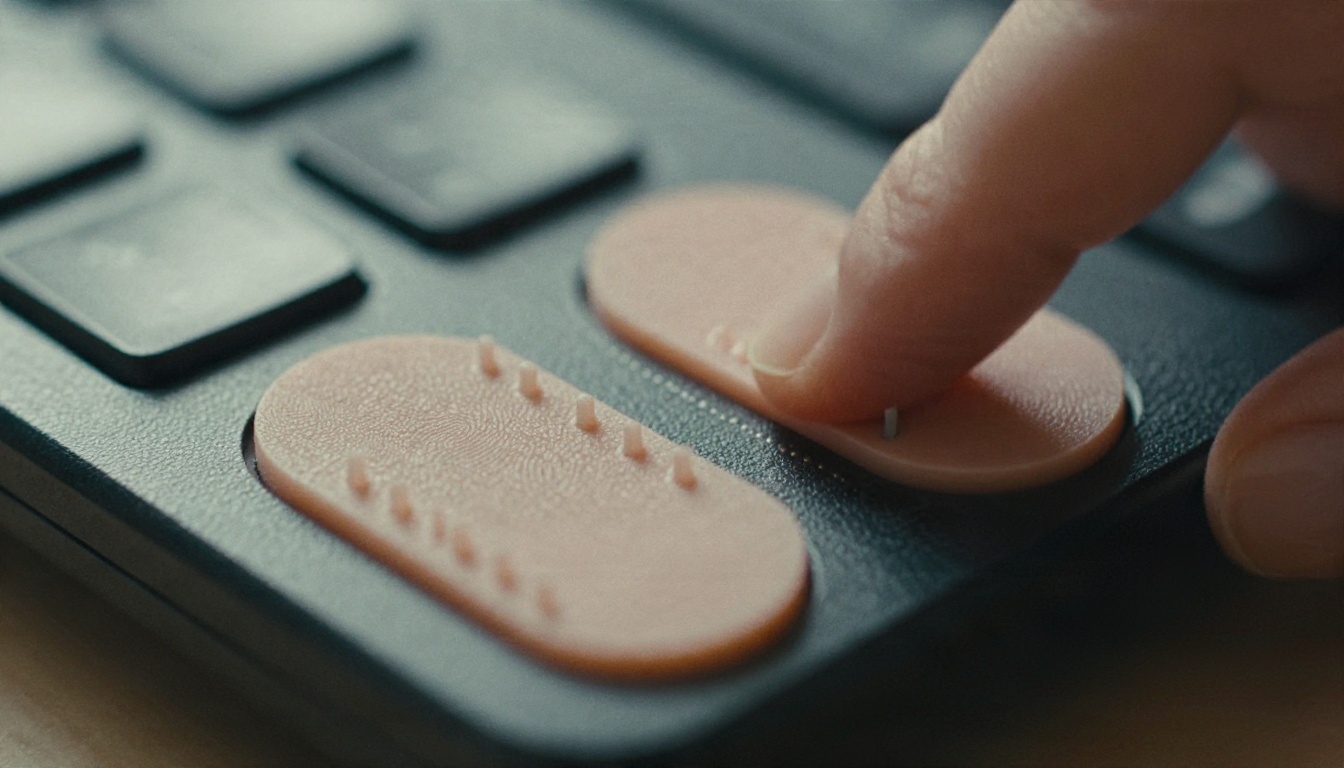
A braille display user will feel the difference immediately. Correct tags turn one endless line into a navigable outline with labelled cells.
Free Tools That Actually Work
A tight budget does not block accessibility. A solid free workflow exists, even if it asks for a little more patience.
OCRmyPDF and Tesseract
OCRmyPDF wraps the Tesseract engine and adds a text layer to scans without changing how pages look. It runs on Windows, macOS and Linux and handles whole folders. A typical command looks like this:
ocrmypdf --language eng --deskew --rotate-pages input.pdf output.pdf
Add --output-type pdfa if you want an archival PDF/A file. Remember that this adds searchable text only. You still need tags afterward.
PAC and NVDA for Checking
Two free programs do most of the verification work:
PAC (PDF Accessibility Checker): a free Windows tool that tests against PDF/UA and the Matterhorn Protocol, and shows a screen reader preview of your structure.
NVDA: a free, open-source screen reader for Windows. Listening to your own file is the fastest way to find real problems.
Free tool
What it does
Platform
Limitation
OCRmyPDF
Adds a text layer to scans
Win, Mac, Linux
No tagging
Tesseract
Raw OCR engine
Win, Mac, Linux
Command line
PAC
PDF/UA validation and preview
Windows
Does not fix errors
NVDA
Screen reader for real-world testing
Windows
Learning curve for new users
LibreOffice
Exports tagged PDF from source files
Win, Mac, Linux
Needs an editable source
💡 Pro tip: Run the free checker, repair in whichever editor you own, then run the checker again. Two passes catch the errors that the first round hides.
Run the Final Checks
A file is accessible when it passes both machines and people. Automated tools catch roughly a third to half of issues. The rest needs human judgment.
The Automated Pass
Run Acrobat's built-in Accessibility Check, then PAC. Look for these common failures:
Check
Pass condition
Typical fix
Document language
Set (for example English)
File properties, Advanced tab equivalent in your editor
Title
Present and shown in the window bar
Set title metadata, enable "show document title"
Tagged PDF
Yes
Run auto-tag, then repair
Alt text
On every meaningful figure
Add in the Tags or Reading Order panel
Table headers
Defined
Mark TH cells and scope
Color contrast
At least 4.5:1 for body text
Fix in the source file
Links
Descriptive text
Replace "click here" with the destination
The Human Pass
Automated tools cannot judge whether alt text is useful or whether a reading order makes sense. Do this short manual test:
Start NVDA and open the file.
Press the key to read from the top and listen to one full page.
Jump by headings. Does the outline make sense?
Tab through links and form fields in order.
Zoom the page to 200 percent. Does the text stay readable?
Ask someone who uses assistive tech daily to try it, if you can.
A twenty-minute session with a real screen reader user will reveal more than any report. Libraries, disability services offices and local advocacy groups often help with this.
How to Publish with Flipbooks AI
Once your PDF is tagged and tested, you still need to deliver it. A flipbook gives readers a smooth, responsive reading experience on phones and tablets, and you can keep the tagged PDF available next to it. That pairing is the honest approach: the flipbook is the friendly presentation layer, while the accessible PDF stays the primary format for assistive technology users.
⚠️ A flipbook viewer is not a replacement for a tagged PDF. Always offer the accessible PDF as a download link or as the offline version.
Create Your Flipbook Step by Step
Sign up.Create a free account on Flipbooks AI. No credit card is needed to try the editor.
Upload your PDF. Drag in the finished, tagged file. The PDF to Flipbook Converter turns each page into a flip-ready spread within moments.
Customize. Add your logo, pick brand colors, choose a page-turn effect and set a background that keeps strong contrast. You can also embed video and audio, which helps readers who prefer listening.
Check the preview. Open it on a phone and a desktop. Pages are mobile-responsive and carry no watermark.
Share. Copy the direct link, or follow the embed flipbook on your website option for a code snippet. Use password protection for private material such as HR documents or student records.
Offer the download. Turn on offline downloads so readers can save the tagged PDF.
Teams that need to know who reads what can use analytics and lead capture on the Professional plan. See the pricing plans to compare options, including unlimited flipbooks on Standard and above.
A university library is a good example. Staff scan rare out-of-print readings, run OCR, repair the tags, publish them as flipbooks for comfortable browsing and link the tagged PDF for students who use screen readers. One source file serves two audiences.
Common Mistakes to Avoid
Most failed projects trip on the same handful of errors. Watch for them:
Stopping after OCR. A searchable file is not an accessible file.
Trusting auto-tag blindly. It guesses, and it guesses wrong on columns, tables and sidebars.
Ignoring the source. If you still own the Word or InDesign file, fix it there. It is faster than repairing a scan.
Vague alt text. "Image" and "photo" help nobody.
Low-quality scans. Fuzzy input creates garbled OCR, and garbled text is read aloud as nonsense.
Skipping the human test. Automated reports love a file that still sounds terrible.
Forgetting the language setting. A screen reader may pronounce English text with the wrong voice.
✅ Simple rule: If you would be embarrassed to hear your document read aloud in front of a colleague, it is not ready.
Ready to Publish Your Accessible PDF?
You now have a workable order of operations: prepare the scan, run OCR, tag and repair, test with free tools and a real screen reader, then publish. Start small with one document, measure how long it takes and build a repeatable checklist for the rest of your archive.
When your tagged PDF is ready, get started for free on Flipbooks AI and turn it into a flipbook your readers can open anywhere. Browse all flipbook tools and templates to find a fit for your content, or compare pricing plans when you are ready to scale across a whole library.