You scanned a contract, an old report or a stack of invoices, opened the PDF, and discovered you cannot select a single word. That is the everyday headache of a scanned PDF: it looks like a document, but it is really a photograph of one. This article shows you how to convert a scanned PDF to an editable PDF in Adobe Acrobat, what the software costs, which free tools can do the same job, and what to do with the clean file afterwards. If your final goal is sharing the document as a polished, page-turning publication, a tool like Flipbooks AI picks up right where OCR leaves off.
💡 Quick answer: In Acrobat Pro, open the scanned file, choose Edit a PDF, and let Acrobat run text recognition (OCR) automatically. Fix any misread words, then save. Free options include Google Docs, OCRmyPDF and phone scanning apps.
Why Scanned PDFs Resist Editing
A scanner or a phone camera captures pixels, not letters. Until software reads those pixels and rebuilds the characters, the file has no text layer at all. That is why search, copy and paste, and edit tools do nothing.
Image PDF vs Text PDF
There are two very different kinds of PDF, and mixing them up wastes hours.
| Feature | Scanned (image) PDF | Native (text) PDF |
|---|
| Origin | Scanner, photo, fax | Word, Docs, design software |
| Text selectable | No | Yes |
| Searchable | No | Yes |
| File size | Usually large | Usually small |
| Editable in Acrobat | Only after OCR | Immediately |
| Accessibility for screen readers | Poor | Good |
How to Check Which You Have
Open the file and try these quick tests:
- Press Ctrl + F and search for a word you can see on the page. No match usually means an image PDF.
- Drag your cursor across a paragraph. If a single blue box covers the whole page, it is one big picture.
- Open File > Properties. A creator such as "Scanner" or a camera app is a strong hint.
Mixed files exist too. Some PDFs contain a text layer for one page and images for the next, so check several pages before you decide.
Adobe Acrobat Pricing in 2026
Adobe sells OCR inside Acrobat Pro, and the Standard tier has more limited editing. Prices shift between regions and promotions, so treat the numbers below as approximate and confirm them on Adobe's own pricing page before you buy.
Plans at a Glance
| Plan | Approx. monthly price (annual commitment) | OCR on scans | Best for |
|---|
| Acrobat Reader | Free | No | Reading and basic comments |
| Acrobat Standard | About $13 | Limited | Light edits on Windows |
| Acrobat Pro | About $20 | Yes | Scanned documents, batch work |
| Month to month billing | Higher than annual | Same as plan | Short, one-off projects |
| Business or team licenses | Per seat, varies | Yes | Offices sharing admin controls |
⚠️ Annual plans billed monthly often carry an early cancellation fee. Read the terms before you click buy, especially if you only have one scan to convert.
Is Acrobat Pro Worth It?
Pay for it when you:
- Convert scans every week, not once a year.
- Need to keep fonts and layout close to the original.
- Handle contracts or legal files that need reliable redaction and signatures.
- Want one tool for merging, compressing and protecting PDFs.
Skip it when you have a handful of pages and can tolerate a rough result. The free section below will serve you better.
Convert Scanned PDF in Adobe Step by Step
Menu names change slightly between Acrobat versions, but the flow below works on current Windows and Mac releases of Acrobat Pro.
Method 1: The Edit PDF Tool
This is the fastest route for most people.
- Open the scanned file in Acrobat Pro.
- Click Edit a PDF in the right panel or the Tools menu.
- Acrobat detects the scan and runs OCR automatically. Wait for the progress bar to finish.
- Click any paragraph. A text box appears, and you can type, delete or restyle the words.
- Save with Ctrl + S (or Cmd + S on Mac).
💡 For long files, let Acrobat finish on every page before you edit. Closing the window halfway can leave you with a partly recognized document.
Method 2: Recognize Text Command
Use this when you only need a searchable file, not full editing.
- Open the file and go to Tools > Scan & OCR (in some versions, Recognize Text).
- Choose In This File for one document, or In Multiple Files for a batch.
- Click Settings and pick the document language. A wrong language is the number one cause of garbled text.
- Set the output to Editable Text and Images if you plan to rewrite content, or Searchable Image if you want the original look preserved.
- Click Recognize Text and save the result.
| Output type | Look of original page | Text editable | Typical use |
|---|
| Searchable Image | Preserved exactly | Hidden text layer only | Archives, legal copies |
| Editable Text and Images | Rebuilt, may shift | Yes | Rewriting, reuse |
| Export to Word | Rebuilt in .docx | Yes, in Word | Heavy rewrites |
Fix OCR Mistakes Before You Save
OCR is good, not perfect. Look for these classic slips:
- The letter O swapped with the number 0.
- rn read as m, which turns "modern" into "modem".
- Lost tables, merged into a single paragraph.
- Missing accents and symbols in non-English text.
- Ruined columns where two columns merge into one.
A reliable habit: print or display the original next to the converted file and read numbers, dates and names twice. These are the places where a tiny error costs real money.
Free Alternatives That Work
You do not always need a subscription. The right free tool depends on volume, privacy needs and how perfect the layout must be.
Google Drive and Google Docs
- Upload the scanned PDF to Google Drive.
- Right-click the file and choose Open with > Google Docs.
- Google runs OCR and places the recognized text under the page image.
- Copy the text, clean it up, and export as PDF or Word.
It is quick and costs nothing, but formatting is often lost and large files may fail. Remember that your document is uploaded to a third-party server, so skip this route for confidential material.
OCRmyPDF and Open Source Tools
OCRmyPDF is a free command line tool built on the Tesseract engine. It adds a text layer to your scan and keeps the page looking identical. A typical command looks like ocrmypdf input.pdf output.pdf, and it supports many languages and batch processing.
It is ideal for people who are comfortable in a terminal and need to process hundreds of pages offline. LibreOffice Draw can also open PDFs for light edits, though scans still need an OCR step first.
Phone Scanning Apps
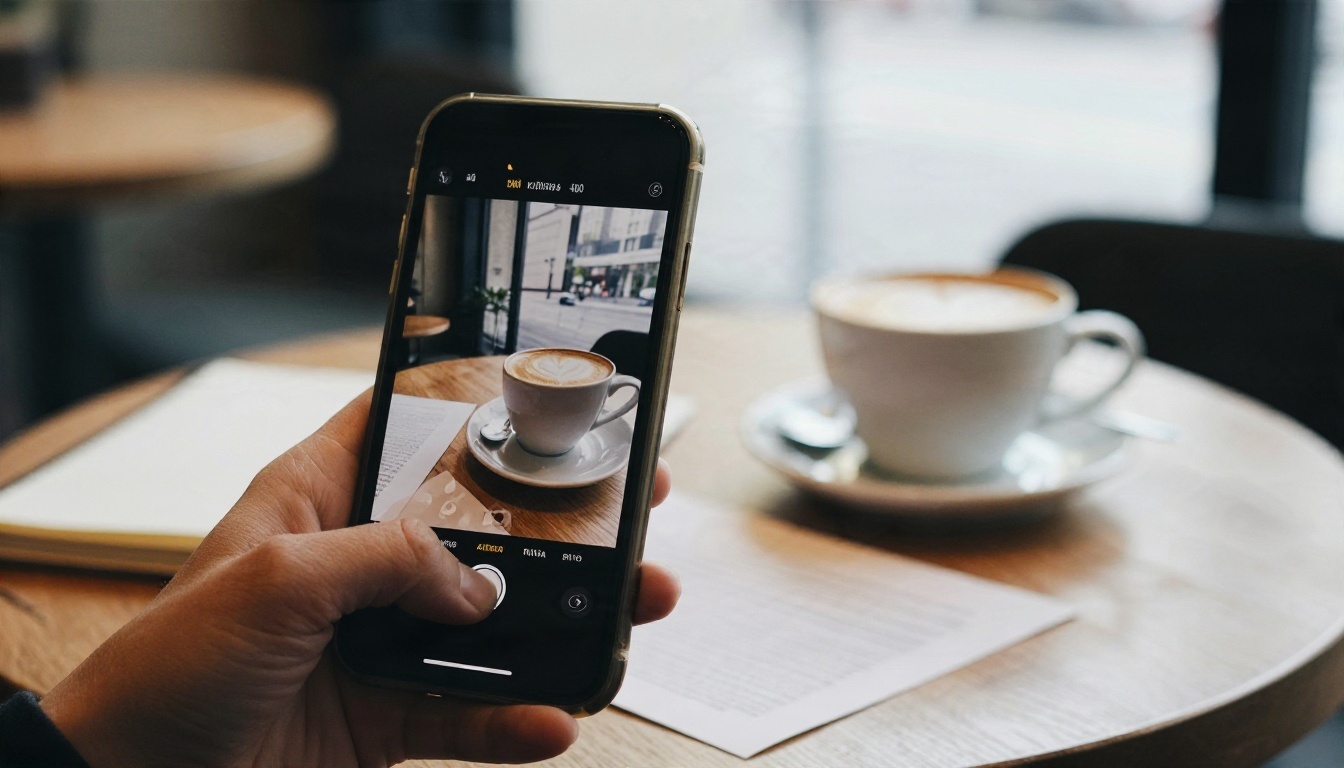
Apps such as Adobe Scan (free tier), Microsoft Lens, Apple Notes and Google Drive scanning can capture a page and recognize text on the spot. The best results come from:
- Shooting in bright, even light with no shadows.
- Holding the phone parallel to the page.
- Using a dark background so edges are detected.
Side by Side Comparison
| Tool | Cost | Keeps layout | Works offline | Best for |
|---|
| Adobe Acrobat Pro | Paid | Excellent | Yes | Professional daily use |
| Google Docs OCR | Free | Fair | No | Quick one-off pages |
| OCRmyPDF | Free | Excellent | Yes | Batches, developers |
| Adobe Scan app | Free tier | Good | Partly | Photographing paper on the go |
| Online OCR sites | Free with limits | Varies | No | Non-sensitive short files |
⚠️ Never upload contracts, medical files or tax documents to an unknown free website. Check the privacy policy, or use an offline option like OCRmyPDF.
Common OCR Mistakes to Avoid
Most failed conversions share the same handful of causes. Fix these first and your results improve dramatically.
- Low resolution scans. Aim for 300 DPI for normal text. Below 200 DPI, small print breaks down.
- Crooked pages. Deskew the scan before running OCR.
- Wrong language setting. Always confirm it before processing.
- Handwriting. Standard OCR handles typed text far better than cursive. Expect manual retyping.
- Skipping the proofread. One wrong digit in an invoice number can cause a payment dispute.
✅ Best practice: Keep the original scan as a backup. Save the OCR version under a new file name so you can always compare the two.
Publish Cleaned PDFs as Flipbooks
Once your scanned PDF is clean and readable, you may want to share it with clients, students or customers. A heavy PDF attached to an email is clumsy. A flipbook opens in a browser, feels like turning real pages, and works on phones. If you want a refresher on what the format offers, the PDF to Flipbook Converter is the quickest place to see it.
How to Create a Flipbook with Flipbooks AI
Follow these steps after your OCR work is done:
- Go to Flipbooks AI and create an account. You can try it free before choosing a plan.
- Click to add a new flipbook and upload your PDF. The platform converts each page into a smooth, flippable spread within moments.
- Preview the result. Because you ran OCR first, text stays sharp and readable at any zoom level.
- Customize the look: add your logo and brand colors, choose a background, and pick a page flip effect.
- Enrich pages with embedded video and audio where a link or demo helps the reader.
- Publish and grab your sharing link.
Branding and Page Effects
Custom branding keeps the document looking like yours, not a stock template. Adjust colors, toolbars and the page turning style so it matches your website. There are no watermarks, ever, which matters when the document goes in front of clients.
Sharing and Password Protection
You have three main ways to share:
- Direct link for emails and messages.
- Embed code to place the flipbook inside a page, following the steps in Embed Flipbook on Website.
- Password protection for private contracts, internal reports or paid materials.
Pro Features Worth Knowing
On the Professional plan you can add analytics to see which pages get read, capture leads before someone opens the file, and allow offline downloads. Standard plans and above include unlimited flipbooks. Compare the options on the pricing page.
| Need | Plain PDF attachment | Flipbook link |
|---|
| Mobile friendly reading | Pinch and zoom | Responsive layout |
| Branding | Limited | Logo, colors, effects |
| Track who reads it | No | Analytics on Pro |
| Access control | Weak | Password protection |
| Multimedia | Rarely | Video and audio |
| Updating the file | Resend every time | Replace once, link stays |
Real World Examples
Different jobs call for different paths. Here are three scenarios you may recognize.
The Accountant With Paper Invoices
An accountant scans a year of supplier invoices and needs searchable totals. Acrobat Pro with batch OCR fits perfectly, since one setting handles hundreds of files. For clients, the final summary can go out as a protected flipbook rather than a heavy attachment.
The Librarian Digitizing Old Reports

A university library holds decades of printed reports. OCRmyPDF processes the stack offline for free, then each report is published as a flipbook. Students read it on any device, and the library can use tools like the Report Flipbook Creator or the Course Material Publisher for structured collections.
The Shop Owner With a Paper Price List

A workshop owner has a printed price list from years ago. A phone scan plus Google Docs OCR gets the text back. After a few quick edits, the owner turns it into a page-turning Digital Price List that customers open from a link or QR code. A product-heavy business can go further with the Digital Catalog Maker.
Pick Your Path and Start
Here is the short version of everything above:
- Daily professional use: Acrobat Pro and its Edit a PDF tool give the most polished results.
- Occasional pages: Google Docs or a phone scan app are enough.
- Large batches or privacy: OCRmyPDF runs offline and costs nothing.
- Sharing the result: Turn the cleaned PDF into a flipbook so readers get a smooth experience on any device.
Ready to publish your first document? Get started for free on Flipbooks AI, browse all flipbook tools to find the right template, or compare pricing plans to choose what suits your workload.



