Canva is brilliant at layout, but a Canva design on its own is just a stack of pages. It does not give you the soft page curl, the thumbnail strip, the zoom, or the shareable link that make a flip book feel like a real publication. The fix is a simple three-part workflow: design in Canva, export as PDF, then convert that PDF into an interactive flip book with a tool like Flipbooks AI. This tutorial walks through every step, including page sizes, export settings, link tricks and the sharing options that actually work.
If you have ever sent a heavy PDF by email and wondered whether anyone opened it past page two, this is for you.
Why Canva Works for Flip Books
Canva gives you drag-and-drop layout, thousands of templates, brand kits and a huge photo library. For a flip book, that means you can build a catalog, lookbook, magazine, menu or e-book without touching professional desktop software.
What Canva Does Well
- Fast layout work with ready-made brochure, magazine, booklet and presentation templates.
- Brand consistency through saved colors, fonts and logos.
- Team editing, so several people can comment on the same design.
- Clean PDF export with working hyperlinks and embedded fonts.
What It Does Not Do
Canva is a design tool first. A downloaded PDF is static: no page-turn animation, no table of contents sidebar, no tracking of who read what, and no built-in password gate. That gap is where a flip book converter earns its place.
| Task | Canva alone | Canva plus a flip book converter |
|---|
| Design pages | Excellent | Excellent |
| Page-turn animation | No | Yes |
| Shareable reader link | Basic view link | Branded link with controls |
| Embed on your own website | Limited | Yes, with embed code |
| Password protection | Not for exported PDFs | Yes |
| Reader analytics | No | Yes, on higher plans |
💡 Pro tip: Think of Canva as your studio and the converter as your printing press. Each does one job, and neither needs to do both.
Plan Your Pages First
Ten minutes of planning saves an hour of resizing later. Decide how the flip book will be read before you open a blank design.
Pick the Right Page Size
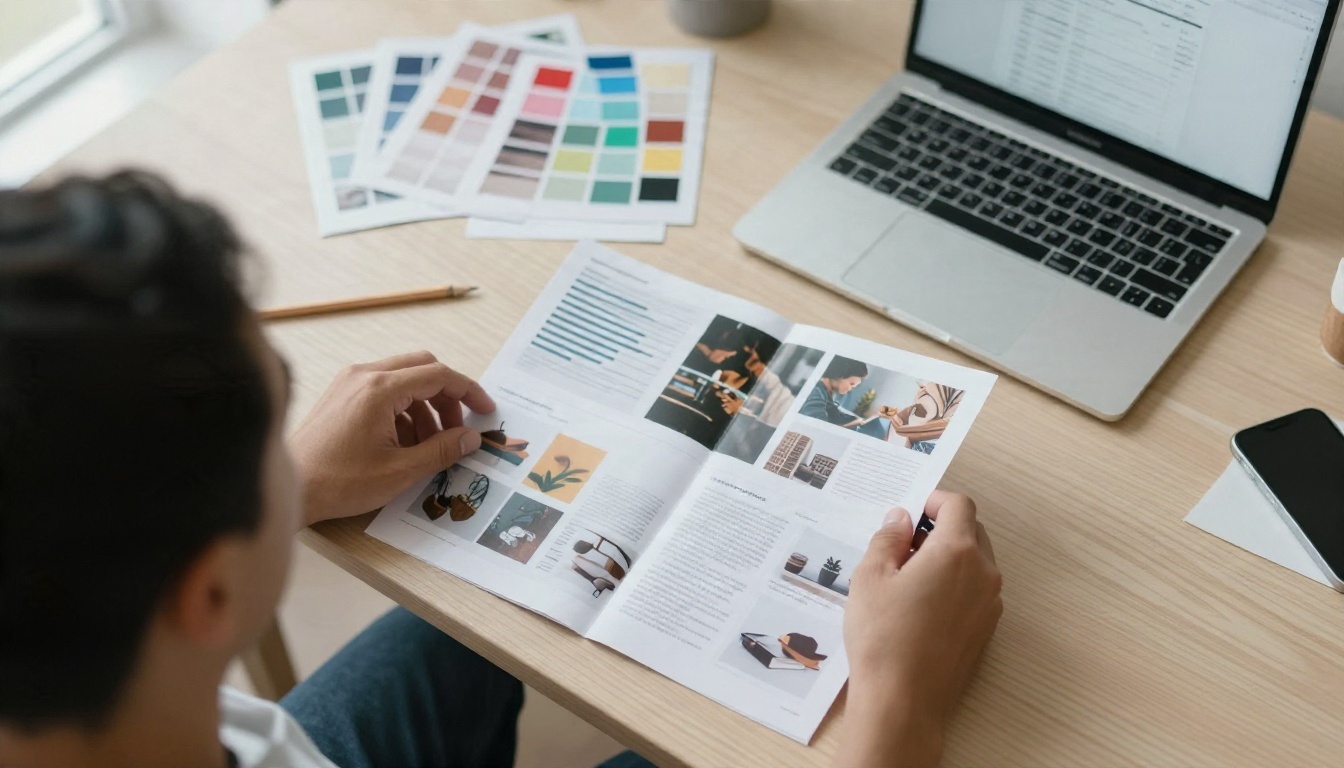
Flip books are read on screens, so choose a format that looks good on both a phone and a wide monitor. Portrait pages feel like a magazine. Landscape pages feel like a slide deck or a photo album.
| Format | Common use | Suggested Canva size |
|---|
| Portrait magazine | Catalogs, lookbooks, magazines | A4 or US Letter (portrait) |
| Compact booklet | Menus, event programs | A5 or Half Letter |
| Landscape deck | Reports, proposals, portfolios | 1920 x 1080 px presentation |
| Square | Social-friendly mini books | 1080 x 1080 px |
Stick to one size for every page. Mixed page sizes are the number one reason a flip book looks broken after conversion.
Build Pages That Read Well on Screens
- Keep body text at 12 pt or larger in a print-size design so it stays readable when zoomed out.
- Leave a safe margin of at least 10 mm around the edges. Readers often see slight cropping on small devices.
- Use high-contrast color pairs. Light gray text on white looks elegant in your editor and unreadable on a phone.
- Plan a table of contents on page two with links to each section. You will add the links in the next step.
Design the Flip Book in Canva
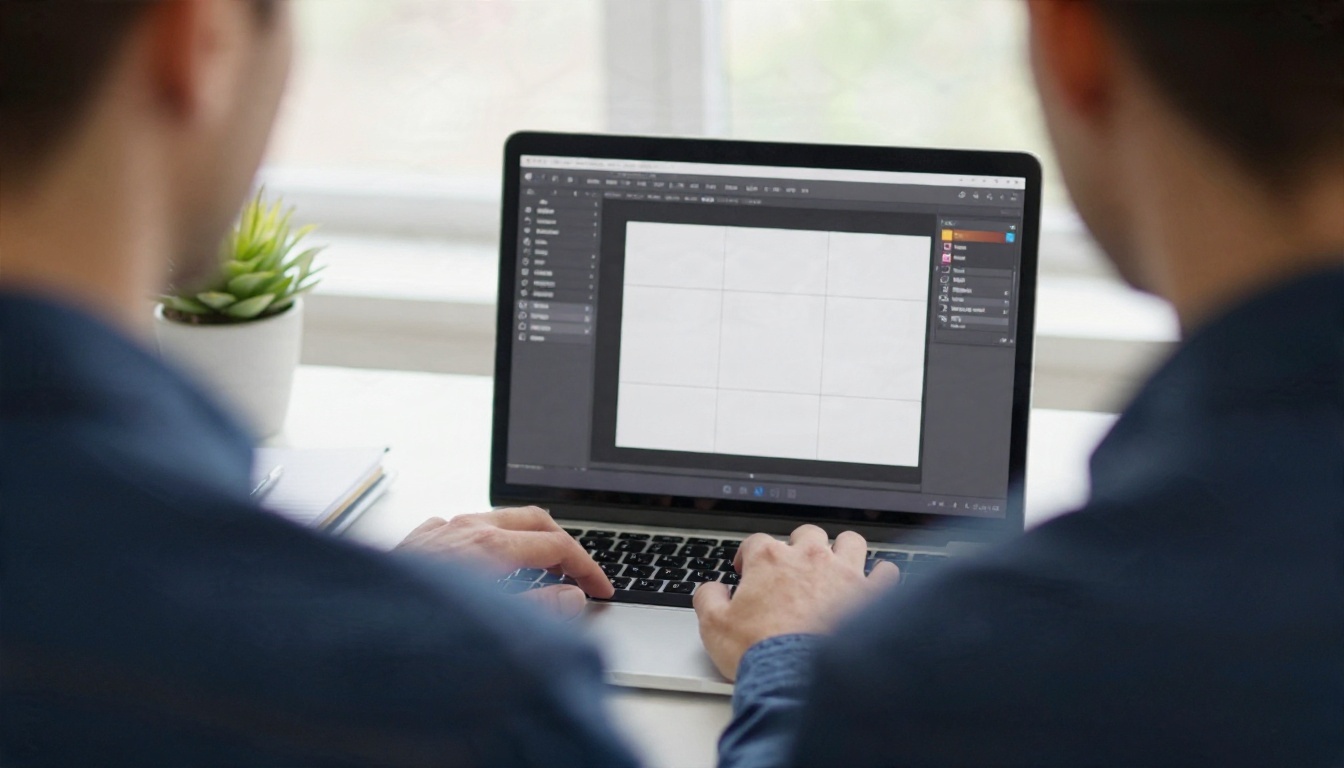
Now the hands-on part. Open Canva, choose a template or a blank design with your chosen size, and build the pages.
Set Up the Document
- Create a new design and enter your custom dimensions, or pick a template from the brochure, magazine or booklet categories.
- Open your Brand Kit and apply your fonts and colors before adding content.
- Add pages with the page button and duplicate your best layout instead of starting from scratch each time.
- Use grids and guides so margins stay identical across the whole document.
- Place photos at the highest resolution you have. Compression happens later, so give it good material to work from.
⚠️ Warning: Do not mix print bleed settings between pages. If you turn on bleed for one page, turn it on for all of them, or your flip book pages will not line up.
Add Links and Buttons
Links are what turn a pretty PDF into a useful one. In Canva, select any text, shape or image, then click the link icon and paste a web address. You can also link to another page inside the same design, which is perfect for a clickable table of contents.
Good places for links:
- Contents entries that jump to a chapter
- Product images that open a store page
- A "Buy now" or "Book a call" button on the last page
- Social icons in the footer of the closing page
- Video thumbnails that open a hosted video
Canva keeps these links when you export a PDF, and a good converter keeps them when it builds the flip book.
Export as PDF the Right Way
The PDF is the bridge between your design and your finished flip book, so the settings matter.
Standard or Print Quality
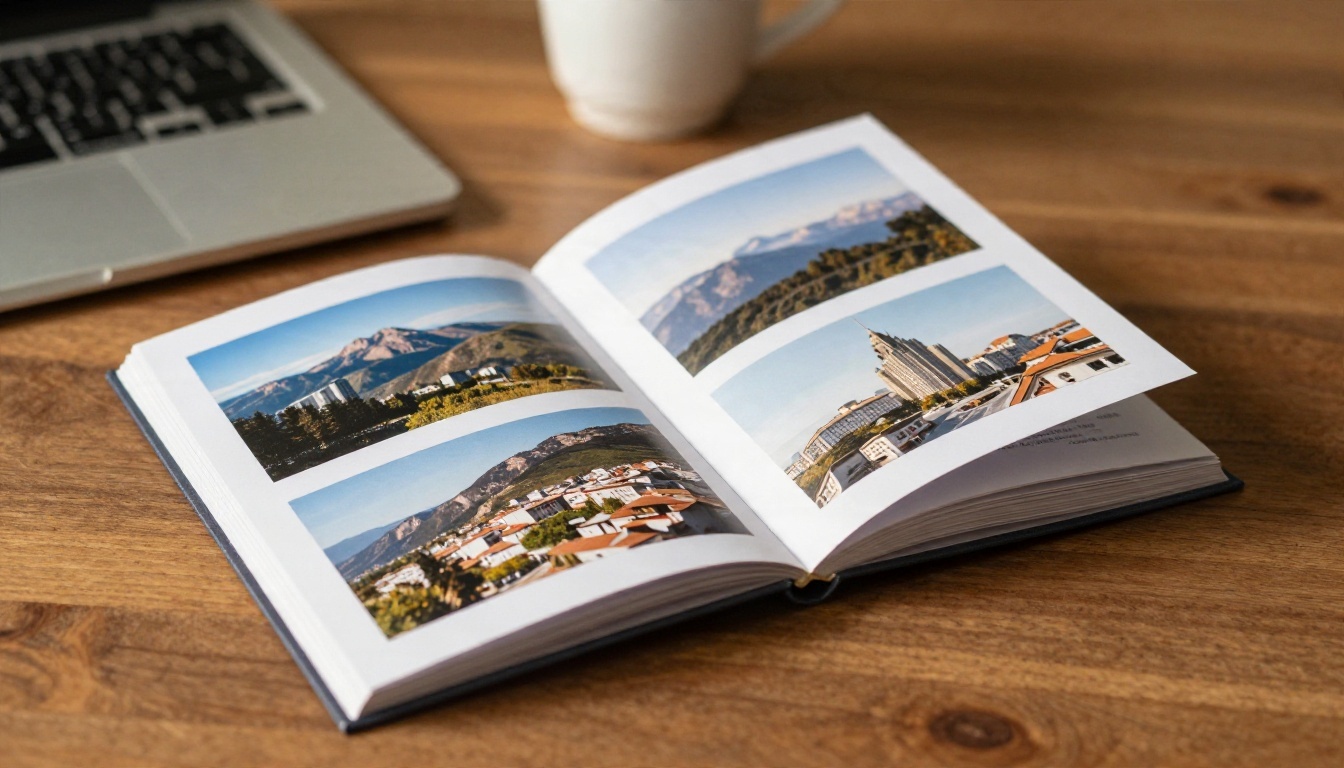
In Canva, click Share, then Download, and choose PDF. You will see two main choices.
| Setting | File size | Image quality | Best for |
|---|
| PDF Standard | Smaller | Good for screens | Most flip books, email and web |
| PDF Print | Larger | Very sharp, print-ready | Catalogs that readers may print |
| Flatten PDF (option) | Varies | Same visuals | Avoids odd font or layer issues |
| Select pages | Varies | Same visuals | Exporting only part of a design |
For a screen-first flip book, PDF Standard is usually the right call. Choose PDF Print only if readers will actually print pages at home or at a shop.
Fix File Size Problems
Large files slow conversion and make pages load slowly for readers. If your PDF is heavy:
- Reduce the number of full-bleed photos at huge resolutions.
- Replace repeated large backgrounds with a single solid color.
- Use the PDF Standard option instead of Print.
- Compress the file with a free PDF compressor if it is still above your target.

✅ Best practice: Open the downloaded PDF yourself before uploading it anywhere. Scroll every page, click every link, and check that fonts and images look right. Fixing a typo now takes seconds. Fixing it after publishing means redoing the upload.
Create a Flip Book with Flipbooks AI
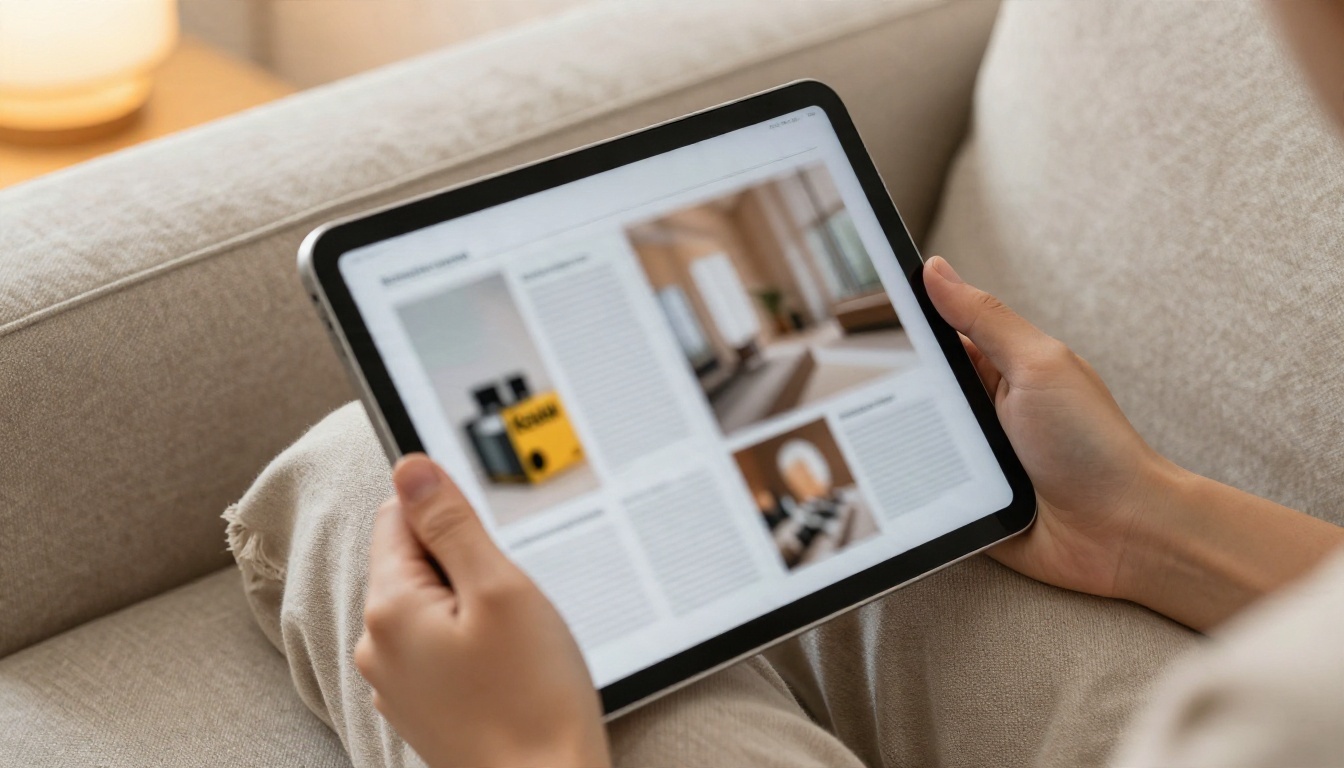
This is the step that gives your PDF page turns, zoom, a contents sidebar and a clean reading experience on any device. The workflow is the same whether your file is a six-page menu or a hundred-page catalog.
Upload and Convert
- Go to Flipbooks AI and create an account.
- Choose to create a new flipbook and upload the PDF you exported from Canva. The dedicated PDF to Flipbook Converter handles this in one pass.
- Wait a few moments while the pages are processed. Your Canva links stay clickable.
- Preview the result and flip through every page on desktop and mobile view.
No watermark is added, ever, so the finished flip book looks like it belongs to you.
Customize the Look
Once converted, open the customization panel to match the flip book to your brand:
- Background color or image behind the pages
- Logo and custom branding in the toolbar
- Page effects, including the speed and style of the page turn
- Sound on or off for the page flip
- Single page or double page view on large screens
Add Video and Audio
PDFs cannot play media, but a flip book can. Embed a product demo, a welcome message from the founder, or a background music track directly on the relevant pages. You can embed videos and audio so the reader never has to leave the page. This is where a flip book clearly beats a plain download.
| Media type | Where it works best | Example |
|---|
| Video | Product pages, tutorials | A 30-second demo on a catalog page |
| Audio | Welcome page, travel books | A narrated intro or ambient sound |
| Link | Anywhere | A button leading to checkout |
| Image gallery | Portfolios, real estate | Extra photos beyond the printed page count |
Share Online and Track Results
A finished flip book is only useful once people can open it. The right sharing method depends on who you are trying to reach.
Links, Embeds and Passwords
| Sharing method | Best for | Notes |
|---|
| Direct link | Email, WhatsApp, social bios | Fastest option, works on every device |
| Embed code | Your own website or blog | Use the Embed Flipbook on Website tool |
| Password protection | Client proposals, internal reports | Keeps private content private |
| Offline download | Trade shows, poor connections | Readers keep a copy without internet |
| QR code | Print flyers, shop windows | Sends print readers to the online version |
Every one of these options works on phones. The flip book layout is mobile-responsive, so a reader on a small screen gets a clean single-page view instead of tiny spreads.
💡 Pro tip: Put the direct link in your email signature and the embed on your homepage. One flip book can work in both places at the same time, and any update shows up in both.
Analytics and Lead Capture
If you send flip books to prospects, you will want to know whether they open them. On the Professional plan, you get analytics showing views and reading behavior, plus lead generation forms that ask for an email before the reader gets in. Compare pricing plans to see which tier matches your needs. The Standard plan and above also allow unlimited flipbooks.
Real Examples You Can Copy
Seeing the workflow applied to real jobs makes it easier to plan your own.

A Boutique Product Catalog
A small shop owner designs a 20-page seasonal catalog in Canva, with each product photo linked to its store page. After exporting a PDF, they convert it and embed it on the homepage. Customers flip through like a printed catalog and click straight to the product. A dedicated Product Catalog tool makes this even quicker for larger ranges.
A Photography Portfolio
A freelance photographer builds a landscape portfolio, exports the PDF at print quality to keep images sharp, and shares one link with new clients. The Photography Portfolio flipbook keeps the viewing experience polished without a custom website.
A Team Report With Password
A marketing team designs a quarterly report in Canva, converts it, and adds a password before sharing it with stakeholders. For polished business documents, the Report Flipbook Creator is a natural fit.

| Use case | Best page format | Suggested extras |
|---|
| Product catalog | Portrait A4 | Product links, embedded video |
| Restaurant menu | Portrait A5 | QR code, offline download |
| Portfolio | Landscape | Image-first pages, contact button |
| Annual report | Portrait or landscape | Password, analytics |
| Recipe book | Portrait | Video steps, printable pages |
You can browse every ready-made option in the flipbook tools directory, from menus to lookbooks to e-books.
Common Mistakes to Avoid
Most problems with Canva flip books come from a handful of repeat errors.
- Mixing page sizes. Resize everything before export, not after.
- Tiny text. What looks fine at full desktop size disappears on a phone.
- Linking to a draft. Always test every link after exporting the PDF.
- Oversized files. A 200 MB PDF loads slowly. Compress images first.
- Forgetting page order. Check the thumbnail strip before you export.
- No call to action. End with a clear next step, such as a button or a link.
⚠️ Warning: If you change the design in Canva after publishing, you must export a new PDF and upload it again. Keep your original Canva file organized and named by version so updates stay quick.
Ready to Publish Your Flip Book?
You already have the hardest part: a design you are proud of. The rest takes minutes. Export your PDF from Canva, upload it to Flipbooks AI, add your branding, and share a link anyone can open on any device.
Open Canva, finish your pages, and publish something readers will actually flip through.



