You sent 5,000 brochures to the printer on Monday. On Wednesday, the landing page the QR code points to gets a new address. Now every scan leads to an error page, and the boxes are already on a pallet. It happens to marketers, restaurant owners, agents and event teams all the time, and the fix depends on one decision you make before the code is printed. This article shows how to edit a QR code in a PDF, how to change where a printed code sends people, and how to set things up with Flipbooks AI so the next change takes two minutes instead of a reprint.
Why You Can't Simply Edit a QR Code
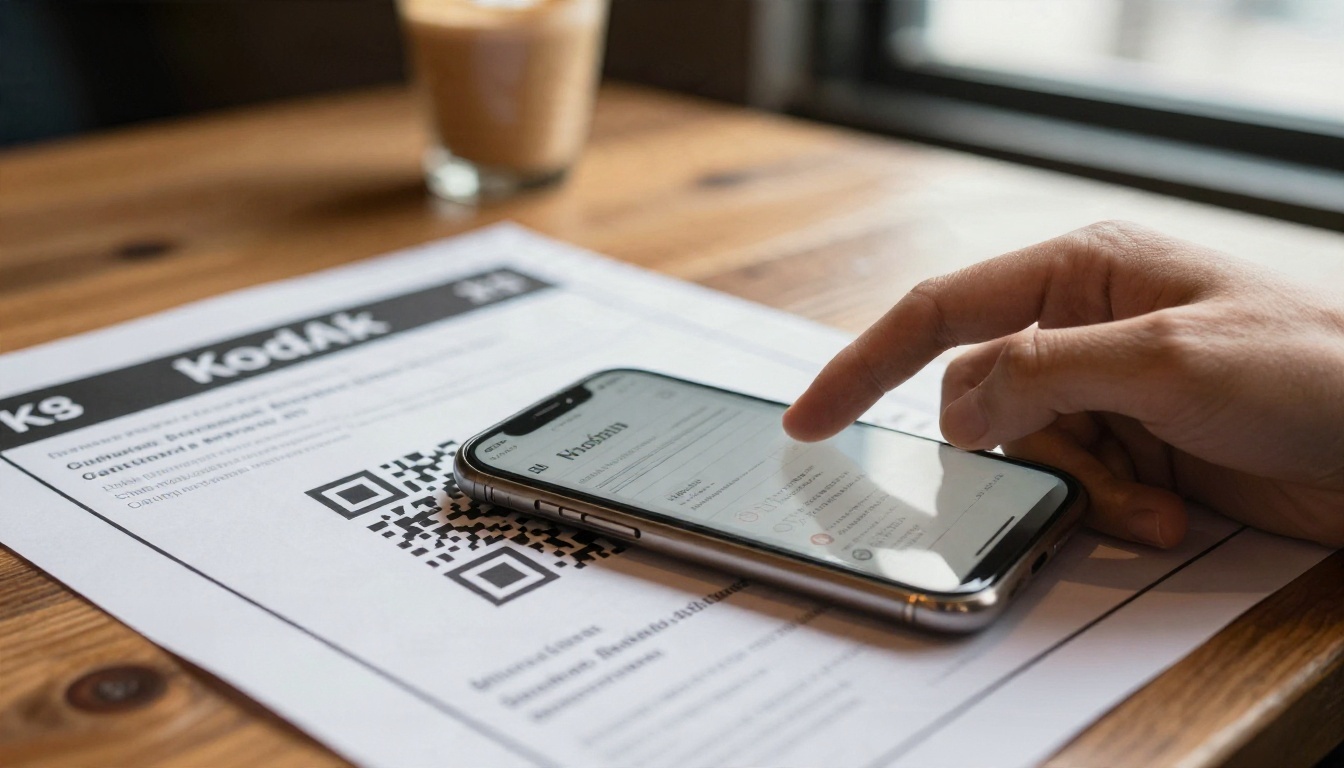
A QR code is not a file you can open and tweak. It is a pattern of black and white squares that is the data. Change one square and you either break the code or create a different one.
What a static code actually stores
A static QR code encodes the destination text directly, for example https://yourbrand.com/spring-offer. The phone reads the pattern, decodes the text and opens the address. There is no server in the middle and no account behind it. That is why static codes are free and why they last forever, but it is also why the destination is frozen the moment you generate it.
Inside a PDF, that pattern is usually one of three things:
- An embedded image (PNG or JPG) placed on the page.
- A vector graphic (SVG or paths) that stays sharp at any size.
- A flattened part of the page, when the whole layout was exported from a design tool.
Each one needs a slightly different method to replace, which we cover below.
The real cost of reprinting
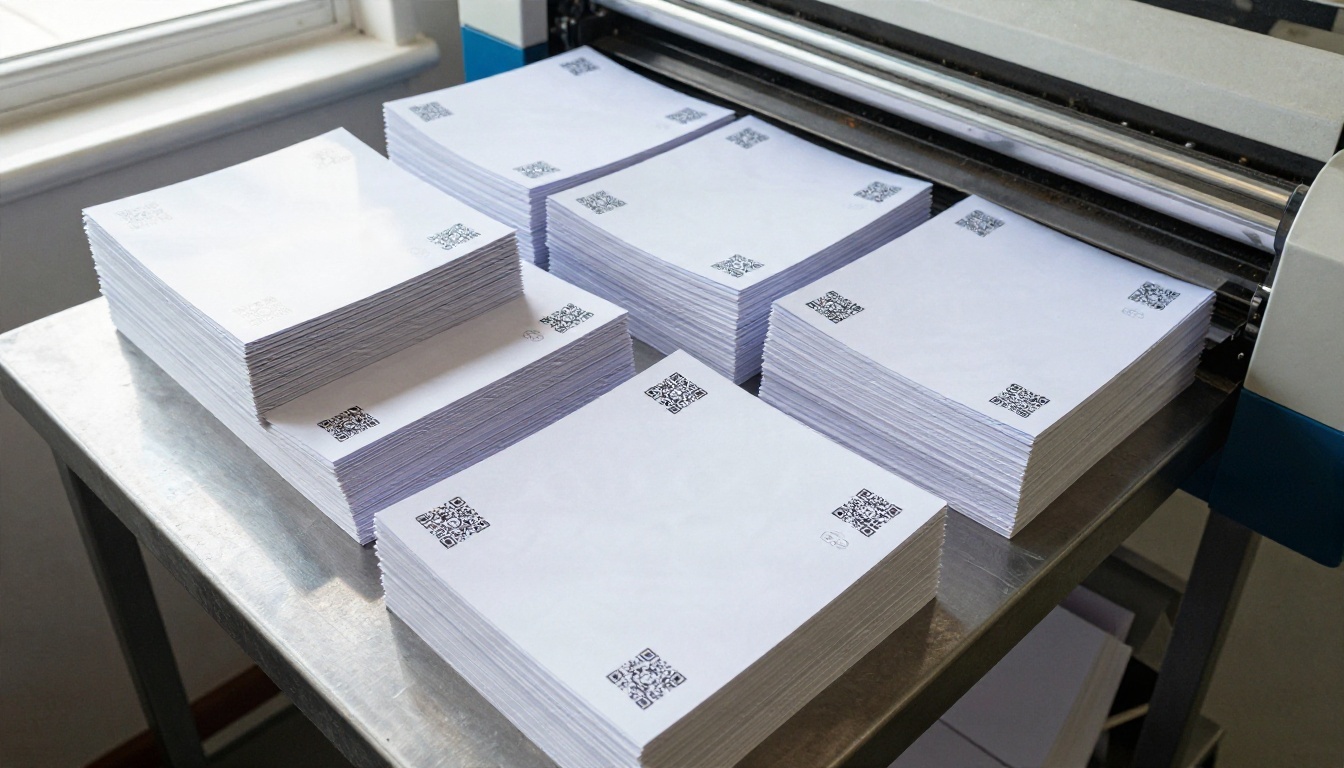
Reprinting is rarely just the price of paper. The table shows what a wrong code can really cost once it has left your hands.
| Printed item | Typical problem | Hidden cost |
|---|
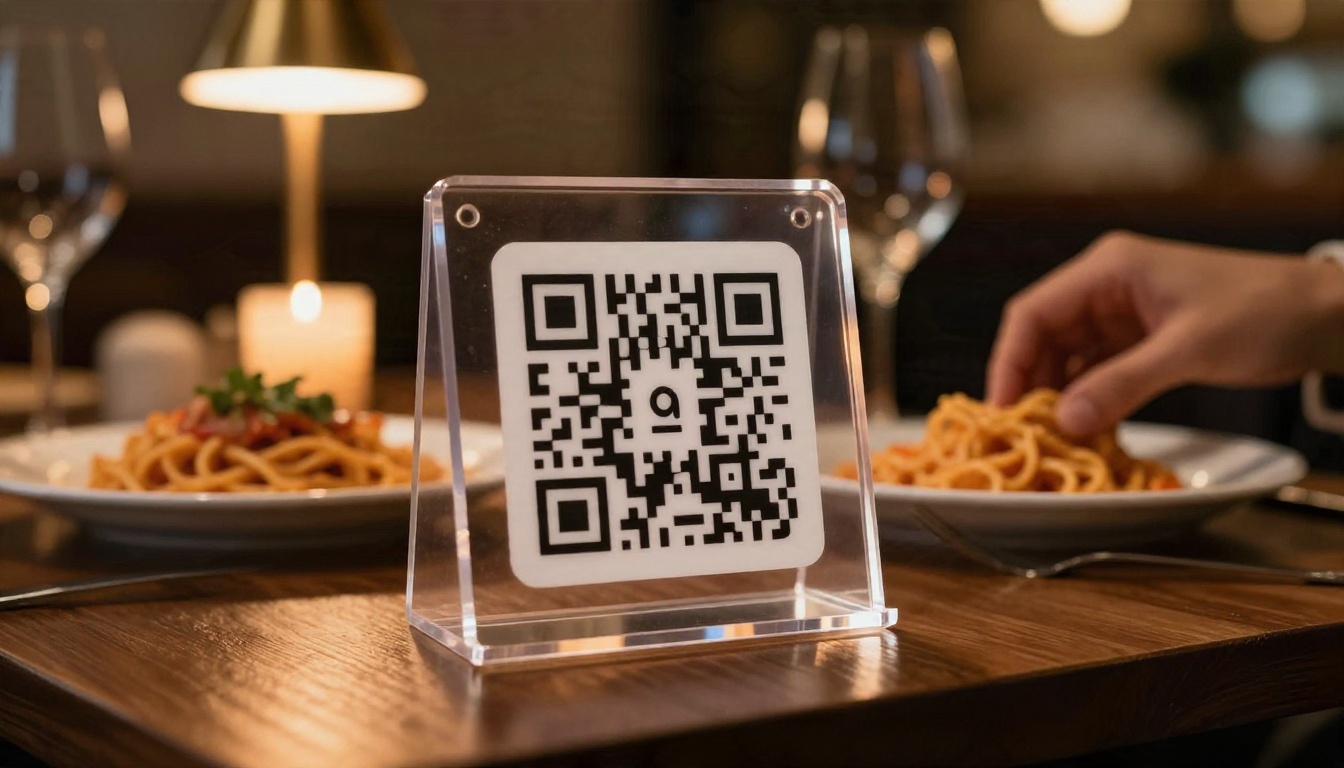
| Restaurant table tents | Menu link moved to a new domain | Staff time to replace every tent |
| Real estate signs | Listing page removed after sale | New sign panels, installer visit |
| Product packaging | Manual hosted on an old server | Whole production run affected |
| Event posters | Registration page changed | Lost sign-ups during the event |
| Direct mail | Campaign page expired | Wasted postage and a dead response rate |
💡 Pro tip: Before you ask "how do I edit this code?", ask "do I need the code to change at all?" Often the smarter move is to keep the code and change what sits behind it.
Three Ways to Change the Destination
There are really only three routes. Which one applies depends on whether the PDF has been printed yet.
Route 1: Replace the code in the PDF
If nothing has gone to print, or you only share the PDF digitally, generate a new code with the right address and swap it into the file. This is the cleanest fix and it costs nothing. The downside is obvious: it does nothing for copies that already exist.
Route 2: Use a redirect you control
Instead of encoding https://partner-site.com/long/messy/path, encode a short, stable address on a domain you own, such as yourbrand.com/menu. That address forwards visitors to the real page. When the real page moves, you change the forwarding rule and every printed code follows. Many QR platforms call this a dynamic QR code, but you can also build it with a plain 301 or 302 redirect on your own website.
Route 3: Point the code at a flipbook link
Send the scan to a flipbook that holds the PDF content. Visitors see a fast, mobile-friendly reader instead of a heavy file download. Combine it with Route 2 and you can swap in a new flipbook whenever the content changes, while the printed code never changes.
| Method | Works on printed copies? | Cost | Tracking | Effort |
|---|
| Replace code in PDF | No | Free | None | Low |
| Static code to a redirect on your domain | Yes | Free to low | Basic (server logs) | Medium |
| Dynamic QR service | Yes | Subscription | Built in | Low |
| Code to flipbook link plus redirect | Yes | Plan based | Flipbook analytics | Low |
✅ Best practice: For anything that will be printed in volume, encode a short address on a domain you own. Never encode a link on a domain you do not control.
How to Edit a QR Code in a PDF
Now the hands-on part. These methods cover the most common ways a QR code ends up inside a PDF.

Method 1: Swap it in Adobe Acrobat
Acrobat Pro can edit page content directly, which makes it the quickest route for a one-off fix.
- Generate the new QR code and save it as a high-resolution PNG or, better, an SVG or EPS file.
- Open the PDF in Acrobat and choose Edit PDF from the tools list.
- Click the old QR code. It appears as a selectable image with a bounding box.
- Press Delete, or right-click and choose Replace Image to pick the new file.
- Resize the new code so it matches the old size and sits on the same spot. Keep the white border around it.
- If the code was also a clickable link, select Link in the Edit PDF toolbar and update the web address so on-screen readers get the same destination.
- Save a copy with a new filename, then test it (see the checklist later).
Method 2: Fix it in the source file
When the QR code came from Word, InDesign, Canva, PowerPoint or Figma, edit the source and export again. This is almost always better than patching the PDF, because the resolution, bleed and fonts stay exactly as designed. Replace the image, check alignment, then export with the same settings you used before.
Method 3: Use a free editor for quick jobs
Free online PDF editors can usually cover the old code with a white rectangle and drop a new image on top. That works for a digital handout, but be careful: the old code often remains underneath in the file. Someone with a PDF reader can still select it, and some scanners may pick up both. For anything customer-facing, delete the original object rather than hiding it.
| Tool type | Removes old code properly | Keeps print quality | Best for |
|---|
| Acrobat Pro | Yes | Yes | Final print files |
| Source design app | Yes | Yes | Anything you can still open |
| Free online editor | Sometimes | Depends | Quick digital fixes |
| Preview or basic reader | No | Not applicable | Viewing only |
⚠️ Warning: Never paste a screenshot of a QR code into a print file. Screenshots are low resolution, and soft edges make scanning unreliable at small sizes.
Fix Printed Codes With a Stable Link
Here is the situation most people actually face. The PDF is printed, the code points to the wrong place, and you want the scan to land somewhere correct today.
If the old destination is still yours
Check who controls the address inside the code. If it is a page on your own website, you do not need to touch the print at all. Add a redirect from the old address to the new one. On most hosting setups that is a single line in your redirect settings or a plugin entry. Test it on a phone over mobile data, not just on your office wifi.
If the code came from a QR service
Log in to the service that created it. If it was a dynamic code, the destination field is editable and the change goes live right away. If the subscription has lapsed, the code may be redirecting to a "renew your plan" page, which is a good reason to renew or to move to your own domain before the next print run.
If the destination is gone for good
When the old address is not yours and cannot be redirected, you have two honest options: reprint, or cover the code with a sticker that carries a new code. Stickers are cheap for signs and table tents and nearly useless for 5,000 booklets. This is exactly why the stable-link approach matters for the next print job.
Build a Destination That Never Breaks
The strongest setup is simple: a printed code that points to a short address you own, which in turn points to a flipbook that you can replace or update whenever the content changes. Here is how to build it with Flipbooks AI.
How to create the flipbook
- Go to Flipbooks AI and create an account. You can start without a card.
- Upload your PDF. The PDF to Flipbook Converter turns each page into a realistic page-turning layout that works on phones, tablets and desktops.
- Wait for the conversion to finish. Long catalogs and menus usually process quickly, and the pages stay sharp when readers zoom in.
- Open the editor and add your custom branding: logo, background color and the page effects you prefer.
- Add multimedia where it helps, such as a video on a product page or an audio clip on an event program. Videos and audio can be embedded straight into the pages.
- Pick a sharing option: a direct link, an embed code for your site, or a password-protected link for private material.
- Copy the public link. This is the address visitors will open after scanning.
💡 No watermarks are added to your flipbook, so the finished page looks like your own brand and not a third-party viewer.
How to connect the QR code
Do not put the raw flipbook link into the printed code. Put it behind a short address that you own.
- Choose a short path on your domain, for example
yourbrand.com/menu or yourbrand.com/catalog.
- Point that path to the flipbook link with a redirect, or embed the flipbook on that page using the embed code.
- Generate the QR code from the short address and place it in your PDF with Acrobat or your source file.
- Print.
- When the content changes, upload a new PDF, create a new flipbook and update the redirect or the embed on your page. The printed code keeps working without a single change.
| Step | What you control | What the printed code sees |
|---|
| 1 | Short address on your domain | Never changes |
| 2 | Redirect target or embed | Updated in minutes |
| 3 | Flipbook content | Always current |
| 4 | Access settings | Open or password protected |
Extra controls on paid plans
If you want to see what happens after a scan, the Professional plan adds analytics and lead generation, so you can see how many people opened the flipbook and capture contact details before they read. Offline downloads let readers save the document for places with poor signal, such as exhibition halls and basements. Compare options on the pricing page to pick the plan that fits your volume.
Real Examples That Save Reprints
The same trick fits very different jobs. Here are scenarios where a stable code pays off straight away.
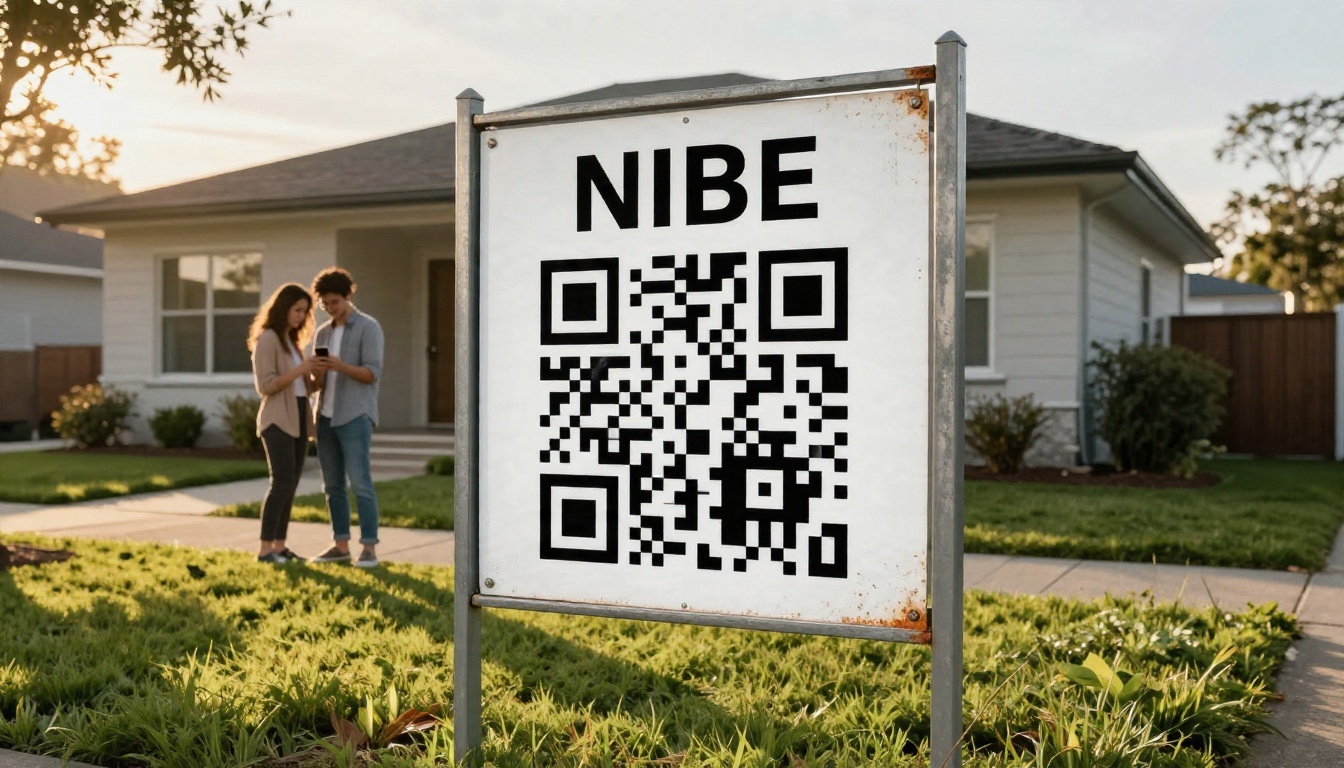
Restaurants and cafes
A table tent printed once can point to yourbrand.com/menu. When prices or seasonal dishes change, upload the new PDF to the Restaurant Menu Creator and update the link target. No staff member has to replace a single tent. Spas can do the same with the Spa & Wellness Menu.
Real estate agents
Sign panels are expensive and slow to swap. A code pointing to youragency.com/listing-12 can lead to a Real Estate Brochure while the home is available and to a "sold, see similar homes" flipbook afterward.
Trade shows and events
Banners and badges are printed weeks in advance, while schedules change daily. Point the code to an Event Program Maker flipbook and update the agenda from your laptop in the middle of the show.

✅ Best practice: Name your short addresses by purpose (/menu, /manual, /offer) and not by date or campaign. A purpose-based name never goes out of date.
Mistakes That Break Scans
Changing the destination is only half the job. A code that does not scan is worse than a code that points to the wrong page.

Size, contrast and quiet zone
- Size: Aim for at least 2 cm (0.8 inch) on the long side for handheld scanning. Larger for signs: a rough rule is one unit of width for every ten units of scanning distance.
- Contrast: Dark modules on a light background. Inverted codes (light on dark) fail on many older phones.
- Quiet zone: Leave a clear border of about four modules around the code. Text or images crowding the edge cause most failed scans.
- Short address: The shorter the encoded text, the simpler the pattern and the easier it scans. This is another reason to use a redirect.
- Error correction: Levels range from L (about 7%) to H (about 30%) recoverable damage. Medium or Quartile is a good balance for print.
Always test before printing
Run this checklist every time you replace a code:
- Scan from the PDF on screen using two different phones.
- Print one copy on the real paper stock and scan it again.
- Test on mobile data, not wifi.
- Try both iPhone and Android camera apps.
- Open the final destination and check that it loads in under three seconds.
- Ask a colleague to scan it without any instructions.
⚠️ Warning: A code placed over a fold, a spiral binding or a glossy varnish stripe can fail even when it looks perfect on screen. Print a proof first.
Forgetting the link inside the PDF
Many PDFs have two layers: the QR image and a clickable link around it. If you only swap the image, desktop readers who click the code still go to the old address. Update both, or remove the old link annotation completely.
Track What Happens After the Scan
A code you can redirect is also a code you can measure. Without data you are guessing whether the printed piece does anything.

Numbers worth watching
- Total opens: How many people actually scanned and loaded the flipbook.
- Pages viewed: Which pages hold attention and where readers drop off.
- Time spent: A short visit often means the destination loads slowly or does not match the promise on the print.
- Device split: If most visitors use phones, keep text large and layouts simple.
- Lead captures: Sign-ups collected before a reader enters the flipbook, available on the Professional plan.
Using the data to update content
If page 4 of your catalog gets the most attention, put your best offer there in the next version. If readers leave at the cover page, shorten it. Because the printed code never changes, you can test a new version every week without touching the printed materials.
| Signal | Likely cause | Quick fix |
|---|
| Many scans, few page views | Slow load or confusing first page | Compress images, simplify page one |
| Few scans | Code too small or badly placed | Enlarge, add a short call to action beside it |
| Many drop-offs on one page | Dense or off-topic content | Rewrite or move the page |
| Mostly desktop views | Code shared in digital PDF | Add a direct link beside the code |
Ready to Stop Reprinting?
Editing a QR code in a PDF takes ten minutes with Acrobat or your source file. Making sure you never need to do it again takes a little more planning, and it pays back the first time a price, a date or a web address changes. Encode a short address you own, aim it at a flipbook, and update the target whenever you need.
Here is where to go next:
Your next print run can carry a code that outlives the campaign.



