Embed Flipbook on Website: iFrame Code, Responsive Sizing, and Not Working Fixes
Paste one snippet and your flipbook sits inside any web page. This article shows the exact iframe code, the CSS that keeps it sharp on phones, tablets and desktops, and a troubleshooting checklist for blank frames, blocked embeds and cropped pages.
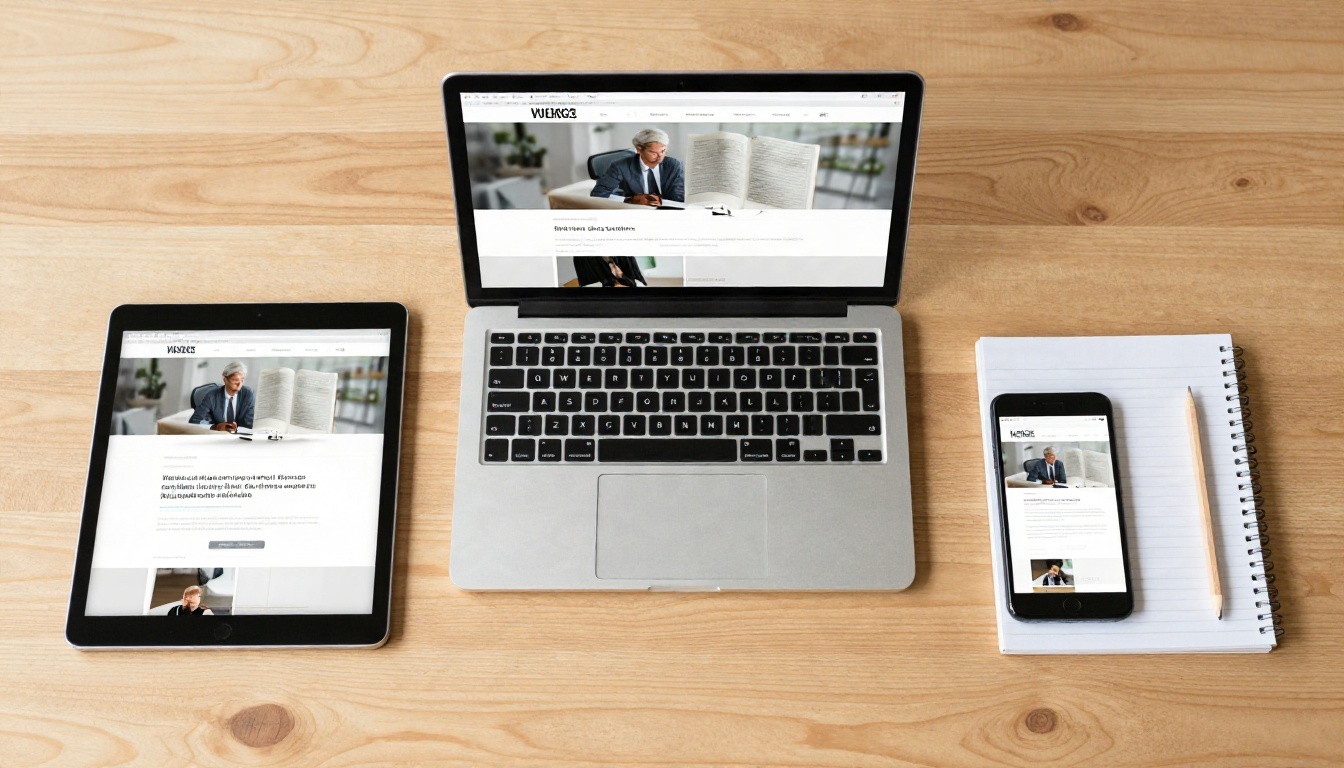
You built a beautiful flipbook, and now it sits on a separate link that your visitors have to click to reach. That is a missed chance. When you embed a flipbook on your website, readers flip through your catalog, menu or report without ever leaving the page, and your bounce rate, time on page and lead numbers all benefit. The catch is that a badly sized or blocked iframe turns into a blank rectangle fast. This article gives you the exact iframe code, the CSS that keeps the flipbook sharp on every screen, and a troubleshooting checklist for the most common failures. If you do not have a flipbook yet, you can create one in minutes with Flipbooks AI.
Why Embedding Beats a Plain Link
A shared link is fine for email. A website is different: visitors expect content to live inside your layout, under your branding, next to your calls to action.
What You Gain
Longer visits. People stay on your page while they read, instead of bouncing to another tab.
Better context. Your headline, pricing and buy button sit right beside the publication.
One source of truth. Update the flipbook once and every page that embeds it shows the new version.
Cleaner SEO signals. Your page keeps the traffic, and the surrounding text can rank for your target terms.
When a Link Still Wins
Newsletters, social bios and QR codes work better with a direct link. Use both: embed on the page, share the link everywhere else.
Scenario
Best option
Reason
Product page
Embed
Keeps shoppers next to the buy button
Email campaign
Direct link
Email clients block iframes
Social bio
Direct link
No place for code
Landing page for leads
Embed
Form and flipbook in one view
Printed QR code
Direct link
Opens instantly on a phone
The Basic iFrame Code
An iframe is a window inside your page that loads another page. Your flipbook host supplies the address, and you wrap it in a few attributes.
💡 Pro tip: Never leave out the title attribute. It costs nothing, helps accessibility tools, and removes a common warning in site audits.
Fixed Size or Fluid Size?
A fixed width="800" looks perfect on your desktop and spills off the edge of a phone. Use 100% for width and control the maximum size with the wrapper you will see in the next section.
Make It Fit Every Screen
Responsive sizing is where most embeds fail. A flipbook is a book: it has an aspect ratio, and the frame must respect it.
The Modern Aspect Ratio Method
Wrap the iframe in a container that holds a fixed ratio and stretches the frame to fill it.
The number 62.5% equals a 16 by 10 ratio. Change it to match your publication.
Picking the Right Ratio
Flipbook type
Suggested ratio
Padding value
Magazine or catalog spread
16 by 10
62.5%
Single page portrait view
3 by 4
133%
Widescreen presentation
16 by 9
56.25%
Square lookbook
1 by 1
100%
Mobile Needs Extra Care
On a narrow phone, a two page spread becomes tiny. A good flipbook player switches to single page view on small screens, and a taller ratio helps it breathe. Use a small CSS rule to give phones more height:
✅ Best practice: Always test the page on a real phone. A desktop browser resized to a narrow window does not reproduce touch scrolling, address bar changes or fullscreen behavior.
How to Embed a Flipbook with Flipbooks AI
If your publication lives on Flipbooks AI, the whole process takes a few minutes. Here is the path from PDF to live page.
Step by Step
Create your account. Open Flipbooks AI and sign in or register.
Upload your PDF. Drag the file into the dashboard. The PDF to Flipbook Converter turns each page into a turnable spread, keeping text sharp and links clickable.
Customize the look. Add your logo, pick background colors, choose the page turn effect and drop in videos or audio where they help. There are no watermarks, so the result looks like your own brand.
Open the sharing options. Copy the embed code, or the direct link if you prefer to write the iframe yourself.
Set privacy. Turn on password protection for private material such as internal manuals or client proposals.
Paste and publish. Drop the code into your site (see the next section) and check it on desktop and phone.
Analytics and lead generation on the Professional plan show which pages people read and capture emails before the flipbook opens. See the pricing plans for details.
Offline downloads let readers save the publication after viewing it on your page.
Mobile responsive design is built in, so the player adapts inside your frame.
Unlimited flipbooks on the Standard plan and above mean you can embed a different publication on every product or service page.
Where to Paste the Code
Every website platform handles raw HTML a little differently. Here is what to look for.
WordPress
Add a Custom HTML block, paste the wrapper and iframe, then preview. In the classic editor, switch to the Text tab first. Pasting into the Visual tab can strip the code.
Wix, Squarespace and Webflow
Use the platform's embed or code block. Choose the option labeled "Embed code" or "HTML", not the "Website address" option, because that one often forces its own fixed height.
Shopify
Edit the page or product template, add a Custom Liquid or Custom HTML section, and paste the snippet. Keep the wrapper so the frame does not overflow on the mobile theme.
Plain HTML Sites
Paste it directly where you want the flipbook to appear. Done.
Platform
Block to use
Common catch
WordPress
Custom HTML
Visual tab strips code
Wix
Embed a Widget, HTML code
Fixed height on the widget
Squarespace
Code block
Needs a paid plan for scripts in some cases
Shopify
Custom Liquid
Theme CSS may constrain width
Webflow
Embed element
Check the parent container width
When the Embed Is Not Working
Something broke. Before you rewrite everything, walk through these causes, ordered from most to least common.
Symptom Table
Symptom
Likely cause
Fix
Blank white box
Editor stripped the iframe
Use a Custom HTML block, not a text field
Gray box with a sad face icon
Browser blocked the frame
Check the console for security errors
"Refused to display" message
The host page sends restrictive headers
Use the official embed code, not a copied address bar URL
Mixed content warning
Your site is https, the link is http
Change the link to https
Flipbook cut off at the bottom
Height too small
Use the aspect ratio wrapper
Double scrollbars
Fixed height smaller than content
Remove scrolling="no" or increase height
Works on desktop, not on phone
Fixed pixel width
Switch to width:100%
Fullscreen button does nothing
allowfullscreen missing
Add the attribute
Blocked by Security Headers
Some pages refuse to load inside frames. This is controlled by the X-Frame-Options header or the frame-ancestors rule in a Content Security Policy. If you copied the address from your browser instead of using the official embed link, you may be pointing at a page that was never meant to be framed. Go back to the share menu and copy the embed code itself.
The opposite problem happens on your own site. If your server sends a strict Content-Security-Policy, it may block frames from any domain you have not listed. Add the flipbook domain to your frame-src rule.
⚠️ Warning: Do not remove security headers across your whole site just to make one frame appear. Allow the single domain you need.
Mixed Content and Ad Blockers
Browsers refuse to show an http frame inside an https page. Open the developer console (F12) and look for a red "Mixed Content" message. Switch the src to https and refresh.
Some privacy extensions also hide frames that look like tracking widgets. Test in a private window with extensions off. If it works there, your code is fine and the issue is local to that browser.
The Page Builder Strips Your Code
Some editors clean HTML for safety. If your iframe vanishes after you save, check for these:
A rich text field instead of an HTML block.
A user role without permission to add unfiltered HTML.
A security plugin that removes iframes.
Ask the site admin to allow the flipbook domain, or add the code through the theme template.
Caching Confusion
You fixed the code and nothing changed. Clear the page cache, the CDN cache and your browser cache. Then reload with a hard refresh (Ctrl+Shift+R on Windows, Cmd+Shift+R on a Mac).
A Ten Point Pre-Launch Checklist
Run through this list before you announce the page.
The src starts with https.
Width is 100%, not a fixed pixel number.
The wrapper keeps the correct aspect ratio.
allowfullscreen is present.
title describes the content.
loading="lazy" is set for frames below the fold.
The page loads in Chrome, Safari, Firefox and Edge.
You tested on at least one real phone and one tablet.
Password protection, if needed, is active and tested in a private window.
Page speed is checked, since heavy frames can delay your layout.
💡 Speed tip: If the flipbook sits far down the page, lazy loading keeps the top of the page fast. If it is the main attraction, remove loading="lazy" so it starts right away.
Real World Examples
Concrete cases make the code easier to picture.
A Restaurant Menu
A bistro owner embeds a seasonal menu on the home page, right under the reservation button. When the menu changes, she swaps the PDF behind the same link and the site updates without touching the code. The Restaurant Menu Creator is built for exactly this workflow.
A Product Catalog
A ceramics shop places its wholesale catalog on a gated page. Buyers enter an email, read the catalog in place, and the owner sees which pages get the most attention. Try the Digital Catalog Maker for the same setup.
A Quarterly Report
A small agency publishes its report on a client portal, protected by a password, with a download option for offline reading. See the Report Flipbook Creator.
Use case
Where to embed
Suggested ratio
Extra feature
Restaurant menu
Home page
3 by 4
Frequent updates
Product catalog
Shop landing page
16 by 10
Lead capture
Annual report
Investor page
16 by 10
Download
Portfolio
About page
16 by 9
Video clips
Training manual
Private portal
3 by 4
Password
Measure What Happens After Embedding
Publishing is only half the job. Once the flipbook is live, watch how people use it.
Numbers Worth Watching
Views per page. Do people reach the section you care about?
Read time. A long average means the content holds attention.
Drop off page. If readers quit at page four, rework page four.
Leads captured. Compare form submissions with total views.
These reports come with the Professional plan, which also adds lead generation. Check the plans to see what fits your traffic.
Small Tweaks That Help
Move the flipbook higher on the page, shorten the introduction above it, and add a short line telling visitors to click the arrows or swipe. Small changes like these often lift reading rates noticeably.
Embed Your First Flipbook Today
You now have the iframe code, the responsive wrapper, the platform specific tips and a list of fixes for the most common failures. The fastest way to put it all to work is to publish something real.
Create your first flipbook on Flipbooks AI and copy the embed code.
Browse all flipbook tools to find the right template for your content.
Compare pricing plans when you are ready for analytics, lead generation and unlimited flipbooks.
Paste the code, test on a phone, and let your visitors read without leaving the page.