You spent hours polishing a brochure, dropped a product demo into the PDF, sent it to a client, and got back one line: "The video doesn't play." That is the most common outcome when you embed video in PDF files, and it is rarely your fault. The format was built for fixed pages, not moving pictures. This article shows exactly where embedded video works, which viewers ignore it, what the workarounds cost you, and how a flipbook from Flipbooks AI plays video for every reader on every device.
💡 Short answer: Yes, you can embed video in a PDF, but it plays reliably in only one family of desktop viewers. If your audience opens files in a browser or on a phone, plan for a different route.
Can You Embed Video in a PDF?
Technically, yes. The PDF specification supports multimedia annotations and rich media, so a file can carry an MP4 inside it. The catch is that the file format and the software that opens it are two separate things. A PDF can contain a video, but the viewer decides whether to play it.
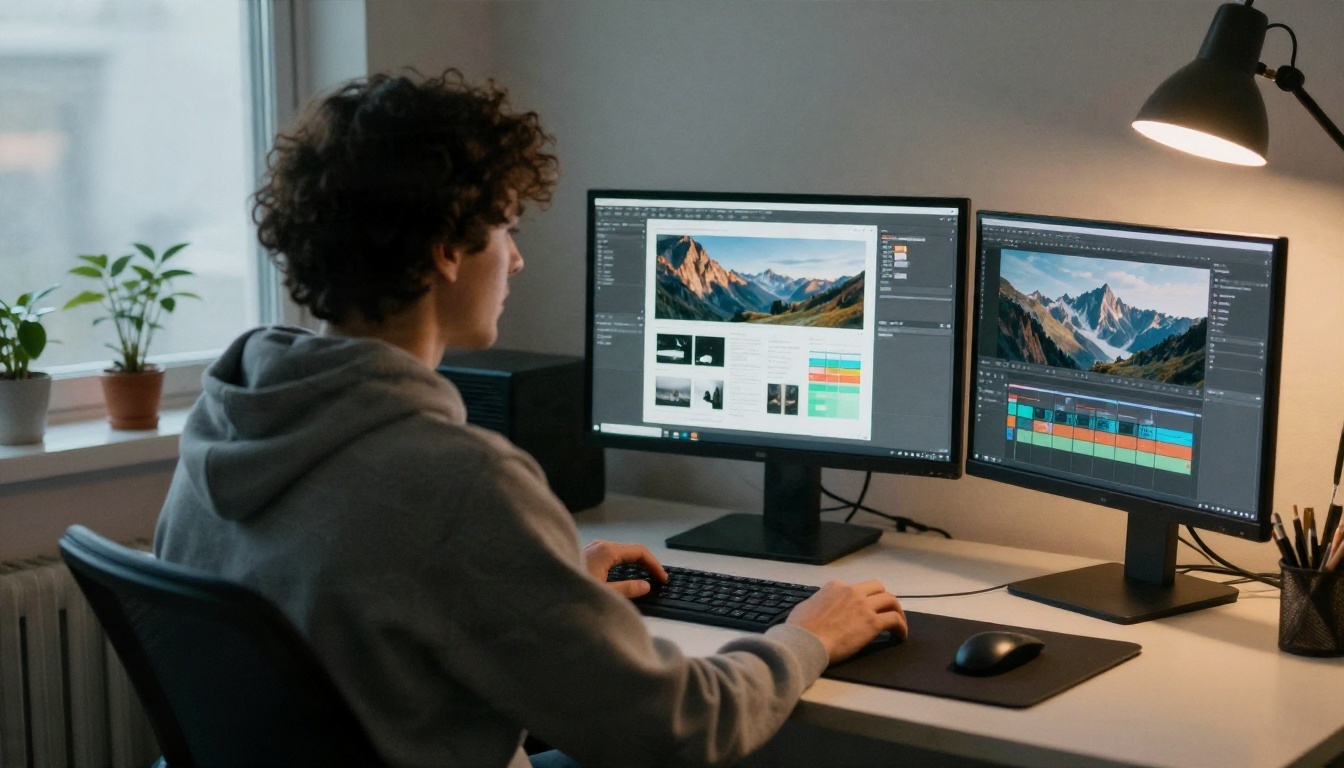
What "Embedded" Really Means
There are three very different things people call "video in a PDF":
- Embedded video: the MP4 file is stored inside the PDF itself. The file gets heavy, and only some viewers can play it.
- Linked video: the page holds a hyperlink or button that opens a hosted video (YouTube, Vimeo, your own server) in a browser. The PDF stays light.
- Poster image with a play icon: a screenshot of the video with a fake play button. It looks interactive and does nothing unless a link sits behind it.
Most complaints come from the third type. Readers tap a picture of a play button and nothing happens.
Why It Rarely Works Anymore
Early PDF video relied on Flash and on browser plug-ins. Both are gone. Modern browsers render PDFs with their own lightweight engines that focus on text and images, and they skip rich media entirely. Security teams also disable multimedia and scripting in document readers, because active content inside a file is a classic attack route. The result is a feature that technically exists and practically gets blocked.
⚠️ Warning: Even in a viewer that supports embedded video, a corporate security policy can switch playback off. Your file may play on your laptop and stay frozen on your client's.
Which PDF Viewers Play Video?
I tested the question the way your readers will meet it: different apps, different devices. Results vary by version, so treat the table as a reliable pattern, not a promise.
Desktop Viewers
| Viewer | Plays embedded MP4? | Notes |
|---|
| Adobe Acrobat Pro / Reader (desktop) | Yes, usually | Asks the user to trust the content first |
| Foxit PDF Reader | Partial | Depends on format and file settings |
| Chrome built-in viewer | No | Shows a still image only |
| Edge built-in viewer | No | Shows a still image only |
| Firefox (PDF.js) | No | Ignores rich media |
| macOS Preview | No | Displays the poster frame |
| Acrobat Reader mobile | Limited | Often needs a link instead |
| Phone default viewers | No | Gmail, Files and Drive previews skip video |
The pattern is clear. Desktop Adobe software is the only dependable option. Everything else treats your video as a decoration.
Browsers and Mobile Are the Weak Spot
Think about how people actually open a PDF you email them. They click an attachment in Gmail or Outlook, and the preview opens inside the mail app or the browser. That is exactly where video support is missing. On phones the situation is worse: the preview panel renders pages as images, and a tap on your "play" box does nothing.
💡 Quick test: Email the PDF to yourself, open it on your phone from the mail app, and tap the video. If nothing plays, most of your readers will have the same experience.
How to Embed Video in a PDF With Acrobat
If your audience truly uses Adobe desktop software (an internal team, a controlled training room), embedding is a valid choice. Here is the workflow.
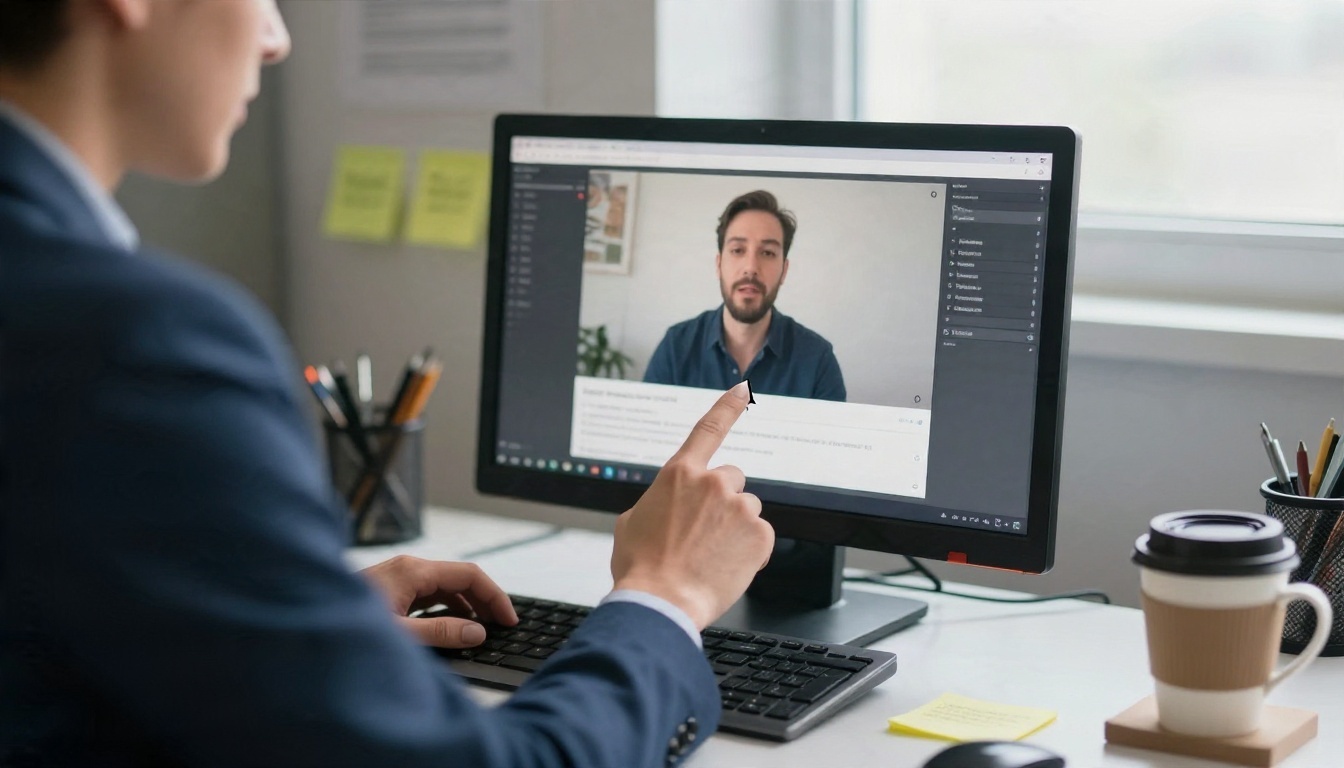
Steps in Acrobat Pro
- Prepare the video. Export an MP4 with H.264 video and AAC audio. Other codecs often fail silently.
- Open the PDF in Acrobat Pro and go to the Edit PDF or Rich Media tools, depending on your version.
- Choose the video option and draw a rectangle where the player should sit on the page.
- Select your MP4 file and, if offered, pick a poster image so the page looks right before playback.
- Set playback options: play on click, play on page open, or show controls.
- Save the file and test it in Acrobat Reader on a different computer, not only on your own.
Menu names change between releases, so check your version's help pages if a button looks different.
The File Size Problem
Embedding stores the whole video inside the PDF. A two minute clip at decent quality can add tens of megabytes. Many email systems block attachments above 20 to 25 MB, so your file never arrives. A three page brochure that was 2 MB becomes a 60 MB download.
| Content | Typical size | Email friendly? |
|---|
| Text and image PDF, 8 pages | 1 to 5 MB | Yes |
| Same PDF with a 60 second video | 25 to 80 MB | Often blocked |
| Same PDF with link to hosted video | 1 to 5 MB | Yes |
Four Workarounds That Skip Embedding
If embedding is too fragile, you have options. None is perfect, and each trades something away.
Link to a Hosted Video
Add a button or underlined text that points to YouTube, Vimeo or your own page. The PDF stays small and the video plays in the browser, where playback is dependable. The cost: the reader leaves the document and may never return.
Use a QR Code for Print and Phones
For documents that get printed, place a QR code beside the poster frame. Readers scan it and the video opens on their phone. It works well for menus, manuals and packaging inserts. It is clumsy when the reader is already on a screen.
Attach the File Separately
You can send the MP4 next to the PDF, or use the PDF portfolio feature to bundle both. Readers must open two files, and many will not bother.
Convert to a Flipbook
Convert the PDF into an interactive page-turning publication where video is a native part of the page. This is the only workaround where the video plays inside the document, on every device, with no plug-in. More on that below.
| Method | Plays inside document | Works on mobile | File stays light | Effort |
|---|
| Embedded in Acrobat | Yes (Adobe only) | No | No | Medium |
| Hyperlink to hosted video | No | Yes | Yes | Low |
| QR code | No | Yes | Yes | Low |
| Separate attachment | No | Partial | No | Low |
| Flipbook with video | Yes | Yes | Yes | Low |
The Flipbook Alternative
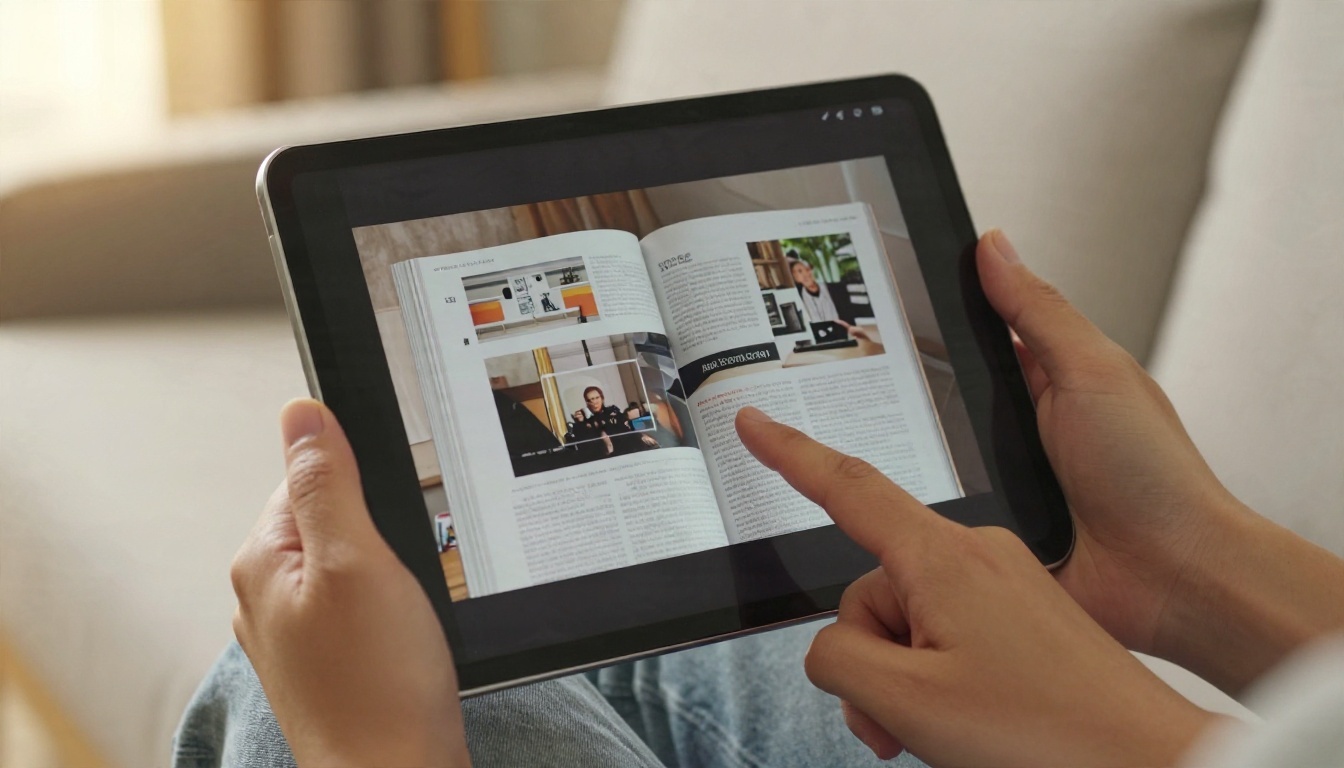
A flipbook is a web page, not a file that depends on a viewer app. It opens in any browser, phone included. Because it is built on web technology, video behaves the way it does on any website: it plays, pauses, goes full screen and adapts to the screen size.
Why Flipbooks Play Video Reliably
- No viewer lottery. The reader needs only a browser.
- Hosted video streams instead of bloating the file, so load time stays short.
- Mobile-responsive layout keeps the player usable on small screens.
- Audio works too, so you can add voice-over or background music to pages.
- No security prompts. There is no "trust this document" popup scaring people away.
PDF Video vs Flipbook Video
| Feature | PDF with embedded video | Flipbook with video |
|---|
| Plays in browsers | No | Yes |
| Plays on phones | Rarely | Yes |
| Requires Adobe software | Yes | No |
| Shareable by link | No (file transfer) | Yes |
| Password protection | Basic | Yes, per flipbook |
| Reader analytics | None | Yes (Professional plan) |
| Lead capture | No | Yes (Professional plan) |
| Embeds on a website | Awkward | One snippet of code |
✅ Best practice: Keep your original PDF as the master file for print and archiving. Publish a flipbook version for screens.
How to Add Video With Flipbooks AI
The PDF to Flipbook Converter turns your existing file into an interactive publication in minutes. You keep your layout and add the moving parts afterward.
Upload and Convert
- Create a free account. Sign up on Flipbooks AI and open your dashboard.
- Upload your PDF. Drag the file in. Pages convert into flipbook pages with page-turn effects, and the fixed layout stays intact.
- Check the preview. Flip through to confirm fonts, images and links carried over properly.
Add and Place Video
- Open the editor on the page where the video belongs.
- Add a video element. Paste a YouTube or Vimeo link, or upload an MP4. Hosted links keep the flipbook fast.
- Resize and position the player over your poster image or in an empty area of the layout.
- Add audio if you want it. Narration or a soundtrack can sit on the same page.
- Preview on a phone, not only on your desktop, and confirm the video starts on tap.
Brand, Protect and Share
Customization is where the document starts to feel like yours. Adjust colors, add your logo, and pick the page effect. There are no watermarks, ever, so the finished flipbook looks like your own property. Standard plans and above allow unlimited flipbooks.

Sharing options:
- Direct link for email, chat and social posts
- Embed code to place the flipbook inside any page, see the Embed Flipbook on Website tool
- Password protection for private proposals, contracts and internal training
- Offline downloads for readers who need a copy without a connection
Extra Features Worth Switching On
The Professional plan adds the numbers that a PDF never gives you:
- Analytics: see how many people opened the flipbook, which pages held attention, and whether they reached the video page.
- Lead generation: ask for a name and email before the reader gets in. Useful for gated product demos.
- Custom branding: fully tailored colors, logos and domain presentation.

With a plain PDF you send the file and hope. With a flipbook you can see that 62 people opened it, 41 reached page 4, and 29 pressed play. That feedback changes what you build next.
Real Examples That Work
Video inside a document earns its place when it shows something words cannot. A few scenarios where the flipbook route clearly beats a PDF:

💡 Pro tip: Keep clips under 90 seconds. Readers skim documents. A short, silent-friendly video with captions on screen gets watched far more often than a three minute talking head.
Three Mistakes to Avoid
- Posting a fake play button. If the image has a play icon, something must actually play behind it.
- Uploading huge MP4s. Compress the video or host it externally so pages load quickly.
- Testing only on your own machine. Always check on a phone and in a private browser window.
Which Option Fits You?
Pick based on where your readers open the file, not on what feels easiest to build.
| Your situation | Best choice |
|---|
| Internal team, all on Adobe desktop | Embedded PDF video |
| Printed document that also lives online | QR code to hosted video |
| Quick one-off with a single video | Hyperlink in the PDF |
| Public catalog, brochure or proposal | Flipbook with video |
| You need to know who watched | Flipbook on the Professional plan |
If you want one file that looks like a polished publication, plays video everywhere, and reports back on its readers, convert it instead of embedding it.
Ready to try? Get started for free on Flipbooks AI and upload your first PDF. Browse the full list of flipbook tools and templates to find your use case, or compare pricing plans to see which one adds analytics and lead capture.



