You have an awards night on Friday, a stack of names on a spreadsheet, and exactly zero certificates. A free publisher certificate template solves that problem fast, as long as you pick one that prints cleanly and matches the tone of the event. This article walks through where to find good templates, which award designs work best, how to print them without ruining the paper, and what to use now that Microsoft has set October 2026 as the end of support date for Publisher. Along the way, you will see how a tool like Flipbooks AI can turn a pile of finished certificates into a shareable digital booklet.
What a Publisher Certificate Template Offers
A certificate template is a pre-built page with the border, text boxes, and spacing already set. You replace the placeholder name, date, and signature line, then print. Publisher became popular for this job because its layout tools are forgiving: text boxes snap into place, and borders do not shift when you change a font.
Where to Find Free Templates
You have more sources than you might think. The built-in template gallery inside Publisher is the obvious start, but several other places offer files that open in Publisher, Word, or a browser.
| Source | File Type | Cost | Best For |
|---|
| Publisher built-in gallery | .pub | Free with license | Quick, familiar layouts |
| Microsoft template library online | .pub, .docx | Free | Formal and school awards |
| Canva free library | Browser design | Free tier | Modern, colorful designs |
| Google Docs template gallery | Browser document | Free | Shared editing |
| Open source suites like LibreOffice | .odt, .docx | Free | Offline editing without a license |
What to Check Before Downloading
Not every free file is worth your time. Before you commit, run a short check:
- Page size: Does it match Letter (8.5 x 11 in) or A4 (297 x 210 mm), whichever your printer uses?
- Orientation: Most certificates are landscape, but some school awards use portrait.
- Editable fields: Can you change every text box, or is part of the wording baked into an image?
- Font availability: Fancy script fonts often fail to load on another computer. Look for embedded or common fonts.
- Licensing: Confirm the template is free for commercial or organizational use if you are a business.
💡 Pro tip: Open the file on a second computer before the event. If the fonts swap or the border shifts, you want to find out on Tuesday, not Friday.
Award Designs That Look Professional
A certificate is a small object that people frame, so design matters more than the word count suggests. Three styles cover almost every situation.

Classic Border Styles
The ornate border with a gold or navy frame signals tradition. It suits graduations, long-service awards, and formal competitions. Choose a serif typeface for the recipient name and keep the body text short. If your template offers a guilloche pattern (the fine interlaced lines you see on banknotes), use it sparingly in the corners rather than across the whole page.
Modern Minimal Layouts
A thin single-line border, plenty of white space, and one accent color feel current and read well on screen too. This style works for workshops, online courses, and volunteer recognition. It also uses less ink, which matters when you print forty copies on an office inkjet.
Wording That Fits the Award
Good wording is short and specific. Compare these approaches:
| Weak Wording | Stronger Wording |
|---|
| "Certificate for being great" | "Presented to Maria Lopez for outstanding volunteer service in 2026" |
| "Best employee" | "Employee of the Quarter, Customer Support Team" |
| "Participation" | "Awarded for completing the 12-week Beginner Photography Workshop" |
Name the person, name the achievement, add a date, and leave room for one or two signatures. That is the whole formula.
✅ Best practice: Keep the recipient name as the largest text on the page after the title. People look for their own name first.
Customizing Your Template Step by Step
Here is a reliable workflow that works in Publisher and most Publisher alternatives.

Setting Page Size and Margins
- Set the page size to match your paper before you touch anything else.
- Keep important text at least 0.5 inch (13 mm) from every edge. Most desktop printers cannot print to the very edge.
- If you plan to print at a shop, add a 0.125 inch (3 mm) bleed so borders reach the trimmed edge with no white sliver.
Fonts, Colors, and Logos
- Limit yourself to two fonts: one decorative for the title, one clean for the body.
- Pick one main color and one accent. Pull them from your logo so the certificate looks like it belongs to your organization.
- Place the logo at the top center or bottom left, and use a file at 300 DPI or higher. A blurry logo is the fastest way to make a certificate look cheap.
- Add signature lines with a thin rule and a printed title underneath, for example "Program Director."
⚠️ Warning: Never paste a low-resolution logo from a website. It will look fine on screen and pixelated on paper.
Handling Many Names at Once
If you have dozens of recipients, use a mail merge. In Publisher, the Mailings tools connect to an Excel sheet and fill each name automatically. In Google Docs, add-ons do the same job. Merging prevents the classic mistake of misspelling a name by retyping it.
Printing Tips for Sharp Results
A great design can still fail at the printer. Paper and settings decide whether the final result feels premium or flimsy.
Choosing Paper Stock
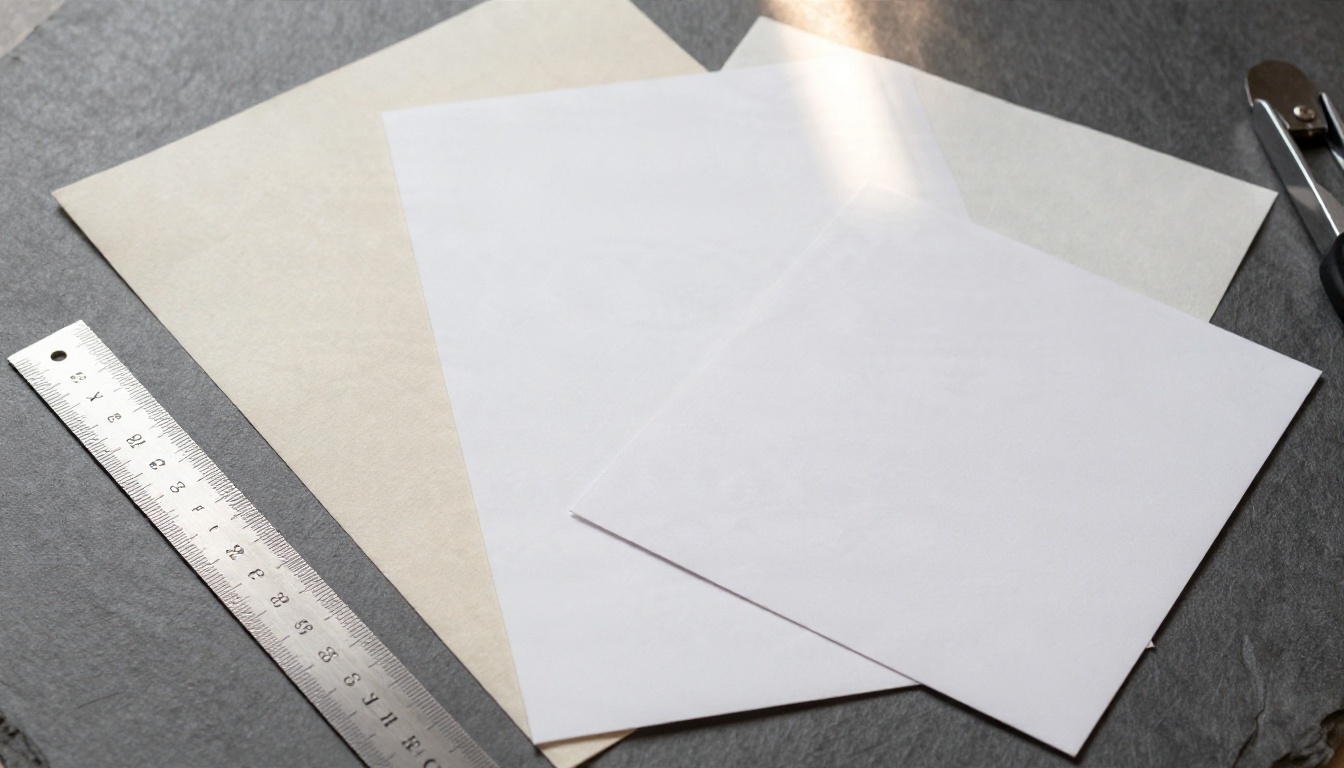
Regular 80 gsm copy paper bends and shows through the print. Heavier stock makes the award feel official.
| Paper Type | Weight | Look and Feel | Best Printer |
|---|
| Standard copy paper | 80 to 90 gsm | Thin, practical | Any |
| Parchment | 90 to 120 gsm | Aged, traditional | Laser or inkjet |
| Matte cardstock | 200 to 250 gsm | Sturdy, clean | Inkjet (check tray limit) |
| Linen finish | 120 to 180 gsm | Textured, upscale | Laser preferred |
| Glossy photo paper | 200 to 260 gsm | Vivid color, shiny | Inkjet only |
Check your printer's maximum paper weight in the manual. Forcing 300 gsm stock through a tray rated for 200 gsm leads to jams and scuffed edges.
Fixing Common Printer Problems
- Borders cut off: Turn off "scale to fit" and set margins to match the printer's printable area, or print "actual size."
- Colors look dull: Select the "best" or "photo" quality mode and set the paper type to match what you loaded.
- Gold looks brown: Metallic gold does not exist in standard CMYK. Use a warm yellow with a touch of orange, or buy gold foil stickers and apply them by hand.
- Smudging: Let inkjet prints dry for ten minutes before stacking. Laser prints dry instantly but can curl on thin paper.
- Uneven feed: Fan the cardstock, load it flat, and feed one sheet at a time for the first test.
💡 Pro tip: Always print one test copy on plain paper first. Hold it against the real stock to check alignment before you burn through expensive sheets.
Adding a Finishing Touch
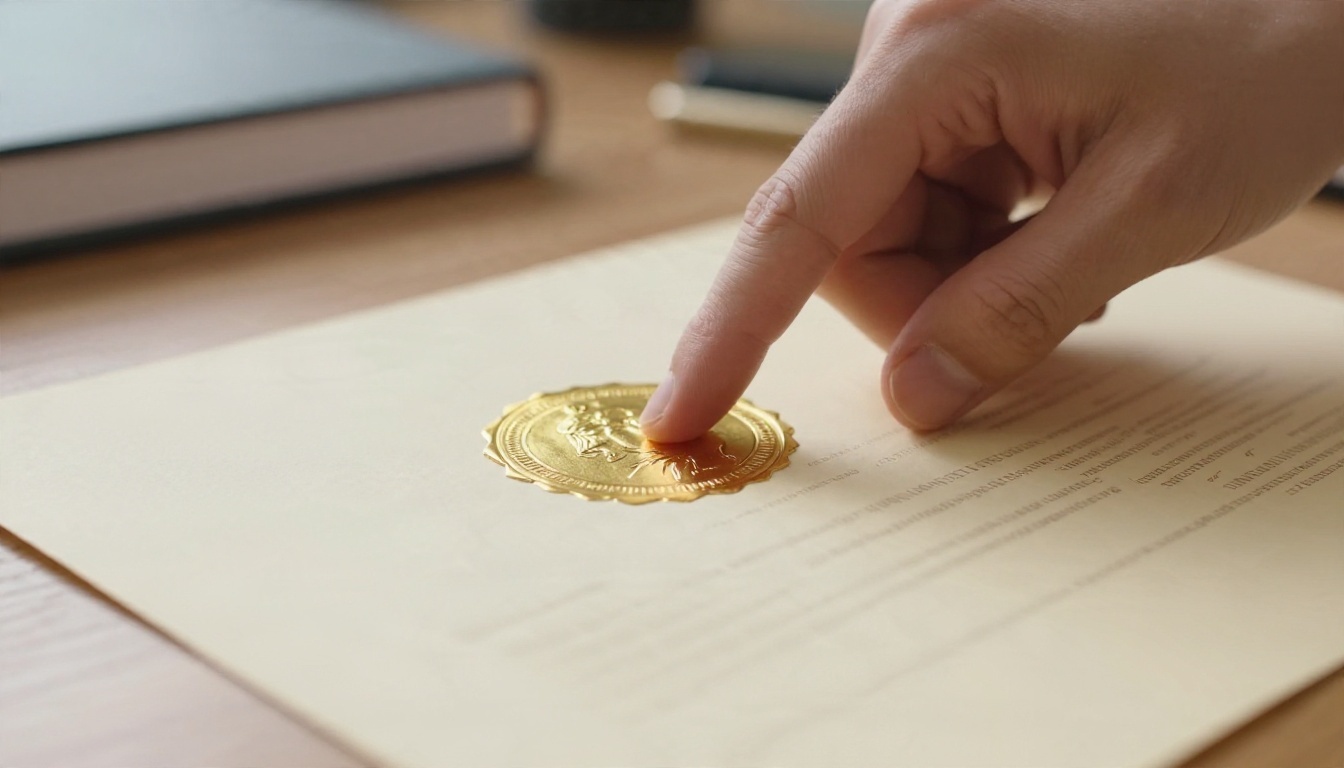
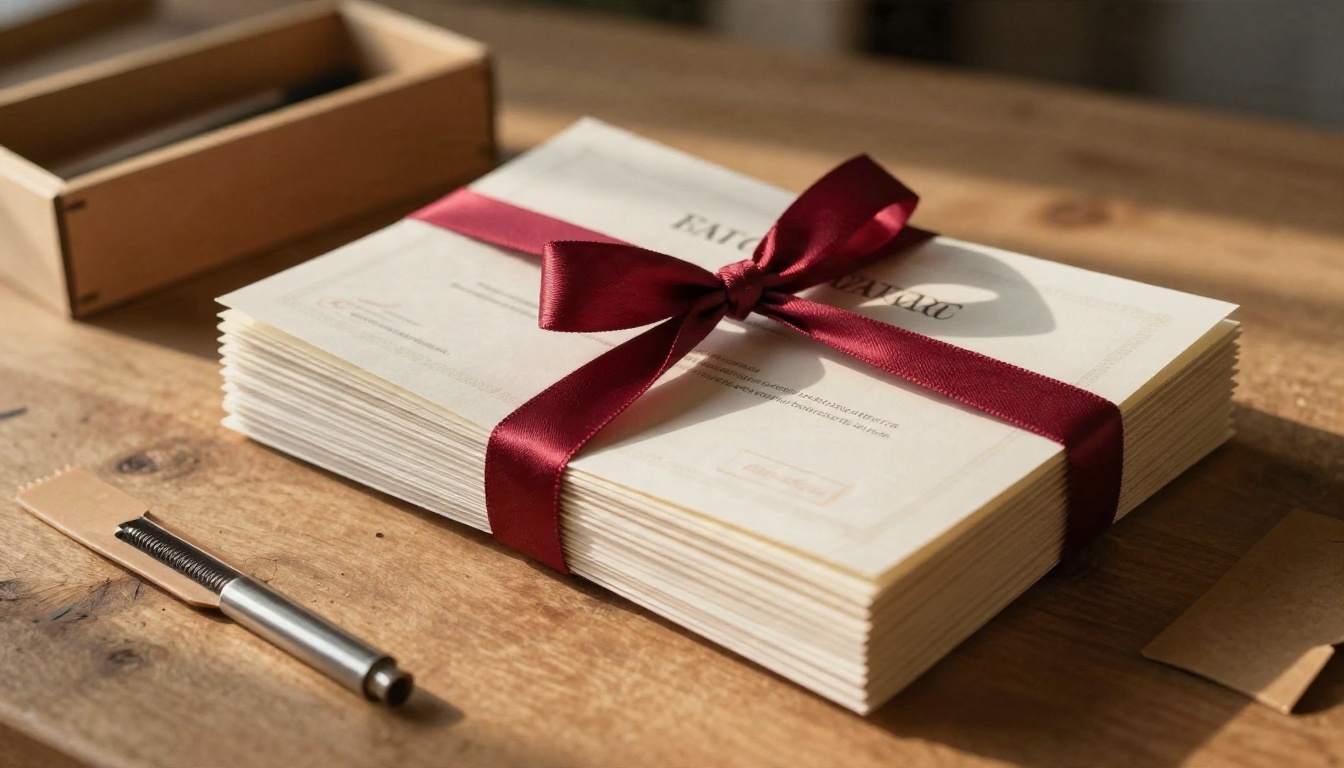
A small detail changes how a certificate feels in the hand. A gold embossed seal, a trimmed edge, or a ribbon tied around a rolled copy lifts a plain printout into something people keep. A paper trimmer and a pack of foil seals cost very little compared with the impression they leave.
Online Alternatives to Publisher
Microsoft set October 2026 as the end of support date for Publisher, so files created there still open but no longer receive updates. If you are starting fresh, a browser-based tool saves you from worrying about it.
Compared Side by Side
| Tool | Strength | Limitation | Output |
|---|
| Canva | Huge template library, drag and drop | Best features need a paid plan | PDF, PNG |
| Google Docs and Slides | Real-time sharing, free | Limited decorative borders | PDF |
| LibreOffice Draw | Free, works offline, opens many formats | Dated interface | PDF, ODG |
| Adobe Express | Polished templates, brand kits | Free tier has fewer assets | PDF, PNG |
| Word templates | Familiar, mail merge built in | Layout can shift between versions | DOCX, PDF |
| Flipbooks AI | Turns PDF certificates into a page-turning booklet | Not a design editor, so design first elsewhere | Flipbook, link, embed |
The last row deserves attention. Design tools produce a single file per certificate. When you need to present a whole batch, such as a graduating class or a competition winners list, a flipbook is a far friendlier format than twenty loose PDFs.
Picking the Right Tool for You
- Need one certificate today? Use a Word or Google Docs template.
- Need a branded design with lots of choice? Canva or Adobe Express.
- Need to stay offline and free? LibreOffice.
- Need to share many certificates or a ceremony program online? Export PDFs, then convert them with a flipbook tool.
How to Create an Award Booklet with Flipbooks AI
Printing is ideal for the person on stage. But remote recipients, parents, and sponsors often want a digital copy. That is where a flipbook helps: you bundle the certificates, the ceremony program, and a few photos into one booklet that people open on any phone.
Here is the process using the PDF to Flipbook Converter.
Step by Step
- Open your account. Go to Flipbooks AI and create a free account. No credit card is needed to begin.
- Export your PDF. From Publisher, Word, Canva, or Google Docs, save your certificates as a single PDF. Put the winners in the order of the ceremony.
- Upload the file. Drag the PDF into the dashboard. The platform converts each page into a flipbook page automatically, which usually takes a few seconds.
- Customize the look. Choose a background color that matches your event, add your logo, and select a page-turn effect. Your branding stays front and center because there are no watermarks, ever.
- Add multimedia. Embed a short video of the ceremony or an audio message from the organizer. Links to photo albums can go on a final page.
- Share it. Copy the direct link, send it by email, or use the Embed Flipbook on Website tool to place it on your organization's page.
- Protect private content. Turn on password protection if the certificates contain names of minors or internal staff.
Pro Features Worth Knowing
| Feature | Where Available | Why It Helps |
|---|
| Unlimited flipbooks | Standard plan and above | One booklet per event, class, or season |
| Offline downloads | Plans listed on the pricing page | Recipients keep a copy without internet |
| Analytics | Professional plan | See how many people opened the booklet |
| Lead generation | Professional plan | Collect emails from sponsors or visitors |
| Mobile-responsive design | All plans | Reads cleanly on any phone screen |
| Custom branding | All plans | Your colors and logo, no third-party marks |
You can compare every plan on the pricing page before you decide.
💡 Pro tip: If you run a school, pair the certificates with the Yearbook Flipbook Maker or the School Newsletter Creator. Parents get one link with the awards, the photos, and the news.
Real-World Uses for Award Templates
Certificates are not only for schools. Here are practical scenarios where a template plus a digital booklet pays off.

Schools and Training Centers
A teacher prints certificates for the classroom ceremony, then exports the same PDF to a flipbook and sends the link to families. Students who were absent still receive their recognition. A training center can attach a course certificate to a Training Manual Flipbook so attendees keep both together.
Companies and Teams

An HR lead prepares quarterly recognition awards, prints framed copies for the winners, and posts a digital "wall of fame" booklet on the intranet. Using the Corporate Report Maker workflow, the same booklet can carry results and milestones for the quarter.
Clubs, Events, and Competitions
A photography club that hosts an annual contest can give each winner a certificate, then publish a showcase with the winning shots through the Photography Portfolio tool. For the ceremony itself, the Event Program Maker builds a clean running order that guests can open on their phones.
Quick Use Case Summary
Common Mistakes to Avoid
Even a good template can go wrong. Watch for these five.
- Misspelled names. Proofread against the source list, not from memory.
- Too many fonts. More than two looks messy and amateur.
- Ignoring printer margins. Test before the full run.
- Low-resolution logos. Use the original vector or a large PNG.
- No backup file. Save the template as PDF and in the native format, and keep both in cloud storage.
⚠️ Warning: Do not use a template that includes a copyrighted logo or a fake seal from a real institution. Replace those elements with your own.
Ready to Publish Your Certificates?
Pick a template that suits your event, edit it with two fonts and one accent color, print a test copy, and then run the final batch on proper stock. If Publisher is no longer part of your toolkit, a browser editor will do the same job, and you can still print the result just as sharply.
When the printing is done, take the next step: create a free account on Flipbooks AI, upload your PDF, and share a polished digital booklet in minutes. Browse all flipbook tools to find a layout for your ceremony, or compare pricing plans to see which features match the size of your event.



