You have a 90 page PDF sitting in Google Drive, and the one thing your colleague needs is on page 47. You paste the share link into a message, add "scroll down a bit," and wait for the reply asking where exactly to look. There is a faster way to point someone to the right page, and there is also a point where Google Drive simply stops cooperating. This article shows the trick that sometimes works, tests where it breaks, and compares it with a link format built for this job, like a flipbook made on Flipbooks AI.
Does Google Drive Support Page Links?

The Short Answer
Google Drive has no "copy link to this page" button. The share menu gives you one link for the whole file, and that link always aims at the start of the document. If you want a Google Drive PDF link to a specific page, you have to build it by hand.
The usual method is a URL fragment: the #page= parameter added to the end of the file address. Browsers use it as an open parameter for PDFs, so #page=47 means "open at page 47." Whether Drive's own viewer respects it is another matter.
Why Results Are Inconsistent
The fragment is a browser feature, not a Drive feature. When a browser opens a PDF with its built-in viewer, it reads the fragment and jumps to the page. When Drive wraps the file in its own preview screen, the fragment may be passed along, ignored, or dropped during a redirect.
That is why you will read forum posts from people saying "it works for me" next to others saying "nothing happens." Both are telling the truth. The outcome depends on your browser, your device, the way the link is opened, and changes Google makes to the viewer over time.
💡 Pro tip: Treat any page link on Drive as something to test, not something to trust. Always open it the way your reader will before you send it.
The #page Trick, Step by Step
Build the URL
Start with the normal share link. It looks something like this:
https://drive.google.com/file/d/FILE_ID/view?usp=sharing
Then add the page fragment at the very end:
https://drive.google.com/file/d/FILE_ID/view?usp=sharing#page=47
Here is the process in order:
- Open the PDF in Google Drive.
- Click Share and set access to "Anyone with the link" (or the specific people who need it).
- Click Copy link.
- Paste the link into a text editor or the address bar.
- Add
#page=47 at the end, replacing 47 with your page number.
- Open the result in a new tab to check it.
Test It Three Ways
One successful test proves very little. Run through these cases before you share:
- Desktop browser, signed in. Chrome, Edge, and Firefox can behave differently.
- Incognito window, signed out. This shows what an outside reader sees.
- Your phone. Tap the link from a chat app, not from the browser address bar.
If all three jump to the right page, you are in good shape. If only one does, you have a link that will break for part of your audience.
Keep a Record of Your Links
If you share the same report often, a small table saves time. Keep it in a note or spreadsheet.
| Section | Page | Link ending |
|---|
| Pricing overview | 12 | #page=12 |
| Case study | 47 | #page=47 |
| Terms | 83 | #page=83 |
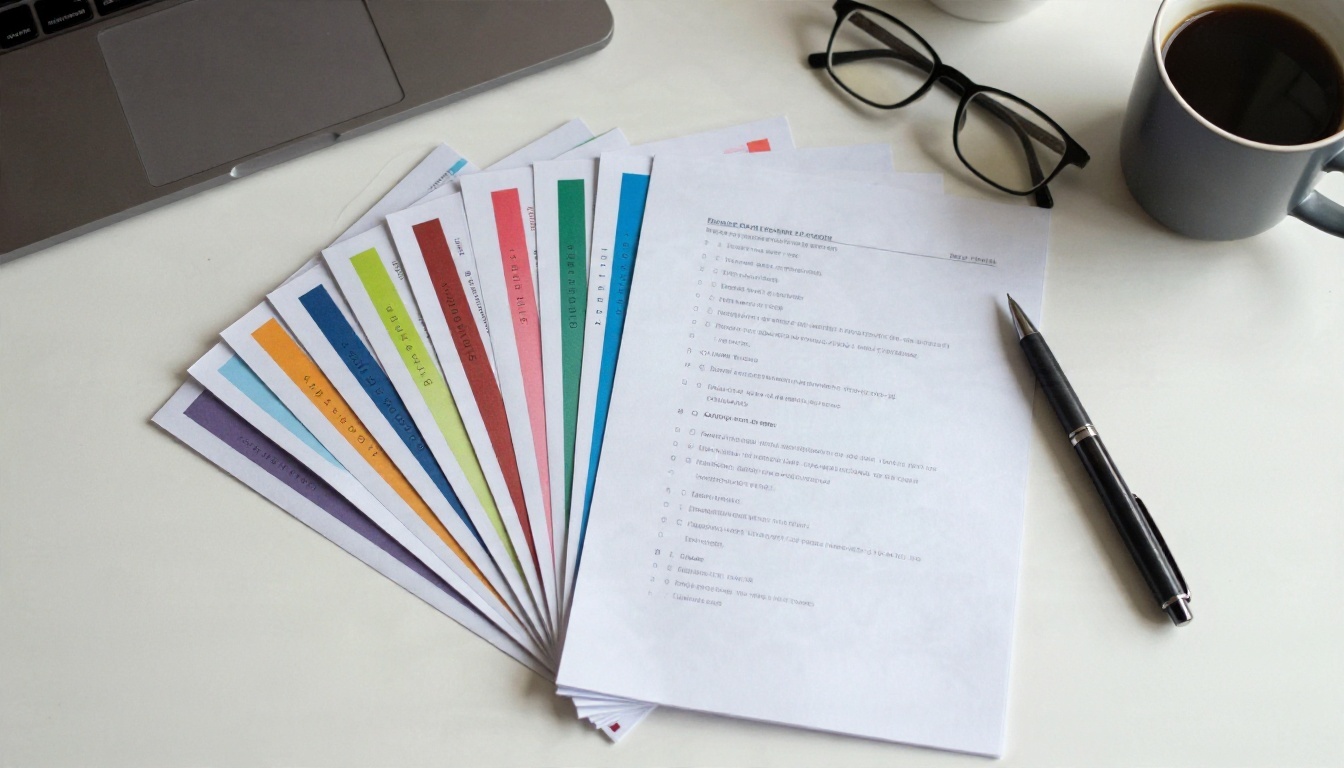
Those colored tabs on a printed report do the same job your #page link tries to do online: they let the reader skip the hunt. The paper version simply never fails on a phone.
Where the Trick Breaks
The Mobile App
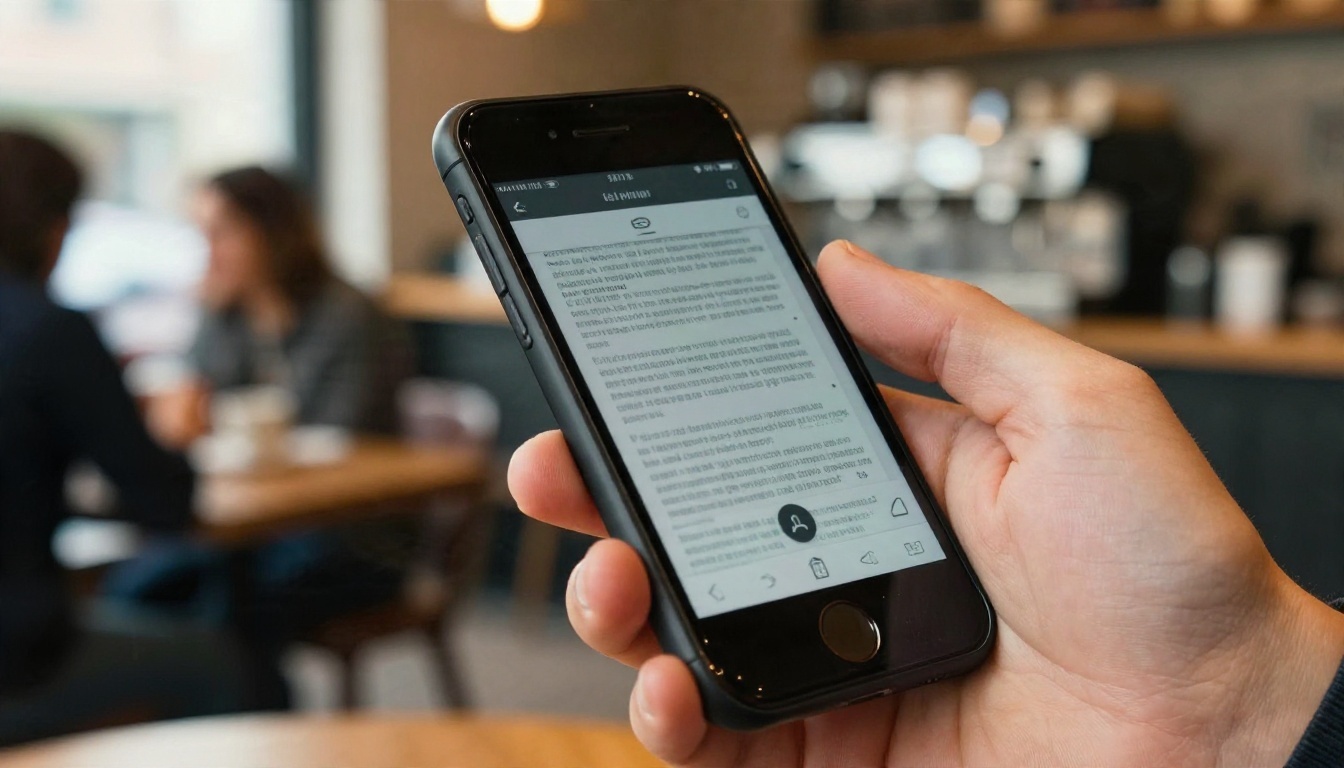
This is the biggest gap. Tap a Drive link on a phone and it often opens inside the Drive app or a mobile preview. These viewers frequently start from page one regardless of the fragment. Since a large share of PDF links are opened from messaging apps, this alone can make the trick unreliable.
Preview and Embed Links
The /preview version of a Drive link is the one people use inside iframes on a website. Page fragments on these addresses are hit and miss. If you plan to embed a PDF on a web page and have it open at a chosen page, expect to fight the viewer.
You also get a very plain interface. There are no branding options, no page-turn feel, and no control over what the reader sees around the document.
Download Links
Some people try the direct download format (uc?export=download&id=...) and add #page= to it. A download link saves the file to the device instead of displaying it, so the fragment has nothing to act on. It is the wrong tool for this.
Permission Problems
A page link is still a Drive link, so the file's sharing settings apply. A few common headaches:
- The reader is signed into a different Google account and sees "You need access."
- The file is restricted to your organization, so outside clients cannot open it.
- The owner moves or replaces the file, and the old link dies or points at an outdated version.
⚠️ Warning: If you replace a PDF by uploading a new file instead of using "Manage versions," the old link can break and your page numbers may no longer match the content.
Summary of Limits
| Situation | #page=N result | Reliability |
|---|
| Desktop browser, standard Drive view link | Sometimes jumps to the page | Medium |
| Drive mobile app | Often opens at page 1 | Low |
Embedded /preview iframe | Inconsistent | Low |
| Direct download link | Fragment has no effect | None |
| Signed-out reader on restricted file | Access error | None |
Workarounds Inside Google Drive
If the fragment fails, you still have options without leaving Drive. None is perfect, but each fits a different situation.
Split the File
Break the big PDF into smaller files, one per section, and share each file separately. A 90 page report becomes six files of 15 pages. Anyone who gets the "Case study" file lands on the right content immediately.
The cost is clutter. You now manage six files, six permission sets, and six links to update when something changes.
Convert to a Google Doc
Right-click the PDF, choose Open with and pick Google Docs. Drive tries to turn the PDF into an editable document. Then you can add bookmarks to headings and link to them.
This sounds neat, but it is rarely worth it for a designed PDF. Conversion tends to scramble layouts, move images, and break fonts. It works best for text-heavy documents like contracts or plain reports.
Tell People the Page Number
The low-tech option is often the best one: put the page number in the message. "Open the link, then go to page 47, the table at the bottom." It costs nothing and never breaks. It does still put the work on the reader, and page numbers shift between the printed number and the viewer's page count.
Comparing the Workarounds
| Method | Effort | Layout stays intact | Works on mobile | Best for |
|---|
#page=N fragment | Low | Yes | Unreliable | Quick desktop sharing |
| Split into files | Medium | Yes | Yes | Long reports with clear sections |
| Convert to Google Doc | High | Often no | Yes | Text-heavy documents |
| Page number in message | Very low | Yes | Yes | One-off sends |
A Better Option: Turn the PDF Into a Flipbook
Why a Viewer Built for Reading Helps
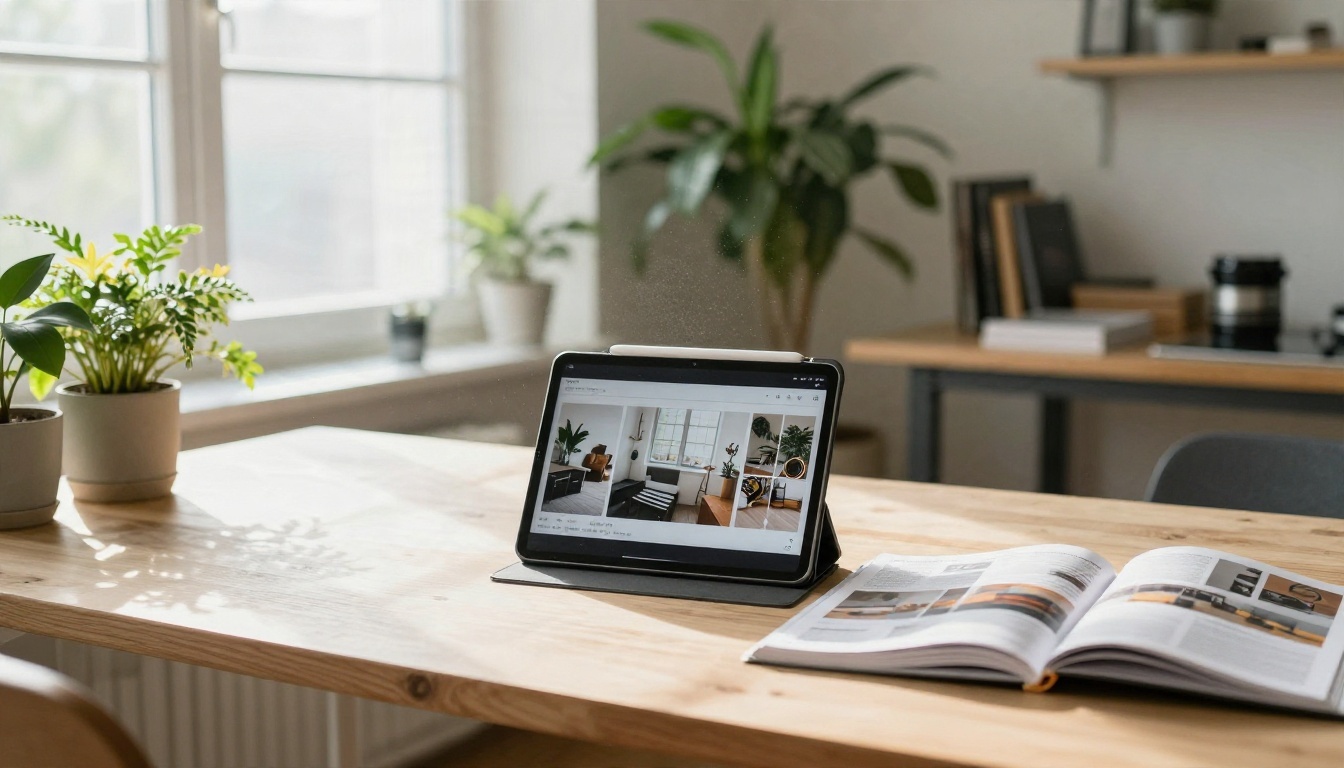
Drive is built for storage. Its PDF viewer is a convenience, not a publishing tool. A flipbook is the opposite: a page-turning reader made for documents people actually want to read, with a consistent look on desktop and mobile.
When you convert your PDF with the PDF to Flipbook Converter, you get a dedicated link that opens in the same viewer for everyone. No Drive account, no permission screen, no app handoff on a phone. Readers flip through pages, zoom into details, and the document looks like a document instead of a file attachment.
What You Gain Over a Drive Link
| Feature | Google Drive link | Flipbook link |
|---|
| Opens the same on every device | Not always | Yes |
| Reader needs a Google account | Sometimes | No |
| Page-turn reading experience | No | Yes |
| Custom colors and branding | No | Yes |
| Password protection | Via account permissions only | Built in |
| Embed on your site | Plain iframe | Styled embed |
| Reader analytics | None | Available on the Professional plan |
| Watermarks | None | None, ever |
Real-World Examples
- A sales team sends a 60 page proposal. Instead of a Drive link that opens at the cover page, they send a flipbook built with the Sales Presentation tool, so the buyer sees a clean viewer under the company's own colors.
- A real estate agent shares a property brochure with clients on their phones. The Real Estate Brochure Creator gives them a link that looks right on any screen.
- An HR manager publishes a long policy handbook. With the Training Manual Flipbook tool, new hires read it as a real manual, not a file download.
- A finance team shares quarterly numbers through the Report Flipbook Creator, and sees which pages get read.

💡 Pro tip: If the reader only needs one section, extract those pages into a short PDF first and convert that. The link then opens exactly on what matters, with no page hunting.
How to Create a Flipbook with Flipbooks AI
This tutorial takes a few minutes. You do not need design skills.
Step 1: Create Your Account
Go to Flipbooks AI and create an account. You can start there, and the pricing page shows what each plan includes.
Step 2: Upload the PDF
- Download the PDF from Google Drive (right-click the file, then Download).
- In your dashboard, start a new flipbook and upload the file.
- Wait for conversion. Each page becomes a flipbook page, and the text stays sharp.
If you only need a section, trim the PDF first so the finished flipbook is short and focused.

Step 3: Customize the Look
Make the flipbook match your brand:
- Branding: add your logo and choose your colors.
- Page effects: pick how pages turn so reading feels natural.
- Multimedia: embed videos and audio where they help the reader.
- Mobile-responsive design: the viewer adapts to phones and tablets automatically.
Step 4: Share It
Choose the option that suits your audience:
- Direct link: paste it in an email, chat, or social post.
- Embed code: place the flipbook on your site. The Embed Flipbook on Website page explains the options.
- Password protection: keep private content private by requiring a password before opening.
✅ Best practice: Test your final link on your phone and in a private browser window. Spend thirty seconds on this and you avoid most "I can't open it" replies.
Step 5: Use the Pro Features
On the Professional plan you get analytics and lead generation. Analytics shows how people read your document, which pages hold attention, and where they leave. Lead generation can ask readers for contact details before they open the content. You can also allow offline downloads so people can keep a copy.

Unlimited flipbooks come with the Standard plan and above, so you can convert every PDF in a folder without counting. Browse all flipbook tools for templates aimed at catalogs, menus, brochures, and reports.
Which Method Should You Use?
Pick based on who reads the file and how often you share it.
| Your situation | Best choice | Why |
|---|
| Quick note to a coworker on a laptop | #page=N on the Drive link | Fast, free, fine if it fails |
| Internal team with the same Google accounts | Drive link plus page number in the message | No extra tools, no confusion |
| Long report with clear sections | Split into smaller files | Each file opens at the right place |
| Client-facing document, mobile readers | Flipbook link | Same experience on every device |
| Document on your website | Flipbook embed | Styled, branded, and consistent |
| Private content with tracking needs | Password-protected flipbook with analytics | Control and insight |

A simple rule: if the audience is inside your Google workspace and the stakes are low, a Drive link is fine. If the audience is outside, reads on phones, or represents your brand, a flipbook removes the guesswork.
Three Common Mistakes
- Sending the link without testing it signed out. It works for you because you are the owner.
- Trusting page numbers after an edit. Add or remove a page, and every
#page link you shared now points to the wrong place.
- Embedding a plain Drive preview on a client site. It looks like a stray file, not like part of your brand.
Ready to Share Your PDF Properly?
The #page= trick is worth a try, and it costs nothing. Just remember that it depends on the viewer, the device, and Google's current behavior, so it can fail without warning.
If you need a link that works for every reader, get started for free on Flipbooks AI and turn your PDF into a flipbook in minutes. Compare pricing plans to see where unlimited flipbooks, analytics, and lead generation fit, or browse the full set of tools and templates to find one built for your document.



