You exported a polished PDF, and now you want people to watch a product demo, a recipe clip, or a welcome message without leaving the page. The good news: you can add a video link in a PDF online in a few minutes, and you don't need to buy desktop software. The catch is that a PDF is a static format, so the method you pick decides whether readers get a simple clickable link or a real in-page player. Tools like Flipbooks AI close that gap by turning the PDF into an interactive page where video plays right where you place it.
This article walks through every practical option, from a plain hyperlink to a full embed, and shows which free tools actually work.
Why Plain PDFs Struggle With Video
PDF was built for print fidelity. It keeps fonts, margins, and images identical on every device. Video was never part of that promise. Older versions of desktop Acrobat could embed media files, but most browser viewers, phone readers, and email previews ignore them. Your reader sees a blank rectangle.
That is why most people searching for how to add a video link in a PDF online end up with a hyperlink to a hosted video. The video lives on YouTube, Vimeo, or your own server, and the PDF simply points to it.
What readers expect today
People tap on everything. If a page shows a play icon, they assume it will play. If it opens a new tab and loses their place, they get annoyed. A good setup respects both habits:
- The link is obvious (a button, a thumbnail, or underlined text).
- It opens fast on mobile data.
- It lets the reader return to the exact page they left.
Link versus embed: the real difference
| Approach | Plays inside the PDF? | Works on phones | Setup effort | Best for |
|---|
| Clickable text link | No, opens a new tab | Yes | Very low | Quick shares, invoices, reports |
| Thumbnail image link | No, opens a new tab | Yes | Low | Brochures, catalogs, lookbooks |
| Embedded media in PDF | Only in some desktop viewers | Rarely | High | Offline internal documents |
| Flipbook with embedded video | Yes, in the page | Yes | Low | Marketing, training, sales |
💡 Pro tip: If your audience reads on phones, skip desktop-only embeds. A link or a flipbook embed is far more reliable.
Three Ways to Add a Video Link
Every method below starts with the same thing: a public URL for your video. Host it on YouTube, Vimeo, or Google Drive (with sharing set to "Anyone with the link"), and keep that URL handy.
Clickable text links
The simplest option. You select a phrase such as "Watch the 90 second demo" and attach the video URL to it.
- Open your PDF in an online editor.
- Choose the Link tool.
- Draw a box around the text or select it.
- Paste the video URL and save.
Make the anchor text specific. "Click here" tells nobody anything, while "Watch the installation video" sets an expectation and improves accessibility for screen readers.
Thumbnail image links
A thumbnail with a play icon gets far more taps than a line of blue text. Take a screenshot of a strong frame from your video, add it to the page, and link the whole image.
- Use a frame with a clear subject, not a blurry transition.
- Add a small play triangle in the corner so it reads as video.
- Keep the file under 300 KB so the PDF stays light.
Embedded video players
An embed shows the actual player inside the page. A regular PDF can't do this reliably, but a flipbook can. When you convert the PDF into a flipbook, you place the video on the page and it plays in context, on desktop and mobile. We will build one in the tutorial section below.

You don't need a paid license for the basic link. Several free online options handle it well.
Google Docs and Word export
If you still have the source file, the cleanest route is to add the link before exporting.
- In Google Docs or Word, select the text or image.
- Press Ctrl+K (or Cmd+K on Mac) and paste the video URL.
- Export as PDF.
Links survive the export in both apps. This is the fastest method when you control the original document.
Online PDF editors
When all you have is a finished PDF, a browser-based editor does the job. Look for a tool that offers a link or hyperlink option, lets you draw a clickable area, and doesn't stamp a watermark on the exported file.
| Tool type | Free tier limits | Watermark risk | Video playback | Notes |
|---|
| Browser PDF editors | Usually a few edits per day | Sometimes | Link only | Fine for one off jobs |
| Docs and Word export | Unlimited | None | Link only | Needs the source file |
| Design tools with PDF export | Generous | None | Link only | Great for thumbnails |
| Flipbooks AI | See pricing | None, ever | Plays in the page | Best for embedded video |
⚠️ Warning: Some free editors add a logo to every page after the first few edits. Always export a test file and check each page before you send it to clients.
Copy the video URL first
A surprising number of broken links come from copying the wrong address. Use these rules:
- On YouTube, use the Share button URL, not the one from an ad or playlist.
- For a specific start time, add the timestamp option so viewers land on the right moment.
- On Google Drive, open the sharing panel and confirm the setting before pasting.
- Test the link in a private browser window to make sure it opens without a login.
How to Add Video with Flipbooks AI
If you want the video to play inside the page, a flipbook is the cleanest answer. The PDF to Flipbook Converter takes your PDF and turns it into a page-turning document that supports embedded video and audio, with no watermarks. Here is the full process.
Upload your PDF
- Go to Flipbooks AI and create an account.
- Click to create a new flipbook and upload your PDF file.
- Wait a few seconds while each page is converted into a flip-ready layout.
Text stays sharp, images keep their quality, and page order is preserved. Tip: upload the final version, since changing pages later means re-uploading.
Add the video
- Open the editor and go to the page where the video belongs.
- Select the multimedia option and paste your video URL, or upload the file.
- Drag the player to the spot you want and resize it to fit the layout.
- Preview the page to confirm the video plays on click.
You can place several videos in one flipbook, such as a welcome clip on page 1 and a product demo on page 6. Audio works the same way, which is handy for voiceover notes or a podcast excerpt.
Customize the look
Make the flipbook feel like your brand, not a template.
- Add your logo and brand colors so the viewer looks familiar.
- Choose a page flip effect that suits your content, from soft and subtle to more dramatic.
- Pick a background that makes the page stand out without distracting from the video.
- Check the mobile-responsive preview to see how the layout reflows on a phone.
✅ Best practice: Keep video clips under two minutes. People skim a brochure, and short clips get watched to the end.
Share and protect
When the flipbook is ready, you have several ways to send it:
| Sharing option | What it does | Good for |
|---|
| Direct link | One URL you can paste anywhere | Email, chat, social posts |
| Embed code | Places the flipbook on your site | Landing pages, blogs |
| Password protection | Requires a password to open | Client proposals, internal training |
| Offline download | Lets readers save a copy | Trade shows, travel, low connectivity |
For website placement, the Embed Flipbook on Website tool gives you a snippet you can paste into your page builder. For private content, turn on password protection before you share the link.
Real-World Examples That Work
Theory is nice, but here is what people do with video inside documents.
Restaurants
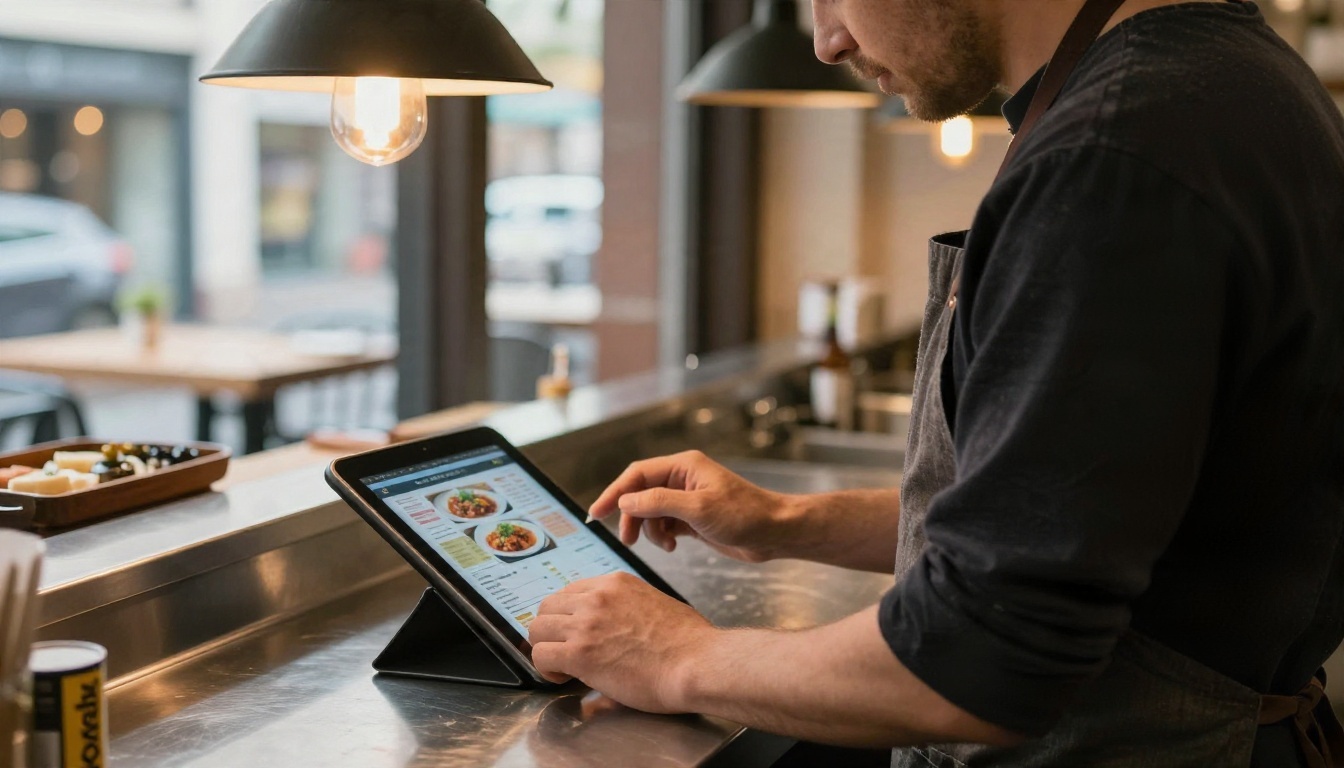
A restaurant can use the Restaurant Menu Creator to turn a PDF menu into a digital one, then add a short clip of the chef plating a signature dish next to it. Diners see the food before they order, and the menu works from a QR code on the table. A Menu Flipbook Designer layout keeps the pages readable on any phone.
Real estate

Agents benefit by putting a 60 second walkthrough on the same page as the floor plan. A buyer can read the specs, tap the video, and get a sense of the space in one scroll. The Real Estate Brochure Creator is built for exactly this layout.
Training and education
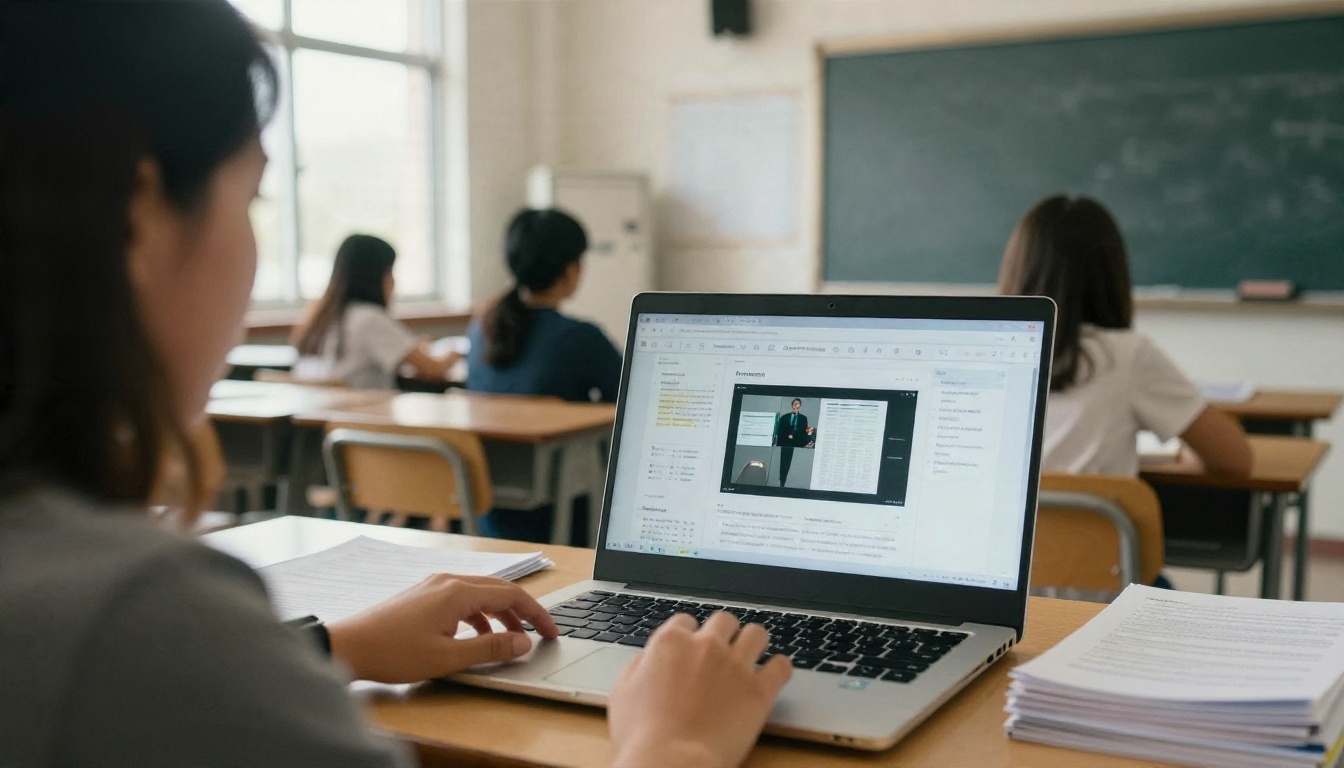
A trainer can place a demonstration clip beside each procedure step in a Training Manual Flipbook. New hires read the instruction, watch the clip, and move on. Teachers can do the same with a Course Material Publisher setup, mixing text, quizzes, and short lessons.
| Use case | Where the video goes | Typical clip length |
|---|
| Restaurant menu | Next to the signature dish | 15 to 30 seconds |
| Property brochure | Beside the floor plan | 45 to 90 seconds |
| Training manual | Under each procedure step | 60 to 120 seconds |
| Product catalog | Next to a featured item | 20 to 45 seconds |
| Sales presentation | On the opening page | 60 to 90 seconds |
Track Who Actually Watches

Sending a PDF with a link gives you almost no feedback. You never know if anyone opened it, which page they read, or whether they clicked the video. A flipbook changes that. With the Professional plan, you get analytics and lead generation: you can see views, time spent, and which pages got attention, and you can ask for an email address before someone opens the document. Check the pricing page to see which plan fits.
Here is how to read the numbers:
- High views, low video plays: the thumbnail or the placement needs work.
- Drop off on a specific page: that page is too dense or too slow to load.
- Many returning visitors: the content is useful enough to revisit, so keep it updated.
For sales teams, a Sales Presentation flipbook with an embedded demo and lead capture turns a static attachment into a follow-up list.
Common Mistakes to Avoid
Even a simple setup can go wrong. These are the issues that show up most often.
Linking to private videos
If your video is set to private or "unlisted with login," readers will hit an error screen. Open the link in an incognito window before you publish.
Huge files
An unoptimized 400 MB video uploaded directly will make the page crawl on mobile data. Host long videos on a streaming platform and keep short clips lightweight.
No fallback
If your PDF might be printed, add a visible short URL or QR code beside the video thumbnail. Paper can't click, but a phone camera can.
Weak anchor text
Avoid "click here." Use a descriptive phrase and, if possible, add the clip length, like "Watch the 2 minute setup."
⚠️ Warning: Don't paste a video link that contains tracking parameters you don't recognize. Copy the clean share URL instead.
A quick checklist before you send anything:
- Open every link on a phone and a desktop.
- Confirm the video loads without signing in.
- Check that the file size is reasonable.
- Make sure no page shows a watermark.
- Test the password, if you set one.
Ready to Publish Your Video PDF?
For a one off share, a clickable text or thumbnail link in a free editor is enough. For anything you want people to actually watch, a flipbook gives you the in-page player, mobile support, and tracking that a plain PDF can't.
Here is a simple way to decide:
- Need it today, for free, and don't mind a new tab? Use a link in Google Docs, Word, or an online editor.
- Want the video to play in the page with your branding? Convert the file with Flipbooks AI and embed the clip.
- Need to know who watched? Pick a plan with analytics from the pricing page.
Ready to build yours? Get started for free on Flipbooks AI, and browse all the tools and templates to find the layout that fits your catalog, brochure, menu, or report. Your next PDF can do a lot more than sit in an inbox.



