You spent hours on that brochure, newsletter or price list in Microsoft Publisher. Then you send the .pub file to a client, and they reply: "I can't open this." It happens constantly, because Publisher files only open properly in Publisher. The fix takes about two minutes: change the Publisher file to PDF format. A PDF looks the same on every phone, laptop and printer, and once you have one, you can go a step further and turn it into an interactive page-turning flipbook with Flipbooks AI.
This article shows the exact export steps inside Publisher, the settings that decide quality and file size, free options for people who don't own Publisher, fixes for the usual export problems, and the smartest ways to share the result.
💡 Quick answer: In Publisher, go to File > Export > Create PDF/XPS Document > Create PDF/XPS, choose a quality preset, and click Publish. No Publisher installed? Open the .pub file in LibreOffice Draw and export to PDF, or use an online converter for non-sensitive files.
Why Convert Publisher Files to PDF
Publisher is a layout tool, not a sharing format. The moment your file leaves your computer, things can go wrong: fonts get swapped, images shift, and a recipient without Publisher sees nothing at all.
Who Can't Open .pub Files
Most people. Publisher is not available on Mac, not on phones, and not in most web browsers. Printers, schools, and clients often run something else entirely. Microsoft has also announced that Publisher is reaching end of support in October 2026, so check Microsoft's support page and consider moving old .pub archives to a durable format now.
What a PDF Gives You
A PDF locks the layout in place. Fonts are embedded, images are fixed, and every page keeps its exact dimensions. You can email it, upload it, print it, or feed it into a flipbook tool.
| Feature | Publisher (.pub) | PDF |
|---|
| Opens without Publisher | No | Yes, on any device |
| Fonts stay intact | Only if installed | Embedded in file |
| Print shop friendly | Sometimes | Industry standard |
| Easy to email | Often large | Compressible |
| Editable layout | Fully | Limited |
| Works in flipbook tools | No | Yes |
✅ Best practice: Always keep the original .pub file as your editable master. Treat the PDF as the published copy.
Export a PDF Inside Publisher
If you own Publisher, this is the best route. It gives you the most control over fonts, images and print quality.
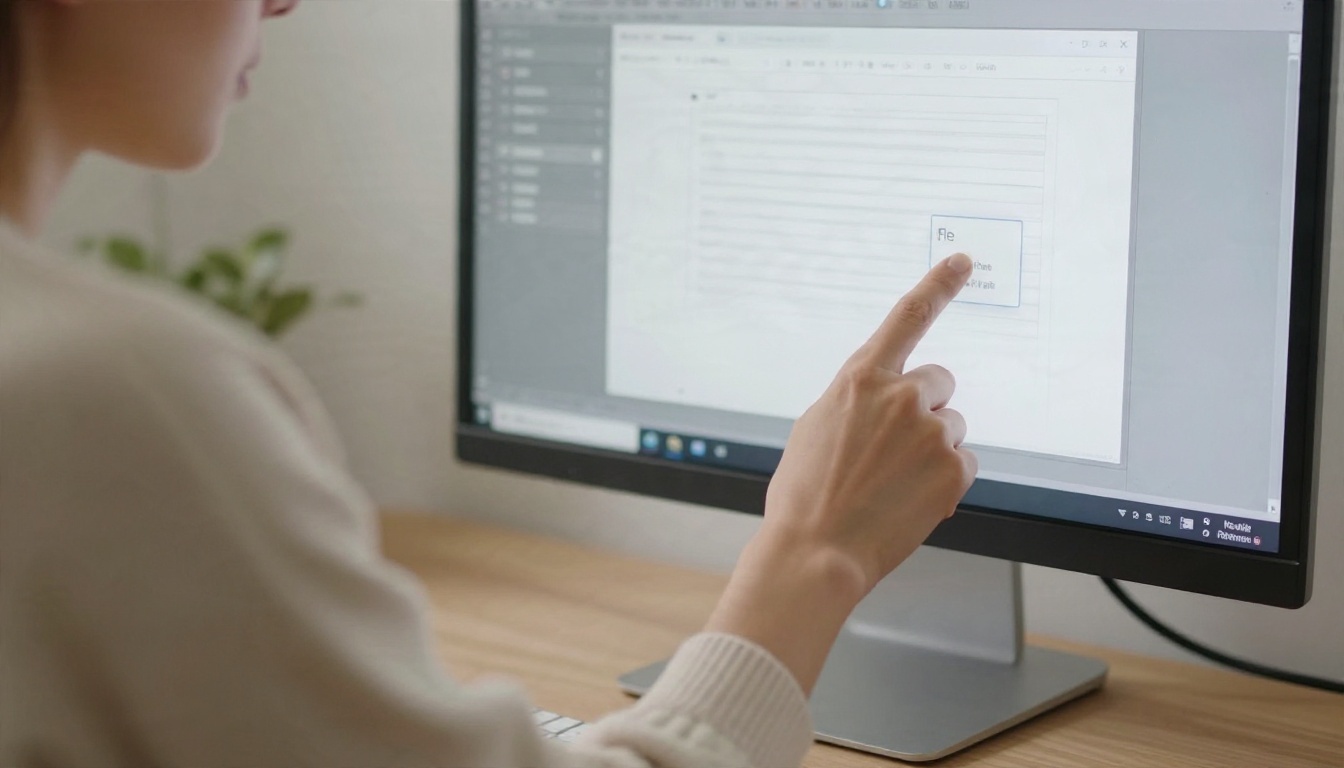
The Fast Route Through Export
- Open your .pub file and check every page one last time.
- Click File in the top left.
- Choose Export.
- Select Create PDF/XPS Document, then click Create PDF/XPS.
- Name the file and pick a folder.
- Click Options to choose your quality preset (more on that below).
- Click Publish.
That's the whole process. The PDF opens automatically if you left the "Open file after publishing" box ticked.
The Save As Alternative
Prefer the classic dialog? Click File > Save As, browse to a folder, and in the Save as type dropdown choose PDF (*.pdf). The same Options button appears next to the filename. The result is identical, so use whichever path feels more natural.
Pick the Right Quality Preset
This single choice changes your file size more than anything else. Publisher offers four presets in the Options dialog:
| Preset | Best for | Typical file size | Image quality |
|---|
| Minimum size | Email, websites, quick sharing | Smallest | Reduced |
| Standard | Online viewing and office printing | Medium | Good |
| High quality printing | Desktop printers, proofs | Larger | High |
| Commercial press | Print shops, offset printing | Largest | Maximum, with print marks |
For a flipbook or online reading, Standard is almost always the sweet spot. Use Commercial press only when a print shop asks for it by name.
⚠️ Warning: Minimum size recompresses images. If your document is photo heavy, a minimum-size export can look soft on a large monitor.
Export Settings Worth Checking
Click Options and look beyond the preset. A few boxes make a real difference:
- Document properties: Adds the title and author to the PDF, which helps search and accessibility.
- Document structure tags for accessibility: Useful for screen readers and public documents.
- Bitmap text when fonts may not be embedded: Turn this on if a font refuses to embed. Text becomes an image, so it looks right but can't be searched.
- ISO 19005-1 compliant (PDF/A): Choose this for archiving and legal records.
- Page range: Export only the pages you need instead of the whole file.
Free Ways Without Publisher
Maybe a colleague sent you a .pub file and you don't have the software. You still have options, and several are free.
LibreOffice Draw
LibreOffice is free, open source, and includes an import filter for Publisher files. Open the .pub file in LibreOffice Draw, check the layout, then choose File > Export as > Export as PDF. Complex layouts with unusual fonts or effects may shift slightly, so always review each page before sending it on.
Online Converters
Web converters such as CloudConvert and Zamzar accept .pub uploads and return a PDF. The process is simple: drag the file into the upload area, pick PDF as the output, and download the result. They're fast, but remember that your file goes to someone else's server.
⚠️ Privacy check: Don't upload contracts, financial documents or anything confidential to a free online converter. Use a local tool instead.

The Print to PDF Route
On a Windows PC that has Publisher, you can also press Ctrl + P and choose Microsoft Print to PDF as the printer. It works, but it skips Publisher's quality presets and doesn't add bookmarks or accessibility tags. Treat it as a backup, not the main method.
| Method | Cost | Needs Publisher | Layout accuracy | Privacy |
|---|
| Publisher export | Included with Publisher | Yes | Best | Local |
| Save As PDF | Included with Publisher | Yes | Best | Local |
| LibreOffice Draw | Free | No | Good, varies | Local |
| Online converter | Free tier | No | Good, varies | Uploaded to server |
| Microsoft Print to PDF | Free on Windows | Yes | Good | Local |
Fix Common Export Problems
Even a simple export can go sideways. These are the three issues that come up most often, and how to solve each.
Missing or Swapped Fonts
If text looks different in the PDF, a font probably failed to embed. Some fonts have licensing restrictions that block embedding. Try the Bitmap text when fonts may not be embedded option, or swap to a font that embeds properly, such as a standard system font, and export again.
Blurry Images
Blurry pictures usually come from the Minimum size preset, or from low-resolution images placed in the layout to begin with. Switch to Standard or High quality printing, and check your source images. A photo at 72 DPI will never look sharp in print, no matter the export setting.
A File Size That's Too Big
Large PDFs bounce back from email and load slowly online. Try this order of fixes:
- Re-export with the Standard or Minimum size preset.
- Compress the images inside Publisher before exporting (right click a picture, then use the compress pictures option).
- Remove hidden objects sitting off the page edge.
- Export only the page range you need.
💡 Pro tip: If your file is still heavy after exporting, upload it to a flipbook platform. Pages load progressively, so readers don't wait for the whole file to download.
Turn Your PDF Into a Flipbook
A PDF is a great start, but it's still a flat file. Readers scroll, pinch and zoom. A flipbook feels like holding a real publication: pages turn, links work, and you can share a single URL instead of an attachment.
Here's the workflow with Flipbooks AI, using the PDF you just exported.

Upload and Convert
- Go to the PDF to Flipbook Converter or create an account.
- Click upload and select the PDF exported from Publisher.
- Wait a few moments while each page becomes a flipbook page.
- Preview the result and flip through it to check the layout.
There are no watermarks, ever, so your brochure looks like your brochure.
Customize the Look
Once the flipbook is open, adjust it to match your brand:
- Custom branding: Add your logo and pick brand colors.
- Page effects: Choose how pages turn and how the background looks.
- Multimedia: Embed videos and audio to bring a static layout to life.
- Mobile layout: The design is responsive, so it reads well on phones and tablets.
Share and Protect It
Sharing is where a flipbook beats an attachment. You get several options:
- Direct link: Paste it into an email, chat or social post.
- Embed code: Place the flipbook on your site with the Embed Flipbook on Website tool.
- Password protection: Keep private material, such as internal reports, for approved readers only.
- Offline downloads: Let readers save a copy for later.
Teams that want to know who reads what can look at the Professional plan, which adds analytics and lead generation. Compare options on the pricing page.
Real Examples Worth Copying
Publisher is popular for print-style documents, which makes them perfect flipbook material. Here is how different users put the same PDF to work.
A small cafe, for example, can export its Publisher menu to PDF, upload it, and put a single QR code on each table. When prices change, they update the PDF and the same link shows the new menu. No reprinting, no new QR code.
A school secretary can do the same with a monthly newsletter: export from Publisher, upload, and send one link to every parent. It opens on any phone, with no attachment to download.

A Quick Checklist Before You Export
Run through this list every time. It takes under a minute and prevents most re-exports:
- ✅ Spell check and proofread every page.
- ✅ Confirm that all images are linked or embedded, with no missing picture warnings.
- ✅ Pick Standard for online reading or Commercial press if a printer requests it.
- ✅ Tick document properties so the PDF carries a proper title.
- ✅ Open the exported PDF and scroll through every page.
- ✅ Check the file size before emailing it.
- ✅ Save the .pub file somewhere safe as your editable original.
Ready to Share Your PDF?
You now have everything you need to change a Publisher file to PDF: the built-in export, the quality presets, free alternatives when Publisher isn't available, and fixes for the common problems. The last step is making that PDF look and feel professional wherever people open it.
- Turn your exported file into an interactive publication on Flipbooks AI, free to try.
- Browse all flipbook tools to find a template for your brochure, catalog, menu or newsletter.
- Compare pricing plans if you want unlimited flipbooks, password protection or analytics.
Export your PDF today, upload it, and send one clean link instead of another attachment nobody can open.



