You finished the layout in Microsoft Publisher, sent it off, and the reply landed within the hour: "I can't open this." That is the everyday problem with the .pub format. It opens properly only in Publisher itself, and Microsoft has set October 2026 as the end of support date for the app, so more people than ever are holding files they cannot easily open, edit, or share. The fix is simple: convert the file once, then publish it somewhere everyone can read it. This tutorial walks through every practical route, from exporting a PDF and getting your content into Word to using online converters, and finishes by turning the PDF into a page-turning flipbook on Flipbooks AI that anyone can open with a single link.
What a PUB File Really Is
A .pub file is a Microsoft Publisher document. Publisher was built for desktop publishing: brochures, newsletters, flyers, price lists, greeting cards, and event programs. Unlike a Word file, a PUB stores the exact position of every text box, picture, and shape, plus fonts, linked images, and print settings such as bleed. That precision is why layouts look sharp on a printer. It is also why the format travels so badly.
Why Sharing .pub Files Fails
Sending a raw PUB file creates problems on the receiving end almost every time:
- No native viewer on Mac, iPhone, Android, or in a web browser.
- Missing fonts get swapped for defaults, which shifts every line of text.
- Linked images break when the original picture files are not attached.
- Email filters often flag unfamiliar attachments as suspicious.
- Shrinking support means colleagues who once had Publisher may not have it any longer.
💡 Pro tip: Treat the PUB file as your source and never as your deliverable. Keep it for edits, and share only converted files.
What Recipients Actually Need
Before choosing a conversion method, decide what the reader will do with the file. The goal sets the format.
| Reader goal | Best output | Why it fits |
|---|
| Print at a shop | PDF (high quality) | Fonts and images are locked in place |
| Edit the text | Word (.docx) | Text becomes editable in a familiar app |
| Read on a phone | Flipbook link | Opens in any browser, no download |
| Show on a website | Embedded flipbook | Sits inside your page like a video |
| Send privately | Password protected flipbook | Access control without extra software |
Convert PUB to PDF in Publisher
If you still have Publisher installed, this is the cleanest route. PDF keeps the layout intact, and it is also the format a flipbook tool wants as its starting point.
Export Steps, Click by Click
- Open the PUB file in Publisher and check the Info tab for warnings about missing fonts or linked graphics. Fix those first.
- Go to File > Export > Create PDF/XPS Document, then click Create PDF/XPS.
- Choose a file name and a folder.
- Click Options in the dialog that appears and pick a quality preset (see the table below).
- Click OK, then Publish.
- Open the finished PDF and scroll through every page. Check text wrapping, image sharpness, and page order.
⚠️ Warning: Do not skip step 6. A font substitution that Publisher tolerates on screen can still show up in the exported file, and it is much cheaper to catch it now than after you share the link.
Settings That Change File Size
Publisher offers several presets. The right one depends on where the PDF is going.
| Preset | Best for | File size | Image quality |
|---|
| Minimum size | Email attachments, quick previews | Smallest | Lower, visible softness on photos |
| Standard | Flipbooks, online reading, office printing | Medium | Good for screens and desktop printers |
| High quality printing | Office and home printers | Larger | High |
| Commercial press | Professional print shops | Largest | Highest, print color settings kept |
For a flipbook, Standard is the sweet spot. It keeps photographs crisp on a retina display without producing a file so heavy that pages load slowly on mobile data.
Word and Online Converter Options
Maybe you need an editable version, or maybe Publisher is not installed on the machine in front of you. Both situations have workable answers, but each comes with trade-offs you should know about before you start.
The PDF Detour to Word
Publisher has no "Save as Word" command, so the reliable path runs through PDF:
- Export the PUB to PDF as described above.
- Open Word, choose File > Open, and select the PDF.
- Word warns that it will convert the PDF into an editable document. Accept.
- Review the result and repair spacing, text boxes, and image placement by hand.
Expect the layout to drift. Word treats pages as flowing text, while Publisher treats them as a canvas of fixed objects. Simple newsletters with one or two columns survive well. Posters, multi-column brochures, and anything with overlapping shapes usually need real cleanup.
Copy and Paste for Text Only
When you only need the words, skip the conversion entirely. Click inside a text box in Publisher, press Ctrl+A to select the full story, copy, and paste it into Word. For pictures, right-click each one and choose Save as Picture to keep the original resolution. It is slower on long documents, but the output is perfectly clean.
💡 No Publisher at all? LibreOffice can open many .pub files through its import filter. The result is rarely pixel perfect, so check fonts and spacing, then export the result as a PDF.
Free Online Converter Workflow
Web based converters accept a PUB upload and return a PDF. The process is nearly identical across services:
- Choose a converter that lists PUB as a supported input.
- Upload the file, or drag it onto the page.
- Select PDF as the output format.
- Start the conversion and download the result.
- Open the PDF and compare it to the original layout.
Privacy Check Before Uploading
An online converter means your file leaves your computer. Before you click upload, ask three questions:
- Does the site use HTTPS and state how long it keeps uploaded files?
- Does the document contain confidential pricing, contracts, or personal data?
- Is there a file size limit that could quietly reduce image quality?
⚠️ Warning: For anything sensitive, convert locally with Publisher or LibreOffice instead of a free web service.
Here is how the four methods compare side by side:
| Method | Needs Publisher? | Layout accuracy | Editable result | Privacy |
|---|
| Publisher PDF export | Yes | Excellent | No | Stays on your device |
| PDF opened in Word | Yes (for the export) | Fair to good | Yes | Stays on your device |
| LibreOffice import | No | Fair | Yes | Stays on your device |
| Online converter | No | Good | Rarely | File is uploaded |
How to Create a Flipbook with Flipbooks AI
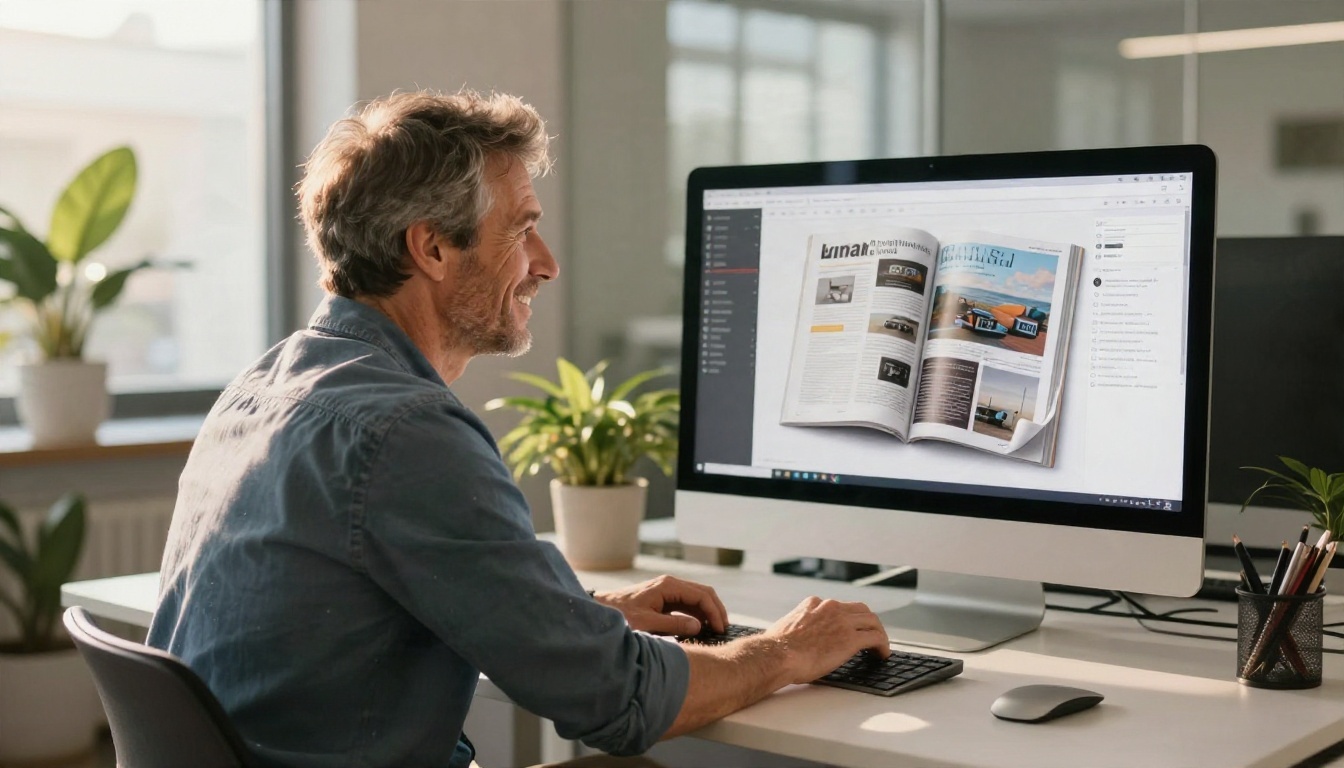
A PDF is an improvement on a PUB, but it is still a static download. Readers must open a file, wait for it to load, and pinch and zoom on their phones. A flipbook solves that. Pages turn with a realistic flip, the layout adapts to any screen, and you share one link instead of a heavy attachment. The tutorial below uses the PDF you just exported.
Upload Your PDF
- Visit Flipbooks AI and create an account.
- Open the PDF to Flipbook Converter.
- Drag your PDF into the upload area. A progress bar shows the conversion, and each PDF page becomes a flipbook page.
- Preview the result. Turn a few pages on your desktop, then open the preview on your phone to confirm the text is readable.
What you will see: a clean editor with a page preview in the center, a settings panel on the side, and a share button at the top.
Brand It and Add Media
Once the pages load, tune the presentation so it feels like your publication and not a generic viewer:
- Custom branding: add your logo and pick background and toolbar colors that match your brand.
- Page effects: adjust the page flip style and sound to your taste.
- Multimedia: embed videos and audio directly on a page, which a PUB or PDF cannot do gracefully.
- No watermarks, ever: your readers see your content and nothing else.
- Mobile responsive: the flipbook reflows on phones and tablets without extra work.
| Feature | What it does for you | Plan note |
|---|
| No watermarks | Keeps your publication clean | Always included |
| Unlimited flipbooks | Convert every old PUB in your archive | Standard plan and above |
| Analytics and lead generation | See readers, views, and capture contacts | Professional plan |
| Password protection and offline downloads | Control access and allow saving | See pricing for plan details |
✅ Best practice: Convert your whole archive of old Publisher files in one afternoon. Naming each flipbook after the original document keeps everything easy to find later.
Share the Flipbook Your Way
Conversion is only half the job. A flipbook earns its keep when the right people can open it in one tap.
Direct Links and Email
Every flipbook gets its own link. Paste it into an email, a chat message, a social post, or an invoice footer. Readers open it in their browser with nothing to install. Because the link points to a single online copy, you can fix a typo later and everyone sees the update, which is impossible with a file already sitting in someone's inbox.
Embed on Your Website
An embedded flipbook sits inside your page the same way a video does. Copy the embed code, paste it into your site builder, and the publication appears right where you want it. The Embed Flipbook on Website tool walks through the process for common site platforms.

Password Protection for Private Files
Some documents are not meant for the open web: internal price lists, investor updates, member newsletters. Add a password to the flipbook and share the password separately. Only people who have both can read it.
Compare the sharing options at a glance:
| Sharing method | Best for | Audience | Tracking (Professional plan) |
|---|
| Direct link | Email, chat, social posts | Anyone with the URL | Views and reading activity |
| Website embed | Product pages, blogs, portals | Site visitors | Views and reading activity |
| Password protected | Private or paid content | Approved readers only | Views and lead capture |
| Offline download | Trade shows, poor connectivity | Readers who need a local copy | Download counts |
With the Professional plan you also get analytics and lead generation, so you can see which pages hold attention and collect contact details before a reader opens the publication. Review the pricing plans to see which tier matches your volume.
Real Examples That Work
Abstract advice is useful, but seeing the workflow applied to real documents makes the choices easier.

Real Estate Brochures
A real estate agent has a stack of old property brochures built in Publisher. Rather than reprinting or emailing bulky attachments, the agent exports each one to PDF, converts it to a flipbook, and shares the link in listing emails and on social profiles. Buyers flip through photos on their phone while standing outside the property. The Real Estate Brochure Creator is built for exactly this workflow.

Restaurant Menus and Newsletters
A café owner designed seasonal menus in Publisher years ago. Converting them to flipbooks means the menu opens instantly from a table QR sticker or a website button, with no pinching on a tiny PDF. The Restaurant Menu Creator handles the formatting. A school or club can do the same with monthly bulletins through the Newsletter Flipbook Publisher.
| Original PUB document | Best conversion route | Final result |
|---|
| Product catalog | Publisher PDF export, then flipbook | Shareable digital catalog |
| Trifold brochure | Publisher PDF export, then flipbook | Interactive brochure flipbook |
| Event program | Publisher PDF export, then flipbook | Mobile friendly schedule |
| Text heavy report | PDF opened in Word for edits, then PDF again | Editable draft plus a flipbook |
| Archive without Publisher | Online converter or LibreOffice, then flipbook | Recovered, shareable publication |
Fix Common Conversion Problems
Even a careful conversion can go sideways. These are the issues readers report most often, and the quick fix for each.
| Problem | Likely cause | Fix |
|---|
| Text looks different after export | Missing fonts | Install the original fonts or outline the text before exporting |
| Pictures appear blurry | Minimum size preset or low resolution links | Re-export with the Standard preset and relink the originals |
| Pages are out of order | Master pages or hidden pages in the PUB | Check the page navigator in Publisher before export |
| Word version has overlapping text | Fixed text boxes converted to frames | Rebuild the layout in Word or share the PDF instead |
| Online converter returns an error | File too large or damaged | Split the document, or use Publisher for the export |
| Flipbook loads slowly | PDF is too heavy | Re-export with a smaller preset and compress large photos |
✅ Best practice: Keep a short checklist: fix fonts, relink images, export with Standard, review every page, then upload. Following it takes five minutes and prevents nearly every problem in the table above.
Ready to Publish Your Flipbook?
You now have four ways to move a .pub file out of its corner: export to PDF in Publisher, take the Word route for edits, run it through an online converter, or import it with LibreOffice. All of them lead to the same finish line. A PDF that becomes a flipbook is easier to open, nicer to read, and far simpler to share than the file you started with.
Here is a quick recap of the path:
- Export the PUB to PDF with the Standard preset.
- Upload the PDF to the PDF to Flipbook Converter.
- Brand it with your logo, colors, and multimedia.
- Share it by link, embed, or password.
Ready to rescue your old Publisher files? Get started for free on Flipbooks AI, browse all flipbook tools to find the right template for your document, and compare pricing plans to pick the one that fits your archive.



