You found a wrong price on page 4, and the PDF has already gone out to twenty people. Now you need to update the file, you do not have Adobe Acrobat, and you are not about to pay a yearly subscription for a ten minute fix. Good news: you do not have to. Free browser tools can handle most edits, and the harder question, how do I replace a file people already have?, has a clean answer too. This article walks through both, and shows how Flipbooks AI can turn an updated PDF into a link that always shows the latest version.
Why Skip Adobe Acrobat?
Acrobat is a powerful program. It is also overkill for most people who open a PDF only because something changed. If you fix a typo, swap a logo, or add a signature a few times a month, a subscription is hard to justify.
What You Actually Need
Most "update a PDF" jobs fall into a short list:
- Fix a typo or number in existing text
- Replace an image such as a logo or product photo
- Delete, reorder or add pages
- Fill in a form or add a signature
- Compress or merge files before sending
- Replace the version people already have
Almost every item on that list is available in a free tool. The last one is not really an editing problem at all. It is a sharing problem, and we will get there in a moment.
When Free Tools Fall Short
Be honest about the limits. Free editors can struggle with scanned documents (they are just photos of text), heavily designed layouts with custom fonts, and files with dozens of embedded elements. If your PDF was exported from InDesign, the best fix is often to edit the original source file and export again.
💡 Pro tip: Before you edit anything, ask whether you still have the original Word, Google Docs or design file. Editing the source and exporting a fresh PDF gives cleaner results than patching the PDF itself.
Free Online Options That Work
There is no single best editor. The right one depends on what you are changing and how private the file is.
Quick Comparison
| Tool | Best for | Edit existing text | Free limits | Account needed |
|---|
| Google Docs (via Drive) | Text heavy PDFs | Yes, after conversion | Generous | Google account |
| Sejda | Direct text edits, page changes | Yes | Daily task and file size caps | No |
| Smallpdf | Merge, split, compress, sign | Limited | Few tasks per day | Sometimes |
| iLovePDF | Page tools, compress, convert | Limited | Daily caps | No |
| PDF24 | Many tools, no sign up | Yes | Light limits | No |
| LibreOffice Draw (desktop, free) | Offline editing | Yes, line by line | None | No |
| Browser PDF viewer (Chrome, Edge) | Forms, highlights, signatures | No | None | No |
Limits change often, so check each site's current rules before you plan around them.
The Google Docs Trick
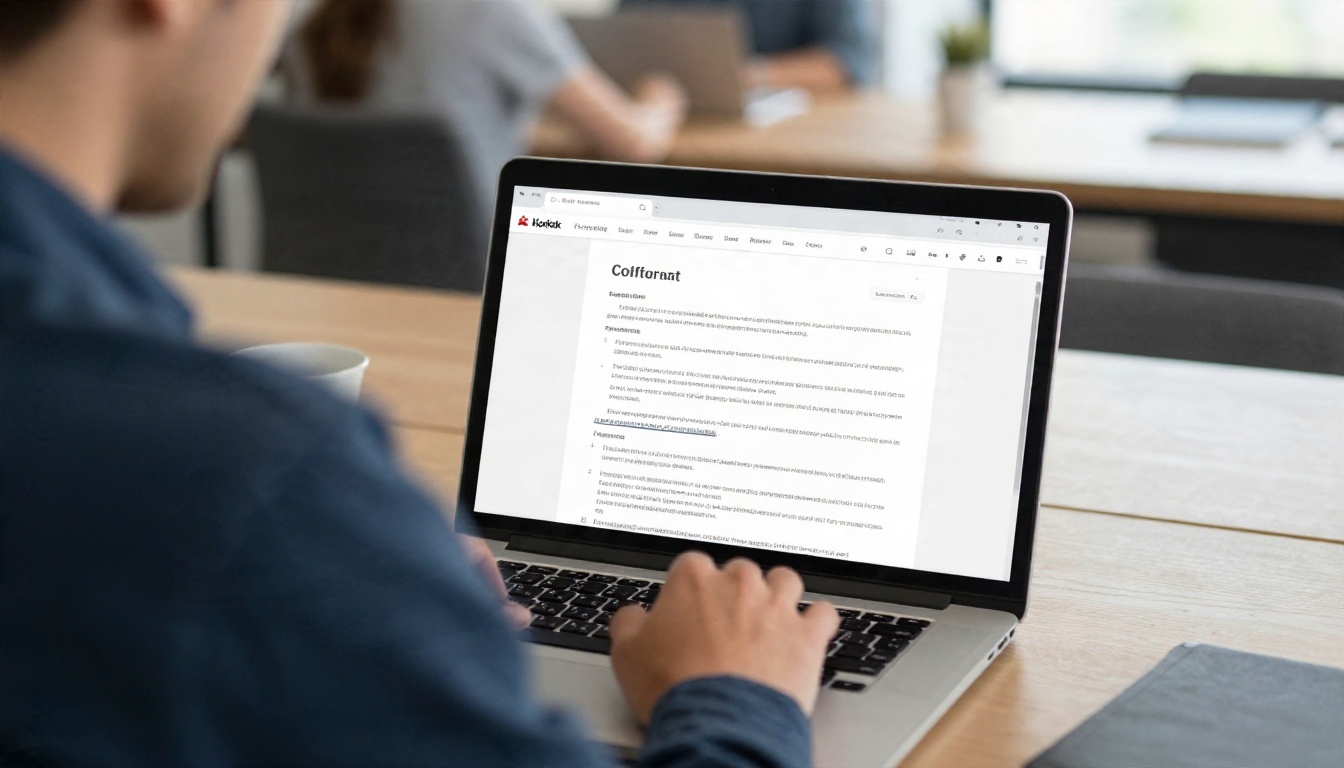
This one surprises people. Upload your PDF to Google Drive, right click it, and choose Open with Google Docs. Google converts the file into an editable document. Make your changes, then use File, Download, PDF Document to export a new PDF.
It works best for simple documents: reports, letters, resumes, price lists. It tends to scramble columns, text boxes and unusual fonts, so check every page before you send it.
Built In Browser Tools
Chrome and Edge can open a PDF, highlight text, draw, fill form fields and add a signature without any extra software. On a Mac, Preview does similar work. None of these rewrite the original text, but for forms and quick annotations they are the fastest path.
Edit Text in a PDF, Step by Step
Here is a reliable workflow for the most common job: changing text in an existing PDF with a free online editor.
Fix a Typo in Minutes
- Make a backup. Copy the original file and add "original" to its name.
- Open a web editor such as Sejda or PDF24 and upload the file.
- Click the text you need to change. The editor shows a text box around that line.
- Type the correction. Keep it close to the original length so the layout does not shift.
- Check the font. If the editor substitutes a different one, pick the closest match.
- Download the result and open it in a normal PDF viewer to confirm it looks right.
- Zoom to 200 percent and read the changed line against the pages around it.
⚠️ Warning: Many free editors keep your file on their servers for a short period. For contracts, medical records or anything confidential, use an offline tool such as LibreOffice Draw instead.
Swap a Page or Image
To replace a whole page, you do not need to edit anything. Export the new page as its own PDF, then use a page tool to delete the old page and insert the new one at the same position. Most free page organizers let you drag thumbnails to reorder them.
For an image, look for an "add image" option, place the new picture over the old one, and resize it to fit. Some editors can cover the old image with a white box, but that is a rough fix. If the old image still sits underneath, anyone can select and extract it.
Protect Layout and Fonts
Two habits prevent most headaches:
- Edit short. Replace text with text of similar length.
- Embed fonts when you export from your source file, so replacements render predictably.
Replacing a Shared File Safely
Editing is the easy half. The harder question is what happens to the copies that already exist. Your answer depends on where you shared the file.

Drive, Dropbox and OneDrive
Cloud storage services let you swap the contents of a file while the link stays the same, but each one handles it a little differently.
| Where it is shared | How to replace it | Does the link stay the same? | Watch out for |
|---|
| Google Drive | Right click the file, choose Manage versions, upload a new version | Yes | Old versions can remain visible to editors until deleted |
| Dropbox | Upload a file with the exact same name to the same folder | Usually yes | A different name creates a second file and a new link |
| OneDrive | Upload a file with the same name and choose to replace | Usually yes | Check sharing permissions after replacing |
| Website download link | Overwrite the file on your server | Yes | Browser and CDN caches may show the old copy for a while |
| Email attachment | Not possible | No | Recipients keep the old file forever |
The most important rule: keep the file name identical when you replace it. Rename it, and most services treat it as a brand new file.
The Email Attachment Problem
Once a PDF is attached to an email, it is out of your hands. You cannot swap it. The best you can do is send a short follow up that says the earlier file is outdated, name the new version clearly, and ask people to delete the old one.
A better habit going forward: send a link instead of an attachment. A link can keep pointing at the latest file, while an attachment is frozen the moment you press send.
Version Naming Habits
If you cannot replace the file in place, use a naming pattern people can read at a glance:
price-list-2026-11.pdfprice-list-2026-11-v2.pdfprice-list-FINAL-actually-final.pdf (please do not)
✅ Best practice: Put the date in the file name and mention what changed in your message, for example "page 4 price corrected." People trust an update more when they know exactly what to look for.
Share an Updated PDF With Flipbooks AI
A PDF is a fixed file. That is why replacing it is so awkward. A flipbook works differently: readers open a page in their browser instead of downloading a document, so you control what they see. You can update the file once, publish it again, and point people to one place.
Here is how to turn your freshly edited PDF into a flipbook. If you want to try it, create an account first.
Upload and Convert
- Open the PDF to Flipbook Converter.
- Drag your updated PDF into the upload area, or pick it from your computer.
- Wait a few seconds while the pages are converted into a page turning flipbook.
- Flip through the preview and check the page you just fixed.
Brand It Your Way
Open the customization panel to make the flipbook match your business:
- Logo and colors that fit your brand
- Page turn effects and background style
- Multimedia, such as embedded video and audio, if the document benefits from it
There are no watermarks on your flipbook, and the layout is mobile responsive, so it reads well on a phone.
Share, Embed and Protect
Once it looks right, choose how people will see it:
- Direct link: paste it into an email, chat or social post.
- Embed code: use the Embed Flipbook on Website tool so the flipbook appears right inside your page.
- Password protection: limit access to clients, students or team members.
If you embed the flipbook on a page, your website address never changes. When your PDF changes again, you convert the new version and update that one embed.
💡 Pro tip: Send people the link to your web page instead of the file itself. Then every future correction happens in one place, and nobody has to hunt for "the latest version."
Pro Features Worth Knowing
On the Professional plan you also get analytics and lead generation, so you can see how many people opened the document and collect contact details before they read. Offline downloads are available for readers who need a copy on the road. See pricing plans for what each tier includes.
| Feature | Static PDF attachment | Flipbook on Flipbooks AI |
|---|
| Works on mobile | Needs download, small text | Responsive, opens in browser |
| Update after sharing | Not possible by email | Publish a new version, share one page |
| Password protection | Needs separate software | Built in |
| Analytics | None | Available on Professional |
| Embed on a website | Link to a download | Embed code |
| Watermarks | Depends on tool | None |
Real Scenarios That Come Up Daily
Here is how this plays out for a few common jobs:
- A restaurant owner spots a price error in the weekend menu. They fix the number in a free editor, then publish it with the Restaurant Menu Creator. The QR code on the table keeps pointing at the same page.
- A real estate agent changes a listing price after a negotiation. Instead of emailing a new brochure, they update the Real Estate Brochure and send buyers to a single link.
- A trainer corrects a step in a safety manual. They convert the new file with the Training Manual Flipbook tool, so new hires always read the right procedure.
- A freelancer updates rates in a portfolio. A Digital Portfolio Creator flipbook lets clients see the new numbers without a fresh attachment.
- A shop owner changes stock and prices. The Digital Price List Generator keeps the list current for every customer.

You can browse more use cases in the full flipbook tools directory.
Common Mistakes to Avoid
Even a small update can go sideways. Watch for these:
- Editing without a backup. If the edit scrambles a page, you want the original to fall back on.
- Renaming the file when replacing it. Cloud services then create a new link, and the old one keeps showing the outdated copy.
- Trusting a hidden cover-up. Drawing a white box over text does not remove it. Use a proper edit or redact tool.
- Skipping the final read. Open the finished PDF on a phone and a desktop, and read every page you touched.
- Uploading sensitive files to unknown sites. Check a site's privacy policy, or work offline.
- Forgetting caches. After replacing a file on your own site, hard refresh the page to confirm the new version is live.
- Never telling anyone. A short note saying what changed saves a dozen "is this the new one?" replies.
| Mistake | Quick fix |
|---|
| Layout broke after editing | Re-export from the source file or use a different editor |
| Old version still opens from the link | Replace using the same file name, then clear the cache |
| Fonts look wrong | Pick the nearest font or edit the original document |
| Scanned PDF will not edit | Run OCR first, then edit the recognized text |
Ready to Publish Your Update?
Updating a PDF without Adobe is very doable. Use a free editor for the change, double check the result, and then think about how people will get it. If you have been sending files by email, switch to links. If you want one address that always shows your newest version, with password protection, a clean mobile layout and no watermarks, a flipbook is the neatest way to do it.
Ready to try it? Get started for free on Flipbooks AI, convert your updated file in the PDF to Flipbook Converter, and compare pricing plans when you need analytics, lead capture and unlimited flipbooks.



