You have a pile of photos, receipts or handwritten pages on your phone, and you need one tidy PDF in the next five minutes. Android can do that for free, but the free route has traps: a watermark that appears on page three, scans that quietly upload to someone else's server, and files so heavy that email bounces them. This article ranks the practical picks, spells out the limits you will hit, and shows when a browser tool beats an app. And if your PDF is meant to be read instead of just stored, you can turn it into a page-turning flipbook with Flipbooks AI.
What Image to PDF Apps Actually Do
An image to PDF app takes one or more pictures, places each one on its own page, and saves everything as a single document. That sounds simple, yet the apps in the Play Store behave very differently. Some only stitch existing photos together. Others open the camera, detect page edges, straighten the perspective and clean up the background before building the file.
Three ways Android makes PDFs
Almost every option falls into one of three groups:
- Built-in tools: Google Drive has a scan button, and many gallery and file apps offer a print option that lets you save a selection as PDF.
- Dedicated scanner apps: these use the camera, auto-crop each page and often add text recognition.
- Plain converters: you pick images from the gallery, set the page size and export. No camera work involved.
Scanner apps versus converter apps
The difference matters more than the brand name. If your source material is paper, a scanner app gives sharper, flatter pages. If your source material is already digital, such as screenshots, exported charts or photos from a shoot, a converter keeps the original pixels untouched.
| Type | Best for | Typical strength | Typical weakness |
|---|
| Built-in scanner | Quick one-off documents | No extra install, ties into cloud storage | Few layout controls |
| Dedicated scanner | Receipts, contracts, notes | Edge detection, filters, text recognition | Free tiers often limit pages or add ads |
| Plain converter | Photos, screenshots, artwork | Keeps original image quality | No page cleanup |
| Online tool | Large batches, desktop work | No install, bigger screen | Requires uploading your files |
💡 Pro tip: Decide the source first. Paper goes to a scanner. Existing pictures go to a converter. Picking the wrong type is the most common reason people think a free app is "bad."
Best Picks for Android
Rankings in this space shift because developers change their free plans often. The order below reflects how each category of app behaves in everyday use, so check the current Play Store listing and in-app terms before you rely on any single one.
1. The Google Drive scanner
If you already have the Drive app, this is the lowest-friction option. Tap the plus button, choose the scan option, shoot the page, adjust the crop and save. The PDF lands in your Drive, ready to share. There is no separate account to create and no watermark on exported pages in normal use. The trade-off is limited control over compression and page order once you are done.
2. Adobe Scan and similar scanner apps
Scanner apps from large publishers tend to give you excellent edge detection and clean-up filters on the free tier. The common catch is that the best extras, such as advanced export formats or batch editing, sit behind a subscription. For plain "photograph a page and save a PDF," the free version is usually enough.
3. Genius Scan style offline scanners
Some scanner apps are built around keeping documents on your device. That is useful when you handle sensitive paperwork and do not want files syncing automatically. Expect a free tier with core scanning and a paid tier for cloud sync, extra export options or larger batches.
4. Lightweight image to PDF converters
Search the Play Store for "image to PDF" and you will find dozens of small converters. They are fast and light, and many let you reorder pages by dragging thumbnails. The warning is ads: full-screen video ads between steps are common, and some apps request more permissions than a converter needs.
5. Camera-first scanners with watermarks
Several well-known scanners add a visible watermark to free exports or limit the number of pages per document. They scan well, which is why they rank high in downloads, but the watermark makes the PDF unusable for client work or official submissions unless you upgrade.
Here is how the five groups stack up:
| Rank | Pick | Free tier feels like | Watermark risk | Best use |
|---|
| 1 | Google Drive scanner | Generous, no frills | Low | Everyday documents |
| 2 | Big-publisher scanner apps | Polished, some upsells | Low to medium | Receipts, forms, notes |
| 3 | Offline-first scanners | Solid core features | Low | Private paperwork |
| 4 | Plain image to PDF converters | Fast, ad-supported | Low to medium | Photos and screenshots |
| 5 | Camera-first scanners with limits | Great scans, tight caps | High | Short, personal use only |
The Free Limits You Will Hit
Free does not mean unlimited. Knowing the usual restrictions saves you from finding out at the worst moment, like uploading a visa application at midnight.

Watermarks and page caps
A watermark is the most visible limit, but page caps are sneakier. An app may allow ten pages per document, or a few exports per month. Test with a throwaway document first: scan three pages, export, and open the result on a computer to see exactly what the free plan produces.
Ads, accounts and cloud upload
Many apps ask you to sign in before the first scan. That is not automatically a problem, but check whether the scan is processed on your phone or sent to a server. Text recognition in particular is sometimes handled in the cloud. For ID cards, medical letters or tax papers, prefer an app that processes locally.
Quality and file size
Phone cameras produce large images, and a ten-page PDF can reach tens of megabytes. Most converters offer a quality or compression setting. Choose a medium setting for email and a high setting for printing.
| Limit | What it looks like | Simple workaround |
|---|
| Watermark on export | Faint logo across each page | Use a built-in scanner or a converter without one |
| Page cap | "Upgrade to add more pages" | Split into two PDFs and merge online |
| Forced sign-in | Account wall before scanning | Pick an offline-first app |
| Large file size | Email attachment rejected | Lower image quality or use an online compressor |
| Ads between steps | Video ads before export | Turn on airplane mode only if the app works offline |
⚠️ Warning: Never scan passports, bank statements or medical records with an app you have not reviewed. Read the privacy section on its Play Store page first.
How to Convert Images on Your Phone
Here is a workflow that works with nearly any scanner or converter, so you are not locked to one app.
- Prepare your source. Put paper on a flat, dark or plain surface. For existing photos, move them into one album so they are easy to select.
- Open your chosen app. Pick the scan option for paper or the image-picker option for existing pictures.
- Capture or select pages. Shoot each page squarely from above. For converters, tap the images in the order you want them to appear.
- Adjust the crop. Drag the corners so the page fills the frame. Skip heavy filters unless the page is faded.
- Reorder if needed. Most apps let you drag thumbnails. Check page order before exporting.
- Set quality and page size. A4 or Letter suits documents. "Fit to image" suits artwork and photos.
- Export and name the file. Use a clear name such as
lease-agreement-march so you can find it later.
- Open the PDF once. Scroll through every page to confirm nothing is cropped, blurry or upside down.
Shoot cleaner pages
Good input beats any filter. Use daylight from a window instead of the flash, which creates glare on glossy paper. Hold the phone parallel to the page, and keep your own shadow out of the frame. If a page curls, press it flat with a clean sheet of glass or a heavy book.
✅ Best practice: Scan at the end of each task, not at the end of the month. Fresh receipts are easier to match, and you will not lose them.
Online Alternatives Worth Using
Sometimes the phone is the wrong tool. If you have fifty images, need to merge several PDFs, or want to compress a file below an upload limit, a browser-based converter is faster.

When a browser beats an app
Online tools shine in a few situations:
- Large batches: dragging fifty files onto a desktop page is quicker than tapping them one at a time.
- No installs: useful on a shared or work device where you cannot add apps.
- Extra steps: merging, splitting, rotating and compressing in one place.
- Bigger screen: easier to check page order and layout.
Most free web converters let you work without an account, though they may cap file size or the number of tasks per hour. You can open them in your phone's browser too, which makes them a handy fallback when a scanner app hits its limit.
Privacy check before uploading
When you use a web tool, your file travels to a server. Before you upload anything sensitive, look for these signs:
- A clear statement of how long files are kept, ideally deleted within hours.
- HTTPS in the address bar.
- No requirement to share your email just to download.
- A visible privacy policy written in plain language.
| Situation | Better choice | Why |
|---|
| One receipt | Phone scanner | Faster, stays on device |
| 50 vacation photos | Online converter | Batch upload is easier |
| Signed contract | Offline scanner | Fewer privacy risks |
| Merge three PDFs | Online tool | Simple drag and drop |
| File too big for email | Online compressor | Fine control over size |
Create a Flipbook from Your PDF
Here is the part most image to PDF guides skip. A PDF is great for storage and printing, but it is a flat, scrolling file. If you want people to actually enjoy reading your portfolio, catalogue, brochure or photo album, a flipbook gives them page-turning motion, a clean mobile layout and a link they can open anywhere.
How to create it with Flipbooks AI
Once your scanned pages are saved as one PDF, follow these steps:
- Open the platform. Go to Flipbooks AI and create an account. The PDF to Flipbook Converter is the quickest entry point.
- Upload your PDF. Drag the file into the uploader from your phone or computer. Conversion runs automatically and turns each PDF page into a flipbook page.
- Customize the look. Add your logo, pick brand colors, choose a background and adjust page-turn effects so the flipbook matches your style.
- Add multimedia. Embed videos or audio where they help, for example a narrated walkthrough on a product page.
- Set privacy. Use password protection for private documents like client proposals or family albums.
- Share it. Copy the direct link, or follow the steps in the Embed Flipbook on Website tool to place the flipbook on your site.
- Allow offline downloads when readers may have no connection, such as at events or while traveling.
The result is mobile-responsive, carries no watermarks, and can be updated by uploading a new PDF. Unlimited flipbooks are available from the Standard plan upward, and the Professional plan adds analytics and lead generation so you can see who opens your document and how far they read. Compare options on the pricing page.
Which tool fits which scan
Different scanned content works best with different templates:
💡 Pro tip: Scan photos and artwork at high quality, then compress only the final PDF. Flipbooks look best when page images are sharp but not oversized, so test one upload before converting a long document.
Real-World Scenarios
Theory is fine, but here is how people actually use these tools.
Travel documents
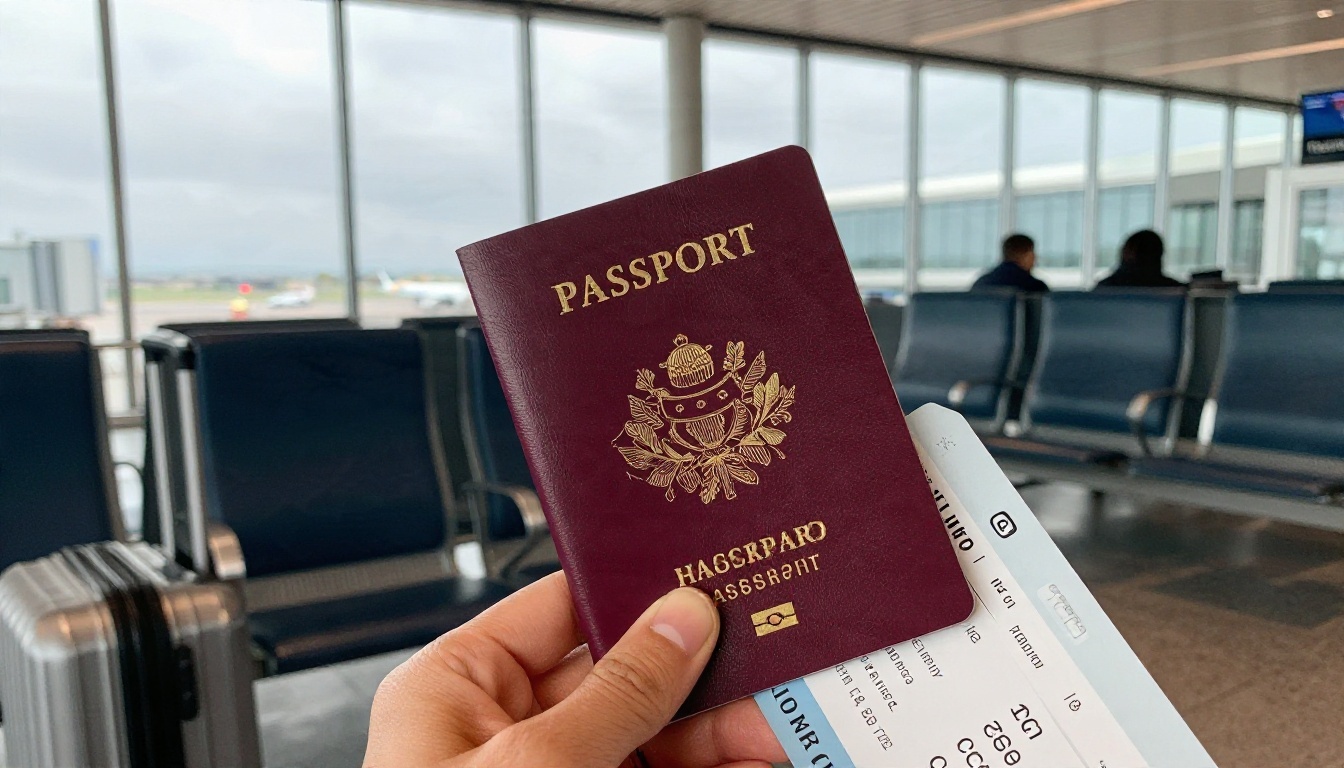
A traveler photographs a boarding pass, hotel confirmation and passport page, then saves them as one PDF stored offline on the phone. When airport Wi-Fi fails, the file still opens. An offline-first scanner is the right pick here, and the PDF should live in a protected folder, not a shared gallery.
Student notes
A student photographs a week of handwritten notes and combines them into a single study PDF. A built-in scanner handles this well. For group projects, the student can turn the notes into a flipbook and send classmates one link instead of ten attachments.
Small business paperwork
A shop owner scans supplier invoices on the phone, then uses a browser tool to merge them into one monthly file for the accountant. Product sheets, scanned once, can also become a shareable catalogue using the Product Catalog tool.
Family photos and albums
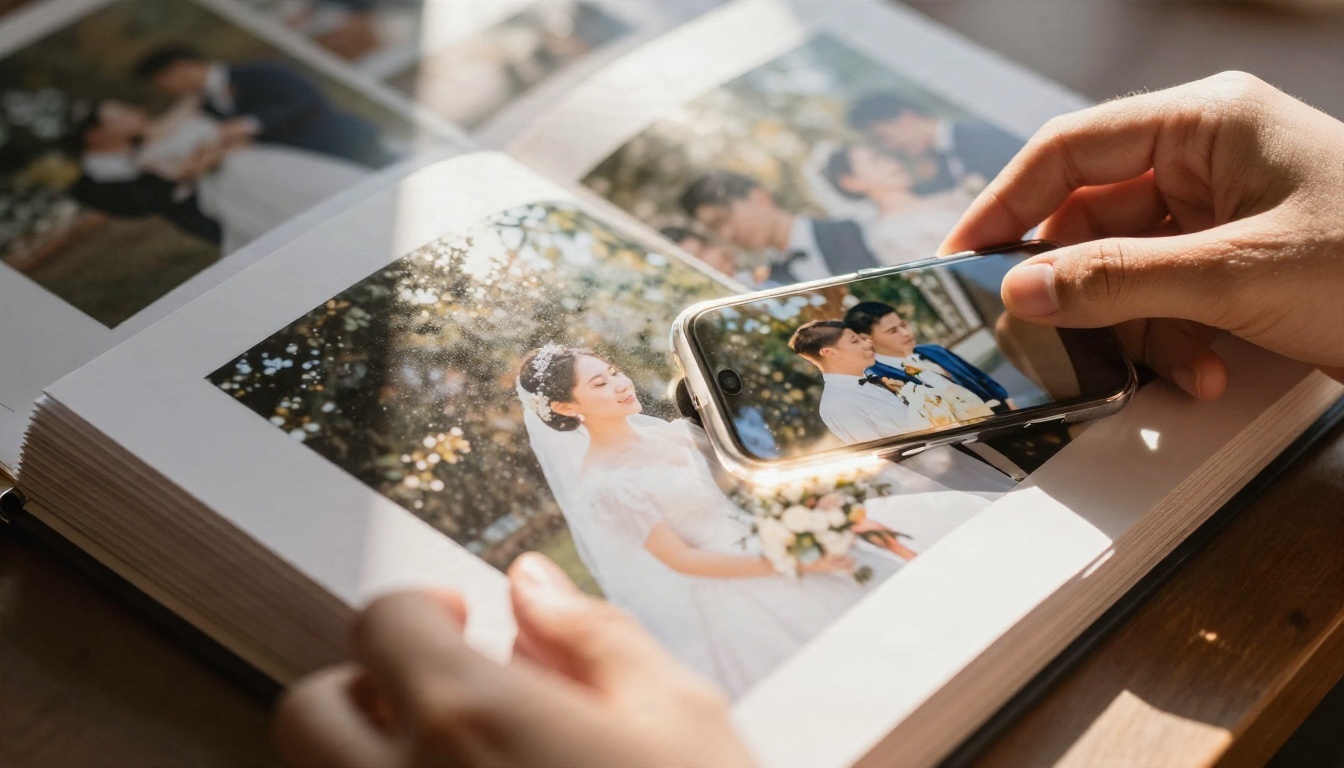
Old prints fade, so many families photograph albums and save them as PDFs. A plain converter that keeps original image quality is the best choice. Afterward, the PDF can be placed into a flipbook, protected with a password, and shared with relatives who live far away.
Private paperwork at home

Bills, insurance letters and tax papers deserve more care. Scan them with an app that works offline, store the PDF in an encrypted folder or password manager, and delete the loose photos from your gallery afterward so copies do not linger in cloud backups.
Common Mistakes to Avoid
Even with the right app, a few habits ruin results:
- Scanning in poor light. Shadows and glare cost more time to fix than a lamp costs to move.
- Skipping the preview. Always scroll through the final PDF. A missing page is hard to spot later.
- Trusting "free" without testing. Run a three-page trial before a big batch.
- Leaving photos in the gallery. Delete originals of sensitive documents once the PDF is safe.
- Using one giant file. Split very long documents into sections so they open quickly on mobile.
- Ignoring file names.
Scan_0045.pdf tells you nothing in six months.
Pick Your Setup and Publish
Here is the short version. For quick personal scans, start with the Google Drive scanner. For polished paper scanning, try a big-publisher scanner and watch for upsells. For photos and screenshots, use a lightweight converter. For large batches, switch to a browser tool and check its privacy policy before uploading.
When your PDF needs to look professional, move it into a flipbook. Ready to try? Create your free account on Flipbooks AI, browse all flipbook tools to find a template for your content, or compare pricing plans to see which one matches your needs. You can also go straight to the account and pricing page to pick a plan after signing in.



