A printed brochure gets a few seconds in someone's hand. A digital flip book brochure gets a link, a click, a swipe and, if you build it well, a reader who stays for every page. Most people already have the raw material sitting in an InDesign file or a PDF. What they lack is a clear picture of what a good interactive version looks like. This article shows real examples, the InDesign decisions that make them work, the tab layouts that keep readers oriented, and the free ways to publish one using Flipbooks AI or other tools.
If you only need the short version: export a clean PDF, convert it into a page-turning flipbook, add links and tabs, then share it with a single URL or an embed. Everything below explains how to do each step well.
What Makes a Brochure Interactive

An interactive brochure is not a PDF with a fancy name. It is a document that reacts to the reader: pages turn, buttons open links, tabs jump to sections, and media plays without leaving the page.
Page Turns Versus Static PDFs
A static PDF forces readers to pinch, zoom and scroll on a phone. A flipbook renders each spread as a page, adds the curl animation people recognize from print, and loads quickly because pages stream in as needed. The result feels like a real booklet, which matters when you are selling a product, a property or an experience.
Features Readers Actually Use
After watching how people use digital brochures, a few features come up again and again:
- Clickable contact buttons for phone, email and maps
- Embedded video for a property tour or product demo
- Table of contents tabs that jump straight to a section
- Search for long catalogs and price lists
- Mobile-responsive layouts that fit one page at a time on a phone
💡 Pro tip: Design for the phone first. Over half of brochure views happen on mobile, so a font size that looks fine on a desktop spread may be unreadable in a single-page view.
Brochure Examples Worth Copying
The best way to plan your own project is to borrow structure from brochures that already work. Here are the formats that perform well and why.
Real Estate Listing Brochure
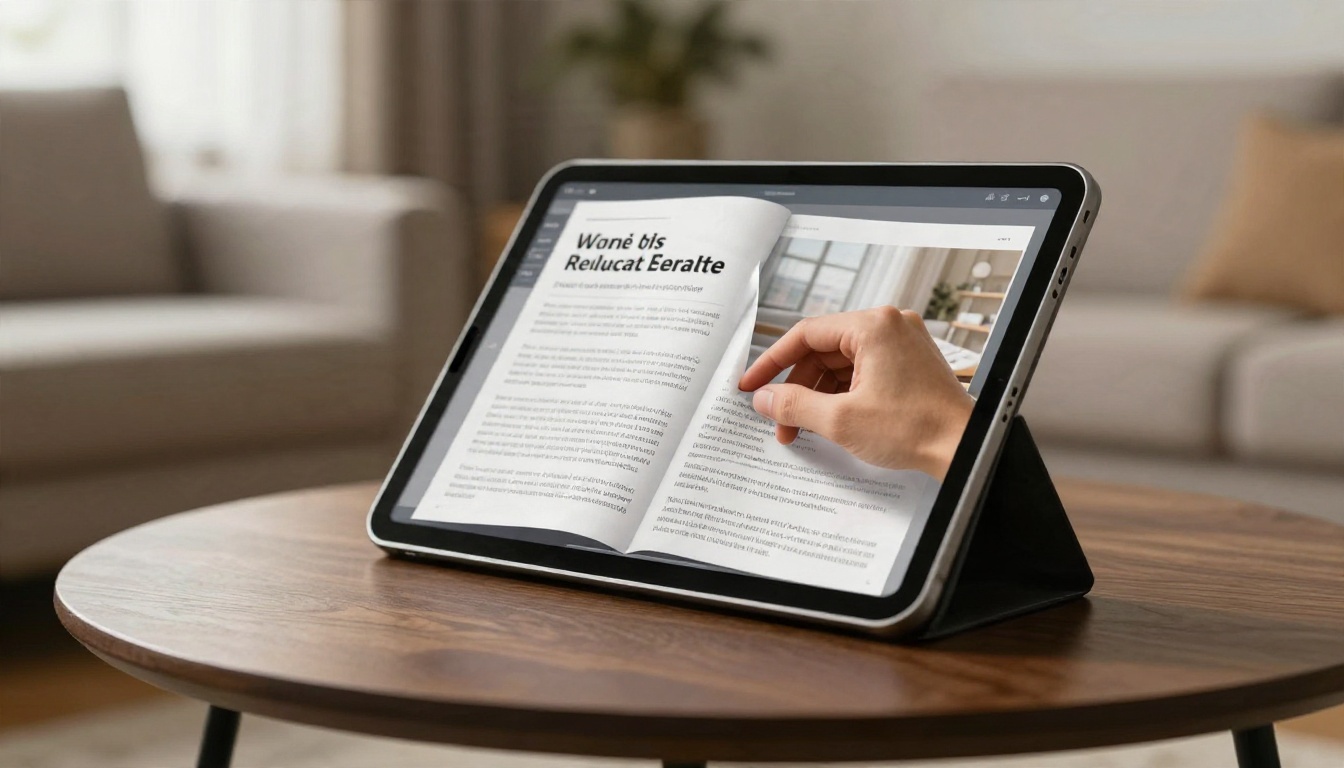
A real estate agent can open with a full-bleed exterior photo, follow with a floor plan spread, and finish with a contact page that includes a one-tap call button. Buyers share the link with partners and family, which a printed sheet cannot do. The Real Estate Brochure creator is built around this exact flow.
Restaurant and Spa Menus
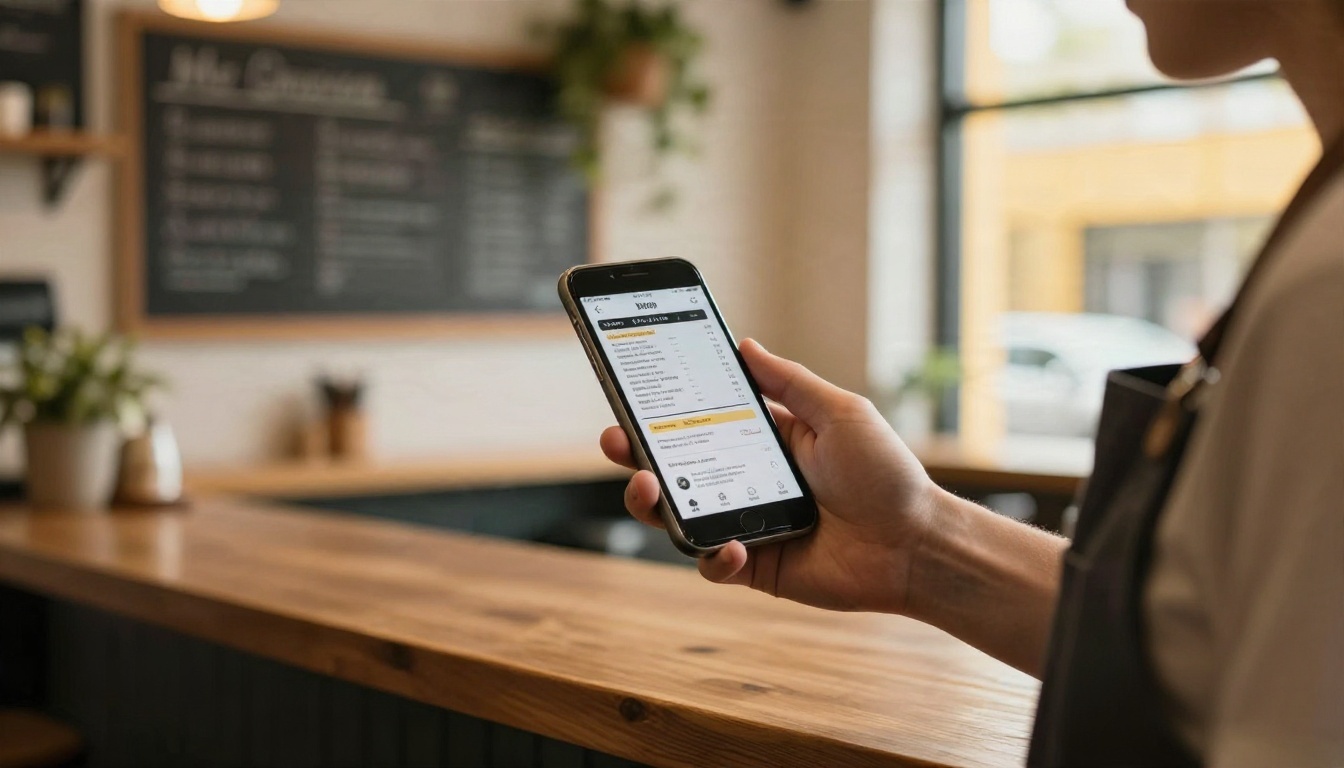
Menus change often, and reprinting is expensive. A restaurant can place a QR code on each table that opens a flipbook menu with tabs for starters, mains and drinks. Updating a dish means replacing one PDF, and the link stays the same. Try the Restaurant Menu Creator or the Spa and Wellness Menu tool for service lists with pricing.
Travel and Hotel Brochures
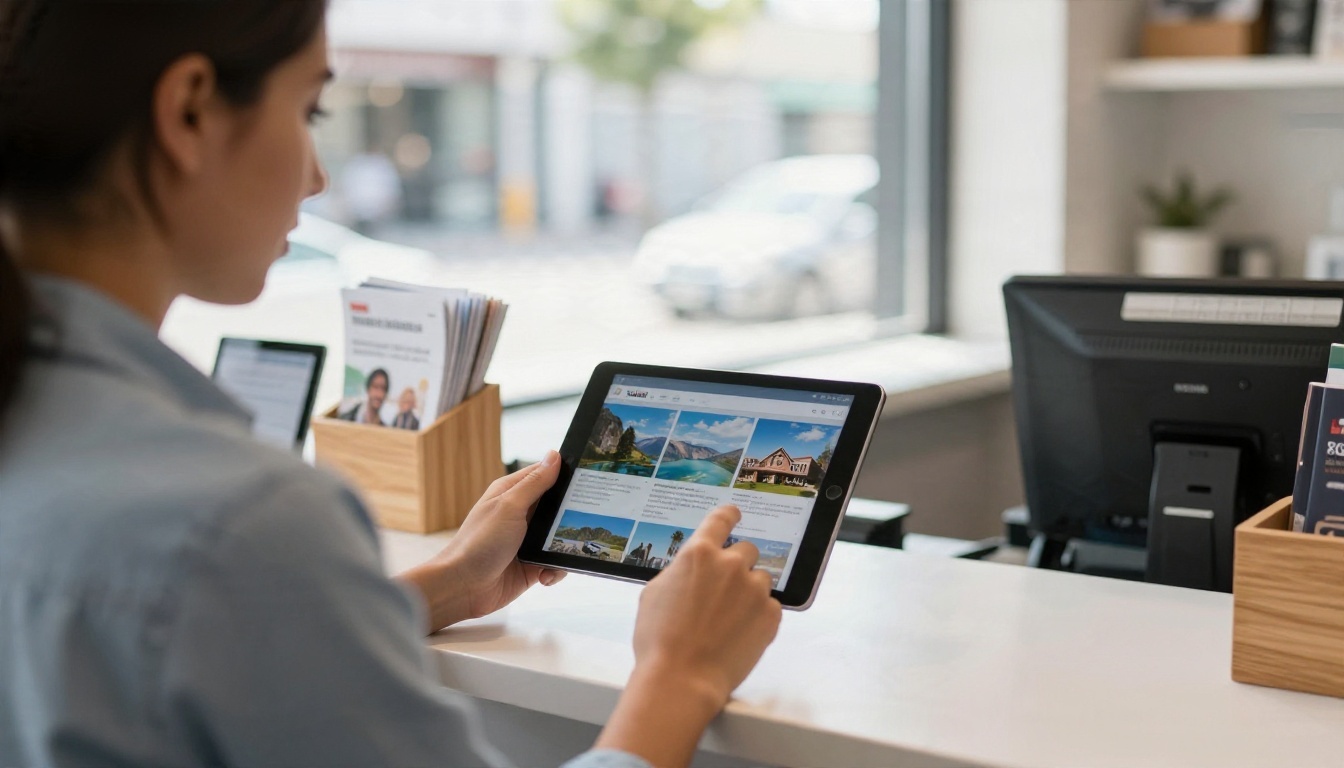
Hotels and agencies benefit most from imagery. A strong travel brochure uses one hero photo per spread, short captions, and an embedded video of the pool, the beach or the lobby. A Hotel Brochure designer lets you add a booking link on the last page so the reader can act at once.
Brochure Format Comparison
| Brochure Type | Best Opening Page | Interactive Element | Ideal Length |
|---|
| Real estate | Exterior hero photo | Floor plan and call button | 8 to 12 pages |
| Restaurant menu | Signature dish | Section tabs, QR code | 4 to 8 pages |
| Hotel or resort | Room or view photo | Video and booking link | 12 to 20 pages |
| Automotive | Vehicle front angle | Spec table, dealer map | 12 to 24 pages |
| Corporate services | Short value statement | Contact form link | 6 to 10 pages |
InDesign Ideas That Work Online
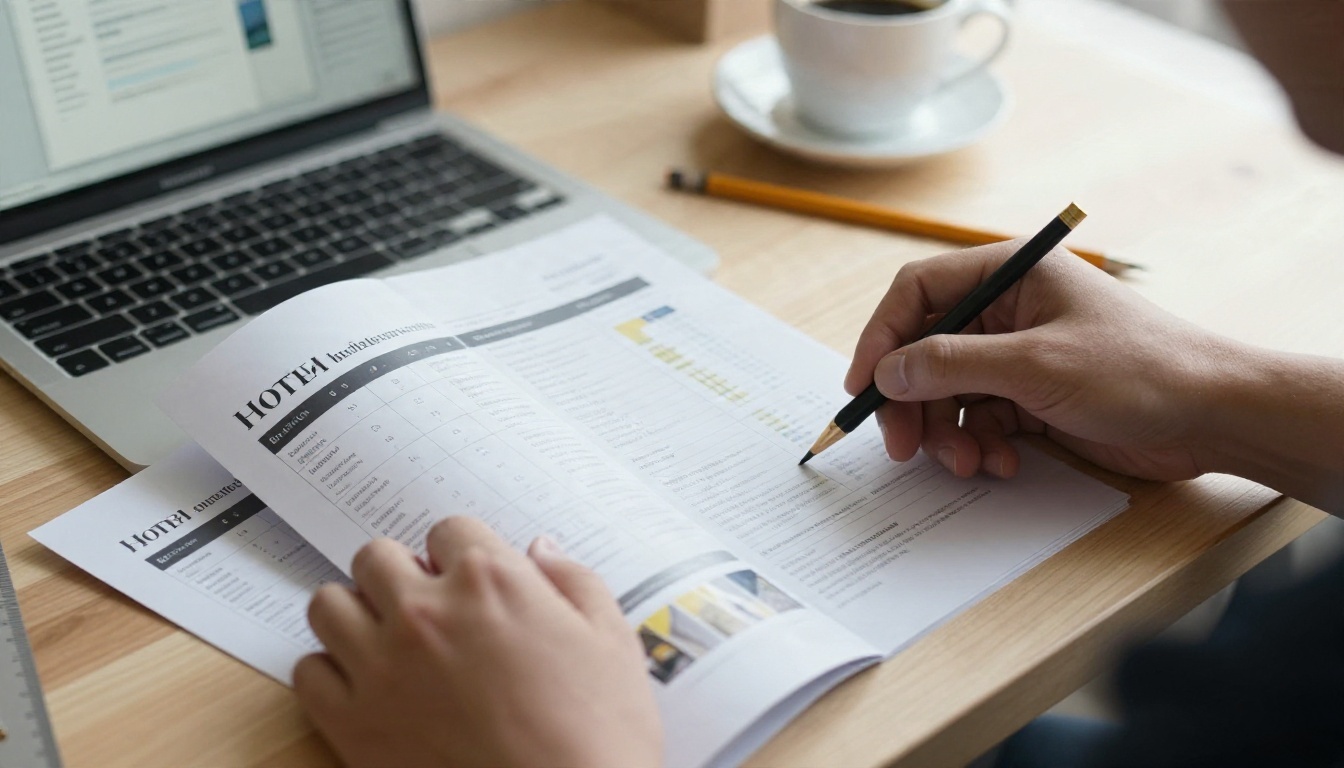
InDesign is still the layout tool most designers use for brochures. The good news is that a file built for print converts well, as long as you prepare it with a screen in mind.
Set Up the Document Right
Start with the page size you plan to publish. A portrait A4 or US Letter page works across devices. If your brochure is a landscape trifold, export each panel as its own page so the flipbook shows one panel at a time.
Use these settings when you create the file:
- Turn on Facing Pages only if you want spreads in the flipbook.
- Set margins of at least 12 mm so text never touches the edge on small screens.
- Build a parent page with page numbers and a footer link.
- Use a body font size of 11 pt or larger.
- Keep photos at 150 to 200 ppi for a balance of sharpness and file size.
Add Links Before You Export
InDesign lets you create hyperlinks, buttons and bookmarks in the Hyperlinks panel. Anything you add there carries into the exported PDF, and a good converter keeps those links clickable. Link your phone number, your website, your email and a final booking or quote page.
Export Settings That Convert Cleanly
Choose Adobe PDF (Interactive) when your brochure has links, buttons and bookmarks. Choose Adobe PDF (Print) only if you need a downloadable print version as well. Keep the file under about 50 MB so uploads stay quick.
⚠️ Warning: Do not flatten transparency or outline every link. Doing so can strip hyperlinks and make text unsearchable.
Tabs and Navigation Done Right
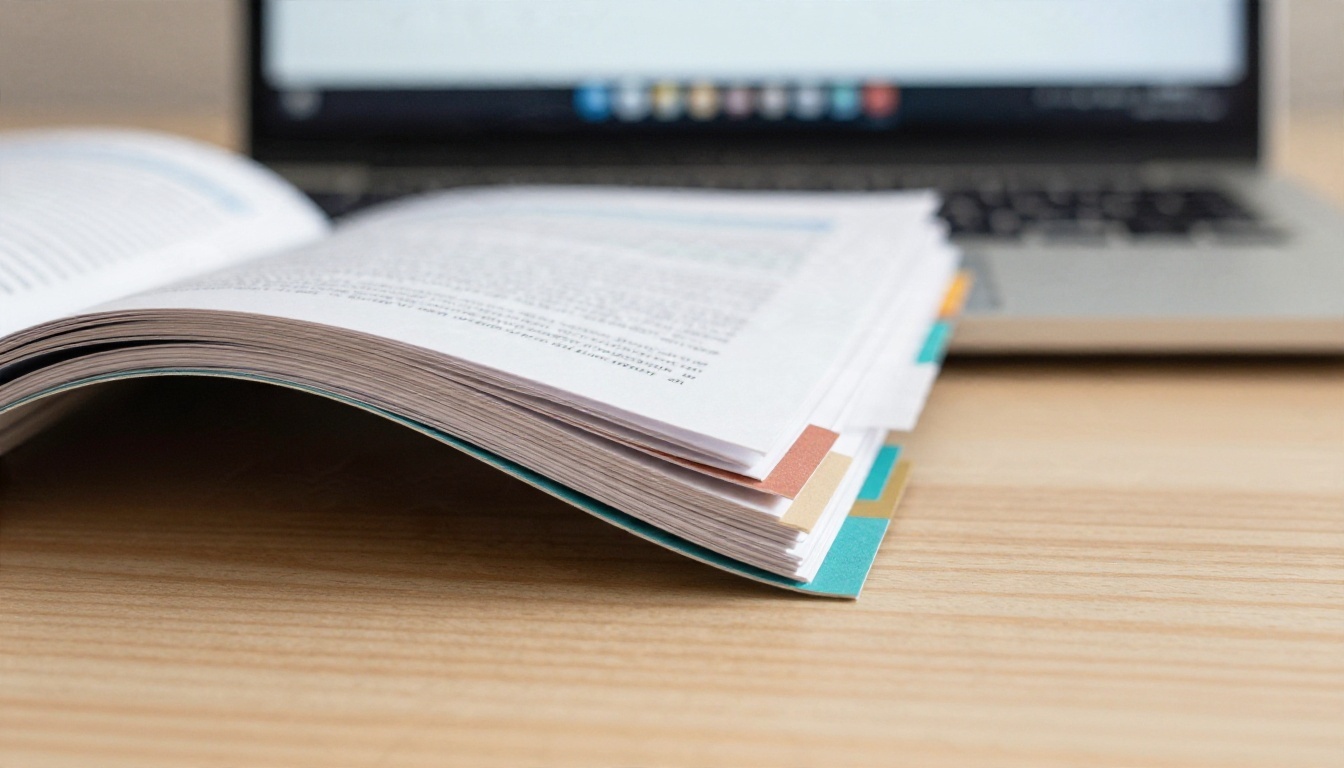
Tabs are the feature people search for most, and for good reason. A brochure with more than eight pages feels easier to use when readers can jump between sections instead of flipping through every page.
Build a Clickable Table of Contents
The simplest tab system is a table of contents on page two. Each line links to its section page, and every section page ends with a small "Back to contents" link. In InDesign, create the list once on a parent page and anchor it to each section start.
Pick a Tab Style
Tabs can live in the design itself, in the viewer, or both. Here is how the options compare.
| Tab Style | How It Works | Best For | Effort |
|---|
| Printed edge tabs | Colored shapes along the page edge, linked in InDesign | Catalogs with 5 or more sections | Medium |
| Table of contents page | Linked list on page two | Short brochures | Low |
| Bookmark sidebar | PDF bookmarks shown in the viewer | Long reports | Low |
| Footer navigation bar | Small linked labels at the bottom of every page | Menus and price lists | Medium |
✅ Best practice: Limit tabs to five or six. More than that and labels shrink until nobody can tap them on a phone.
Free Options Compared
Free is a fair question. You may only need one brochure, and paying for software for a single project feels wrong. The trick is knowing what each free option costs you in other ways.
What Free Really Means
Most free flipbook tools place a watermark, limit the number of pages, delete your file after a short period, or show ads next to your content. For a personal project, that may be fine. For a brand brochure, it usually is not.
| Option | Typical Limits | Watermark | Good For |
|---|
| Free tier of a flipbook maker | Page or file limits | Often yes | Quick tests |
| Plain PDF link | No page turn, no tabs | No | Simple downloads |
| InDesign publish online | Limited layout control, link expiry | Varies | Design previews |
| Flipbooks AI | See current plan details | No watermarks, ever | Brand brochures and client work |
Where Paid Plans Pay Off
If you publish several brochures, the standard plan removes the cap on flipbooks, and the professional plan adds analytics, lead generation and offline downloads. Check the current pricing plans to see which one fits your volume.
How to Create a Digital Brochure with Flipbooks AI
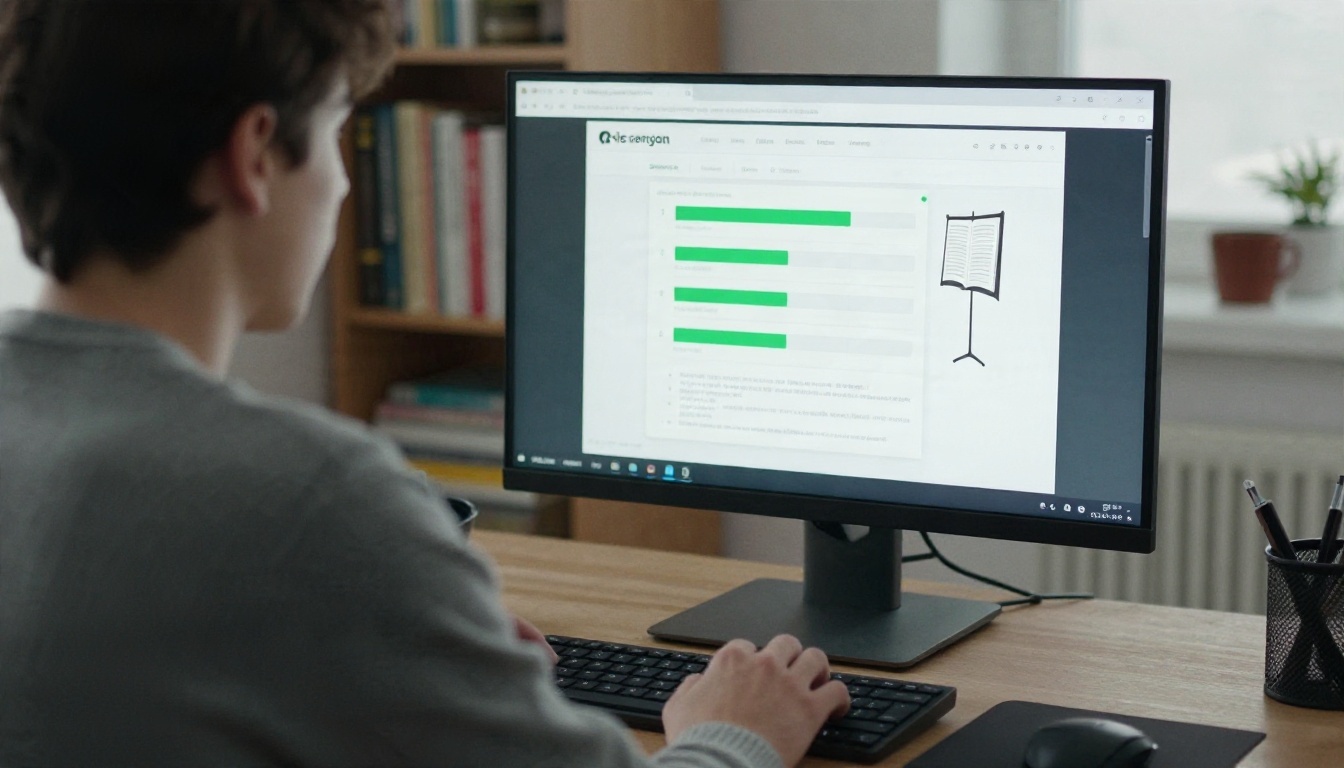
The whole process takes about ten minutes once your PDF is ready. Here is the full path from file to shareable link.
Step by Step
- Open your account. Create a free account on Flipbooks AI and sign in.
- Choose a tool. Pick the Brochure Flipbook Maker or the Online Brochure Designer from the tools page.
- Upload your PDF. Drag your exported InDesign file into the upload area. The PDF to Flipbook Converter turns each page into a flip page and keeps the links you added.
- Check the preview. Flip through every page on desktop and mobile view. Confirm that buttons open the right destinations.
- Customize the look. Add your logo, pick a background color, choose a page effect and set the toolbar options.
- Add multimedia. Embed a video or audio clip on pages where a short demonstration helps.
- Publish. Copy the link, or generate an embed code.
Customize Branding and Media
Custom branding is where a flipbook stops looking like a generic viewer. Match the background to your brand color, upload a logo for the toolbar, and choose an effect that suits the content: a soft page curl for hotels, a quicker flip for catalogs. You can embed video and audio directly, and the layout stays responsive on phones and tablets.
Share, Track and Protect
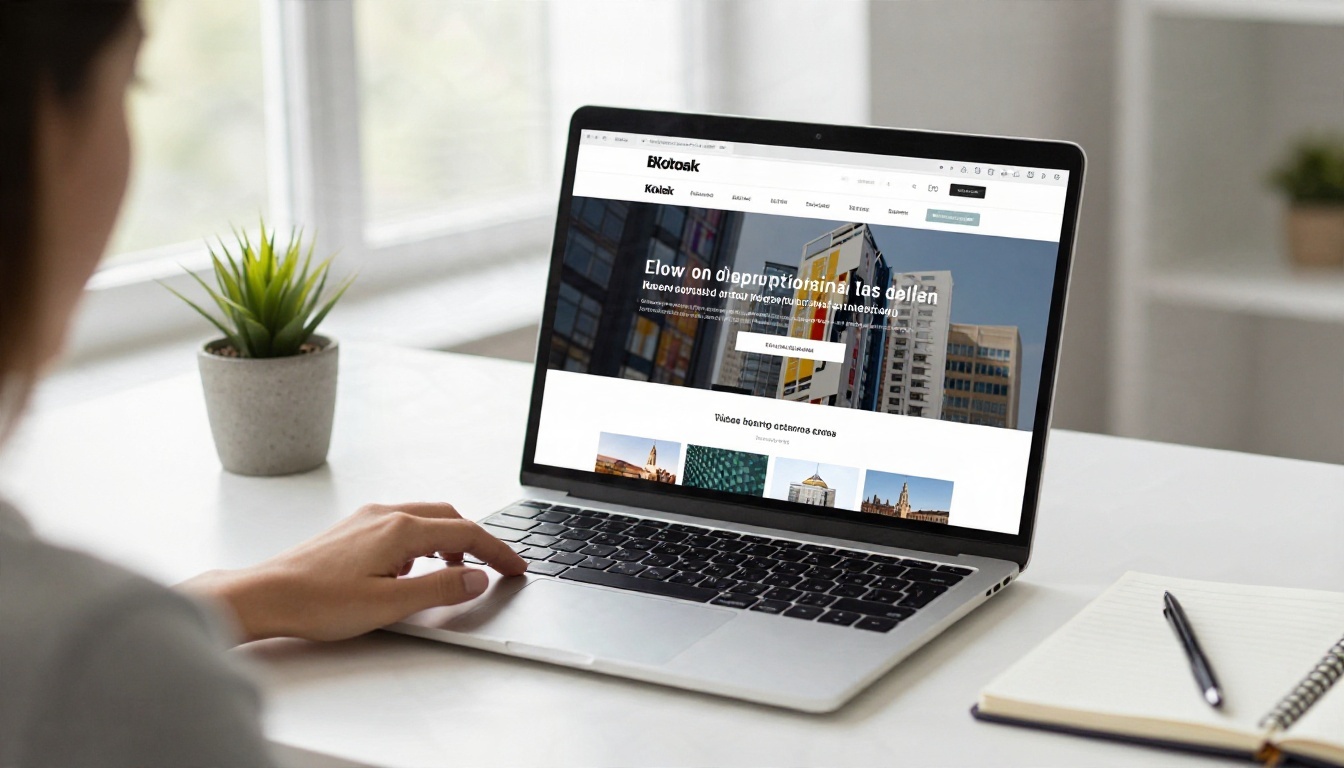
Publishing is only half the job. How you share the brochure decides who sees it and how you follow up.
Pick a Sharing Method
| Method | When to Use It | Setup Time |
|---|
| Direct link | Email, WhatsApp, social posts | Instant |
| Embed code | Landing pages and product pages | 2 minutes |
| QR code | Print ads, menus, packaging | 5 minutes |
| Password protection | Private price lists and partner packs | 1 minute |
| Offline download | Trade shows with poor connections | 1 minute |
For website placement, see how to embed a flipbook on your website with a single snippet of code.
Track Reader Behavior

On the professional plan, analytics and lead generation show which pages get the most time and where readers stop. A hotel can see that nobody reaches page nine, then move the booking link to page three. A real estate agent can capture an email before showing the full floor plan, which turns a casual viewer into a lead.
💡 Pro tip: Review analytics after the first 50 views. Patterns show up quickly, and a single layout change often lifts click rates.
Mistakes to Avoid
Even good designers repeat the same errors when they move from print to digital. Watch for these:
- Tiny text. Anything below 10 pt is a struggle on a phone.
- Too many tabs. Five or six is the limit before labels become unreadable.
- Huge files. A 150 MB PDF loads slowly and loses visitors on mobile networks.
- No call to action. Every brochure should end with one clear next step.
- Broken links. Test every button after publishing, not just before.
- Ignoring the cover page. The first page decides whether anyone flips to the second.
Publish Your Brochure Today
An interactive brochure needs three things: a clean layout, simple navigation and a clear way to reach readers. You already have the first if you have an InDesign file or a PDF. The rest takes minutes.
Ready to build yours? Create your first flipbook on Flipbooks AI, browse all flipbook tools and templates to find the right format, or compare pricing plans when you need analytics, lead capture and unlimited publishing.



