You have an iPad, a PDF catalog or menu, and a counter where visitors should be able to flip through it without wandering into your photos, your email, or the App Store. That is the whole kiosk problem. The good news is that you can solve most of it for free, and the content side is easy if you publish the document as a link with Flipbooks AI and point the iPad at it. The harder part is choosing how to lock the tablet down, because the free options each break in a different way.
This article compares the free kiosk routes on iPad, spells out where Guided Access stops being enough, and shows how to load a flipbook link so it fills the screen and stays there.
💡 Short version: for a staffed counter or a booth, a home screen web app plus Guided Access is usually enough. For an unattended iPad that must survive restarts, you need supervised Single App Mode through device management.
What a Kiosk Browser Actually Does
A kiosk browser is not a special kind of browser. It is a behavior: one page, no way out, and a recovery path when something goes wrong. If your setup does those three things, it counts.
The three jobs of a kiosk
- Show one thing. The visitor sees your page and nothing else: no address bar, no tabs, no share sheet.
- Block exits. The home gesture, the app switcher, notifications, and the control center should not respond.
- Come back by itself. After a restart, a power cut, or a long idle period, the iPad should return to the page without anyone touching a settings screen.
Most free methods nail the first job, manage the second, and fail the third. Keep that ranking in mind as you read the comparison below.
Why a flipbook link fits
A flipbook link is an ideal kiosk page for a few reasons. It is a single URL, so there is nothing to configure beyond the address. It is built for touch, so swiping and pinching feel native. It updates on the server, so when your menu or price list changes you edit the source once and every iPad shows the new version on the next load. And it never asks visitors to download anything, which matters because a locked iPad has no way to approve an install.
A PDF opened directly in Safari does none of that well. It scrolls like a long page, the zoom fights with the swipe gesture, and the file often downloads instead of displaying. If you are still deciding between a raw PDF and a flipbook, the PDF to Flipbook Converter shows the difference in about a minute.
Guided Access: What It Does Well
Guided Access is built into iPadOS, costs nothing, and needs no computer. It locks the iPad to the app that is open when you start it. In Safari, that means the current page stays on screen while the home gesture and app switcher are blocked.
Turning it on, step by step
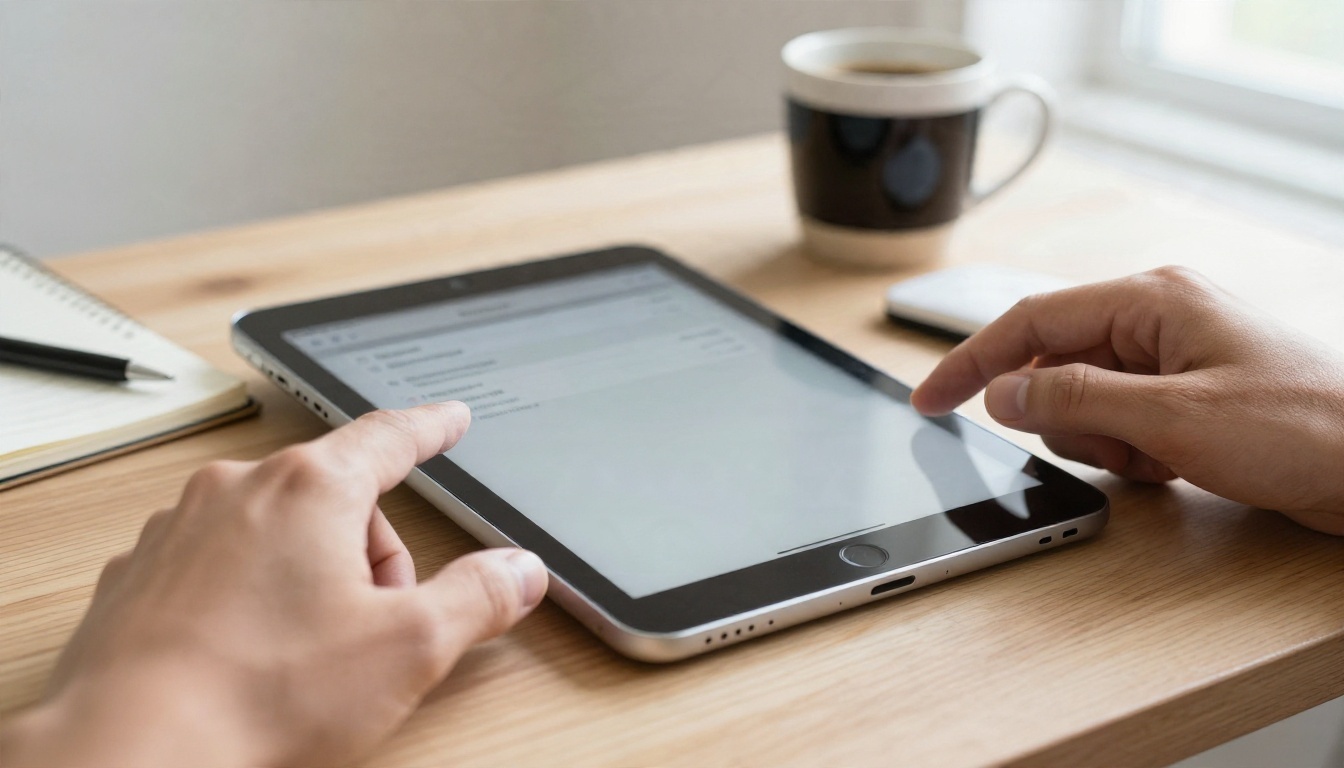
- Open Settings, then Accessibility, then Guided Access and switch it on.
- Tap Passcode Settings and set a passcode that only staff know. You can also allow Face ID or Touch ID to end a session.
- Open Safari and load your flipbook link. Wait until the first page has fully appeared.
- Triple press the side button (or the Home button on older models).
- Tap Options at the bottom left and choose what to allow. More on that below.
- Tap Start at the top right.
To leave, triple press again and enter the passcode, then tap End.
Settings worth changing
Before you start a session, open Options and review each toggle. These are the ones that matter for a public iPad:
| Option | Recommended | Why |
|---|
| Side Button | Off | Stops visitors from locking or powering down the screen |
| Volume Buttons | Off, unless the page has audio | Prevents a surprise at full volume |
| Motion | Off | Stops rotation if you want a fixed orientation |
| Keyboards | Off | No typing means no search or address entry |
| Touch | On, with areas disabled | Lets you gray out parts of the screen |
| Dictionary Lookup | Off | Avoids pop-ups when someone long presses a word |
| Time Limit | Optional | Ends the session after a set time, usually not wanted for a kiosk |
You can also draw a circle around any area of the screen to make it unresponsive. That is how you neutralize a banner or a button that would otherwise lead somewhere you do not want.
⚠️ Turn off auto-lock too. Go to Settings, Display & Brightness, Auto-Lock and set it to Never, or the screen will sleep in the middle of the day. Guided Access also has its own Display Auto-Lock setting inside its options.
Guided Access Limits You Will Hit
Guided Access is a good lock and a weak kiosk. It was designed for focus and accessibility, such as keeping a child inside a learning app, not for running unattended in a shop window. That shows up in a few predictable ways.
Sessions end when the iPad restarts
This is the biggest one. A restart, a battery that drained to zero, or a forced reboot ends the session, and the iPad comes back to the lock screen. Nothing relaunches your page. Someone has to unlock the device, open Safari, load the link, and triple press again. On a staffed counter that is a thirty second chore. In an empty lobby overnight it is a dead screen until morning.
Safari still has its own chrome
Guided Access locks you into Safari, not into a page. The address bar and tab button remain on screen, and a visitor can tap them. You can circle the toolbar to disable touch there, but the layout shifts as Safari hides and shows its bars while scrolling. A flipbook that sits in a single viewport helps, since there is little scrolling, but the problem does not fully go away.
Links can wander off
If your page contains an outbound link, such as a social icon or a map link, a tap will happily load another site inside your locked session. Guided Access does not filter destinations. You either remove the link from the page, circle it out, or pair Guided Access with a site allowlist, which we cover next.
Quick comparison of what it can and cannot do
| Need | Guided Access | Verdict |
|---|
| Block home gesture and app switcher | Yes | Works well |
| Hide the address bar | No | Only disables touch on it |
| Survive a restart | No | Needs manual restart of session |
| Restrict to certain websites | No | Use Screen Time |
| Lock to one app remotely | No | Needs device management |
| Cost | Free | Built in |
Free Kiosk Options Compared
Guided Access is only one of several free tools. Combined, they close most of its gaps.
Option 1: Add the page to the home screen
Open your flipbook link in Safari, tap the Share button, and choose Add to Home Screen. On current iPadOS versions you can switch on Open as Web App. Launching from that icon opens the page in its own window with no address bar and no tabs. It looks like an app because, for practical purposes, it behaves like one.
Start Guided Access from inside that web app and you get a clean, full screen page with the home gesture blocked. This is the best free setup available, and it fixes the Safari chrome problem outright.
Option 2: Screen Time allowed websites
Go to Settings, Screen Time, Content & Privacy Restrictions, App Store, Web Content and choose Only Allowed Websites. Add your flipbook domain. Safari now refuses everything else, which neutralizes stray outbound links. It also lets you block app installs, deletions, and in-app purchases from the same screen.
💡 Set a Screen Time passcode that is different from the Guided Access passcode, so a staff member with one cannot undo the other by accident.
Option 3: Free tiers and trials of kiosk tools
Several kiosk browser apps and mobile device management services offer a free tier or a trial, usually limited to a handful of devices or a short period. These are the only free route that can relaunch a page after a restart, because they use Apple's supervised mode and Single App Mode. Terms and limits change often, so check each vendor's current page before you commit. Supervising an iPad also means erasing and re-enrolling it with a Mac and Apple Configurator, so do this on a fresh device, not one with data you need.
| Method | Cost | Hides address bar | Survives restart | Blocks other sites | Setup time |
|---|
| Guided Access alone | Free | No | No | No | 2 minutes |
| Home screen web app plus Guided Access | Free | Yes | No | No | 5 minutes |
| Web app plus Guided Access plus Screen Time | Free | Yes | No | Yes | 10 minutes |
| Supervised Single App Mode (MDM) | Free tier or paid | Yes | Yes | Yes | 30 to 60 minutes |
Create the Flipbook Link First
Whatever lock you choose, the page itself decides whether visitors have a good experience. Build it before you touch the iPad.
Upload the PDF
Go to Flipbooks AI, create an account, and upload your PDF. The conversion runs automatically and produces a page-turning flipbook with no watermarks, ever. Menus, catalogs, brochures, and price lists all work. If you are building something specific, these tools are good starting points:
Brand it and decide on access
Add your logo, pick colors that match your space, and choose the page effect. Add audio or embedded video where it helps, for example a short clip on a product page. The viewer is mobile responsive, so it fits an iPad in either orientation without extra work.
For a kiosk, think about privacy. A public menu needs no protection. A wholesale price list probably does, so turn on password protection and type the password once on the iPad before you start Guided Access. The session will stay unlocked as long as you do not reload.
Copy the link, then test it
Copy the direct link from the share panel. Open it on a laptop first, flip through every page, and tap every link and button. Anything that leaves your flipbook is a hole in your kiosk. If you want the flipbook inside your own site instead, the Embed Flipbook on Website tool gives you an embed code, and you can then point the iPad at that page. Be sure to remove the header, footer, and menu from it first, or you are back to the exits you were trying to block.
✅ Best practice: use a short, dedicated page for the kiosk, such as a landing URL that contains only the flipbook. Fewer elements means fewer places for a visitor to tap by mistake.
Put the Link on the iPad
Now the pieces come together. This is the exact order that works best.
Setup checklist
- Update iPadOS and restart the device once, so you begin from a clean state.
- Set Auto-Lock to Never and brightness to a level that suits the room.
- Turn on Do Not Disturb or a Focus mode so notifications never appear on the screen.
- Sign out of iMessage and FaceTime if the iPad was ever personal.
- Open the flipbook link in Safari, enter the password if you set one, and flip a few pages to warm the cache.
- Add it to the Home Screen and launch it from the new icon.
- Configure Screen Time to allow only your flipbook domain.
- Start Guided Access from inside the web app, with Keyboards and Side Button off.
- Test as a visitor. Try the home gesture, a swipe up from the bottom, and a tap on every corner of the screen.
Hardware matters more than you think
Software locks do nothing against a visitor who simply presses the power button. A proper enclosure with a covered Home or power button, a stable base, and a power cable that runs inside the stand solves a surprising number of problems before they happen. Keep the iPad plugged in all day. A kiosk that dies at 3 pm is worse than no kiosk at all.
| Hardware item | Purpose | Notes |
|---|
| Locking enclosure | Blocks access to buttons and ports | Choose one with a cutout for the camera only if needed |
| Weighted floor or counter stand | Stops tipping | Check height for adults and wheelchair users |
| Cable with right-angle plug | Keeps power connected | Route it out of reach |
| Anti-glare screen film | Reduces reflections | Helpful near windows |
Real Setups That Work
Abstract advice only goes so far. Here is how three types of businesses typically run it.
Restaurant host stand
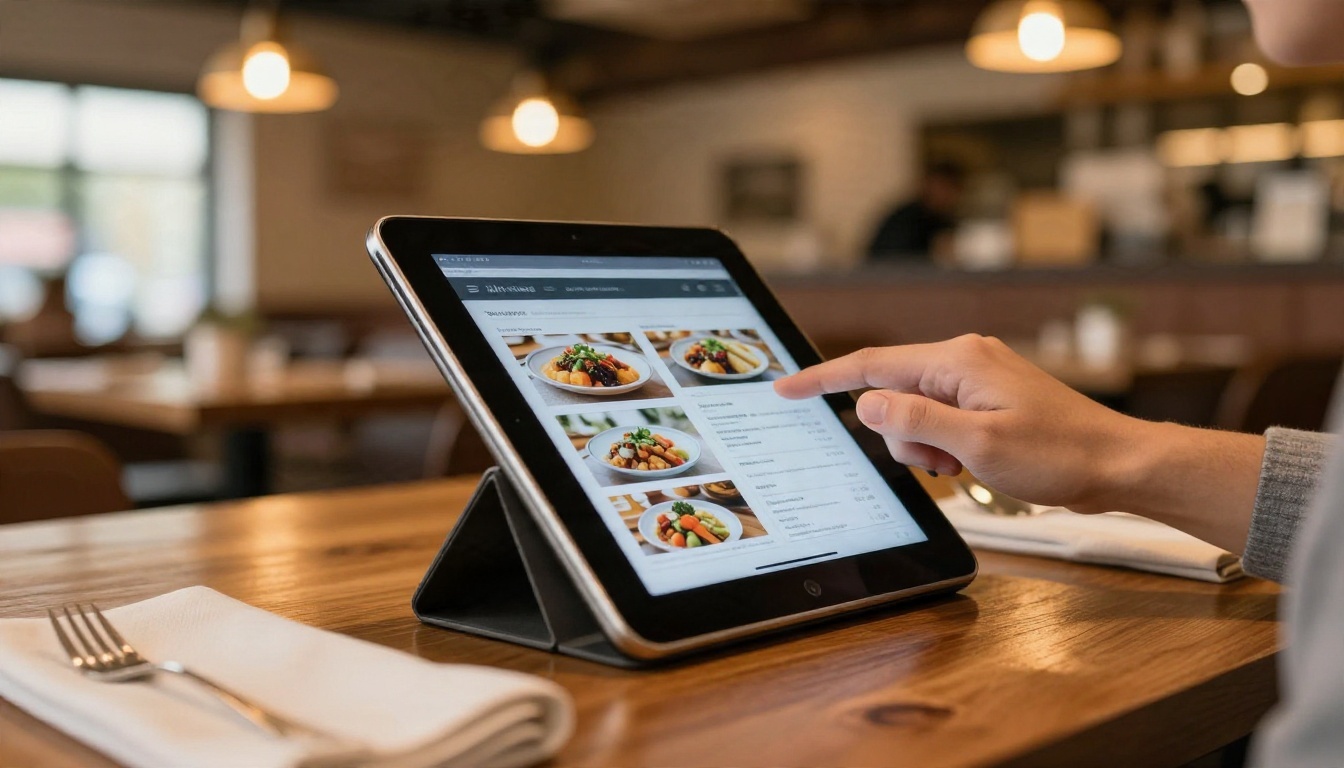
A restaurant puts one iPad at the entrance with the dinner menu flipbook open. Guests browse while they wait for a table. The staff member who opens the restaurant triple presses and starts the session each morning, which takes a few seconds and doubles as a daily check that the screen is working. Because the flipbook updates on the server, a seasonal menu change needs no trip to the iPad at all. The manager edits the source, republishes, and the next page load shows the new dishes.
Trade show booth
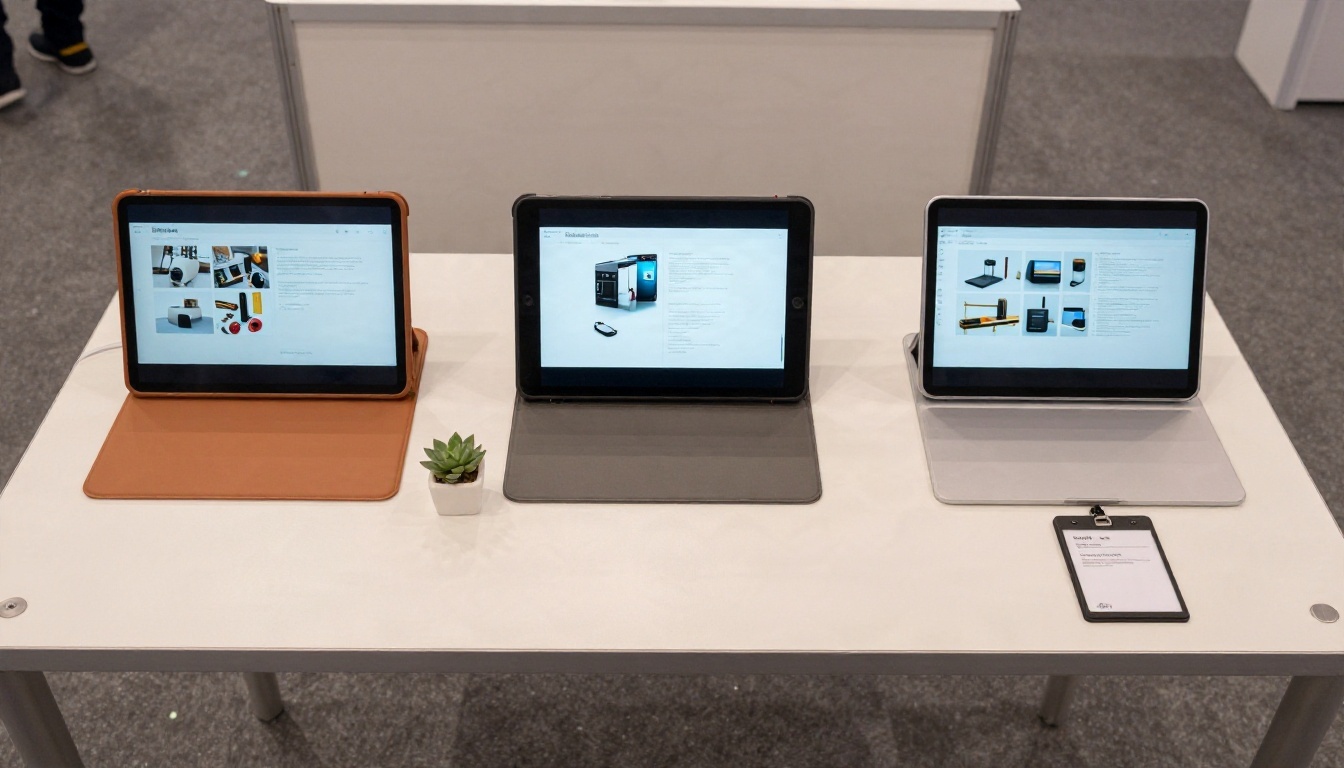
At a booth, three or four iPads line up on a table, each showing the same catalog or a different product line. The setup lives for two or three days, so Guided Access with a web app icon is plenty. Staff are always nearby to reset a session. Turn on analytics and lead generation in the Professional plan if you want to see which pages visitors opened most and collect an email before they read a gated brochure. Download an offline copy as a fallback in case the hall Wi-Fi collapses, which at conventions it often does.
Retail counter
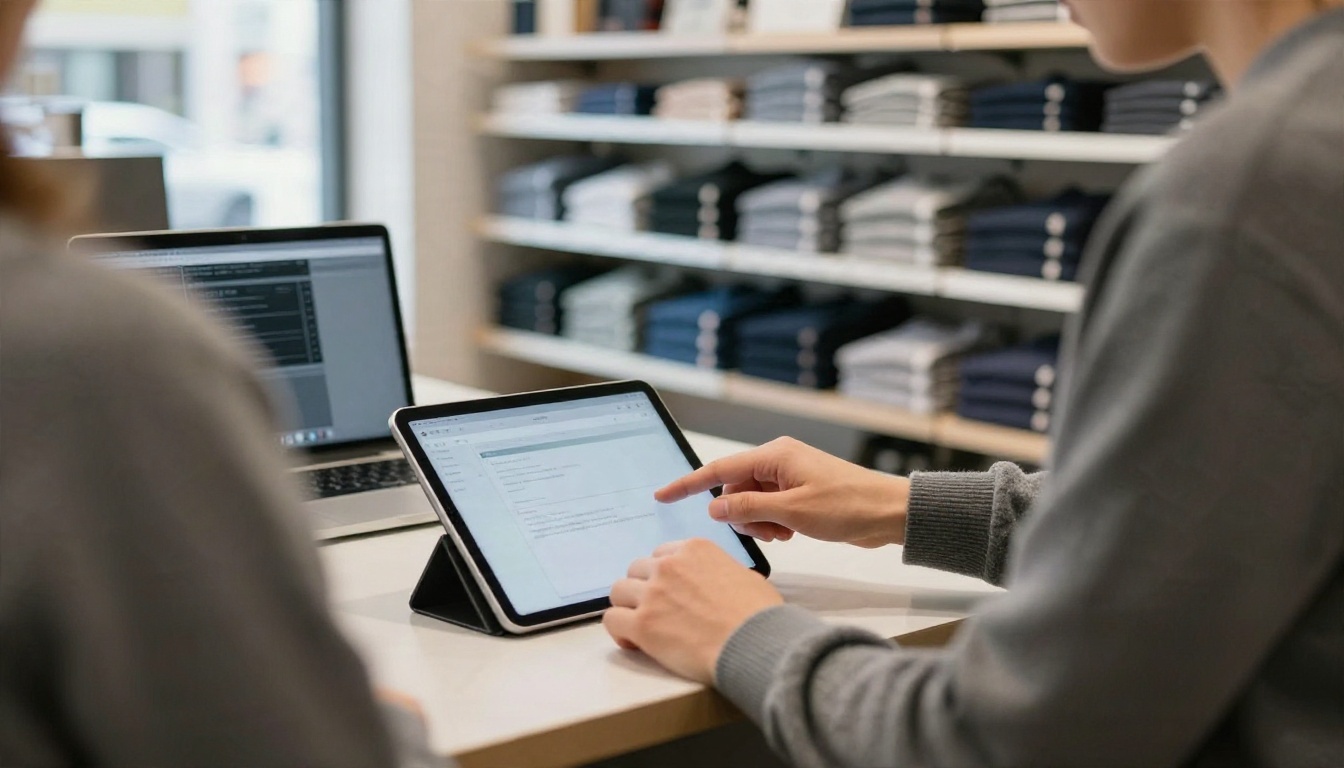
A clothing store keeps an iPad beside the till with the latest lookbook. Customers flip through while their purchase is wrapped. The Interactive Lookbook Designer makes the pages touch friendly, and a QR code on the receipt points to the same link so people can keep browsing at home. The store uses a home screen web app, Screen Time restrictions, and Guided Access, and has a laminated card at the counter that tells staff the three steps to restart the session.
Troubleshooting Common Problems
Even a clean setup hits snags. These are the ones that come up most.
| Problem | Likely cause | Fix |
|---|
| Screen goes dark | Auto-Lock still on | Set to Never in Display & Brightness |
| Page shows the address bar | Opened in Safari, not as a web app | Launch from the Home Screen icon |
| Visitors reach a different site | Outbound link on the page | Remove the link or allow only your domain in Screen Time |
| Session ended overnight | iPad restarted | Add a morning restart routine or move to MDM |
| Page asks for password again | Page reloaded | Keep the page open, or remove the password for public content |
| Audio plays too loud | Volume buttons enabled | Turn off Volume Buttons in Guided Access options |
⚠️ Never leave the Guided Access passcode on a sticky note near the stand. It happens more often than anyone admits.
Ready to Show Your Flipbook?
A kiosk browser on iPad does not need a budget. Use a home screen web app, add Screen Time allowed websites, and start Guided Access on top of it. You get a clean full screen page for free. Accept that a restart will end the session, and move to supervised device management only if the iPad truly has to run unattended.
The page matters as much as the lock. Create your first flipbook on Flipbooks AI, copy the link, and test it before you ever touch the iPad. Browse the full list of flipbook tools to find a template for your menu, catalog, or lookbook, and compare pricing plans if you want analytics, password protection, or lead capture on your kiosk.



