A tablet on a counter is only useful if it does one thing well and nothing else. The moment a visitor swipes out of your app and lands on the home screen, the display stops working for you. Kiosk software for tablets fixes that by locking the device to a single app or web page, restarting it when it freezes, and keeping curious fingers away from settings. Pair that lock with an interactive flipbook from Flipbooks AI and you get a self-running catalog, menu, or brochure that costs a fraction of dedicated signage hardware.
This article walks through what kiosk mode really does, which free options are worth trying, how to set up Android and iPad step by step, and where flipbooks fit best on the display.
What Kiosk Software Actually Does
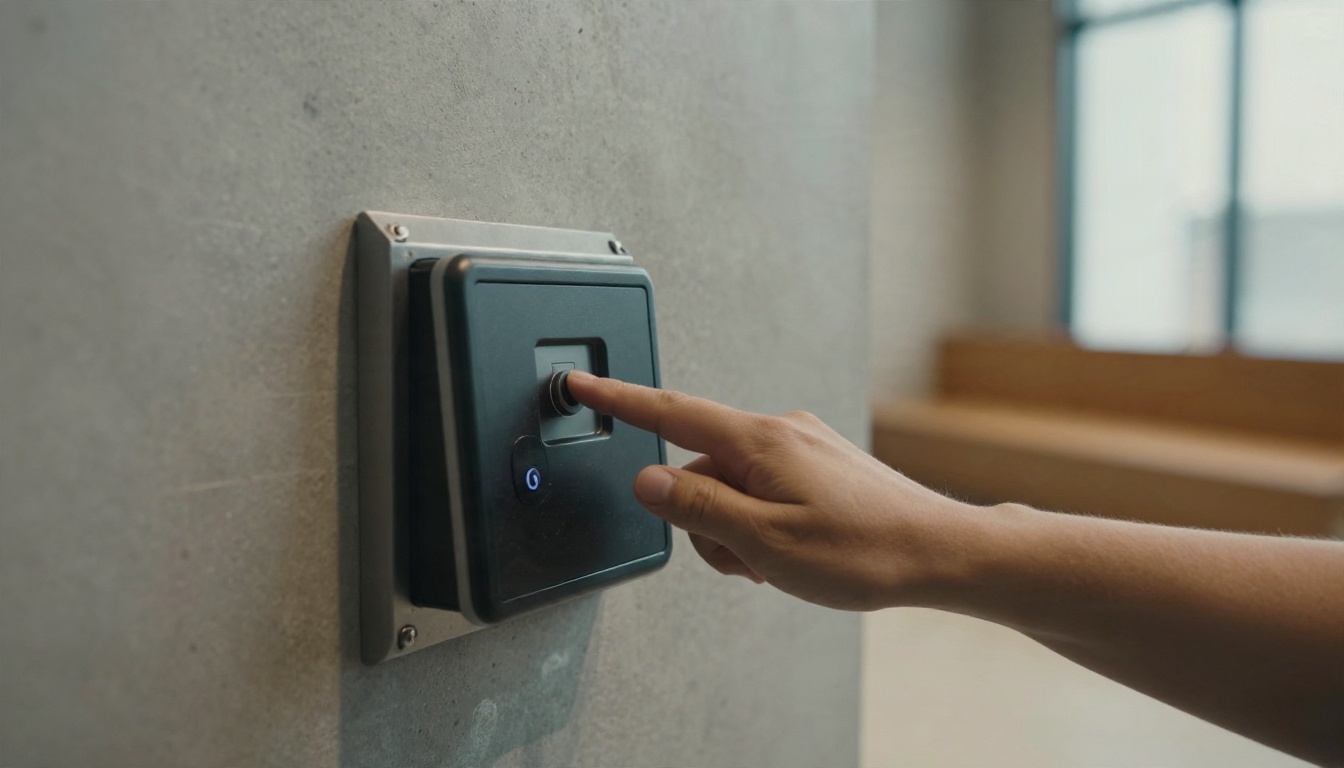
Kiosk software, sometimes called kiosk mode, single app mode, or lockdown software, restricts a tablet so users can only reach the content you chose. It is the same idea behind airport check-in screens and museum information stands, just running on hardware you can buy at any electronics store.
Single App Lock vs Full Kiosk
There are two levels of control, and picking the wrong one is the most common early mistake.
- Single app lock: The tablet stays on one app. Visitors cannot open other apps, but notifications or the status bar may still appear.
- Full kiosk mode: The status bar, navigation buttons, and settings are hidden. A hidden gesture or PIN is needed to exit. Many tools also add a screensaver, auto restart, and remote control.
For a hotel lobby or a store counter where staff are nearby, a single app lock is often enough. For an unattended museum stand or a shop window, go full kiosk.
Who Needs It
Anyone who leaves a screen in public view benefits. Typical setups include:
- Retail counters showing a product catalog
- Restaurants displaying a digital menu at the host stand
- Real estate offices running property brochures in the window
- Clinics and waiting rooms with patient information
- Trade show booths showing a magazine or portfolio
- Schools and offices with a rotating newsletter or event program
Free Kiosk Software Options Worth Trying
Free is a good place to start, because most small setups need only a handful of features: lock the screen to one page, keep it awake, and relaunch after a restart. The table below compares the realistic options. Pricing and feature limits change often, so check each vendor's current terms before you commit.
| Option | Platform | Cost | Best For | Main Limit |
|---|
| Android screen pinning | Android | Free, built in | One tablet, staff nearby | Easy to exit with a gesture |
| Fully Kiosk Browser | Android | Free basic version, paid license for extras | Web based kiosks, auto reload | Remote features need a paid license |
| iOS single app lock (Accessibility) | iPad, iPhone | Free, built in | Quick iPad displays | Manual setup on each device |
| Apple Configurator with supervised mode | iPad | Free software | Several iPads, stricter lock | Needs a Mac and a cable |
| Windows assigned access | Windows tablets | Free with Windows | Surface or similar devices | Windows only |
| Open source MDM tools | Android | Free to self host | IT teams with a server | Setup takes time |
Built In Android and iOS Tools
Both major platforms ship with a basic lock. Android screen pinning holds the screen on the current app until someone holds the back and overview buttons together. On iPad, the single app lock under Accessibility settings disables the home button and gestures until a passcode is entered. Neither is a true kiosk, but both cost nothing and work in under five minutes.
💡 Pro tip: A built in lock is perfect for a pilot. Run it for a week at one location, note how often staff need to reset the screen, and only then decide whether a dedicated app is worth it.
Free Third Party Apps
A dedicated kiosk browser adds the features that matter for all day use: hiding the navigation bar, reloading the page after a timeout, keeping the screen awake, and launching on boot. Most of them load a single web address, which makes them a natural match for a flipbook shared by link, since the content updates in one place and every tablet shows the latest version.
⚠️ Watch out: Free tiers sometimes add a small banner or limit remote management. If a visible banner would hurt your brand, test the app on a spare tablet before you mount it.
Setup Steps for Android and iPad
Good kiosk setups are boring on purpose. Spend an hour here and you will not be called back to fix the screen every week.

Prepare the Hardware
Before touching software, sort out the physical basics:
- Use a fresh or factory reset tablet so no personal accounts remain.
- Plug it into constant power. Battery swelling from months of charging is a real risk, so use a quality charger and consider a smart plug with a schedule.
- Connect it to reliable Wi-Fi, or plan for offline content.
- Choose a mount or stand with a locking case before you finalize settings.
- Update the operating system once, then turn off automatic updates during opening hours.
Android Setup in Eight Steps
- Open Settings, then Display, and set the screen timeout to the longest value or "never" while charging.
- Turn on Developer options and enable Stay awake while charging.
- Install your kiosk browser from the store and open it.
- Enter the flipbook link as the start page.
- Switch on options to hide the status bar and navigation bar.
- Set a PIN for the admin menu so staff can exit when needed.
- Enable launch on boot and a scheduled restart overnight.
- Add a screensaver or idle timer that returns the display to page one after a few minutes.
iPad Setup in Six Steps
- Open Settings, then Display & Brightness, and set Auto-Lock to Never.
- Go to Accessibility and switch on the single app lock, then set a passcode.
- Open Safari and load your flipbook link, then add it to the Home Screen so it opens like an app.
- Launch that Home Screen shortcut.
- Triple press the side or home button to start the lock.
- Test by trying to leave the page with every gesture you can think of.
✅ Best practice: Write the passcode and the restart routine on a card kept behind the counter, not on the device itself.
Test Like a Visitor
Hand the tablet to a coworker who has never seen it. Watch where they tap. If they hesitate, add a small prompt such as "Tap to turn the page" in the first spread. Ten minutes of watching teaches you more than any checklist.
How to Create a Kiosk Flipbook with Flipbooks AI
A kiosk is only as good as what runs on it. A plain PDF opened in a browser feels flat and awkward on a touchscreen: pinch zoom fights with page scroll, and nothing signals that there are more pages. A flipbook solves that, because pages turn with a swipe and the layout fits the screen.
Upload and Convert Your PDF
- Create a free account on Flipbooks AI.
- Click to upload your file in the PDF to Flipbook Converter. A catalog, menu, price list, or brochure all work.
- Wait a few seconds while the pages convert into a page turning flipbook.
- Check the preview on a tablet-sized screen, not only on your laptop.
If you are still building the source document, the Digital Catalog Maker, Menu Flipbook Designer, and Brochure Flipbook Maker give you a faster starting point.
Brand It for the Screen
Open the customization panel and adjust the elements visitors see first:
- Custom branding: add your logo and choose background and accent colors that match the counter or shop window.
- Page effects: pick a soft page curl and a moderate turn speed. Fast, dramatic effects feel tiring on a display seen all day.
- Multimedia: embed short videos and audio on key pages, such as a 15 second clip of a dish being plated or a property walkthrough.
- Mobile responsive layout: the flipbook adapts to portrait or landscape, so one file works on every tablet you own.
There are no watermarks, ever, which matters on a public screen with your name on it.
Share and Lock It Down
Next, choose how the kiosk loads the content:
- Direct link: paste it into your kiosk browser as the start page. This is the simplest and most reliable method.
- Embed code: place the flipbook inside a page of your own site, then point the kiosk to that page. See how to embed a flipbook on a website.
- Password protection: if the flipbook contains private pricing or a members only catalog, add a password so only your tablets and your team can open the link.
💡 Pro tip: Because the kiosk loads a link, you can update the flipbook from your desk and every tablet shows the new version after its next reload. No one has to visit each site with a USB cable.
Pro Features Worth Using
On the Professional plan you get analytics, lead generation forms, and offline downloads. Analytics shows which pages visitors open most, which is useful for deciding what belongs on page one. A lead form can ask for an email before a visitor sees the full price list. Offline downloads give you a fallback copy when the shop Wi-Fi is unreliable. Compare options on the pricing page, and if you publish many displays, the Standard plan and above include unlimited flipbooks.
Flipbook Display Ideas by Business
A kiosk works best when it answers one question a visitor already has. Here is how that looks in practice.
Retail and Showrooms
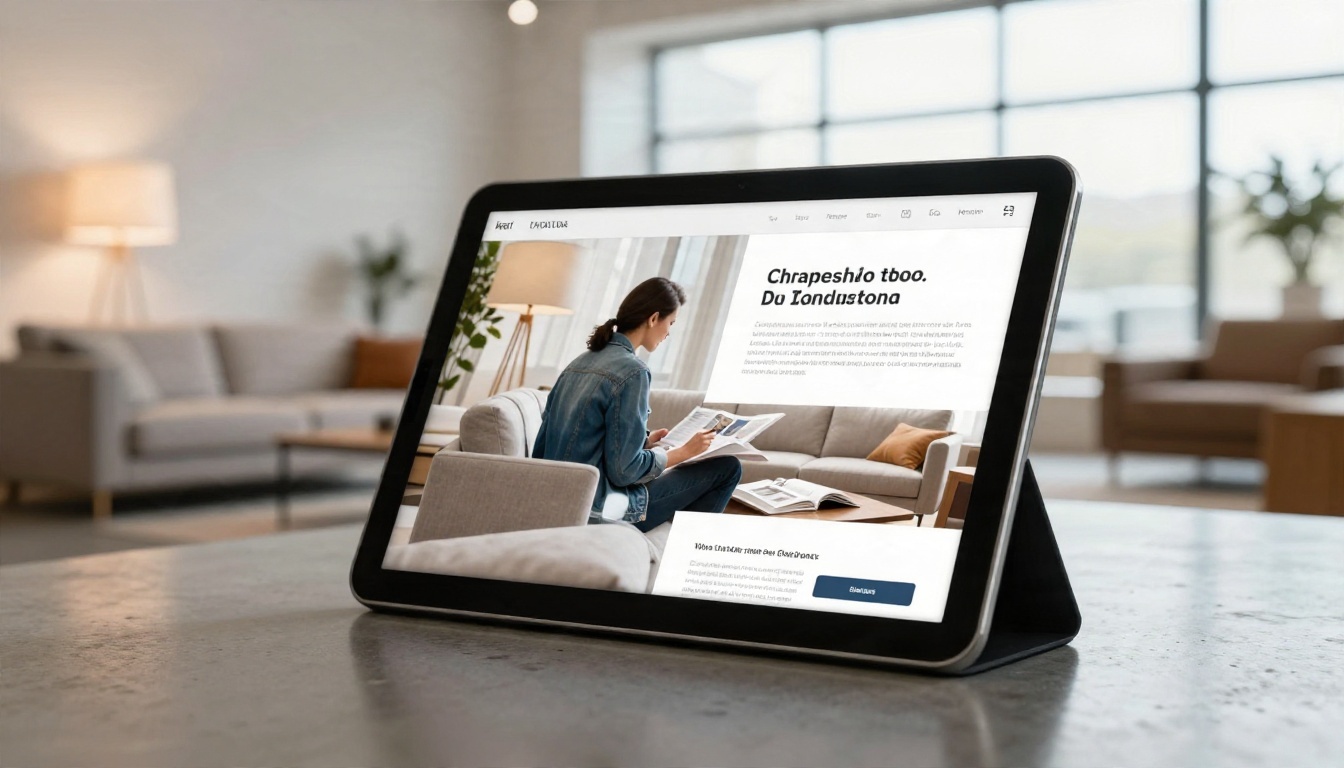
A showroom rarely has room for every finish and size. A floor kiosk running a product flipbook lets shoppers browse the full range, and staff can pull up a page to answer questions. A boutique can run a lookbook on the counter and update it each season without reprinting anything. The Interactive Lookbook Designer suits this well.
Restaurants and Cafes
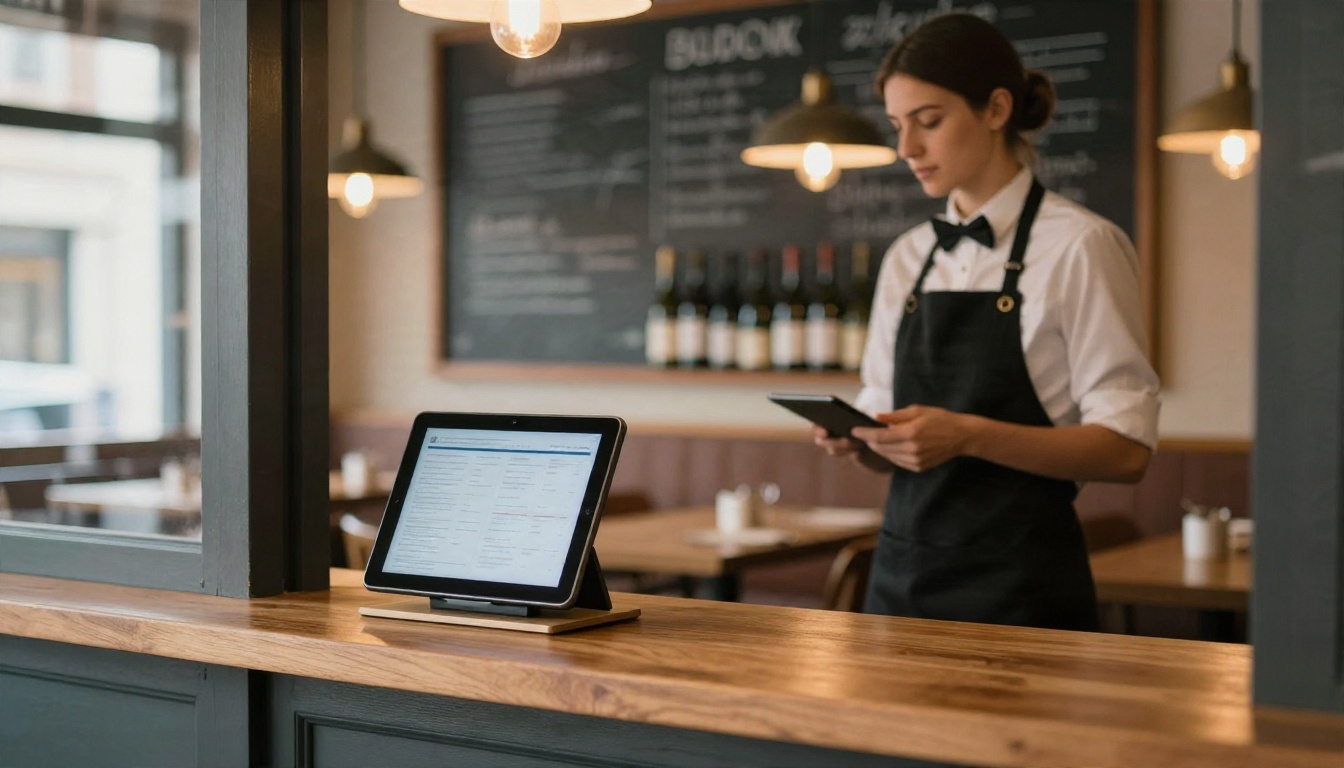
A host stand tablet showing the menu cuts the "what is in this dish" questions that slow down busy shifts. Photos, allergy notes, and wine pairings all fit inside a flipbook. Keep the first page simple: a few best sellers and the daily special.
Real Estate Windows
An agency window with two or three tablets keeps working after the office closes. People walking by can flip through listings, floor plans, and neighborhood notes at their own pace. A QR code on the last page sends interested buyers to a booking form.
Clinics and Waiting Rooms
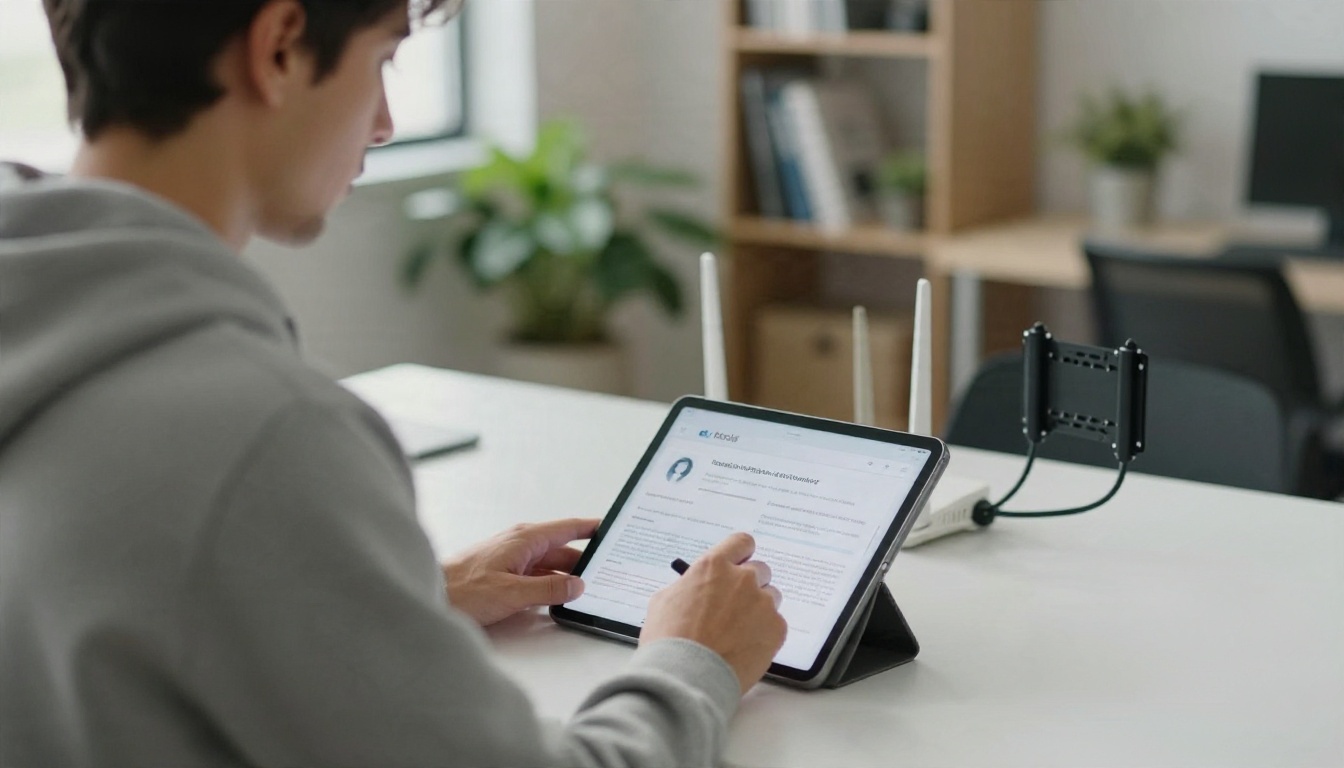
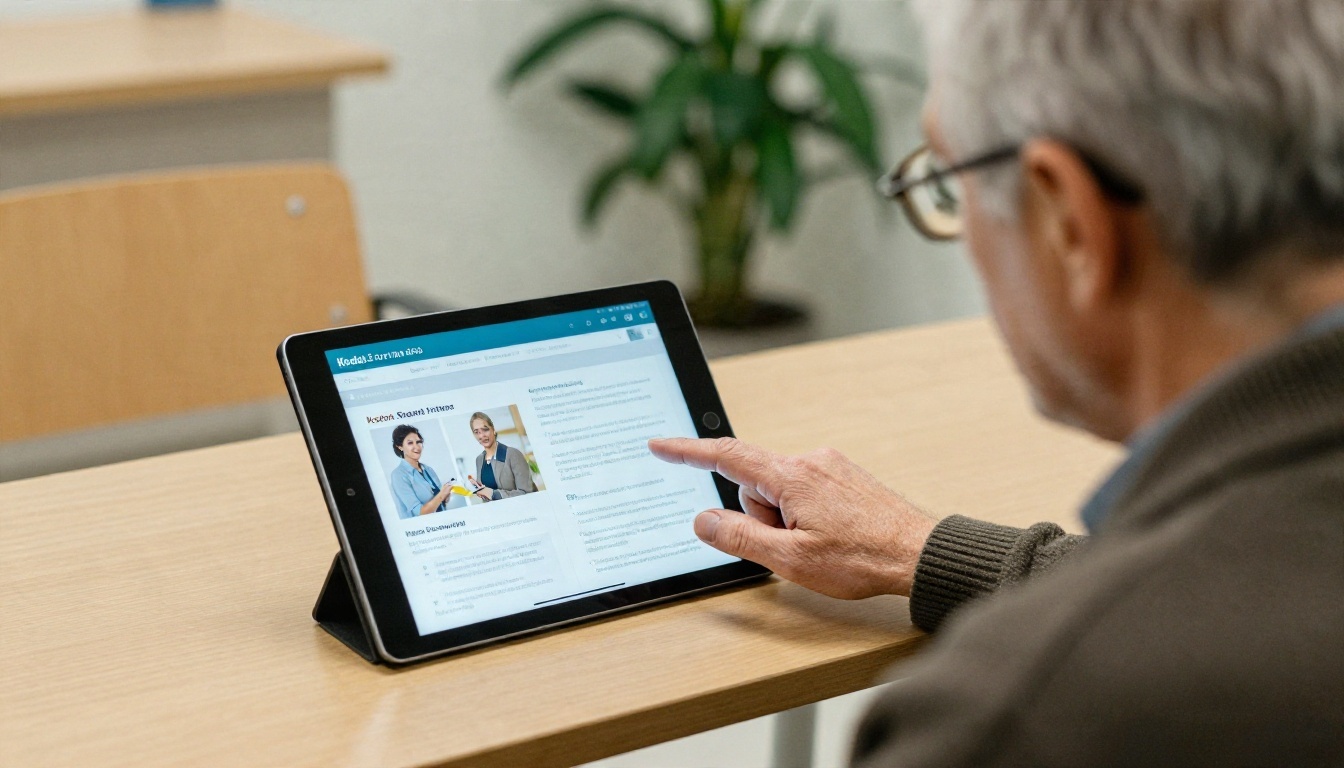
Waiting rooms are ideal for patient information, from service lists to preparation instructions. Large text and a calm layout matter more here than flashy effects. Many older visitors prefer big buttons and slower page turns, so test with the people who will actually use it.
Trade Show Booths
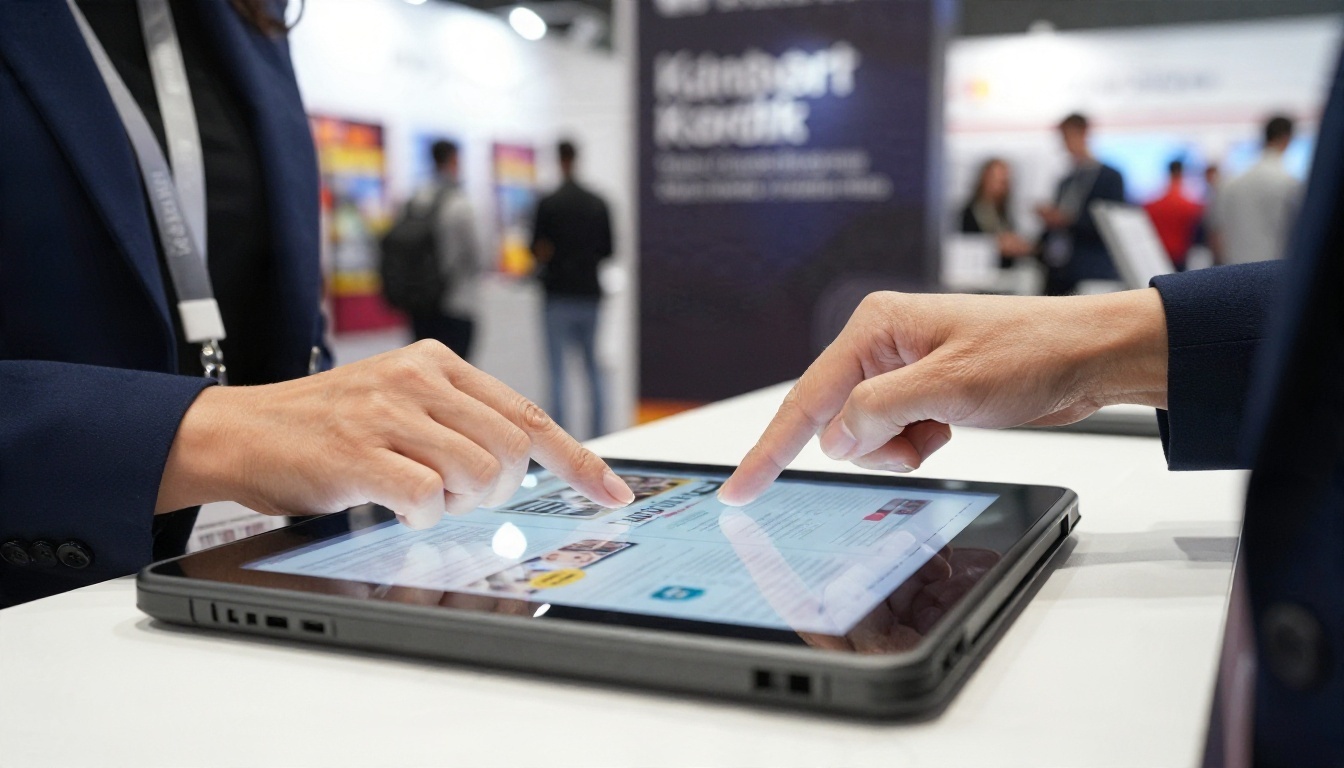
At events, staff are busy talking to one person while five others wait. A tablet running a magazine or portfolio flipbook keeps them occupied. Use the Digital Portfolio Creator for creative work and a lead form to capture emails from people who stop by.
Hardware, Mounts, and Security
Software handles what appears on screen. Hardware handles whether the tablet is still there next week. Plan both together.
| Setup Type | Typical Use | Pros | Cons |
|---|
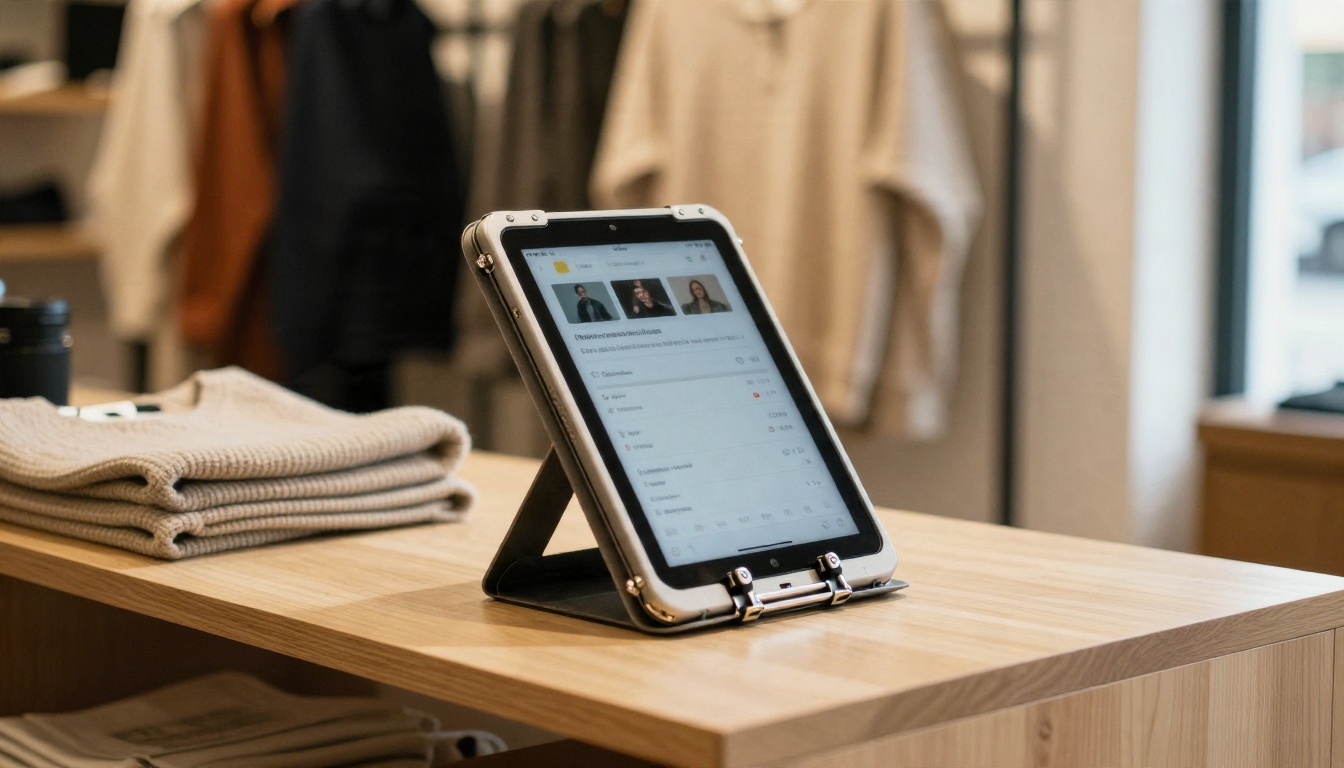
| Countertop stand | Hotels, cafes, shops | Cheap, easy to move | Can be picked up |
| Locking security case | Retail counters | Bolted and cabled | Slightly bulkier |
| Wall mount | Clinics, museums | Clean look, safe from spills | Needs drilling and a power run |
| Floor kiosk | Showrooms, lobbies | Eye level, strong presence | Highest cost |
Power and Cable Routing
Run the charging cable through the mount or counter so it cannot be pulled out. A loose cable is the number one reason a kiosk goes dark by lunchtime. Use a right angle connector if the tablet sits close to a wall.
Screen Settings for All Day Use
Lower the brightness to a comfortable level and use a matte screen protector if the room has strong windows. A screen at full brightness for twelve hours a day ages faster and reflects more glare. If your tool allows it, schedule the screen to sleep outside of opening hours.
Common Mistakes to Avoid
Most failed kiosks fail for the same few reasons.
- Loading a heavy file: A 200 MB PDF stalls on weak Wi-Fi. Compress images before you convert, and keep videos short.
- Skipping the idle reset: If a visitor leaves the flipbook on page 47, the next person sees a confusing screen. Set a timer that reloads page one.
- No update routine: Decide who checks the tablet each week, and when. A calendar reminder is enough.
- Tiny tap targets: Fingers are bigger than cursors. Check that links and buttons are easy to hit.
- Ignoring privacy: If a lead form collects emails, add a short consent line and avoid storing anything on the tablet itself.
⚠️ Warning: Never leave a personal Apple ID or Google account signed in on a public tablet. Use a dedicated business account with no payment methods.
Ready to Build Your Tablet Display?
You now have the pieces: a free lock from Android or iPad settings or a kiosk browser, a clear setup routine, a mount that keeps the device in place, and a flipbook that gives visitors something worth swiping through.
Start with one tablet and one flipbook. Create your free account on Flipbooks AI, upload a PDF, and test the link on your kiosk today. Browse the full list of flipbook tools to find a template for your catalog, menu, or brochure, then compare pricing plans when you are ready for analytics, lead capture, and offline downloads. If you already know you want the Professional features, you can go straight to sign up and choose a plan.



