If your church bulletin, school newsletter or shop flyer lives in a .pub file, you have a deadline problem that already arrived. Microsoft retired Publisher in October 2026, which means no more updates, no more fixes and a growing list of compatibility headaches with every new Windows release. The good news: the replacement market is healthy, and several excellent options cost nothing. The better news: once your layout is finished, a tool like Flipbooks AI can turn the PDF into an interactive page-turning publication that reads well on phones, which Publisher never managed.
This comparison walks through the free, online, Windows and Mac picks, shows where each one shines (and where it falls over), and gives you a safe way to move your old files.
What Happened to Publisher
The Retirement in Plain Terms
Publisher was always the odd one out in the Microsoft 365 family. It ran only on Windows, never had a Mac version, and never got a proper web app. When Microsoft announced the retirement, the message was simple: existing installs keep opening files for a while, but support ends and the app disappears from new subscriptions.
For a small business that means three practical risks:
- Security gaps. An unpatched desktop app that opens files from clients and vendors is a liability.
- Compatibility drift. Fonts, printer drivers and operating system updates will slowly break layouts.
- Zero collaboration. Publisher files are hard to share with anyone who does not own the software.
What You Should Do First
Do not start by picking a tool. Start by rescuing your files. Open every active .pub document while Publisher still works on your machine and export two versions: a print quality PDF and a web quality PDF. Save the fonts you used into a folder too. Only then audit what you have, because the project types in that folder will decide which replacement makes sense.
💡 Pro tip: Sort your files into three piles: things you print, things you email, and things you post online. Each pile usually points to a different tool.
The Quick Comparison
Here is the short version before the details. Pricing changes often, so confirm current plans on each vendor's site before you commit.
| Tool | Platform | Cost model | Best for | Ramp-up time |
|---|
| Canva | Browser, Windows, Mac, mobile | Free tier plus paid plan | Flyers, social posts, quick brochures | Low |
| Scribus | Windows, Mac, Linux | Free, open source | Print-ready newsletters and booklets | High |
| LibreOffice Draw | Windows, Mac, Linux | Free, open source | Opening old .pub files, simple layouts | Medium |
| Affinity | Windows, Mac | Free to start, optional paid extras | Serious design on a budget | Medium |
| Adobe InDesign | Windows, Mac | Subscription | Magazines, books, agency work | High |
| Apple Pages | Mac, iPad, iCloud web | Free with Apple devices | Simple newsletters and flyers on Mac | Low |
| Google Slides or Docs | Browser | Free | Collaborative drafts, internal documents | Low |
Free Options Worth Using
Canva
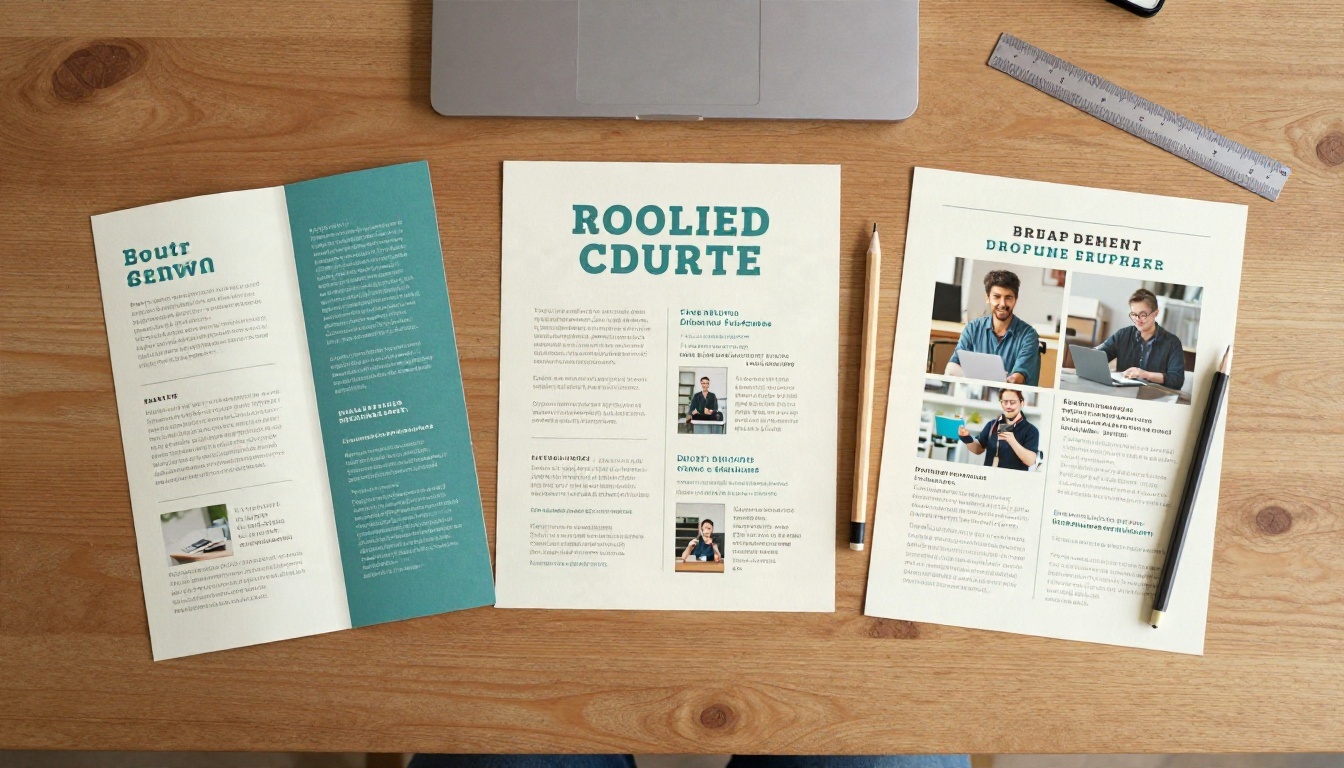
Canva is the first stop for most former Publisher users, and for good reason. Thousands of templates, drag and drop editing, and a browser interface mean a volunteer can produce a decent flyer in twenty minutes. The free plan handles most basic work, and paid plans add brand kits, resizing and extra stock assets.
Strengths: speed, templates, real-time sharing, mobile editing.
Weak spots: typographic control is limited, long documents become clumsy, and print setup (bleed, color profiles) is less precise than in a dedicated layout app.
Scribus
Scribus is the closest philosophical match to Publisher: a frame-based desktop publishing program, except it is free, open source and available on Windows, Mac and Linux. It supports bleed, CMYK output, master pages and PDF export settings that print shops actually like.
The catch is the interface. It feels like software from another decade, and your first booklet will take longer than it should. If you publish a monthly newsletter for years, that investment pays back. If you make one flyer a quarter, skip it.
LibreOffice Draw
LibreOffice Draw deserves a mention mostly for one reason: it can open many .pub files directly through its built-in Publisher import filter. Results vary with complex layouts, so treat it as a rescue tool rather than a daily driver. For simple flyers and certificates, it also works as a free layout editor.
⚠️ Warning: Always compare the imported file against your original PDF. Fonts and text wrapping are the first things to shift.
Windows and Mac Picks

Affinity
Affinity gives you layout, photo editing and vector tools in one installable app, and it has been aggressively friendly on price since Canva acquired it. It handles master pages, text flow, bleed and professional PDF export. For a small studio that wants InDesign-style control without a monthly subscription, it is the strongest desktop pick on this list. Check the current pricing page, as the free and paid split has changed more than once.
Adobe InDesign
InDesign remains the industry standard for magazines, books and anything going to a commercial printer. Its typography controls, linked assets, styles, and data merge are unmatched. It is also the most expensive option here, because it is subscription only. Choose it if you work with agencies, need exact print output, or publish long documents with complex indexes.
Apple Pages
If you run a Mac and your needs are modest, Pages is already installed and free. Page layout mode lets you place text boxes and images on a blank canvas, which feels familiar to Publisher veterans. It exports to PDF cleanly and syncs through iCloud. It struggles with large, heavily styled publications.

Browser Tools That Skip Installs
Not everyone wants to install anything. Browser based editors let you start on a school Chromebook, a library computer or a borrowed laptop. Canva leads the category, but Google Slides is an underrated alternative: set a custom page size, drop in text and images, and download a PDF. It is not a design powerhouse, yet it makes shared editing painless for committees.
Other online editors such as Marq (formerly Lucidpress) target brand teams with locked templates, which suits franchises and sales organizations that need consistency more than creativity.
The Trade-Offs of Working Online
Browser tools are convenient, but you should know what you give up:
- Offline access is limited or absent.
- Export quality may depend on a paid plan.
- Ownership of your source file lives on someone else's server.
- Pricing can change after your templates are built.
✅ Best practice: Download a PDF and a source backup of every finished project, no matter which tool you choose.

Your project type matters more than any feature list. Use this table as a shortcut.
| Project | Best match | Why | Runner up |
|---|
| One-page flyer | Canva | Templates and speed | Apple Pages |
| Monthly newsletter | Affinity or Scribus | Master pages, text flow | Canva |
| Trifold brochure | Canva or Affinity | Fast layout, solid export | InDesign |
| Product catalog | InDesign or Affinity | Long documents, linked images | Canva |
| Event program | Canva | Quick edits before the deadline | Google Slides |
| Magazine or book | InDesign | Typography and styles | Affinity |
| Committee draft | Google Slides | Shared editing | Canva |
Old .pub rescue | LibreOffice Draw | Import filter | Rebuild in Canva |
Real-World Examples
- A bakery prints a seasonal menu twice a year. Canva wins: the owner updates prices herself and exports a PDF in minutes.
- A school office sends a monthly newsletter with the same structure each time. Affinity or Scribus fit, because master pages keep the layout consistent.
- A furniture retailer with 80 products needs a catalog. InDesign or Affinity handle the page count, then a Furniture Catalog Maker turns the PDF into a browsable online catalog.
- A real estate agent builds listing brochures weekly. Canva for design, then the Real Estate Brochure Creator for sharing.
Move Your Old Publisher Files
Export Everything to PDF First
A PDF is the only format every tool on this list will open reliably. Follow this order:
- Open each important
.pub file in Publisher.
- Choose File, Export, Create PDF/XPS and pick the Standard option for web, or Commercial Press for print.
- Save fonts used in the document to a shared folder.
- Name files by project and date, such as
newsletter-2026-10.pdf.
- Copy the originals to a backup drive, too.
Rebuild Templates Instead of Converting
Converting a complex file almost always produces odd results. A cleaner approach is to rebuild your top three templates in the new tool, then retire the rest. Most small organizations only reuse a few layouts anyway. Rebuilding also gives you a chance to fix the dated look that crept into those documents over the years.
💡 Pro tip: Rebuild the template that you use most often first. After that one is done, the next two take half the time.
Turn Layouts Into Flipbooks
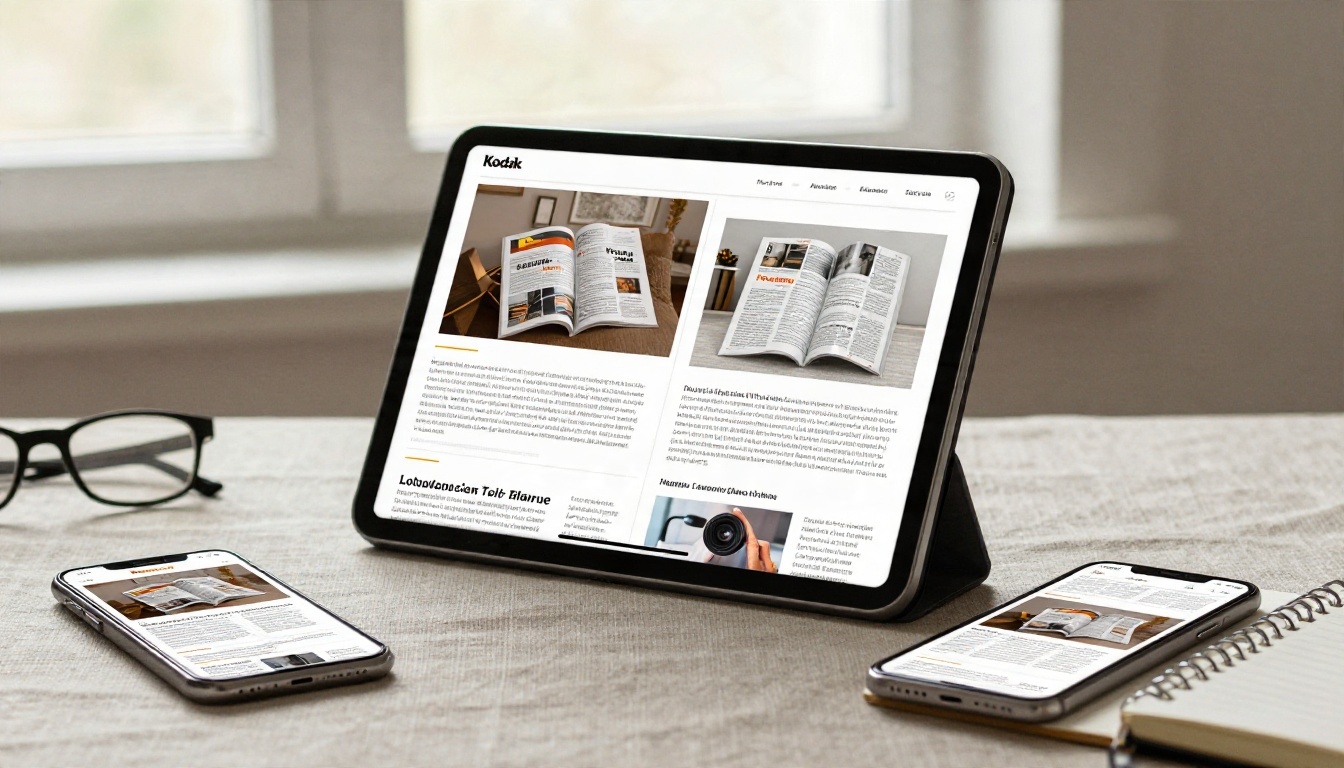
Publisher output was built for paper. Your audience now reads on phones, and an attached PDF feels like homework. This is where a flipbook platform completes the workflow. Whatever tool you pick for layout, export a PDF and convert it with the PDF to Flipbook Converter. Readers get realistic page turns, zoom, and a responsive view with no watermarks, ever.
How to Create a Flipbook with Flipbooks AI
- Create your account. Go to Flipbooks AI and sign up.
- Upload the PDF. Drag in the file you exported from Canva, Affinity, InDesign or Pages. Conversion takes a short moment, and page order, links and images carry over.
- Customize the look. Add your logo, set brand colors, choose a background and tune page effects. You can also embed videos and audio on any page.
- Protect it if needed. Turn on password protection for internal reports, client proposals or members-only newsletters.
- Share it. Copy the direct link, or use the embed option to place the flipbook on your website.
- Track results. On the Professional plan you get analytics, offline downloads and lead generation forms. See the pricing plans for details.
Match the Tool to the Format
Different publications benefit from different starting points. Browse the full flipbook tools directory, or jump straight to a specific one:

A Simple Workflow That Works
Many teams settle on this pattern after dropping Publisher: design in Canva or Affinity, export a PDF, publish as a flipbook, and print from the same PDF when needed. One source file feeds both channels, and updates only require re-uploading a PDF.
Pick Your Replacement Today

If you want one fast recommendation per profile:
- Volunteer or small shop: Canva, plus a flipbook for sharing.
- Mac household: Apple Pages for simple work, Affinity for more.
- Budget minded designer: Affinity.
- Print-heavy publisher: Scribus or InDesign, depending on budget.
- Stuck with old
.pub files: LibreOffice Draw to rescue, then rebuild.
Do the file export this week, choose a tool by the project you make most often, and rebuild one template as a test. When the first layout is done, get started for free on Flipbooks AI to publish it as an interactive flipbook, or compare pricing plans to see which tier suits your volume. Prefer to see everything first? Browse the tools and templates and pick the one that matches your next publication.



