You export a clean 40-page PDF, tap the paperclip in WhatsApp, and the upload crawls, fails, or lands on the other side as a blurry mess. It happens to freelancers, shop owners, teachers, and anyone who sends documents from a phone. This article explains how to prepare a PDF for WhatsApp, which limits actually matter, and the free tools that fix most problems in under a minute. We will also look at when a link made with Flipbooks AI is a smarter move than an attachment.
What WhatsApp Actually Allows
WhatsApp treats PDFs as documents, not as media. That distinction matters because documents skip the heavy compression that photos and videos go through. Your pages stay sharp, your fonts stay intact, and your links stay clickable.
Here is how the limits compare:
| Item | Typical limit | Compression applied |
|---|
| PDF or other document | Up to 2 GB per file | None |
| Photo sent as image | Around 16 MB | Yes, heavy |
| Video sent as video | Around 16 MB | Yes, heavy |
| Files per message | Up to 30 documents at once | None |
| Group or chat | Same limits as one-to-one | None |
The 2 GB ceiling is generous, so size is rarely the real wall. The real problems are slow mobile data, recipient storage, and phones that struggle to open huge files. A 300 MB PDF may upload fine on office Wi-Fi and still fail for a customer on a weak 4G signal.
💡 Rule of thumb: keep any PDF you send on WhatsApp under 10 MB. It uploads in seconds, opens instantly, and does not eat the recipient's phone storage.
Why Documents Beat Photos
Many people screenshot each page and send a pile of images. That approach drops quality, scrambles page order, and makes text impossible to search. Sending a single PDF keeps everything in one place.
- One file instead of 20 images
- Selectable and searchable text stays intact
- Page order never gets mixed up
- Links and form fields keep working
- Original resolution is preserved
The Preview Bubble
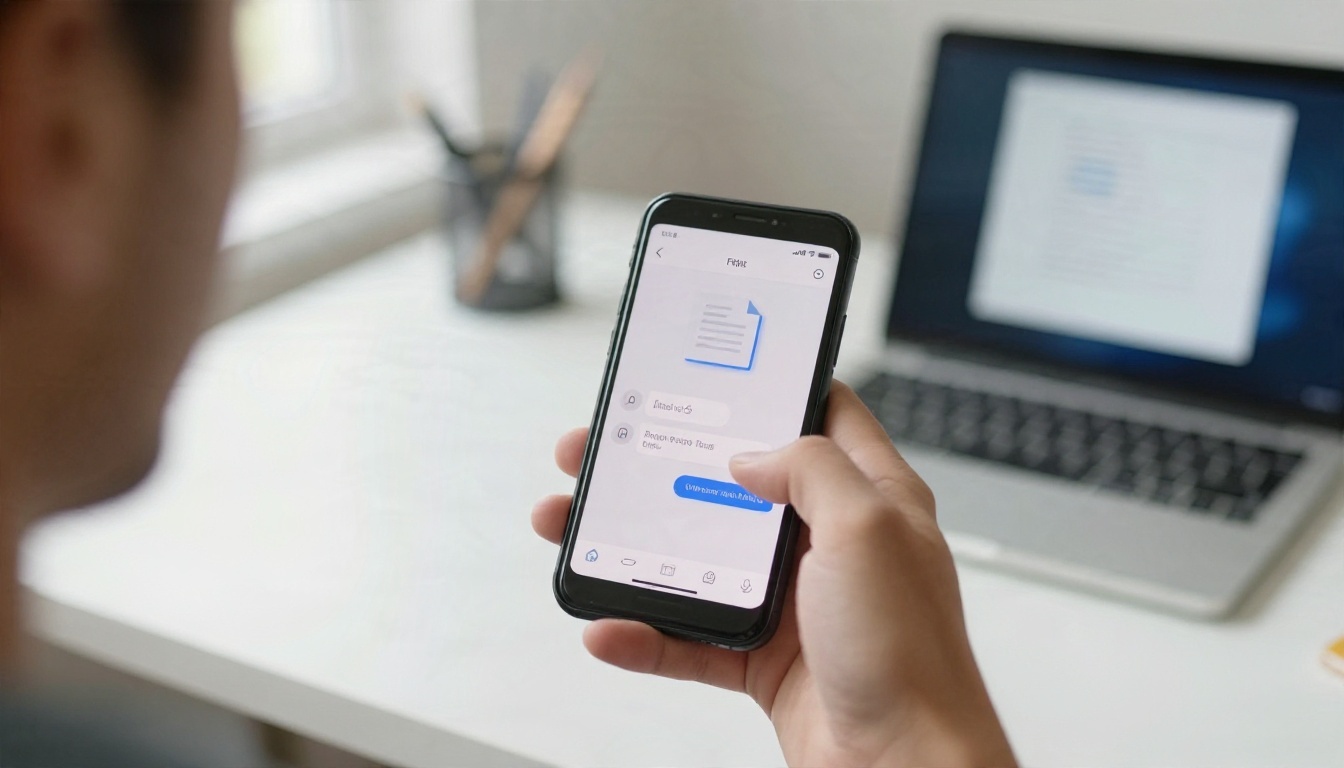
When you send a PDF, WhatsApp shows a small bubble with the first page as a thumbnail, the page count, and the file size. This is your first impression. A clear first page, a readable file name, and a modest file size all make people more likely to tap it.
Not every PDF behaves the same on a small screen. A document designed for print, with tiny text and wide margins, becomes a pinch-and-zoom chore on a phone.
Page Size and Orientation
Pick the layout based on how people will read it:
| Layout | Best for | Phone readability |
|---|
| A4 or Letter portrait | Contracts, invoices, resumes | Good with zoom |
| Square or 4:5 pages | Menus, lookbooks, price lists | Very good |
| 16:9 landscape slides | Presentations, pitch decks | Good when held sideways |
| Wide print spreads | Magazines, brochures | Poor, split into single pages |
If your content is mostly for phones, design at a larger font size (11 pt or more for body text) and keep margins tight. A page that looks slightly oversized on a laptop reads perfectly on a handset.
Fonts, Images, and Compatibility
Three habits prevent most "it looks broken on my phone" complaints:
- Embed your fonts when exporting, so text does not swap to a default.
- Flatten transparency and layers so older phones render pages correctly.
- Export as standard PDF (PDF 1.7 is safe) instead of niche archival or interactive variants.
⚠️ Password-protected PDFs and PDFs with heavy JavaScript forms can fail to preview inside WhatsApp. The recipient may need to open them in a separate reader app.
File Names Matter
WhatsApp displays the file name in the bubble, and long names get truncated. Compare:
- ❌
Final_FINAL_v7_revised_client_copy(2).pdf
- ✅
Spring-Menu-2026.pdf
Short, descriptive names look professional and make files easy to find later in the chat's document list.
How to Shrink a Heavy PDF
Most oversized PDFs are heavy for one reason: uncompressed images. A report with 20 full-resolution photos can reach 80 MB easily. The fix is to reduce image resolution, not to rebuild the document.
Target Sizes by Use Case
| Document type | Good target size | Image resolution |
|---|
| Invoice or contract | Under 1 MB | 150 dpi |
| Resume or CV | Under 1 MB | 150 dpi |
| Restaurant menu | 2 to 5 MB | 150 dpi |
| Product catalog | 5 to 15 MB | 150 to 200 dpi |
| Photo-heavy brochure | 10 to 25 MB | 200 dpi |
For screen reading, 150 dpi is plenty. Print needs 300 dpi, but nobody reading on a phone can tell the difference.
Free Ways to Compress
You do not need to pay for anything. These options all work at no cost:
- Built-in export settings. Word, Google Docs, Canva, and Pages all offer a "smallest size" or "web quality" export option.
- Print to PDF. On a computer, choose "Save as PDF" and pick a reduced quality preset.
- Free online compressors. Upload the file, pick medium compression, and download the result.
- Phone apps. Both Android and iPhone have free PDF tools that reduce size in a few taps.
- Preview on Mac. Open the PDF, choose Export, then select the Reduce File Size filter.
💡 Always compress a copy. Keep the original for print or archive, and send the smaller version over chat.
A Quick Real-World Example
A freelance photographer had a 64 MB portfolio PDF. Clients on mobile data kept complaining that it never finished downloading. She re-exported at 150 dpi with JPEG quality set to medium. The file dropped to 7.8 MB, looked identical on a phone screen, and the complaints stopped.
Send a PDF on Any Phone
The steps are simple, but small differences between Android, iPhone, and desktop trip people up.
On Android
- Open the chat and tap the paperclip icon.
- Choose Document.
- Select Browse other docs to reach your Downloads or Drive.
- Pick the PDF and tap Send.
On iPhone
- Open the chat and tap the plus icon.
- Choose Document.
- Browse Files, iCloud Drive, or Google Drive and select the PDF.
- Confirm and tap Send.
On WhatsApp Web or Desktop
- Click the plus or paperclip icon.
- Choose Document.
- Select the file from your computer.
- Press Send.
Share Directly From Another App
Often it is faster to skip WhatsApp's menu. Open the PDF in your file manager, tap Share, and select WhatsApp, then choose a contact. This works from Gmail, Drive, Dropbox, and most scanner apps.
| Method | Speed | Best when |
|---|
| Paperclip or plus menu | Medium | The file is in your phone's storage |
| Share from another app | Fast | The file is in email or cloud storage |
| Drag and drop on desktop | Fastest | You are working at a computer |
| Send a link | Fast, any size | The file is large or changes often |
When a Link Beats an Attachment
Attachments have limits no matter how well you compress. Each one is a static copy. If you fix a typo or update a price, everyone who already received the old file still has the old version. Large files also fill up chat storage on both ends.
A link solves all of this. You share one URL, the recipient opens it in a browser, and you can update the content any time without sending anything again.

Attachment Versus Link
| Factor | PDF attachment | Shared link |
|---|
| File size limit | 2 GB | None practical |
| Updates after sending | Impossible | Instant |
| Phone storage used | Yes | No |
| Reading experience | Pinch and zoom | Page-turning, mobile friendly |
| Access control | None | Password options |
| Know who opened it | No | Yes, with analytics |
| Works offline | Yes | Needs connection, unless downloaded |
Where Links Win
- Catalogs and price lists that change every month
- Menus that update with seasonal dishes
- Brochures sent to hundreds of leads
- Training material that needs a single trusted version
- Large portfolios that would never fit comfortably in a chat
The honest trade-off: a link needs a connection to open, and some recipients are more comfortable with a file they can save. For that reason, many senders share both: the link in the message and the PDF attached for those who want to keep a copy.
Turn Your PDF Into a Shareable Link
This is where a flipbook shines. Instead of a plain file, you get a page-turning web version of your PDF that opens on any phone with no app and no download. Here is how to do it with Flipbooks AI.

How to Create a Shareable Flipbook
- Start your account. Go to Flipbooks AI and sign up. You can try it free before choosing a plan.
- Upload your PDF. Drag the file into the PDF to Flipbook Converter. Conversion takes moments, and your pages keep their original layout.
- Customize the look. Add your logo, pick brand colors, choose a page-turn effect, and embed videos or audio where they help.
- Check the mobile view. Flipbooks are mobile-responsive, so test how pages read on a phone before sharing.
- Set access. Add password protection for private files such as contracts or internal reports.
- Copy the link. Paste it into WhatsApp. The chat shows a clean preview, and the recipient taps once to read.
✅ Best practice: write a one-line message above the link, such as "Our 2026 catalog, tap to flip through." People open links faster when they know what to expect.
Features Worth Knowing
- ✅ No watermarks, ever
- ✅ Unlimited flipbooks on the Standard plan and above
- ✅ Custom branding with your own colors and logo
- ✅ Offline downloads for readers who want a saved copy
- ✅ Embedded video and audio inside pages
- ✅ Analytics and lead generation on the Professional plan, so you see who opened your file and when. Check the pricing plans for details.
You can also embed the same flipbook on your site using the Embed Flipbook on Website tool, so your WhatsApp link and your web page always show the same version.
Tools for Specific Documents
Different documents benefit from different starting points:
Fix Common PDF Problems
Even with good preparation, things go wrong. Here are the most frequent issues and what to do about each.
"The File Won't Send"
- Check your internet connection. A stalled upload is usually a network issue, not a file issue.
- Confirm the file is under 2 GB.
- Make sure the file is not still syncing from cloud storage. Download it to your phone first.
- Restart WhatsApp and try again.
"The Recipient Can't Open It"
- Ask whether they have a PDF reader installed. Most phones include one, but some older devices do not.
- Try re-exporting as a standard PDF, without special features.
- Send a link version as a backup so they can read in a browser.
"The Text Looks Tiny or Blurry"
- Increase your body font size and re-export.
- Avoid scanning at very low resolution. 200 dpi is a good floor for scanned pages.
- Do not send screenshots of pages. Send the PDF itself.
Three Mistakes to Avoid
- Sending the print version. Print PDFs are heavy and tiny on screen. Make a phone-friendly export.
- Naming files carelessly. Names like
scan0042.pdf look suspicious and are hard to find later.
- Skipping a test. Open your own PDF on a phone before sending it to a client.
Quick Checklist Before You Hit Send
Run through this list every time:
Pick the Right Way to Share
For a one-off invoice or a short document, a compressed PDF attached as a document is perfect. It is quick, it keeps quality, and everyone knows how to open it. For catalogs, menus, brochures, and anything you update or send to many people, a link is easier to manage and nicer to read.
If you want the second option, create your first flipbook for free and paste the link into your next chat. Browse all flipbook tools to find a template that fits your document, or compare pricing plans when you are ready for analytics, lead generation, and unlimited flipbooks.



