You exported the PDF, dropped in a QR code, sent it to print, and now nobody's phone reacts to it. Or it scans, and then lands on a 404 page. Or it worked last month and today shows "subscription expired." Every one of these problems has a specific cause and a specific fix, and most take under ten minutes to solve. If your PDF is meant to be read online anyway, a hosted page from Flipbooks AI can replace a fragile code with a link that stays put. But first, let's find out what is actually broken.
Why Your PDF QR Code Fails
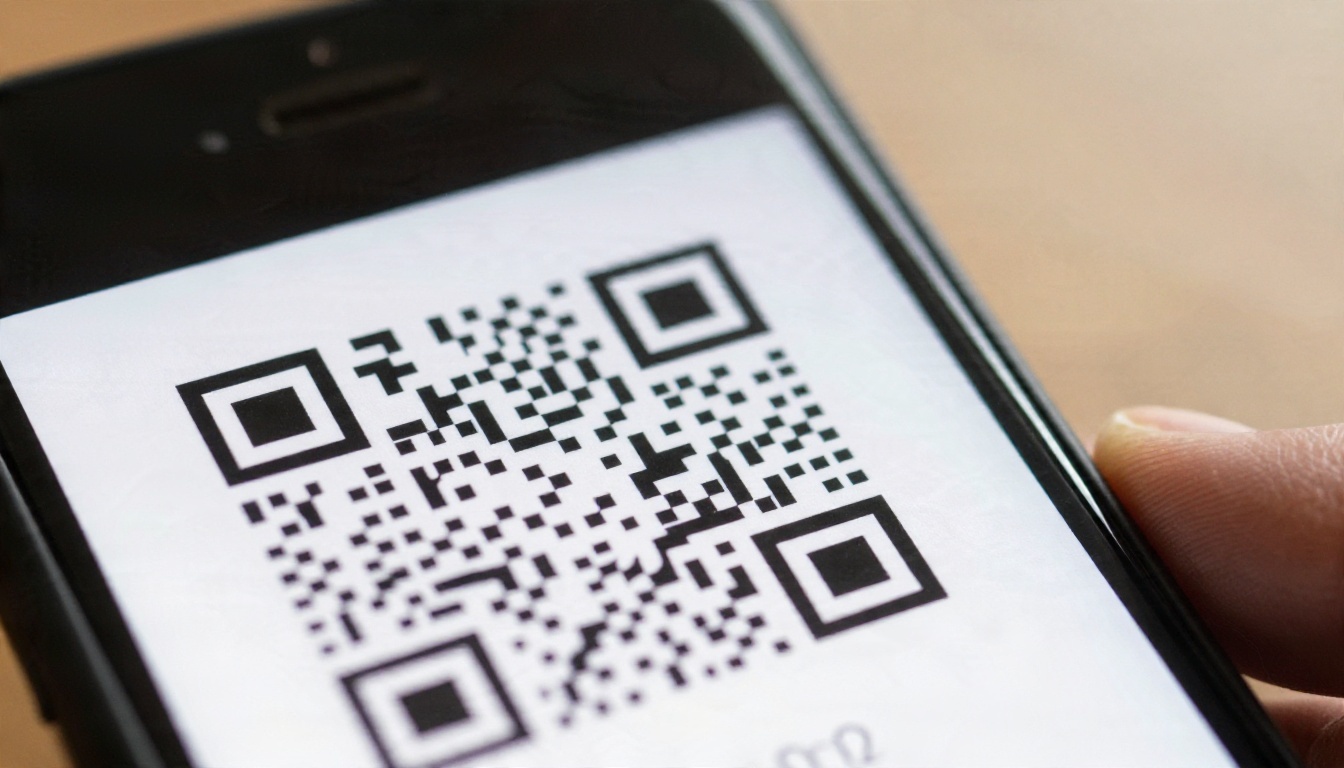
A QR code is only a picture of data. The phone has to see it clearly, decode it, and then open whatever it points to. A failure at any of those three stages looks identical to the user: nothing happens. That is why guessing rarely works. You need to know which stage broke.
The Four Failure Types
Almost every broken PDF QR code falls into one of these groups:
- Scanning failures: the camera can't read the pattern at all.
- Size failures: the code is too small, too far away, or blurred by compression.
- Link failures: the code scans but opens an error, a login wall, or the wrong page.
- Expiry failures: the code worked once and then stopped because the service behind it ended.
Quick Diagnosis Table
Scan your code with two different phones and match what you see to this table.
| What happens | Most likely cause | Jump to |
|---|
| Camera never reacts | Low contrast, glare, or tiny size | Scanning and size sections |
| Camera finds code but is slow | Dense pattern from a long URL | Link section |
| Opens a browser error | Typo, private file, or deleted page | Link section |
| Opens a "plan ended" page | Expired dynamic code | Expired codes section |
| Works on screen, fails on paper | Print resolution or compression | Size section |
💡 Pro tip: Always test with an iPhone and an Android phone. Their built-in scanners handle edge cases differently, and your audience uses both.
Fix Scanning Problems
Scanning is the most common complaint, and it usually comes down to how the code looks, not what it contains.
Contrast and Colors
Scanners look for dark modules on a light background. Designers love to break this rule, and scanners punish them for it.
- Use dark on light, ideally black on white.
- Avoid inverted codes (light on dark). Many older scanner apps can't read them.
- Skip pale colors like yellow, light gray, or pastel pink for the dark modules.
- Never place the code over a busy photo or gradient.
A brand color is fine as long as it is much darker than the background. A navy code on a white card scans well. A mid-gray code on a cream page does not.
Glare and Print Quality
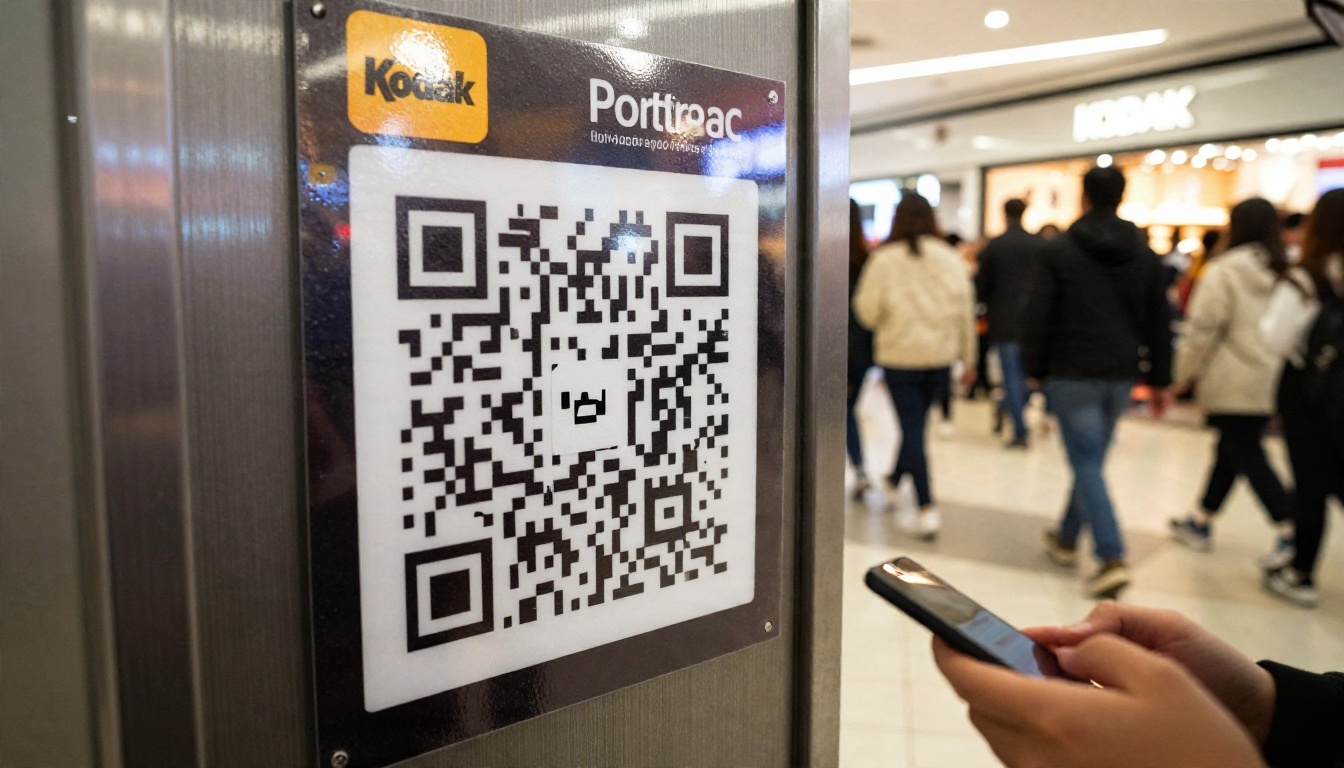
Glossy paper and lamination bounce light straight back into the camera lens. The result is a white streak across the pattern, and the decoder gives up. If your PDF is going to print:
- Choose matte or satin stock for any page that carries a code.
- Print at 300 DPI or higher, or use a vector code so edges stay sharp at any size.
- Avoid placing the code on a fold, a spiral binding edge, or a staple line.
- Check that the ink hasn't bled on uncoated paper, which merges neighboring modules.
Quiet Zone Margins
The blank border around a QR code is called the quiet zone, and it should be at least four modules wide. Crop it too tightly, or let text and graphics touch the edge, and the scanner can't tell where the code begins.
⚠️ Warning: Many PDF editors crop an image tightly when you place it. Add white padding around the code before you export, not after.
Fix Size Problems
Size is where PDF files cause special trouble, because a page can be resized, zoomed, or compressed without you noticing.
Minimum Size by Distance
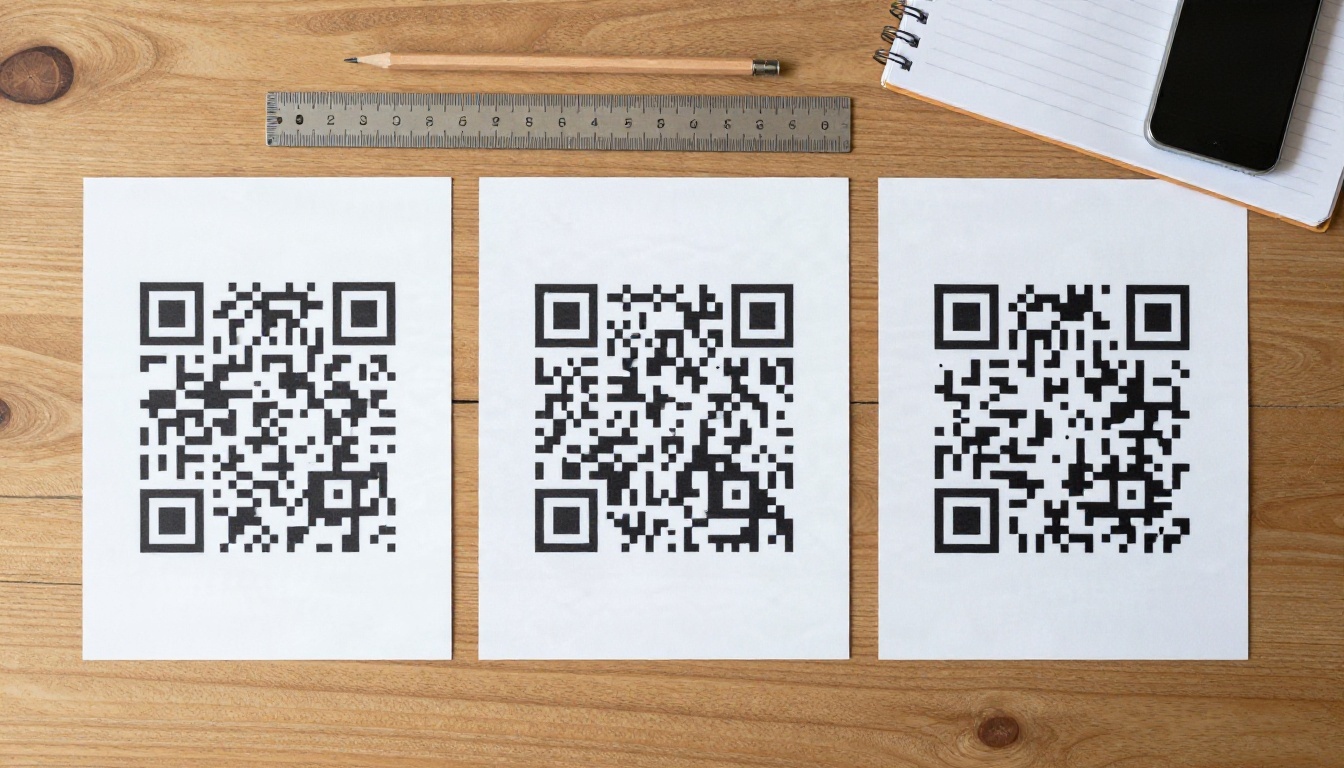
A reliable rule is the 10 to 1 ratio: for every 10 units of scanning distance, the code should be at least 1 unit wide. The smaller your code, the closer people must hold their phones.
| Where it appears | Typical scan distance | Minimum code width |
|---|
| Business card | 10 to 15 cm | 2 cm |
| Flyer or brochure | 20 to 30 cm | 2.5 to 3 cm |
| Restaurant table card | 30 to 40 cm | 3 to 4 cm |
| Poster | 1 to 2 m | 10 to 20 cm |
| Roll-up banner | 3 m | 30 cm |
If your code looks fine on the monitor but fails on paper, measure the printed result with a ruler. Scaling a PDF page to "fit to printable area" often shrinks it below the safe minimum.

Resolution and Compression
When you compress a PDF to shrink its file size, image downsampling can blur a raster QR code until the modules merge. Here is how to avoid it:
- Insert the code as SVG or vector EPS whenever your design tool allows it.
- If you must use PNG, export it at at least 600 pixels wide and never as JPG.
- Disable image downsampling for that page, or compress only the photo-heavy pages.
- Zoom to 400 percent in your PDF viewer. If the edges look soft, the print will too.
✅ Best practice: Keep error correction at level M or Q. Higher levels tolerate dirt and damage better, but they also make the pattern denser, so don't overdo it on small codes.
| Error correction level | Damage it tolerates | Best for |
|---|
| L | About 7% | Clean screens, short links |
| M | About 15% | Most print PDFs |
| Q | About 25% | Outdoor or handled items |
| H | About 30% | Codes with a logo in the center |
Fix Broken Links
If the camera reads the code but the destination fails, the pattern is fine. The data inside it is the problem.
Long URLs and Typos

A long web address with tracking parameters creates a dense, crowded code with tiny modules. Dense codes need more size and better print quality. Shorten the destination first, then generate the code.
Typos are just as common. One missing letter or a stray space and the code sends everyone to the wrong page. Copy the link from your browser's address bar instead of typing it, and paste it into the generator without edits.
Local File Paths and Private Links
This one catches people constantly. A QR code that points to a file on your computer, a company server, or a private cloud folder works perfectly for you and for nobody else.
Check the destination for these red flags:
- Links starting with
file:/// or a drive letter
- Cloud links set to "restricted" or "only people in your organization"
- Intranet addresses that need a VPN
- Links that need a login the audience doesn't have
⚠️ Warning: Always test the link in a private browser window on mobile data, not on your office Wi-Fi. That shows you what a stranger will see.
Redirect Chains
Some codes pass through two or three redirects before reaching the page. Each hop is another chance to break, and some phones show a security warning on the way. Point the code to the final address wherever possible.
| Link type | Reliability | Risk |
|---|
| Direct page URL | High | Breaks if page is deleted |
| Public shared document link | Medium | Permissions can change |
| Third-party shortener | Medium | Service can close or flag the link |
| Dynamic tracking redirect | Depends on plan | Stops when the plan ends |
| Local file path | None | Only works on one device |
Fix Expired Codes
Few things are more frustrating than a printed batch that dies because a free trial ended. It happens more than you would think.
Why Dynamic Codes Expire
A static QR code stores the destination directly in the pattern. It can't expire, because nothing sits between the phone and your link. A dynamic QR code stores a short address owned by the generator company, which then redirects to your real page. If you stop paying, or the trial ends, that redirect is switched off. Your printed code is now useless, and you can't edit it, because it was never really yours.
How to tell which type you have:
- Scan it and look at the address that appears before the page loads.
- If the domain belongs to the QR service, not to you, it's dynamic.
- Check your account for a plan renewal date or trial end date.
Use a Permanent Link
The cleanest fix is to put a stable destination under your own control behind the code. Then, even if you ever change tools, the address stays the same.
- Host the content at a link that does not depend on a subscription you might forget.
- Regenerate the code as a static code pointing to that link.
- Reprint, or place a corrected sticker over the old code if the print run is too large to redo.
- Keep a spreadsheet of every code you've published, with its destination and renewal date.
💡 Pro tip: Before any big print run, ask one question: "If I stop paying for every tool I use today, will this code still work in two years?" If the answer is no, change the setup first.
Build a Reliable Code with Flipbooks AI

Instead of making your readers scan a code to download a heavy PDF, turn the PDF itself into a page-turning online publication. Your QR code then points to one clean, public link. Here is the workflow with the PDF to Flipbook Converter.
Step by Step Tutorial
- Open your account. Create an account on Flipbooks AI and log in.
- Upload your PDF. Drag the file into the uploader. Pages are converted automatically, and your text, images, and links stay sharp. Large catalogs and reports process in the same way.
- Customize the look. Add your logo, pick brand colors, choose page-flip effects, and embed videos or audio where they help. Your flipbook has no watermarks, ever.
- Copy the share link. You get a direct link that works in any browser and is mobile-responsive, so it opens smoothly from a QR scan.
- Generate a static QR code. Paste that link into any QR generator that offers a static option, keep the contrast high, and keep the quiet zone intact.
- Add protection if needed. Turn on password protection for private material such as internal reports or client proposals.
- Embed it elsewhere. Use an embed code to place the same flipbook on your site. See the Embed Flipbook on Website tool.
- Track results. On the Professional plan, analytics and lead generation show who opened your publication and which pages they viewed. Compare options on the pricing page.
Because you can replace the PDF behind the same flipbook, a typo in your content never forces a reprint of the code. You fix the page, and the printed code keeps working. Offline downloads are available too, so readers without a stable connection can still access the file.
Which Tool Fits Your Use Case
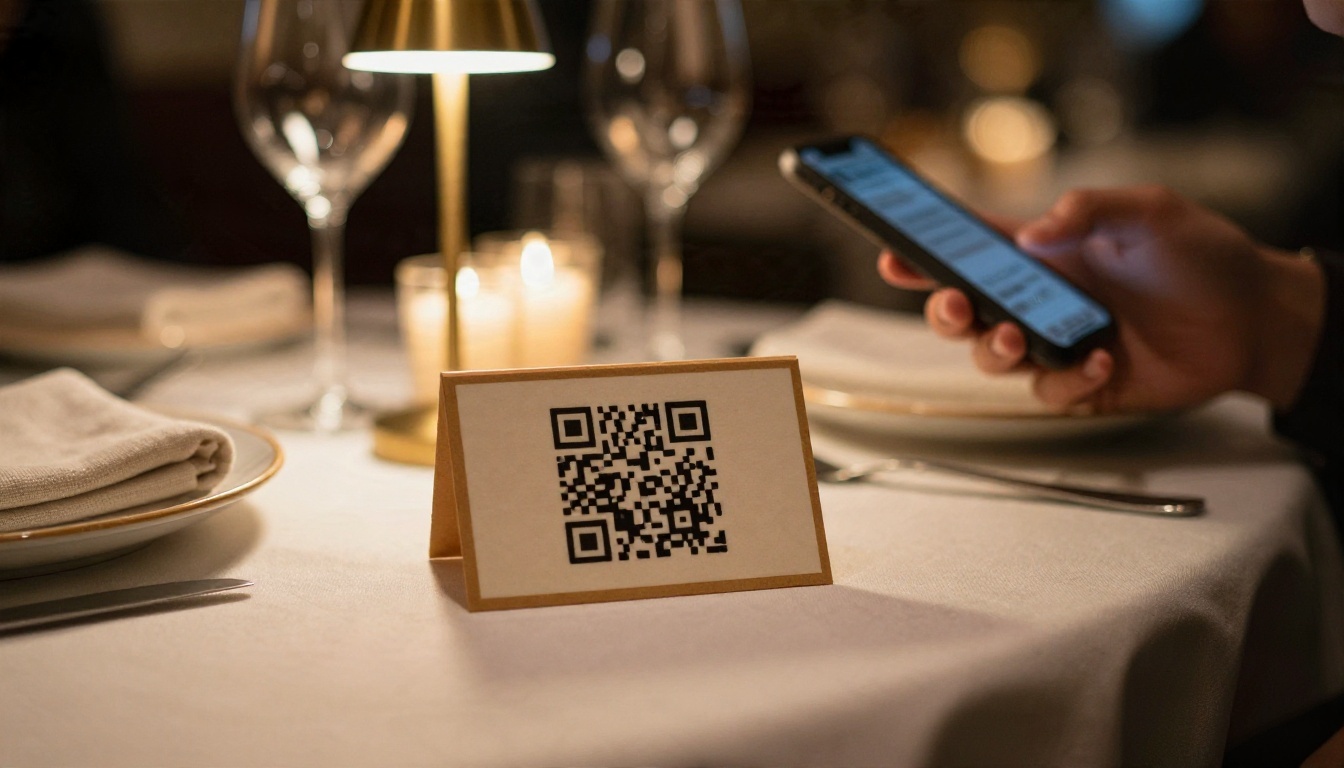
A restaurant is a perfect example. The owner prints one table card with a static QR code. When prices or dishes change, they upload a new PDF to the same flipbook. The cards on the tables never change, and diners always see the current menu.
Test Before You Print

Most QR disasters are preventable with a short test routine. Do it on a printed proof, not on the screen.
The Five Minute Checklist
Real World Scenarios
Here is how the fixes work out in practice:
- A gym prints 2,000 class schedule flyers. The scan fails because the code is only 1.5 cm wide. They redesign at 3 cm and test on a proof before the second run.
- A consultant sends a PDF proposal by email. The code points to a private cloud folder, and the client can't open it. Moving the content to a password-protected flipbook solves access without exposing the file to everyone.
- A small shop prints business cards with a trial-plan dynamic code. Three weeks later the code stops working. They switch to a static code pointing at a permanent catalog link.
- A school sends a PDF newsletter. Parents scanning the code on laptops see a blurry image. The designer replaces the raster PNG with a vector code, and the problem disappears. The School Newsletter Creator keeps the issue easy to read on any phone.
✅ Best practice: Put a short, readable web address under the code as a backup. If the scan fails, people can still type it in.
Ready to Fix Your Codes?
You now have a clear order of attack. Check contrast and quiet zone first, then size and print quality, then the link itself, and finally whether the code is static or dynamic. Fix them in that order and you will catch nearly every failure before a single copy is printed.
If your goal is to share a PDF in a format people actually enjoy reading, skip the heavy download. Get started for free on Flipbooks AI, turn your file into a flipbook, and use one stable link behind every code you publish. Browse all flipbook tools and templates to find the right fit, or compare pricing plans to see which features match your project.



