You have a PDF. You want it to play on a screen without anyone touching a mouse. That is the whole idea behind a PDF slideshow auto advance setup: pages change on a timer, the loop restarts at the end, and your brochure, menu or pitch deck keeps running while you get on with your day. The catch is that a plain PDF viewer was never built for this, so you need a trick, a free setting, or an online tool. This article walks through all three, and shows where Flipbooks AI fits when you want the pages to flip like a real publication.
What Auto Advance Actually Means
Auto advance is simple to describe and surprisingly easy to get wrong. A viewer shows page one, waits a set number of seconds, shows page two, and keeps going. When it reaches the last page it either stops or loops back to the start. Everything else, including transitions, full screen mode and sound, is a bonus.
Timed Versus Triggered Page Flips
There are two ways a page can move on its own:
- Timed advance: every page stays for the same number of seconds, such as 8 or 15.
- Triggered advance: the next page appears after an event, such as a click, a tap, a scroll or the end of an audio clip.
Digital signage and kiosks need timed advance. Sales decks used in meetings usually work better with triggered advance, because a person controls the pace. Most free methods only give you the timed version, which is fine for screens that run all day.
Who Needs It
The people who ask for this feature are rarely presenters. They are usually someone with a screen and a PDF:
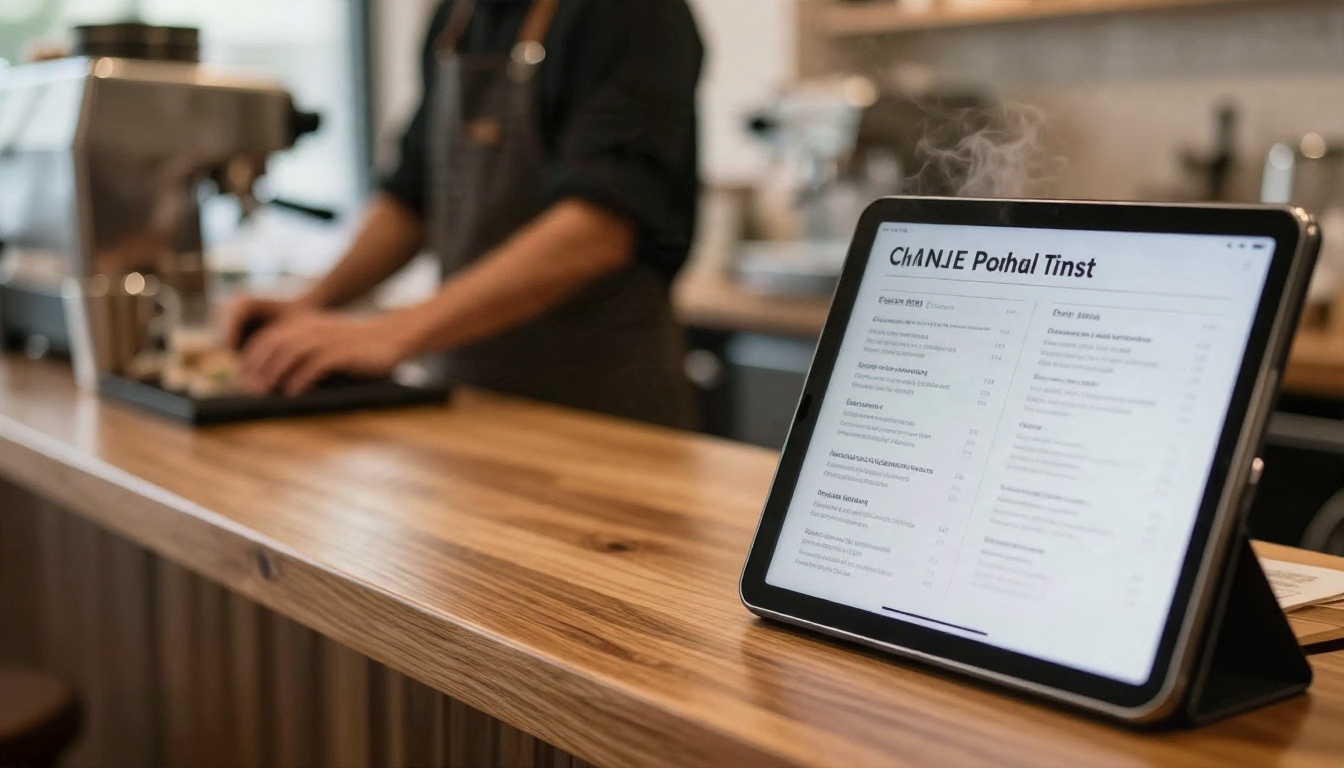
- A cafe owner showing a seasonal menu behind the counter
- A property agent running listings on a lobby display
- A teacher looping instructions while students arrive
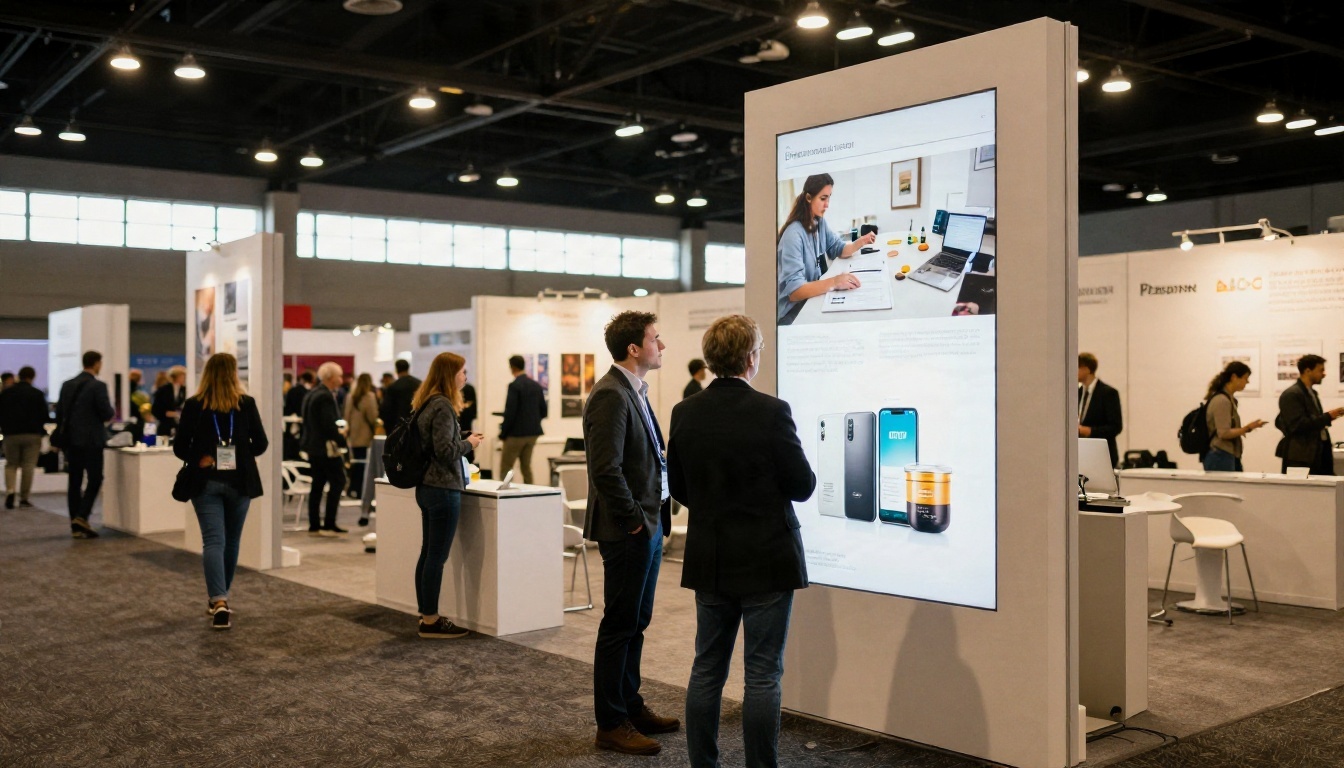
- A marketer playing a product catalog at a trade show booth
Free Ways to Auto Advance a PDF
You do not need to pay anything to get a working loop. These methods cost nothing, though each has a limit you should know about before you commit a screen to it.
Adobe Acrobat Reader Full Screen Mode
This is the oldest trick and still the quickest. Open Acrobat Reader, go to Preferences, then Full Screen, and tick the option to advance every set number of seconds. Tick Loop after last page too. Then press Ctrl+L on Windows or Cmd+L on Mac to enter full screen.
💡 Pro tip: Set the timer to a value slightly longer than you think you need. People read slower on a wall screen than on a laptop.
The weak points are real. The setting lives on one computer, so it does not travel with the file. Pages simply swap with no flip animation. And a Windows update or a restart can leave you with a login screen instead of your slideshow.
PowerPoint and Google Slides
Another free route is to convert each PDF page into an image, drop the images into a slide deck, and use the built in timing controls. In PowerPoint, set Advance Slide After under the Transitions tab and enable looping in Set Up Slide Show. In Google Slides, use Present, open the menu, and choose auto play with a loop.
This works well for short decks. For a 60 page catalog it becomes a chore, because every page is a separate image you have to place and size by hand.
Browser Based Viewers
Some browsers and extensions let you run a PDF full screen, but very few offer a real timer. If you hear about a "free auto scroll PDF viewer", check what it does. Auto scroll moves the page slowly down the screen. That is not the same as flipping page by page, and it looks messy on a signage display.
Free Methods Compared
| Method | Cost | Timer per page | Page flip effect | Works on the web | Best for |
|---|
| Acrobat Reader full screen | Free | Yes, one value | No | No | One office PC |
| PowerPoint slides | Paid or free web version | Yes, per slide | Basic transitions | Limited | Short decks |
| Google Slides | Free | Yes, one value | Basic transitions | Yes, by link | Shared decks |
| Browser PDF viewer | Free | Rarely | No | Yes | Quick previews |
⚠️ Warning: Free methods keep your file as a PDF or a slide deck. If the screen is far from your desk, you will need a way to update it without walking over there.
Online tools solve the biggest problem with free desktop methods: the slideshow lives at a web address. Update the file once and every screen that points to that link shows the new version. You also get embed codes, so the same slideshow can run on a website, a kiosk browser or a smart TV.
Four Types of Online Tools
| Tool type | How it works | Page flip look | Upload a PDF directly | Embed on a website |
|---|
| Slide platforms | Import pages as slides, then set autoplay | Flat slides | Often, with limits | Yes |
| Digital signage services | Playlist of images or PDF pages on a timer | Flat, with fades | Yes | Rarely |
| Document sharing sites | Hosted PDF viewer with a share link | Scroll or single page | Yes | Sometimes |
| Flipbook makers | Converts PDF into a page turning publication | Realistic page curl | Yes | Yes |
What to Check Before Choosing
Before you pick, run through this short list:
- Does it keep the original quality? Text should stay sharp at full screen.
- Can you remove watermarks? Many free tiers stamp a logo on every page.
- Is the link stable? If the address changes each time you update, your signage will break.
- Does it work on mobile? Visitors often scan a QR code and open the same slideshow on a phone.
- Can you protect it? Internal price lists should not be public.
How to Create a Page Flip Slideshow with Flipbooks AI
If you want the feel of turning pages instead of flat slide swaps, a flipbook is the better format. Flipbooks AI converts your PDF into an interactive publication with a realistic page curl, which you can display full screen on a monitor or embed on a site. The PDF to Flipbook Converter is the core tool for this job.
💡 Note on timing: A flipbook is built for reading and browsing, and the viewer is easy to leave running on a display. If your project demands a strict per page countdown, check the viewer options available on your plan, and pair the flipbook link with one of the timed methods above where needed.
Step 1: Upload and Convert
- Open Flipbooks AI and create an account.
- Click to start a new flipbook and drop in your PDF.
- Wait a few moments while each page is converted into a flip page. Text stays sharp and links inside the PDF keep working.
Before you upload, make sure every page uses the same orientation. A mix of portrait and landscape pages looks awkward on a fixed screen.
Step 2: Customize the Look
Once your flipbook is ready, open the design settings:
- Branding: add your logo and choose colors that match your signage or website.
- Page effects: pick the page curl style and speed that suits your content.
- Multimedia: embed videos and audio to make key pages come alive. A 15 second clip on the menu page sells more than another photo.
- Background: use a plain, dark or branded backdrop so the pages stand out.
Every flipbook is published without watermarks, which matters when it plays in front of customers all day.
Step 3: Share and Embed
You have several options for publishing:
- Direct link: open it in a browser on any kiosk or smart TV.
- Embed code: place it on a landing page. The Embed Flipbook on Website tool shows how.
- Password protection: keep internal material private.
- Offline download: save a copy for events where the Wi-Fi is unreliable.
Step 4: Use Pro Features
On the Professional plan you gain analytics and lead generation. You can see how many people open the flipbook, which pages they reach, and capture an email before they continue. Compare options on the pricing page to see which plan fits. The Standard plan and above allows unlimited flipbooks, handy if you run a different slideshow in every branch.

Real-World Uses That Work
Theory is easy. Here is how people actually put an automatic page flip to use.
Lobby and Kiosk Displays
A reception area is the classic case. Load a company profile, a service list and a few client stories, then let it loop. Use the Presentation Flipbook Designer for a deck that looks polished on a wall screen.
Restaurant and Cafe Menus
A restaurant menu behind the counter can show lunch specials from 11 to 3 and a different file after that. Short pages, large type and one price per photo are the rules.
Real Estate Listings
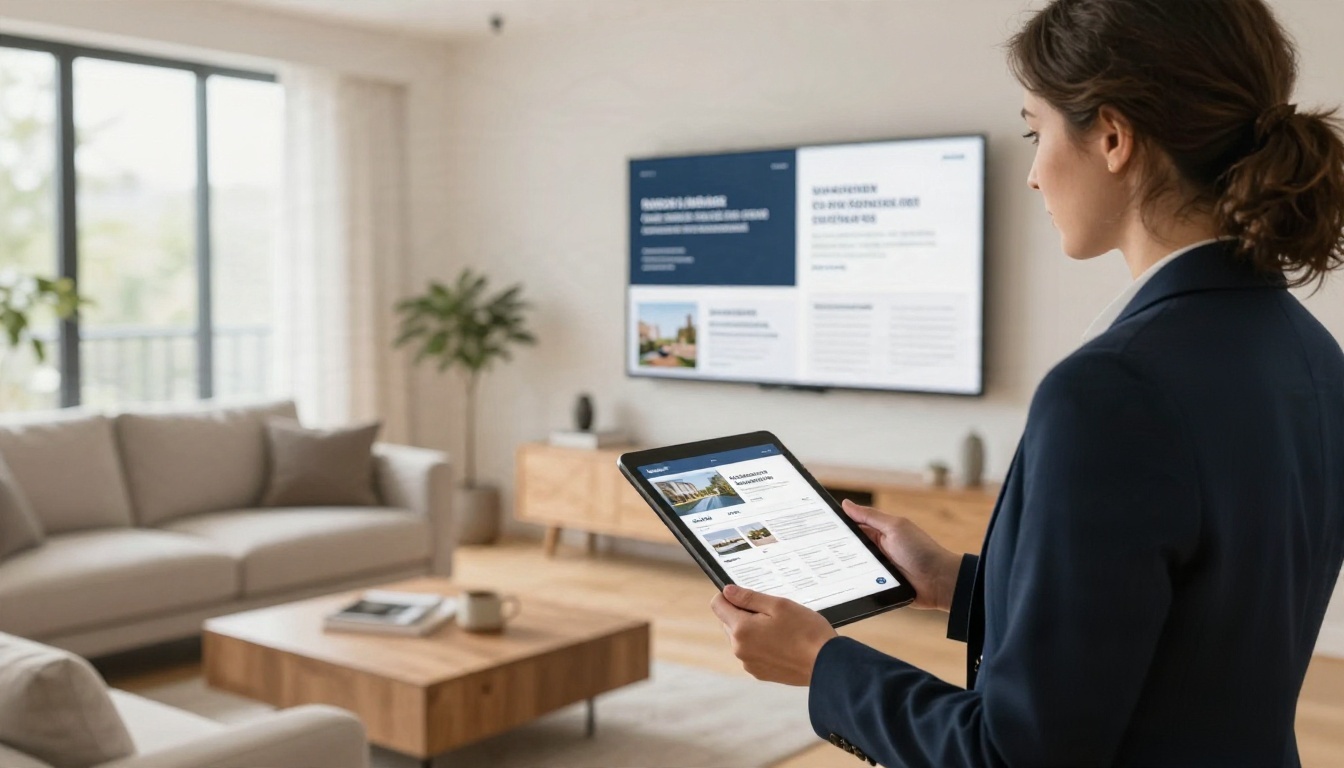
Agents can run a real estate brochure on a tablet inside a show home and a larger one on the lobby wall. Buyers who like what they see scan a QR code and carry the same flipbook home on their phone.
Classrooms and Training Rooms
Teachers can loop a day plan or a safety reminder on the board. A training manual flipbook works well for onboarding rooms, where new hires wait before a session starts.

Use Cases at a Glance
| Scenario | Typical page count | Suggested format | Best channel |
|---|
| Lobby welcome loop | 6 to 12 | Company profile | Wall screen link |
| Cafe menu board | 2 to 5 | Menu | Tablet or TV browser |
| Trade show booth | 10 to 25 | Product catalog | Full screen display |
| Open house | 8 to 16 | Property brochure | Tablet and QR code |
| Hotel front desk | 6 to 10 | Services brochure | Wall screen |

Timing Rules That Work
The number of seconds per page decides whether people read your content or walk past. These starting points come from how long people typically stay near a screen.
| Content type | Seconds per page | Why |
|---|
| Full page photo with a headline | 5 to 7 | Glanceable, little text |
| Menu or price list | 10 to 15 | People scan items and prices |
| Product catalog page | 8 to 12 | One product, one message |
| Text heavy report page | 20 to 30 | Needs actual reading time |
| Pages with video | Length of clip plus 3 | Prevents a cut off |
✅ Best practice: Count the words on the page. A comfortable reading speed on a screen is roughly 3 words per second, so a page with 40 words needs about 13 seconds before it feels natural.
Common Mistakes
- Tiny type. If you cannot read it from 3 meters away, resize the page before you convert it.
- A loop that is too long. If the cycle runs past two minutes, most people see the middle and miss the start.
- Forgetting the last page. End on a call to action, such as a phone number or a QR code.
- Mixed page sizes. They cause black bars and uneven margins on screen.
- No fallback. Keep a copy of the PDF on a USB drive in case the network fails.
Troubleshooting Quick Fixes
| Problem | Likely cause | Fix |
|---|
| Slideshow stops after one loop | Loop option is off | Turn on looping in the viewer settings |
| Screen goes to sleep | Power settings on the device | Set the display to never sleep |
| Pages look blurry | Low resolution export | Export the PDF again at a higher quality |
| Link will not open on the TV | Browser is outdated | Update the browser or use a newer device |
| Wrong file shows after an update | Cached copy | Refresh the page or clear the cache |
Pick Your Setup and Start
Here is the short version. If you only need one office PC to loop a handful of pages, use Acrobat Reader full screen and be done in two minutes. If several screens share one file, or the content changes often, an online tool with a shareable link will save you hours. And if you care about the look, a flipbook gives your PDF the page turning feel that a flat slide swap never will.
Ready to try it? Create your free account on Flipbooks AI and upload your first PDF today. Not sure which plan suits you? Compare pricing plans, or go straight to the account page and choose one. If you have a specific use in mind, such as a menu, brochure or catalog, browse all flipbook tools to find a starting point built for it.



