You exported a tidy PDF, emailed it, and nobody opened it. That is the usual fate of a flat file: it lands in a downloads folder, loads slowly on a phone and looks nothing like the printed booklet you pictured. A PDF to booklet converter fixes that by turning the same pages into a bound-style reading experience with a real page turn, a clean link and no attachment to forget. Platforms like Flipbooks AI do this online, so you can go from file to shareable booklet in a few minutes.
This article walks through what a digital booklet is, how free makers compare, how to prepare your PDF, how to build the booklet step by step, how a page flip viewer behaves, and which sharing options suit which audience.

What a PDF Booklet Really Is
A booklet is a short, bound-style publication, usually 8 to 48 pages, built from sheets folded in half. Think event programs, product brochures, menus, onboarding packs and small catalogs. A digital booklet keeps that rhythm: pages sit side by side as spreads, and readers turn them instead of scrolling a long gray column.
Booklet vs Flipbook vs Plain PDF
People use these terms loosely, so here is how they differ in practice.
| Feature | Plain PDF | Printed booklet | Online booklet (flipbook) |
|---|
| Reading feel | Scroll or zoom | Physical page turn | Animated page turn |
| Delivery | Attachment or download | Mail or hand-out | One link or embed |
| Mobile friendly | Often awkward | Not applicable | Responsive layout |
| Updates after sending | New file, new email | Reprint | Replace the file, keep the link |
| Tracking readers | None | None | Possible with analytics |
| Cost per copy | Free | Printing and postage | Free or a flat plan |
The takeaway: a flipbook is the digital twin of a booklet. If you also want paper copies, you can print the same source PDF.
Who Needs One
- Restaurants and cafes that update menus every season.
- Real estate agents sending property brochures to several buyers.
- Schools and clubs publishing newsletters and event programs.
- Freelancers and studios presenting a portfolio without a heavy attachment.
- Small shops replacing a stapled price list with something scannable.
💡 Pro tip: If your document is a single sheet or longer than about 60 pages, you are probably making a flyer or a manual, not a booklet. The workflow below still applies, but expectations for layout differ.
Free Converter Options Compared
Search for a free converter and you will find three broad types. They look similar on the landing page and behave very differently once you upload.
| Type | Typical output | Watermark | Page limit | Best for |
|---|
| Offline imposition tool | Reordered PDF for printing | None | Usually none | Home or office printing |
| Basic free web converter | Flip viewer on a shared domain | Often yes | Low | One-off tests |
| Flipbook platform | Branded online booklet with link and embed | None on Flipbooks AI | Depends on plan | Sharing, embedding, tracking |
What "Free" Usually Costs
Free tools rarely charge money. They charge in other ways:
- Watermarks stamped on every page.
- Expiry: your booklet disappears after 14 or 30 days.
- Forced ads around the viewer.
- Public listing: your private pricing sits in a gallery anyone can browse.
Before you upload anything confidential, check the terms on privacy and retention. A price list or internal handbook should never sit on a public index by default.
Watermarks and Page Limits
A logo from another company on your menu or brochure looks careless. Page limits are equally annoying: a 32-page program that gets cut at page 10 is unusable. Flipbooks AI states no watermarks, ever, and you can compare plan limits on the pricing page.
⚠️ Watch out: "Free trial" and "free forever" are not the same thing. Read the plan notes before you print a QR code that points to the booklet. Changing links after printing is expensive.
Prepare Your PDF First
Ten minutes of preparation saves hours of fixes. A converter can only show what your file gives it.

Page Count and Spreads
Printed booklets need page counts in multiples of four because each sheet folded in half gives four pages. Digital booklets are more forgiving, but the same habit helps if you plan to print later.
- Front page alone: keep the first page single, as it would sit on the right when a booklet is closed.
- Inside spreads: design facing pages as pairs, so an image or heading crossing the fold lines up.
- Back page alone: the last page also sits on its own.
Size, Margins and Fonts
| Setting | Recommended | Why it matters |
|---|
| Page size | A5, US Half Letter or A4 | Consistent ratio across all pages |
| Margins | At least 10 mm (0.4 in) | Nothing gets trimmed or hidden near the spine |
| Fonts | Embedded on export | Prevents substitution on other devices |
| Images | 150 to 200 dpi for screen | Sharp enough, fast to load |
| Color mode | RGB for screen, CMYK for print | Colors look right where they are shown |
Compress Without Blurring Images
Large PDFs load slowly on mobile data. Aim for under 25 MB for a photo-heavy booklet and much less for text. Export at "small file size" or "screen" quality first, then check one photo page. If it looks soft, raise only the image quality, not the whole file.
✅ Best practice: Before uploading, flip through the PDF at 100 percent zoom. Spot a typo now and you avoid replacing the file later.
How to Create a Booklet with Flipbooks AI
Flipbooks AI is built for exactly this job: upload a PDF, get a flipbook. The steps below follow the real order of work.

Step 1: Create Your Account
Go to Flipbooks AI and create an account. Signing up takes a minute, and you can try the platform before choosing a plan. If you want to see what is available first, browse the tools directory.
Step 2: Upload and Convert
- Open the PDF to Flipbook Converter.
- Drag your PDF into the upload area or select it from your device.
- Wait while pages are converted into a flipbook. A short booklet is usually ready quickly, and larger files take longer.
- Open the preview and turn through every page.
Screenshot description: a split view with page thumbnails along the left edge and a large two-page spread in the center, with the page corner lifting as you drag.
Step 3: Add Your Branding
Make it look like yours, not like a stock template.
- Colors: match the background and toolbar to your brand palette.
- Logo: place it in the viewer so it stays visible while readers browse.
- Page effects: choose the page-turn style that suits the tone. Subtle for corporate, livelier for a menu or lookbook.
- Layout: pick a spread view for desktop and let the responsive layout handle phones.
Step 4: Add Media
Static pages can feel flat. You can embed videos and audio to bring a page to life: a welcome clip on page one, a chef's note beside a dish, a property walkthrough beside the floor plan. Keep clips short so the booklet stays quick to open.
Step 5: Publish and Share
Choose a direct link, copy an embed code, or set a password. The next section compares them. Professional features such as analytics, lead generation and offline downloads are on the pricing page.
💡 Pro tip: Name your booklet clearly before publishing. A link that ends in "menu-winter-2026" is easier to recognize in a report than "untitled-final-v3".
The Page Flip Viewer Explained
The viewer is what your reader actually touches, so its behavior decides whether they stay for page two.
Desktop Spreads
On a wide screen the viewer shows two pages at once, like an open book. Readers drag a corner, click an arrow or use the keyboard. Zoom lets them read fine print without leaving the spread. This is where a brochure or portfolio feels most like paper.
Mobile Reading
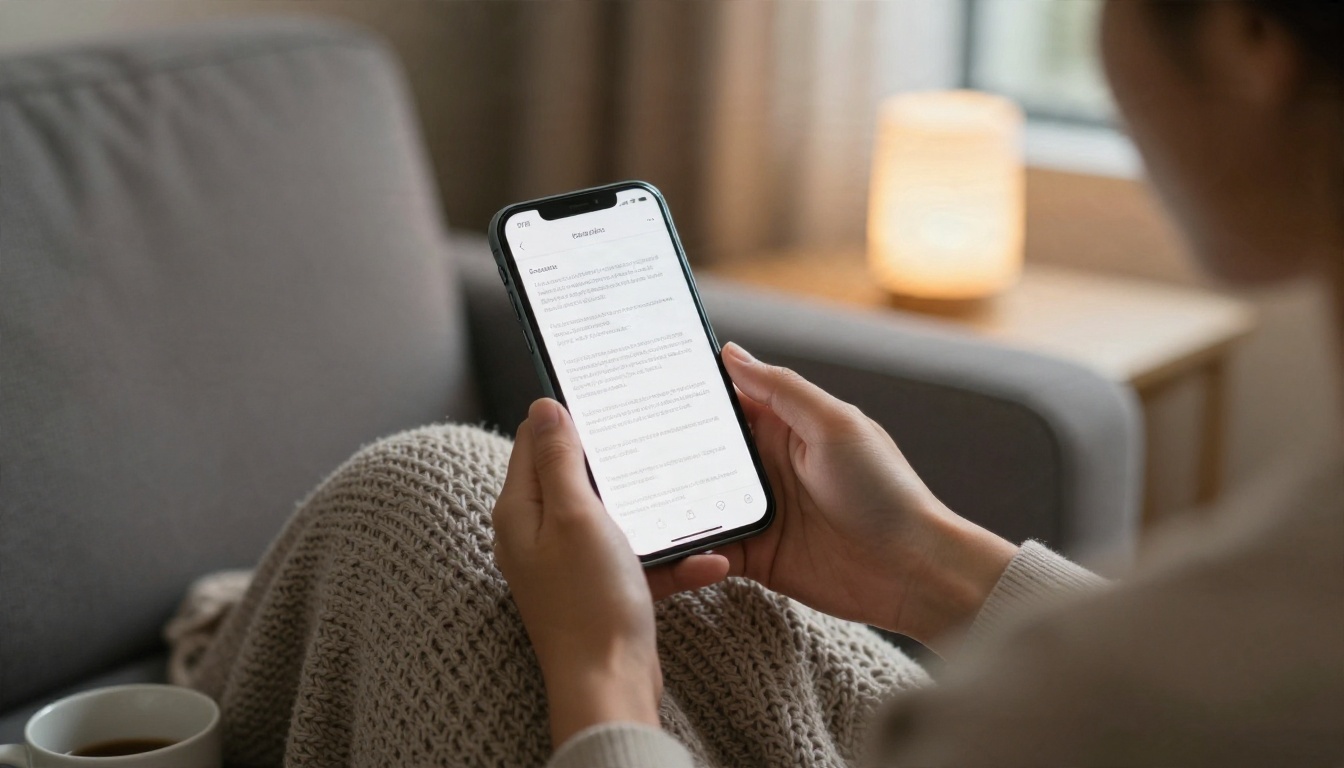
Most links shared by message or QR code are opened on a phone. A good mobile viewer switches to a single page, supports swipe and pinch, and keeps the toolbar out of the way. A plain PDF in the same situation means tiny text and sideways panning. Flipbooks AI uses a mobile-responsive design, so the same link adapts to the device instead of requiring a second version.
| Viewer behavior | Desktop | Phone |
|---|
| Page display | Two-page spread | Single page |
| Navigation | Click, drag, arrow keys | Swipe, tap |
| Zoom | Scroll or click | Pinch |
| Best layout choice | Landscape spreads | Portrait pages with larger type |
⚠️ Watch out: Body text under 9 pt becomes hard to read on a phone. If most of your audience reads on mobile, bump type size in the source PDF.
Sharing Options That Work
One booklet can reach different readers through different doors. Pick based on who they are and where they are.
Direct Link, Embed and QR
| Method | Setup effort | Best for | Watch for |
|---|
| Direct link | None | Email, chat, social bios | Link needs to stay stable |
| Embed code | Paste into a page | Websites, landing pages, help centers | Check mobile width after embedding |
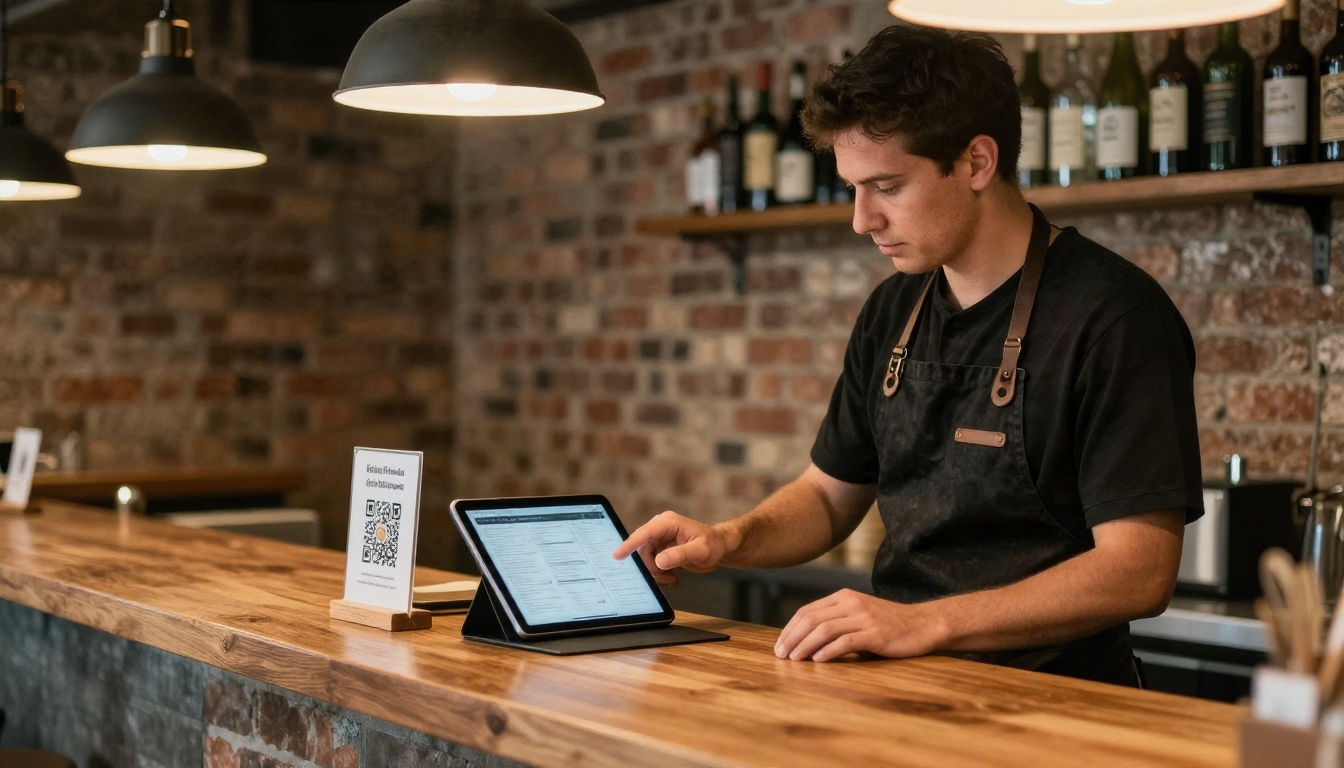
| QR code | Generate from the link | Tables, posters, packaging | Test print size before bulk printing |
| Offline download | One click for readers | Trade shows, flights, poor signal | Keep a version label on the file |
To place the booklet inside your site, see the Embed Flipbook on Website tool. It gives you code you paste where the booklet should appear.
Password Protection
Not every booklet is public. Investor updates, wholesale price lists and staff handbooks should be password protected. Share the password separately from the link, for example by phone or in a second message, so a forwarded email does not expose everything.
Analytics and Lead Capture
On the Professional plan you can see how readers behave and capture leads. Practical uses:
- Find the page where most readers stop.
- Compare two versions of an offer page.
- Ask for an email before a premium booklet opens.
Plans and limits are listed on the pricing page.
Real-World Examples
Abstract features are easy to nod at. Here is how people use booklets day to day.

A restaurant turns a 12-page menu PDF into a booklet, prints a QR code for each table and updates dishes by replacing the file. Staff stop reprinting laminated sheets. The Restaurant Menu Creator is built for this.
A real estate agent sends a property booklet with floor plans, photos and a walkthrough clip. Buyers open it on a phone between appointments, and the agent sees which pages got attention. See the Real Estate Brochure tool.
A school publishes a monthly newsletter as a booklet and embeds it on the parent portal. The School Newsletter Creator helps with that layout.
A freelance photographer replaces a heavy portfolio attachment with a lightweight link. Try the Photography Portfolio option.
| Use case | Typical length | Best sharing method | Helpful extra |
|---|
| Menu | 8 to 16 pages | QR code | Frequent file replacement |
| Property brochure | 12 to 24 pages | Direct link | Video walkthrough |
| Event program | 8 to 20 pages | Embed plus link | Offline download |
| Portfolio | 16 to 32 pages | Direct link | Custom branding |
| Staff handbook | 20 to 48 pages | Password link | Analytics |

Common Mistakes to Avoid
Most failed booklets share the same few problems.
- Uploading a huge file untouched. Compress first and check one image page.
- Ignoring the first page. It is your front door. Put the title, your logo and one clear image there.
- Skipping the mobile test. Open the link on your own phone before you send it to anyone.
- Forgetting a call to action. End with a phone number, a link or a button-style prompt.
- Printing a QR code too small. Keep it at least 2 cm (0.8 in) wide and test it from the distance a reader will use.
- Using a public link for private material. Add a password.
✅ Best practice: Keep a short checklist: file size, fonts embedded, first page, mobile preview, link test, password if needed. Run it every time you publish.
If you also want paper copies, export the same PDF and have it printed as a saddle-stitched booklet. Ask the printer for page-count rules, since most want multiples of four.
Ready to Publish Your Booklet?
You already have the hardest part: the PDF. What is left is a few minutes of setup and a link to share.
A booklet people can open in one tap gets read. A PDF buried in an inbox does not. Upload yours today and see the difference.



