A visitor walks up to your screen, swipes once, and either the pages glide or they land on a browser toolbar, a download prompt, and somebody's desktop wallpaper. That gap is the whole story of PDF viewer kiosk mode. A plain PDF was built for printing and email, not for an unattended touchscreen in a lobby. With Flipbooks AI you can turn that same PDF into a page-turning flipbook that fills the screen edge to edge, then lock the device so nobody wanders off into the settings menu.
This article shows how kiosk mode really works, which setups hold up in restaurants, showrooms, and hotel lobbies, and how to build the content itself so it looks right on a vertical or horizontal display.
What Kiosk Mode Actually Means
People use the term loosely, so let's pin it down. Kiosk mode is a configuration where a device shows one thing, and only that thing, in fullscreen. No address bar, no tabs, no way to open other apps. Visitors can interact with the content, but they cannot leave it.
💡 Pro tip: Treat kiosk mode as two separate jobs. Job one is the display (fullscreen, no chrome). Job two is the lock (nobody can exit). Most failed kiosks solve only one of them.
Fullscreen Versus Kiosk Lock
Pressing F11 in a browser gives you fullscreen. It does not give you a kiosk. Anyone with a keyboard can press Escape, and on a touchscreen a swipe from the edge can bring back the system bar. A true kiosk lock uses an operating system feature or a launch flag that removes the exit path.
| Setup | Fullscreen | Locked | Typical use |
|---|
| Browser F11 only | Yes | No | Staff-attended demo |
| Chrome or Edge with kiosk flag | Yes | Mostly | Wall display, desktop mini PC |
| iPad Guided Access | Yes | Yes | Counter tablet |
| Android screen pinning or lock task | Yes | Yes | Rugged tablet, retail shelf |
| Windows Assigned Access | Yes | Yes | Floor-standing touchscreen |
Why Raw PDFs Fall Short
Open a PDF directly in a browser kiosk and you will notice the problems quickly:
- The built-in viewer adds a floating toolbar with print, download, and rotate buttons.
- Pages scroll vertically in one long strip, which feels like a document, not a catalog.
- Pinch-zoom can leave a page stuck at an odd scale with no obvious way back.
- The file may download instead of display on some tablets.
- There is no way to see what visitors actually looked at.
A flipbook solves each of these. It renders in a clean viewer, turns pages with a natural gesture, and does not trigger downloads unless you allow them.
Where Fullscreen Display Pays Off
Not every business needs a kiosk. The ones that benefit most share a pattern: the content changes often, printing is expensive, and customers decide while standing up.
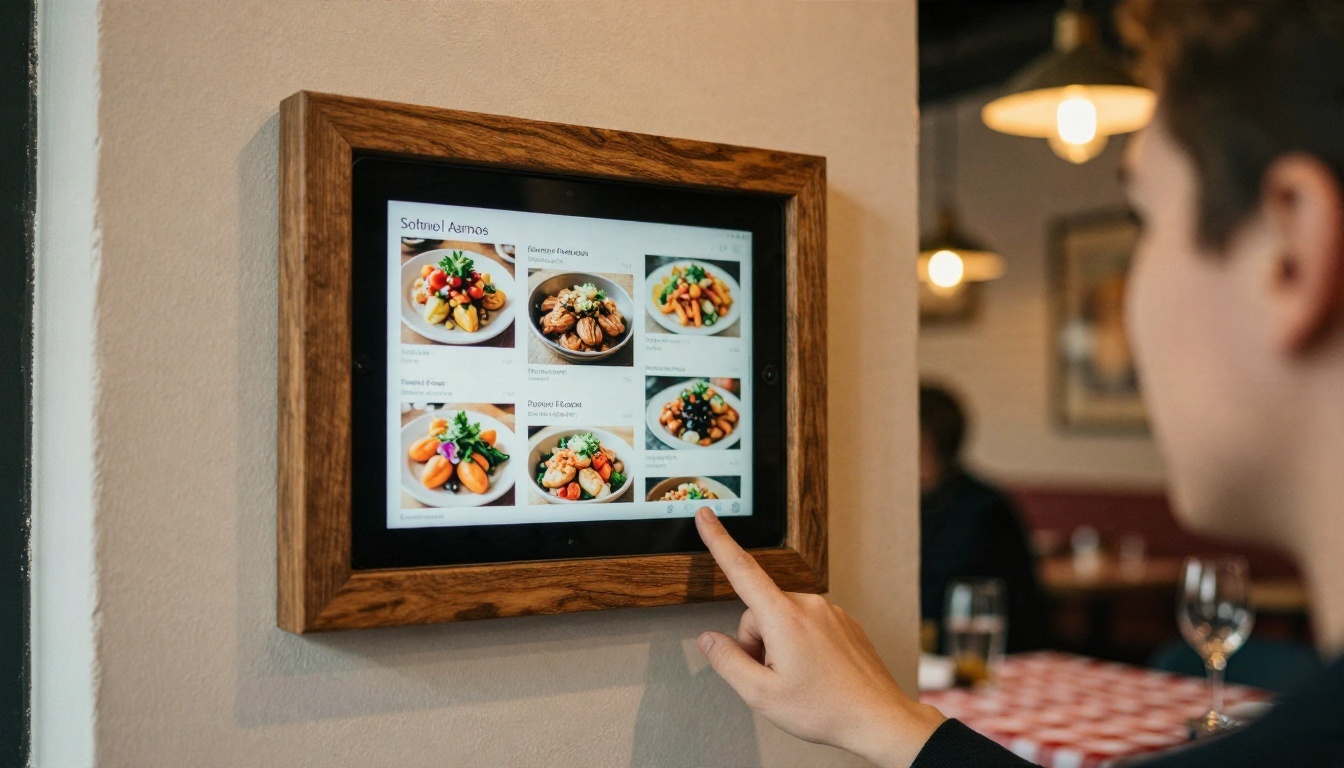
Restaurant and Café Menus
A wall-mounted tablet by the door lets a queue read the menu before they reach the counter. When prices change on Tuesday, you replace the PDF and every screen updates. No reprinting, no crossed-out numbers. The Restaurant Menu Creator and the Menu Flipbook Designer both convert a menu PDF into a fullscreen-ready flipbook.
A café with a seasonal drinks list can keep a hardcopy for tables and a kiosk for the entrance. The kiosk version can carry photos and links that the paper one cannot.
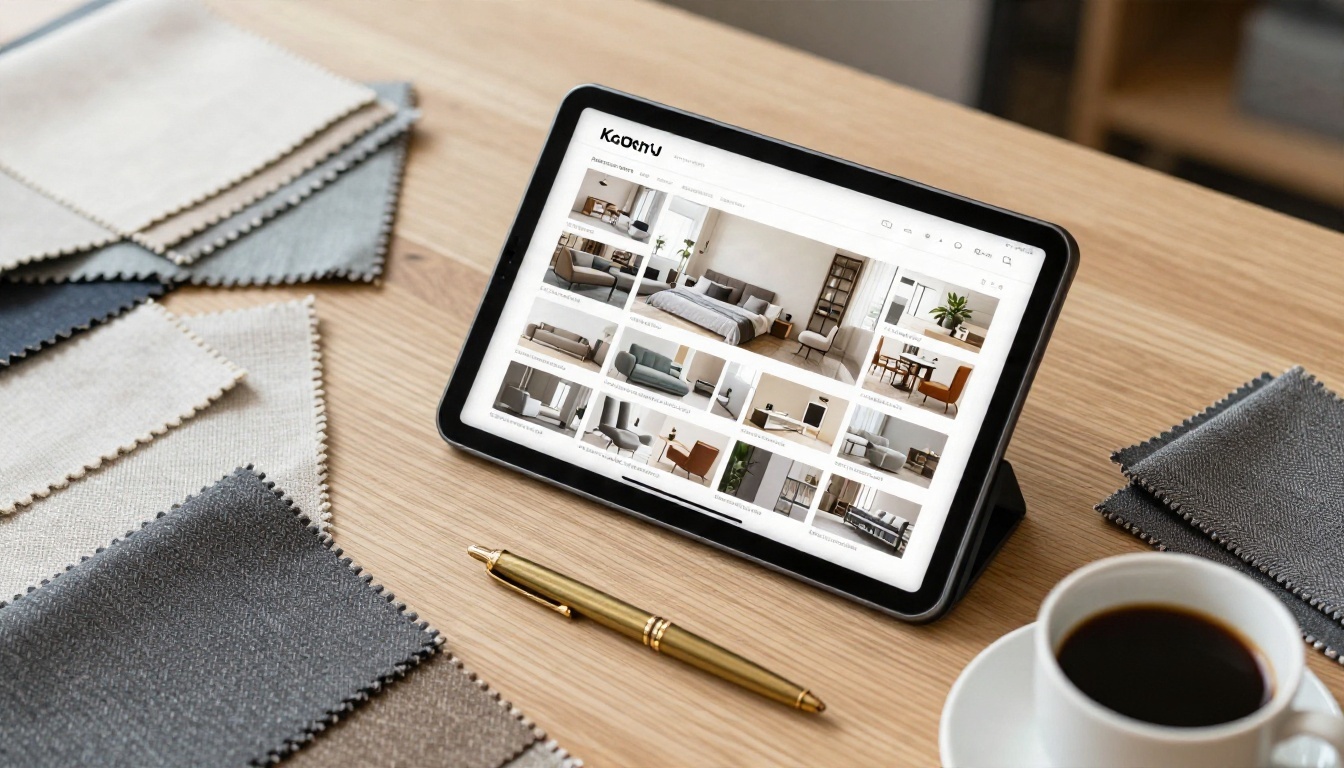
Product and Furniture Catalogs
Showrooms have a space problem: you cannot stock every fabric, finish, and size. A catalog kiosk acts as the infinite shelf. Customers flip through hundreds of items, and a salesperson can stand beside them and point at the exact page. Start with the Digital Catalog Maker or the Furniture Catalog Maker if your range is visual and bulky.
Hotel, Spa, and Real Estate Brochures
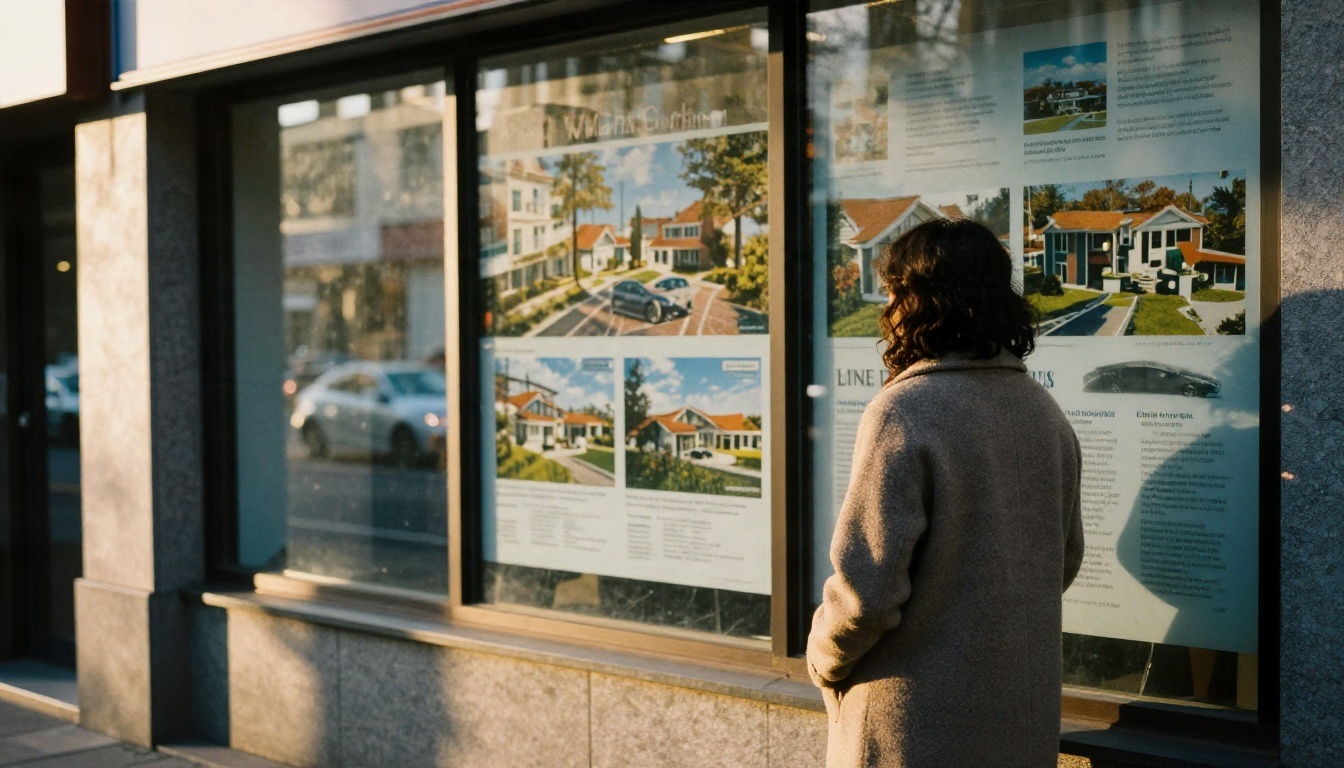
Brochures are the classic kiosk content. A hotel lobby display can show room types, the spa menu, and local attractions in a single flipbook. A real estate window can run property brochures even when the office is closed, which turns the pavement outside into a second showroom. Relevant tools include the Hotel Brochure Designer, the Spa & Wellness Menu Creator, and the Real Estate Brochure Creator.
Real-world scenarios:
- A bakery shows a menu flipbook on a 10-inch tablet and updates the weekend specials every Friday afternoon.
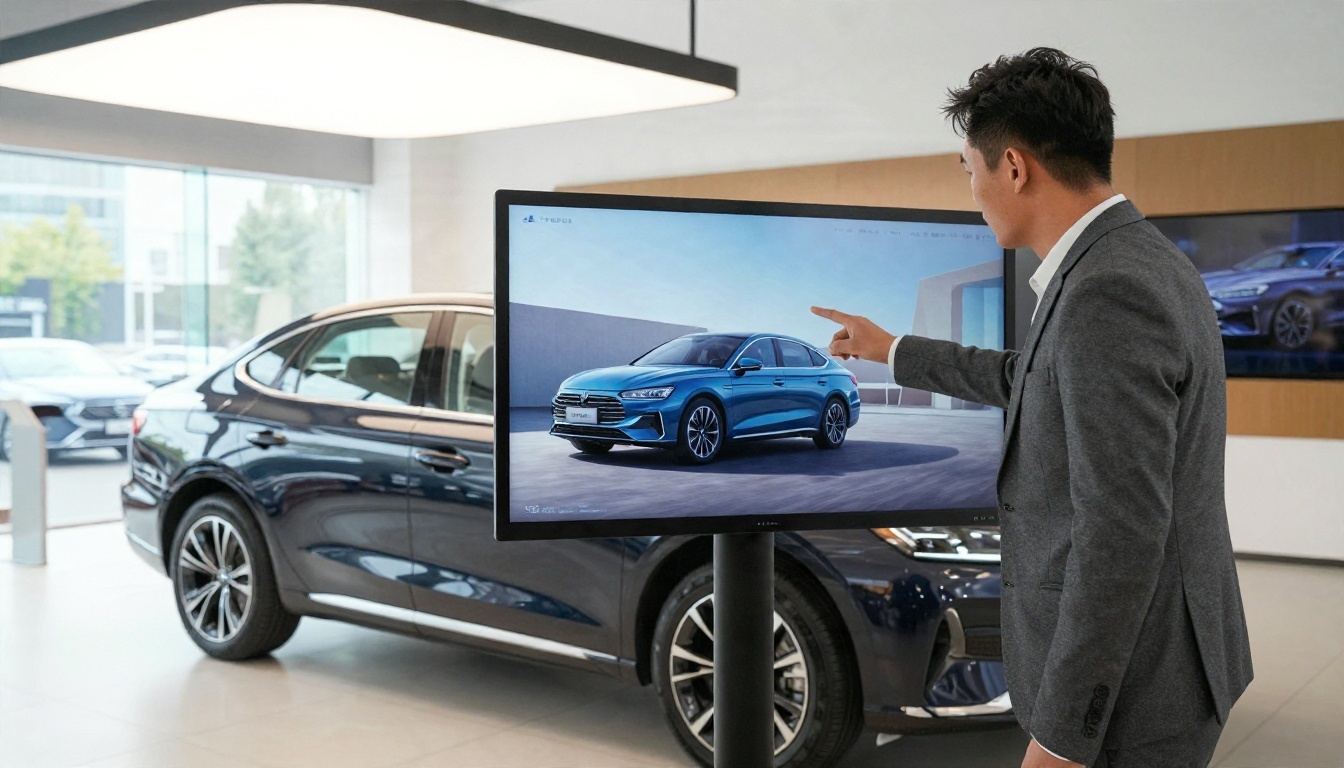
- A car dealership runs an automotive brochure on a floor kiosk next to each model. The Automotive Brochure Generator suits this well.
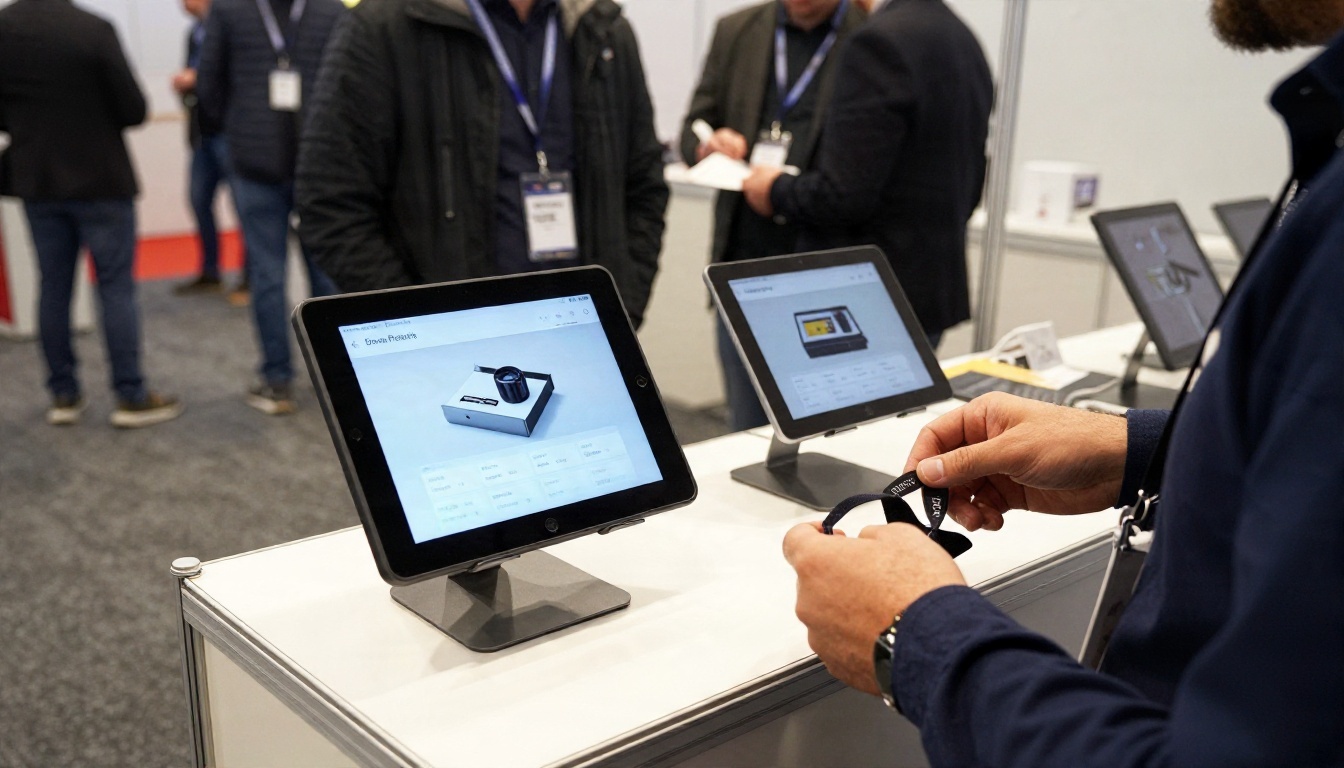
- A trade show exhibitor places two tablets on stands, each loaded with a different catalog, so two visitors can browse at once.
- A spa keeps its treatment menu on the reception counter so guests browse while waiting.
Hardware and Software Options Compared
You do not need an expensive purpose-built kiosk. A tablet, a stand, and the right lock setting will cover most small businesses. Larger installations, like airports, may justify commercial screens.
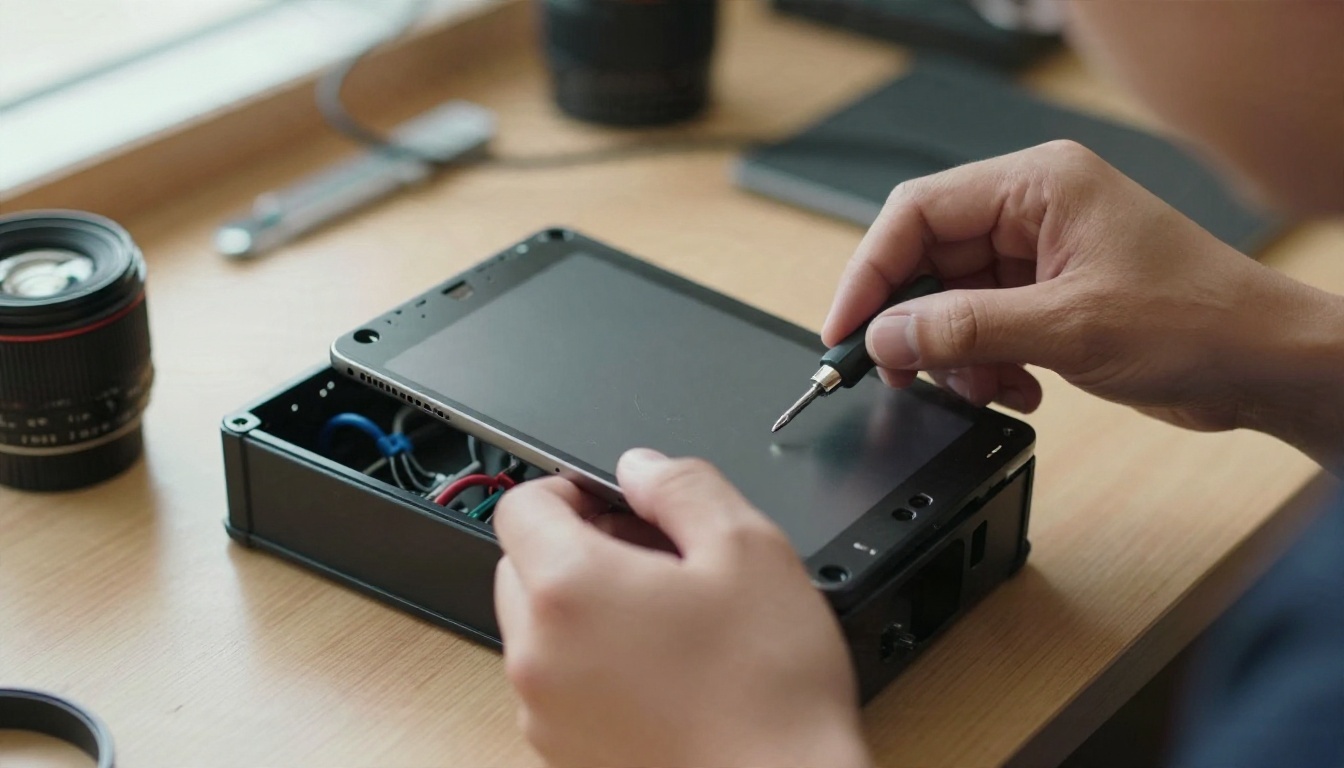
Browser Kiosk Flags
If you have a small PC or a Chromebox behind the screen, a browser launch flag is the cheapest route. In Chrome on Windows, a shortcut target like this opens a page in kiosk mode:
chrome.exe --kiosk "https://your-flipbook-link"
Microsoft Edge has an equivalent with msedge.exe --kiosk plus a kiosk type setting. Add the shortcut to the Startup folder and the display recovers by itself after a power cut.
⚠️ Warning: A launch flag hides the interface, but a connected keyboard can still use shortcuts such as Alt+F4 or Ctrl+Alt+Delete. In public spaces, keep the keyboard out of reach or use Assigned Access.
Tablet Lockdown Modes
On tablets, the operating system handles the lock for you:
- iPad: Turn on Guided Access under Accessibility settings, open your flipbook link in Safari, and start a Guided Access session with a passcode. Touch on or off and the sleep button can be restricted.
- Android: Use screen pinning for a basic lock, or a managed device profile with a single-app mode for stricter control.
- Windows touch screens: Assigned Access limits an account to a single app, including a browser in kiosk mode.
| Option | Cost | Setup time | Lock strength | Best for |
|---|
| Consumer tablet plus stand | Low | 15 minutes | Medium | Cafés, small shops |
| Rugged Android tablet | Medium | 30 minutes | High | Retail shelves, events |
| Mini PC plus commercial display | Higher | 1 to 2 hours | High | Lobbies, windows |
| Wall-mounted all-in-one touchscreen | Highest | Half a day | High | Airports, malls |
Whatever you choose, the content link stays the same. That is the advantage of a web-based flipbook: swap the hardware without redoing the catalog.
How to Build a Kiosk Flipbook
Here is the practical path from PDF to locked screen. The platform handles the conversion, and the device handles the lock.
Upload and Convert
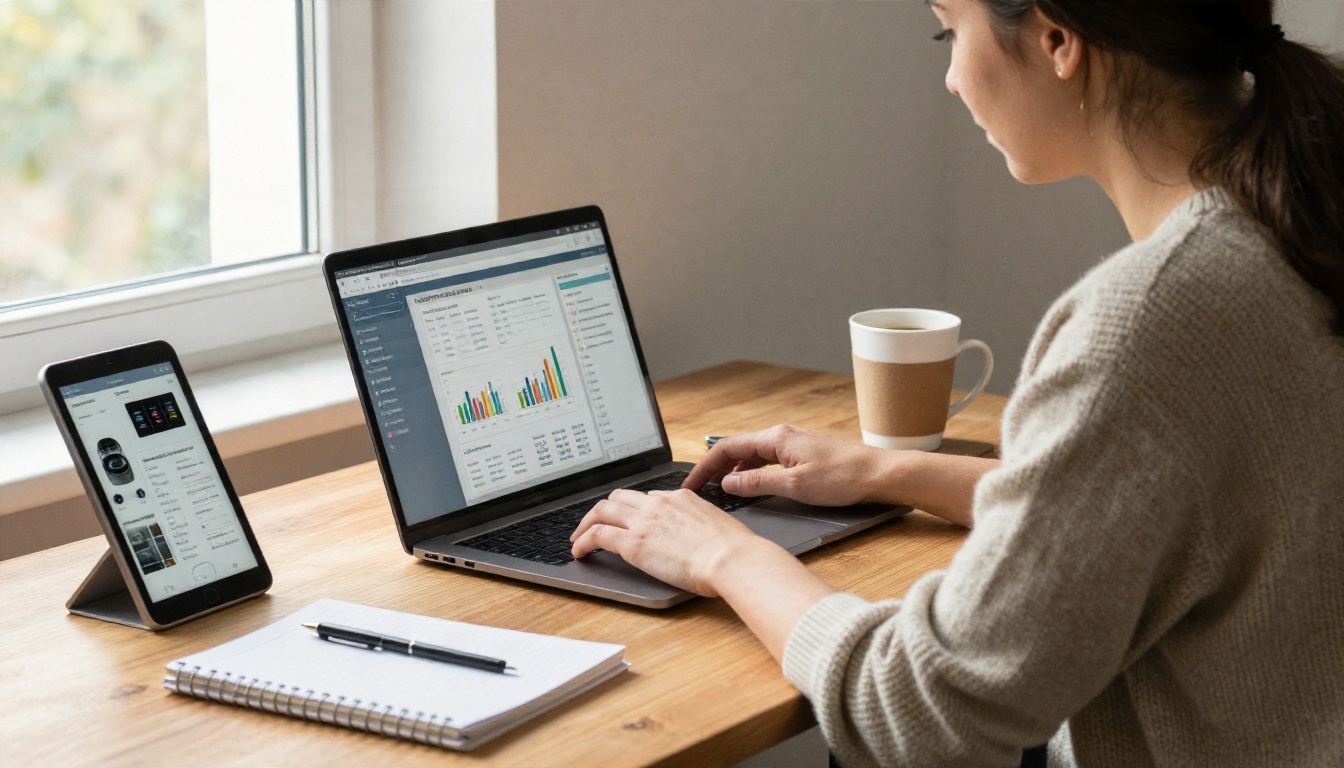
- Go to Flipbooks AI and create an account.
- Open the PDF to Flipbook Converter and upload your menu, catalog, or brochure.
- Wait for the conversion to finish. Each PDF page becomes a flipbook page with a page-turn effect.
- Preview it on the screen size you plan to use. A portrait kiosk reads differently from a landscape tablet.
Brand the Viewer
A kiosk is a piece of your storefront, so the viewer should look like it belongs to you:
- Set a background color that matches the pages so there are no harsh borders around them.
- Add your logo and brand colors with custom branding.
- Choose a page effect that feels natural for your content. A soft curl suits a menu, a quick slide suits a price list.
- Embed video and audio where it helps, for example a 15-second clip of the dish of the day.
There are no watermarks on your flipbooks, so the screen shows your brand and nothing else.
Lock Down Access
Two layers protect a public display. The device lock keeps visitors inside the page. Password protection on the flipbook keeps the content private when the same link is for staff only, such as a wholesale price list. Use a password on internal catalogs and leave consumer menus open so the kiosk loads without a prompt.
If the kiosk should not let people save a copy, leave the offline download option off. Turn it on only for materials you want visitors to take home.
Embed or Link
You have two ways to put the flipbook on the screen:
- Direct link: Paste the flipbook URL into the kiosk browser. Simplest, and updates appear automatically.
- Embedded page: Place the flipbook on a dedicated page of your site using the Embed Flipbook on Website tool, then point the kiosk at that page. This lets you add a header, a QR code, or opening hours around it.
✅ Best practice: Use a dedicated, unlisted page for the kiosk. If you later change the layout of your main site, the screen keeps working.
The result is mobile-responsive, so the same flipbook also works when a visitor scans a QR code from the kiosk and continues on their own phone.
Design Rules for Unattended Screens
A kiosk has no helpful salesperson. Whatever the visitor needs must be obvious in the first three seconds.
Page Size and Orientation
Match the PDF to the screen before you convert it. A landscape spread on a portrait display shrinks to a thin strip with large empty bars above and below.
| Screen | Orientation | Recommended PDF format | Text size |
|---|
| 10-inch tablet | Landscape or portrait | Single pages | Body at least 12 pt |
| 24-inch wall display | Portrait | Single pages | Body at least 16 pt |
| 43-inch floor kiosk | Portrait | Single pages, short copy | Body at least 20 pt |
| Window display | Landscape | Spreads, large images | Headlines dominate |
Keep copy short. A person standing at a kiosk reads in bursts, so use one idea per page and put prices in large, clear type. For price-heavy content, the Digital Price List Generator keeps tables readable.
Idle Reset and Hygiene
Two small details separate a professional kiosk from a neglected one:
- Idle reset: After a minute or two of no touches, the display should return to page one. Many browser kiosk extensions and device management tools can reload the page on a timer. Without it, the next visitor starts on page 37 with no idea where they are.
- Screen cleaning: Fingerprints become glare under bright lights. Wipe the glass at opening and closing, and use an anti-glare screen film if the display faces a window.
Mistakes That Break Kiosks
Most kiosk failures are boring and avoidable. Here are the five that show up the most:
- Letting the screen sleep. Turn off auto-lock and sleep timers, or the display shows a black rectangle by lunchtime.
- Relying on weak Wi-Fi. A flipbook loads from the web, so a dropped connection can leave a blank page. Use a wired connection where possible, and test at the busiest hour.
- Skipping automatic updates control. An operating system update that restarts the device mid-day can drop it out of kiosk mode. Schedule updates for a time when the shop is closed.
- Using tiny text. If you need two fingers to zoom, most visitors will leave.
- Forgetting the power cable. Tablets drain quickly at full brightness. Run a cable through the stand and keep it out of reach.
| Problem | Symptom | Fix |
|---|
| Sleep timer on | Black screen | Disable auto-lock, keep display awake |
| Poor connection | Pages load slowly | Wired network or a stronger access point |
| No idle reset | Visitor lands mid-catalog | Timed reload to page one |
| Wrong orientation | Tiny page with bars | Re-export PDF at screen ratio |
| Exposed settings | Visitor opens other apps | Guided Access or Assigned Access |
⚠️ Warning: Test your kiosk from a cold start. Unplug it, plug it back in, and confirm it reaches the flipbook without anyone touching it. If it needs a person, it will fail on a Monday morning.
Measure What Visitors Tap
A printed brochure never tells you which page people read. A kiosk can. The Professional plan includes analytics and lead generation, so you can see which pages get the most views and capture an email address from visitors who want a quote or a copy of the catalog.
Here is how a few businesses put that to use:
- A furniture store notices that the outdoor collection gets double the views of the dining range and moves it to the front of the catalog.
- A restaurant sees that visitors rarely reach the dessert pages, so it moves them forward and adds a photo.
- A dealership adds a lead form after the specifications page and collects test drive requests from the showroom floor.
Compare the available plans on the pricing page. Unlimited flipbooks come with the Standard plan and above, which suits a business running several kiosks with different content. Professional adds the analytics and lead tools.
Put Your Kiosk Live Today
Kiosk mode is a small setup with a visible payoff: a clean fullscreen display, a locked device, and content you can change from your desk in minutes. Here is a short checklist to finish with:
- Pick the device and stand, and set the lock mode (Guided Access, screen pinning, or Assigned Access).
- Convert your PDF with the PDF to Flipbook Converter.
- Brand the viewer, add media, and set a password only where privacy matters.
- Disable sleep, set an idle reset, and test from a cold start.
- Check your analytics weekly and update the pages that underperform.
Ready to build yours? Create your account on Flipbooks AI and upload your first PDF. Browse every flipbook tool to find the right template for your menu, catalog, or brochure, or compare plans to pick the one that fits your screens.



