You export a clean report, open the PDF, and the watermark across the page looks like it was smeared with a thumb. Edges are jagged, the letters are fuzzy, and the whole document suddenly feels less trustworthy. The good news: a PDF watermark that is blurry is almost always a settings problem, not a corrupted file. This article walks through why it happens, the exact export settings that fix it, and what to do when the file is already flattened. If you would rather skip watermarks entirely and publish a sharp, interactive version of your document, Flipbooks AI turns a PDF into a flipbook without stamping anything on your pages.
Why Your Watermark Looks Blurry
A watermark is just another object sitting on top of your page. How that object is stored decides whether it stays crisp at every zoom level or falls apart the moment someone enlarges it.
Raster vs Vector Watermarks
Most blurry watermarks are raster images: a PNG or JPG made of a fixed grid of pixels. If that PNG is 400 pixels wide and it gets stretched across an A4 page, the software has to invent the missing pixels. The result is soft edges and a visible stair-step pattern on diagonal lines.
A vector watermark (text, shapes, or an SVG logo) is stored as math. It redraws itself at any size, so it stays sharp on a phone, a 27-inch monitor, and a large-format print.
Downsampling and Compression
Even a good watermark can get damaged on the way out. When you export, many tools apply image downsampling to everything that counts as an image, and that includes a raster watermark. A stamp that looked fine at 300 PPI in the editor gets squeezed to 72 or 96 PPI, then hit with JPEG compression on top. Semi-transparent watermarks suffer most, because the soft alpha edge turns into visible noise or halos.
Flattening and Low-Resolution Stamps
Some workflows flatten the transparency layer when saving. Flattening bakes the watermark into the page at whatever resolution the document had at that moment. Online "add watermark" tools often do this with a low-resolution render, which is why a file can look fine in the preview and fuzzy once downloaded.
Here is how the usual causes compare:
| Cause | What it looks like | How to fix it |
|---|
| Low-resolution PNG or JPG stamp | Soft edges, stair-stepping on diagonals | Re-add the watermark as vector text or SVG |
| Aggressive image downsampling | Fine at 100%, blurry when zoomed | Raise the PPI threshold or turn downsampling off |
| Heavy JPEG compression | Halos and noise around letters | Use ZIP or lossless compression for the watermark layer |
| Flattened transparency at low DPI | Whole page slightly soft | Re-export from the original source at 300 DPI |
| Viewer rendering only | Blurry in one app, sharp in another | Test in a second viewer, then adjust anti-aliasing |
💡 Pro tip: If the watermark is blurry but your body text is sharp, the watermark is almost certainly a raster image. Real text stays crisp even in a bad export.
Quick Checks Before You Fix Anything
Spend two minutes diagnosing the file. It saves you from re-exporting five times.
Test at 100 Percent Zoom
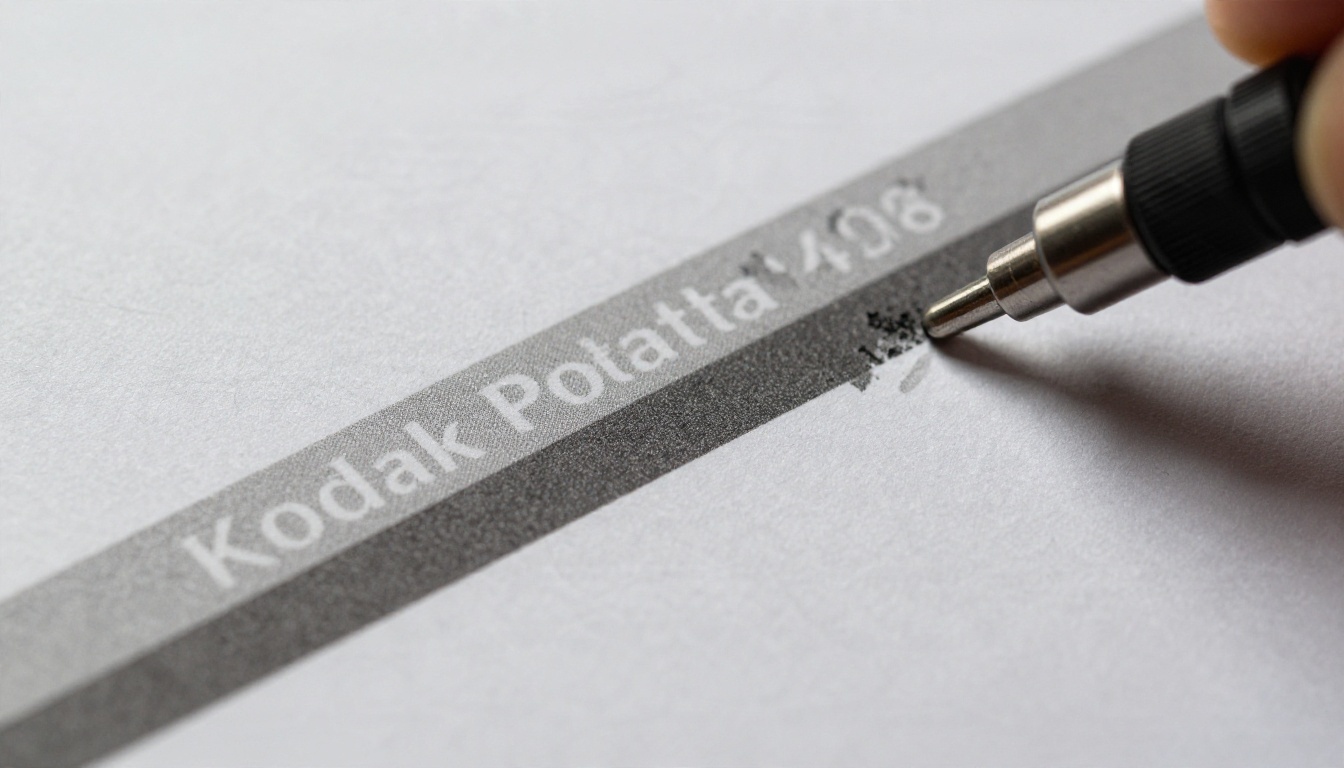
Open the PDF and set the zoom to 100%, then 400%. Look at the edge of a watermark letter. If you see square pixels, the watermark is raster. If the edges stay smooth, the file is fine and your viewer or screen scaling is the problem.
Compare Two Viewers
Open the same file in a browser and in a desktop reader. Browser PDF viewers sometimes render semi-transparent layers with lower quality for speed. If the watermark is sharp in one viewer and soft in another, the file itself is healthy.
Check the File Size
A suspiciously small file (say, 200 KB for a 30-page document with images) suggests heavy compression. A large jump in file size after you add the watermark usually means the page was rasterized, which is a different problem entirely.
⚠️ Warning: Do not keep re-saving the same PDF to "fix" a blurry watermark. Every save through a compressing tool can degrade the stamp further. Always go back to the original source file.
Export Settings That Keep It Sharp
This is where most blurry watermarks get solved. Whatever tool you use, you are looking for the same four controls: resolution, compression, downsampling, and transparency handling.

| Setting | Blurry result | Sharp result | Best for |
|---|
| Image resolution | 72 to 150 PPI | 300 PPI or higher | Print and zoomable screen reading |
| Compression type | JPEG, low quality | ZIP or JPEG at maximum quality | Watermarks with soft edges |
| Downsampling | Bicubic to 96 PPI | Off, or threshold above 300 PPI | Documents with logos |
| Transparency | Flattened at low DPI | Preserved, or flattened at high resolution | Semi-transparent watermarks |
| PDF preset | "Smallest file size" | "High quality print" | Marketing documents |
| Fonts | Not embedded | Embedded or outlined | Text watermarks |
Word and Google Docs
In Microsoft Word, go to File, Save As, PDF, then choose Standard (publishing online and printing) instead of "Minimum size". Open Options and make sure the setting that reduces quality for smaller size is not selected. Use a text-based watermark through Design, Watermark rather than a pasted PNG whenever possible.
Google Docs has fewer export controls. If the watermark looks soft, insert it as a drawing or text box at a large size instead of a small image, then export again.
Adobe Acrobat and InDesign
In InDesign, pick the High Quality Print preset, then open the Compression tab. Set color and grayscale images to Do Not Downsample or use a threshold well above 300 PPI. Choose Automatic (JPEG) with Maximum quality, or ZIP for artwork with soft edges.
In Acrobat, use Save as Other, Optimized PDF and open the Images panel. Set the resolution to 300 PPI and the downsampling threshold to 450 PPI or higher.
Free Tools and Preview
LibreOffice Draw and Writer expose a Lossless compression option under the PDF export dialog. Choose it, set the Reduce image resolution value to 300 DPI, and export again. On macOS, Preview's Quartz Filter menu includes "Reduce File Size", which is a common culprit. Avoid it for any file that carries a watermark.
✅ Best practice: Keep two export presets. One is "Web small" for email attachments. The other is "Sharp master" for anything with logos, stamps, or fine line work.
How to Rebuild a Blurry Watermark
If you cannot go back to the original source, or you inherited a file with a bad stamp, rebuild the watermark properly.
Start From a Vector Source
Ask for the logo as SVG, EPS, or AI. Place that file instead of a PNG. If you only have a raster logo, redraw it in a vector editor or run an auto-trace, then clean up the curves.
A text watermark is even simpler. Real text stays razor sharp, and a bold sans-serif font at 40 to 60 percent opacity reads clearly without hiding the content underneath.
Remove the Old One First
Stacking a new watermark on top of a blurry one just creates a ghost effect. In your editor, find the watermark object or header layer, delete it, and then add the new one. If the watermark was flattened into the page, you will need the original document instead.
A Quick Repair Routine
- Open the original source file, not the exported PDF.
- Delete the old raster watermark.
- Insert a vector or text watermark at roughly 45 degrees and 15 to 30 percent opacity.
- Export with the "High Quality Print" preset and downsampling off.
- Zoom to 400% and check the edges of the letters.
- Compare file size against the previous version, and accept a moderate increase as the cost of sharpness.
| Watermark style | Sharpness | File size impact | Easy to remove? |
|---|
| Vector text | Excellent | Tiny | Moderate |
| SVG logo | Excellent | Small | Moderate |
| High-resolution PNG (300 PPI+) | Good | Medium to large | Moderate |
| Low-resolution PNG or JPG | Poor | Small | Easy |
| Flattened into the page | Depends on source | Medium | Hard |
Alternatives to Watermarking Your PDF
Sometimes the better fix is to stop stamping the page. A watermark protects less than people think, and it adds visual noise that lowers the perceived quality of your catalog, report, or portfolio.
Footer or Header Branding
A small logo and URL in the footer is sharp, unobtrusive, and still carries your brand. Because it is placed in the page template, it stays vector and never gets rasterized by accident.
Password Protection and Permissions
If the concern is who can read or copy the file, use a password and restrict printing or copying. This protects access directly rather than relying on a visual deterrent.
Publish as a Flipbook
A flipbook lets people read the document in a browser with realistic page turns, while you control access. You can share a link, embed it, or require a password, and your pages stay free of any overlay. For catalogs and brochures this is often the cleanest option. You can try the PDF to Flipbook Converter to see the difference on your own file.
Here is how the options stack up:
| Option | Visual quality | Protects access | Tracks readers | Effort |
|---|
| Raster watermark | Often poor | No | No | Low |
| Vector watermark | Good | No | No | Medium |
| Footer branding | Excellent | No | No | Low |
| PDF password | Excellent | Yes | No | Low |
| Flipbook with password | Excellent | Yes | Yes (Professional plan) | Low |
How to Publish a Sharp PDF With Flipbooks AI
If your watermark exists mainly to discourage casual sharing, a hosted flipbook handles that more gracefully. Here is the full workflow.

Step 1: Create an Account
Head to Flipbooks AI and sign up. You can start on a free account, and the pricing page shows what each plan adds when you are ready to scale.
Step 2: Upload and Convert
- Click the upload area and select your PDF. Use the sharp master export from the section above, not a compressed copy.
- Wait a few moments while the pages are converted. Each page is rendered for the flipbook viewer, so text and logos stay clear.
- Preview the result and zoom into a page to confirm the lettering is crisp.
Step 3: Customize the Look
- Add custom branding with your logo and brand colors.
- Choose a page effect and background that suit your content.
- Embed videos and audio into pages if you want a richer experience.
- Check the mobile-responsive layout on a phone-sized preview.
Flipbooks AI never adds a watermark of its own, so the pages look exactly as you designed them.
Step 4: Share It Your Way
- Direct link for email and messaging.
- Embed code for your own site, using the Embed Flipbook on Website tool.
- Password protection for private material such as client proposals or internal reports.
Step 5: Use the Pro Features
On the Professional plan you get analytics to see who opened the document and how far they read, lead generation forms, and offline downloads for readers who need a local copy. See the plan comparison to pick the tier that fits.
💡 Pro tip: If you publish catalogs, try the Digital Catalog Maker. For reports, the Report Flipbook Creator is built for that format.
Real-World Examples
- A furniture retailer sends a 60-page lookbook to trade buyers. Instead of stamping "CONFIDENTIAL" across every photo, they publish it as a password-protected flipbook and watch the analytics to see which rooms get opened most.
- A real estate agent shares a property brochure. A clean flipbook with the agency logo in the header looks far better than a fuzzy diagonal stamp, and it can be built with the Real Estate Brochure Creator.
- A freelance designer sends a portfolio to prospects. With the Digital Portfolio Creator, the work stays sharp and the link can be revoked later.
Mistakes That Make It Worse
Most repeat blur problems come from the same habits.
Using Online Compressors Blindly
Free "reduce PDF size" sites often resample everything to 72 or 96 PPI. They are great for shrinking a scanned form and terrible for a branded document. Compress the images before export if you need a smaller file, and keep the watermark as vector.
Scaling a Small Image Up
If the stamp image is 600 pixels wide and your page is 2480 pixels wide at 300 DPI, enlarging it will always look soft. Start with artwork at least as large as the final placement.
Exporting Only Once
Always keep the editable source. Treat the PDF as a final output, not a working file. If a watermark needs to change, regenerate it instead of layering fixes.
Ignoring the Viewer
Quick sanity check: open the file on your phone. Mobile viewers often show the weakest rendering, so if the watermark holds up there, it holds up everywhere.
| Mistake | Quick fix |
|---|
| Pasting a small PNG as watermark | Use text or SVG instead |
| Choosing "Smallest file size" | Pick "High quality print" |
| Compressing the final PDF online | Compress images before export |
| Overwriting the original source | Save a separate sharp master |
| Opacity set too high | Use 15 to 30 percent |
Pick Your Fix and Move On
Here is the short version. If your PDF watermark is blurry, check whether it is a raster image, rebuild it as vector or text, export at 300 PPI with downsampling off, and verify at 400% zoom. If the watermark was only meant to deter sharing, switch to footer branding, a password, or a hosted flipbook, and let your pages stay clean.
Ready to publish your document without a single fuzzy stamp? Get started for free on Flipbooks AI, browse all flipbook tools to find the format that fits your project, or compare pricing plans to see which one includes analytics and lead generation for your next catalog, report, or portfolio.



