You have a stack of receipts, a signed contract, or a printed menu, and you need it as a single PDF before lunch. Your Android phone can do that right now, with no scanner and no desktop software. The catch is that the result depends heavily on the app you pick and a handful of settings most people never open. And once you have a PDF, a second question appears: is a flat file really the best way to share it? Tools like Flipbooks AI turn that same PDF into a page-turning experience that opens in any browser. This article walks through both halves: free ways to get from photo to PDF, and what to do with the file afterward.
Photo to PDF on Android: The Basics
Before comparing apps, it helps to know what actually happens when you convert a picture into a PDF. The app takes one or more images, places each on its own page, and bundles them into a single file. Good apps also straighten the page, crop the edges, and clean up the lighting. Basic ones just wrap the raw photo.
Camera Photo vs. Scanned PDF
A regular photo of a document keeps the table, the shadows, and the angle you held the phone at. A scan mode detects the page edges, flattens the perspective, and boosts contrast so text stays readable. The difference is obvious on a phone screen and even more obvious when the file gets printed.
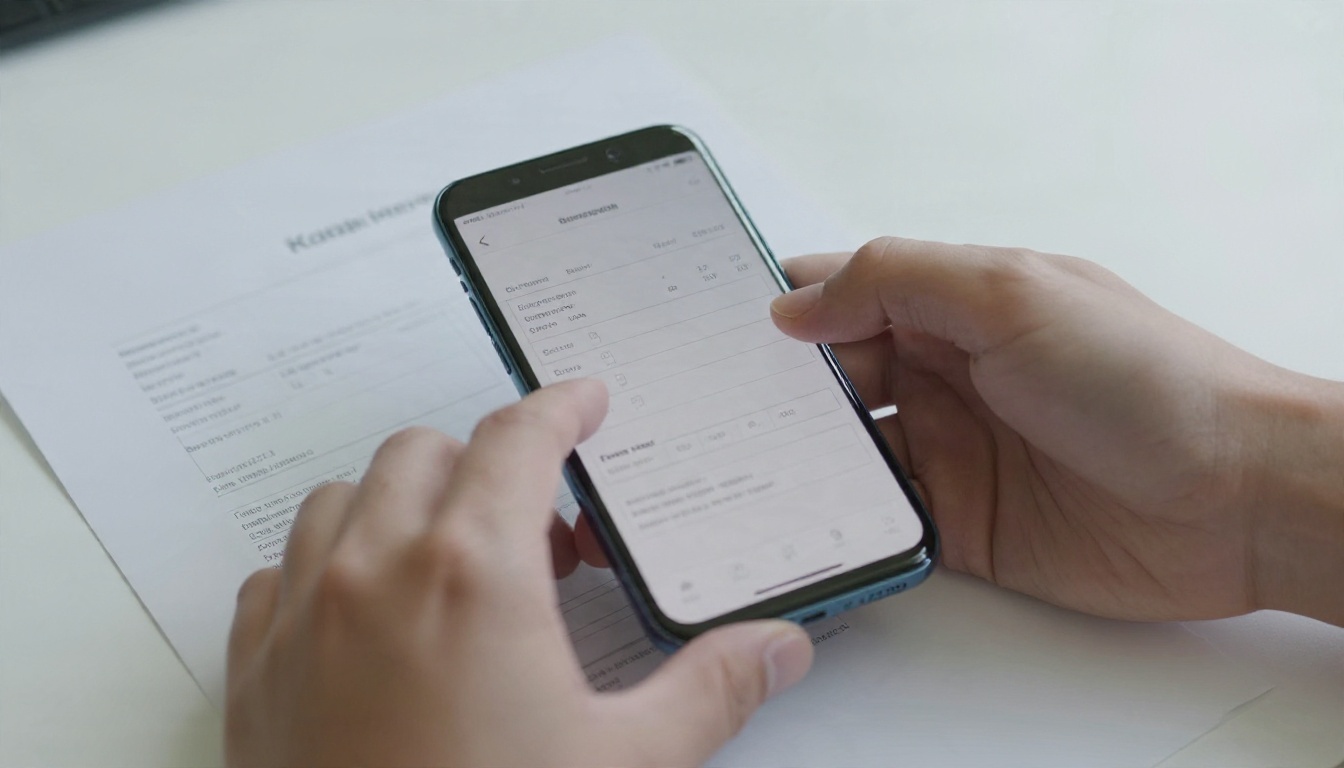
When a Simple Image Converter Is Enough
Not every file needs a scanner. If you already have clean photos, such as artwork, a whiteboard shot, or product pictures, an image to PDF converter is faster. You pick the pictures, set the order, and export. No edge detection is needed.
💡 Quick rule: Paper documents with text belong in a scan mode. Pictures that are already well framed can go straight through an image to PDF converter.
Free Android Options Worth Installing
The Play Store is crowded with scanner apps, and many of them hide the useful features behind a subscription. These are the options that most often work well without paying. Features and limits change over time, so check the store listing before you commit.
Google Drive Scanning
If you already use Google Drive, you have a scanner. Open the app, tap the + button, and choose the scan option. It detects edges, lets you add pages, and saves a PDF straight into your Drive. It has no ads and no watermark, which is rare in this category.
Built-In Phone Scanners
Several manufacturers add document scanning to the stock camera. On many Samsung Galaxy phones, for example, the camera suggests scanning when it spots a page. Check your camera app's mode list or your gallery's edit tools before installing anything new.

Third-Party Scanner Apps
Dedicated apps such as Adobe Scan, Genius Scan, and CamScanner add extras like text recognition, batch scanning, and cloud sync. The trade-off is that free tiers often limit exports, add ads, or place a mark on pages. Read the fine print before scanning an important batch.
| App type | Typical cost | Watermark risk | Best for |
|---|
| Google Drive scan | Free | None | Quick one-off documents |
| Built-in phone scanner | Free | None | Casual use, no installs |
| Adobe Scan | Free with account | Low | Text recognition and cloud storage |
| Genius Scan | Free tier, paid upgrades | Low | Multi-page batches |
| CamScanner | Free tier, paid upgrades | Possible on free exports | Heavy editing tools |
| Simple image to PDF app | Usually free with ads | Varies | Pictures that are already clean |
⚠️ Watch for export limits. Some free apps let you scan unlimited pages but charge to export without a mark. Test with a throwaway page first.
Settings That Change the Result
Most poor scans come from defaults, not from the app. Spend two minutes in the settings and the same phone produces a much better file.
Resolution and File Size
Higher resolution gives sharper text but a heavier file. For email or messaging, a medium quality setting is usually enough. For archiving contracts or anything you might print, pick the highest option.
Color Mode and Contrast
Most apps offer color, grayscale, and black and white. Black and white shrinks the file and sharpens printed text, but it can wipe out stamps, highlights, and photos. Grayscale is a safe middle ground for mixed pages.
Page Size and Orientation
A4 and US Letter are the common choices. Match the paper you scanned, or the PDF will show odd margins. If you are converting photos of landscape artwork, turn on automatic orientation so pages do not appear sideways.
| Setting | Low value | High value | Recommendation |
|---|
| Resolution | Small file, softer text | Sharp text, larger file | Medium for sharing, high for archives |
| Color mode | Black and white, tiny file | Full color, big file | Grayscale for mixed pages |
| Auto crop | Manual edge control | Automatic detection | Automatic, then check corners |
| Page size | Fit to image | A4 or Letter | Match the original paper |
| Compression | Maximum quality | Smallest file | Balanced for email |
Convert Photos to PDF, Step by Step
Here is a repeatable routine that works in nearly any scanner app.
- Prepare the surface. Put the page on a flat, dark, matte surface. A dark desk helps the app detect the edges.
- Find even light. Stand by a window and avoid direct overhead lamps, which cause glare and shadows from your hand.
- Hold the phone parallel. Keep the camera square to the page. Tilting creates keystone distortion that auto-crop cannot always repair.
- Capture each page. Wait for the edge outline to lock, then shoot. Repeat for every page in order.
- Review the thumbnails. Reorder, delete, or retake any page that looks blurry.
- Adjust crop and filter. Drag the corners if the auto-crop missed an edge, then pick the color mode.
- Export as PDF. Name the file clearly, such as
lease-agreement-2026, so you can find it later.
✅ Best practice: Scan one page at a time and review it before moving on. Retaking a single page is far easier than discovering ten blurry ones later.
Where a Plain PDF Falls Short
A PDF is great for archiving and printing. It is less great when you want people to actually read it on their phones. Pinch, zoom, and sideways scrolling make long documents tiring. Large files bounce out of email inboxes. And once you send the file, you have no idea whether anyone opened it.
Common Problems With Shared PDFs
- Heavy files that email servers reject or phones download slowly.
- Awkward reading because pages do not fit a phone screen.
- No branding beyond whatever was on the paper.
- No insight into who opened the file or how far they read.
- Uncontrolled copies that spread without any password or access rule.
PDF vs. Flipbook at a Glance
| Feature | Plain PDF | Flipbook |
|---|
| Opens in browser without download | Sometimes | Yes |
| Page-turning effect | No | Yes |
| Mobile-responsive reading | Limited | Yes |
| Embed on a website | Awkward | Simple embed code |
| Password protection | Depends on software | Available |
| Reader analytics | None | Available on Professional plan |
| Custom branding | Not built in | Yes |
Make a Flipbook with Flipbooks AI
If your scanned PDF is meant to be read, shared, or sold from, a flipbook is the better format. Here is how to turn your Android scan into one with the PDF to Flipbook Converter.
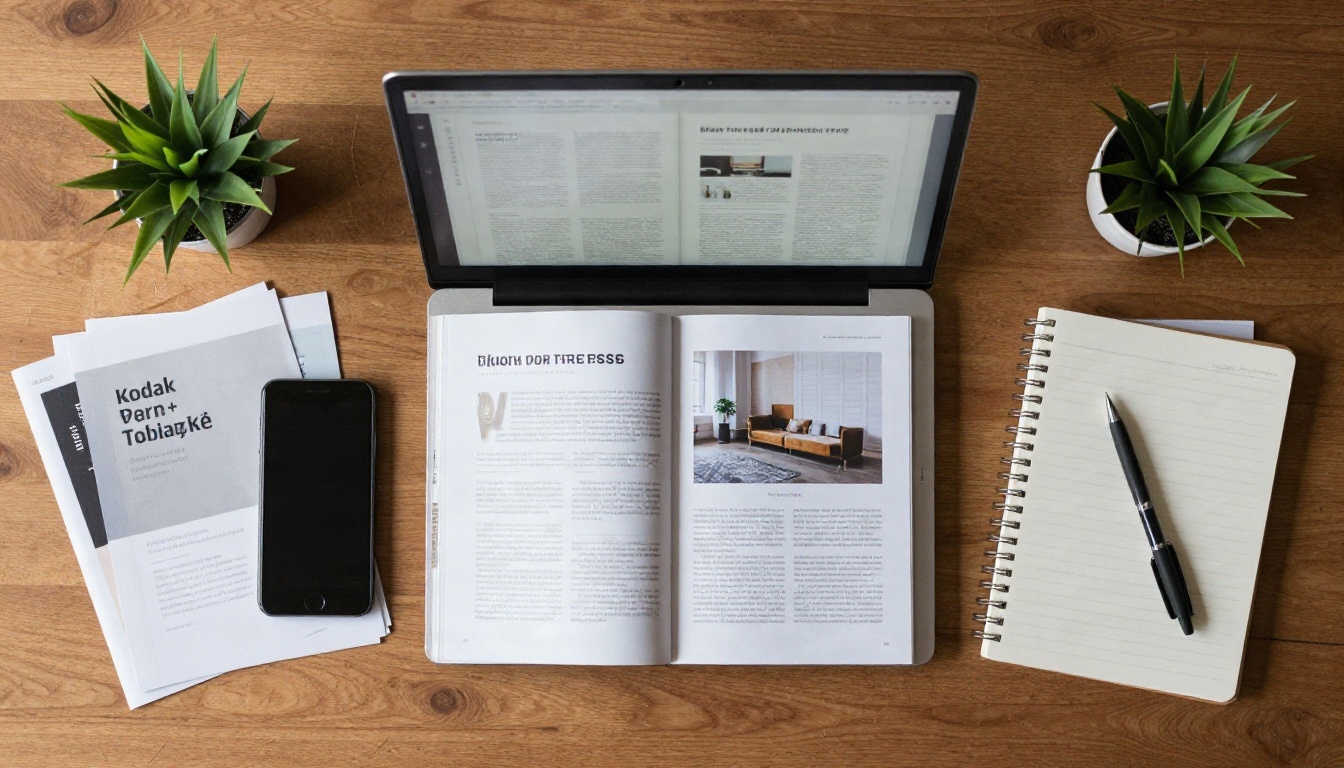
Step 1: Create Your Account
Head to Flipbooks AI and create an account. You can do this on the same Android phone you used for scanning, since the interface is mobile-responsive.
Step 2: Upload the PDF
- Save your scanned PDF to your phone or Drive.
- Open the dashboard and choose the option to create a new flipbook.
- Select the PDF from your files. The upload converts each page into a flippable spread.
- Wait for the processing to finish, then open the preview and flip through to check page order.
Step 3: Customize the Look
Once the preview loads, you can shape the flipbook to match your brand:
- Branding: add your logo and name so the reader knows who published it.
- Colors: set the background and toolbar colors to fit your site or business.
- Page effects: adjust the page-turn behavior and sound so the flipping feels natural.
- Multimedia: embed videos and audio, such as a spoken intro or a product demo.
Step 4: Share It Anywhere
When you are happy with the result, you have several ways to publish:
- Direct link: paste it into a message or email. No big attachment needed.
- Embed code: place it on your site using the Embed Flipbook on Website tool.
- Password protection: lock private pages such as contracts or internal documents.
- Offline downloads: let readers save a copy for later.
Step 5: Track Results on Professional
Upgrade to the Professional plan if you want to see who reads your flipbook. It adds analytics and lead generation, so you can tell which pages hold attention and collect contact details. Compare the options on the pricing page. Standard and above include unlimited flipbooks, and there are no watermarks on any plan.

💡 Pro tip: Scan at a medium or high resolution, then compress only if the upload feels slow. Sharp page images look much better in a flipbook than in a small email attachment.
Real-World Examples
Seeing the process in context makes it easier to decide which route fits you.
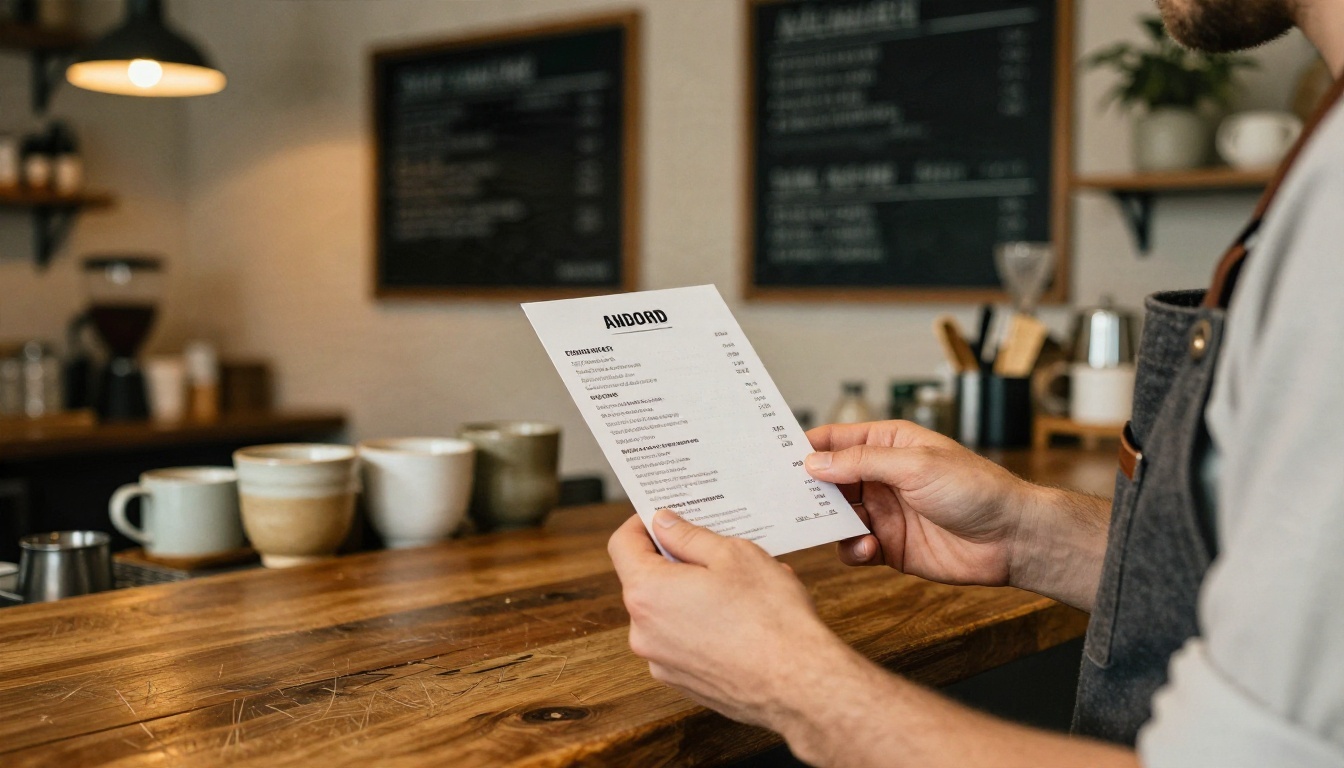
A Cafe Owner and the Printed Menu
A cafe owner has one laminated menu and no design files. She photographs it with her Android phone, exports a PDF, and uploads it. The result becomes a shareable digital menu with a link on the door sticker. For a polished version, the Restaurant Menu Creator is built for exactly this.
A Real Estate Agent and Floor Plans
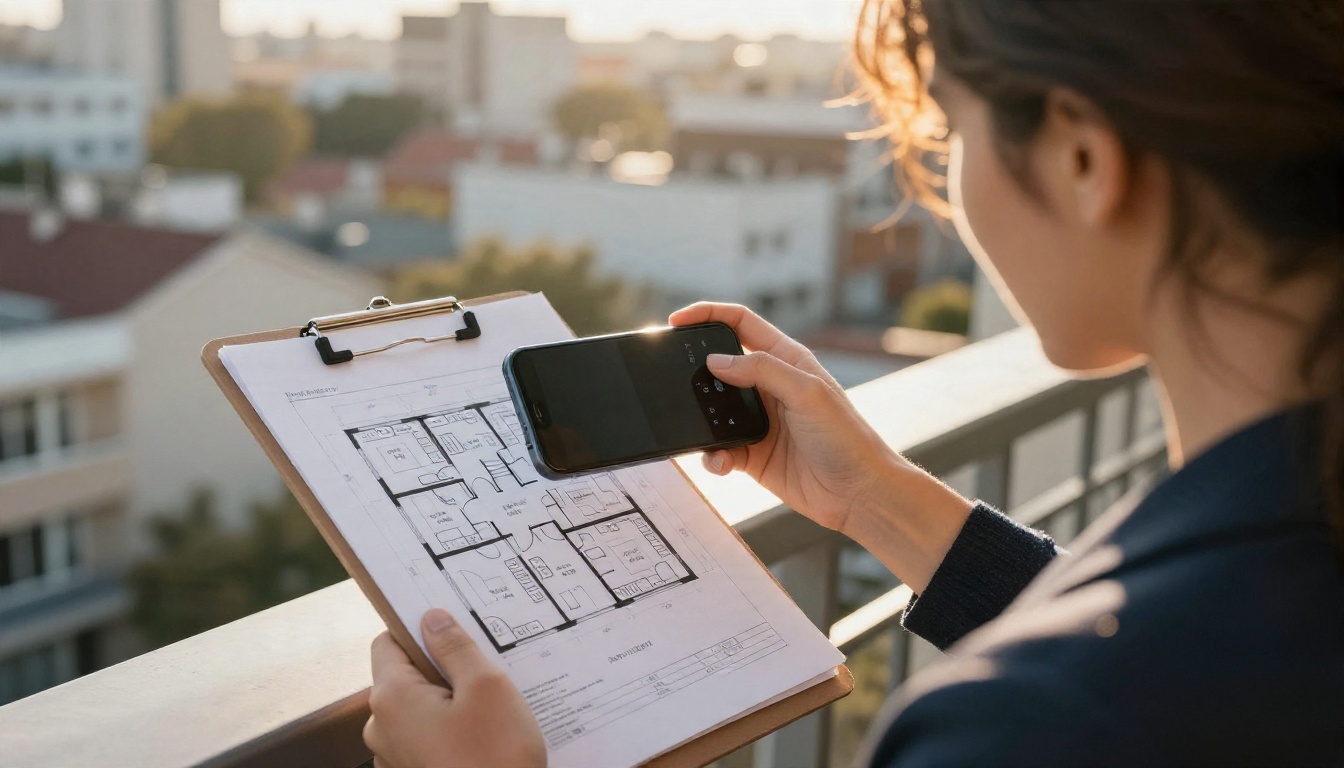
An agent scans printed floor plans and listing sheets on site. Instead of attaching five heavy PDFs, she packages them into one flipbook and sends a single link. The Real Estate Brochure Creator gives her a ready layout for the next listing.
A Student and Shared Course Notes
A student scans lecture handouts and notes into one PDF for a study group. Turning them into a flipbook keeps the pages in order and readable on every phone. Teachers can do the same with the Course Material Publisher.
Quick Fixes for Common Problems
A few issues come up again and again. Most have a simple repair.
- Blurry text: clean the camera lens, add more light, and hold the phone still until the shutter fires.
- Cropped corners: retake with more margin around the page, or drag the corners by hand.
- Huge file size: switch to grayscale or a lower resolution, and avoid color mode for plain text.
- Pages out of order: reorder in the thumbnail view before exporting, not afterward.
- Shadows across the page: move the light source behind you and slightly to one side.
Ready to Publish Your Scans?
Free Android tools handle the capture well. Google Drive, your phone's own scanner, or a trusted third-party app will give you a clean PDF in a few taps, as long as you set the resolution and color mode with care. The flat file is only the starting point, though. If people need to read, browse, or buy from it, a flipbook does the job far better.
Try it with your next scan: get started for free on Flipbooks AI, browse all flipbook tools to find a template that fits your content, and compare pricing plans when you are ready for analytics and lead generation.



