Your phone is already a decent scanner. What it usually lacks is a way to turn ten loose photos into one tidy PDF without installing yet another app that asks for storage access, contacts, and a monthly fee. A photo to PDF converter online for Android runs inside Chrome or Firefox, so there is nothing to install, nothing to delete later, and nothing sitting in your app drawer. And once the PDF exists, a tool like Flipbooks AI can turn it into a page-turning link that anyone can open on any screen.
This article walks through the whole path: shooting clean photos, converting them in the browser, dealing with free limits, fixing oversized files, and sharing the result in a format people actually enjoy reading.
Why a Browser Beats Another App
Most people searching for this topic have the same situation. They have a handful of photos (receipts, a signed form, homework pages, product shots) and they need one file to send. Installing an app for a single job feels like overkill, and a browser tool finishes before the app store has even loaded.
What "No App" Really Means
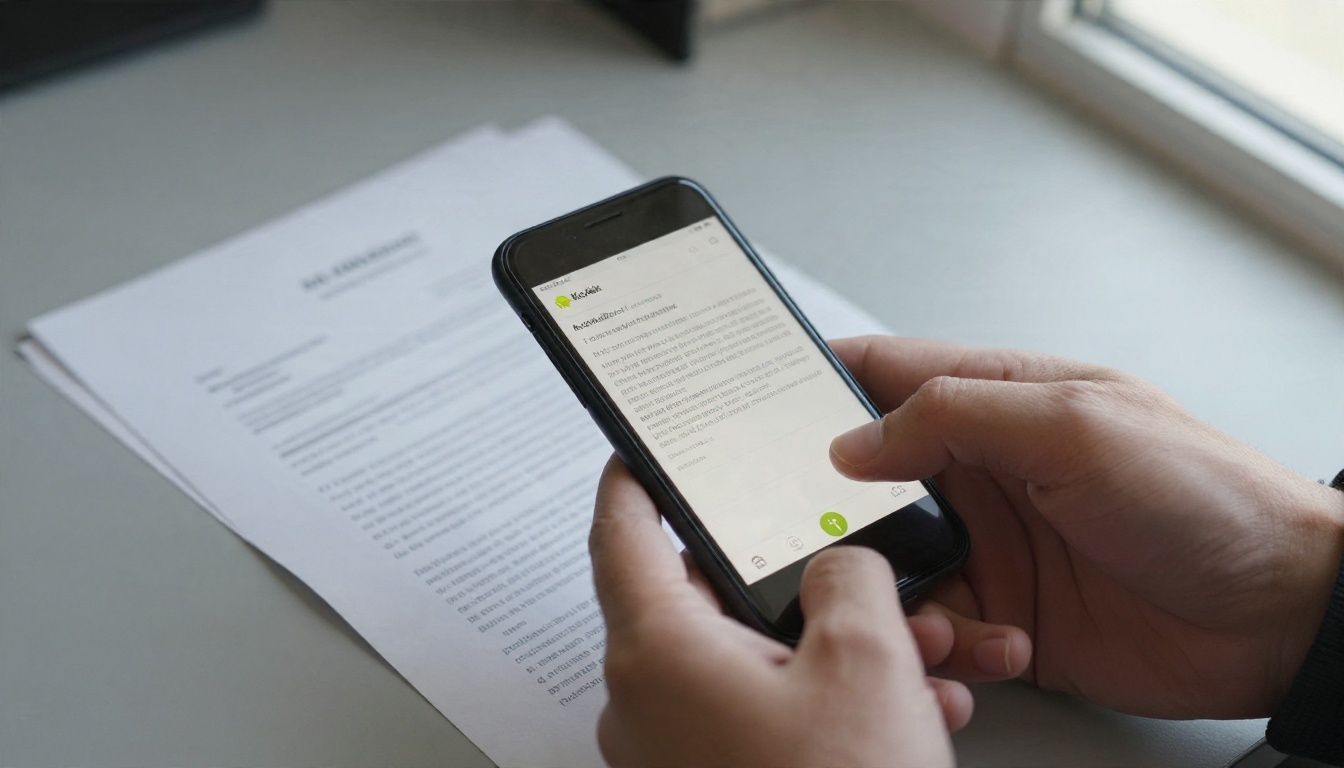
A browser-based converter is just a web page. You tap Choose files, Android opens its photo picker, you select your images, and the page builds the PDF. Depending on the tool, the conversion happens either on your device (in the page's own code) or on a remote server that deletes the file after a short time.
That difference matters for privacy. If you are converting an ID card, a contract, or medical paperwork, look for a tool that states how long files are kept and whether processing is local.
When an App Still Wins
Browser tools are not perfect for every job. Here is an honest comparison:
| Situation | Browser converter | Installed scanner app |
|---|
| One-off task, 1 to 20 photos | Best choice | Overkill |
| Daily scanning of paper stacks | Slower workflow | Best choice |
| Automatic edge detection and cropping | Limited | Built in |
| Storage space on a budget phone | Zero footprint | Takes space |
| Works without a connection | Usually no | Often yes |
| Sharing as a styled link | Easy with a flipbook tool | Usually basic PDF only |
💡 Pro tip: If you scan more than once a week, keep the browser tool bookmarked on your home screen. In Chrome, open the menu and choose Add to Home screen to get an app-like icon without an install.
Photo to PDF in Five Steps
The exact buttons change from site to site, but the flow is nearly identical everywhere. Here is the routine that gives the cleanest result on a typical Android phone.
Prepare the Shot
Good PDFs start with good photos. Before you convert anything:
- Lay the page flat on a plain, contrasting surface. A dark desk makes white paper easy to crop.
- Use daylight from a window. Overhead lamps cast a shadow of your phone right across the page.
- Hold the phone parallel to the paper to avoid trapezoid distortion.
- Fill the frame with the document, leaving a thin margin for cropping.
- Tap to focus on the text, then wait for the sharpness to settle before shooting.
⚠️ Warning: Do not use digital zoom. It only crops pixels and makes text blurry. Move the phone closer instead.
Upload and Order Pages
Open your chosen converter in the browser and follow these steps:
- Tap the upload area and choose Photos or Files from the Android picker.
- Select every image you need in one go (long-press the first, then tap the others).
- Wait for thumbnails to appear. Most tools show them in upload order.
- Drag to reorder if page three landed before page one.
- Rotate any sideways image using the small arrow icon on its thumbnail.
Convert and Save
Pick a page size (A4 or Letter), an orientation, and a margin. Then tap Convert. When the download button appears, tap it, and Android saves the PDF to your Downloads folder. A notification lets you open the file instantly or share it through any installed app.
If the tool asks you to create an account before downloading, close the tab. Plenty of converters let you download with no sign-up at all.
Free Limits You Will Hit
"Free" almost always comes with a ceiling. Knowing the common caps ahead of time saves you from a half-finished job at 11 p.m. before a deadline.
Typical Caps Compared
Limits vary by provider, but they cluster around the same few categories:
| Limit type | Common free range | What happens when you hit it |
|---|
| Images per PDF | 10 to 50 | Extra pages are rejected |
| Total upload size | 20 MB to 100 MB | Upload stalls or fails |
| Conversions per day | 3 to 20 | Tool locks until tomorrow |
| Watermark | Sometimes on free tier | Logo stamped on each page |
| File retention | 1 to 24 hours | Download link expires |
| Sign-up required | Often optional | Pop-up asks for email |
✅ Best practice: Always check for a watermark on page one before sending a PDF to a client or teacher. A logo across your document looks sloppy, and re-doing the conversion costs time.
Tricks to Stay Under the Limit
You do not need to pay just because a PDF is a little too big. Try these in order:
- Split the job. Convert pages 1 to 20 as one PDF and 21 to 40 as another, then merge them with a free merge tool later.
- Lower the camera resolution. For text documents, 8 to 12 megapixels is plenty. Your 108 MP mode just creates huge files.
- Switch to JPEG. HEIC and PNG photos are often much larger than JPEG.
- Pick medium quality if the converter offers a compression slider.
- Clear your history first. Some tools count each attempt in the same session toward a daily cap.
Fix Blurry and Huge PDFs
Two complaints show up again and again: the text is hard to read, or the file is too large to email.
Shrink File Size
Most email services cap attachments at around 20 to 25 MB, and many messaging apps are stricter. Here is a rough guide to what each quality choice gives you for a 10-page photo PDF:
| Quality setting | Approx. file size | Best for |
|---|
| Original (no compression) | 25 to 60 MB | Archiving, printing |
| High | 8 to 15 MB | Contracts, portfolios |
| Medium | 2 to 6 MB | Email, forms |
| Low | Under 2 MB | Quick previews, chat |
If a PDF is still too heavy, a flipbook link solves the problem differently. Instead of attaching a big file, you share a URL, and the reader streams the pages. No attachment limit, no bounced email.
Make Scans Readable
Blur is nearly always a capture problem rather than a conversion problem. Check these:
- Wipe the lens. A fingerprint smear softens every shot.
- Turn on the grid in your camera settings to keep edges level.
- Use the timer (2 seconds) so tapping the shutter does not shake the phone.
- Avoid shadows by shooting near a window and facing the light.
- Retake instead of fixing. Software cannot rescue unreadable text.
Turn Your PDF Into a Flipbook
A PDF is functional, but it feels like a document from 1995. Pinch, scroll, pinch again. On a phone screen, that gets tiring fast. A flipbook keeps the same pages and adds realistic page turns, fast loading, and a clean reading view that fits any screen size.
This is where Flipbooks AI fits in. After you have built your PDF from photos, you can upload it to the PDF to Flipbook Converter and get a shareable link in about a minute.
Upload the PDF
- Open Flipbooks AI in your Android browser and create an account.
- Tap New flipbook and choose the PDF you just saved from your Downloads folder.
- Wait while the pages are processed. A 10-page document usually takes seconds.
- Preview the result. Pages should appear in the same order as your original photos.
Brand and Customize
Once the flipbook is ready, you can shape how it looks:
- Custom branding: add your logo and pick background colors that match your business or school.
- Page effects: choose a soft curl, a quick slide, or a simple fade.
- Multimedia: embed a short video or an audio note on a page, for example a voice message next to a handwritten recipe.
- Mobile-responsive layout: the flipbook adapts automatically to portrait phones, tablets, and desktop monitors.
No watermark is ever stamped on your pages, which matters when the flipbook represents your work.
Share and Protect
Sharing is where a flipbook really pulls ahead of a plain attachment. Compare the options:
| Sharing method | Works on phone | Page-turn view | Access control | Tracks readers |
|---|
| Email attachment | Yes | No | No | No |
| Messaging app file | Yes | No | No | No |
| Cloud drive link | Yes | No | Basic | Limited |
| Flipbook direct link | Yes | Yes | Password option | Yes (Professional) |
| Embedded on a website | Yes | Yes | Site rules | Yes (Professional) |
You can:
- Copy a direct link and paste it into chat or email.
- Use the embed code to place the flipbook on your site (see the Embed Flipbook on Website tool).
- Turn on password protection for private documents such as invoices or student records.
- Allow offline downloads so recipients can keep a copy.
💡 Pro tip: Plans with analytics and lead generation show how many people opened your flipbook and which pages they spent the most time on. Check the pricing plans to see which tier includes these tools.
Real Scenarios That Work
Theory is fine, but here is how real people use this workflow on a phone.
Receipts and Expenses
A freelancer travelling for a client snaps eleven receipts in a taxi, converts them into one PDF on Android, and sends the link to the accountant the same afternoon. With a password on the flipbook, the numbers stay private, and the accountant reads everything on a single scroll of tidy pages. No more photos buried in a chat thread.
Portfolios and Catalogs
A ceramic artist photographs twelve finished pieces, converts the photos to a PDF, and publishes a flipbook using the Digital Portfolio Creator. A photographer can go further with the Photography Portfolio layout, while a small shop owner can present a price sheet through the Product Catalog tool. Families do the same with handwritten recipes through the Recipe Book Flipbook, saving a grandmother's notebook before the paper fades.

Here is a quick view of who benefits most and what to build:
| Who you are | Photos you convert | Flipbook result |
|---|
| Student | Handwritten notes, worksheets | Shareable study pack |
| Freelancer | Receipts, signed forms | Private expense report |
| Shop owner | Product photos, price lists | Mobile catalog |
| Artist | Artwork shots | Digital portfolio |
| Family archivist | Old letters, recipes | Keepsake book |
Ready to Share Your Photos?
You now have the whole route: shoot flat and in daylight, convert in the browser with no app, stay under the free caps, shrink anything oversized, and publish the result as a flipbook people actually want to open.
A final checklist before you hit send:
- Pages are in the right order and upright.
- Text is sharp when you zoom to 100 percent.
- No watermark appears on any page.
- File size is under your email limit, or you are sharing a link instead.
- Sensitive documents sit behind a password.
When you are ready, get started for free on Flipbooks AI and build your first flipbook from the PDF you just made. Browse all available tools and templates to find the layout that suits your project, or compare pricing plans when you need analytics, unlimited flipbooks, and lead generation.



