You send a 12 page PDF to the printer, fold the stack in half, and the pages come out in the wrong sequence: page 1 sits next to page 6, and the back page lands somewhere in the middle. It is the most common booklet mistake, and it has nothing to do with your printer being broken. A booklet needs its pages rearranged before printing, and a normal print job does not do that. This article shows how to print a PDF as a booklet online or offline, which settings to choose, which free tools handle the shuffling for you, and when it makes more sense to skip paper and publish the file as a flipbook with Flipbooks AI.
Why Booklet Printing Goes Wrong
Most people expect "print as booklet" to be a simple checkbox. Sometimes it is. Often it is buried in a menu, missing from the browser print dialog, or named something else entirely. The result is a pile of paper that looks right on one side and scrambled on the other.
The Imposition Problem
The technical term for rearranging pages so they fall in the correct spot after folding is imposition. Print shops do it with specialist software. At home or in the office you need a tool that does the same job in a simpler way.
Your PDF is stored in reading order: 1, 2, 3, 4 and so on. A folded booklet is not read in that order on the physical sheet. The outer sheet carries the front page and the back page on the same side of the paper, which means page 1 sits beside the last page of the document.
Sheets, Not Pages
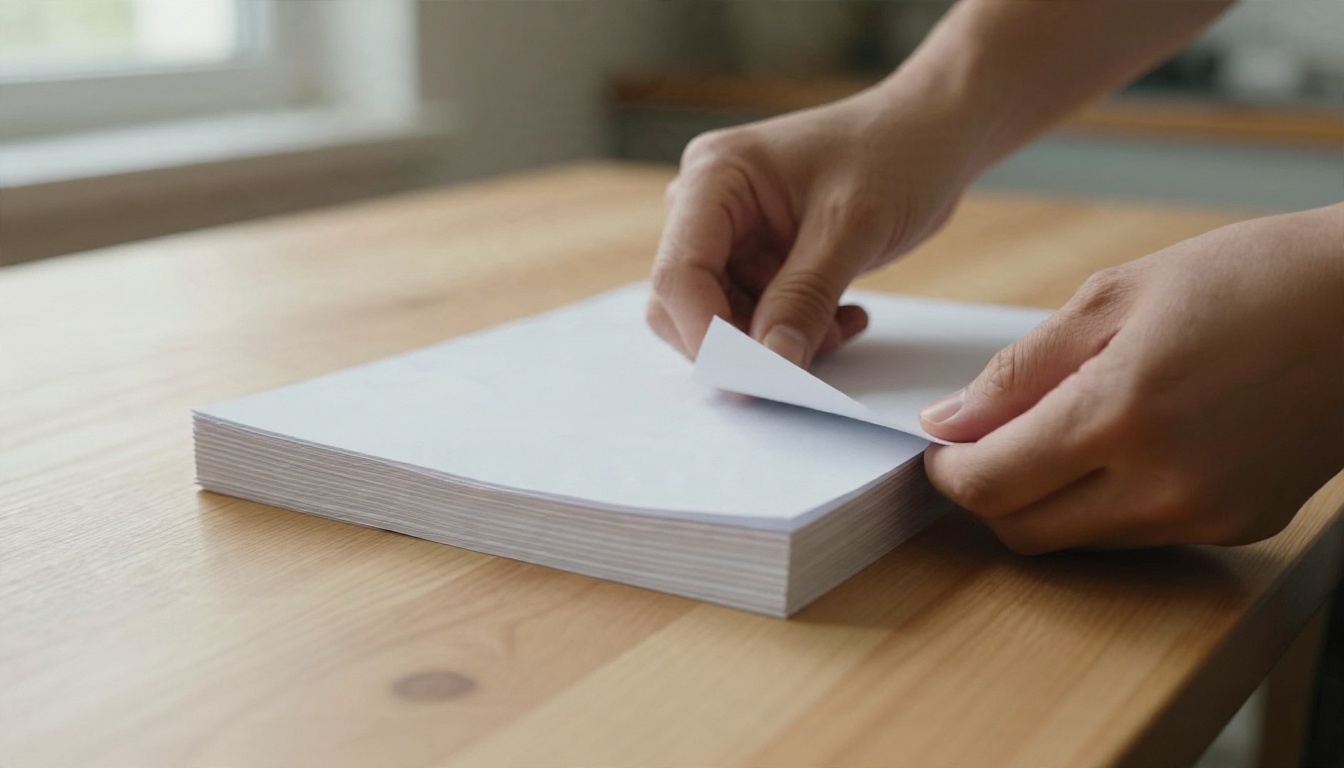
Think in sheets. One sheet of A4 paper, printed on both sides and folded once, gives you four booklet pages (two on each side). Fold that sheet into A5 and you have a four page mini booklet. Stack three sheets inside each other and you have twelve pages.
💡 Pro tip: Always count sheets first. If you know how many sheets you will use, you know your final page count and your thickness before you spend any ink.
Page Order Explained Simply
Once you accept that pages are printed per sheet, the order stops looking random. It follows a pattern you can calculate in under a minute.
The Multiple of Four Rule
Your page count must be a multiple of four. A 10 page PDF needs two blank pages added to reach 12. A 13 page PDF needs three blanks to reach 16. Good tools add the blanks for you, but a manual workflow requires you to insert them at the end (or plan the last page as an inside back page).
| PDF Pages | Blank Pages Needed | Sheets of Paper | Final Booklet Pages |
|---|
| 4 | 0 | 1 | 4 |
| 6 | 2 | 2 | 8 |
| 8 | 0 | 2 | 8 |
| 10 | 2 | 3 | 12 |
| 12 | 0 | 3 | 12 |
| 15 | 1 | 4 | 16 |
| 20 | 0 | 5 | 20 |
Order for 8 and 12 Pages
Here is the print sequence for common sizes. Each pair is one side of one sheet, with the left page first. Print the front sides in the listed order, then flip according to your duplex setting.
| Booklet Size | Sheet 1 Front | Sheet 1 Back | Sheet 2 Front | Sheet 2 Back | Sheet 3 Front | Sheet 3 Back |
|---|
| 8 pages | 8, 1 | 2, 7 | 6, 3 | 4, 5 | n/a | n/a |
| 12 pages | 12, 1 | 2, 11 | 10, 3 | 4, 9 | 8, 5 | 6, 7 |
The pattern is easy to spot. Sheet 1 pairs the highest page with page 1 on the front, then page 2 with the second highest page on the back. Every following sheet moves one step inward. If you ever need a 16 page version, keep going: 16 and 1, then 2 and 15, then 14 and 3, then 4 and 13, and so on until the middle pages meet.
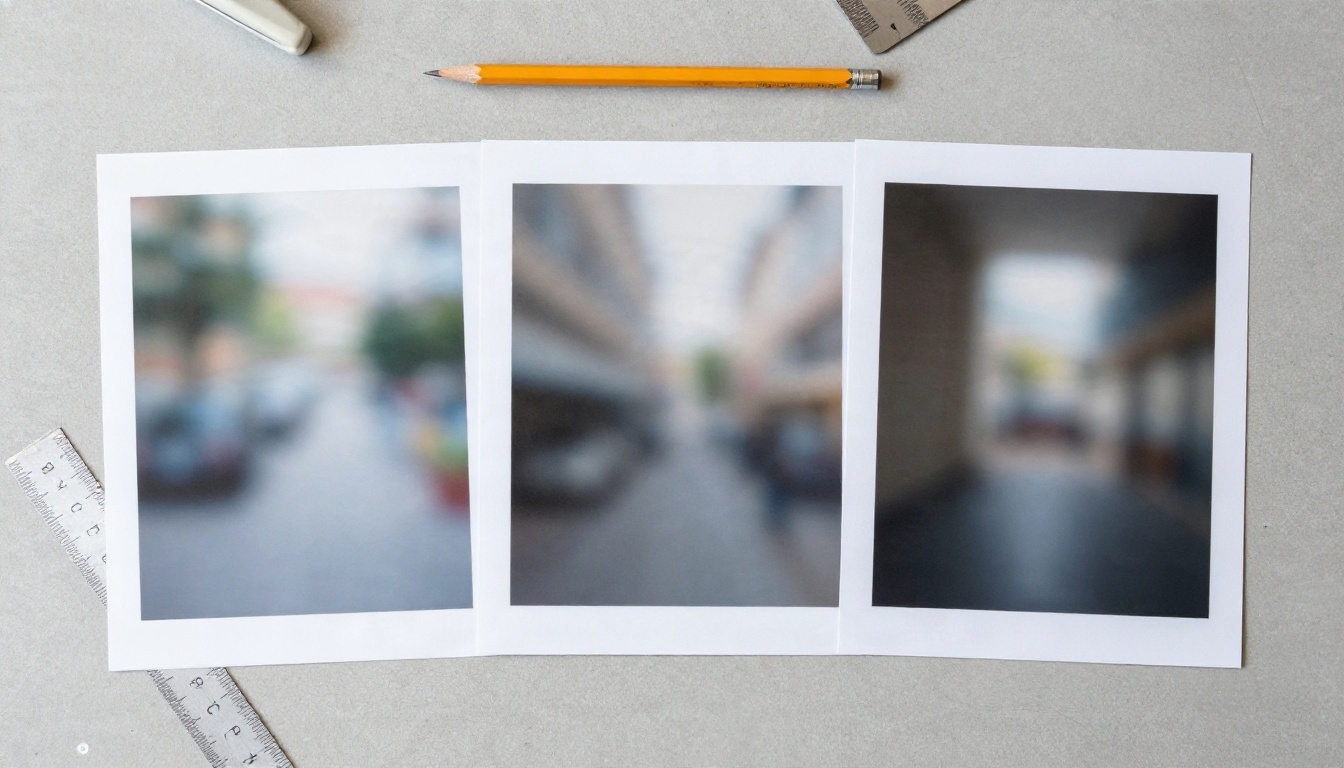
⚠️ Warning: A booklet with more than about 24 pages (six sheets) starts to push outward at the open edge, and the inner pages creep past the outer ones. Split long documents into several shorter booklets, or bind them another way.
Printer Settings That Actually Matter
Right page order with wrong printer settings still gives you a ruined booklet. Three settings cause nearly every failed print.
Duplex Flip Edge
Booklets are printed in landscape orientation (two portrait pages side by side), so the printer must flip the sheet along the short edge. If you choose long edge flipping, the back side prints upside down relative to the front. This is the number one cause of "my back pages are upside down."
If your printer has no automatic duplex, print all front sides first, then reinsert the stack and print the back sides. Do a one sheet test first, because every printer feeds paper a little differently.
Scale and Margins
Choose Actual size or 100% in the scaling dropdown. Avoid "Fit to page" here, because the booklet tool already sized the pages for the sheet and a second scaling step shrinks the content and creates fat, uneven margins. Keep important text at least 5 mm (about 0.2 in) away from the fold and from the outer edges, since most office printers cannot reach the edge of the sheet.
Paper Weight
Standard 80 gsm paper works for up to about 16 pages. Heavier stock cracks along the fold unless you score it first.
| Setting | Recommended Value | What Goes Wrong If Ignored |
|---|
| Orientation | Landscape | Pages print sideways |
| Duplex flip | Short edge | Back pages upside down |
| Scaling | Actual size / 100% | Shrunk text, odd margins |
| Paper size | A4 or Letter for A5 or Half Letter booklet | Pages cropped |
| Paper weight | 80 to 100 gsm | Cracked folds, jams |
| Color mode | Match your content | Wasted color ink |
You do not need to buy software. Several free options handle imposition, and they differ mainly in how much control they give you.
Desktop Readers and Office Apps
- Adobe Acrobat Reader: open the Print dialog, pick Booklet under page sizing, choose the subset (both sides, front only or back only) and set the binding to left. It handles blank pages for you.
- LibreOffice Writer: has a Brochure option in the Page Layout tab of the print dialog. It works well if you still have an editable version of the document.
- Scribus: a free desktop publishing app, great for layouts you build yourself, though it takes longer to learn than the others.
- Browser print dialogs: Chrome, Edge and Firefox have no true booklet mode, so use them only for printing the result from another tool.
Online Booklet Tools
Browser based tools take your PDF, reorder the pages and hand back a new PDF that is already imposed. You then print that file with duplex on and scaling at 100%. They are quick, require no install, and are useful on locked down work computers.
Before you upload anything, check these points:
- Does the tool state how long files are stored and when they are deleted?
- Is there a file size or page limit on the free tier?
- Does the output keep your original fonts and image quality?
- Does it add a watermark?
✅ Best practice: Never upload contracts, medical records or anything confidential to a random free site. For private documents, use a desktop reader instead.
| Tool Type | Cost | Install Needed | Control Over Layout | Best For |
|---|
| Acrobat Reader booklet print | Free | Yes | Medium | Quick office prints |
| LibreOffice brochure print | Free | Yes | Medium | Editable documents |
| Online booklet maker | Free tier | No | Low | One-off jobs, shared PCs |
| Scribus | Free | Yes | High | Designed layouts |
| Print shop | Paid | No | High | 50+ copies, thick stock |
Fold, Staple, Trim
The paper part is where small mistakes show. A clean booklet takes about five minutes once the pages are printed.
Saddle Stitch at Home
- Collate the sheets in the order they came out, with sheet 1 on the outside.
- Square the stack against a flat table so the edges line up.
- Fold the whole stack in half at once and run a bone folder or the edge of a ruler along the crease.
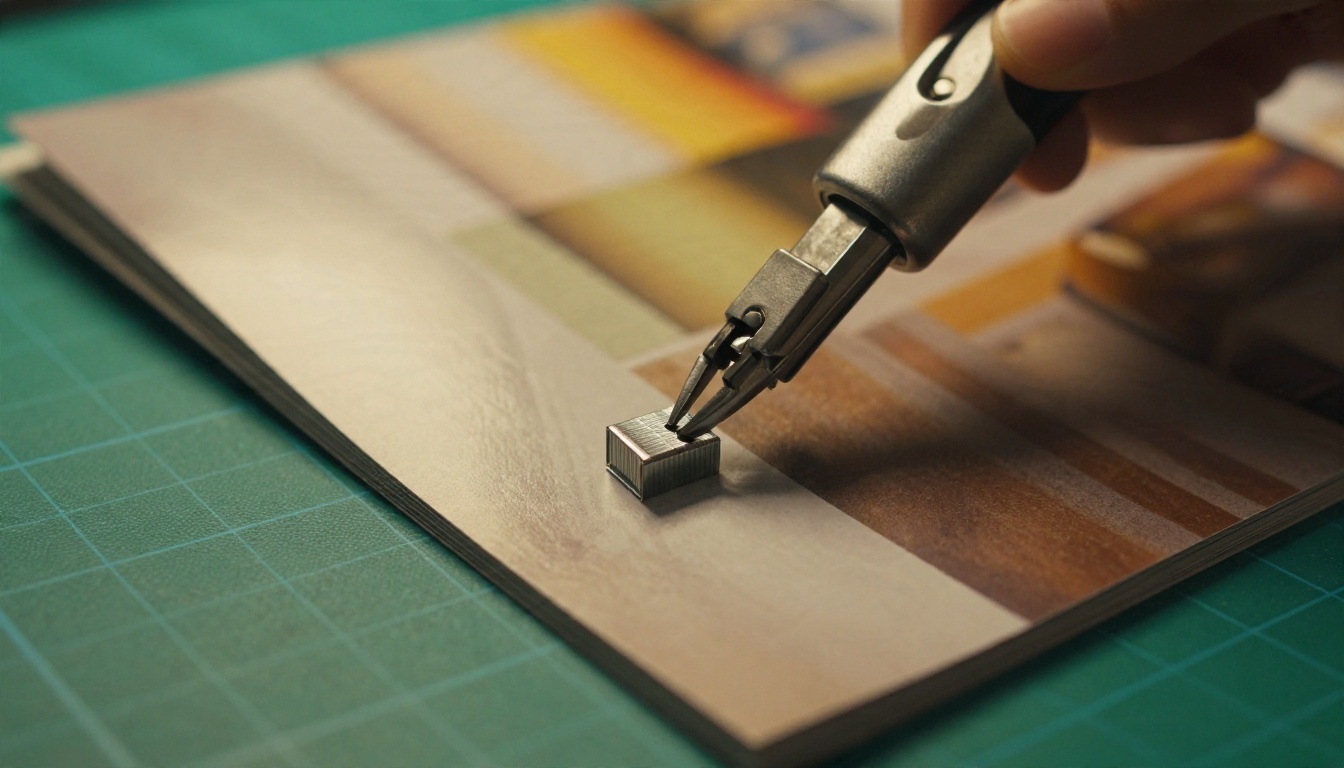
- Open the booklet flat, then staple twice along the crease, about one third in from each end. A long-reach stapler makes this easy; a normal stapler works if you stitch from the inside while the booklet is open.
- Close it, press again, and trim the outer edge if the inner pages stick out.
Fixing Common Mistakes
| Problem | Likely Cause | Fix |
|---|
| Back pages upside down | Long edge flip | Switch to short edge |
| Page 1 beside the wrong page | No booklet imposition | Use a booklet tool first |
| Text cut off at the fold | Margins too tight | Add 5 to 10 mm inner margin in the source file |
| Booklet will not close flat | Too many sheets | Split into two booklets |
| Blank page in the middle | Page count not a multiple of 4 | Plan blanks at the end |
The Digital Alternative: Flipbooks
Printing makes sense for handouts, event tables and waiting rooms. It makes less sense when you want the document to reach people far away, update quickly, or avoid the cost of paper, ink and postage. For those cases, a flipbook keeps the booklet feel (turning pages, spreads, a front page and a back page) without any imposition math at all.
A flipbook reads your PDF in natural order, 1, 2, 3, and displays it on screen as page spreads. There is nothing to fold, nothing to staple, and no wrong page order, because the viewer handles it.
Print or Flipbook?
| Factor | Printed Booklet | Digital Flipbook |
|---|
| Setup time | 15 to 30 minutes per run | A few minutes per upload |
| Cost per copy | Paper, ink, staples | None |
| Updating a typo | Reprint everything | Replace the PDF |
| Reach | Hands only | Anyone with a link |
| Links, video, audio | Not possible | Supported |
| Tracking readers | Impossible | Analytics available |
| Works without power | Yes | Needs a device (offline download helps) |
Real-World Examples
- A wedding planner sends a 16 page itinerary to 80 guests as a link, then prints only ten copies for the venue desk.
- A trainer shares a workshop workbook through the Training Manual Flipbook tool, so attendees can open it on a phone.
- An event team publishes a schedule with the Event Program Maker and fixes last minute speaker changes without a new print run.
- A small business turns a leaflet into a brochure flipbook and adds it to an email signature.
How to Make a Flipbook from Your PDF
If your PDF is ready for booklet printing, it is ready for a flipbook. Upload the original single page version (pages in normal reading order), not the imposed print file, or the pages will appear shuffled on screen.
- Open the platform. Go to Flipbooks AI and create an account. You can also start from the PDF to Flipbook Converter.
- Upload the PDF. Drag the file into the uploader. The conversion splits each page into a flipbook page and keeps fonts, images and links sharp.
- Style the viewer. Add your logo and set colors, background and page turning effects so the booklet matches your brand. The Online Brochure Designer is useful if you want to tune the look of a brochure style layout.
- Add media. Drop in videos or audio on any page, such as a welcome message or a product demo. Print cannot do this.
- Set privacy. Use password protection for internal or client-only booklets, or leave it public for marketing material.
- Share it. Copy the direct link, or follow the instructions to embed the flipbook on your website with a short code snippet. The result is mobile responsive, and there are no watermarks, ever.
- Offer a download. Enable offline downloads so readers who still want paper can print it themselves.
💡 Pro tip: Keep a print version and a flipbook version of the same file. Print the first for the venue, and send the second to everyone who could not attend.
Which Plan Fits?
| Need | What to Look For | Where |
|---|
| Try a single booklet | Basic upload and share | Account |
| Many booklets, no limit | Unlimited flipbooks (Standard and above) | Pricing |
| See who reads and capture contacts | Analytics and lead generation (Professional plan) | Pricing |
Pick Your Route Today
Use paper when the booklet will be handed over in person, and use a flipbook when it needs to travel. Many projects benefit from both: print a short run, publish the digital copy and point readers to it with a link or a simple code on the printed page.
Here is the short version of everything above:
- Count sheets, add blanks until the page count is a multiple of four.
- Print landscape, duplex on short edge, scaling at 100%.
- Use a booklet capable reader, office suite or online tool to reorder the pages.
- Fold the whole stack together, staple twice at the crease and trim if needed.
- For wide sharing, upload the original PDF and publish it as a flipbook.
Ready to skip the folding? Get started for free on Flipbooks AI, browse all flipbook tools to find a layout that suits your document, or compare pricing plans when you need unlimited booklets, analytics and lead capture.



