Most people who search for a printable booklet maker want the same thing: a stack of folded pages that open in the right order, fit a standard sheet of paper, and cost almost nothing. The trouble starts when page 2 lands next to page 15 and the staples chew through the text. This article walks through free online options, the page sizes that fold cleanly, templates worth building on, and the print settings that make a home printer behave. If you also want a version people can read on a phone, Flipbooks AI turns the same PDF into a page-turning online booklet, and the tutorial near the end shows how.
What a Booklet Maker Does
A printable booklet maker does one job that a normal word processor skips: imposition. That is the printer's term for rearranging pages so that, once sheets are printed on both sides and folded, everything reads in sequence. In an 8-page booklet, the outer sheet carries pages 8 and 1 on one side and pages 2 and 7 on the other. Nobody wants to work that out by hand.
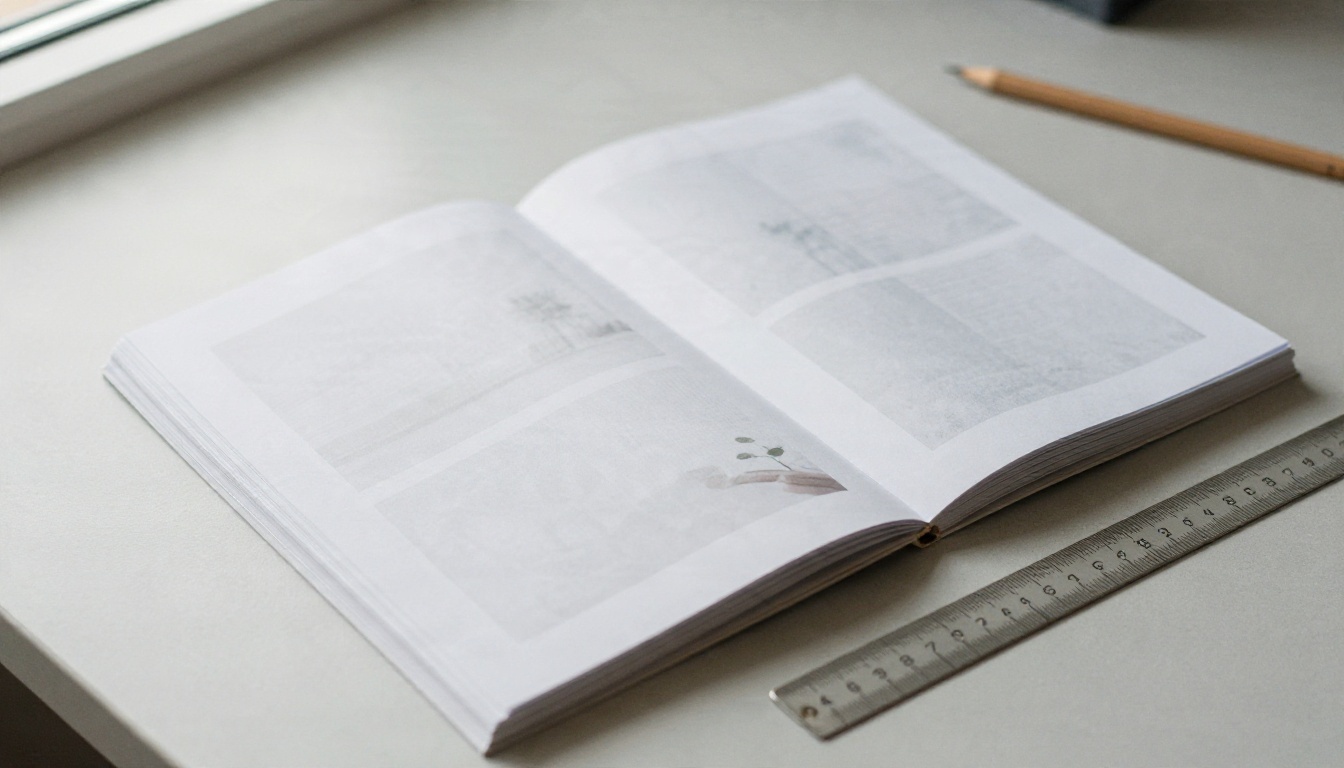
How Imposition Works
The logic is simple once you see it:
- One sheet, four pages. Each sheet has two sides, and each side holds two pages.
- Page count must be a multiple of 4. Eight, 12, 16 and 20 pages all work. Ten does not, so you pad with blank or notes pages.
- Sheets nest inside each other. The first sheet wraps the outside, the last sits in the middle.
- The fold becomes the spine. That is where the staples go.
💡 Pro tip: Design your pages in plain reading order, page 1, page 2, page 3. Let the booklet tool reshuffle them at the end. Designing in printer order (the shuffled sequence) makes every later edit painful.
Who Uses Printable Booklets
Printed booklets still win in places where a screen is awkward. A church can print 60 orders of service for Sunday. A school can hand out an 8-page concert program at the door. A baker can staple a 16-page recipe collection as a gift. A trainer can give each attendee a 12-page workbook. If the same content also needs to live online, the Event Program Maker and Recipe Book Flipbook tools turn those PDFs into shareable digital versions.
Free Online Options Compared
There is no single best tool. The right pick depends on whether you start from a blank page, a design template, or a finished PDF. Features and free limits change often, so check each tool's current page before you commit a project to it.

| Option | Best for | Handles page ordering? | Watch out for |
|---|
| Microsoft Word (Book fold) | Text-heavy booklets | Yes, built in | Margins need checking after switching layout |
| Google Docs plus a PDF booklet tool | Shared editing | Only after export | Two-step workflow |
| Canva free templates | Visual layouts | No, export then reorder | Free asset limits |
| Adobe Acrobat Reader print dialog | Any finished PDF | Yes, Booklet mode | Needs the PDF in single-page order |
| Scribus (free desktop app) | Full layout control | Yes, with export settings | Steeper setup |
| Online PDF booklet makers | Quick one-off jobs | Yes | Upload privacy, file size limits |
Word Processors and Book Fold
In Microsoft Word, open the Layout tab, choose Custom Margins, then set Multiple pages to Book fold. Word switches to landscape, splits each sheet into two pages, and handles the ordering for you. Set the sheet size to A4 or Letter and the booklet comes out at A5 or half-letter. This is the fastest route for text and simple images.
Design Tools With Templates
Canva and similar tools give you attractive starting points, but most export in reading order. You then need a second step, either Acrobat Reader's Booklet print mode or an online imposition tool, to reshuffle the pages. For a looks-first project such as a lookbook or a mini catalog, that extra step is worth it.
Online PDF Imposition Tools
Upload a PDF, pick booklet layout, download a reordered file. It takes under a minute.
⚠️ Privacy warning: Do not upload confidential documents, such as contracts, medical forms or unreleased financials, to a random free site. For sensitive files, use Word or Acrobat Reader on your own machine.
Page Sizes That Work
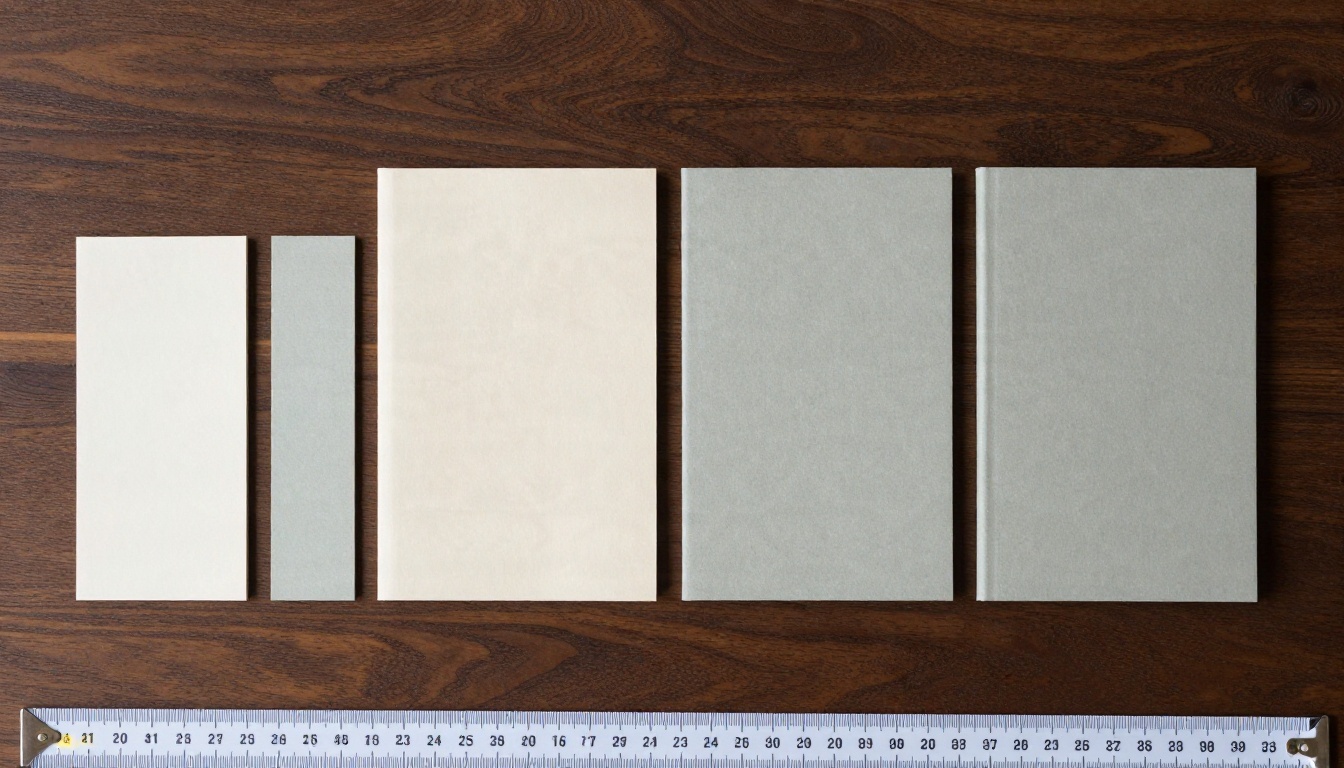
Choose your finished size before you design anything. The size is decided by the sheet you print on: fold a sheet in half and you get the booklet size.
| Booklet format | Printed on | Finished size | Best for |
|---|
| A6 mini | A5 sheet | 105 x 148 mm | Pocket notes, tickets, small gifts |
| A5 | A4 sheet | 148 x 210 mm | Programs, workbooks, recipe booklets |
| Half-letter | US Letter sheet | 5.5 x 8.5 in | US events, handouts, short manuals |
| A4 | A3 sheet | 210 x 297 mm | Catalogs, magazines, portfolios |
| Letter | Tabloid (11 x 17 in) | 8.5 x 11 in | Newsletters, reports |
Pick by the Paper You Own
A home printer handles A4 or Letter, which means A5 and half-letter are the practical sizes. Anything larger usually means a print shop or a copy center with a wide-format machine. If you plan to print at a shop, ask for their template, because every machine trims slightly differently.
Margins, Bleed and Gutter
Three numbers matter:
- Safe margin: keep text at least 5 mm (0.25 in) from the trim edge.
- Bleed: add 3 mm (0.125 in) of extra background beyond the trim line if your design runs to the edge. Home printers cannot print edge to edge, so design with a white border instead.
- Gutter: add 3 to 6 mm of extra space on the inside margin so words do not vanish into the fold.
Why Pages Creep
When many sheets nest together, the inner pages stick out further than the outer ones once folded. Printers call this creep. On a home booklet of 20 pages or fewer, you will barely notice it. Above that, either trim the front edge with a straight cutter or move your inside margins slightly.
✅ Best practice: Keep home-printed booklets to 5 sheets (20 pages) or less. Past that, the spine gets bulky and staples struggle to grip.
Templates Worth Using
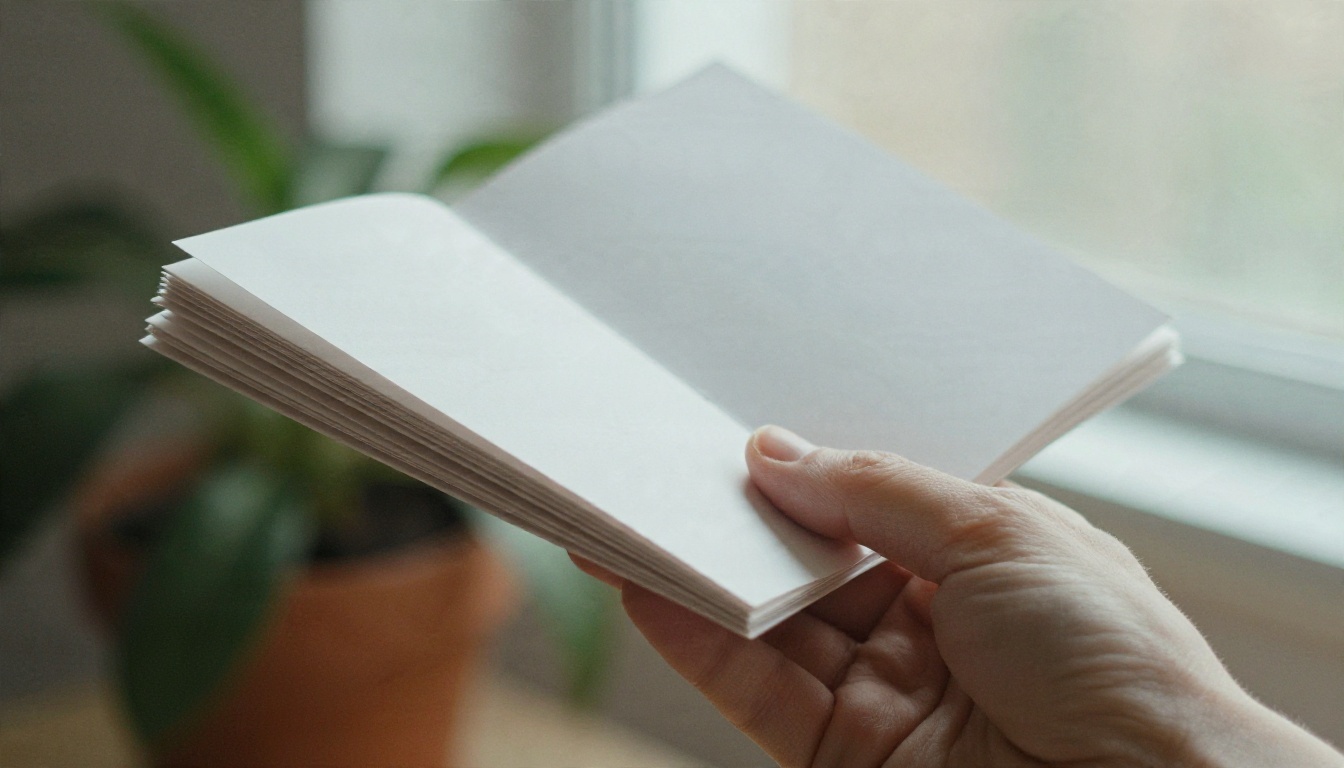
A good template saves hours, because the margins, columns and page numbers are already decided. A bad one wastes them, because you fight the layout on every page.
| Template type | Typical pages | Layout tip |
|---|
| Event program | 8 | Schedule on the inside spread, sponsors on the back |
| Recipe booklet | 16 | One recipe per spread, photo left and text right |
| Training workbook | 12 | Leave blank lines for notes, use wide gutters |
| Mini product catalog | 16 | Four products per spread, consistent photo size |
| One-sheet zine | 8 | One sheet, folded three times, with one cut |
The one-sheet zine deserves a mention: a single sheet of paper, folded into eighths with one cut along the center fold, becomes an 8-page booklet with no staples and no printer duplexing. It is the cheapest booklet you can make.
Build Your Own Base Template
If you will make booklets regularly, build one reusable file:
- Set the page size to the finished size, for example A5.
- Add inside and outside margins, with the inside slightly wider.
- Place automatic page numbers on a base page so they update themselves.
- Define two or three text styles for headings, body and captions.
- Save it with a name like "booklet-A5-16pp" and duplicate it for every new project.
Check the License Before You Print
Free templates often allow personal use only. If you plan to sell the booklet or hand it out for business, read the license. Fonts and stock images inside the template count too.
Print Settings That Save Pages
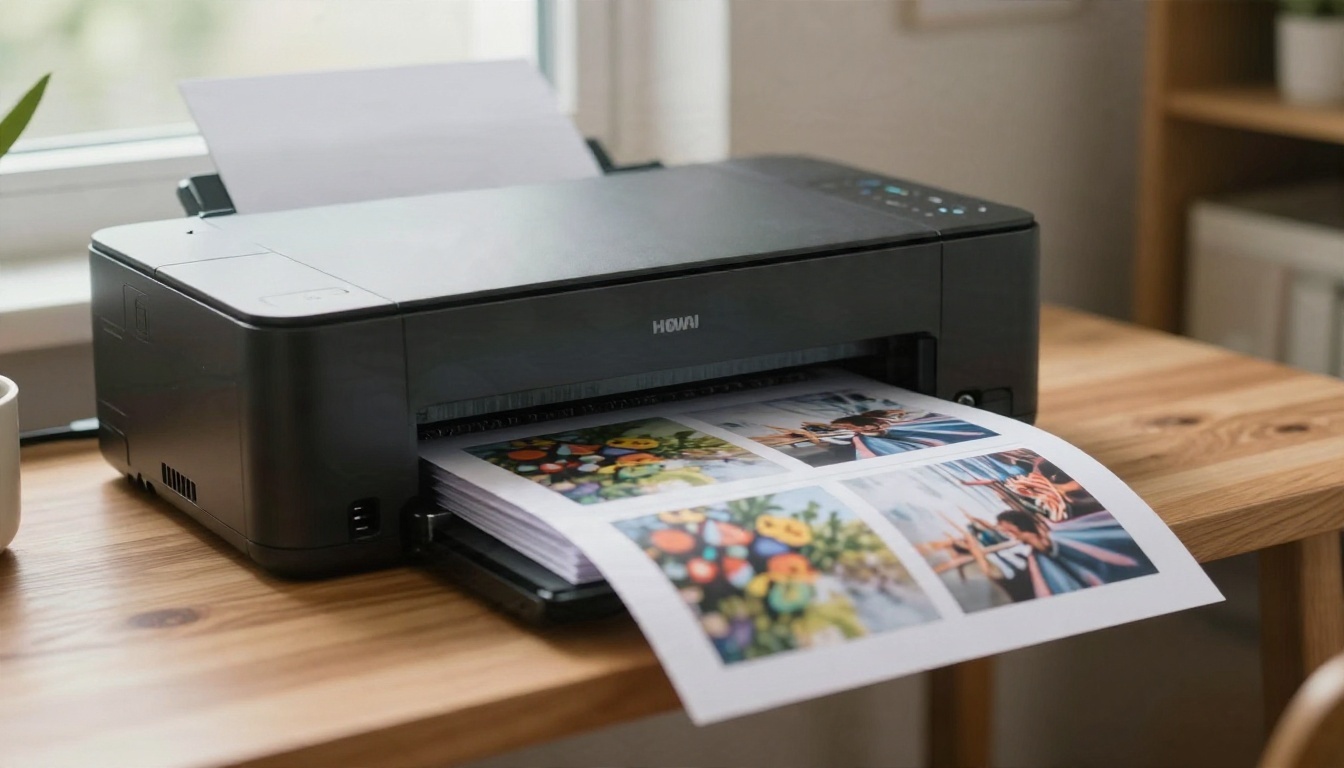
Wasted paper is the most common cost of a first booklet. Most failures trace back to five print dialog settings, not to the design.
| Setting | Recommended value | Why it matters |
|---|
| Scale | Actual size, 100% | "Fit to page" shrinks the layout and breaks margins |
| Paper size | Match the sheet in the PDF | Mismatched sizes cause cropping |
| Orientation | Landscape for imposed sheets | Each sheet holds two portrait pages side by side |
| Two-sided printing | On, flip on short edge | Keeps back pages the right way up |
| Paper weight | 80 to 100 gsm (20 to 24 lb) | Thinner sheets show through, thicker ones fold badly |
| Print quality | Normal or high | Draft mode makes text look thin |
The Duplex Flip Mistake
The most common failure: back pages upside down. It happens when the printer flips the sheet along the wrong edge. For landscape booklet sheets, choose flip on short edge. If your driver uses different wording, test with one sheet and mark the top with a pencil before you commit to the full run.
Test One Sheet First
Print a single sheet, fold it, and check three things: page order, margins on the fold, and whether text sits clear of the edge. That one sheet costs pennies. A full 16-page run printed wrong costs ink, paper and an afternoon.
⚠️ Warning: Some printers need a minute to dry double-sided ink pages. Stack them loosely for a few minutes before folding, or the ink will smear along the crease.
Print Your First Booklet
Here is the whole path from blank page to stapled booklet.
Set Up the Pages
- Design in single pages using a page count that is a multiple of 4.
- Export a PDF at 300 dpi so photos stay sharp.
- Impose the PDF with Word's Book fold, Acrobat Reader's Booklet mode, or an online booklet maker.
- Print one test sheet two-sided and check the order.
Print and Fold
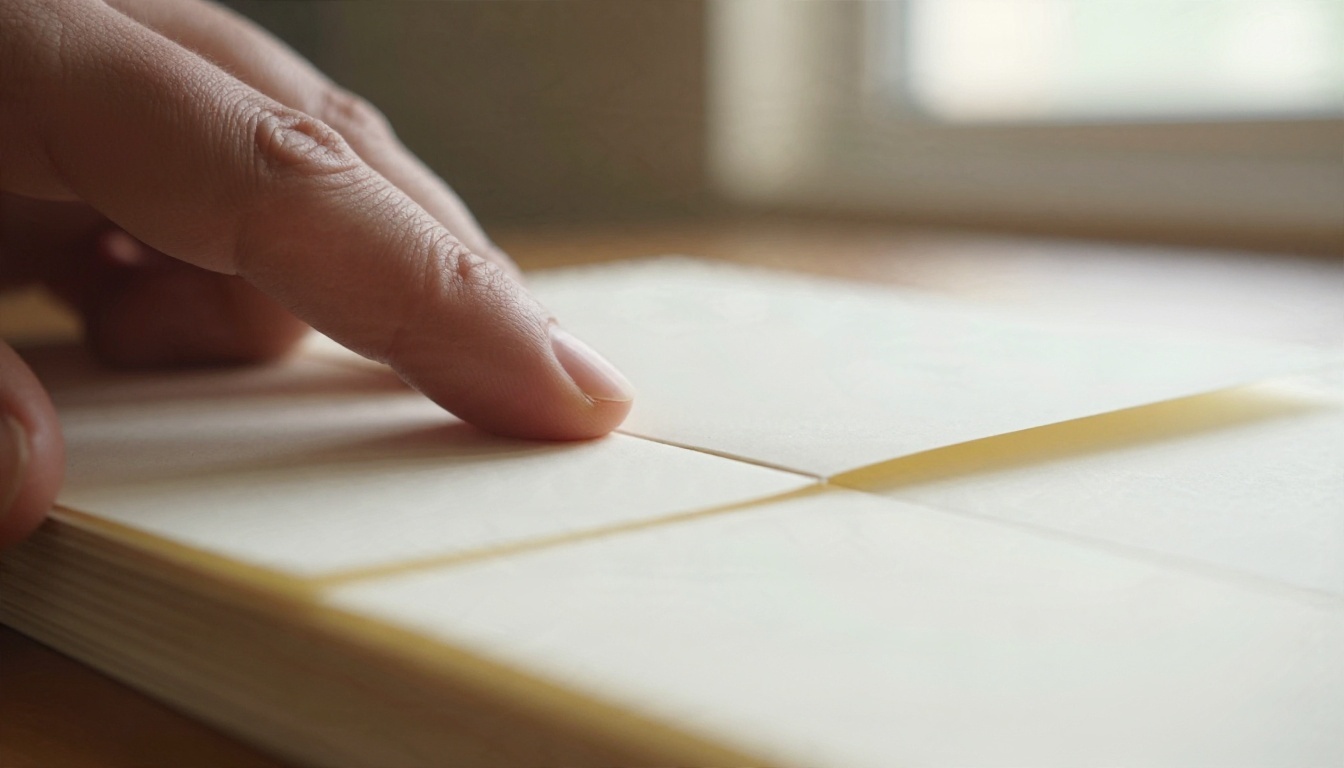
Once the test sheet looks right, print the full run and collate the sheets in order. Fold each sheet in half, then press the crease firmly with a bone folder or the edge of a ruler. A sharp crease is what separates a crisp booklet from a floppy one.
Staple and Trim
- Nest the folded sheets inside each other, outer sheet first.
- Staple twice along the fold, about a quarter of the way in from the top and bottom. A long-arm stapler makes this easy, but you can also open a regular stapler flat and press down on a folded towel.
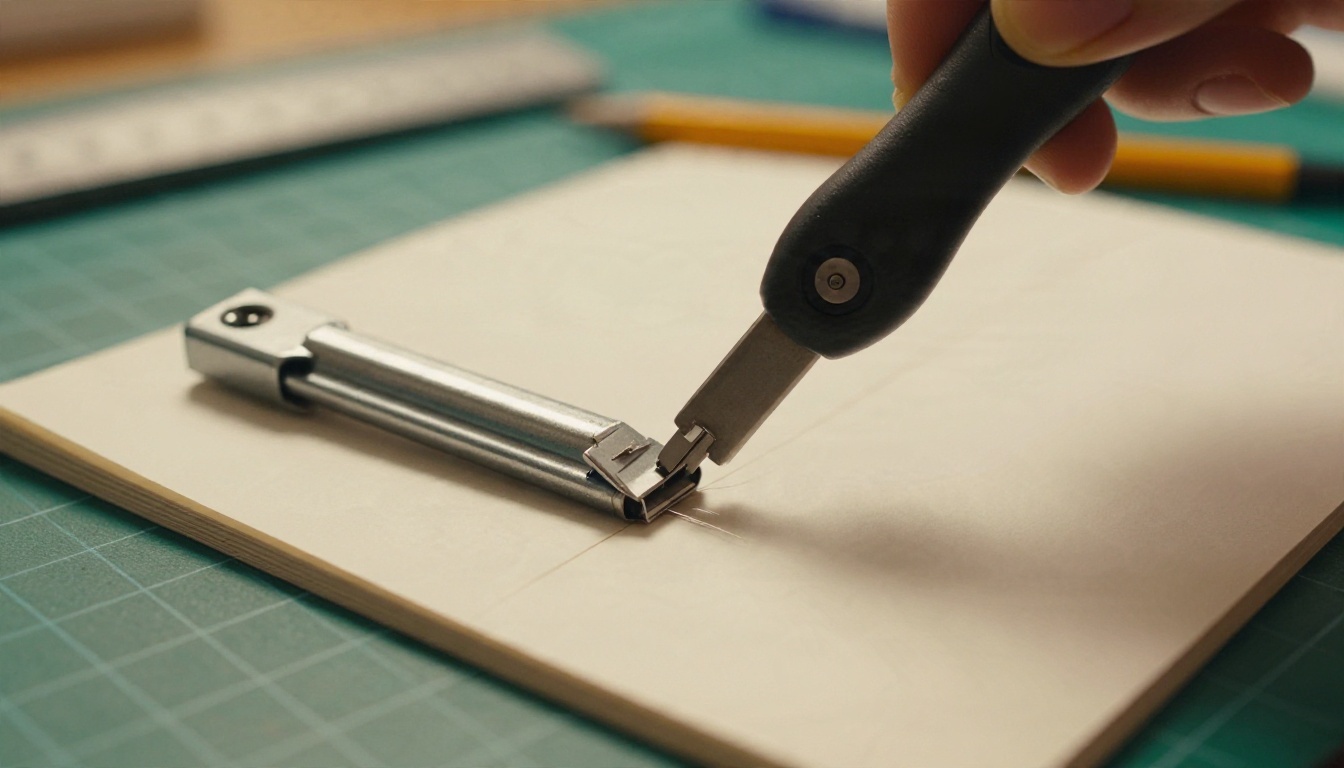
- Trim the front edge if creep is visible, using a guillotine cutter or a craft knife with a steel ruler.
- Check and fix loose staples with a firm press on the spine.
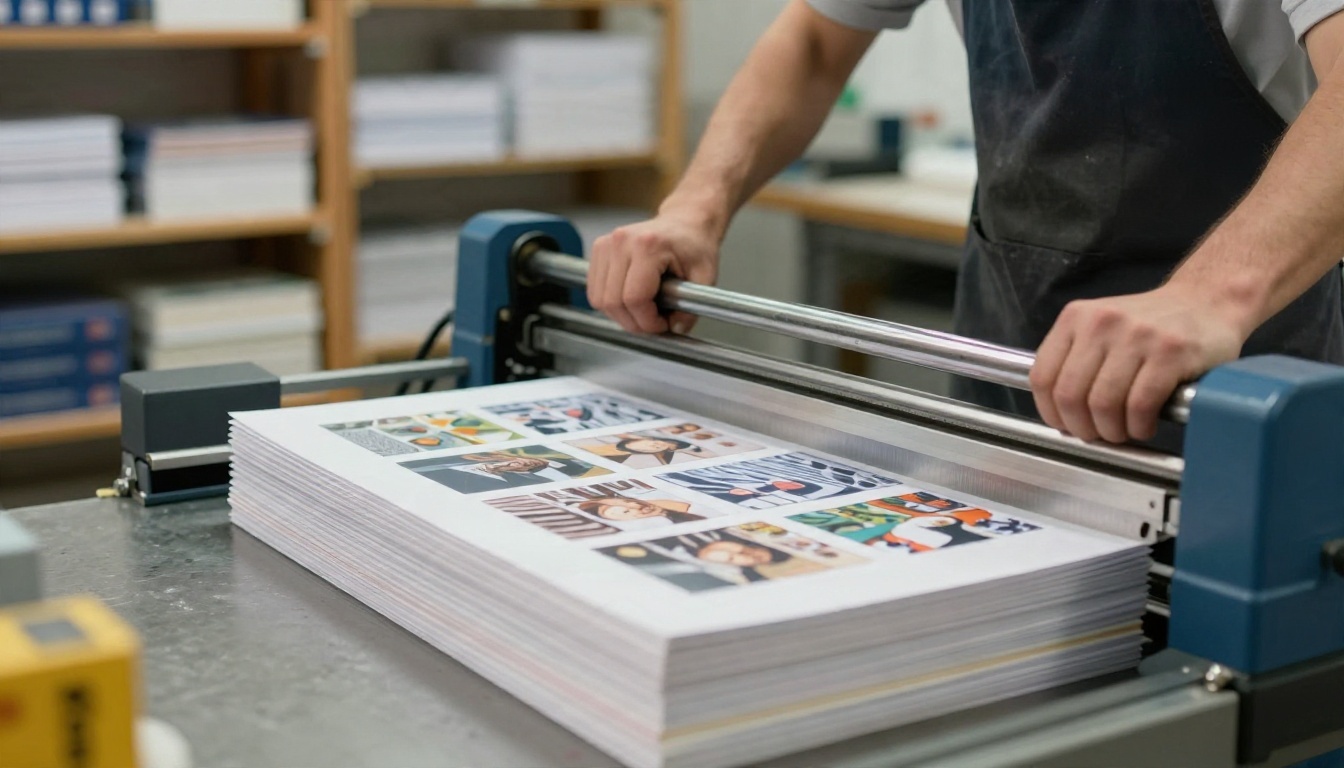
For batches of 50 or more, a print shop with a guillotine gives cleaner edges and saves hours.
Create a Booklet with Flipbooks AI
Paper is not always the right format. If your readers are remote, if you need to fix a typo after sending, or if you want to see who actually opened the file, a digital booklet beats a stapled one. Flipbooks AI converts a PDF into a page-turning online booklet with no watermarks, and it works on phones, tablets and desktops.

Step by Step Tutorial
- Sign up. Create a free account to open the dashboard.
- Upload your PDF. Use the single-page, reading-order PDF, not the imposed print file. The PDF to Flipbook Converter turns each page into a flippable spread automatically.
- Customize the look. Add your logo, set brand colors, pick a background and choose a page-turn effect. You can also embed videos and audio so a recipe booklet plays a short cooking clip on the right page.
- Share it. Copy a direct link, paste an embed code into your site (see how to embed a flipbook on your website), or lock the booklet with a password for private audiences.
- Use Professional features. Analytics, lead generation forms and offline downloads are part of the Professional plan. Check pricing plans to compare tiers, and note that unlimited flipbooks start at the Standard plan.
💡 Pro tip: Keep one source PDF. Print the imposed version for the front desk, and share the flipbook link by email. Both stay in sync because they come from the same file.
Print or Digital: Which Fits?
| Factor | Printed booklet | Flipbook |
|---|
| Cost per copy | Paper, ink, staples | None after upload |
| Fixing a typo | Reprint everything | Replace the PDF |
| Reach | Hand delivery or mail | Link, email, QR code |
| Tracking | None | Analytics on the Professional plan |
| Works offline | Always | With offline downloads |
| Media | Static | Video and audio |
Many teams do both. Brochures for a trade show table, and a flipbook for the follow-up email. The Brochure Flipbook Maker and the Online Brochure Designer are built for exactly that pairing.
Your Next Booklet Starts Here
A good printable booklet comes down to five decisions: page count in multiples of 4, a page size matched to your paper, a template with sensible margins, one test sheet before the full run, and the right flip edge in the print dialog. Get those right and a free tool is all you need.
When you want the same booklet to travel beyond the printer, try these next steps:
Print the copies you can hold, share the link for everyone else, and keep one clean PDF as the source of both.



