You have a .pub file. Your printer wants a PDF, your client's laptop can't open it, and the program that made it is no longer supported. This is the exact situation a good Pub to PDF converter solves, and the good news is that you can fix it today without paying for anything. This article compares the free online tools, lists the print quality settings that actually matter, and shows what to do with the PDF afterwards, including how to publish it as a page-turning flipbook on Flipbooks AI.
What a PUB File Really Is
A PUB file is a Microsoft Publisher document. Publisher was built for desktop publishing on a budget: flyers, newsletters, brochures, greeting cards, price lists and small catalogs. Microsoft ended support for Publisher in October 2026, which is why so many people are suddenly hunting for a converter. Files made years ago are still sitting in shared drives, and the people who need them often have no copy of the software.
The core problem is that a PUB file is an editable format. It stores fonts, linked images, text boxes and page settings separately, and it expects the same software to put them back together. A PDF does the opposite. It locks everything into one portable file that looks identical on every screen and every printer.
Why PDF Is the Safer Format
| Feature | PUB file | PDF file |
|---|
| Opens without special software | No | Yes, on any device |
| Fonts stay intact | Only if installed | Yes, when embedded |
| Accepted by commercial printers | Rarely | Almost always |
| Easy to email or embed | No | Yes |
| Can become a flipbook | No | Yes |
| Editable layout | Yes | Limited |
💡 Pro tip: Keep the original PUB file as your archive copy. Export the PDF for sharing and printing, and only go back to the source when you need to edit the layout.
Who Needs This Conversion
- Small shop owners with an old price list or product sheet they want to put online.
- Schools and clubs that still hold years of newsletters in Publisher format.
- Freelance designers who inherit client files and must deliver print-ready PDFs.
- Event organizers who need a program that opens on every guest's phone.
If you don't have Publisher installed, an online converter is the fastest route. You upload the file, the service renders it on its own servers, and you download a PDF. Several well-known services accept PUB input, including CloudConvert, Zamzar and Online-Convert. Their free tiers usually limit the number of conversions per day or the maximum file size, so check the current limits before you start a batch.
How Online Converters Compare
| Approach | Cost | Best for | Main drawback |
|---|
| CloudConvert | Free tier with daily limits | One-off files with good rendering | Daily cap on free use |
| Zamzar | Free tier with size limits | Quick, simple jobs | Slower queue on free plan |
| Online-Convert | Free tier with limits | Adjustable output settings | Ad-heavy interface |
| LibreOffice Draw (desktop) | Free, no limits | Offline work and sensitive files | Layout shifts on complex files |
| Publisher itself | Needs a licensed install | Most accurate print output | Software is no longer supported |
The Privacy Question
Everything you upload to a free converter travels to someone else's server. For a public flyer that is no problem. For a contract, a staff directory or a customer price list, it is a real risk. In that case, use the offline route instead: LibreOffice can open many PUB files in Draw and export them as PDF directly on your own machine.
⚠️ Warning: Never upload files containing personal data, signatures or confidential pricing to a free converter unless the service states clearly how long it stores your files.
Step-by-Step: Convert Online
- Open your chosen converter and select PUB as the input format and PDF as the output.
- Upload your file. If it uses linked images, zip the PUB together with the image folder first when the tool allows it.
- Open any quality options the tool offers and choose the highest resolution.
- Start the conversion and download the PDF.
- Open the result and check every page for missing fonts, shifted text and low-resolution pictures.

Best Print Quality Settings
Online converters are built for speed, not for press work. If the PDF is going to a printer, the settings matter far more than the tool. A file that looks sharp on screen can still print with soft images, white edges or the wrong colors.
Resolution and Color Mode
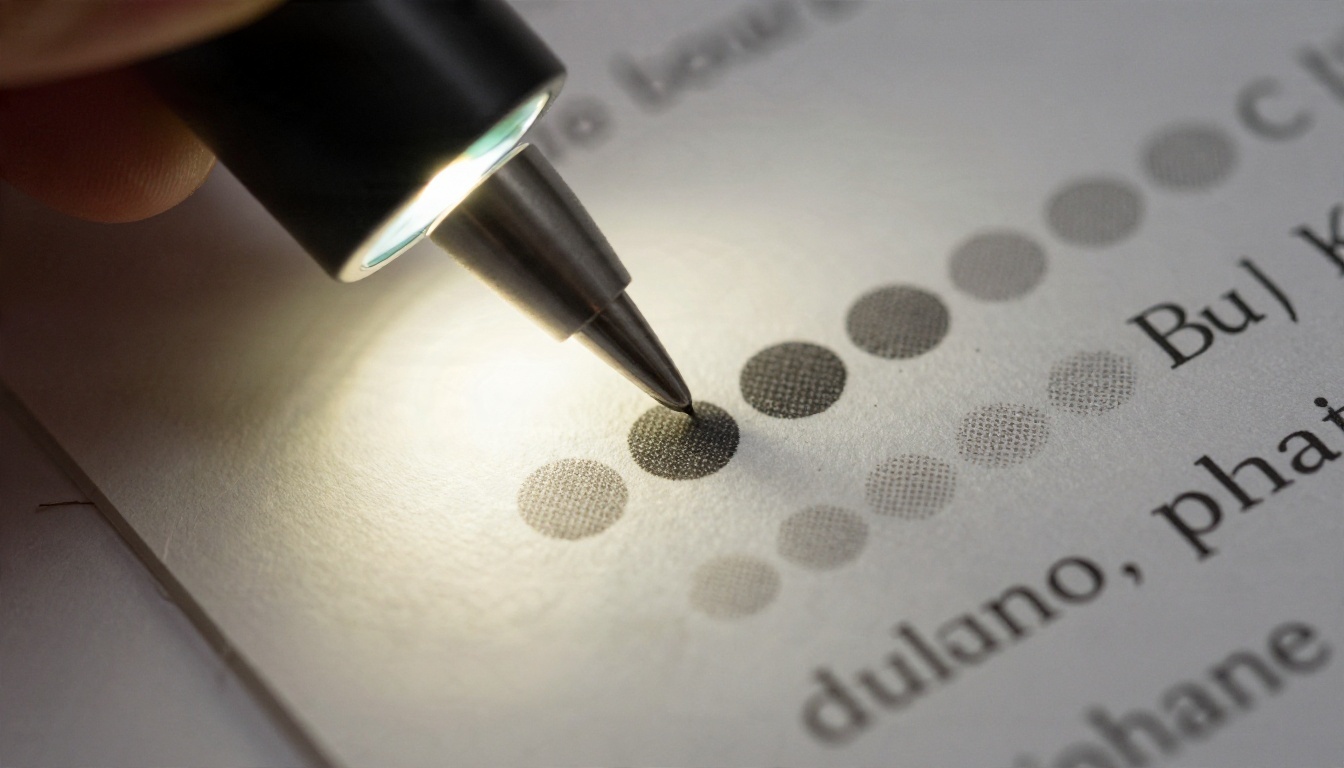
Screens forgive low resolution. Paper does not. Aim for 300 DPI for photographs and 600 DPI or higher for line art and logos. Color is the second trap: monitors show RGB, while most commercial presses print CMYK. Ask your printer which one they prefer before you export.
Bleed, Margins and Crop Marks
Bleed is the extra strip of artwork that runs past the trim line so no white edge shows after cutting. The usual value is 3 mm (0.125 in) on every side. Crop marks show the cutter where to trim. A safe margin of at least 5 mm keeps text away from the edge.
| Setting | Screen use | Office printing | Commercial press |
|---|
| Image resolution | 96 to 150 DPI | 200 to 300 DPI | 300 DPI or more |
| Color mode | RGB | RGB or CMYK | CMYK |
| Bleed | None | None | 3 mm |
| Crop marks | No | No | Yes |
| Fonts | Embedded | Embedded | Embedded or outlined |
| Typical file size | Smallest | Medium | Largest |
✅ Best practice: Ask your printer for their PDF preset. Many shops publish one, often based on the PDF/X-1a standard, and following it removes most surprises.
Which Publisher Preset to Pick
Publisher offers four output presets when you export to PDF. Each one trades file size against quality.
- Minimum size: For publishing online. Heavy compression, not suitable for print.
- Standard: For online publishing and everyday printing. A balanced default.
- High quality printing: Larger file, sharper images. Good for desktop printers and photo-heavy pieces.
- Commercial press: Highest quality. Use it when a print shop is producing the job.
Export From Publisher Itself
If you still have a working copy of Publisher, this is the most accurate method because the program that built the layout also renders it. Nothing gets reinterpreted by a third-party engine.
Step-by-Step in Publisher
- Open the PUB file and scroll through every page to confirm that all images load.
- Go to File, then Export, then Create PDF/XPS Document.
- Click Options and choose a preset: Standard for screens, Commercial press for a print shop.
- Tick the box for document structure tags if the PDF should be accessible.
- If your printer asked for bleed and crop marks, enable them under Print Options in the Publish settings.
- Save the PDF and open it in a separate reader to verify the result.
A Quick Pre-Flight Checklist
- Run the Design Checker to catch low-resolution images and empty text boxes.
- Open File, Info, Fix Links and repair any broken image links.
- Use Pack and Go to bundle fonts and images if you need to hand the file to another person.
- Zoom to 200% on one page of each type and check for jagged text.
Fixing Common Conversion Problems
Even a good converter can stumble on old layouts. Most failures fall into a small number of patterns, and each one has a quick fix.
Missing Fonts and Shifted Text
If the converter doesn't have the original font, it swaps in a substitute with different letter widths. Lines wrap in new places and text spills out of its boxes. Fix: install the original font before converting, or replace it with a widely available one such as Arial, Georgia or Calibri inside the source file.
Blurry Images and Wrong Colors
Blur usually means the converter compressed images aggressively, or the PUB file linked to a small preview rather than the original photo. Relink the full-size image and select the highest quality preset. Dull colors point to an RGB to CMYK conversion, so check a printed proof before ordering a large run.
Troubleshooting at a Glance
| Problem | Likely cause | Fix |
|---|
| Text jumps to a new line | Missing font | Install or replace the font |
| Images look pixelated | Low-resolution links | Relink originals, use 300 DPI |
| White edge after trimming | No bleed | Add 3 mm bleed and crop marks |
| File is too large to email | Print preset used for screen | Re-export with Minimum size |
| Colors look flat on paper | RGB file sent to CMYK press | Convert to CMYK, ask for a proof |
| Pages missing in the PDF | Hidden or master-only pages | Unhide pages before exporting |
⚠️ Warning: Always check the PDF page by page. A converter can report success while quietly dropping a hidden page or a linked image.
Next Steps: Turn the PDF Into a Flipbook
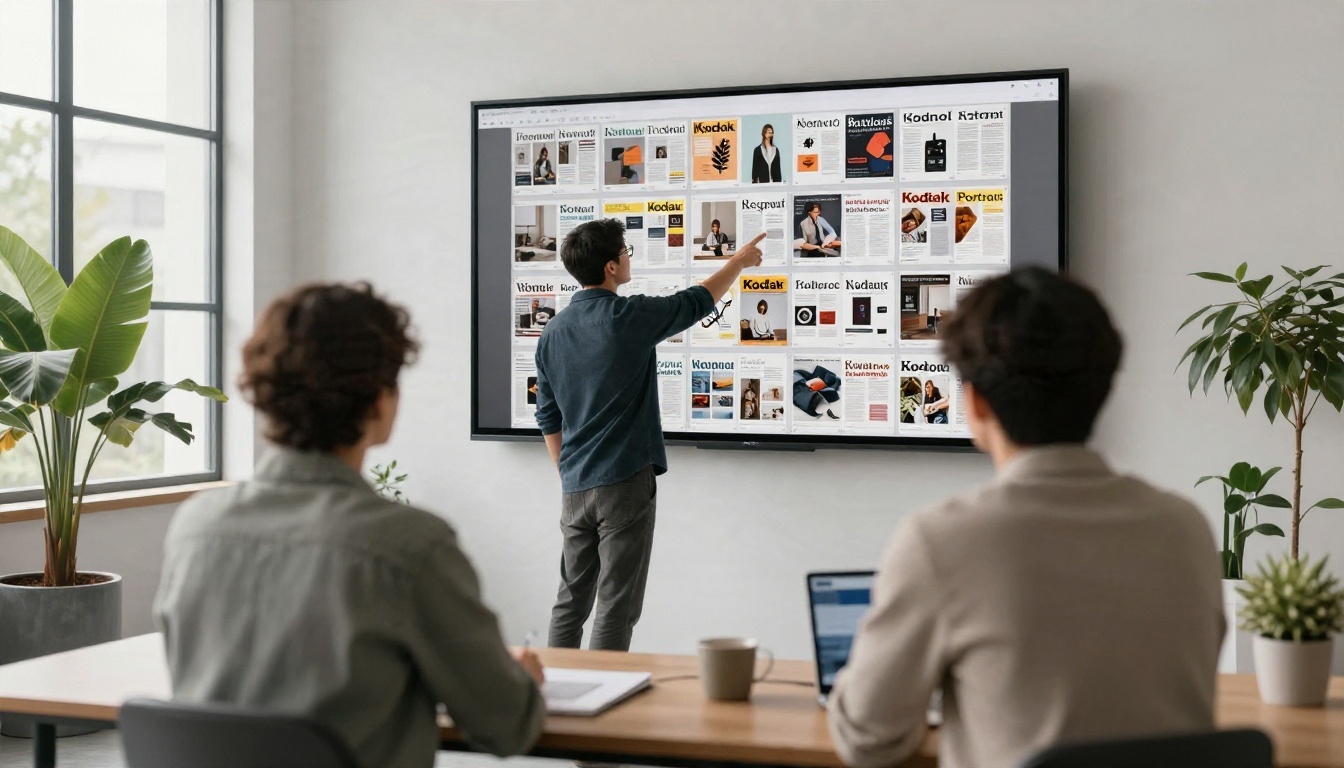
A finished PDF is great for printing, but it is a clumsy way to read on a phone. Readers pinch, zoom and scroll sideways. A flipbook solves that: the same PDF becomes a page-turning publication with a shareable link, an embed code and a mobile-friendly layout.
For many converted PUB files this is the natural second step. A boutique that kept its seasonal catalog in Publisher can export it once, then share a link with customers. A school can turn ten years of newsletters into a browsable archive. An event planner can send one link instead of attaching a heavy file.

How to Create a Flipbook From Your PDF
Follow these steps on Flipbooks AI. The platform has a dedicated PDF to Flipbook Converter for exactly this job.
- Create your account. Sign up on Flipbooks AI and open your dashboard.
- Upload the PDF. Drag the exported file into the upload area. Pages are converted automatically, and text and links in the PDF are kept.
- Customize the look. Add your logo, pick brand colors, choose a background and set the page-turning effect. Add videos or audio to any page if you want a richer result.
- Set access rules. Make the flipbook public, or protect it with a password for private material such as internal price lists.
- Share it. Copy the direct link, or grab the code to embed the flipbook on your website. The layout adapts to phones and tablets.
- Track results. On the Professional plan you get analytics and lead generation tools, and you can allow offline downloads for readers who want a local copy.
💡 Pro tip: Export the PDF with the Standard preset for the flipbook, and keep the Commercial press version for the printer. Two exports from one source file gives you the best of both.
Which Tool Fits Which Document
Different PUB files suit different formats. Pick the tool that matches the content:

Which Route Fits Your Project
With so many options, here is a plain recommendation based on what you are trying to do.
- You have Publisher and the job is going to a print shop: export from Publisher with the Commercial press preset, add bleed and crop marks, and send the PDF.
- You have no Publisher and the file is not sensitive: use a free online converter, then inspect every page.
- The file is confidential: use LibreOffice on your own computer and keep the file offline.
- The goal is online reading: convert to PDF with the Standard preset, then upload it to a flipbook platform.
- You have dozens of files: convert in batches, name them consistently and upload them together so the archive stays organized.
A Realistic Workflow
A small bakery has a Publisher flyer from 2018. The owner uploads the file to an online converter, downloads the PDF and notices that a script font has been replaced. She installs the font, converts again and the layout holds. She sends the Commercial press version to a local printer, then uploads the Standard version to Flipbooks AI and shares the link on social media and in her email footer. One source file, two outputs, no software purchase.
Ready to Publish?
Converting a PUB file doesn't have to be a headache. Choose the route that matches your file's sensitivity, set resolution, color mode and bleed to match your printer's request, and always check the PDF page by page before you send it anywhere.
When the PDF is ready, give it a second life online. Create your free account on Flipbooks AI, upload your file and publish a flipbook with no watermarks. Browse all flipbook tools to find the best fit for your document, or compare pricing plans if you need unlimited flipbooks, analytics and lead generation. Ready to scale up? Pick a plan and start publishing today.



