Microsoft Publisher reached end of support in October 2026, and a lot of people are now staring at a folder full of .pub files with no obvious place to open them. The good news: you do not need to pay for another desktop suite. Free tools can handle newsletters, brochures, flyers, and catalogs, and once your layout is finished you can turn the PDF into an interactive page-turning publication with Flipbooks AI. This article compares the best free Publisher replacements, shows which templates fit which job, and breaks down the PDF export settings that keep your design intact.

Why Publisher Users Are Switching
Publisher always occupied a strange spot. It was friendlier than professional layout software and more flexible than Word, so small businesses, schools, churches, and clubs used it for everything from bake sale flyers to annual reports. That popularity is exactly why its retirement stings.
What Changed with .pub Files
The .pub format is proprietary. Few other programs open it natively, and with support ending, the safest move is to export your existing files to PDF while you still can. Microsoft's own advice points toward PDF, Word, or PowerPoint as destinations, and that is sensible for archiving. For ongoing editing, though, you want a tool built around modern workflows: browser-based, collaborative, and friendly to mobile viewing.
The Real Cost of Staying
Running an unsupported program is not free, even if the license is already paid for. Consider the hidden costs:
- No security patches for a program that opens files from outside senders
- Compatibility drift as new operating systems and printers change
- Lost collaboration, since colleagues on Macs or Chromebooks cannot open your files
- Dead-end exports, because a printed-only brochure cannot be clicked, searched, or shared by link
💡 Pro tip: Before you do anything else, open each important .pub file once and export a PDF copy. Treat it as your insurance policy while you evaluate replacements.
Free Alternatives Compared
No single tool replaces Publisher for everyone. The right pick depends on whether you value templates, precise control over text boxes, or print-ready output. Here is how the main contenders stack up.
| Tool | Best For | Learning Curve | Print-Ready PDF | Works in Browser |
|---|
| Canva (free tier) | Flyers, social posts, quick brochures | Very low | Yes, with some premium limits | Yes |
| Scribus | Multi-page print layouts, precise typography | High | Yes, excellent control | No (desktop) |
| LibreOffice Draw | Simple flyers, familiar office feel | Medium | Yes | No (desktop) |
| Google Slides | Landscape brochures, shared editing | Low | Yes | Yes |
| Microsoft Word | Text-heavy newsletters | Low | Yes | Partly |
| Affinity (free at time of writing) | Professional-grade layouts | Medium to high | Yes, strong | No (desktop) |
Canva for Fast Results
Canva is the closest spiritual successor if you loved Publisher's template library. You pick a design, swap photos, change colors, and download. The free tier is generous, though some stock elements and brand kit features sit behind a paywall. If your projects are one or two pages, it is hard to beat for speed.
Scribus for Print Control
Scribus is open source and built for real desktop publishing: master pages, CMYK color, bleed settings, and linked text frames. It feels dated, and the first hour is humbling, but nothing else in the free category gives you this much print control. Choose it if you produce multi-page booklets and care about commercial printing.
LibreOffice and Google Options
LibreOffice Draw feels the most like old Office software, and it can import many Publisher-style layouts after you convert them to PDF or images. Google Slides is an underrated pick: set a custom page size, drop in a template, and your whole team can edit at once.
⚠️ Watch out: Word and Slides are not true page-layout engines. Complex text wrapping around images and fine kerning will frustrate you in long documents.
Free Templates That Replace Publisher
Templates are what made Publisher feel effortless. The same convenience exists today, spread across several platforms. Match the template type to your project rather than hunting for a lookalike of your old file.

Newsletters and Brochures
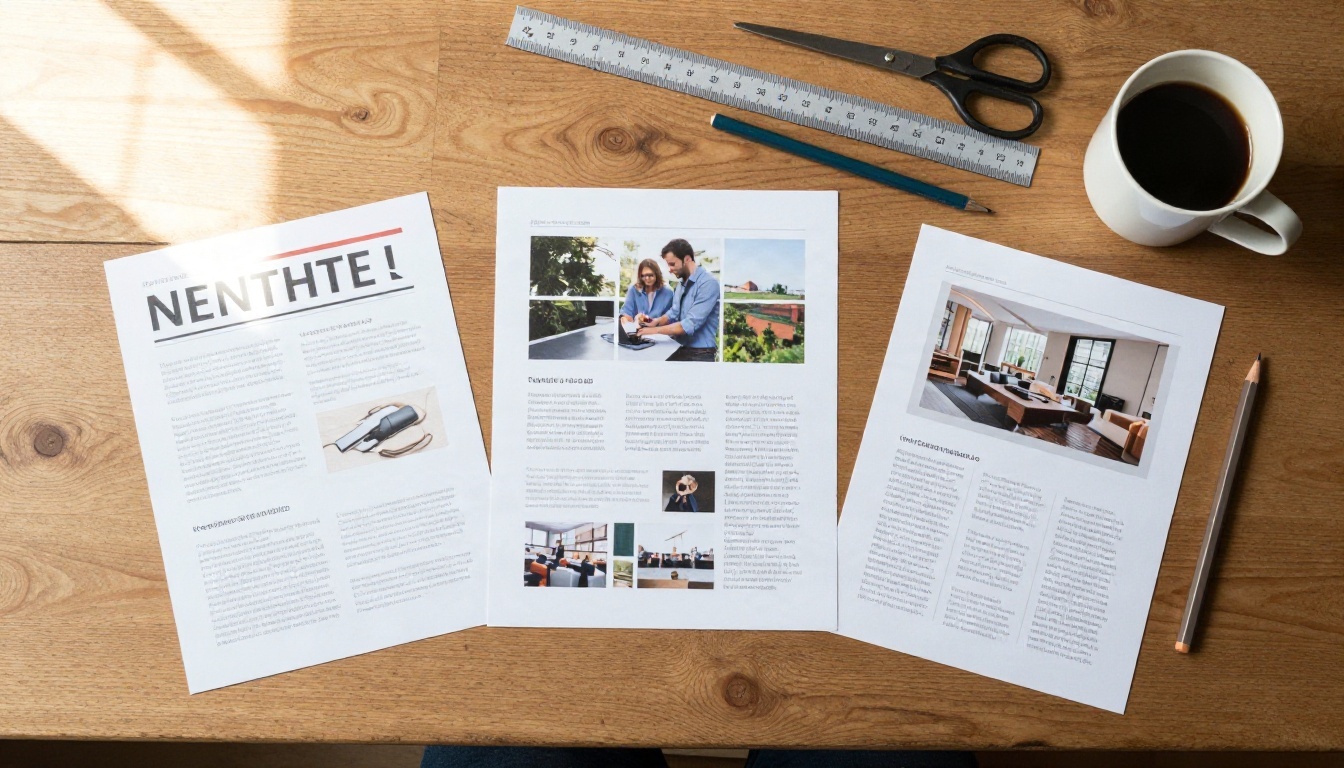
For newsletters, a two-column Word or Google Docs template is often enough. Keep the grid simple: one header image, a consistent heading style, and generous margins. Brochures work best in landscape orientation, one panel per slide, which maps neatly onto Google Slides or Canva.
Catalogs and Menus
A boutique owner might build a 12-page product catalog in Canva, export it as PDF, and then publish it online so customers can flip through on a phone. The same logic applies to cafes: a menu designed on a single landscape canvas can be re-published instantly whenever prices change, with no reprinting.
Smart Template Habits
- Start with the final page size before adding any content
- Lock a color palette of three to four colors and stick to it
- Use two typefaces at most, one for headings and one for body copy
- Save a master copy without photos so you can reuse the structure next season
PDF Export Options That Work
Exporting is where most migrations go wrong. A layout that looks perfect on screen can arrive at the print shop with missing fonts, blurry photos, or text cut off at the edge. Getting this step right matters more than which design tool you choose.
Settings for Print
Print shops want precision. Use these settings whenever paper is the destination:
- Embed all fonts so nothing is substituted
- Set image resolution to 300 DPI for photographs
- Add 3 mm (0.125 in) bleed if any color or image touches the page edge
- Include crop marks only if your printer requests them
- Choose CMYK when the tool offers it, or ask the printer to convert
Settings for Screen
Screen distribution has the opposite priorities: small files and fast loading.
- Compress images to 150 DPI or lower
- Keep RGB color
- Enable hyperlinks so URLs stay clickable
- Keep the file under 20 MB for easy email attachments
| Setting | Print PDF | Screen PDF |
|---|
| Image resolution | 300 DPI | 72 to 150 DPI |
| Color mode | CMYK | RGB |
| Bleed | 3 mm | None |
| Fonts | Embedded | Embedded |
| Typical file size | Large | Small to medium |
| Hyperlinks | Not needed | Keep active |
Common Export Mistakes
- Exporting before proofreading at 100% zoom
- Forgetting to flatten transparency when the printer asks for it
- Using low-resolution images pulled from web pages
- Sending one PDF to both the printer and the website
✅ Best practice: Keep two exports per project, a print PDF and a screen PDF, and name them clearly. It takes thirty seconds and prevents most reprint headaches.
From PDF to Interactive Flipbook
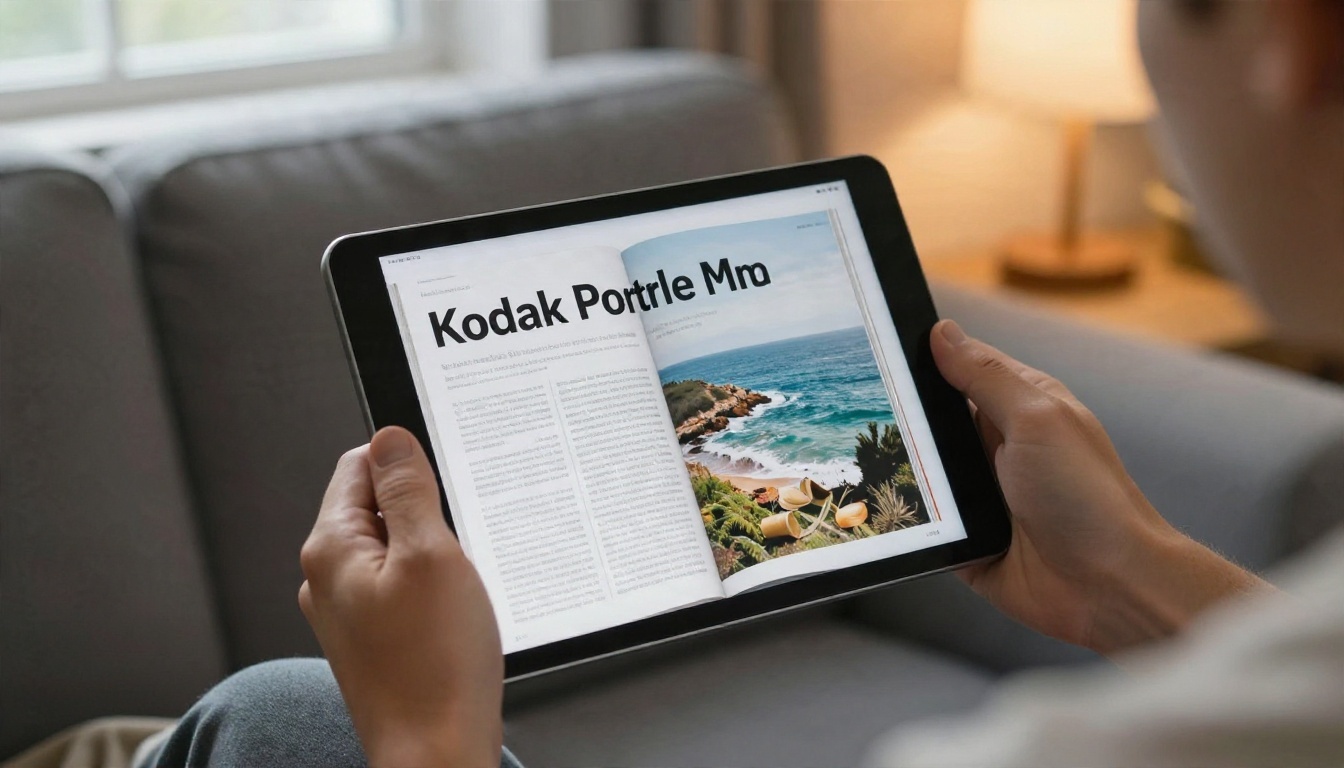
A PDF is a fine archive, but it is a flat reading experience. Readers pinch, scroll, and often give up. A flipbook keeps your layout exactly as designed and adds page-turning motion, mobile responsiveness, and a shareable link. This is where a Publisher replacement stops being just a design tool and becomes a publishing workflow.
How to Create a Flipbook with Flipbooks AI
Here is the fastest route from a finished PDF to a published flipbook:
- Start here: Go to Flipbooks AI and create an account.
- Upload your PDF. Drag the screen version of your file into the PDF to Flipbook Converter. Conversion takes moments, and your page order, fonts, and images stay as exported.
- Customize the look. Add your logo, pick background colors, and choose a page-turn effect. You can also embed video and audio on any page.
- Check the mobile view. Flipbooks are responsive, so preview on a phone before publishing.
- Share it. Copy a direct link, or use the embed code for your website. Add password protection if the content is private.
- Track results. On the Professional plan, analytics and lead generation show who opened your publication and how far they read.
💡 Pro tip: Offline downloads let recipients keep a copy on their device, which is handy for trade show attendees with spotty Wi-Fi.
Features Worth Having
| Feature | Why It Matters | Plan Level |
|---|
| No watermarks | Looks professional on every page | All plans |
| Custom branding | Your logo and colors, not ours | See pricing |
| Unlimited flipbooks | Publish every seasonal update | Standard and above |
| Password protection | Keeps internal documents private | See pricing |
| Analytics and lead generation | Measure who reads and capture contacts | Professional |
| Offline downloads | Reading without a connection | See pricing |
Use Cases That Fit Right Away
With so many options, a quick decision table saves time.
| If you need... | Pick this |
|---|
| A flyer in ten minutes | Canva |
| A 40-page booklet for a commercial printer | Scribus or Affinity |
| Shared editing with a team | Google Slides or Google Docs |
| A text-heavy newsletter | Word or Google Docs |
| A digital version people can flip through | Export PDF, then Flipbooks AI |
| A tool that feels like Office | LibreOffice Draw |

Three Questions to Ask First
- Where will people read it? Paper points to Scribus or Affinity; phones point to a flipbook.
- Who else edits it? A team favors browser-based tools.
- How often does it change? Frequent updates favor digital publishing over print runs.
Mixing Tools Is Normal
Few people use one program for everything now. A common setup: design in Canva, export a screen PDF, and publish with Flipbooks AI. For print runs, switch to the print PDF settings above and send that file to your printer. The tools are interchangeable parts, and PDF is the bridge between them.
Moving Old .pub Files Safely
Your archive deserves a careful migration, not a rush job.
- Inventory your files. List every
.pub file you still use, and mark which ones you reuse each year.
- Export PDFs first. Do this while Publisher still opens on your machine.
- Rebuild only what you reuse. Old one-off flyers can stay as PDFs forever.
- Recreate templates, not files. Build one clean master for each recurring project.
- Test on a second device. Open the result on a phone and a different computer.
What Gets Lost in Conversion
Text boxes, linked frames, and special font effects rarely survive a trip through another program perfectly. Expect to touch up spacing. Image-based export (saving each page as a high-resolution picture) preserves appearance but sacrifices editability, so keep it as a fallback, not a first choice.

⚠️ Warning: Never delete your original .pub files until you have verified the replacements on at least two devices.
Your Next Step
Losing Publisher is less of a crisis than it first appears. Pick a design tool that suits your projects, keep separate PDF exports for print and screen, and give your best work a better home than an email attachment.
Ready to publish? Get started for free on Flipbooks AI and turn your first exported PDF into a flipbook today. Browse all flipbook tools to find a template that matches your project, or compare pricing plans to see which level fits your needs. When you are ready to go further, sign in and choose a plan in a couple of clicks.



